How to fix
Windows update error 0x80071a30
on Windows
Resolve Windows update error 0x80071a30 effortlessly. Follow expert-tested solutions for Windows 10 and 11 to get your updates running smoothly.

What causes How to fix Windows update error 0x80071a30?
- Corrupted update files
- Service disruptions
- File access conflicts
- System file damage
- Permission issues
Repairs Windows system files, removes malware, and restores a clean OS state — without reinstalling.
Hi. I was trying to install updates as I usually do when they are out... But it did not go through this time. The loading bar kept spinning and, while it seemed like it is installing, it stopped at some point and produced an error code 0x80071a30.
Windows Updates are essential for keeping a Windows system secure, stable, and equipped with the latest features from Microsoft. However, Error 0x80071a30 can interrupt this process, preventing successful installation and leaving the system outdated.
Users often notice that the update downloads without problems, but when it shifts to the installation phase, the process stops. An error message appears, the progress bar halts, and the update fails to complete. For the user on Windows facing this issue, even restarting the computer (a common first step)proved ineffective, suggesting a more persistent problem.
The system failure disrupts the normal process of keeping the software updated. Users who encounter this problem become unable to receive essential security updates or performance enhancements, especially since Windows 11 relies heavily on updates for its operation. Users face inconsistencies in their experience because the error appears as a single occurrence for some but persists multiple times for others, making them doubt the system's reliability.
The reasons behind Error 0x80071a30 can stem from several sources, including:
- Corrupted update files. Downloaded data might be incomplete or damaged, blocking installation.
- Service disruptions. Key services like Windows Update or Background Intelligent Transfer Service (BITS) may malfunction.
- File access conflicts. Another process might lock files needed for the update, causing a failure.
- System file damage. Core Windows files could be corrupted, interfering with the update process.
- Permission issues: Insufficient rights to modify system files might halt the installation.
The specific cause of error 0x80071a30 remains unclear, so repairing it requires multiple solution attempts to determine the fundamental issue. Windows offers multiple tools which help users resolve their update problems, including resetting update components and repairing system files.
Additionally, [d1] can assist by targeting underlying Windows problems that might contribute to the error, offering a broader approach to system stability. With persistence and the right combination of fixes listed below, users can overcome this obstacle and ensure their system receives the necessary updates for optimal performance and security.

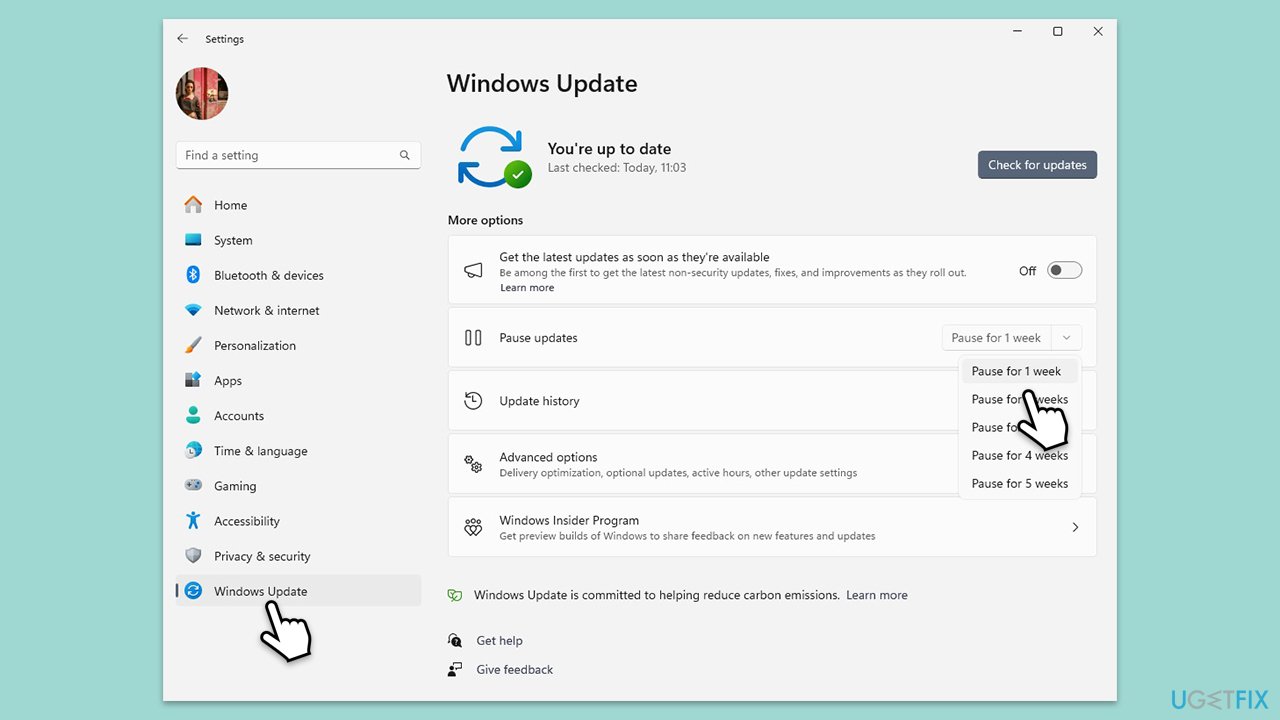
Fix 1. Pause and resume updates
Temporarily halting updates can assist alleviate any temporary issues with the Windows Update service that may be creating installation difficulties.
- Open Settings.
- Click on Windows Update.
- Click on the drop-down menu and select Pause updates for 1 week (or another time period).
- Wait a bit and then unpause the updates.
- Restart your computer.
Fix 2. Perform Disk Cleanup
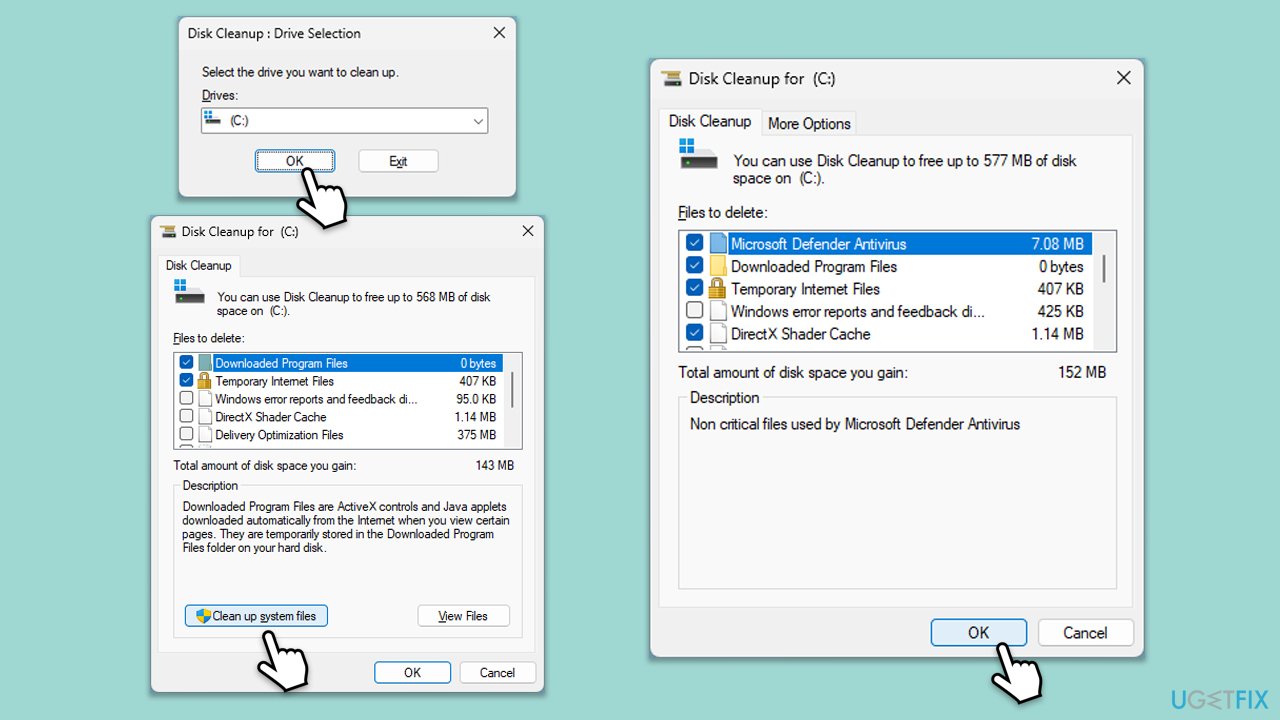
- Type Disk Cleanup in Windows search and hit Enter.
- If your Windows is installed on drive C, pick it from the list (it should be by default) and press OK.
- Click Clean up system files.
- Select your main disk again and click OK.
- Here, select the largest portions of the data used - these typically include Temporary Internet Files, Windows Update, Temporary Files, Recycle Bin, Delivery Optimization Files, and others.
- Click OK - the process should be finished shortly.
Fix 3. Run Windows update troubleshooter
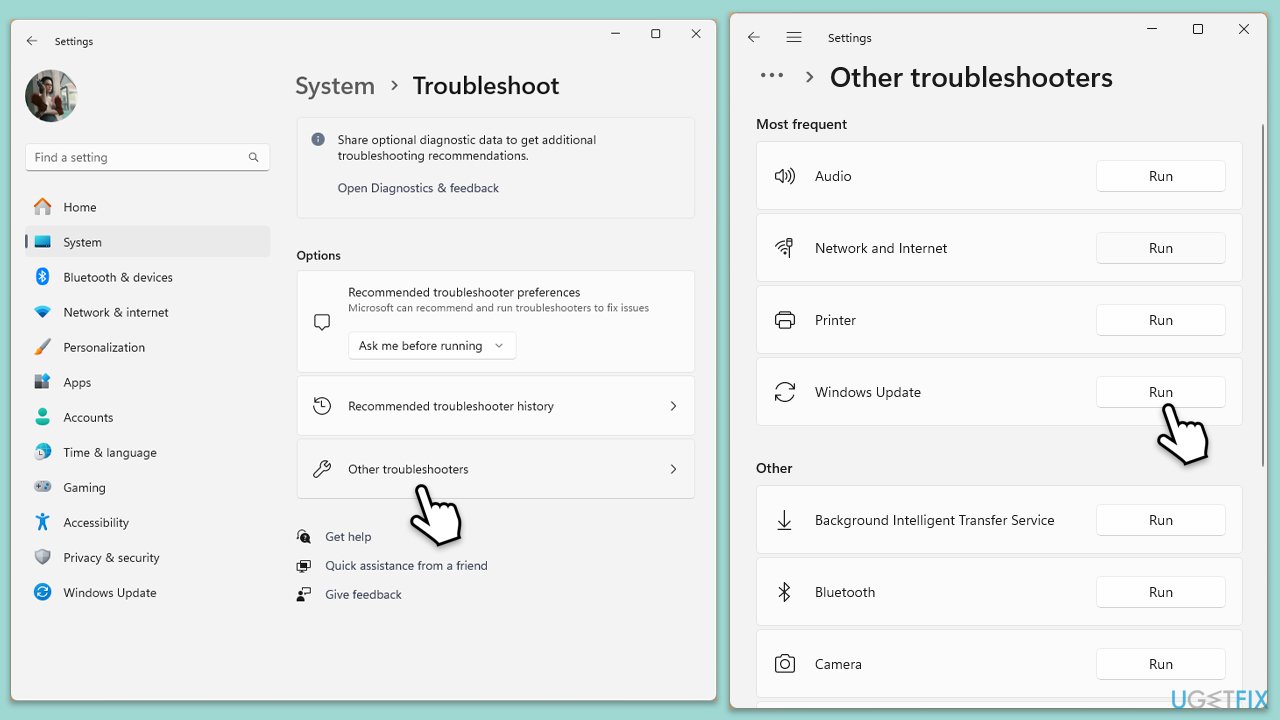
- Type Troubleshoot in Windows search and press Enter.
- Select Additional troubleshooters/Other troubleshooters.
- Find Windows Update from the list.
- Click it and select Run the troubleshooter/Run.
- Restart your PC when the update process finishes.
Fix 4. Perform SFC and DISM scans
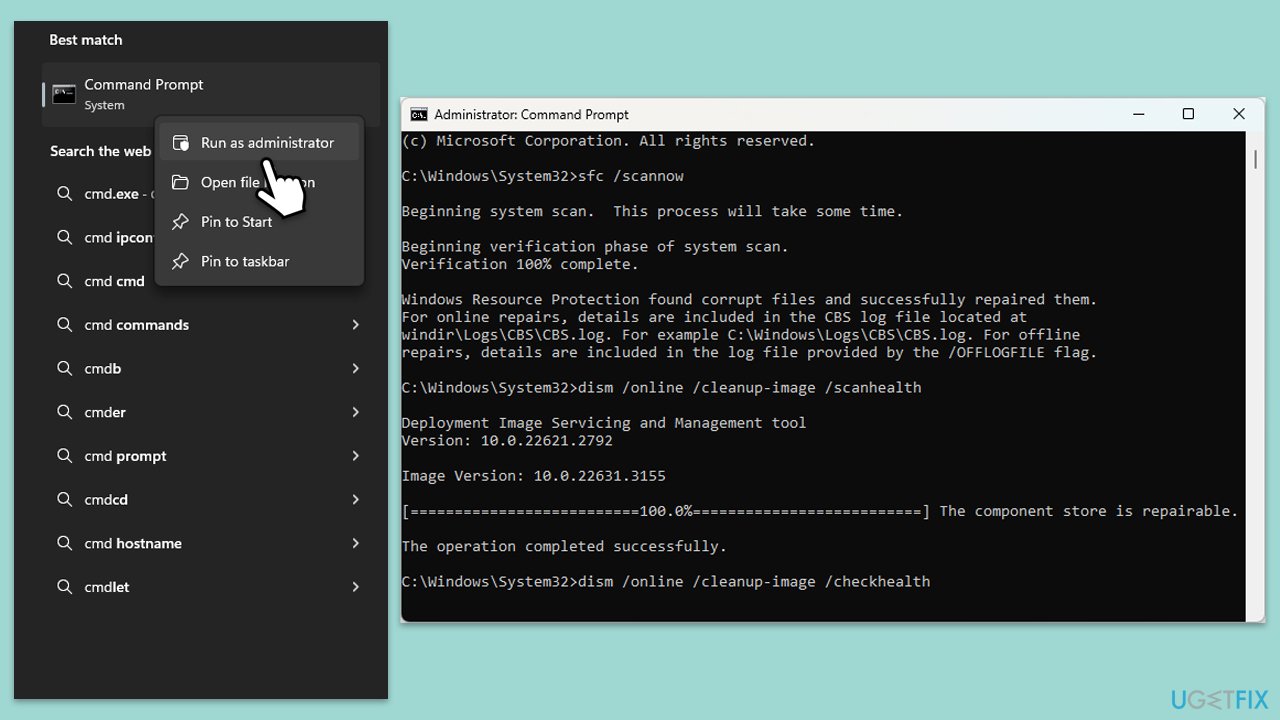
System file corruption may prevent updates from installing. Running the SFC and DISM commands will scan and fix faulty files, letting the update to proceed.
- Type cmd in Windows search.
- Right-click on Command Prompt and pick Run as administrator.
- Click Yes when prompted by User Account Control.
- Then, copy and paste the following command, pressing Enter after:
sfc /scannow - Wait till the scan is finished. If Windows finds system file integrity violations, it will attempt to fix them. After this, use the set of the following commands, pressing Enter each time:
DISM /Online /Cleanup-Image /CheckHealth
DISM /Online /Cleanup-Image /ScanHealth
DISM /Online /Cleanup-Image /RestoreHealth - (Note: if you get an error executing this last command, add /Source:C:\RepairSource\Windows /LimitAccess to it and try again).
- Close down the Command Prompt and restart your computer.
Fix 5. Reset Windows update components
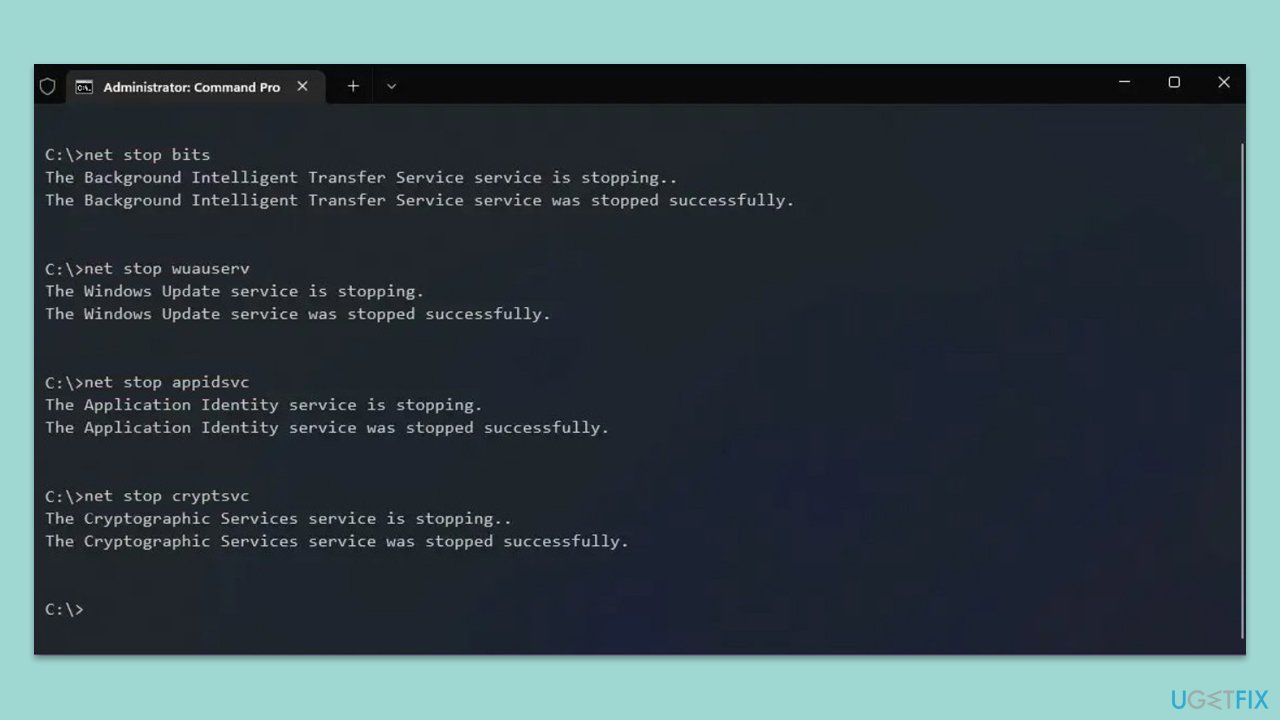
- Open Command Prompt as administrator.
- Type the following commands one by one in Command Prompt and press Enter after each:
net stop wuauserv
net stop cryptSvc
net stop bits
net stop msiserver
Ren C:\Windows\SoftwareDistribution SoftwareDistribution.old
Ren C:\Windows\System32\catroot2 Catroot2.old - When these commands are executed, the last thing to do is to re-enable relevant services:
net start wuauserv
net start cryptSvc
net start bits
net start msiserver - Reboot your PC.
Fix 6. Run Clean Boot
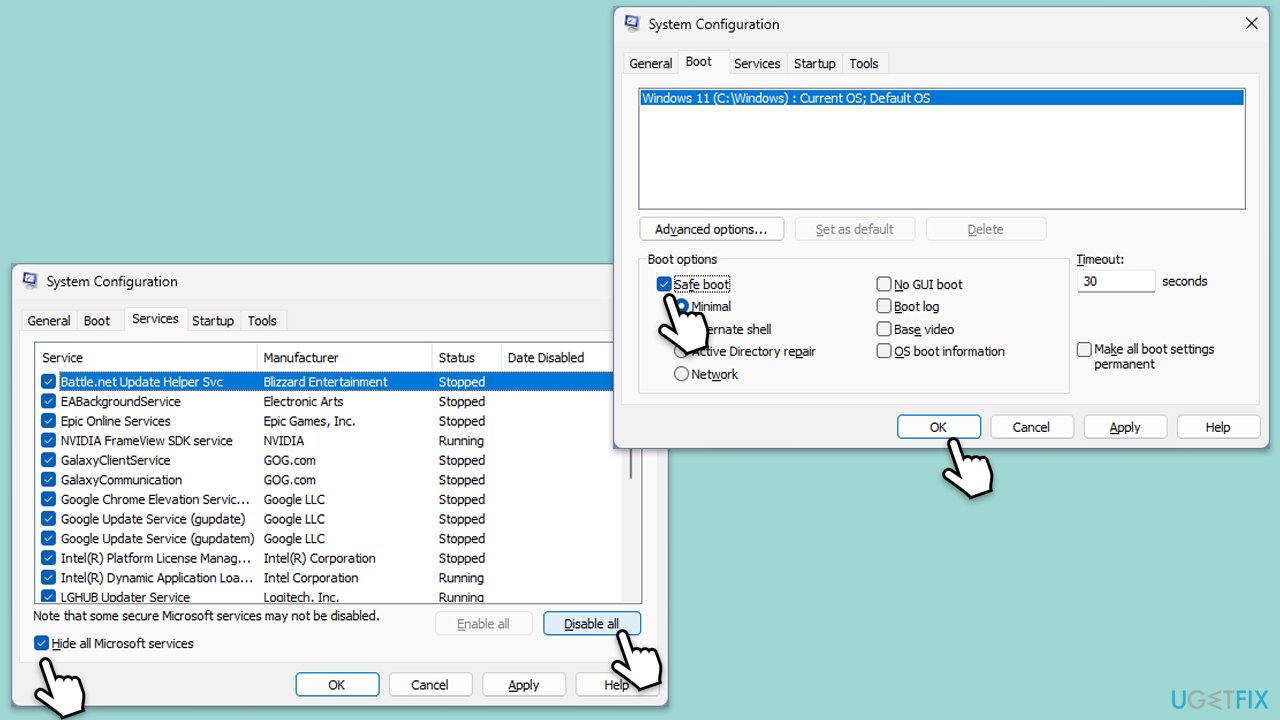
- Press Win + R, type msconfig, and hit Enter.
- Go to the Services tab and tick the Hide all Microsoft services checkbox.
- Select Disable all.
- Go to the Startup tab and click Open Task Manager.
- Here, right-click on each of the non-Windows entries and select Disable.
- Close down the Task Manager.
- Go to the Boot tab and tick the Safe boot option.
- Click OK.
- Restart your computer to initiate the Clean Boot.
- Try running Windows Update again to check if error 0x80071a30 persists.
Fix 7. Use Media Creation Tool to repair-install latest Windows version
Before proceeding, disconnect any unnecessary devices and uninstall any third-party security software (if applicable) to avoid problems during the upgrading.
- Visit the official Microsoft website and download Windows 10 installation media (Windows 11 version).
- Double-click the installer and select Yes when UAC shows up.
- Agree to terms.
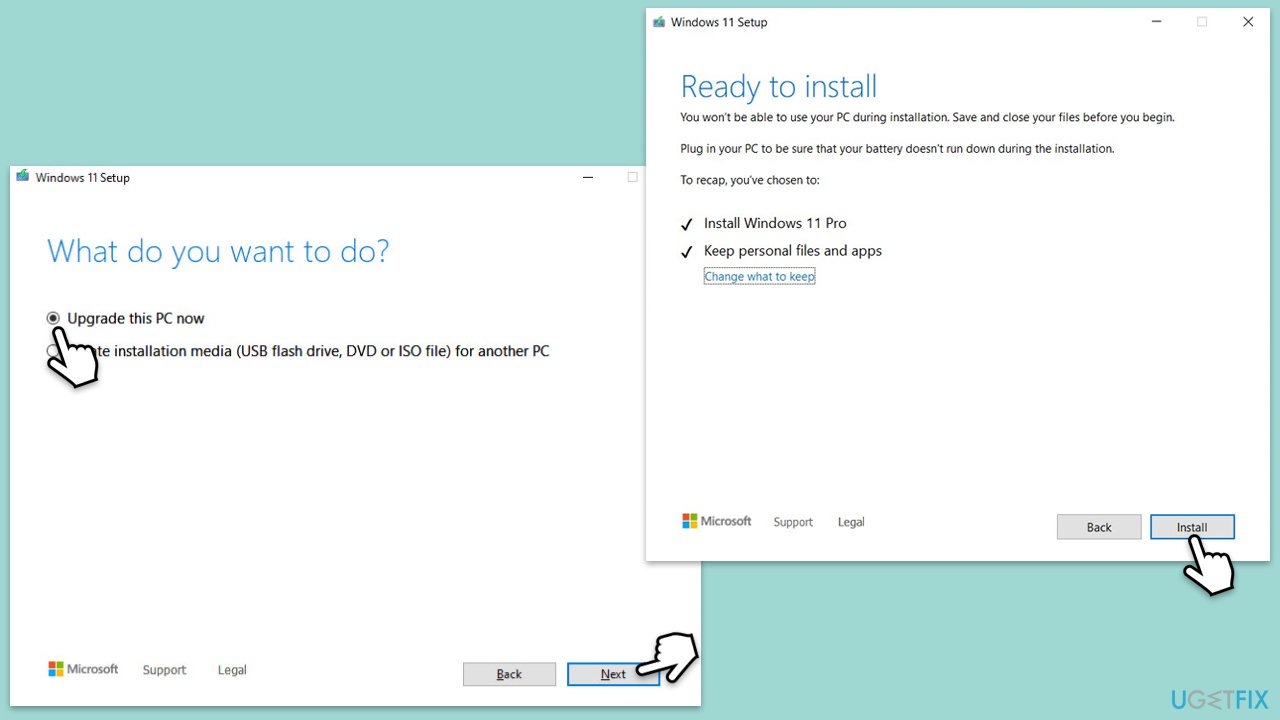
- Select Upgrade this PC now and click Next.
- Windows will start downloading the needed files.
- Agree to the terms once again and click Next.
- Before installing, make sure that you are happy with your choices (otherwise, you can click Change what to keep option).
- Finally, click Install to begin the upgrade process.
Bottom line
To fix error 0x80071a30, users can try resetting update components and repairing system files. If these solutions do not resolve the issue, it may be necessary to explore additional tools that address underlying Windows problems.
Frequently asked questions
This error typically occurs due to issues with the Windows Update components, corrupted system files, or network connectivity problems. It can also be triggered by insufficient disk space or conflicting software.
To fix this error, try running the Windows Update Troubleshooter, resetting the Windows Update services, or performing a System File Checker scan. These steps can help restore the update functionality.
Regularly updating your system, ensuring enough disk space, and keeping your drivers and software up to date can help prevent this error. Additionally, maintaining a clean system by removing unnecessary files can also be beneficial.




Report an issue
What's wrong with this guide? We review every report and update or remove content.
Report received — thank you. We'll review and fix it.
You need a free account to submit a report.
Be the first to comment