How to fix
Windows update error 0x80072EFE
on Windows
Resolve Windows update error 0x80072EFE effortlessly with proven solutions. Get your system running smoothly again—expert-tested fixes included!


What causes How to fix Windows update error 0x80072EFE?
- Internet connection issues
- Misconfigured system settings
- Conflicts with antivirus software
- Corrupted system files
- Problems with Windows Update services
Repairs Windows system files, removes malware, and restores a clean OS state — without reinstalling.
Hi. I can't update Windows because of the 0x80072EFE error. I have never experienced issues with updates before, so I don't know how to resolve this. Please help.
Windows Update is an essential service that ensures your operating system is up-to-date with the latest security patches, features, and improvements. Regular updates help keep your system secure and running smoothly. However, sometimes users may encounter issues when trying to update their system, one common problem being error 0x80072EFE. This error can prevent your system from downloading and installing critical updates, potentially leaving it vulnerable or lacking new features.
Understanding the 0x80072EFE error
Error 0x80072EFE generally indicates a connection issue with the Windows Update service. This means that your system is unable to communicate with Microsoft's update servers, resulting in failed update attempts. This error can be particularly frustrating as it interrupts the regular update process and can affect the overall performance and security of your computer.
Potential causes
Several factors can lead to the appearance of error 0x80072EFE. It might be due to issues with your internet connection, misconfigured system settings, or conflicts with other software such as antivirus programs. Additionally, corrupted system files or services related to Windows Update may also trigger this error. Understanding these potential causes can help in effectively troubleshooting and resolving the issue.
Fixes for error 0x80072EFE
To resolve error 0x80072EFE, there are several troubleshooting steps you can follow. These range from checking your internet connection to resetting Windows Update components. Detailed instructions for these troubleshooting steps can be found below this article.
By following the steps below, you can fix error 0x80072EFE and ensure that your Windows Update process works smoothly. Additionally, using the [d1] PC repair tool can automatically fix any underlying Windows issues, providing a more stable and reliable experience.

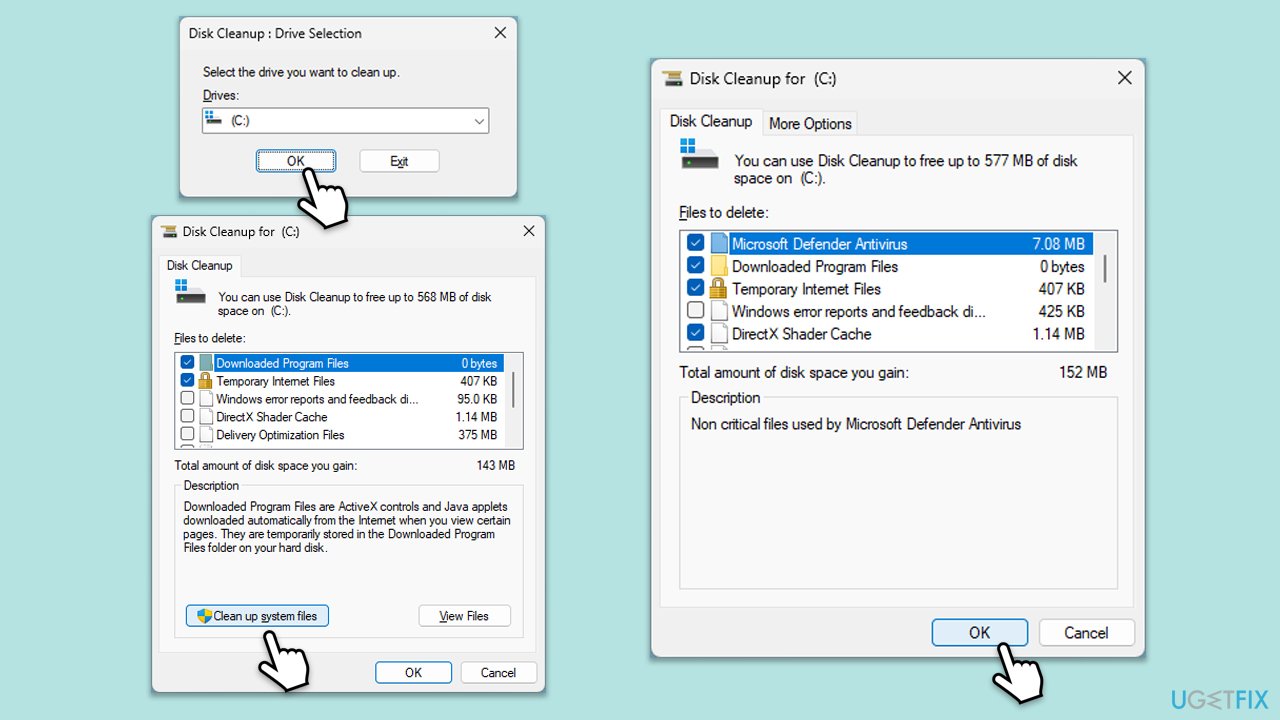
Fix 1. Perform Disk Cleanup
- Type Disk Cleanup in Windows search and hit Enter.
- If your Windows is installed on drive C, pick it from the list (it should be by default) and press OK.
- Click Clean up system files.
- Select your main disk again and click OK.
- Here, select the largest portions of the data used - these typically include Temporary Internet Files, Windows Update, Temporary Files, Recycle Bin, Delivery Optimization Files, and others.
- Click OK - the process should be finished shortly.
Fix 2. Disable antivirus software temporarily
Antivirus software can sometimes interfere with Windows Update.
- Open your antivirus software.
- Temporarily disable the antivirus protection.
- Try running Windows Update again.
- Re-enable your antivirus after the update process.
Fix 3. Run the Windows Update troubleshooter
The Windows Update troubleshooter can identify and fix common update issues automatically.
- Type Troubleshoot into the Windows search bar and press Enter.
- Next, on the right side of the window, select Additional troubleshooters/Other troubleshooters.
- Scroll down to locate the Windows update option and click on it.
- Click on Run the troubleshooter/Run and allow the process to complete.
- Once it is finished, implement any recommended fixes and restart Windows.

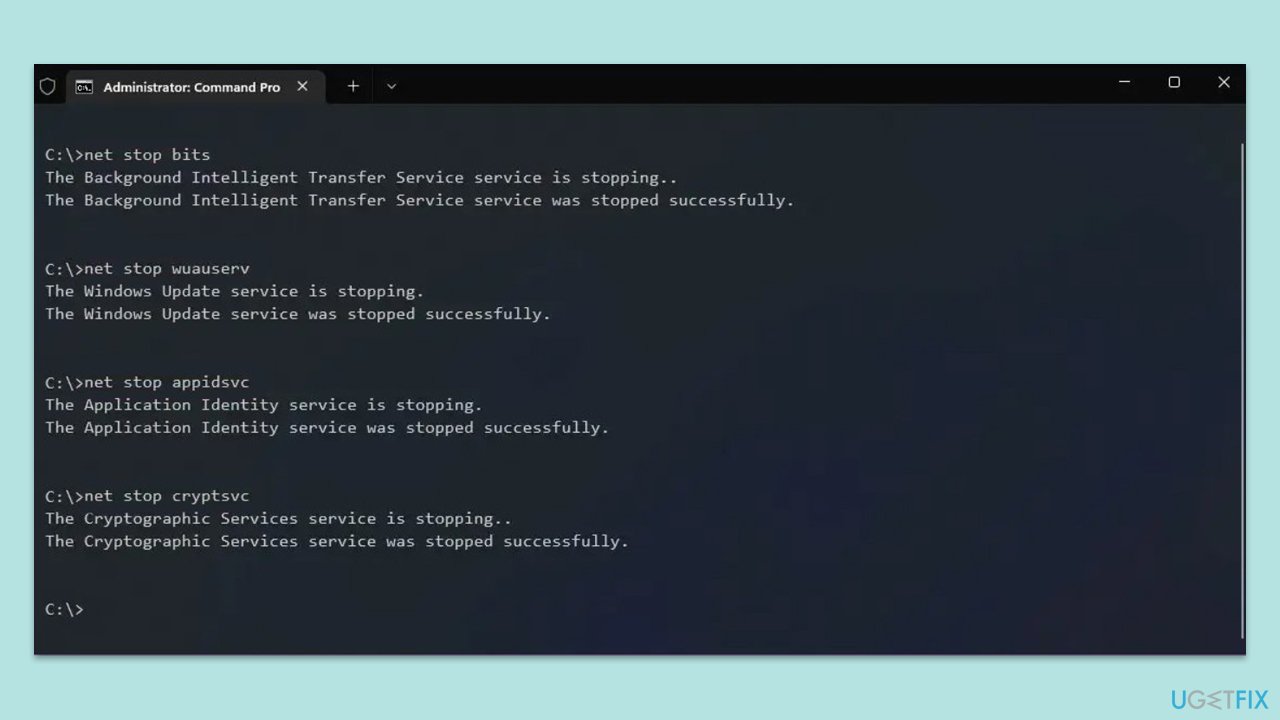
Fix 4. Reset Windows Update components
Resetting Windows Update components can resolve issues related to corrupted update files or services.
- Type cmd in Windows search.
- Right-click on the Command Prompt result and select Run as administrator.
- The User Account Control (UAC) window will ask whether you want to allow changes to your computer - click Yes.
- Stop the Windows Update-related services by running the following commands one at a time, pressing Enter after each one:
net stop wuauserv
net stop cryptSvc
net stop bits
net stop msiserver - Rename the SoftwareDistribution and Catroot2 folders by running the following commands:
ren C:\Windows\SoftwareDistribution SoftwareDistribution.old
ren C:\Windows\System32\catroot2 Catroot2.old
Note: If your Windows installation is not on the C drive, replace "C" with the appropriate drive letter. - Restart the Windows Update-related services by running the following commands:
net start wuauserv
net start cryptSvc
net start bits
net start msiserver - Reboot your system.
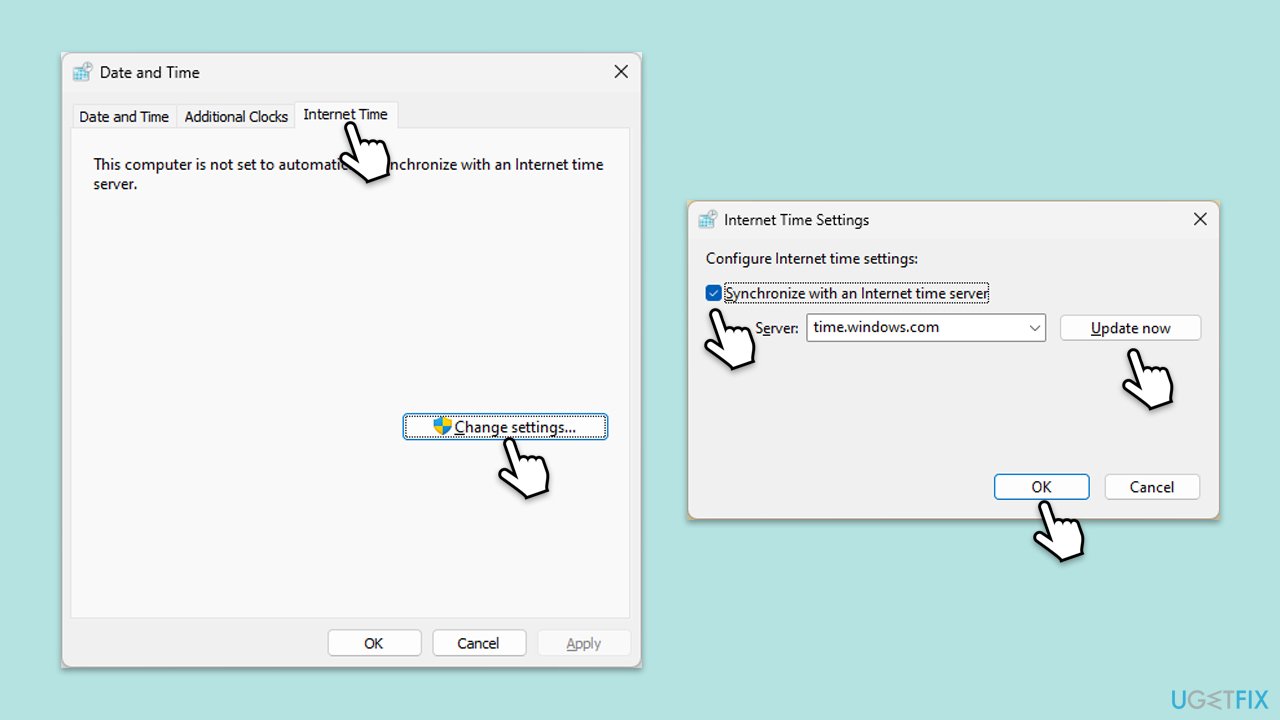
Fix 5. Check date and time settings
Incorrect date and time settings can cause connection issues with Windows Update servers.
- Type in Control Panel in Windows search and press Enter.
- Go to Clock and Region and click on Date and Time.
- Pick the Internet Time tab and select Change Settings.
- Make sure that the Synchronize with an Internet time server box is ticked.
- Click Update now and OK.
Fix 6. Re-register Windows Update DLL files
Re-registering the DLL files can fix issues with Windows Update components.
- Open Command Prompt as administrator.
- Type the following commands, pressing Enter after each:
regsvr32 wuapi.dll
regsvr32 wuaueng.dll
regsvr32 wups.dll
regsvr32 wups2.dll
regsvr32 wuwebv.dll
regsvr32 wucltux.dll - Once done, restart your system.
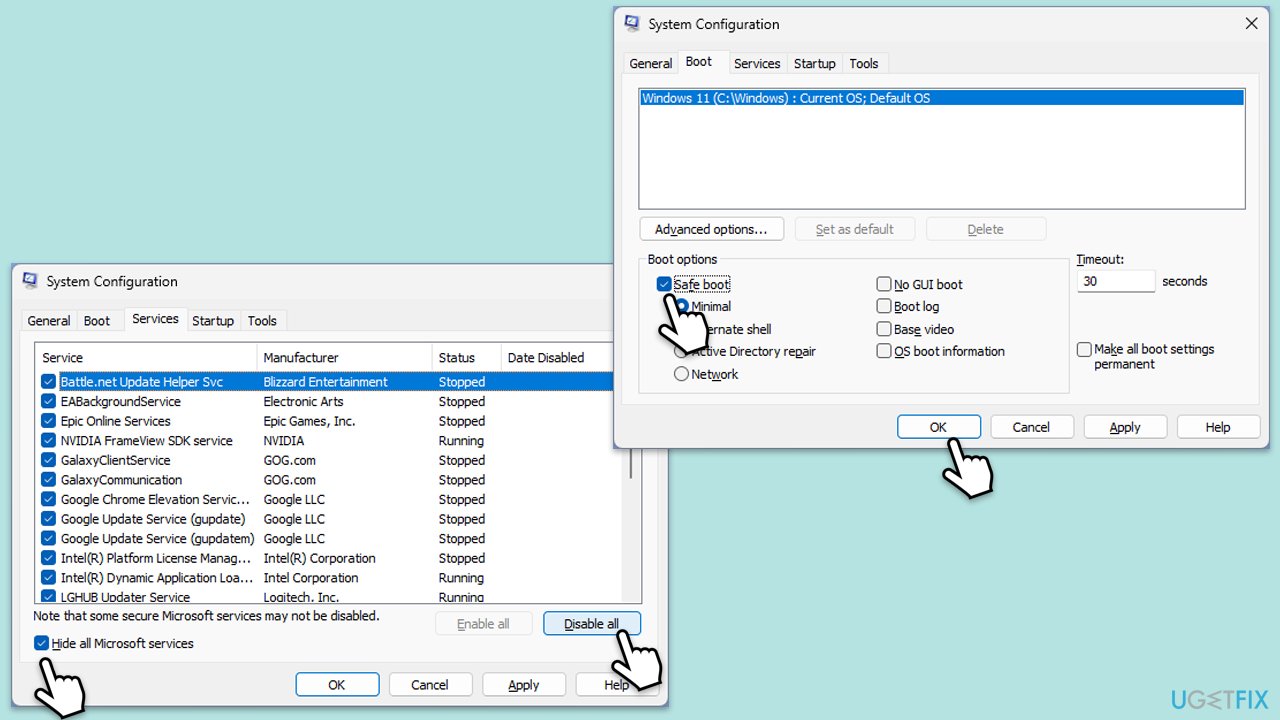
Fix 7. Use Clean Boot
- Type msconfig inWindows Search and press Enter to open the System Configuration window.
- Click on the Services tab and check the Hide all Microsoft Services box.
- Click Disable all to disable non-Microsoft services, then click the Startup tab.
- Open the Task Manager, disable all startup items, and close the Task Manager.
- Go to the Boot tab and mark the Safe boot option.
- Click OK on the System Configuration window and restart your system.
- Try installing the update again.
Fix 8. Use the Media Creation tool
Before proceeding, make sure you backup your files, uninstall the third-party security software and disconnect printers and similar devices.
- Visit the official Microsoft website and download Windows 10 installation media (Windows 11 version).
- Double-click the installer, select Yes when UAC shows up, and agree to the terms.
- Select the ISO file and click Next, then follow the instructions to finish the process.
- Right-click on ISO and click Mount.
- Open the location of the ISO, right-click on it, and select Mount.
- Launch the installer.
- Select Upgrade this PC now and click Next.
- Windows will start downloading the needed files.
- Agree to the terms once again and click Next.
- Before installing, ensure you are happy with your choices (otherwise, you can click the Change what to keep option).
- Finally, click Install to begin the upgrade process.

Bottom line
To resolve error 0x80072EFE, you can perform troubleshooting steps such as checking your internet connection, resetting Windows Update components, and performing a disk cleanup. If these steps do not resolve the issue, consider using a PC repair tool to automatically fix underlying Windows problems.
Frequently asked questions
The error 0x80072EFE typically occurs due to network connectivity issues or problems with the Windows Update service itself. It may also be triggered by corrupted system files or conflicts with third-party security software.
To fix the error on Windows 11, try running the Windows Update Troubleshooter, resetting your network settings, or checking for any pending Windows updates. Additionally, ensuring your system date and time are correct can also help resolve this issue.
Yes, you can manually fix this error by stopping the Windows Update service, deleting the content in the SoftwareDistribution folder, and then restarting the service. This process can clear any corrupted files that may be causing the update failure.




Report an issue
What's wrong with this guide? We review every report and update or remove content.
Report received — thank you. We'll review and fix it.
You need a free account to submit a report.
Be the first to comment