How to fix
Windows update error 0x800736B1
on Windows
Resolve Windows update error 0x800736B1 quickly with our expert-tested solutions for Windows 10 and 11. Fix it in minutes for smooth updates!

What causes How to fix Windows update error 0x800736B1?
- Corrupted system files
- Issues with fetching update files
- Problems within the Windows update cache
- Complex architecture of Windows
- Inability to complete updates due to errors
Repairs Windows system files, removes malware, and restores a clean OS state — without reinstalling.
Hello, I was trying to install the latest Windows update but I received an error 0x800736B1. The message said I should wait a bit and try again, which I did, but nothing changed for a few days now. Please advise.
Windows, with its complex architecture, stands as the predominant operating system for desktop computing environments. This complexity arises from the multitude of files, processes, and critical elements required for its seamless operation. Despite its robustness, Windows is not immune to issues such as errors, system crashes, update failures, and other malfunctions.
Regular updates are a cornerstone of Microsoft's service to Windows users, typically rolled out on the second and occasionally on the fourth Tuesday of each month. These updates serve a variety of purposes, including system enhancements, bug resolutions, and crucial security patches. Given the importance of these security updates, turning off automatic updates is generally discouraged.
A common hurdle that some users face is the inability to complete updates due to specific errors, with 0x800736B1 being among them. This error offers little information about its cause upon occurrence - it only mentions that the updates couldn't be installed, and the user needs to try again later, which often brings no positive results.
The causes behind error 0x800736B1 are diverse and may include corrupted system files, issues with fetching the necessary update files, or problems within the Windows update cache, among others. The intricate nature of Windows makes pinpointing the exact cause of an error challenging without thorough troubleshooting, which can be a demanding process.
Hence, before attempting any manual interventions to resolve error 0x800736B1, it is highly advised to examine your system for any underlying problems using a dedicated [d1] PC repair tool. If the error is rooted in system file corruption or similar issues, this tool can facilitate an automatic correction. Additionally, it proves beneficial for addressing other issues, such as Blue Screen of Death (BSOD) crashes, DLL discrepancies, registry errors, and more, making it a valuable asset in maintaining the health and performance of your Windows OS.
Fix 1. Make sure relevant services are running
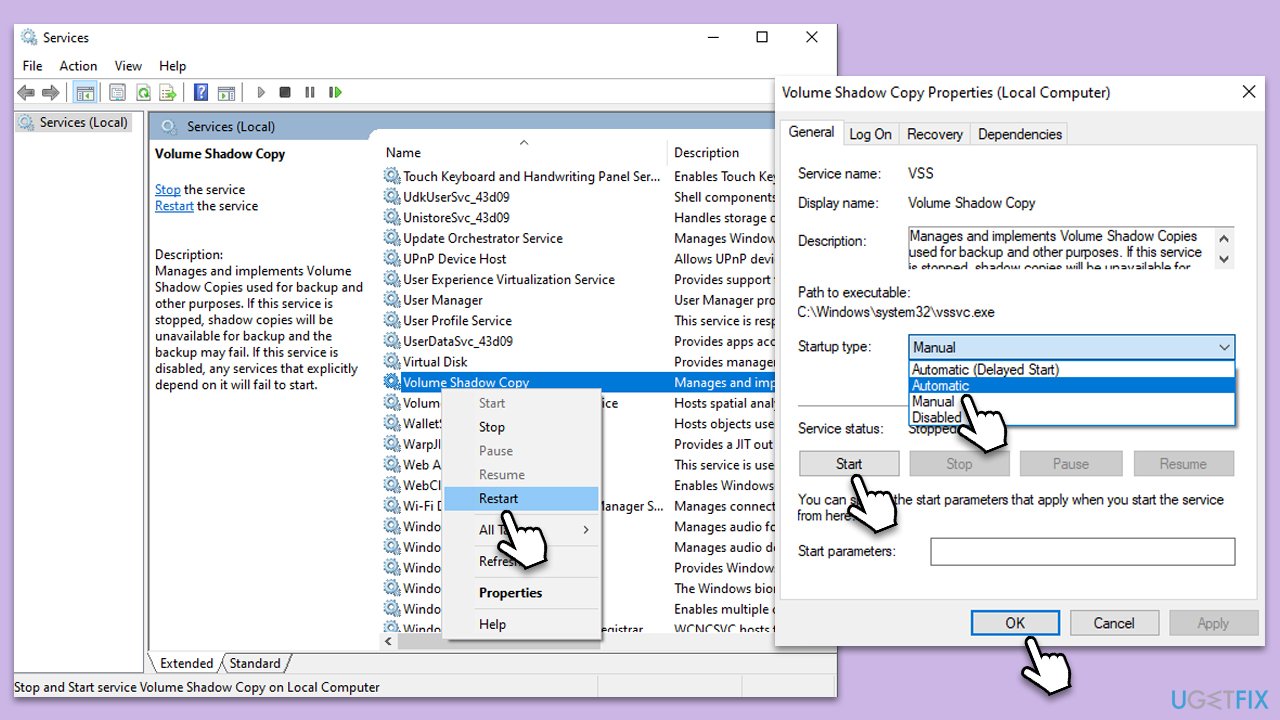
This solution involves ensuring that all necessary Windows Update services are active and running, as these services are crucial for downloading and installing updates. If these services are disabled or not running, Windows might not be able to apply updates, leading to error 0x800736B1.
- Type in Services in Windows search and press Enter.
- Find Background Intelligent Transfer Service (BITS).
- If it is already running, right-click and pick Restart.
- If the service is not running, double-click it, and select Automatic under the Startup type from the drop-down menu.
- Click Start, Apply, and OK.
- Repeat this process for Windows Update and Cryptographic services.
Fix 2. Check the system for corruption
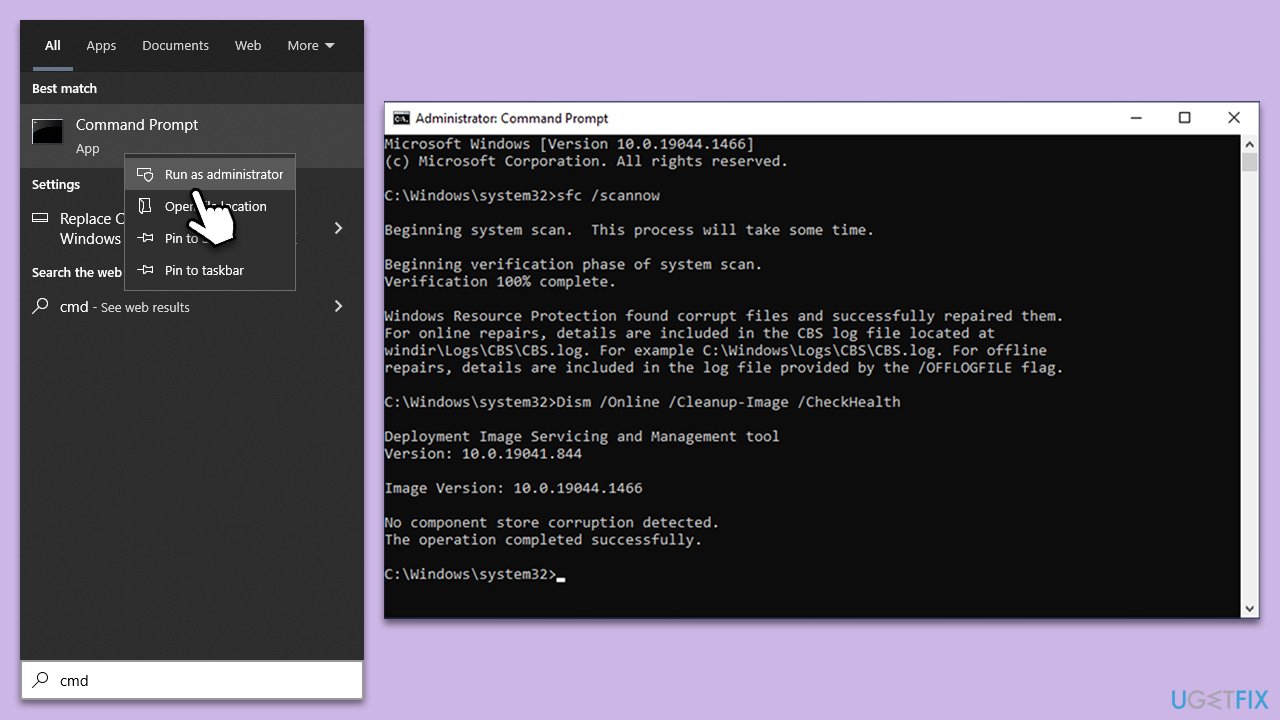
System File Checker (SFC) and Deployment Image Servicing and Management (DISM) are tools designed to fix corrupted system files and Windows images. Corrupted files can be a reason for update errors, and running these scans can repair the files, potentially resolving the error.
- Type cmd in Windows search
- Right-click on Command Prompt and pick Run as administrator
- When User Account Control shows up, click Yes
- Use the following command lines, pressing Enter after each:
sfc /scannow
DISM /Online /Cleanup-Image /CheckHealth
DISM /Online /Cleanup-Image /ScanHealth
DISM /Online /Cleanup-Image /RestoreHealth - Restart your system.
Fix 3. Run Windows update troubleshooter
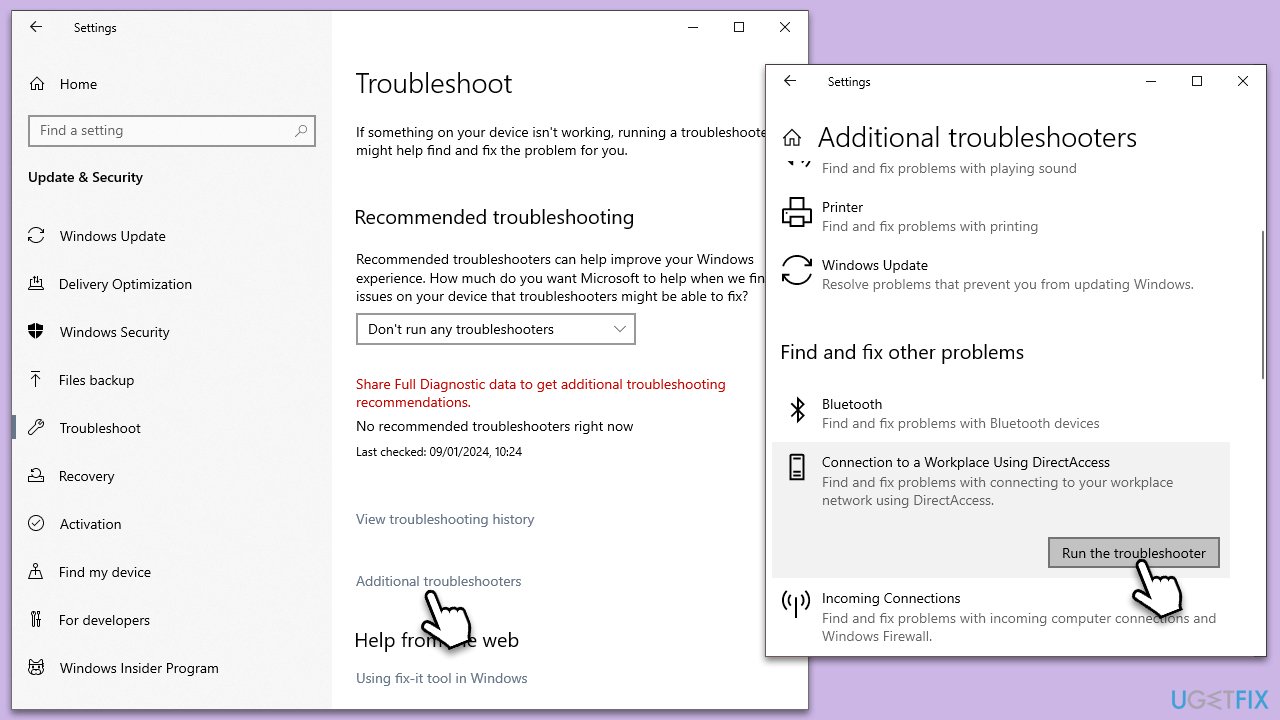
The Windows Update Troubleshooter is a built-in tool that diagnoses and fixes common issues with the update process. Running this tool can help resolve errors by resetting update components and clearing caches.
- Type Troubleshoot in Windows search and press Enter.
- On the right side of the window, click Additional troubleshooters/Other troubleshooters.
- Scroll down and select Windows update.
- Click Run the troubleshooter/Run.
- Wait for the troubleshooter to finish.
- Restart your system once done.
Fix 4. Use Disk Cleanup
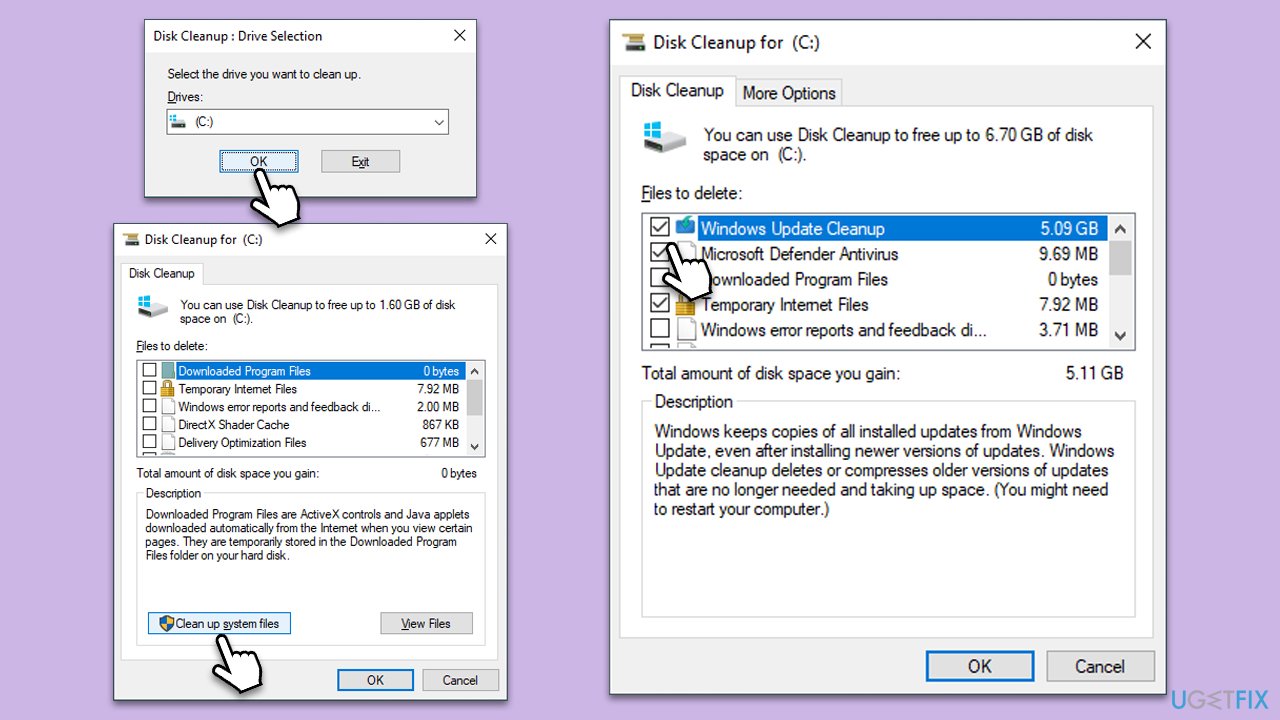
Disk Cleanup helps free up space on your hard drive by removing temporary files and system files that might interfere with the Windows update process. A lack of sufficient disk space can cause update errors.
- Type Disk Cleanup in Windows search and hit Enter.
- If your Windows is installed on drive C, pick it from the list (should be by default) and press OK.
- Click Clean up system files.
- Select your main drive again and click OK.
- Here, select the largest portions of the data used - these typically include Temporary Internet Files, Windows Update, Temporary Files, Recycle Bin, Delivery Optimization Files, and others. Marking Windows Update is vital here.
- Click OK - the process should be finished shortly.
Fix 5. Reset Windows update components
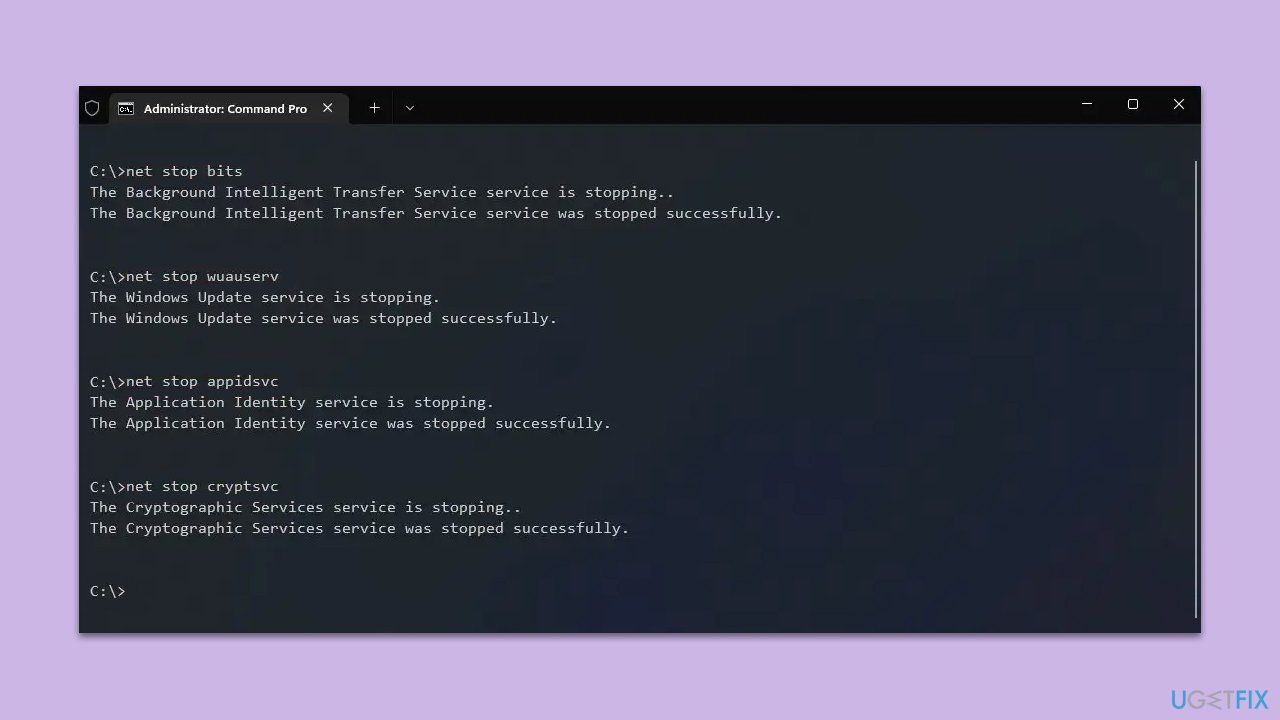
Resetting Windows Update components involves stopping the update service, clearing the cache, and then restarting the service. This can resolve issues by removing any corrupt files in the update cache.
- Open Command Prompt as administrator.
- Stop the Windows Update-related services by running the following commands one at a time, pressing Enter after each one:
net stop wuauserv
net stop cryptSvc
net stop bits
net stop msiserver - Rename the SoftwareDistribution and Catroot2 folders by running the following commands:
ren C:\Windows\SoftwareDistribution SoftwareDistribution.old
ren C:\Windows\System32\catroot2 Catroot2.old
Note: If your Windows installation is not on the C drive, replace "C" with the appropriate drive letter. - Restart the Windows Update-related services by running the following commands:
net start wuauserv
net start cryptSvc
net start bits
net start msiserver - Reboot your system.
Fix 6. Install the update manually
If automatic updates fail, you can manually download and install the problematic update. This requires knowing the specific update code (KB number) that is failing.
- Type Updates in Windows search and hit Enter.
- Click View update history.
- Here, note down the KB number which failed to be installed.
- Go to the official Microsoft Update Catalog website.
- Type the KB number into the search bar, and press Enter or click Search.
- You will find many different versions on the update – you need to find the one that matches your PC specs and Windows version (as a home user, ignore Windows server versions).
- Right-click on Start and pick System.
- Under Device specifications, check the System type section: it should either be 64-bit or 32-bit.
- Scroll down to Windows specifications and check the Version section.
- With all this information, pick the correct version for your device.
- Go back to the Microsoft Update catalog, download the appropriate version, and install it.

Fix 7. Use Media Creation Tool
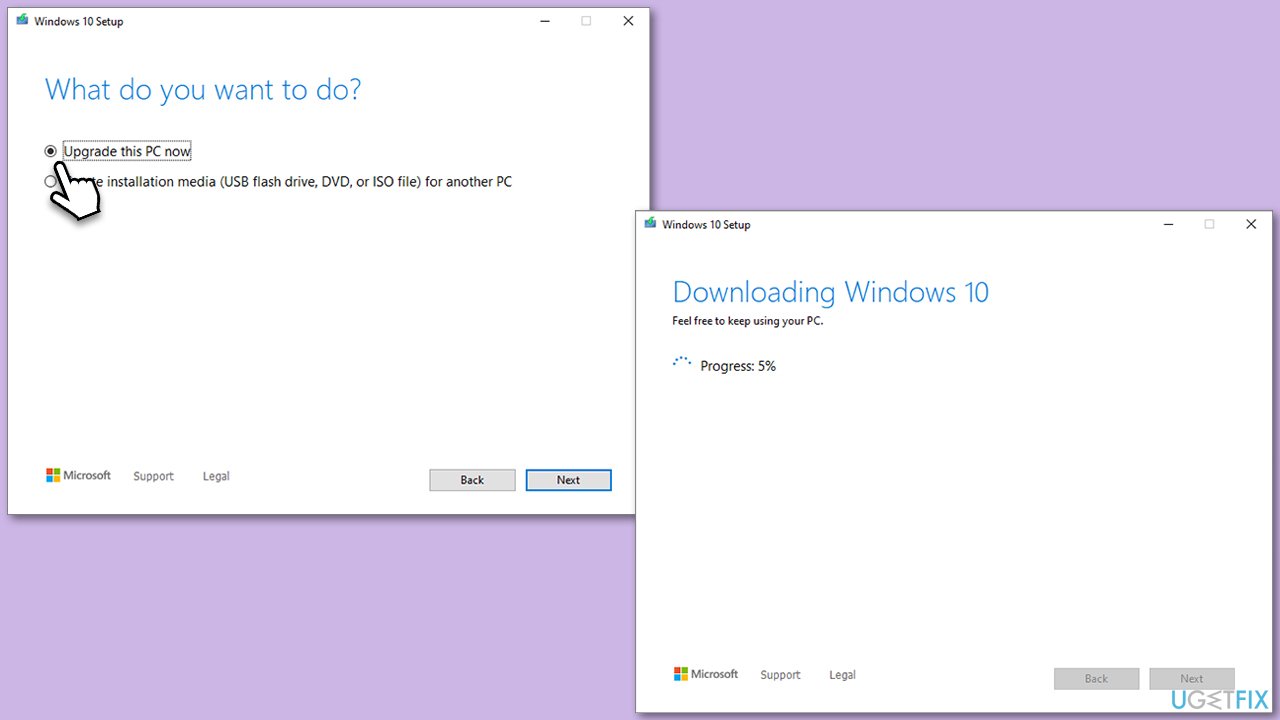
The Media Creation Tool can be used to perform an in-place upgrade or reinstall Windows while keeping files and applications intact. This method can resolve deeper issues causing the update error.
- Visit the official Microsoft website and download Windows 10 installation media (Windows 11 version)
- Double-click the installer and select Yes when UAC shows up
- Agree to terms
- Select Upgrade this PC now and select Next
- Windows will now download all the necessary files – it might take awhile
- Agree to terms once again and click Next
- Before installing, make sure that you are happy with your choices (otherwise, you can click Change what to keep option)
- Click Install to begin the upgrade process.
Bottom line
To resolve error 0x800736B1, it is recommended to use a dedicated PC repair tool to check for underlying issues. This tool can automatically correct system file corruption and address other problems like BSOD crashes and registry errors. If these solutions do not work, further troubleshooting may be necessary.
Frequently asked questions
The error 0x800736B1 is often caused by corrupted system files, issues with Windows Update components, or conflicts with third-party software. It can also occur if the Windows Update services are not running properly.
To run the Windows Update Troubleshooter, go to Settings > Update & Security > Troubleshoot > Additional troubleshooters, then select 'Windows Update' and click 'Run the troubleshooter.' This tool will automatically detect and fix common update issues.
Yes, you can manually reset Windows Update components by stopping relevant services, renaming folders like SoftwareDistribution and Catroot2, and then restarting the services. This process can help resolve underlying issues causing the error in both Windows 10 and Windows 11.




Report an issue
What's wrong with this guide? We review every report and update or remove content.
Report received — thank you. We'll review and fix it.
You need a free account to submit a report.
Be the first to comment