How to fix
Windows update error 0x800736cc
on Windows
Fix the Windows update error 0x800736cc quickly and easily. Get expert-tested solutions to restore updates on Windows 10 and 11. Fixed in minutes!

What causes How to fix Windows update error 0x800736cc?
- Corrupted Windows component store
- Missing files in the component store
- Inability to install critical updates
- Potential security vulnerabilities
- Compatibility issues with new software or hardware
Repairs Windows system files, removes malware, and restores a clean OS state — without reinstalling.
Hello. I tried to install Windows updates but I received the 0x800736cc error. How can I get rid of it?
Users may encounter Windows Update error 0x800736cc when attempting to install or update software on their Windows operating system. When the Windows component store, which stores important system files and information, becomes corrupted or has missing files, this error typically occurs. The error message typically indicates that a required component or file for the update was not found or was corrupted.
Windows updates are critical for maintaining a Windows operating system's security, stability, and performance. They frequently include patches, bug fixes, security updates, and new features. These updates address Microsoft-identified vulnerabilities and issues, ensuring that your system remains secure against potential threats. You can reduce the risk of malware infections, improve compatibility with new software and hardware, and improve the overall user experience by keeping your system up to date.
When users encounter the Windows Update error 0x800736cc, they may be unable to install critical updates or software packages. Because critical security patches are not applied, the system may be vulnerable to security risks. Furthermore, users may be unable to take advantage of new features and improvements introduced in updates, potentially leading to compatibility issues with newer software or hardware.
To fix the Windows Update error 0x800736cc, you must first address the underlying cause, which is usually related to the corruption or absence of files in the component store. Repairing corrupted files or using Windows troubleshooting tools to resolve the issue are two possible solutions.
In this guide, you will find 8 steps that should help you fix Windows update error 0x800736cc. You can also try a maintenance tool like [d1] that can fix most system errors, BSODs,[ref en-1] corrupted files, registry[ref en-2] issues, or clear cookies and cache.[ref en-3] Otherwise, follow the step-by-step instructions below.
Solution 1. Run the Update Troubleshooter
- Press the Windows key + X and go to Settings.
- Go to Update and Security.
- Click Troubleshooter.
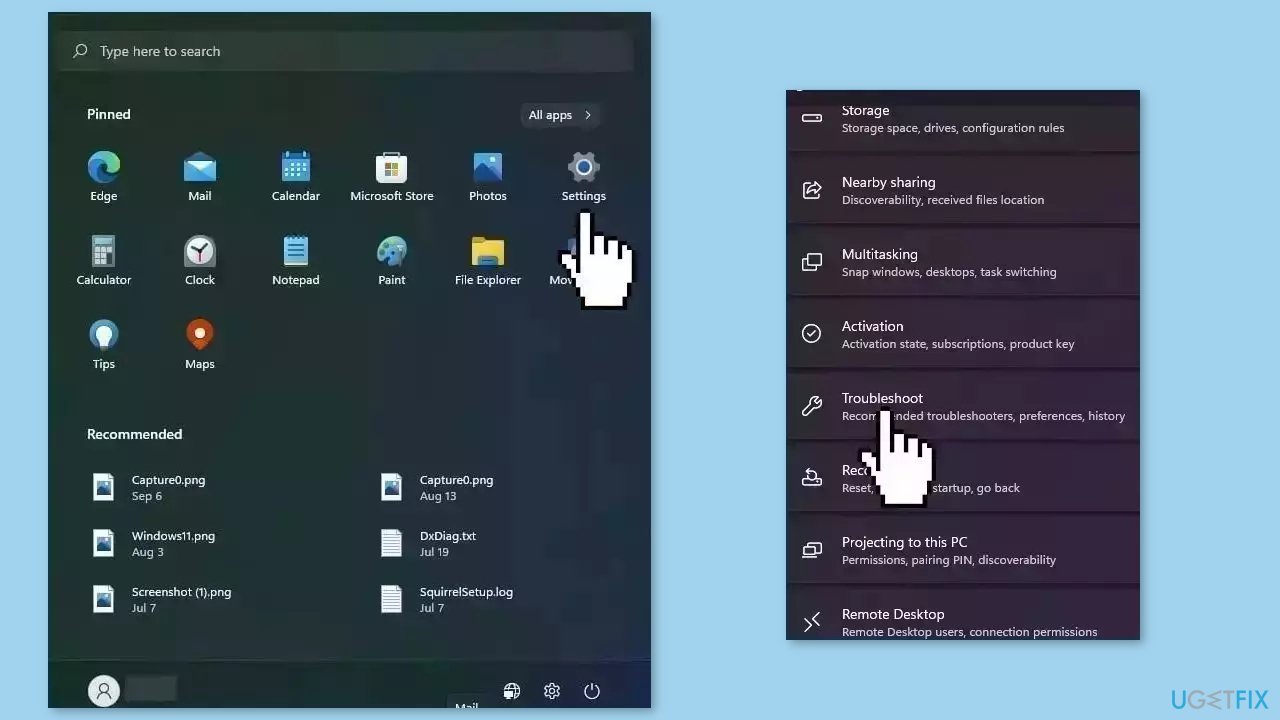
- Select Additional troubleshooters.
- Run the Update troubleshooter.
- Restart the computer.
Solution 2. Check Disk
Ensure that your disk is not damaged. You can perform checks using Administrative Command Prompt:
- If you are using an HDD as your main driver (where your operating system is installed – C: by default), use the following command and press Enter:
chkdsk c: /f - If you are using SSD, use this command:
chkdsk c: /f /r /x
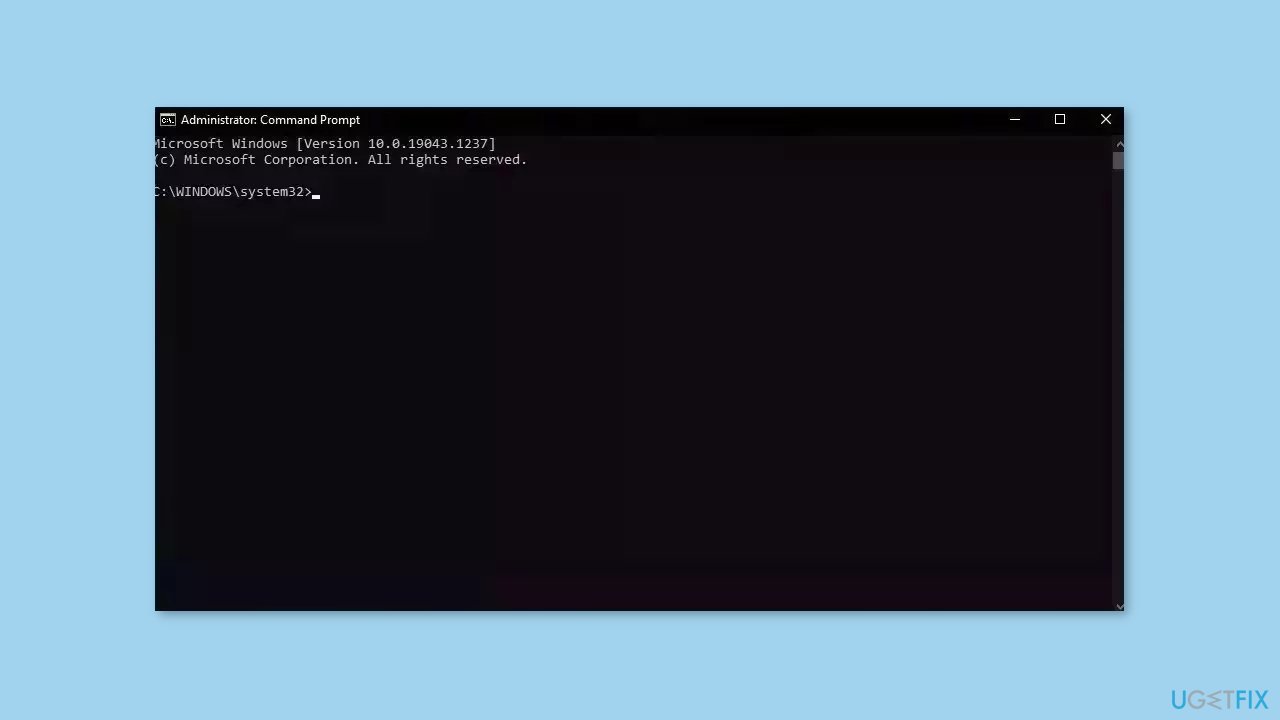
- If you receive an error, type in Y and hit Enter.
- Restart your device to perform the check.
Solution 3. Repair Corrupted System Files
Use Command Prompt commands to repair system file corruption:
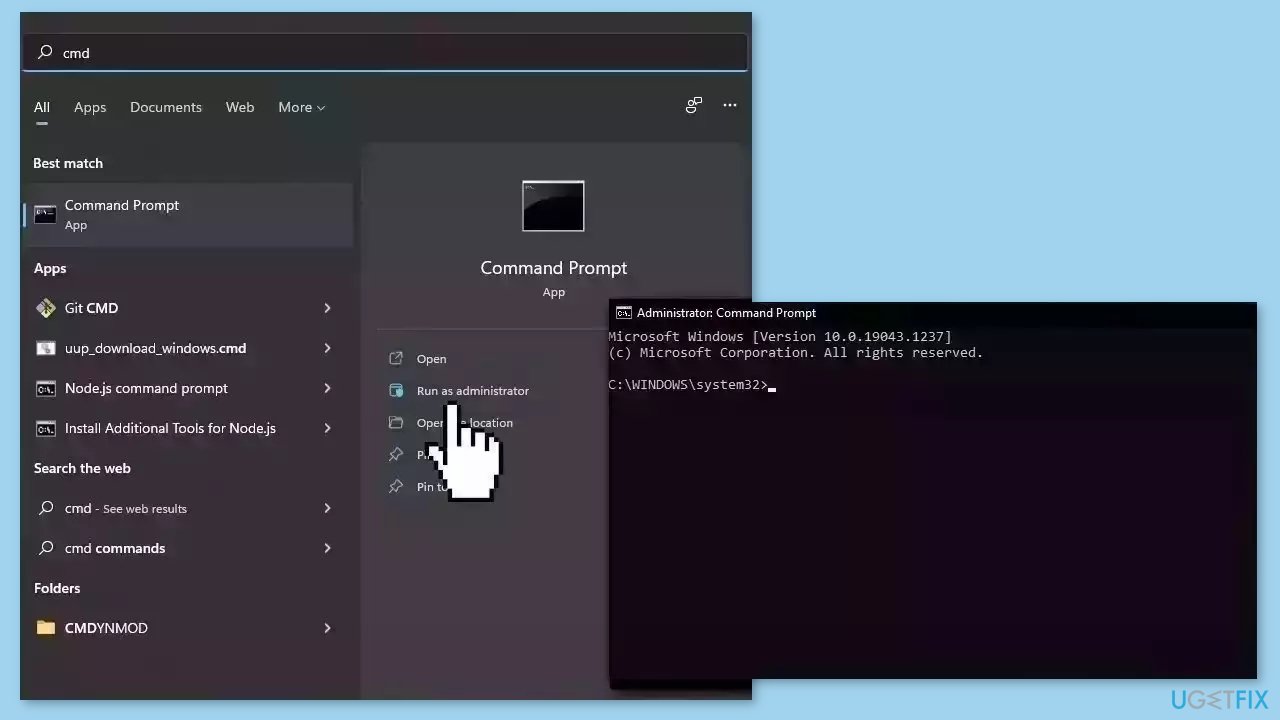
- Open Command Prompt as administrator
- Use the following command and press Enter:
sfc /scannow
- Reboot your system
- If SFC returned an error, then use the following command lines, pressing Enter after each:
DISM /Online /Cleanup-Image /CheckHealth
DISM /Online /Cleanup-Image /ScanHealth
DISM /Online /Cleanup-Image /RestoreHealth
Solution 4. Restart Windows Services
- Press Windows + R to open the Run box.
- Type in services.msc and press OK.
- Double-click Background Intelligent Transfer Service.
- If the Startup status lists Stopped, click Start and then click OK.
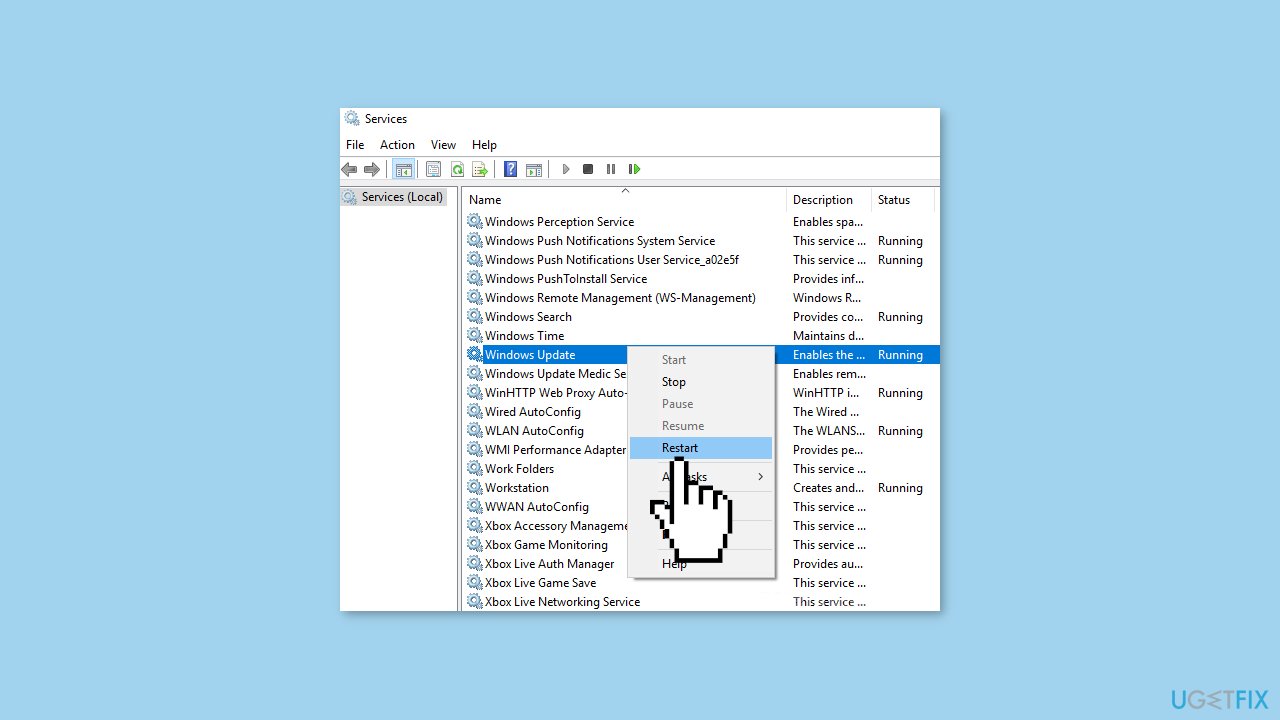
- If the status is Running, right-click then select Restart.
- Locate the Windows Update service and double-click it.
- If the Startup status lists Stopped, click Start and OK. If the status is Running, right-click, then select Restart.
Solution 5. Update Drivers
Outdated drivers could be the cause of this issue. In this case, you can fix it automatically by using [rev id="DriverFix"], which will scan your PC for missing and out-of-date device drivers. Or you can update them manually:
- Open Settings
- Click on Update & Security
- Click on Windows Update
- Click the Check for updates button
- Click the View optional updates option
- Click the Driver updates tab
- Select the driver you want to update
- Click the Download and install button
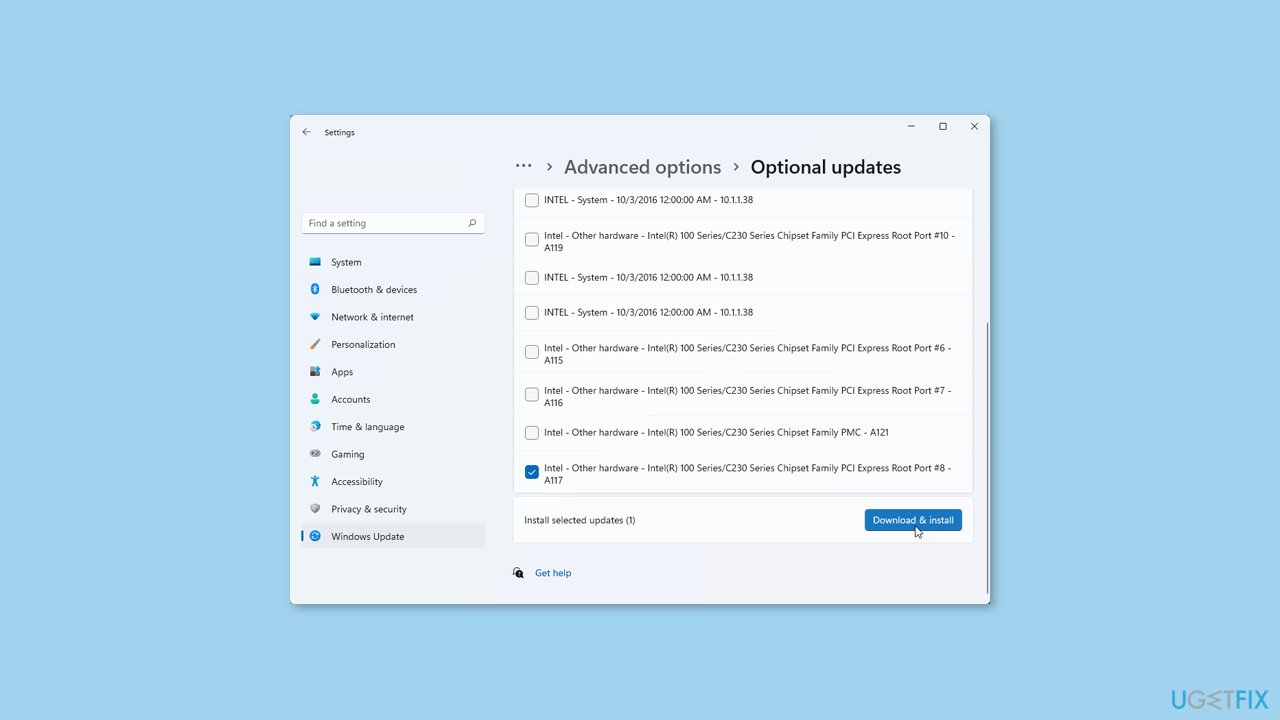
If the View optional updates link is not available after checking for updates, then Windows Update does not have any new drivers or any updates for other products at that particular time.
Solution 6. Install the Update Manually
Whenever Windows updates fail to install automatically, you can always try doing it manually. First, you need to find out which KB number is relevant to you.
- Right-click Start button and pick Settings.
- Go to Update & Security.
- On the right, locate and click View update history.
- From the list, note the KB number that fails to install with the error code.
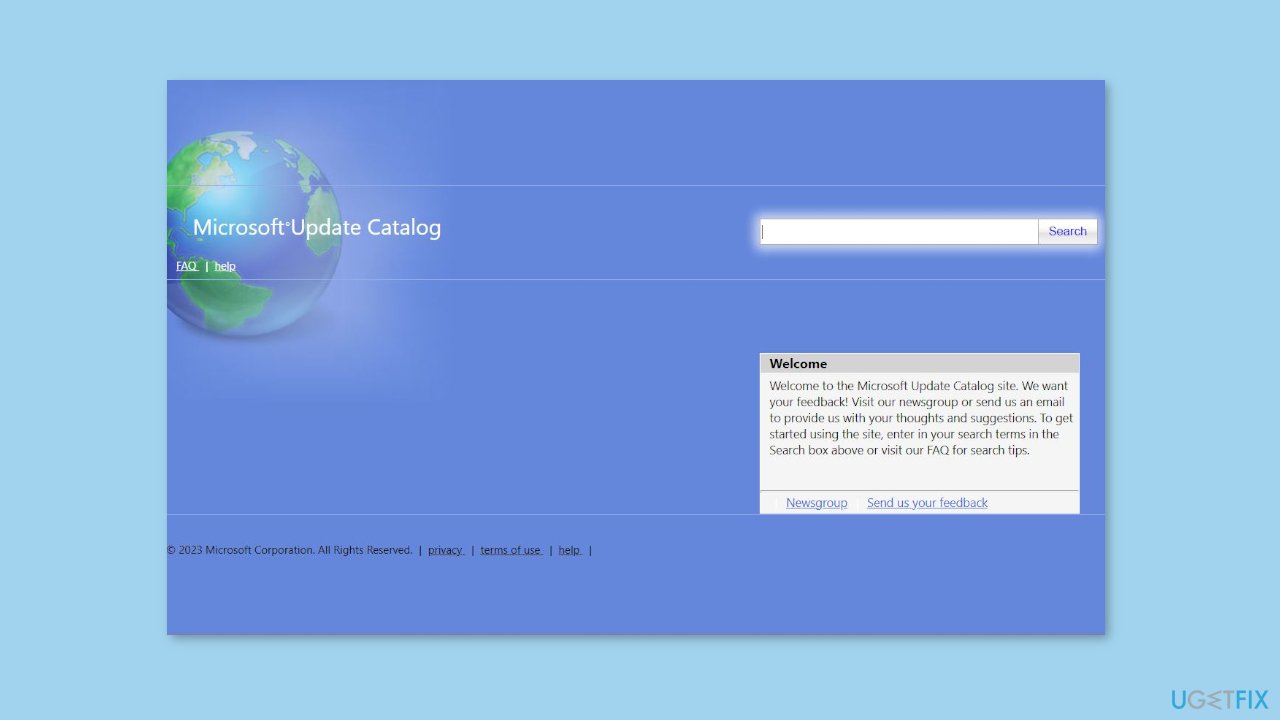
- Go to Microsoft Update Catalog page, type in the KB number, and press Search.
- Download the update and install it manually.
Solution 7. Reset Windows Update Components
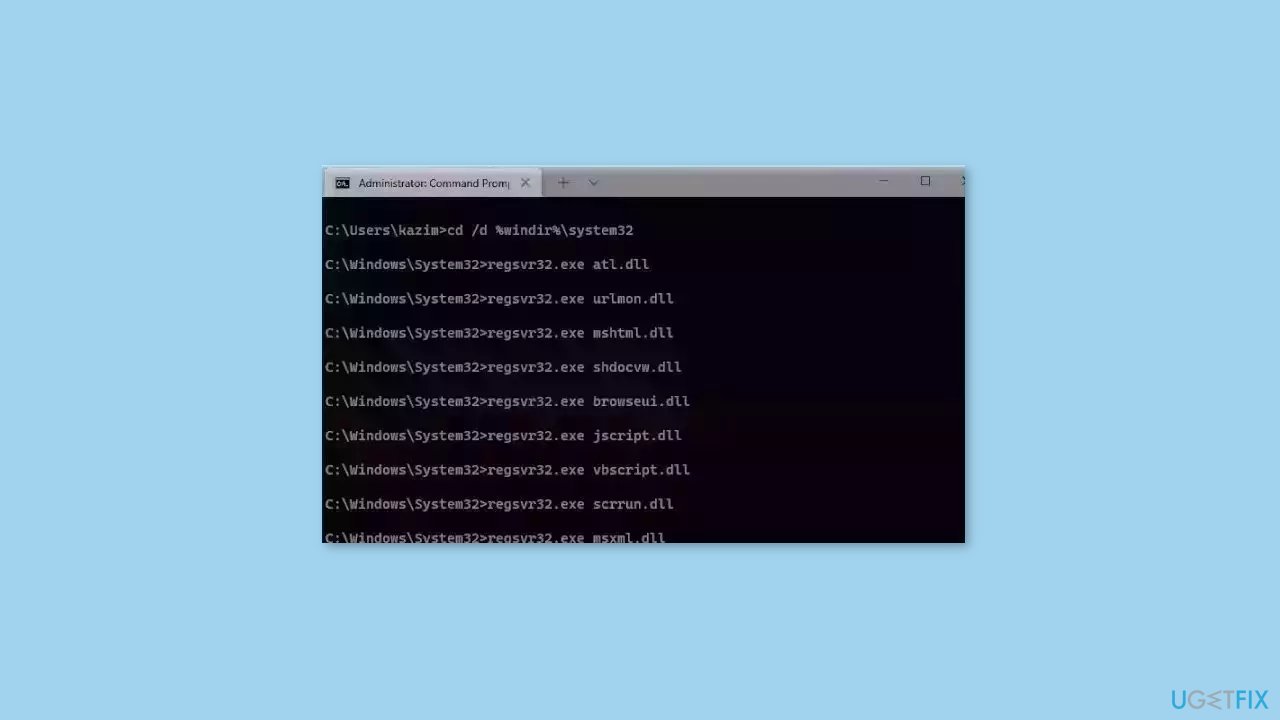
- Open Command Prompt as administrator again.
- Copy and paste the following commands, pressing Enter after each:
net stop bits
net stop wuauserv
net stop appidsvc
net stop cryptsvc
Del “%ALLUSERSPROFILE%\Application Data\Microsoft\Network\Downloader\*.*”
rmdir %systemroot%\SoftwareDistribution /S /Q
rmdir %systemroot%\system32\catroot2 /S /Q
regsvr32.exe /s atl.dll
regsvr32.exe /s urlmon.dll
regsvr32.exe /s mshtml.dll
netsh winsock reset
netsh winsock reset proxy
net start bits
net start wuauserv
net start appidsvc
net start cryptsvc
- Restart your PC.
Soluyion 8. Upgrade Install Windows
- Download Windows 10 installation media or Windows 11 installation media from the official website.
- Open the tool once it is installed.
- Agree to license terms.
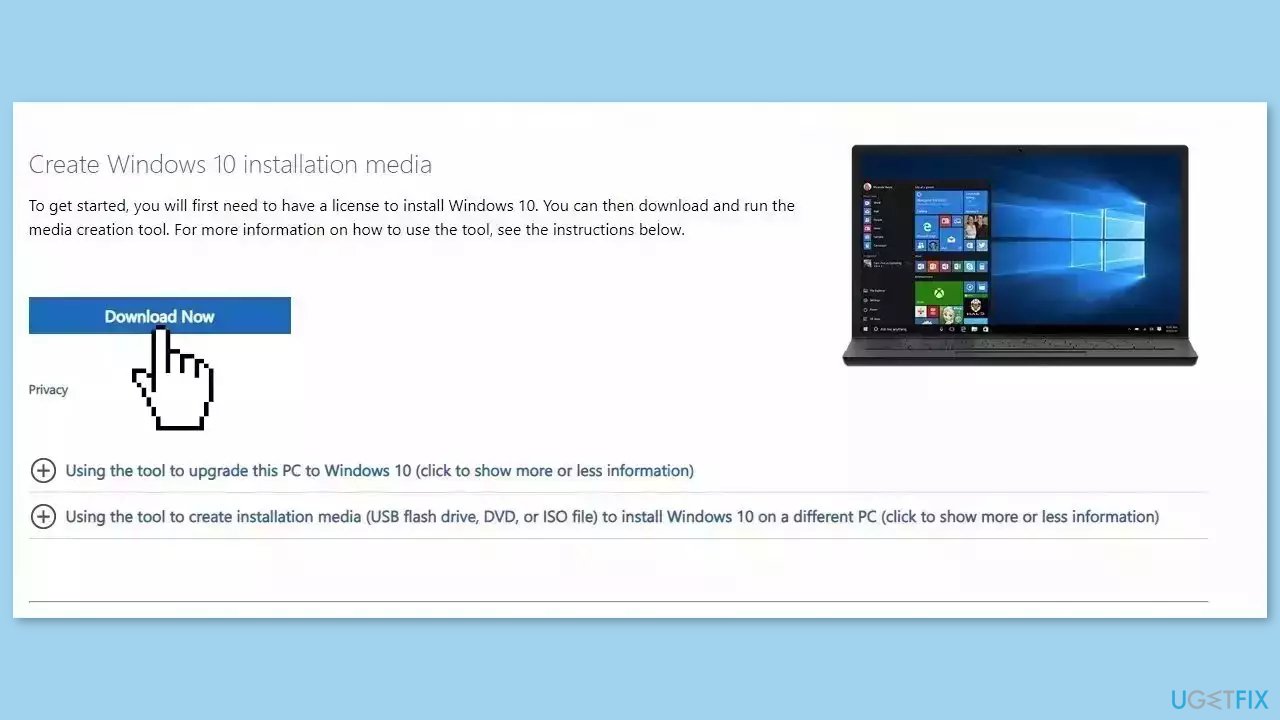
- Choose Upgrade this PC now.
- Wait for the update to be installed.
Bottom line
To fix the Windows Update error 0x800736cc, you can run the Update Troubleshooter and check your disk for issues. If these steps do not resolve the problem, consider using a maintenance tool to fix system errors or follow additional troubleshooting steps.
Frequently asked questions
The error 0x800736cc typically occurs due to corrupted system files or issues with the Windows Update components. Running the System File Checker can help identify and fix these problems.
Yes, you can resolve the 0x800736cc error on Windows 11 by using the Windows Update Troubleshooter and resetting the Windows Update components.
You can run commands like 'sfc /scannow' and 'DISM /Online /Cleanup-Image /RestoreHealth' in Command Prompt to repair system files and fix the 0x800736cc error.




Report an issue
What's wrong with this guide? We review every report and update or remove content.
Report received — thank you. We'll review and fix it.
You need a free account to submit a report.
Be the first to comment