How to fix
Windows update error 0x80073713
on Windows
Resolve Windows update error 0x80073713 quickly and effectively. Follow our expert-tested solutions for Windows 10 and 11, fixed in minutes!

What causes How to fix Windows update error 0x80073713?
- Damaged update-related system files
- Incorrectly installed update dependencies
- Windows servicing stack version mismatch
- Registry problems
- Software conflicts
Repairs Windows system files, removes malware, and restores a clean OS state — without reinstalling.
I tried like 5 times already to update Windows but I keep getting a 0x80073713 error. I have no clue what to do with it.
Your OS needs updates to stay secure, in shape, and ensure performance. This is why Microsoft releases system-wide updates, including security patches, feature updates, and even driver updates. These updates are meant to repair bugs, address security vulnerabilities, and sometimes add new features. They are usually released on "Patch Tuesday" - the second Tuesday of each month - but can also be delivered whenever a critical update is available.
Windows update error 0x80073713
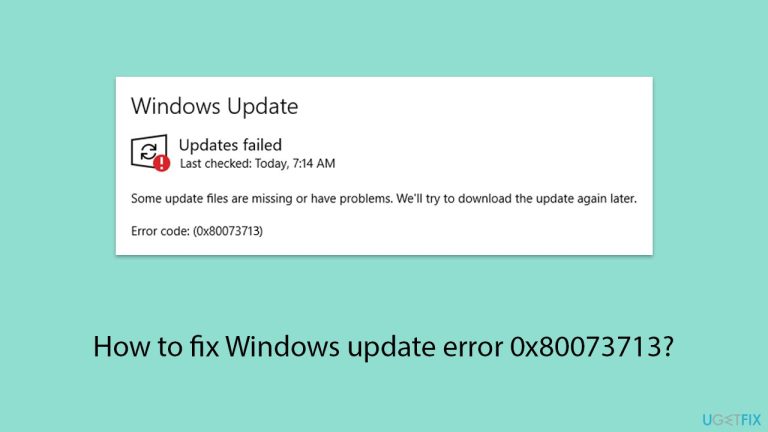
While these updates are essential, sometimes you may encounter troubles installing them, and one of these is Windows Update Error 0x80073713. This issue appears when there is an incapability of the folders or settings needed to update. Error code 0x80073713 means that some files are missing or damaged on your side, so the update will not be installed correctly.
What causes Windows update error 0x80073713
This error may be caused by several reasons. It generally occurs when update-related system files are damaged or update dependencies not installed correctly. Another common trigger is a Windows servicing stack (the core component) version mismatch. This error can also be the result of problems with the registry or software conflicts in your system.
How to fix Windows update error 0x80073713
You typically need to either repair the corrupted files or correct issues with the Windows servicing stack to fix this error. Later in this article, I will share step-wise troubleshooting to troubleshoot and fix the error so that you can install the updates successfully. If you want this process to be easier and automated, click on the PC utility [d1], an advanced tool that fixes all of your Windows problems for you.
Fix 1. Run the troubleshooter
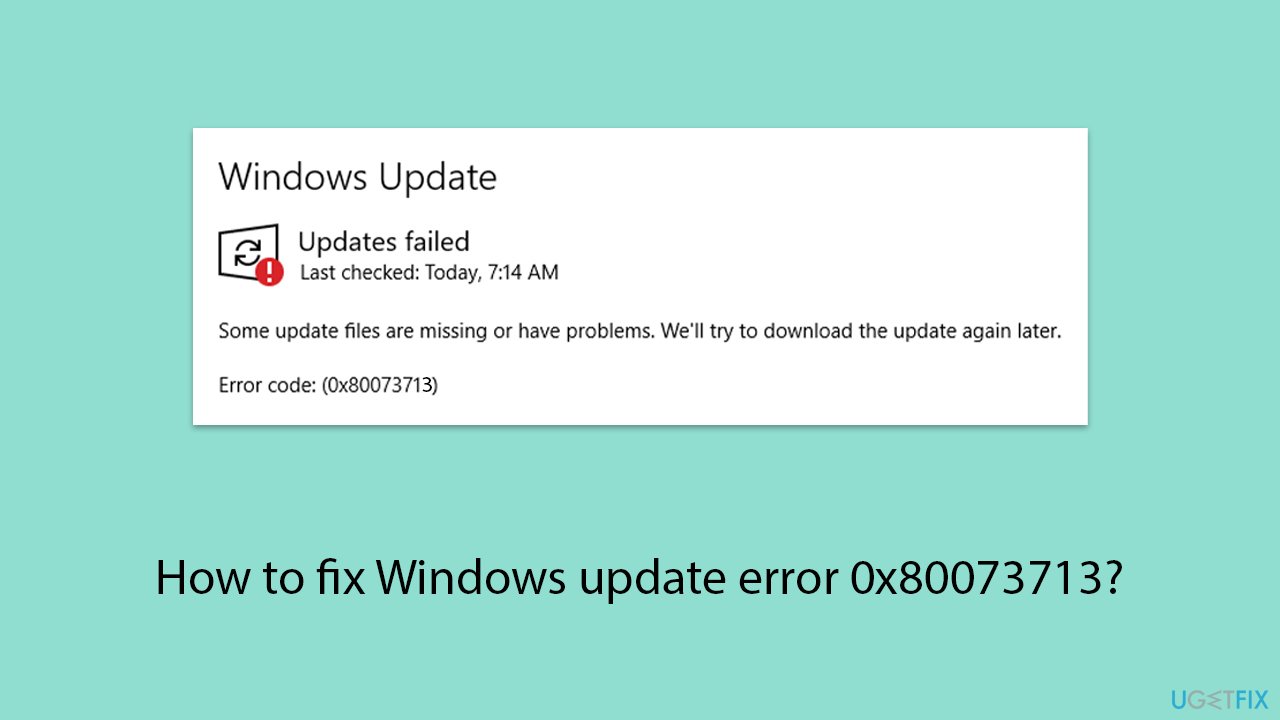
- Type Troubleshoot into the Windows search bar and press Enter.
- Next, on the right side of the window, select Additional troubleshooters/Other troubleshooters.
- Scroll down to locate the Windows update option and click on it.
- Click on Run the troubleshooter/Run and allow the process to complete.
- Once it is finished, implement any recommended fixes and restart Windows.
Fix 2. Temporarily disable security app and firewall
- Disable your antivirus software from its main dashboard, usually accessible via the system tray icon.
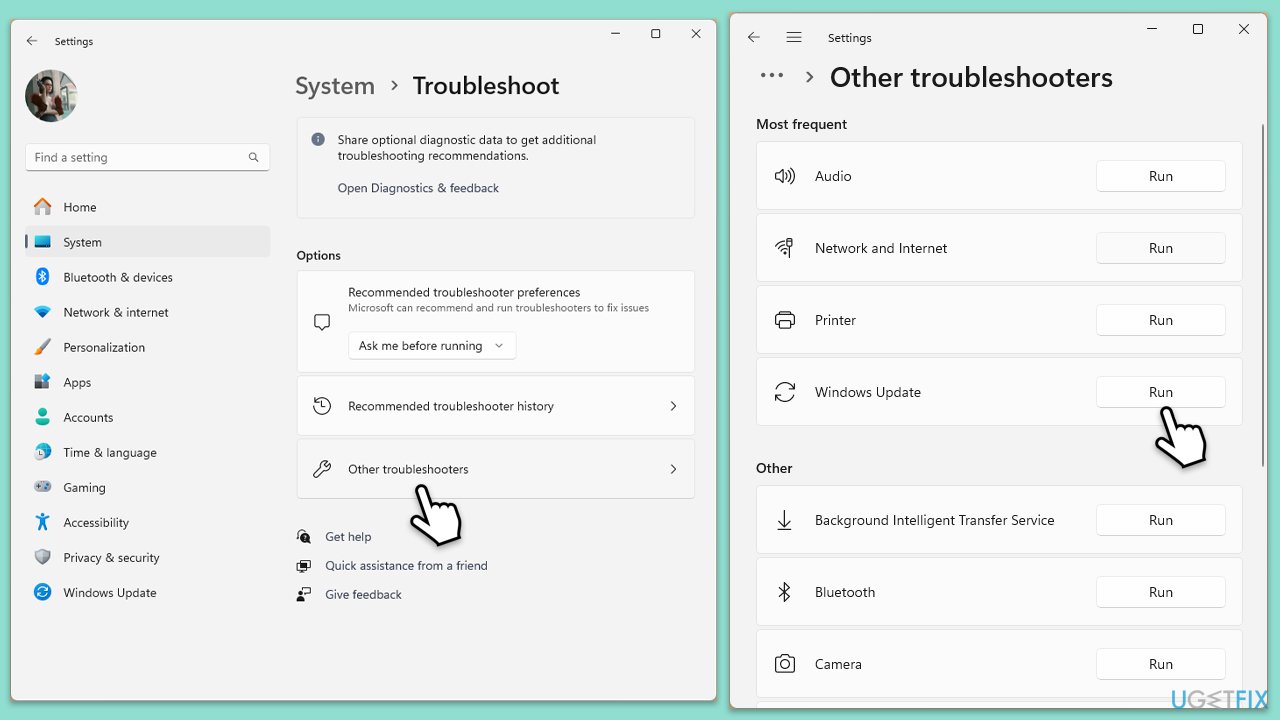
- Press Win + S and type "firewall." Select Windows Defender Firewall.
- Click on Turn Windows Defender Firewall on or off.
- Select Turn off Windows Defender Firewall for both private and public network settings. Remember to turn these back on after testing.
Fix 3. Check relevant services
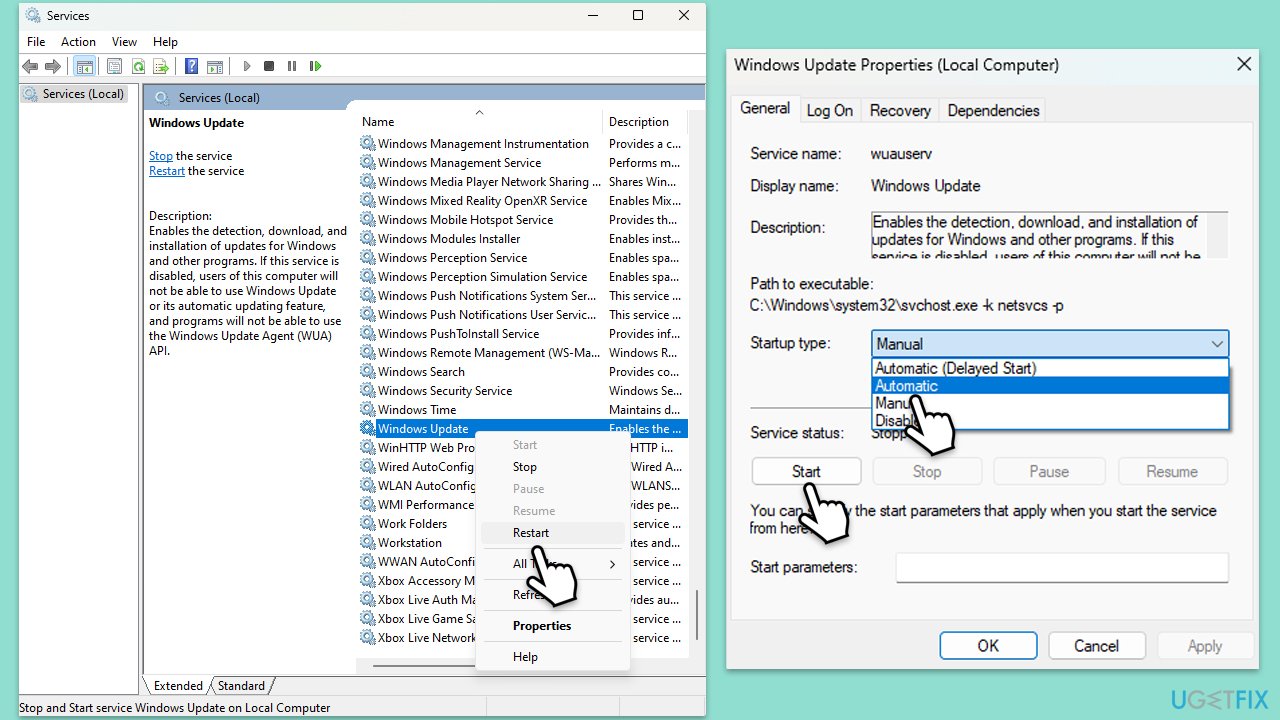
- Type in Services in Windows search and press Enter.
- Find Background Intelligent Transfer Service (BITS).
- If it is already running, right-click and pick Restart.
- If the service is not running, double-click it, and select Automatic under the Startup type from the drop-down menu.
- Click Start, Apply, and OK.
- Repeat this process for Windows Update and Cryptographic services.
Fix 4. Perform Disk Cleanup
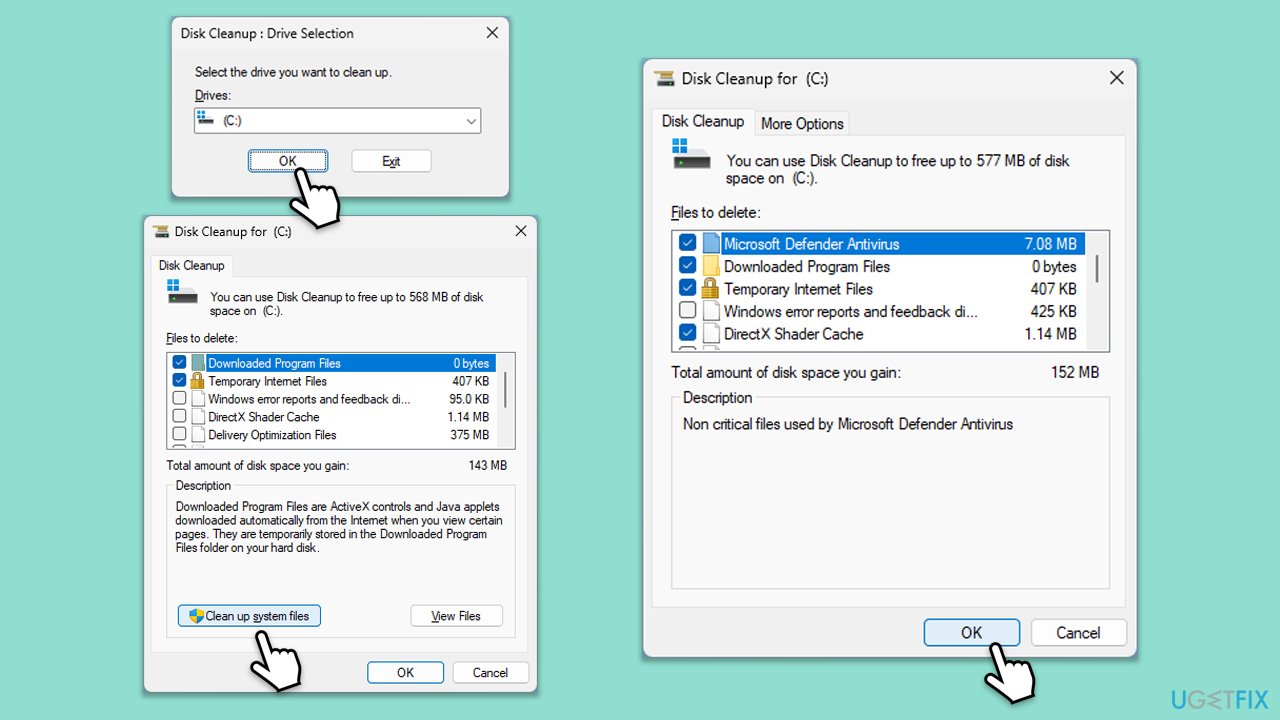
- Open the Windows search bar and type Disk Cleanup. Press Enter to open the Disk Cleanup utility.
- In the Disk Cleanup window, click Clean up system files.
- Select the drive (C: by default) again and click OK.
- In the list of files that can be cleaned up, select the largest portions of data, such as Windows Update, Temporary Internet Files, Temporary Files, and others.
- Click OK to begin the cleanup process.
Fix 5. Repair corrupted files
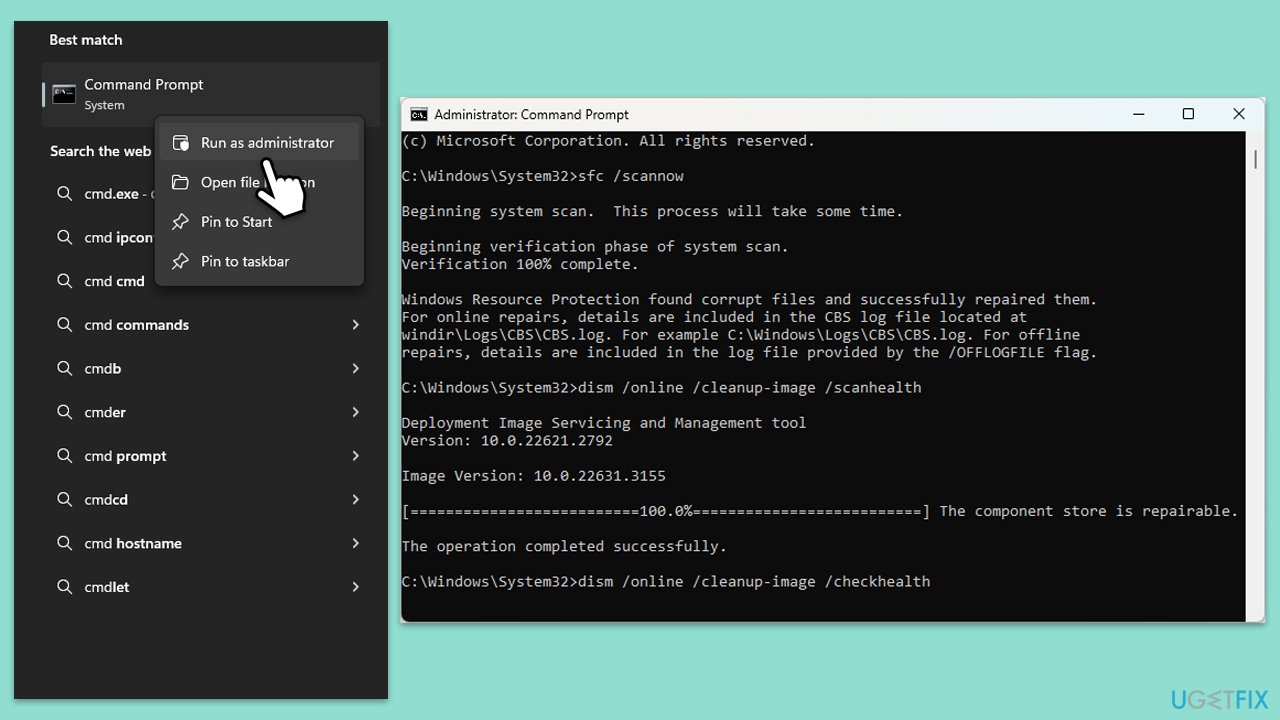
- Type cmd in Windows search, right-click on Command Prompt, and select Run as administrator.
- When UAC shows up, click Yes.
- Copy and paste the following command, pressing Enter after:
sfc /scannow - Wait till the scan is finished. If Windows finds system file integrity violations, it will attempt to fix them. After this, use the set of the following commands, pressing Enter each time:
DISM /Online /Cleanup-Image /CheckHealth
DISM /Online /Cleanup-Image /ScanHealth
DISM /Online /Cleanup-Image /RestoreHealth - Close down the Command Prompt and restart your device.
Fix 6. Install manually
- Type in Updates in Windows search and press Enter.
- Select View update history.
- Find the update that failed with the 0xC1900109 error and copy its KB number.
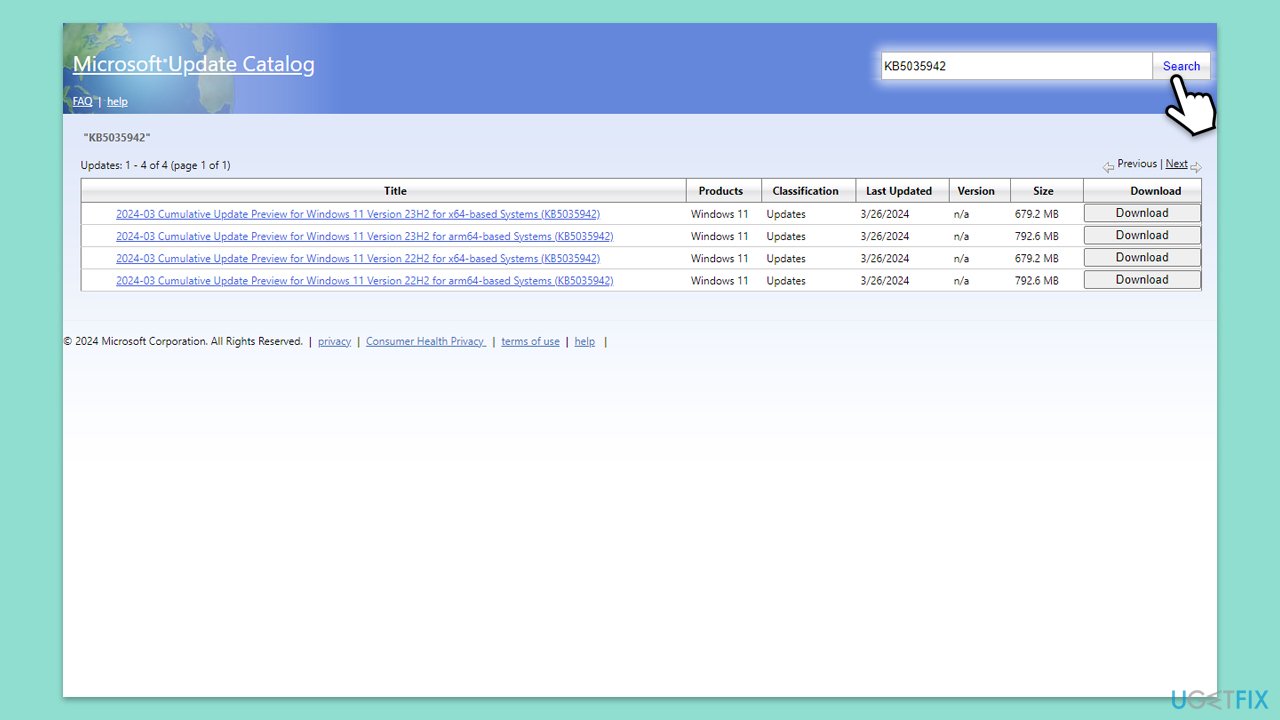
- Open your browser and go to Microsoft Update Catalog.
- Within the search bar, type in the KB number and click Search.
- Find the correct version of the update for your operating system (to check this, right-click on Start and pick System. Under Device specifications and check the System type) and click Download.
- Use on-screen guidelines to finish the installation process and restart your computer.
Fix 7. Use Media Creation Tool
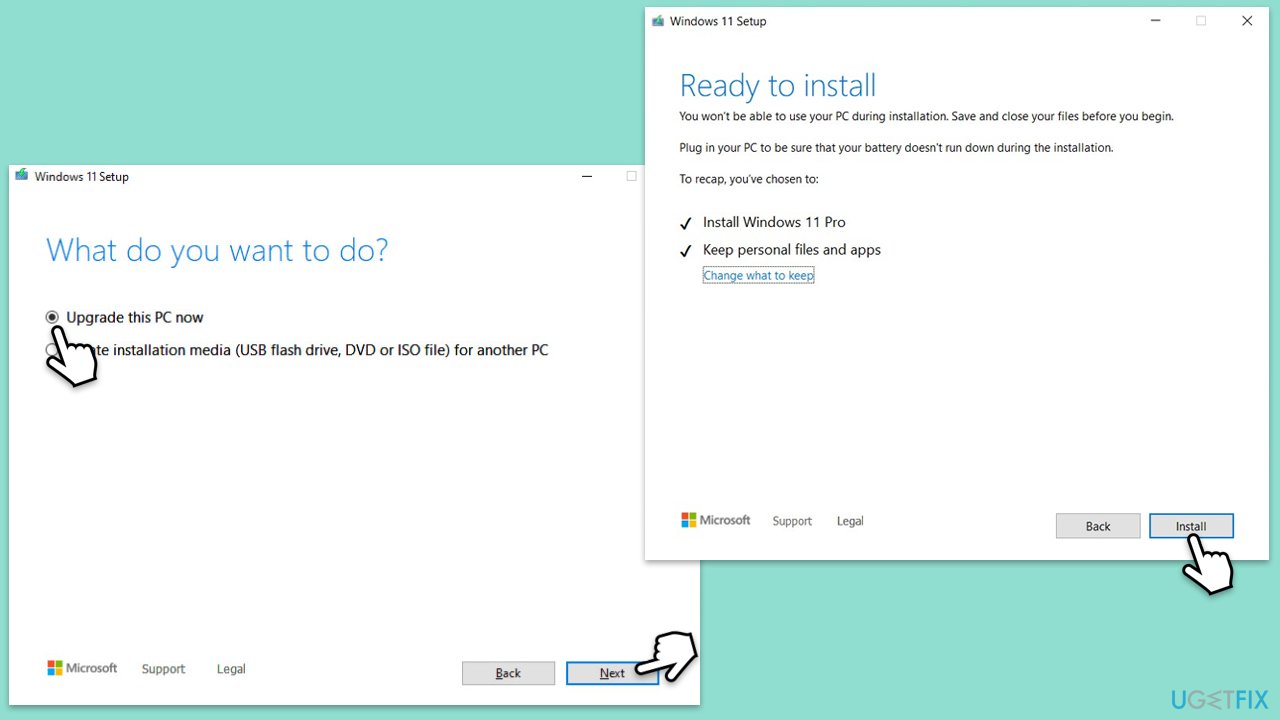
If none of the solutions above helped, please use the Media Creation Tool to repair-install Windows and bring it to the latest version. Before proceeding, make sure you uninstall third-party security software and disconnect any unnecessary devices such as printers, cameras, etc.
- Visit the official Microsoft website and download Windows 10 installation media (Windows 11 version).
- Double-click the installer, select Yes when UAC shows up, and agree to the terms.
- Select Upgrade this PC now and click Next.
- Windows will start downloading the needed files.
- Agree to the terms once again and click Next.
- Before installing, make sure that you are happy with your choices (otherwise, you can click Change what to keep option).
- Finally, click Install to begin the upgrade process.
Bottom line
To fix the Windows update error 0x80073713, you can run the troubleshooter, repair corrupted files, or address issues with the Windows servicing stack. If these steps do not resolve the issue, consider using an advanced tool to automate the repair process.
Frequently asked questions
The error 0x80073713 generally indicates that some files required for Windows Update are missing or corrupted, affecting the update process on Windows 10 or Windows 11.
You can use the System File Checker tool by running 'sfc /scannow' in the Command Prompt as an administrator to restore missing or corrupted system files on Windows 10 or Windows 11.
Yes, you can run the Deployment Imaging Service and Management Tool (DISM) command 'DISM /Online /Cleanup-Image /RestoreHealth' to fix Windows update issues, including error 0x80073713.




Report an issue
What's wrong with this guide? We review every report and update or remove content.
Report received — thank you. We'll review and fix it.
You need a free account to submit a report.
Be the first to comment