How to fix
Windows update error 0x80073BC3
on Windows
Resolve Windows update error 0x80073BC3 quickly and effortlessly. Get expert-tested solutions for Windows 10 and Windows 11, fixed in minutes!

What causes How to fix Windows update error 0x80073BC3?
- Corrupt system files
- Insufficient hard drive space
- Incompatible software
- Resources currently in use
Repairs Windows system files, removes malware, and restores a clean OS state — without reinstalling.
Hi. I keep getting a 0x80073BC3 error when trying to install the latest Windows updates. How do I rectify this?
Microsoft, the tech giant that developed the widely-used Windows operating system, regularly issues updates aimed at boosting system functionality, patching security vulnerabilities, and introducing new features.
These updates range from minor patches to major system overhauls and are an essential part of maintaining a secure and efficient computing environment. However, as crucial as these updates are, they sometimes bring along issues that disrupt the update process. One of the common issues faced by users is the Windows Update error 0x80073BC3.
The Windows Update error 0x80073BC3 is often encountered during an attempt to install an update or a specific application. The system reports that the package couldn't be installed because the resources it modifies are currently in use. This error, although it appears to happen randomly, usually stems from various underlying causes, such as corrupt system files, insufficient hard drive space, or incompatible software.
To tackle this error, it's necessary to understand the root of the problem and find the appropriate solution. Resolving this error may involve running the built-in Windows system file checker to deal with potential file corruption, freeing up hard disk space to accommodate new updates, or uninstalling incompatible software that might be interfering with the update process. However, it's important to note that these solutions require a certain degree of technical proficiency and may seem daunting for some users.
For a more straightforward and user-friendly approach, using an automatic PC repair tool can be a good alternative. This is where the [d1] PC repair tool comes in handy. Designed to automatically diagnose and rectify common Windows issues, this tool can save users considerable time and effort, providing a stress-free way to resolve Windows Update problems. The tool offers convenience and allows users to maintain an efficient computing environment without having to delve into intricate manual troubleshooting.
Therefore, while the Windows Update error 0x80073BC3 can be quite bothersome, it's reassuring to know that there are accessible solutions for both tech-savvy users and those who prefer a more automated approach.
Fix 1. Run the troubleshooter
Windows has an inbuilt troubleshooter designed to automatically find and fix software issues. It works by scanning the system to detect potential problems and then applying various fixes to resolve them.
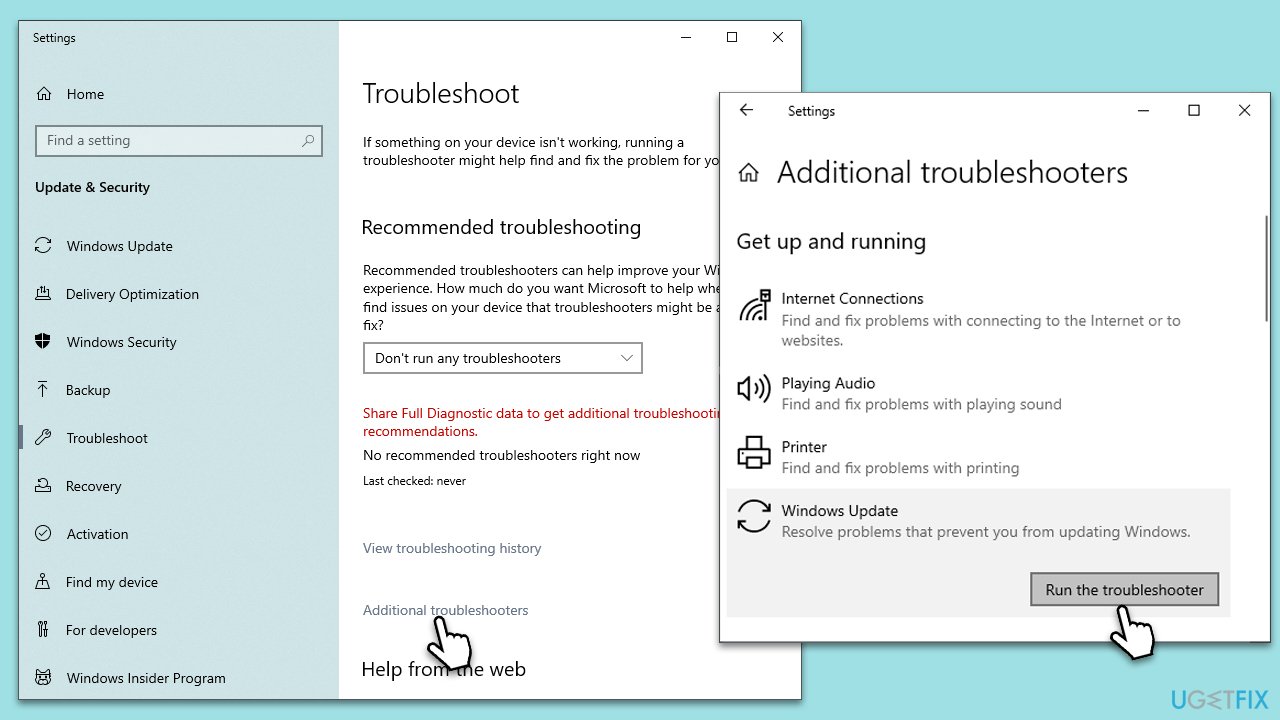
- Type Troubleshoot into the Windows search bar and press Enter.
- Next, on the right side of the window, select Additional troubleshooters/Other troubleshooters.
- Scroll down to locate the Windows update option and click on it.
- Click on Run the troubleshooter/Run and allow the process to complete.
- Once it is finished, implement any recommended fixes and restart your computer.
Fix 2. Disable anti-malware software or try Clean Boot
Certain anti-malware software can interfere with Windows updates. A Clean Boot starts Windows with a minimal set of drivers and startup programs, which can help identify software conflicts.
- Disable your anti-malware software temporarily and try the update again.
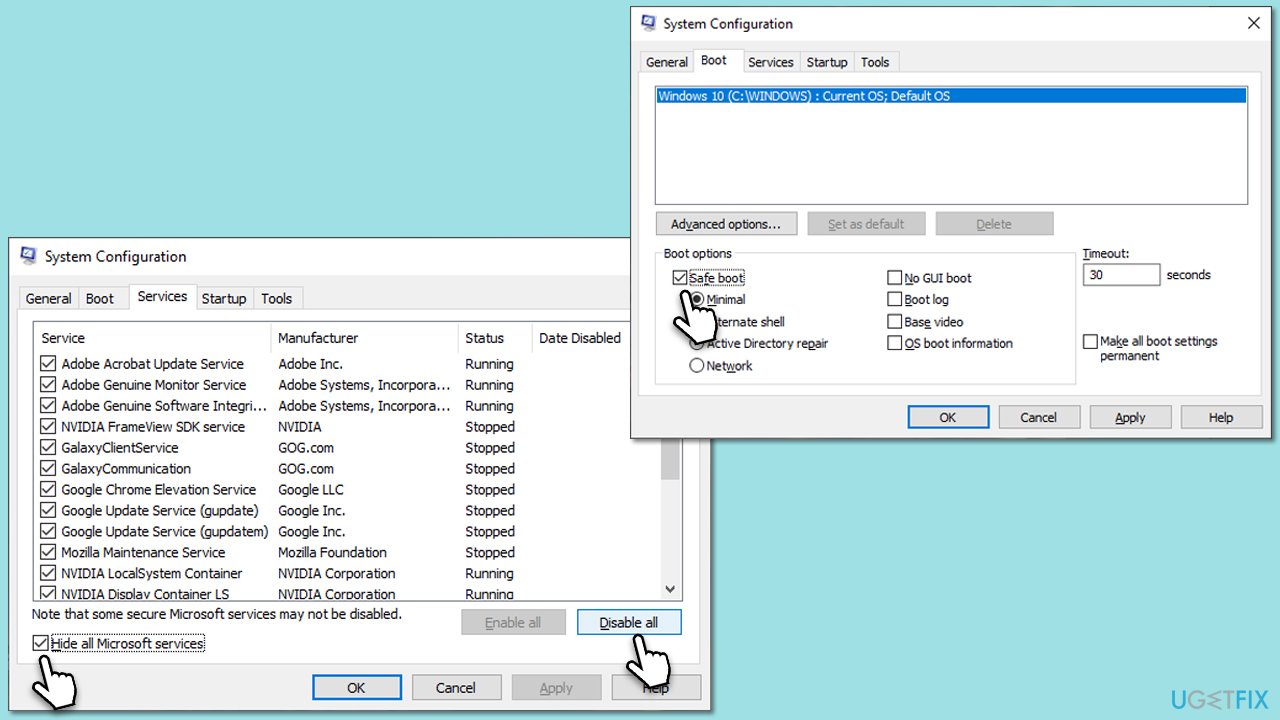
- If the problem persists, press Win + R, type msconfig, and hit Enter.
- Go to the Services tab and tick the Hide all Microsoft services checkbox.
- Select Disable all.
- Go to the Startup tab and click Open Task Manager.
- Here, right-click on each of the non-Windows entries and select Disable.
- Close down the Task Manager.
- Go to the Boot tab and tick the Safe boot option.
- Restart your device.
Fix 3. Run SFC and DSIM
The System File Checker and Deployment Image Servicing and Management tools check for and repair corrupt system files, which can interfere with updates.
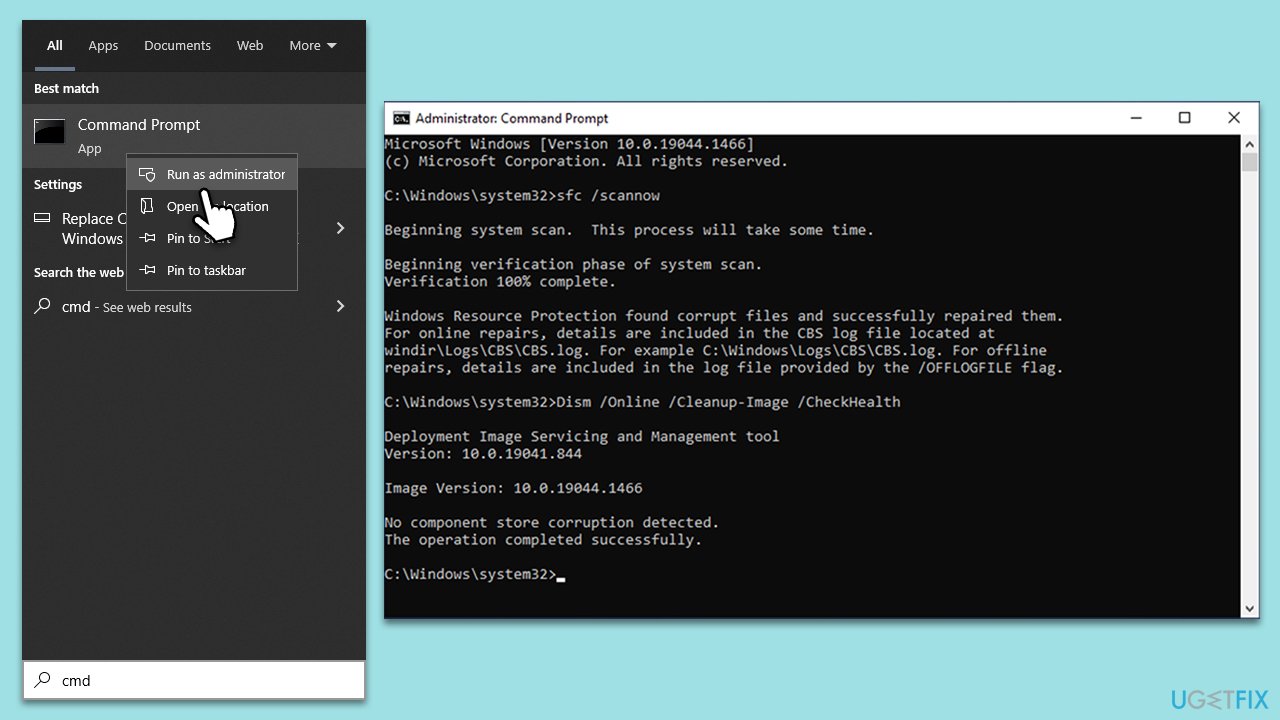
- Type cmd in Widnows search.
- Right-click on Command Prompt and pick Run as administrator.
- Type in the following command and press Enter:
sfc /scannow - When done, run the following commands as well:
dism /online /cleanup-image /scanhealth
dism /online /cleanup-image /checkhealth
dism /online /cleanup-image /restorehealth
(Note: if you get an error executing this last command, add /Source:C:\RepairSource\Windows /LimitAccess to it and try again). - Restart your device.
Fix 4. Reset Windows update components
Resetting the update components can resolve issues caused by temporary files or service interruptions.
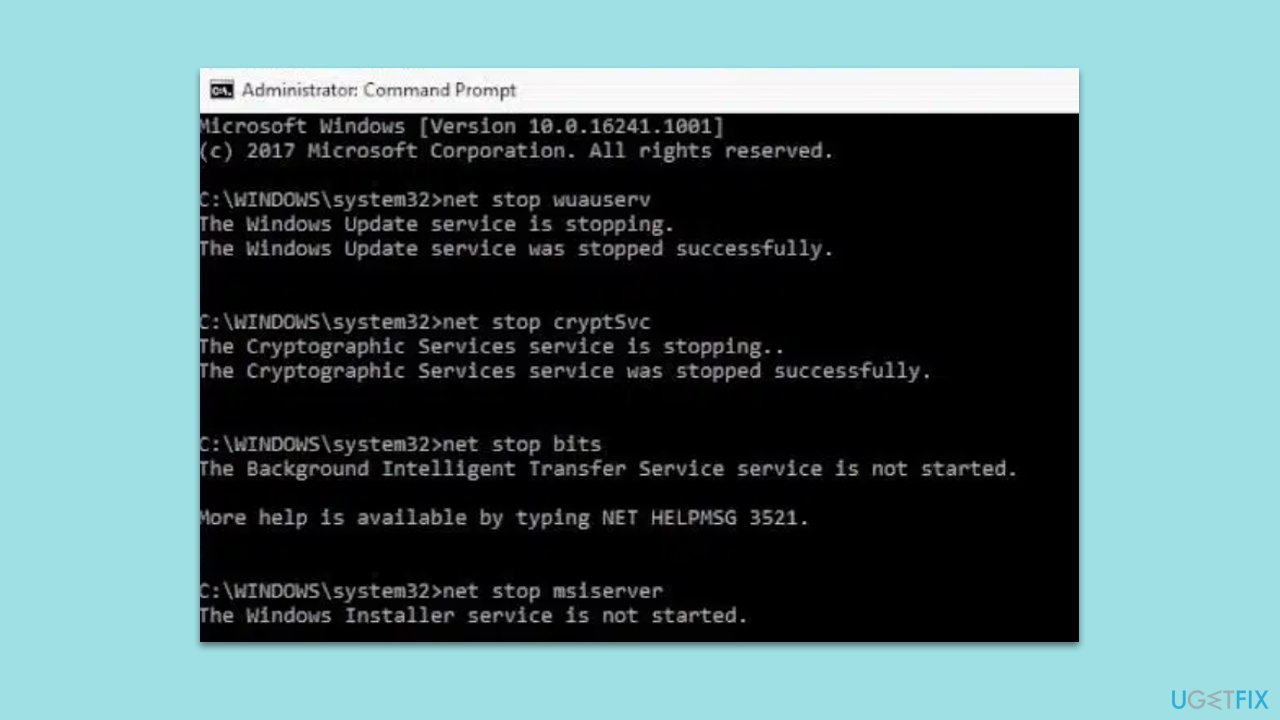
- Open Command Prompt as administrator.
- Paste in each of these commands, pressing Enter every time:
net stop bits
net stop wuauserv
net stop appidsvc
net stop cryptsvc
Del “%ALLUSERSPROFILE%\Application Data\Microsoft\Network\Downloader\*.*”
rmdir %systemroot%\SoftwareDistribution /S /Q
rmdir %systemroot%\system32\catroot2 /S /Q
regsvr32.exe /s atl.dll
regsvr32.exe /s urlmon.dll
regsvr32.exe /s mshtml.dll
netsh winsock reset
netsh winsock reset proxy
net start bits
net start wuauserv
net start appidsvc
net start cryptsvc - Restart your PC.
Fix 5. Install the update manually
Sometimes, manually downloading and installing the update from the Microsoft Update Catalog can bypass update errors.
- Type in Updates in Windows search and press Enter.
- Select View update history.
- Find the update that failed with the 0x80073BC3 error and copy its KB number.
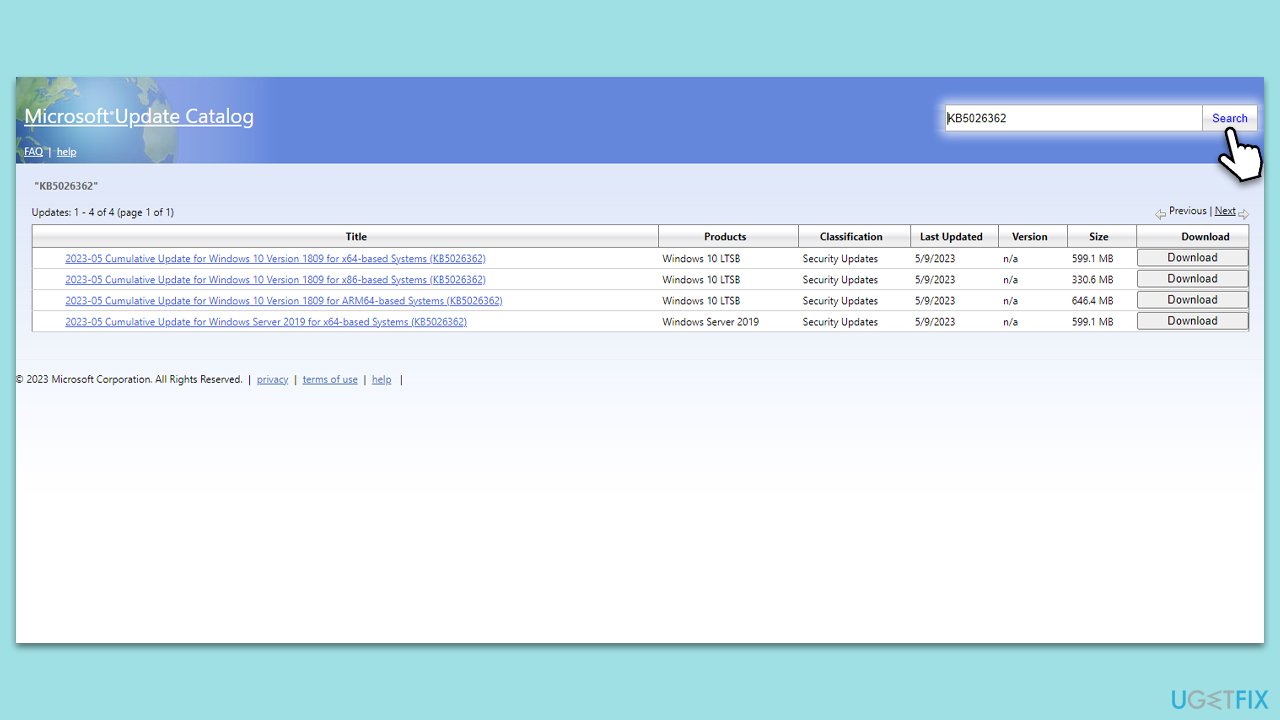
- Open your browser and go to Microsoft Update Catalog.
- Within the search bar, type in the KB number and clicks Search.
- Find the correct version of the update for your operating system (to check this, right-click on Start and pick System. Under Device specifications and check the System type) and click Download.
- Use on-screen guidelines to finish the installation process and restart your computer.
Fix 6. Perform Disk Cleanup
Insufficient storage can cause update errors. The Disk Cleanup tool can help free up space by removing unnecessary files.
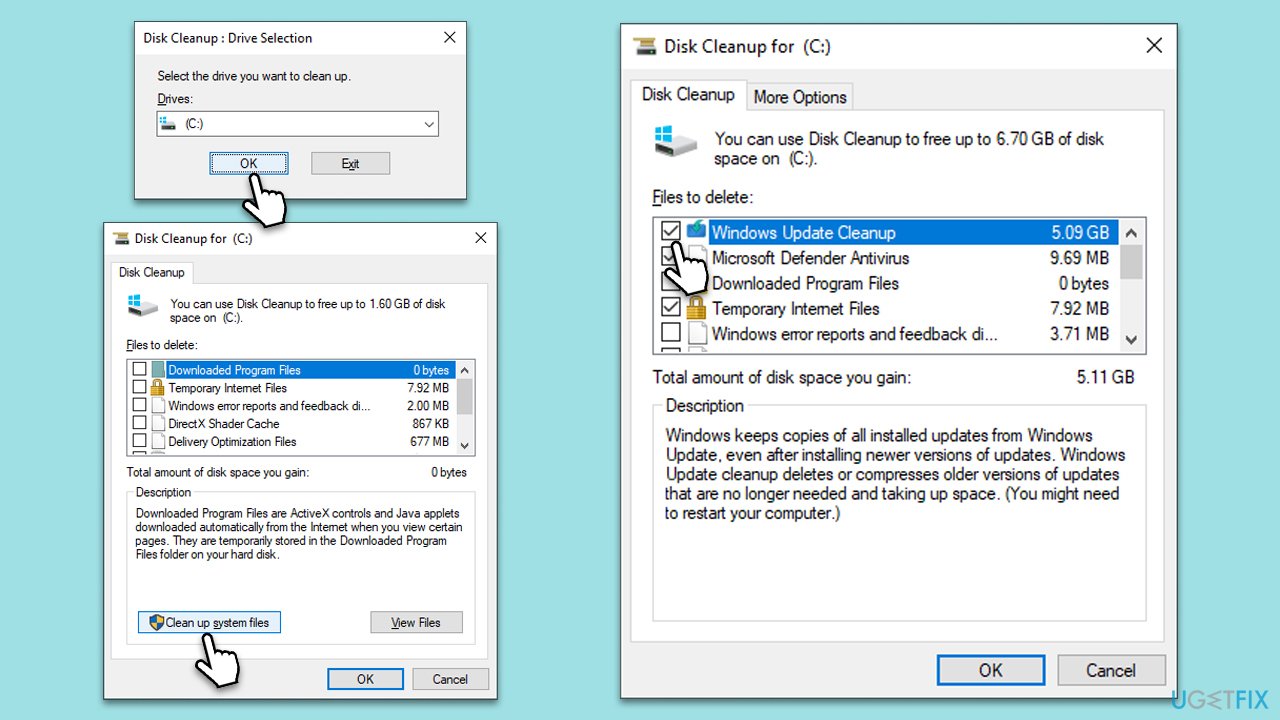
- Type Disk Cleanup in Windows search and hit Enter.
- If your Windows is installed on drive C, pick it from the list (it should be by default) and press OK.
- Click Clean up system files.
- Select your main disk again and click OK.
- Here, select the largest portions of the data used - these typically include Temporary Internet Files, Windows Update, Temporary Files, Recycle Bin, Delivery Optimization Files, and others.
- Click OK - the process should be finished shortly.
Bottom line
To fix the Windows Update error 0x80073BC3, users can run the built-in Windows system file checker, free up hard disk space, or uninstall incompatible software. For a more user-friendly solution, an automatic PC repair tool can be utilized to diagnose and resolve the issue. If none of these solutions work, further technical assistance may be required.
Frequently asked questions
This error typically occurs due to corrupted system files, issues with the Windows Update service, or problems with the Microsoft Store app. Resolving these underlying issues can help in fixing the update error.
You can troubleshoot this error by running the Windows Update Troubleshooter, resetting the Windows Update components, or performing a System File Checker scan. These steps can help identify and fix the root cause of the problem.
Yes, you can manually fix this error by clearing the SoftwareDistribution folder and resetting the Windows Update service. This often resolves the issue without needing to restore your system.




Report an issue
What's wrong with this guide? We review every report and update or remove content.
Report received — thank you. We'll review and fix it.
You need a free account to submit a report.
Be the first to comment