How to fix
Windows update error 0x8008005
on Windows
Resolve Windows update error 0x8008005 quickly and efficiently with expert-tested solutions designed for Windows 10 and Windows 11. Fixed in minutes!

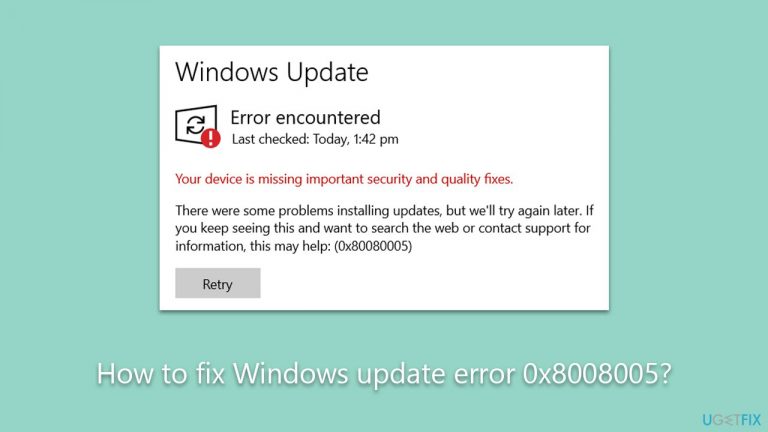
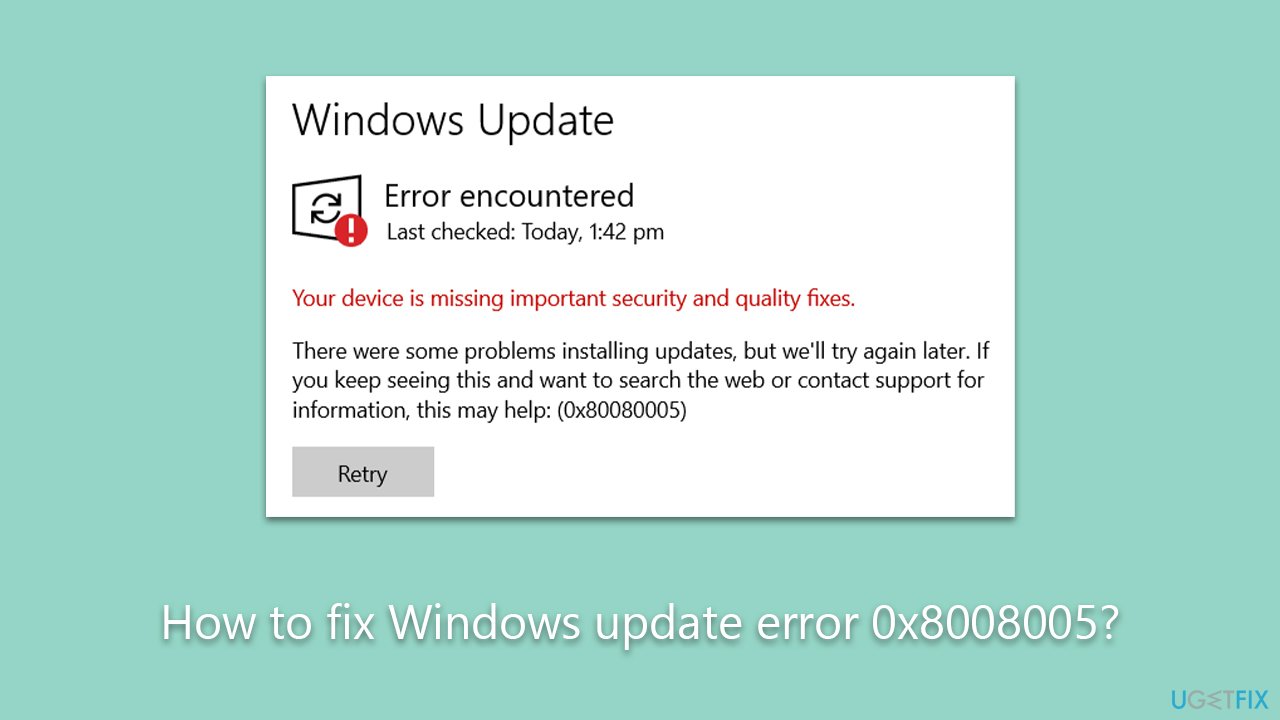
What causes How to fix Windows update error 0x8008005?
- Corrupted system files
- Bugged Windows update caches
- Incorrectly configured services
- Malware infections
Repairs Windows system files, removes malware, and restores a clean OS state — without reinstalling.
Hi, my Windows has not been updated for a few months now because every time I try to install the latest version, I receive the error code 0x8008005. Any idea on how do I fix this? Thanks.
Windows updates play a vital role in maintaining the performance, security, and stability of your computer. They deliver essential security patches, feature enhancements, and bug fixes, ensuring that your system stays current and protected against potential threats. Microsoft regularly releases these updates to provide Windows users with the best possible user experience.
Despite the benefits of Windows updates, many users encounter errors during the update process. One of the common errors users face is the Windows update error 0x8008005. This error can prevent your system from receiving crucial updates and compromise its security and functionality. The underlying causes of this error can be diverse, such as corrupted system files, bugged Windows update caches, incorrectly configured services, and more.
-
Corrupted system files. Unexpected system shutdowns, hardware failures, or software conflicts can result in damaged or missing system files. These corrupted files may hinder the Windows Update service from functioning properly, leading to the 0x8008005 error.
-
Bugged Windows update caches. The Windows update cache stores temporary files required for the update process. If the cache contains corrupted or incomplete files, it can cause the Windows Update service to fail, resulting in the 0x8008005 error. Clearing the cache and reattempting the update can sometimes resolve the issue.
-
Incorrectly configured services. The Windows Update service and its associated services, such as Background Intelligent Transfer Service (BITS) and Cryptographic Services, need to be correctly configured to facilitate the update process. If these services are disabled or misconfigured, the 0x8008005 error may occur, preventing your system from receiving updates.
-
Malware infections. Malicious software can cause a wide range of issues on your computer, including the Windows update error 0x8008005. Malware can modify or delete system files, and registry entries or disrupt the normal functioning of the Windows Update service. In some cases, malware can be specifically designed to target and interfere with the update process to maintain a foothold on the infected system and avoid detection or removal.
A Windows repair tool, such as [d1], can be an invaluable asset when dealing with persistent errors like 0x8008005. These tools automatically scan your system for issues, repair corrupted files, and optimize your PC for better performance.
By using a trusted Windows repair tool, you can save time and effort while ensuring that your computer remains up-to-date and secure, effectively addressing the underlying causes of errors like 0x8008005. In addition to fixing common errors, a Windows repair tool can help maintain the overall health of your system, preventing future issues and providing a more stable computing experience.
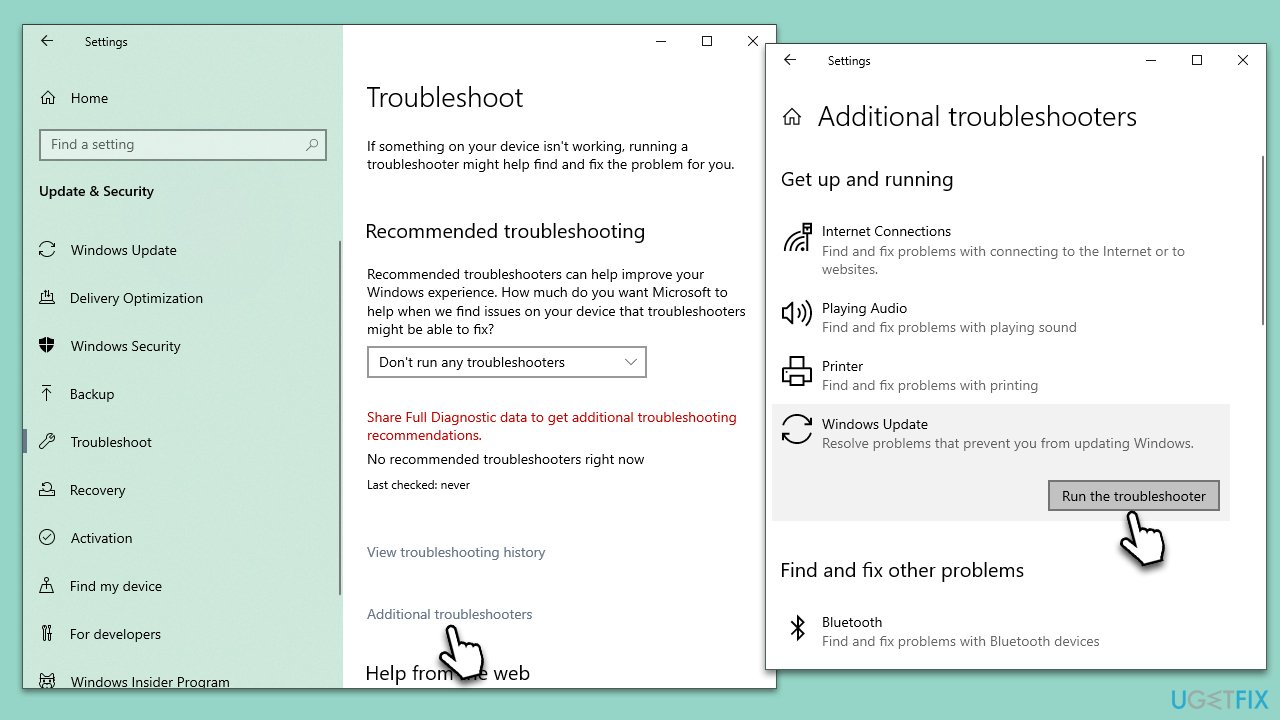
1. Run the troubleshooter
- Type Troubleshoot in Windows search and press Enter.
- Select Additional troubleshooters/Other troubleshooters.
- Find Windows Update from the list.
- Click it and select Run the troubleshooter/Run.
- Restart your PC when the update process finishes.
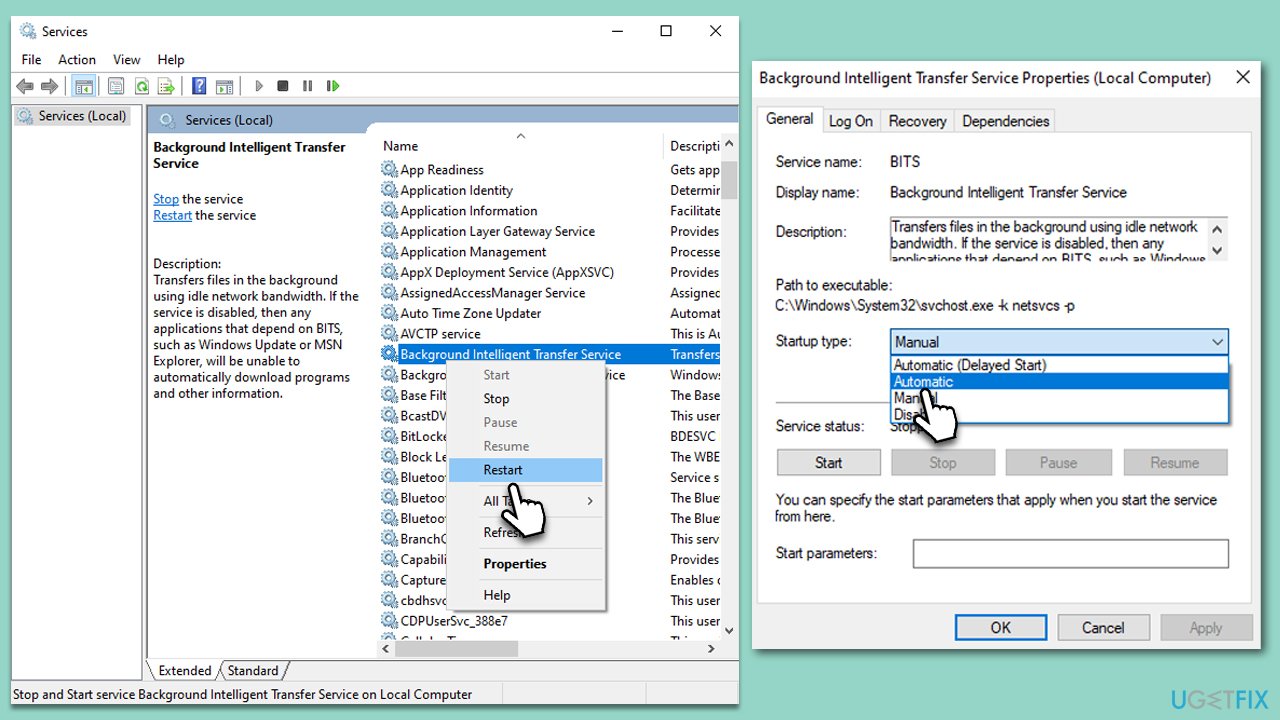
2. (Re)start services
- Type in Services in Windows search and press Enter.
- Find Background Intelligent Transfer Service (BITS).
- If it is already running, right-click and pick Restart.
- If the service is not running, double-click it, and select Automatic under the Startup type from the drop-down menu.
- Click Start, Apply, and OK.
- Repeat this process for Windows Update and Cryptographic services.
3. Check for system file corruption
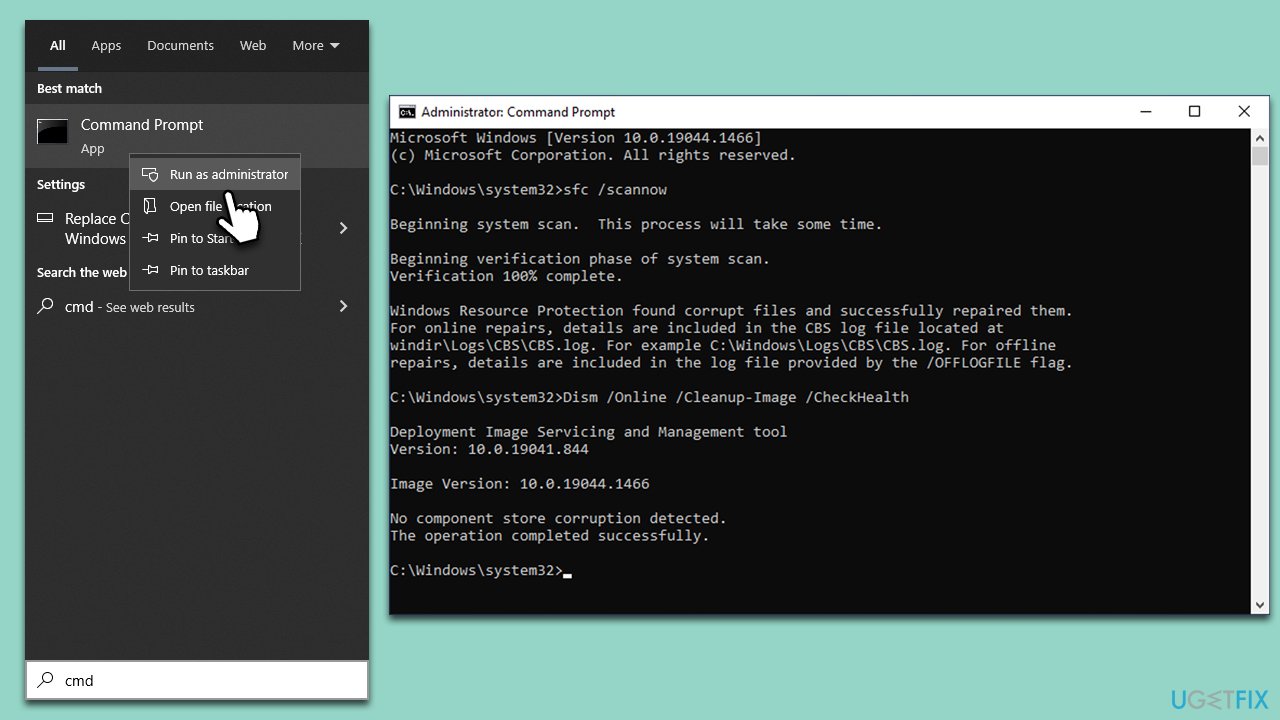
- Type cmd in Windows search.
- Right-click on Command Prompt and select Run as administrator.
- User Account Control will ask whether you want to make changes - click Yes.
- Use the following command lines, pressing Enter each time:
sfc /scannow - After the scan is done, copy the following commands and press Enter:
DISM /Online /Cleanup-Image /CheckHealth
DISM /Online /Cleanup-Image /ScanHealth
DISM /Online /Cleanup-Image /RestoreHealth - Restart your system.
4. Try Clean Boot
Some software, such as anti-malware or VPN, might meddle with the connections to Microsoft service, preventing Windows updates from being successful. You can disable these applications (or uninstall them). If you are not sure which app is interfering with these connections, you can always resort to Clean Boot:
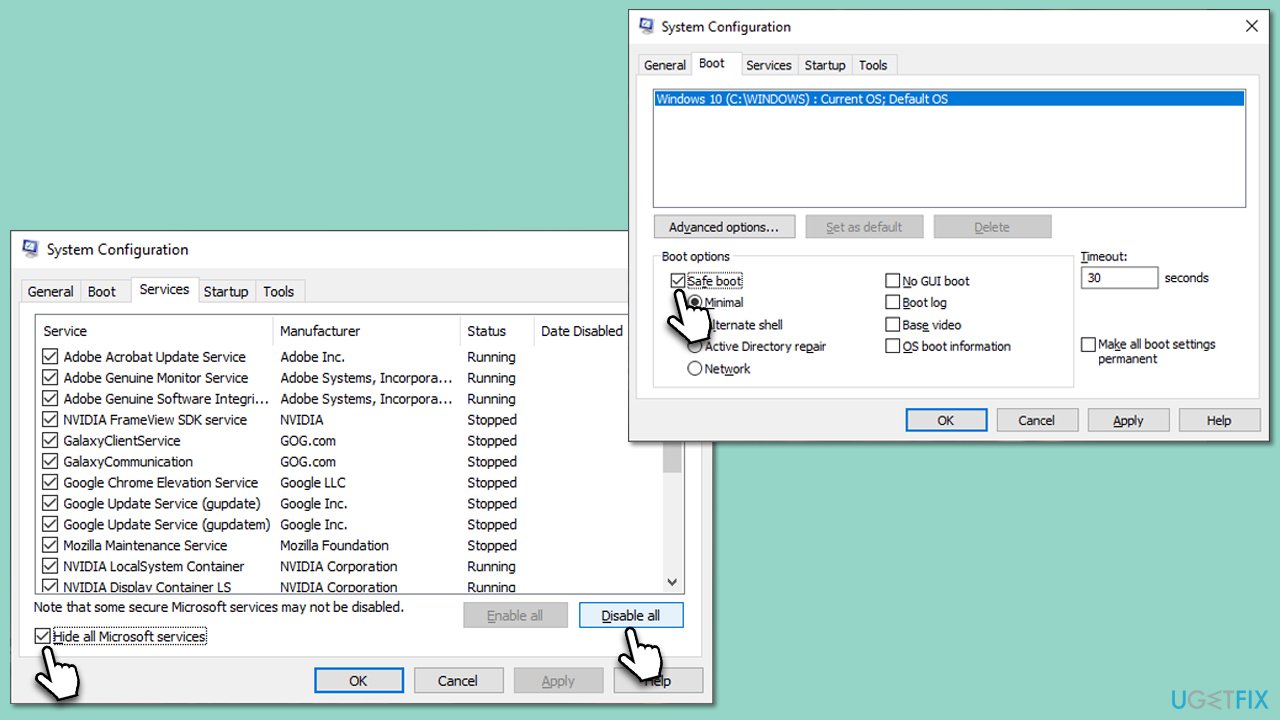
- Press the Windows key + R to open the Run dialog.
- Type msconfig and press Enter to open the System Configuration window.
- Click on the Services tab and check the Hide all Microsoft Services box.
- Click Disable all to disable non-Microsoft services, then click the Startup tab.
- Open the Task Manager, disable all startup items, and close the Task Manager.
- Go to the Boot tab and mark the Safe boot option.
- Click OK on the System Configuration window and restart your computer.
- Attempt to update Windows again.
5. Scan for malware
While there are many reliable third-party security applications to choose from, you can also consider using Microsoft Security Scanner, downloadable from the official website. Alternatively, you can perform an Offline scan with Windows Defender:
- Enter Windows Security into the Windows search bar and press Enter.
- Select Virus & threat protection.
- Go to Scan options.
- Select Microsoft Defender Offline scan and click Scan now.
- Your computer will promptly restart and initiate a thorough scan.
6. Reset Windows update components
- Open Command Prompt as administrator, as previously explained
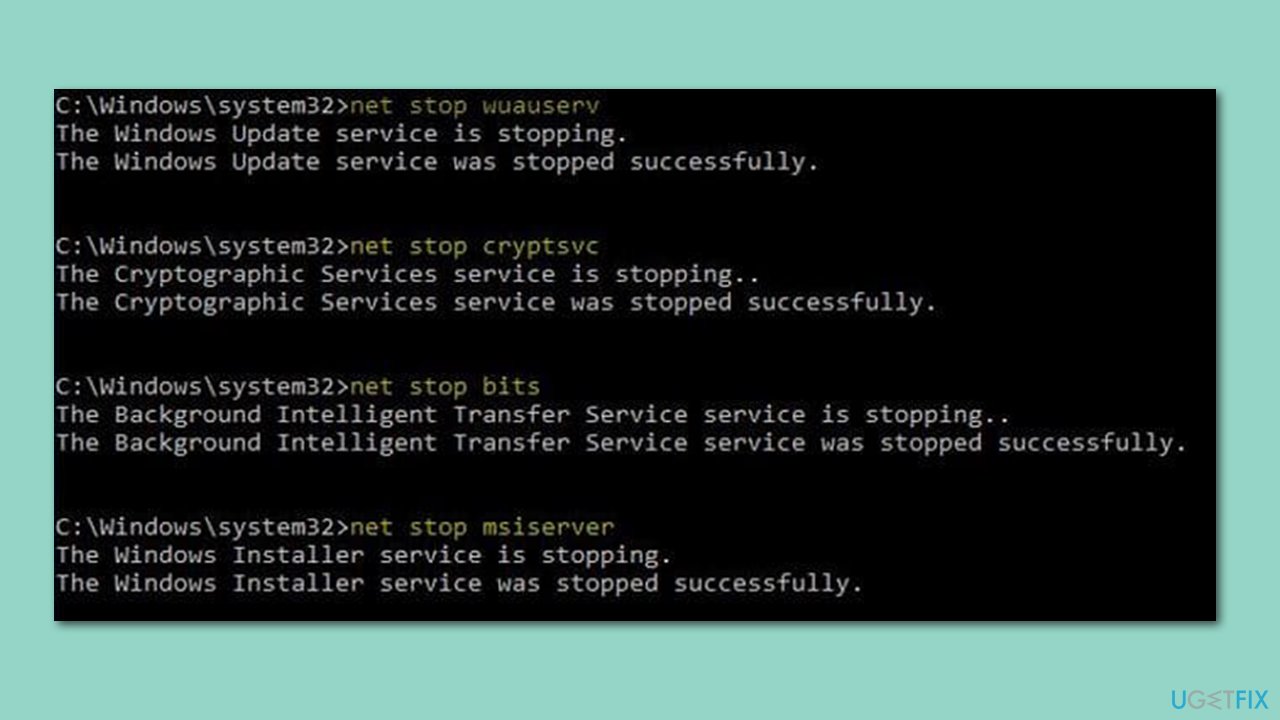
- In the new window, use the following commands, pressing Enter after each:
net stop bits
net stop wuauserv
net stop appidsvc
net stop cryptsvc
Del “%ALLUSERSPROFILE%\Application Data\Microsoft\Network\Downloader\*.*”
rmdir %systemroot%\SoftwareDistribution /S /Q
rmdir %systemroot%\system32\catroot2 /S /Q
regsvr32.exe /s atl.dll
regsvr32.exe /s urlmon.dll
regsvr32.exe /s mshtml.dll
netsh winsock reset
netsh winsock reset proxy
net start bits
net start wuauserv
net start appidsvc
net start cryptsvc - Restart your system.
7. Install manually
- Type in Update in Windows search and press Enter.
- Click View Update History on the right side of the window.
- From the list of updates, note the KB number of the one that failed to be installed.
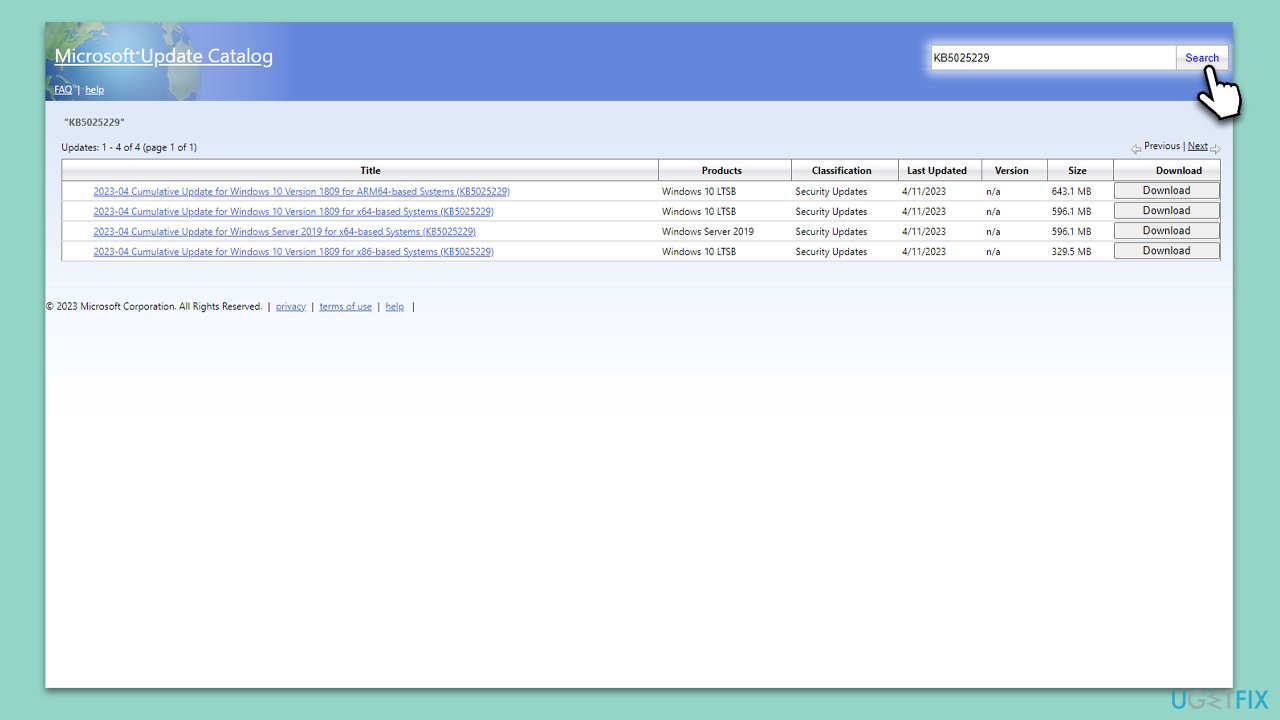
- Launch your browser and go to Microsoft Update Catalog.
- Type the KB number that failed into the search bar and press Enter or click Search.
- Locate the correct version of the update for your Windows version (to check this, right-click on Start and pick System. Under Device specifications and check the System type) and click Download.
- Open the installer and proceed with on-screen instructions.
- Restart as necessary.
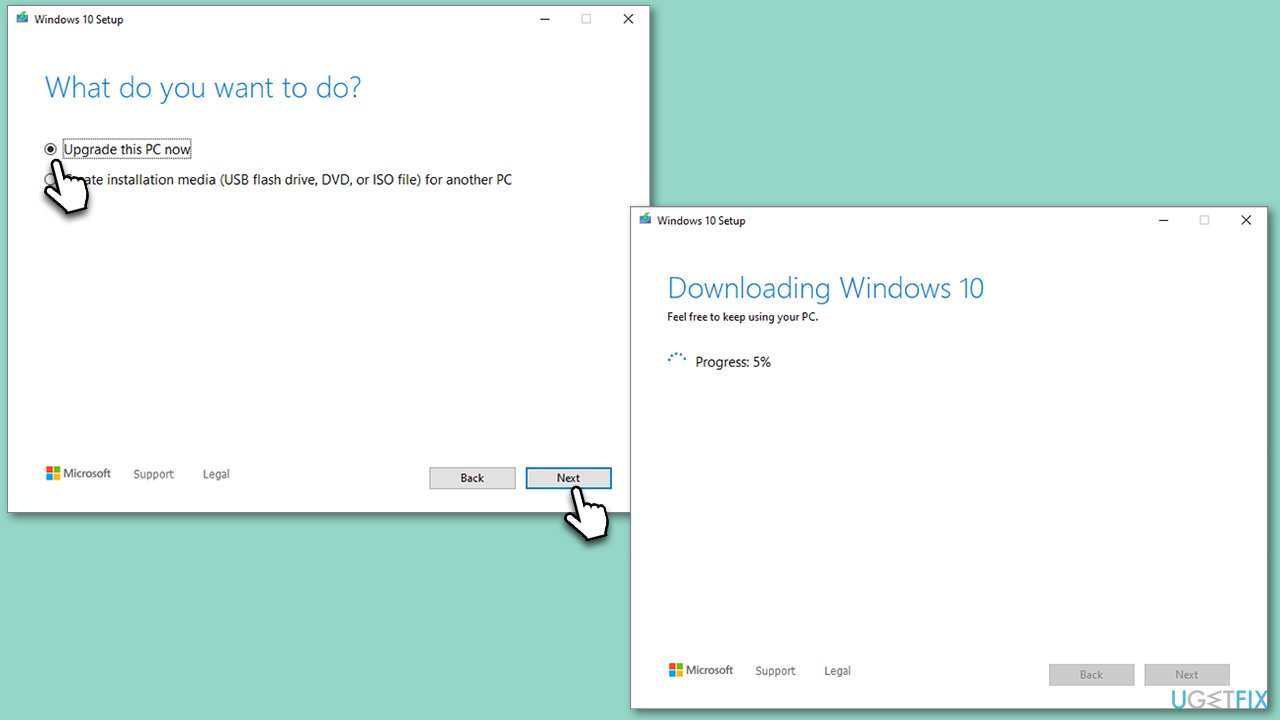
8. Use Media Creation Tool
Before moving forward, it is recommended to remove any third-party anti-malware software and disconnect all non-essential devices, including printers, cameras, and other peripherals. This will help minimize potential conflicts and ensure a smoother troubleshooting process.
- Visit the official Microsoft website and download Windows 10 installation media (Windows 11 version).
- Double-click the installer and select Yes when UAC shows up.
- Agree to terms.
- Select Upgrade this PC now and click Next.
- Windows will start downloading the needed files.
- Agree to the terms once again and click Next.
- Before installing, make sure that you are happy with your choices (otherwise, you can click the Change what to keep option).
- Finally, click Install to begin the upgrade process.
Bottom line
To fix the Windows update error 0x8008005, you can clear the Windows update cache, ensure that the necessary services are correctly configured, and scan for malware infections. If these solutions do not resolve the issue, consider seeking further assistance or exploring additional troubleshooting methods.
Frequently asked questions
Windows update error 0x8008005 indicates a problem with the Windows Update service, preventing updates from being installed on Windows 10 or Windows 11. This can occur due to corrupted system files or issues with the update components.
To troubleshoot error 0x8008005 on Windows 10, you can run the Windows Update Troubleshooter from the Settings menu, which can automatically detect and fix common issues. Additionally, you may want to reset the Windows Update components manually.
Yes, resetting the Windows Update components can help resolve error 0x8008005 on Windows 11 by restoring the update service to its default state. This process involves stopping services, renaming folders, and restarting the services.




Report an issue
What's wrong with this guide? We review every report and update or remove content.
Report received — thank you. We'll review and fix it.
You need a free account to submit a report.
Be the first to comment