How to fix
Windows update error 0x8009001D
on Windows
Resolve Windows update error 0x8009001D quickly and effectively. Get back to smooth updates with expert-tested solutions and screenshots.

What causes How to fix Windows update error 0x8009001D?
- Windows unable to read some data packets
- Error when trying to write data
- Issues with Microsoft Update Standalone Package
- Problems with automatic updates
- Corrupted system files
Repairs Windows system files, removes malware, and restores a clean OS state — without reinstalling.
Hello, I encountered a 0x8009001D error while trying to update Windows, and I thought it would go away later but to no avail. I've been trying to update my system for several days now, and I keep having the same issue. Is there anything that could be done to get this fixed? I'm using Windows 10.
Windows update error code 0x8009001D is not a new phenomenon, as users were complaining about not being able to update their systems due to this over a decade ago. If you have encountered this issue on your machine, we will provide you with several solutions that should help you get rid of it for good.
Windows updates are particularly important to any operating system. Without the latest security patches, for example, the device could be vulnerable to remote malware attacks, which can greatly reduce the overall security when using it. When using older versions of Windows, users also miss out on various new features and UI[ref en-1] improvements.
In most cases, users encounter the 0x8009001D error when they attempt to update Windows via the settings panel, although the same issue occurs to those who have updates set to be installed automatically. The error message is rather generic, so there are a few hints of what could be causing it.
This is not unusual, as there are simply way too many variables to provide a working fix for an error code. Instead, Microsoft presents the error code that could point to one thing or another. In this case, it could be related to Windows being unable to read some of the data packets, hence it delivers an error when trying to write data on top. Nonetheless, there could be plenty of other reasons that cause the error to arise, and we address several of them in our guide.
On older operating systems such as Windows 7, users might receive the same error code when trying to delete or modify a file, which is related to Microsoft Update Standalone Package. Regardless of which circumstances you encounter the error under, we recommend you first perform a scan with [d1] PC repair utility, which could help you with finding and replacing corrupted system components automatically.
Solution 1. Run Windows Update troubleshooter
Whenever you have troubles with Windows updates, you should always start by running a troubleshooter.
- Type Troubleshoot in Windows search and hit Enter
- On the right side of the window, click Additional troubleshooters
- Select Windows Update and click Run the troubleshooter
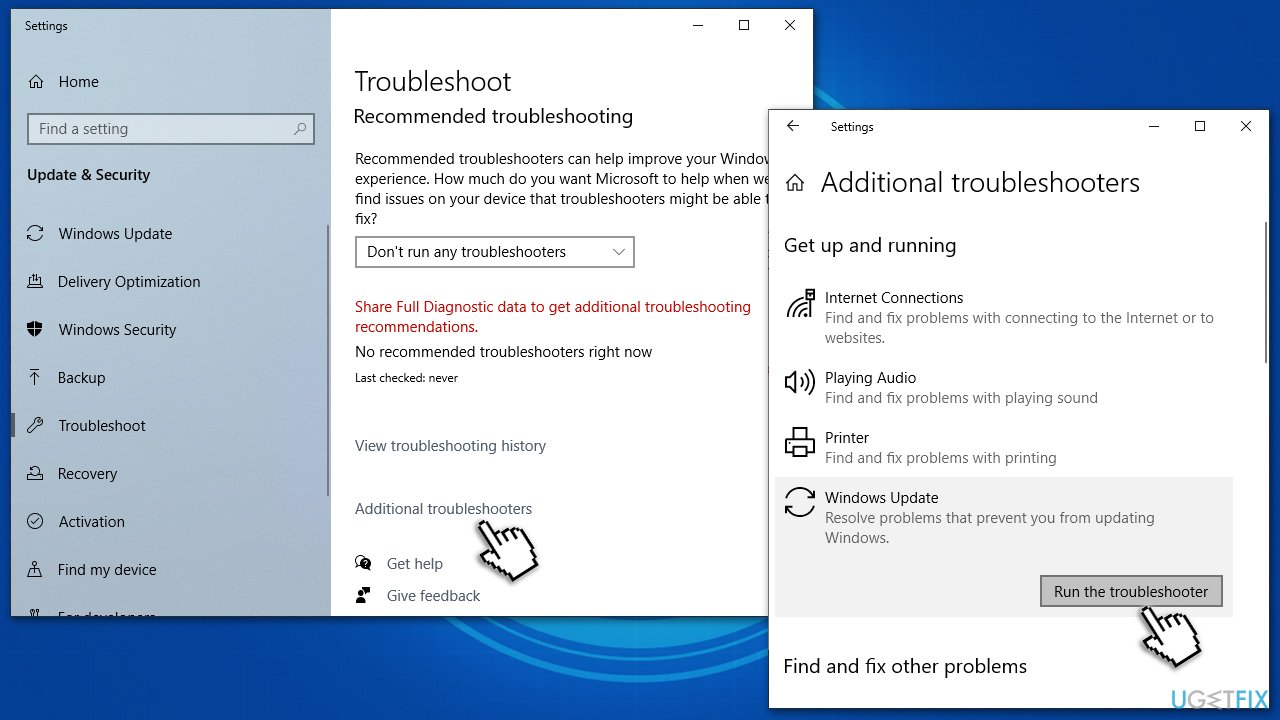
How to fix windows update error 0x8009001d run troubleshooter - Once the results are displayed, apply the suggested fix and restart your computer.
Solution 2. Disable or uninstall third-party security software
Windows has a built-in security software known as Microsoft Defender, and it definitely serves the purpose of protecting users from malware[ref en-2] and potentially unwanted applications. Since the tool was developed by the same company that created the operating systems, it never had any compatibility issues. Besides, it shows excellent detection results when compared to other antivirus applications.[ref en-3]
However, a third-party antivirus might be overly aggressive when protecting the machine from outbound and inbound connections, preventing data packets from being downloaded. You can either temporarily uninstall the security app or disable it (some security programs are difficult to disable). Each of the security vendors provides an uninstall tool that should get rid of all its components effectively.
Solution 3. Scan your system for file corruption
Command Prompt commands can be used to check the file system corruption - here's how:
- Type cmd in Windows search
- Right-click on Command Prompt result and select Run as administrator
- When User Account Control shows up, click Yes
- In the new window, type in the following command and press Enter:
sfc /scannow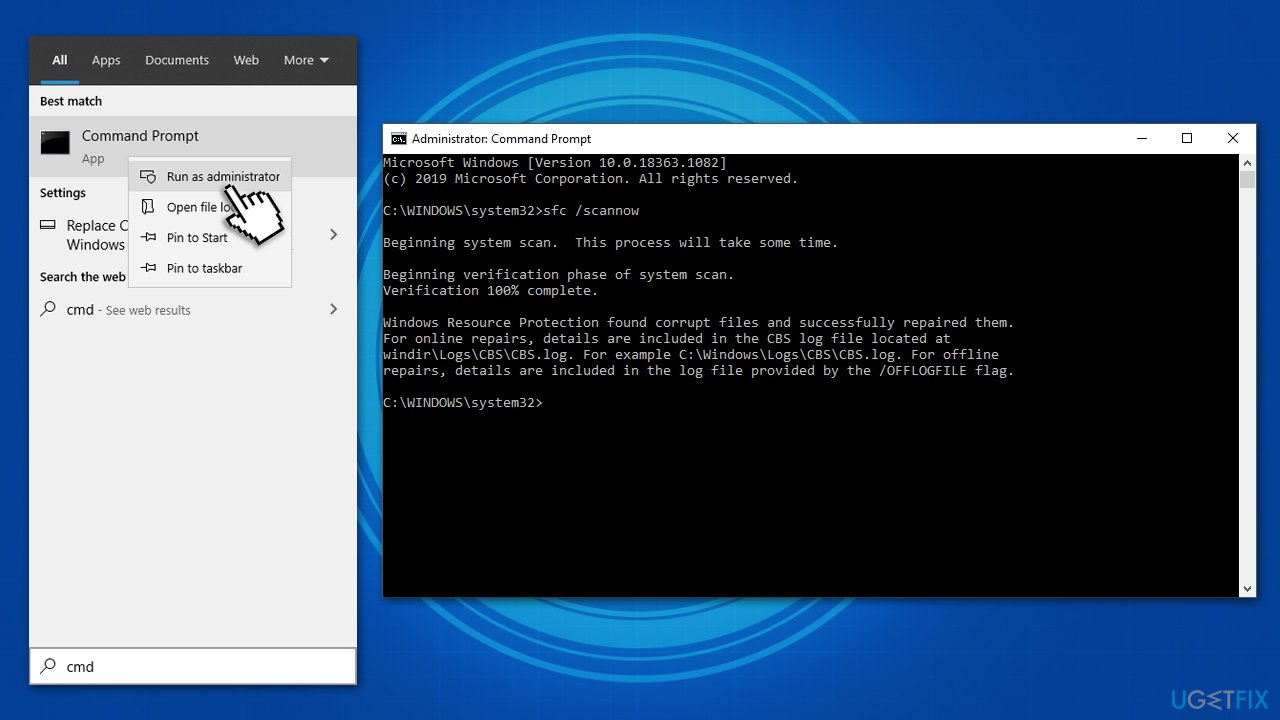
How to fix windows update error 0x8009001d run sfc dism - Once the scan is finished, use this set of commands, pressing Enter after each:
DISM /Online /Cleanup-Image /CheckHealth
DISM /Online /Cleanup-Image /ScanHealth
DISM /Online /Cleanup-Image /RestoreHealth - Reboot your system after that.
Solution 4. Reset Windows update components
- Open Command Prompt as administrator, as we explained in the previous solution
- Copy and paste each of the command lines, pressing Enter after each and waiting till each of the commands is executed properly:
net stop bits
net stop wuauserv
net stop appidsvc
net stop cryptsvc
Del “%ALLUSERSPROFILE%\\\\Application Data\\Microsoft\\Network\\Downloader\\*.*”
rmdir %systemroot%\\SoftwareDistribution /S /Q
rmdir %systemroot%\\system32\\catroot2 /S /Q
regsvr32.exe /s atl.dll
regsvr32.exe /s urlmon.dll
regsvr32.exe /s mshtml.dll
netsh winsock reset
netsh winsock reset proxy
net start bits
net start wuauserv
net start appidsvc
net start cryptsvcHow to fix windows update error 0x8009001d run sfc dism - Once finished, restart your device and try updating Windows once again.
Solution 5. Try Disk Cleanup
Updates might fail if there's not enough space to accommodate all files. While it might seem like you have enough space, there are plenty of invisible components that take space unnoticeable to you. For example, previous Windows update files might take several gigabytes. Thus, run Disk Cleanup to get rid of these files:
- In Windows search, type in Disk Cleanup and press Enter
- Select the drive Windows is installed on (C: by default)
- Select the sectors you want to get rid of (Temporary files, for example) and click Clean up system files
- Select your main drive again
- Pick sections you want to delete and click OK
- Click Delete Files and wait till Windows gets rid of them.
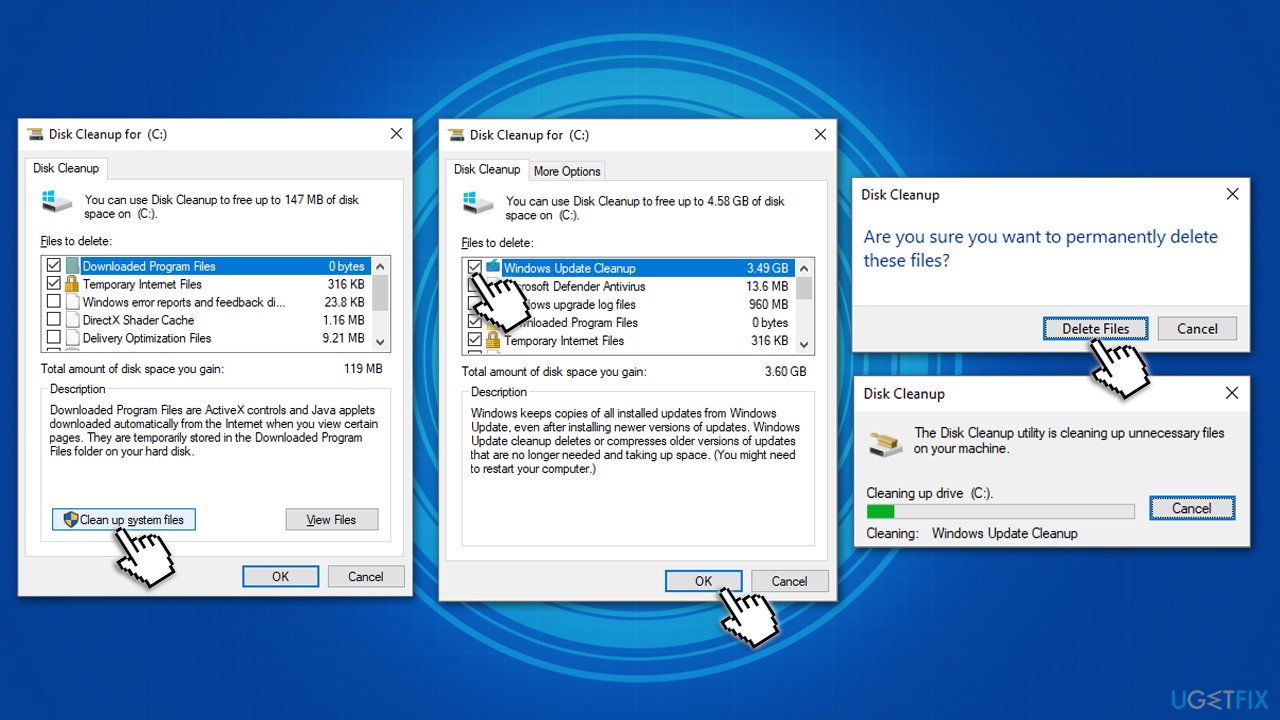
How to fix windows update error 0x8009001d use disk cleanup
Solution 6. Perform in-place update with Media Creation Tool
If none of the methods above helped you, use Media Creation Tool by Microsoft to install the latest version of Windows. Before you proceed, make sure you backup your personal files as a precautionary measure.
- Download the installer from the official Microsoft website
- Launch it, agree to terms and click Next
- From the available options, select Upgrade this PC now and click Next
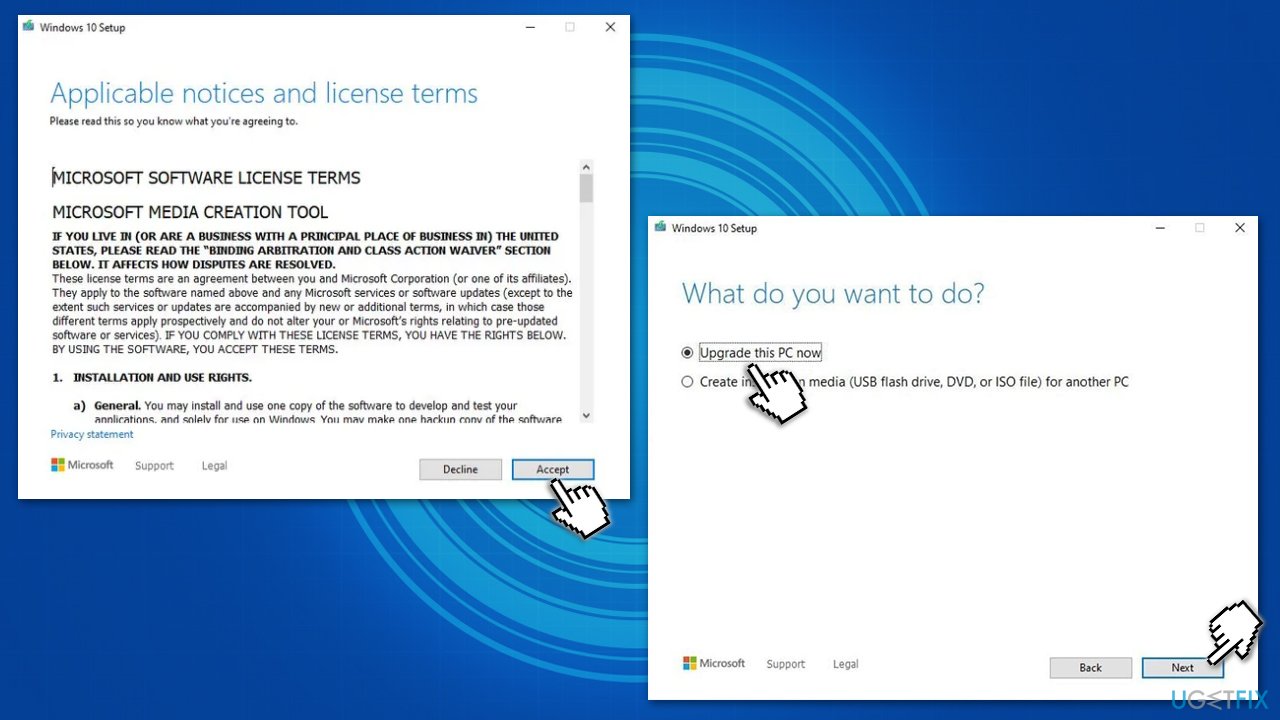
How to fix windows update error 0x8009001d use media creation tool - The necessary files should be then downloaded
- Once the installation is complete, reboot your PC.
Bottom line
To fix the 0x8009001D error, you can perform a system scan, check for corrupted files, and ensure that your Windows settings are configured correctly for updates. If these solutions do not resolve the issue, consider seeking further assistance from Microsoft support.
Frequently asked questions
The error 0x8009001D typically indicates that there is a problem with the cryptographic services in Windows 10 or Windows 11, preventing updates from being installed properly.
To fix error 0x8009001D in Windows 10, you can try resetting the Windows Update components or running the System File Checker tool to repair corrupted files.
To help prevent error 0x8009001D in Windows 11, ensure that your system is regularly updated and perform routine maintenance on your system files and services.




Report an issue
What's wrong with this guide? We review every report and update or remove content.
Report received — thank you. We'll review and fix it.
You need a free account to submit a report.
Be the first to comment