How to fix
Windows update error 0x80096010
on Windows
Resolve Windows update error 0x80096010 quickly with expert-tested solutions and clear steps. Get your system running smoothly today! Fixed in minutes.

What causes How to fix Windows update error 0x80096010?
- Corrupted system files
- Bugged Windows update components
- Insufficient storage space
- Missing or damaged update files
Repairs Windows system files, removes malware, and restores a clean OS state — without reinstalling.
Hey, I have an issue with a Windows update - I keep receiving the 0x80096010 error. Never seen one of those pop up before, so I don't even know where to start. It's been happening for several days now, so I don't think this is going away on its own. Any advice?
Microsoft, the tech giant behind the popular operating system Windows, regularly releases updates to enhance the security, performance, and overall user experience of its system. These updates are shipped monthly on the second Tuesday, a day widely known as "Patch Tuesday."
However, there are also out-of-band updates for urgent fixes. While updates are generally expected to improve your PC's functionality, sometimes, they can encounter errors that hinder the updating process. One such example is the Windows update error 0x80096010.
This error can occur due to a variety of reasons. Corrupted system files are one of the most common culprits, as they can interfere with the update process. If certain files associated with the update are missing, damaged or corrupted, this can prevent Windows from being able to execute the update correctly.
Bugged Windows update components are another common cause for this issue. If the update services, cache, or other components aren't working as they should, this can cause the error 0x80096010. In other cases, the error could be due to insufficient storage space on your PC. The Windows update process requires a certain amount of free space to download and install updates, so a lack of space could prevent this process from completing successfully.
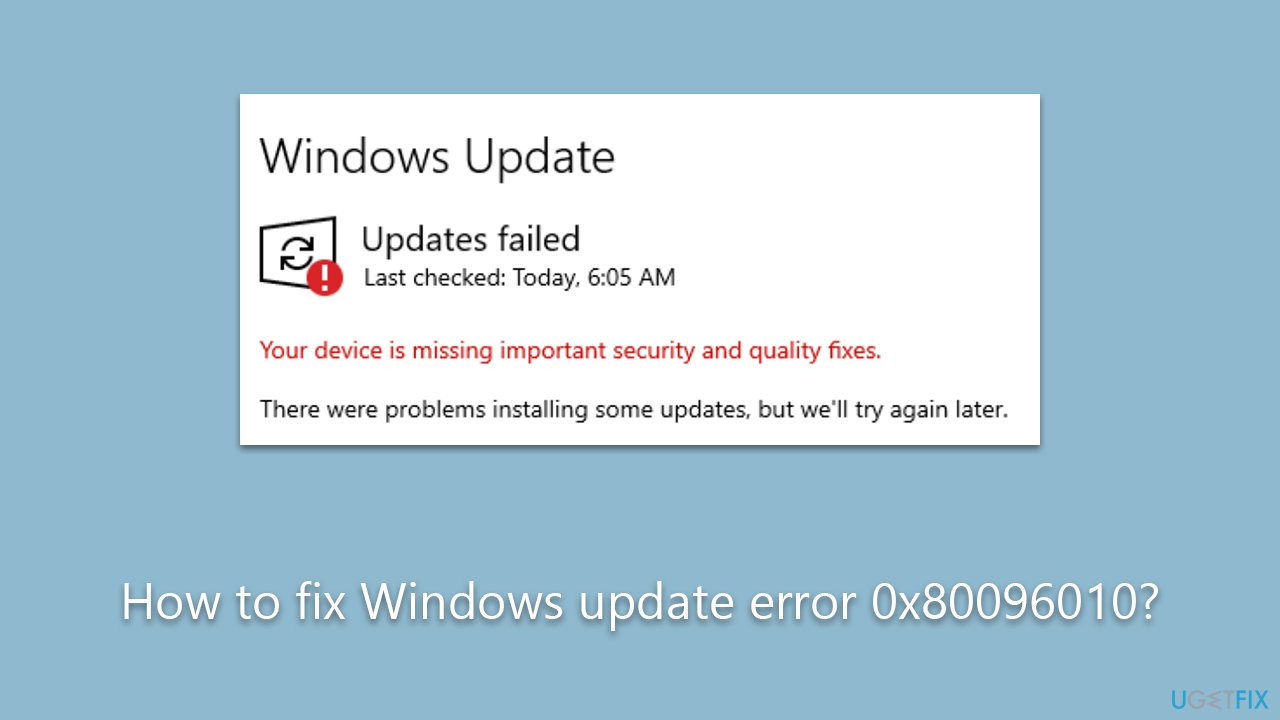
If you're faced with the Windows update error 0x80096010, don't worry. There are multiple ways to rectify this problem and successfully update your Windows system. Full instructions on how to fix this error are provided below the article, offering you step-by-step guidance on resolving this issue.
Additionally, it's worth noting that a PC repair tool like [d1] can be particularly useful in dealing with this error. It's designed to repair damaged system files, fix registry errors and perform other critical tasks that can resolve a multitude of issues, including those potentially causing the Windows update error 0x80096010. With this tool and the right guidance, you can get your PC's update process back on track quickly.
Fix 1. Run Windows Update Troubleshooter
Windows includes a built-in tool known as the troubleshooter that can automatically diagnose and fix a range of issues, including those related to Windows updates. It can detect problems and apply fixes where necessary.
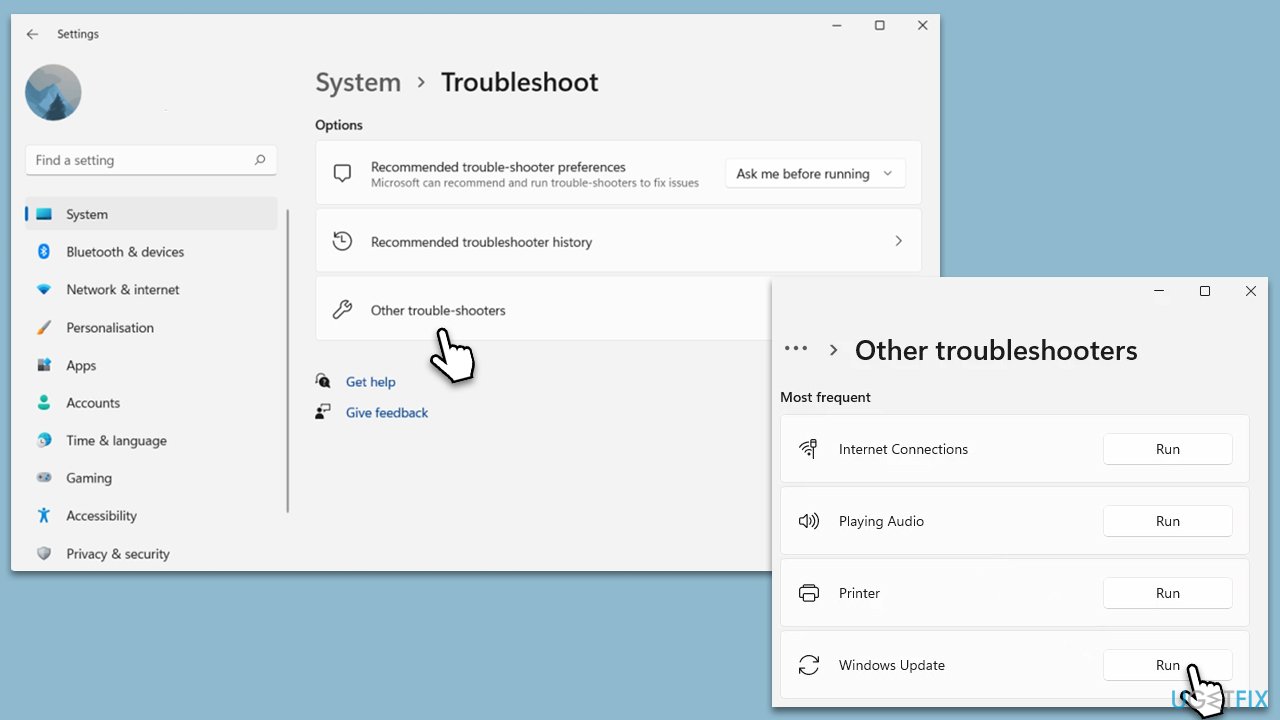
- Type Troubleshoot in Windows search and hit Enter.
- Select Additional troubleshooters/Other troubleshooters.
- Find Windows Update from the list and click Run the troubleshooter/Run.
- The troubleshooter will automatically scan your system for potential problems and display any issues it finds.
- If the troubleshooter finds any issues, it will provide recommended solutions.
- Follow the on-screen instructions to apply the recommended solution.
Fix 2. Reset Windows Update components
Windows update components are essential for the functioning of the update process. If these are not working correctly, resetting them may resolve the issue.
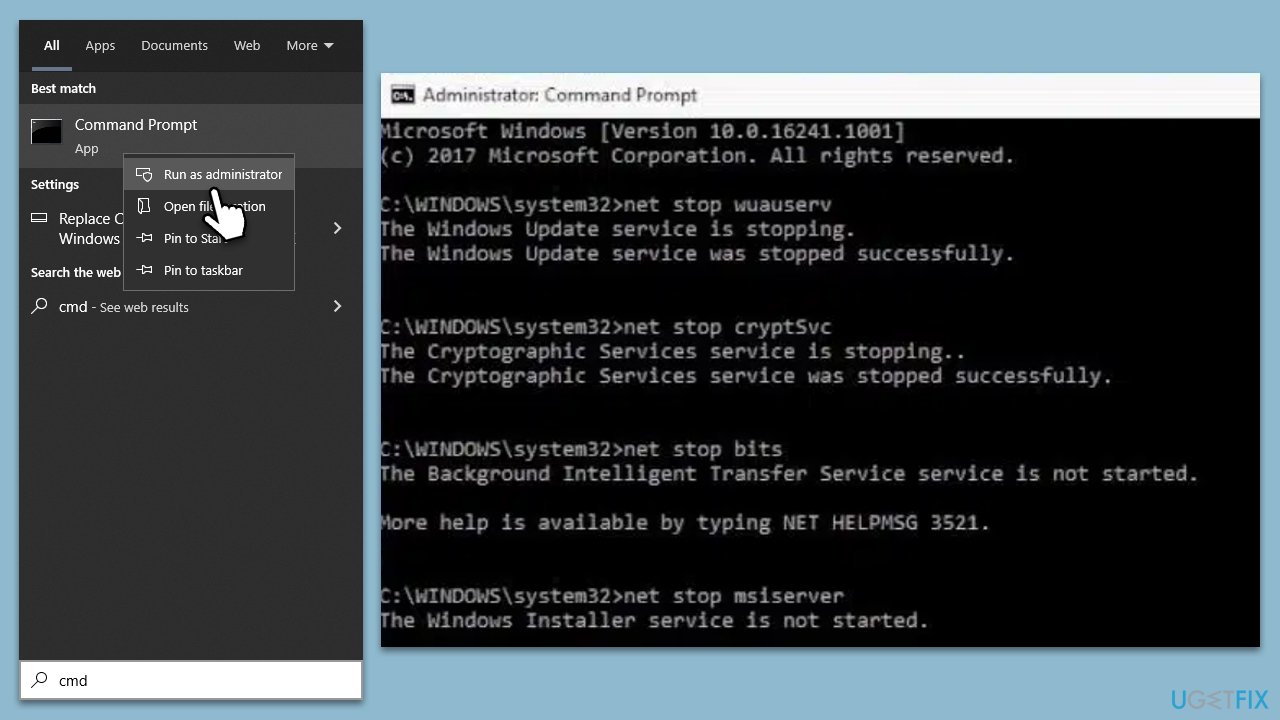
- Type cmd in Widnows search bar.
- Right-click on Command Prompt and select Run as administrator.
- When the User Account Control window shows up, click Yes.
- Copy and paste in the following commands, pressing Enter each time:
net stop wuauserv
net stop cryptSvc
net stop bits
net stop msiserver
ren C:\Windows\SoftwareDistribution SoftwareDistribution.old
ren C:\Windows\System32\catroot2 Catroot2.old
net start wuauserv
net start cryptSvc
net start bits
net start msiserver - Close down the Command Prompt and see if the problem is resolved.
Fix 3. Free up disk space
If lack of storage space is the cause of the problem, freeing up some disk space can help.
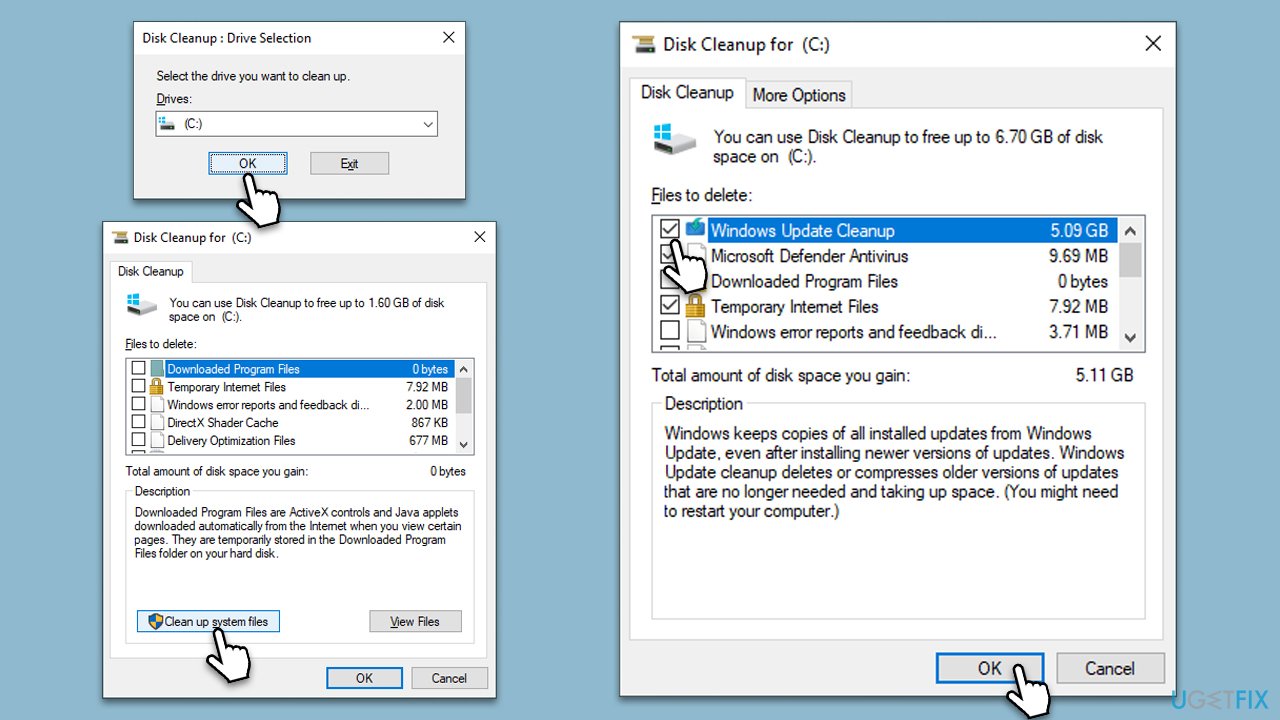
- Open the Windows search bar and type Disk Cleanup. Press Enter to open the Disk Cleanup utility.
- In the Disk Cleanup window, click Clean up system files.
- Select the drive again and click OK.
- In the list of files that can be cleaned up, select the largest portions of data, such as Temporary Internet Files, Windows Update, Temporary Files, and others.
- Click OK to begin the cleanup process.
Fix 4. Run SFC and DISM
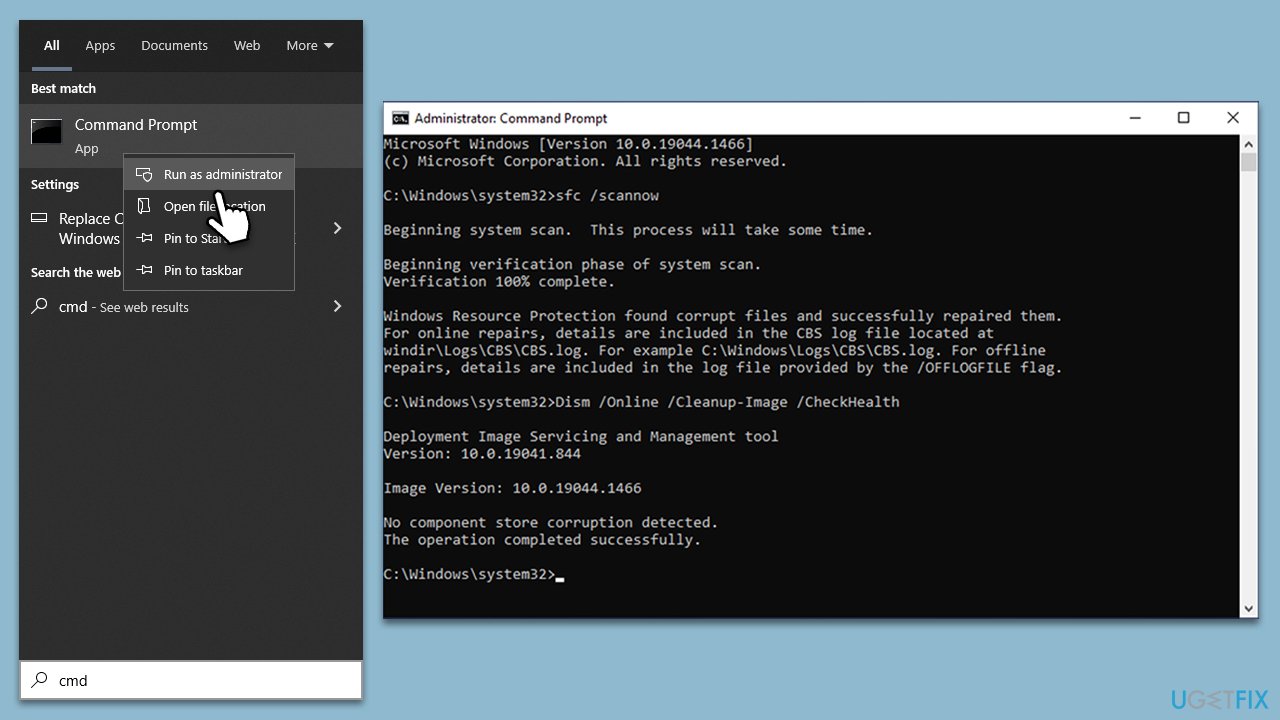
- Type cmd in Windows search.
- Right-click on Command Prompt and pick Run as administrator.
- User Account Control window will show up - click Yes when prompted.
- Then, copy and paste the following command, pressing Enter after:
sfc /scannow - Wait till the scan is finished. If Windows finds system file integrity violations, it will attempt to fix them. After this, use the set of the following commands, pressing Enter each time:
DISM /Online /Cleanup-Image /CheckHealth
DISM /Online /Cleanup-Image /ScanHealth
DISM /Online /Cleanup-Image /RestoreHealth - (Note: if you get an error executing this last command, add /Source:C:\RepairSource\Windows /LimitAccess to it and try again).
- Close down the Command Prompt and restart your device.
Fix 5. Perform a Clean Boot
A clean boot starts Windows with a minimal set of drivers and startup programs. This can help you identify if the error is being caused by a software conflict.
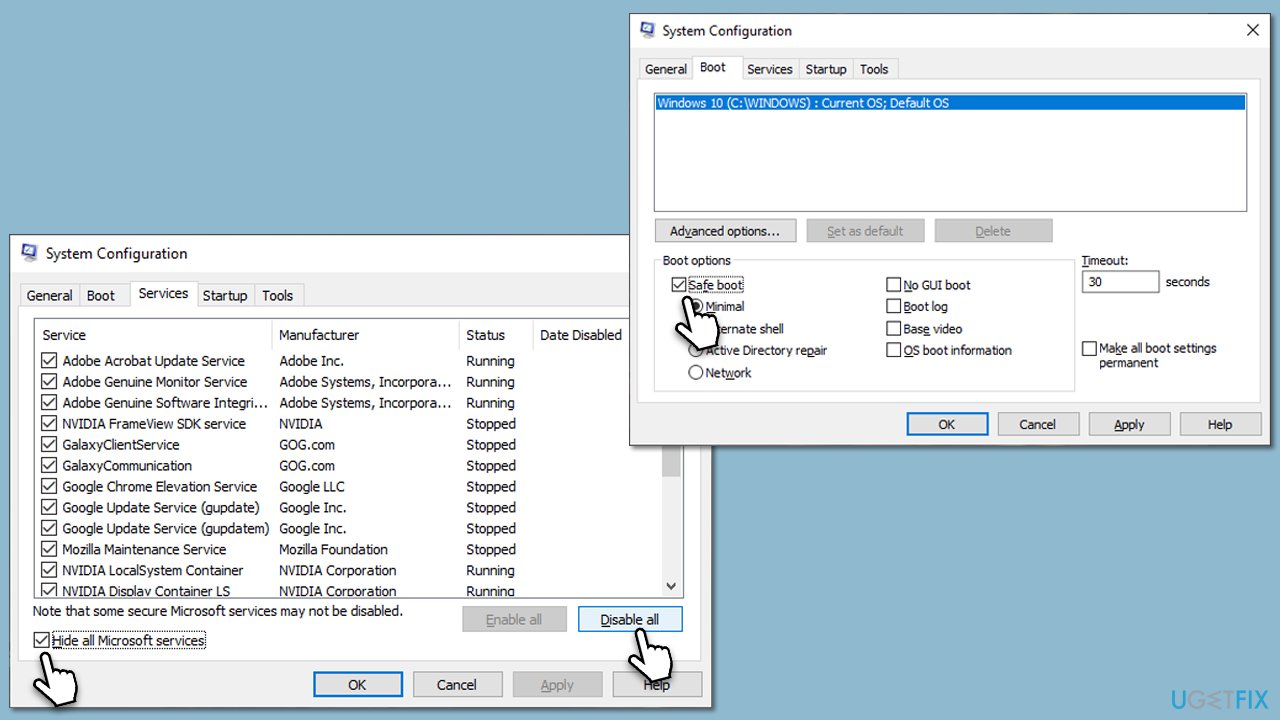
- Press Win + R, type msconfig, and hit Enter.
- Go to the Services tab and tick the Hide all Microsoft services checkbox.
- Select Disable all.
- Go to the Startup tab and click Open Task Manager.
- Here, right-click on each of the non-Windows entries and select Disable.
- Close down the Task Manager.
- Go to the Boot tab and tick the Safe boot option.
- Restart your device.
Note that third-party security software is one of the most common reasons for Windows updates when it comes to third-party software.
Fix 6. Manually download the update
If automatic updates aren't working, you can try to manually download and install the update from the Microsoft Update Catalog.
- Type in Updates in Windows search and press Enter.
- Select View update history.
- Find the update that failed with the 0x80096010 error and copy its KB number.
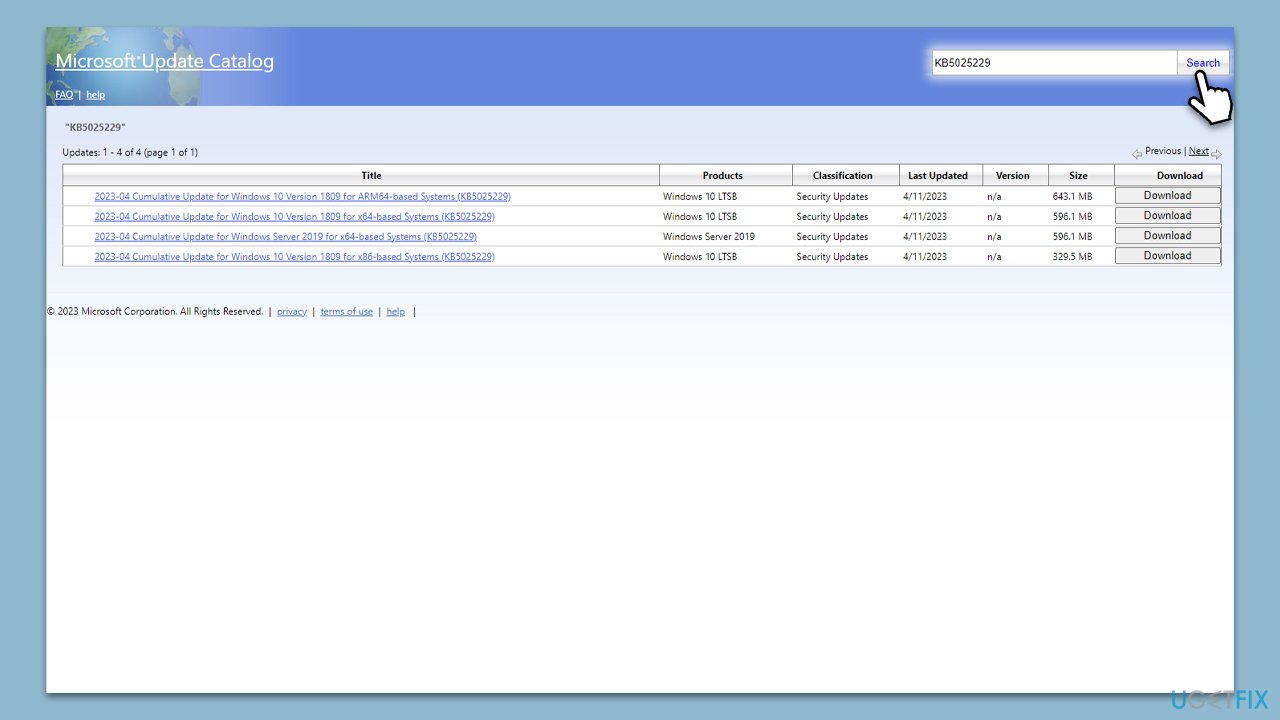
- Open your browser and go to Microsoft Update Catalog.
- Within the search bar, type in the KB number and clicks Search.
- Find the correct version of the update for your operating system (to check this, right-click on Start and pick System. Under Device specifications and check the System type) and click Download.
- Use on-screen guidelines to finish the installation process and restart your computer.
Fix 7. Use Media Creation Tool
Before proceeding, please disable third-party security software software.
- Visit the official Microsoft website and download Windows 10 installation media (Windows 11 version).
- Double-click the installer and select Yes when UAC shows up.
- Agree to terms.
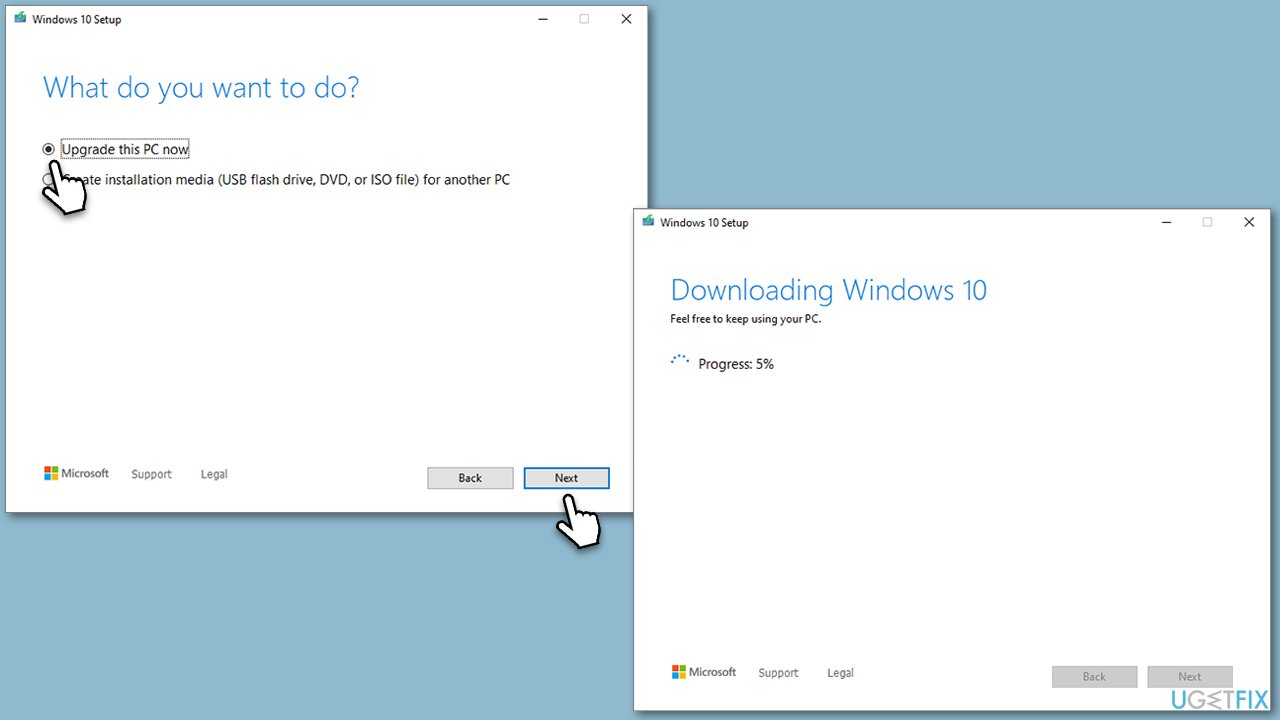
- Select Upgrade this PC now and click Next.
- Windows will start downloading the needed files.
- Agree to the terms once again and click Next.
- Before installing, make sure that you are happy with your choices (otherwise, you can click Change what to keep option).
- Finally, click Install to begin the upgrade process.
Bottom line
To fix the Windows update error 0x80096010, you can follow step-by-step instructions that include repairing damaged system files, fixing registry errors, and ensuring sufficient storage space. If these methods do not resolve the issue, consider using a PC repair tool designed for such problems.
Frequently asked questions
The error 0x80096010 typically indicates a problem with the digital signature of the update, which can occur due to corrupted files or issues with the Windows Update service on Windows 10 or Windows 11.
To fix error 0x80096010 on Windows 10, try running the Windows Update Troubleshooter and then check for updates again. If that doesn't work, you may need to reset the Windows Update components manually.
Yes, you can fix error 0x80096010 on Windows 11 by using the Settings app to reset the Windows Update settings and then perform a system scan to repair any corrupted files.




Report an issue
What's wrong with this guide? We review every report and update or remove content.
Report received — thank you. We'll review and fix it.
You need a free account to submit a report.
Be the first to comment