How to fix
Windows update error 0x800F0246
on Windows
Resolve Windows update error 0x800F0246 effortlessly with our expert-tested solutions for Windows 10 and Windows 11 users. Fixed in minutes!


What causes How to fix Windows update error 0x800F0246?
- Driver installation conflicts
- Outdated or corrupt drivers
- Compatibility issues with hardware
- Corrupted system files
- Misconfigurations in system settings
Repairs Windows system files, removes malware, and restores a clean OS state — without reinstalling.
I was unable to install the latest Windows security updates because of the error code 0x800F0246. I have never had any problems with Windows updates before so I am not sure where to even start.
When you encounter the error code 0x800F0246 while trying to install the latest Windows security updates, it signifies a hiccup in the update process, often linked to driver installation or compatibility problems. This error can abruptly interrupt what is usually a seamless update experience, leaving your system vulnerable to security risks if not addressed promptly.
The 0x800F0246 error typically surfaces due to conflicts between the Windows Update service and certain system drivers. It could stem from an outdated or corrupt driver that's not fully compatible with the new updates being installed. Windows strives for compatibility across a wide range of hardware and software configurations, but occasionally, mismatches occur, especially with non-standard or very new hardware components.
Additionally, this error may be a manifestation of underlying issues within the Windows operating system itself, such as corrupted system files or misconfigurations in system settings. Such problems can inadvertently block the update process, leading to the display of error codes like 0x800F0246.
Microsoft releases regular updates not just to enhance functionality and resolve known bugs, but also to patch security vulnerabilities. When an error occurs, it halts these improvements and potentially exposes users to security threats.
While error 0x800F0246 can disrupt the regular update cycle, recognizing its implications and knowing the general direction for troubleshooting can lead to a resolution. Ensuring that drivers are up to date, and system files are intact, and following through with specific guidance provided by us below should help you tackle the issue easily.
It is noteworthy that some underlying Windows issues that contribute to the 0x800F0246 error can be fixed automatically with software such as [d1]. Resolving underlying issues can often cause the main problem to go away as well.
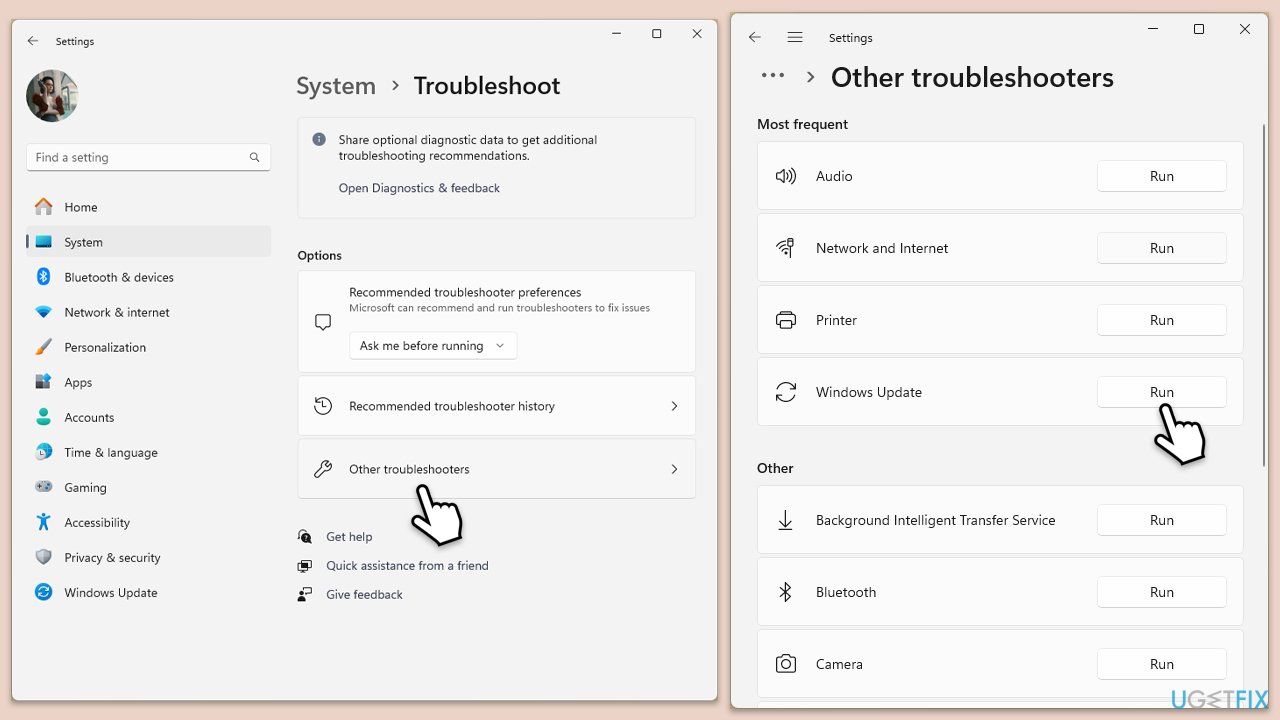
Fix 1. Run Windows Update troubleshooter
The Windows Update Troubleshooter automatically identifies and fixes problems with Windows Update. It's a built-in tool designed to troubleshoot common issues, making it a good first step.
- Type in Troubleshoot in Windows search and hit Enter.
- Go to Additional Troubleshooters/Other troubleshooters.
- Select Windows update and click Run the troubleshooter/Run.
- Wait till the scan is finished, and then apply the recommendations.
- Restart your system.
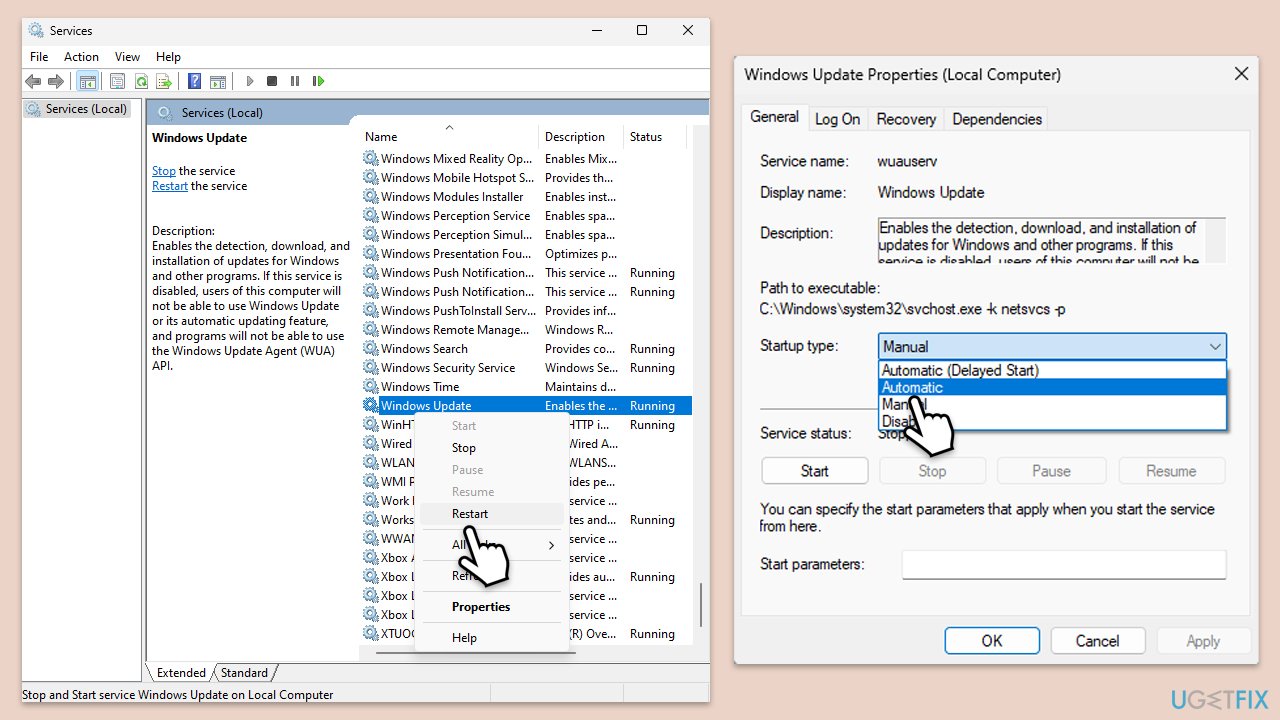
Fix 2. Check relevant services
Windows Update relies on several services to run correctly. Ensuring these services are running can resolve update issues.
- Type in Services in Windows search and press Enter.
- Locate Windows Update Service.
- If it is already running, right-click and select Restart.
- if the service is not running, double-click it to open Properties.
- Under the Startup type, select Automatic from the drop-down menu.
- Click Start, Apply, and OK.
- Locate Background Intelligent Transfer Service (BITS), Cryptographic service, and Windows Installer service, and repeat the process.
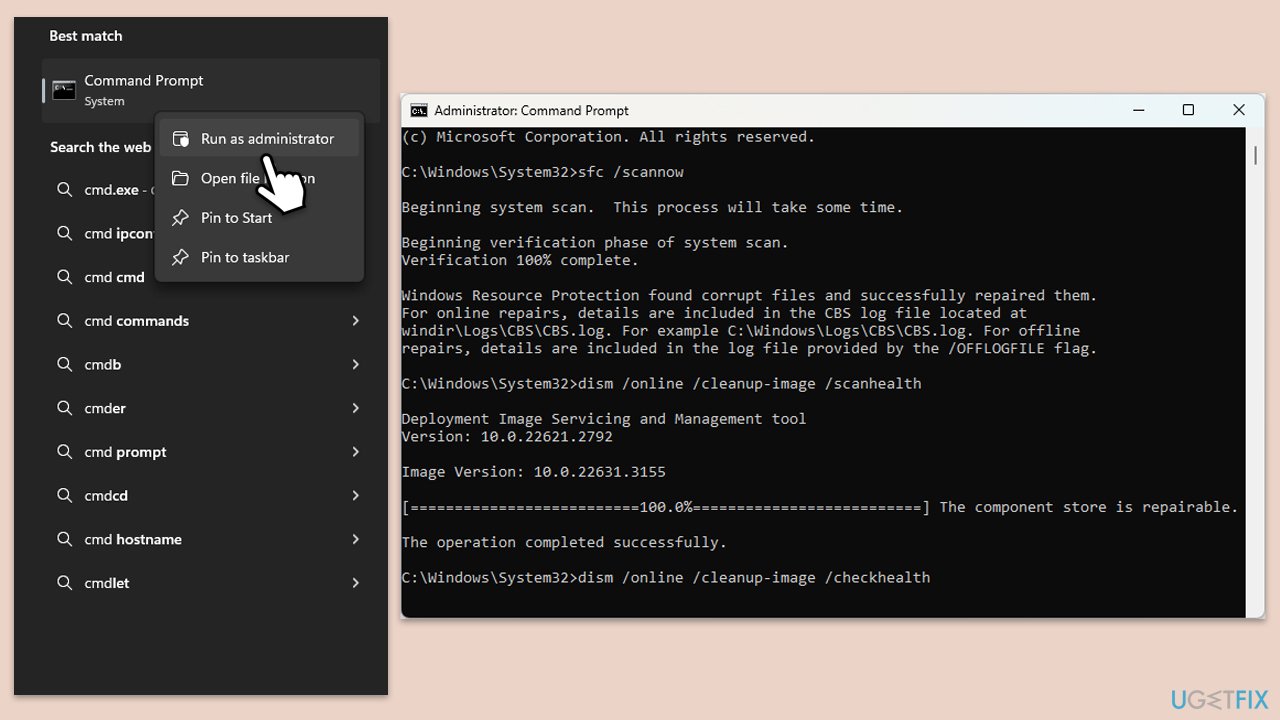
Fix 3. Run SFC and DISM
This solution can fix corrupted system files and Windows image issues, which might be causing update errors.
- Type cmd in Windows search.
- Right-click on Command Prompt and pick Run as administrator.
- User Account Control (UAC) will ask whether you want to allow changes - click Yes.
- Use the following command and press Enter:
sfc /scannow - Once the scan is complete, you should also run the following commands to repair Windows image files if needed:
DISM /Online /Cleanup-Image /CheckHealth
DISM /Online /Cleanup-Image /ScanHealth
DISM /Online /Cleanup-Image /RestoreHealth - Restart your device.
Fix 4. Update drivers
Outdated or corrupt drivers can cause update errors. Ensure all drivers, especially for the motherboard and chipset, are up to date. To do this easily, you can employ [rev id="DriverFix"] automatic updater.
- Open Device Manager by pressing Win + X and selecting it.
- Go through each device, right-click, and select Update driver.
- Choose Search automatically for drivers.
- Follow on-screen instructions.
- Restart your PC after updating the drivers.
Fix 5. Temporarily disable antivirus and firewall
Sometimes, security software can interfere with Windows Update. Temporarily disabling these can help.
- Disable your antivirus software and any third-party security software.
- Attempt to run Windows Update again.
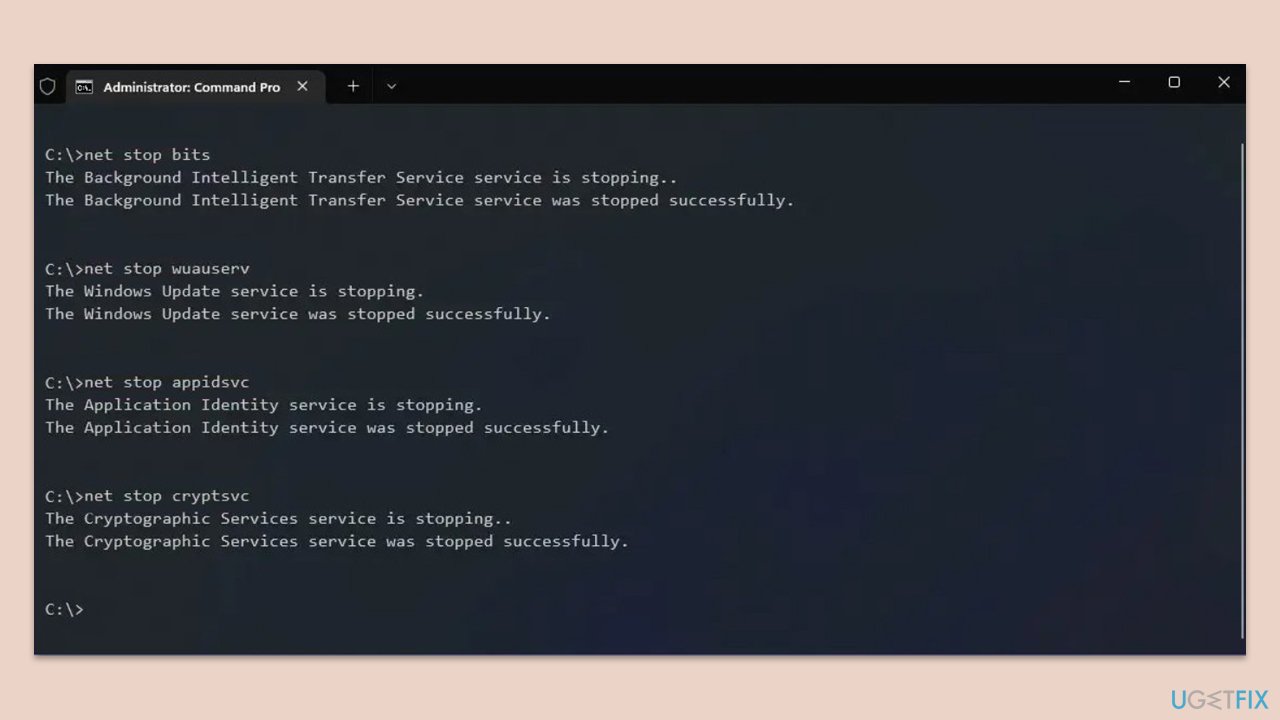
Fix 6. Reset Windows Update components manually
Manually resetting Windows Update components involves stopping services, renaming folders, and restarting services.
- Open Command Prompt as administrator.
- Paste in each of these commands, pressing Enter every time:
net stop bits
net stop wuauserv
net stop appidsvc
net stop cryptsvc
Del “%ALLUSERSPROFILE%\Application Data\Microsoft\Network\Downloader\*.*”
rmdir %systemroot%\SoftwareDistribution /S /Q
rmdir %systemroot%\system32\catroot2 /S /Q
regsvr32.exe /s atl.dll
regsvr32.exe /s urlmon.dll
regsvr32.exe /s mshtml.dll
netsh winsock reset
netsh winsock reset proxy
net start bits
net start wuauserv
net start appidsvc
net start cryptsvc - Reboot your computer.
Fix 7. Perform a Clean Boot
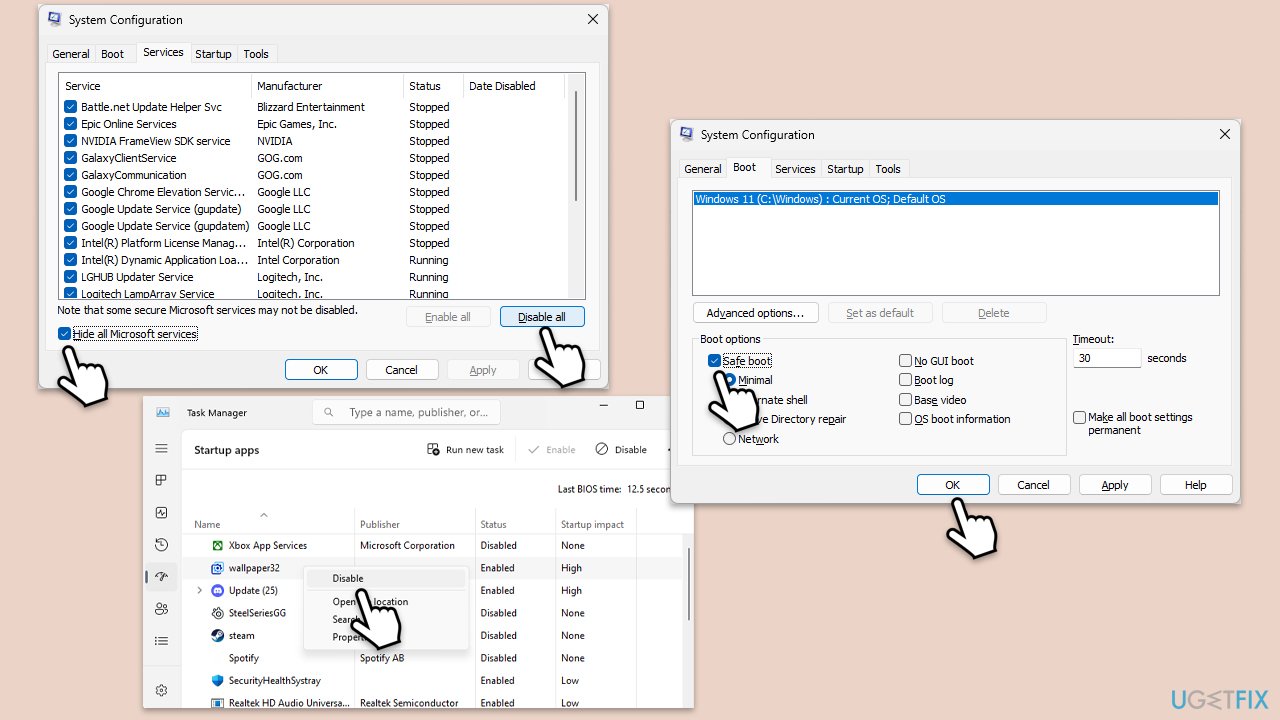
Starting Windows with a minimal set of drivers and startup programs can help identify if background programs are causing update issues.
- Type msconfig in Windows search, then press Enter.
- Select the Services tab and tick the Hide all Microsoft services checkbox.
- Pick Disable all.
- Go to the Startup tab and click Open Task Manager.
- Here, right-click on each of the non-Windows entries and select Disable.
- Close down the Task Manager.
- Go to the Boot tab and tick the Safe boot option.
- Restart your computer.
- Try updating again.
Fix 8. Use Media Creation Tool
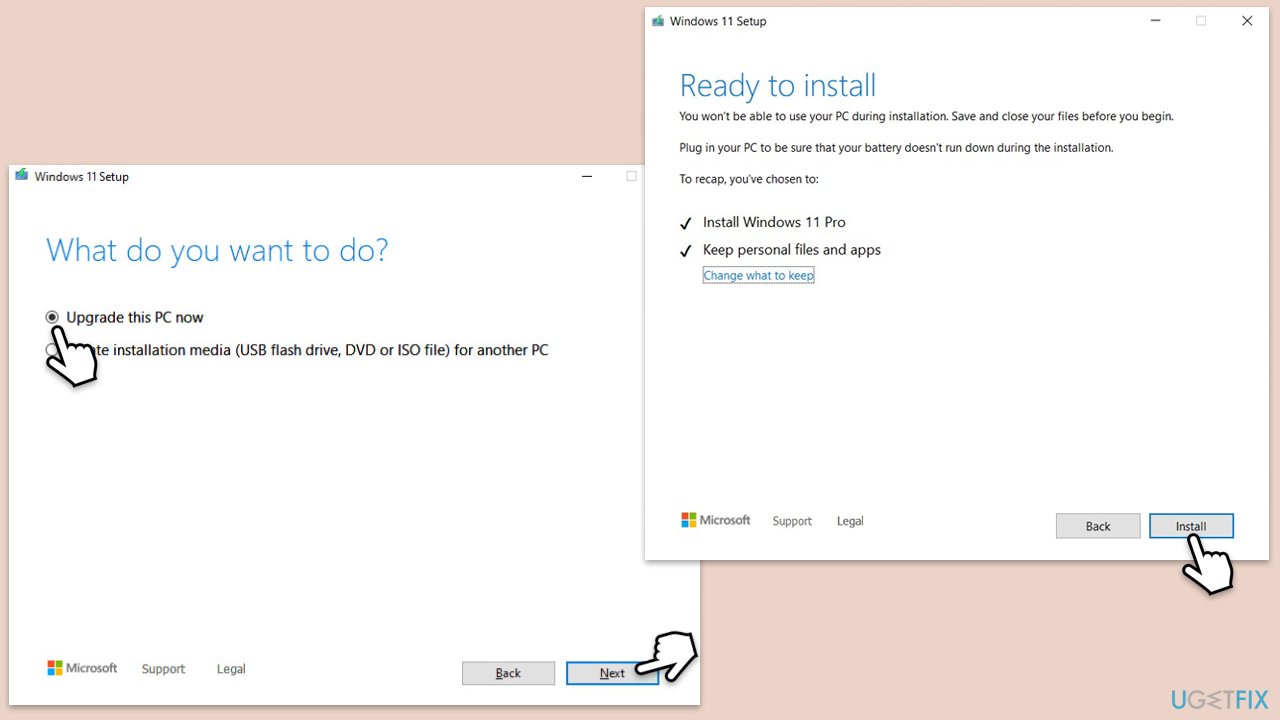
If all else fails, using the Media Creation Tool to update Windows can bypass the 0x800F0246 error.
- Visit the official Microsoft website and download Windows 10 installation media (Windows 11 version).
- Double-click the installer and select Yes when UAC shows up.
- Agree to terms.
- Select Upgrade this PC now and click Next.
- Windows will start downloading the needed files.
- Agree to the terms once again and click Next.
- Before installing, make sure that you are happy with your choices (otherwise, you can click Change what to keep option).
- Finally, click Install to begin the upgrade process.
Bottom line
To fix the Windows update error 0x800F0246, you can run the Windows Update troubleshooter, ensure that your drivers are up to date, and check for corrupted system files. If these solutions do not resolve the issue, consider using software to automatically fix underlying Windows problems.
Frequently asked questions
The error 0x800F0246 typically occurs due to missing or corrupted system files, problems with the Windows Update service, or issues with the component store.
You can reset the Windows Update components by stopping the Windows Update service, deleting the SoftwareDistribution and Catroot2 folders, and then restarting the service.
Yes, both Windows 10 and Windows 11 include a built-in Windows Update Troubleshooter that can automatically detect and fix common update problems, including error 0x800F0246.




Report an issue
What's wrong with this guide? We review every report and update or remove content.
Report received — thank you. We'll review and fix it.
You need a free account to submit a report.
Be the first to comment