How to fix
Windows update error 0x800f0381
on Windows
Resolve Windows update error 0x800f0381 quickly and efficiently. Follow our expert-tested solutions for Windows 10 and 11, fixed in minutes!

What causes How to fix Windows update error 0x800f0381?
- Corrupted system files
- Problems with the Windows Update service
- Outdated drivers
- Incompatible drivers
- Issues with the network connection
Repairs Windows system files, removes malware, and restores a clean OS state — without reinstalling.
Hi, I've been trying to install Windows version 22H2 for a while now, but I keep getting a 0x800f0381 error every time. It's been going on for at least a couple of weeks now, so I'm looking for solutions.
Microsoft has adopted a service model for its Windows operating system, which promises regular updates to users. These updates come in various types, such as cumulative, security, bug fixes, and other improvements, which aim to enhance the user experience, security, and stability of the system. The release schedule of these updates is generally predictable, with most being made available on the second Tuesday of each month.
However, despite Microsoft's efforts to ensure seamless updates, not all users receive them successfully. One recurring error that Windows users may encounter is error code 0x800f0381, which can prevent the installation of updates. This error code can persist even when the update is initiated manually or automatically, indicating a systemic issue.
Windows Update error 0x800f0381 is an issue that can occur when trying to update your Windows operating system. This error usually indicates a problem with the Windows Update service or with the update files themselves. It can prevent you from downloading and installing updates, which can be a major problem for the security and performance of your system.
There are several potential causes of error 0x800f0381, including corrupted system files, problems with the Windows Update service, outdated or incompatible drivers, or issues with the network connection.
Below we provide several methods that should help you fix the 0x800f0381 Windows update error, although keep in mind you'll have to go through several of them before you find the one that works for you.
If you rather use an automatic solution, we recommend employing PC repair software [d1], which can find and replace damaged system files in just a few minutes. Besides, it is also great when dealing with other Windows issues, including BSODs, registry corruption, DLL errors, and more.
Fix 1. Run the troubleshooter
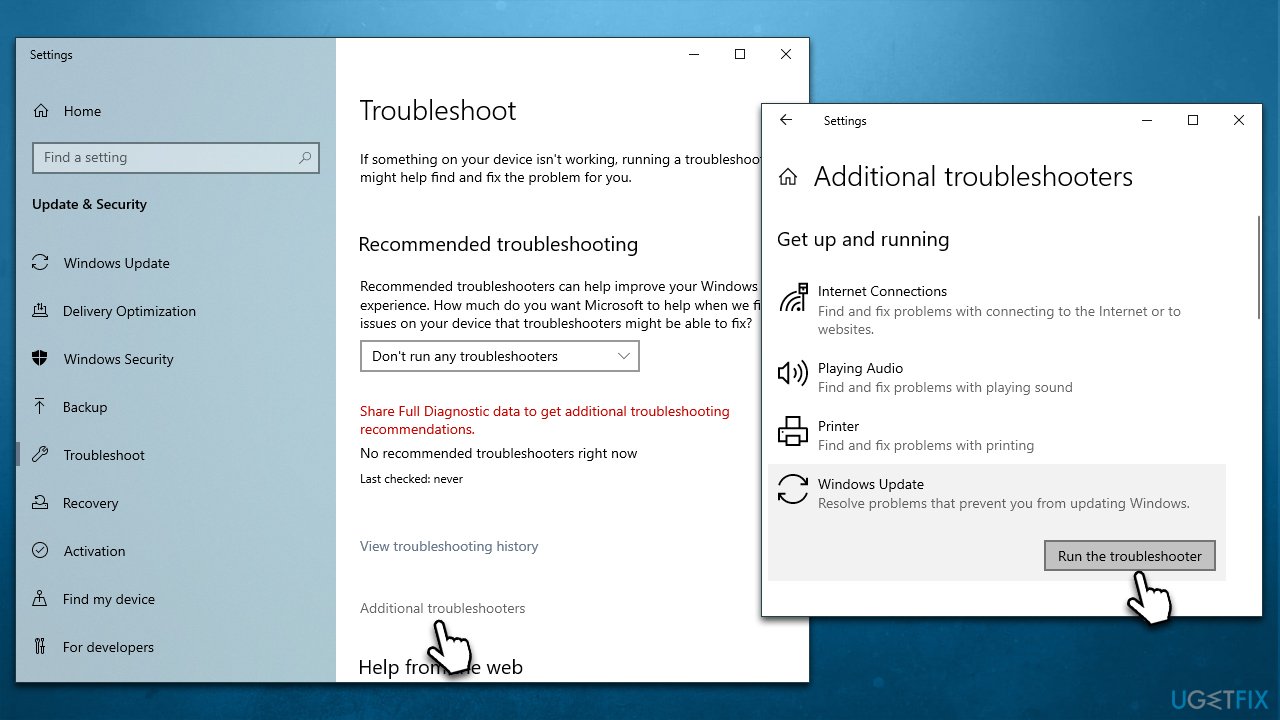
Windows troubleshooters can point at what is causing the issue or might even sometimes solve the problem automatically, so we recommend starting from this step.
- Type Troubleshoot in Windows search and press Enter.
- Select Additional troubleshooters/Other troubleshooters.
- Find Windows Update from the list and select Run the troubleshooter/Run.
- Wait till the process is finished and apply the offered fixes.
Fix 2. Check for corrupted system files
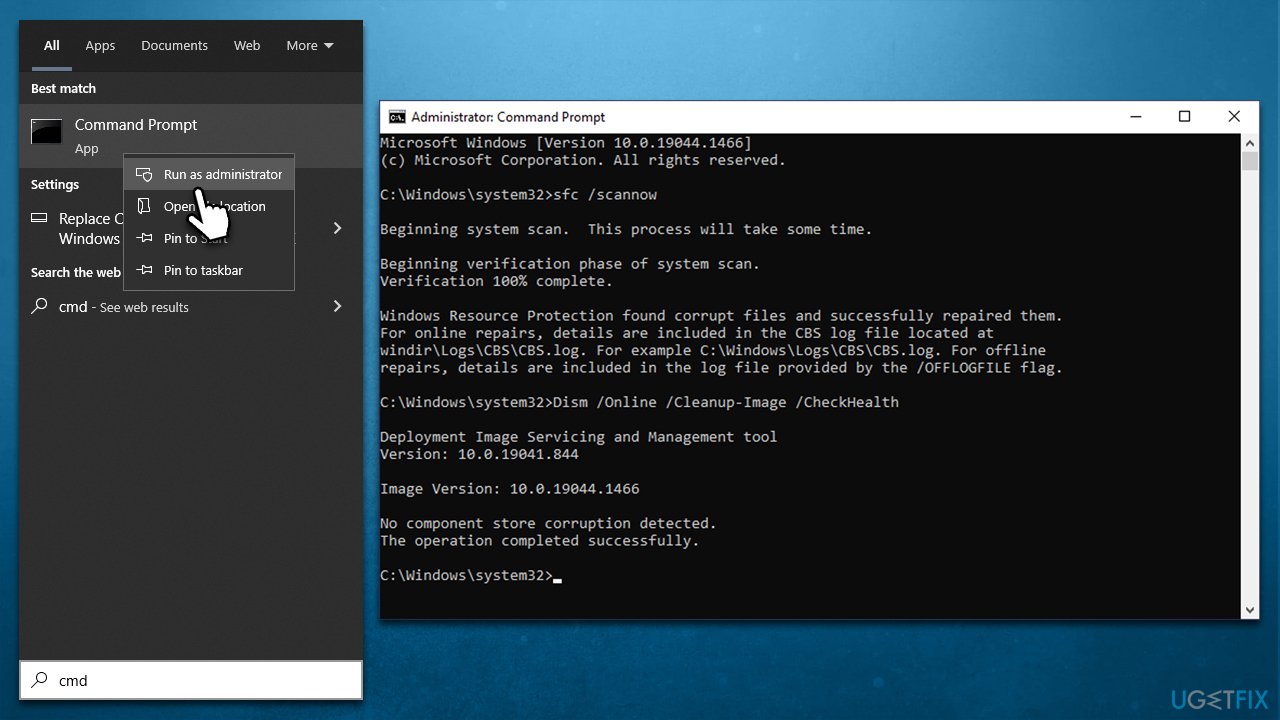
Corrupted Windows files could be one of the main causes of Windows update errors. You can check that by running commands via elevated Command Prompt:
- Type in cmd in Windows search.
- Right-click on Command Prompt and select Run as administrator.
- User Account Control will ask you whether you want to allow to make changes to the system - click Yes.
- In the Command Prompt window, paste the following command and hit Enter:
sfc /scannow - Next, use these commands (don't forget to press Enter every time):
Dism /Online /Cleanup-Image /CheckHealth
Dism /Online /Cleanup-Image /ScanHealth
Dism /Online /Cleanup-Image /RestoreHealth - Restart your system.
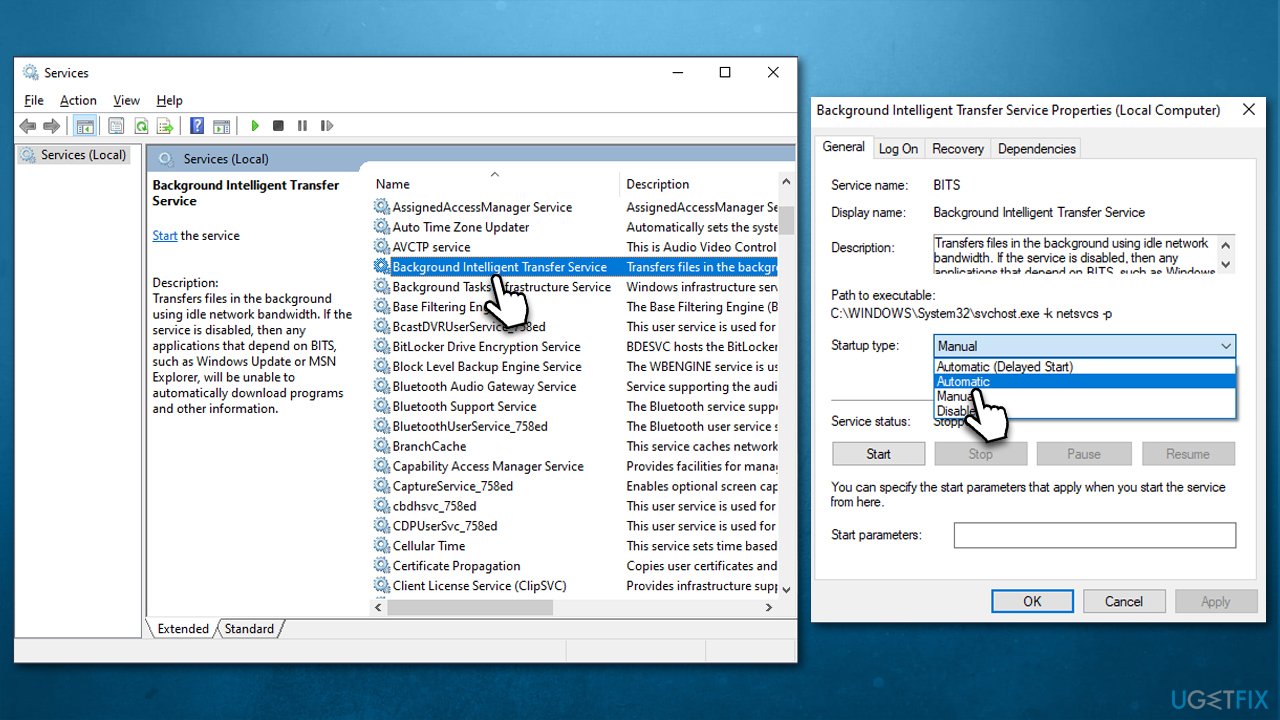
Fix 3. Check BITS and Windows Update services
- Type Services in Windows search and press Enter.
- In the Services window, scroll down to locate Background Intelligent Transfer Service (BITS).
- If the service is already running, right-click and select Restart.
- If the service is not running, double-click it to open Properties.
- Under the Startup type, pick Automatic from the drop-down menu.
- Click Start, Apply, and OK.
- Do the same with the Windows update service.
Fix 4. Install the update manually
- Type in Update in Windows search and press Enter.
- Click View Update History on the right side of the window.
- From the list of updates, note the KB number of the one that failed to be installed.
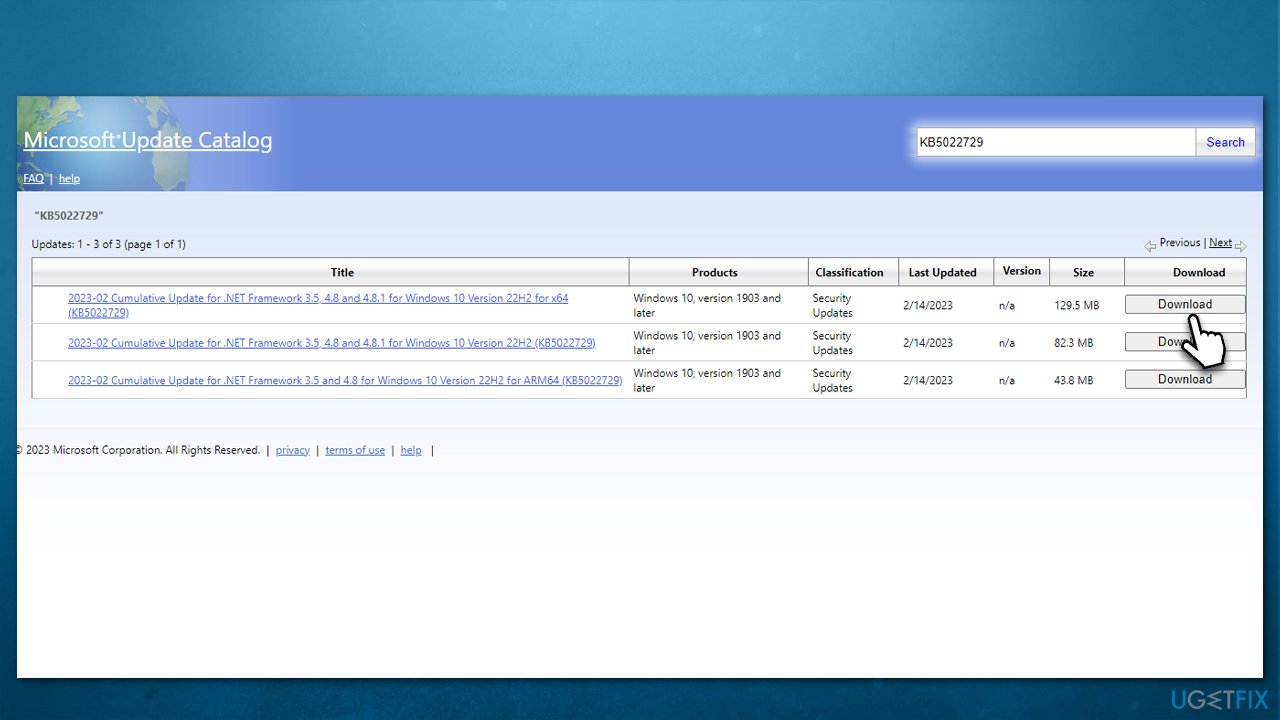
- Go to Microsoft Update Catalog.
- Here, type in the KB number and click Search.
- Pick the version that is compatible with your operating system (ignore updates for the server) and click Download.
- Proceed with on-screen instructions and restart Windows once done.
Fix 5. Reset Windows Update Components
- Type cmd in Windows search.
- Right-click on Command Prompt and select Run as administrator.
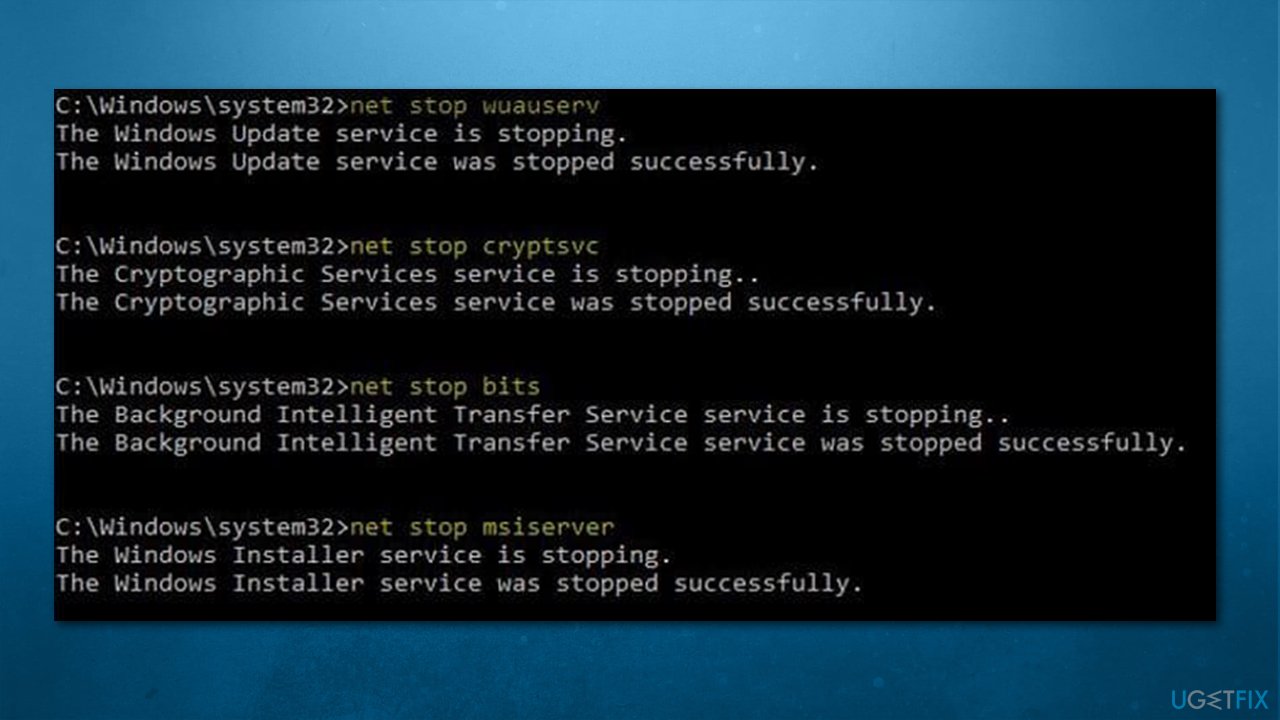
- In the new window, copy and paste the following commands, pressing Enter every time:
net stop bits
net stop wuauserv
net stop appidsvc
net stop cryptsvc
Del "%ALLUSERSPROFILE%\Application Data\Microsoft\Network\Downloader\*.*"
rmdir %systemroot%\SoftwareDistribution /S /Q
rmdir %systemroot%\system32\catroot2 /S /Q
regsvr32.exe /s atl.dll
regsvr32.exe /s urlmon.dll
regsvr32.exe /s mshtml.dll
netsh winsock reset
netsh winsock reset proxy
net start bits
net start wuauserv
net start appidsvc
net start cryptsvc - Close down the Command Prompt, restart your system, and try updating again.
Fix 6. Use Media Creation Tool
As a precaution, before moving on to the next step, ensure that you have backed up your personal files and unplugged any printers, cameras, or other peripherals that are not required.
- Visit the official Microsoft website and download Windows 10 installation media (Windows 11 version).
- Double-click the installer and select Yes when UAC shows up.
- Agree to terms.
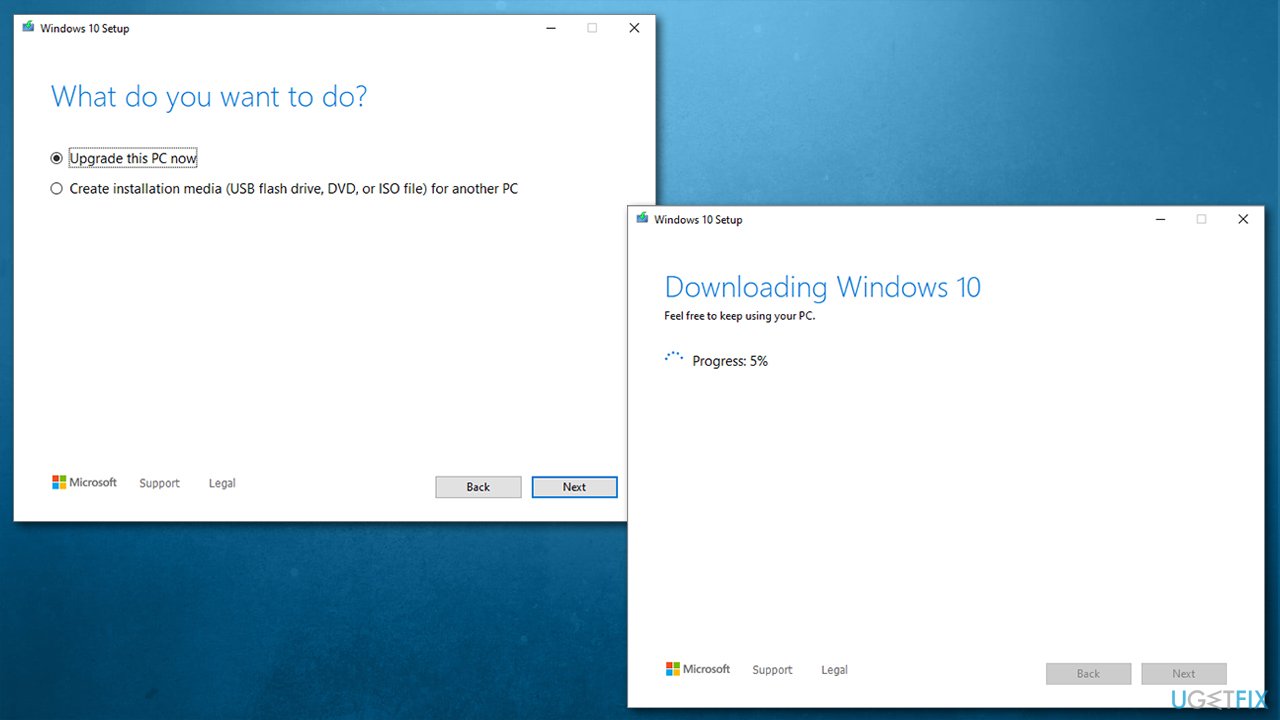
- Select Upgrade this PC now and click Next.
- Windows will start downloading the needed files.
- Agree to terms once again and click Next.
- Before installing, make sure that you are happy with your choices (otherwise, you can click the Change what to keep option).
- Finally, click Install to begin the upgrade process.
Bottom line
To fix the Windows update error 0x800f0381, you can try running the troubleshooter, employing PC repair software, or checking for driver updates. If none of these solutions work, you may need to explore additional methods or consult further technical support.
Frequently asked questions
This error typically means that Windows cannot find the necessary files to install updates, which may be due to missing or corrupted components in Windows 10 or Windows 11.
To fix this error on Windows 11, try running the Windows Update Troubleshooter from the Settings app, then check for updates again.
Yes, you can run the 'DISM /Online /Cleanup-Image /RestoreHealth' command in Command Prompt to repair system files and potentially resolve the error.




Report an issue
What's wrong with this guide? We review every report and update or remove content.
Report received — thank you. We'll review and fix it.
You need a free account to submit a report.
Be the first to comment