How to fix
Windows update error 0x800f0826
on Windows
Resolve Windows update error 0x800f0826 quickly with expert tips and solutions. Fix your Windows 10 or Windows 11 issues today—zero traces left!

What causes How to fix Windows update error 0x800f0826?
- Installation of previous update failures
- System file corruption
- Accumulated update data
- Incorrect update configurations
- Problems with the registry system
Repairs Windows system files, removes malware, and restores a clean OS state — without reinstalling.
Hello, I’m trying to install a Windows update on my PC, but I keep getting this 0x800f0826 error, and it just won’t go through. Is there anything I can do here?
The Windows update error 0x800f0826 creates frustrating system problems particularly during your efforts to maintain system security. The error disrupts update installation and may reverse previously made changes during the process. This piece investigates the 0x800f0826 error by explaining its causes and providing methods to fix it.
The 0x800f0826 error indicates that Windows Update failed to apply a security update or other patch during its execution. The update download appears but installation fails and the system reverts to its previous state after restarting. Multiple Windows versions experience this problem which stops essential updates from installing thus exposing systems to risks and preventing performance enhancements.
Multiple elements exist that can lead to the appearance of the 0x800f0826 error. The installation of previous update failures can prevent new updates from installing and system file corruption or accumulated update data frequently creates interference. The 0x800f0826 error becomes difficult to resolve because of incorrect update configurations and problems with the registry system.
The Windows Update Troubleshooter combined with clearing the update cache and scanning for file corruption represents potential solutions for resolving the 0x800f0826 error. The Microsoft Update Catalog enables users to manually download updates which can help resolve the error. The [d1] app provides users with automatic system file repairs, which could consequently resolve the update issue for you.
Fix 1. Run Windows Update Troubleshooter
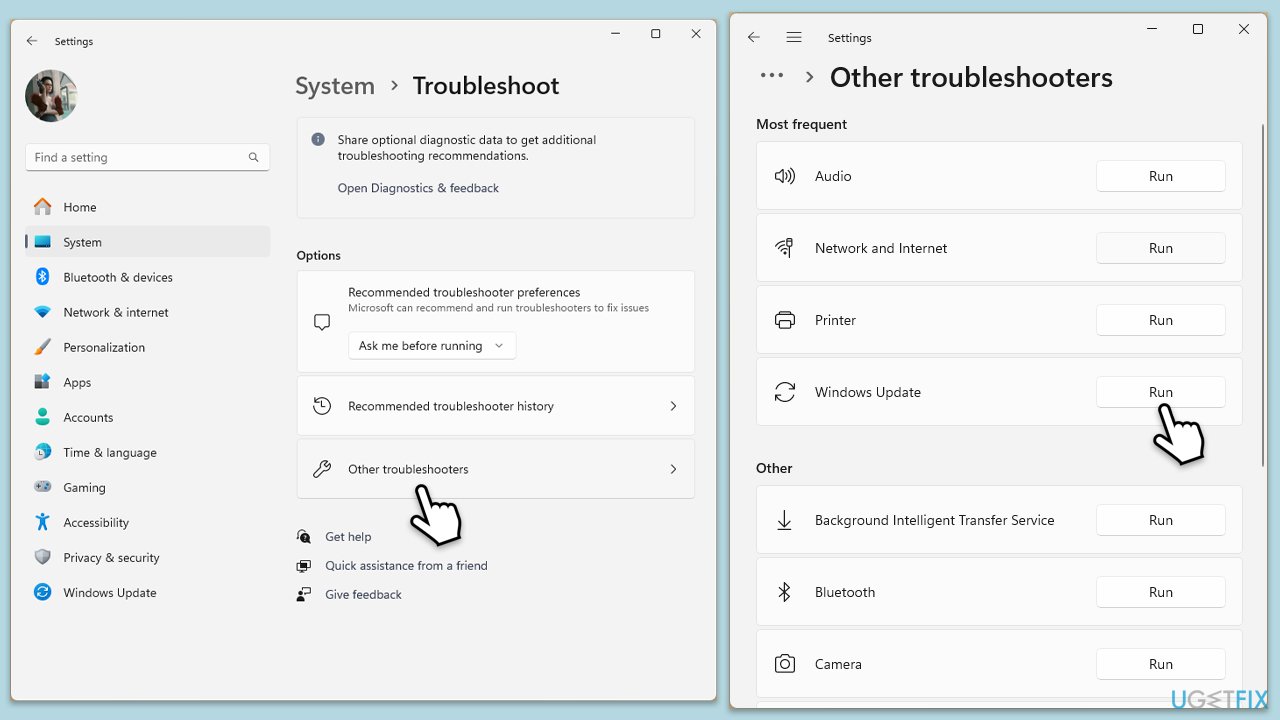
Windows has a built-in tool that can detect and fix common update issues, helping to resolve errors like 0x800f0826 automatically.
- Type Troubleshoot into the Windows search bar and press Enter.
- Next, on the right side of the window, select Additional troubleshooters/Other troubleshooters.
- Scroll down to locate the Windows update option and click on it.
- Click on Run the troubleshooter/Run and allow the process to complete.
- Once it is finished, implement any recommended fixes and restart Windows.
Fix 2. Use "Fix with Windows update" feature
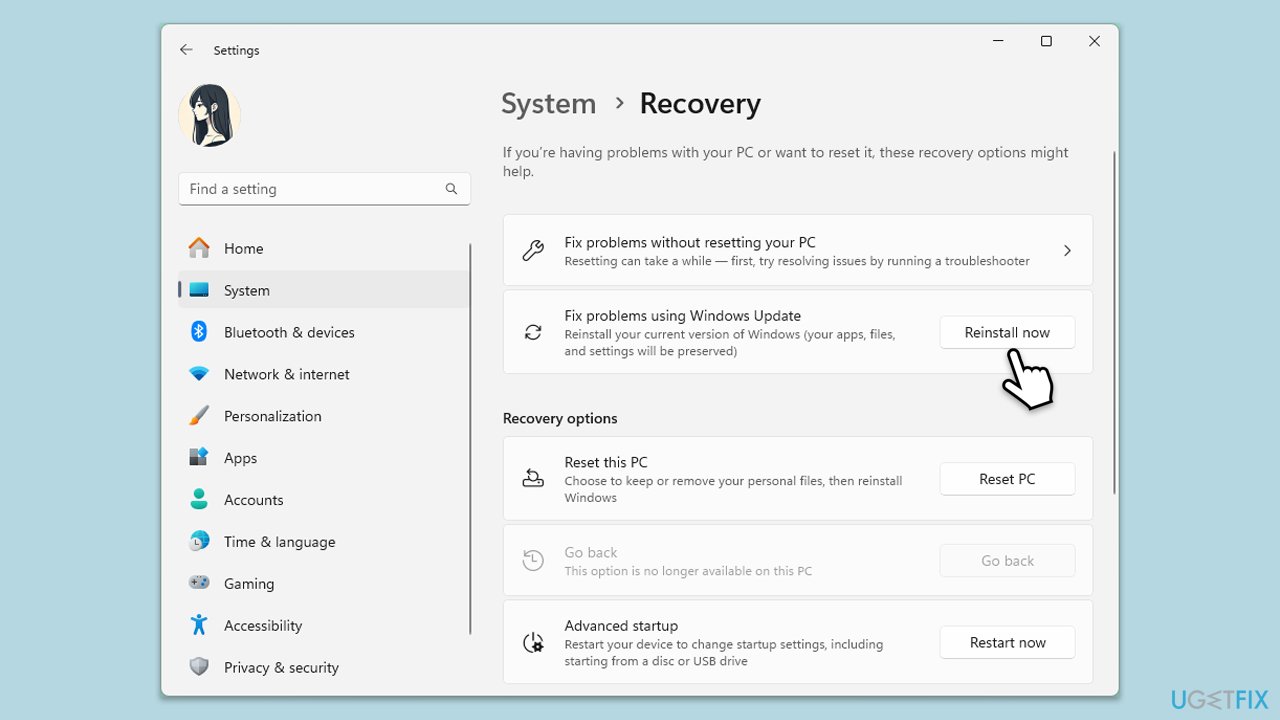
This is yet another built-in option to automatically fix issues with Windows updates.
- Right-click on Start and pick Settings.
- Go to the System section and select Recovery.
- There, you should see the Fix problems using Windows Update option.
- Click Reinstall now.
- Follow the on-screen instructions to finish the process.
- After your PC restarts and the fix process is complete, attempt to update Windows in a usual way.
Fix 3. Run SFC and DISM
Corrupted system files can interfere with updates, and scanning your system can repair these critical components to fix the error.
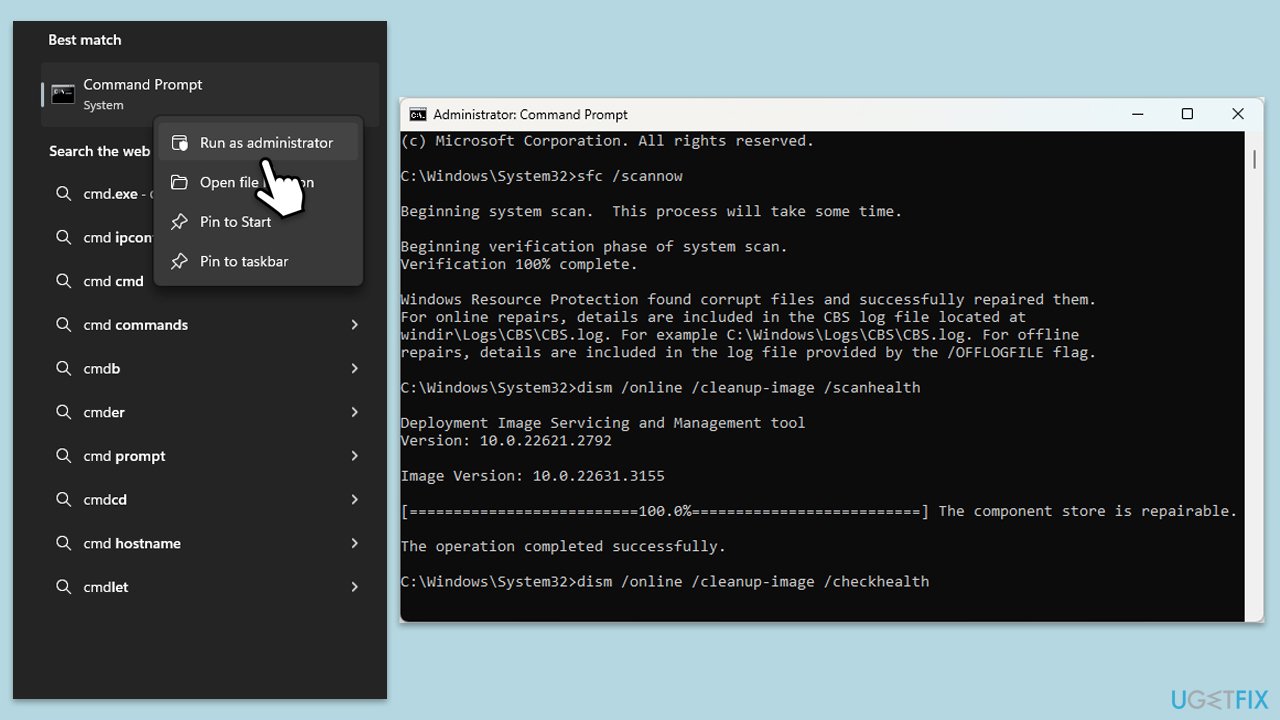
- Type cmd in Windows search.
- Right-click on the Command Prompt result and select Run as administrator.
- The User Account Control (UAC) window will ask whether you want to allow changes to your computer - click Yes.
- Type in the following command and press Enter:
sfc /scannow - When done, run the following commands as well:
dism /online /cleanup-image /scanhealth
dism /online /cleanup-image /checkhealth
dism /online /cleanup-image /restorehealth
(Note: if you get an error executing this last command, add /Source:C:\RepairSource\Windows /LimitAccess to it and try again). - Restart your device.
Fix 4. Manually download the update
If automatic updates fail, downloading the update directly from Microsoft’s catalog can bypass issues with the update service.
- Type Updates in Windows search and hit Enter.
- Click View update history.
- Here, note down the KB number that failed to install with the error code 0x800f0826.
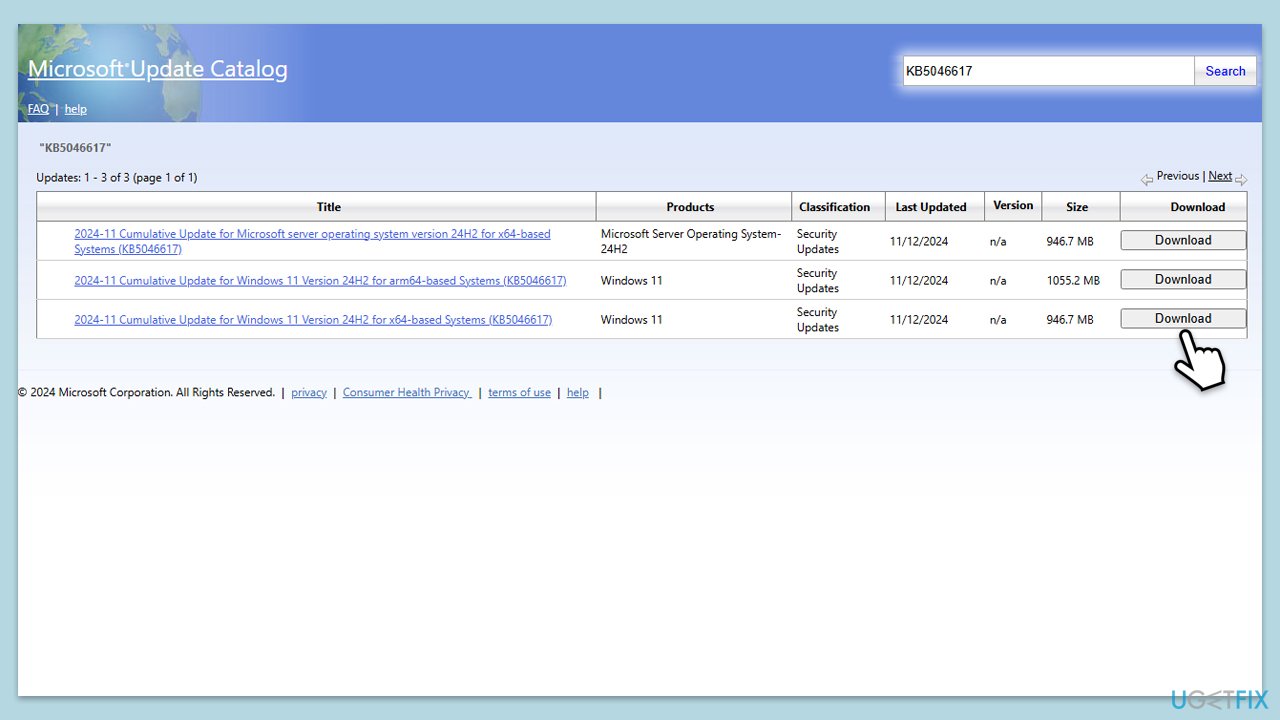
- Go to the official Microsoft Update Catalog website.
- Type the KB number into the search bar, and press Enter or click Search.
- You will find many different versions on the update – you need to find the one that matches your PC specs and Windows version (as a home user, ignore Windows server versions).
- Right-click on Start and pick System.
- Under Device specifications, check the System type section: it should either be 64-bit or 32-bit.
- Scroll down to Windows specifications and check the Version section.
- With all this information, pick the correct version for your device.
- Go back to the Microsoft Update catalog, download the appropriate version, and install it.
Fix 5. Reset Windows Update components
Misconfigured update services can cause errors, and resetting them ensures all components are functioning properly.
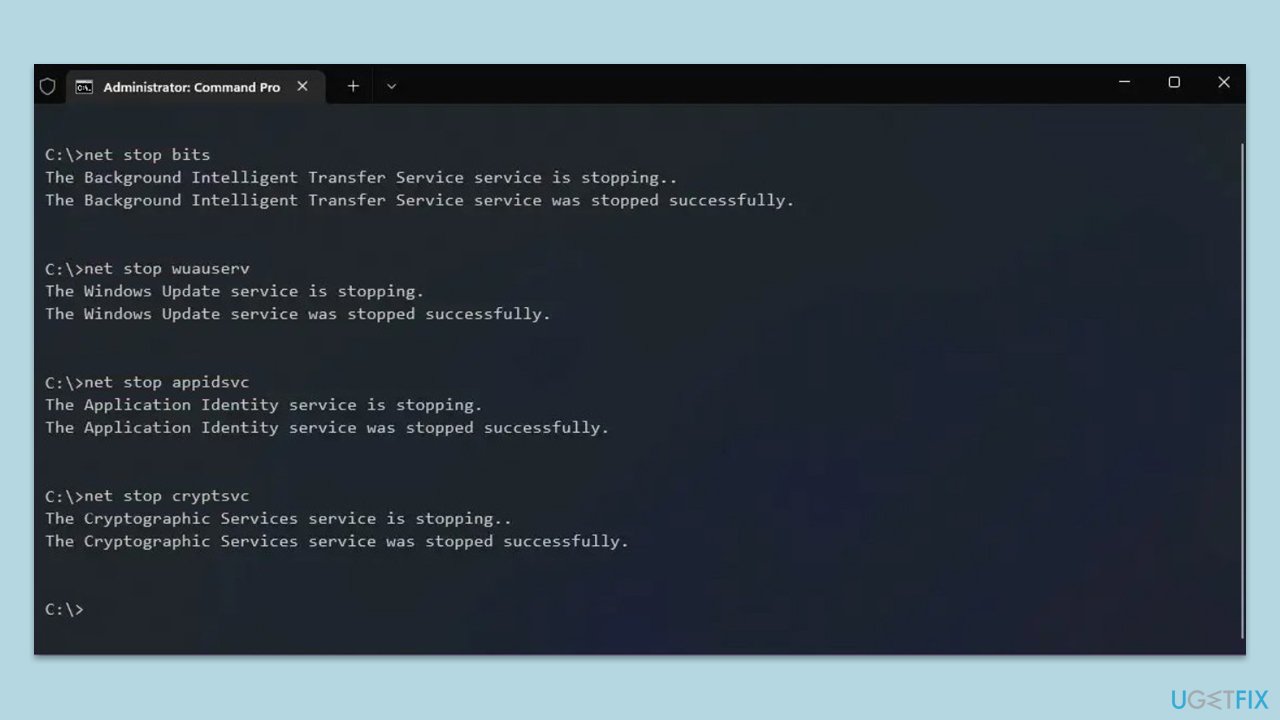
- Open Command Prompt as administrator.
- Stop the Windows Update-related services by running the following commands one at a time, pressing Enter after each one:
net stop wuauserv
net stop cryptSvc
net stop bits
net stop msiserver - Rename the SoftwareDistribution and Catroot2 folders by running the following commands:
ren C:\Windows\SoftwareDistribution SoftwareDistribution.old
ren C:\Windows\System32\catroot2 Catroot2.old
Note: If your Windows installation is not on the C drive, replace "C" with the appropriate drive letter. - Restart the Windows Update-related services by running the following commands:
net start wuauserv
net start cryptSvc
net start bits
net start msiserver - Reboot your system.
Fix 6. Perform a clean boot
Background applications can conflict with updates, and a clean boot minimizes these interferences to help the update install successfully.
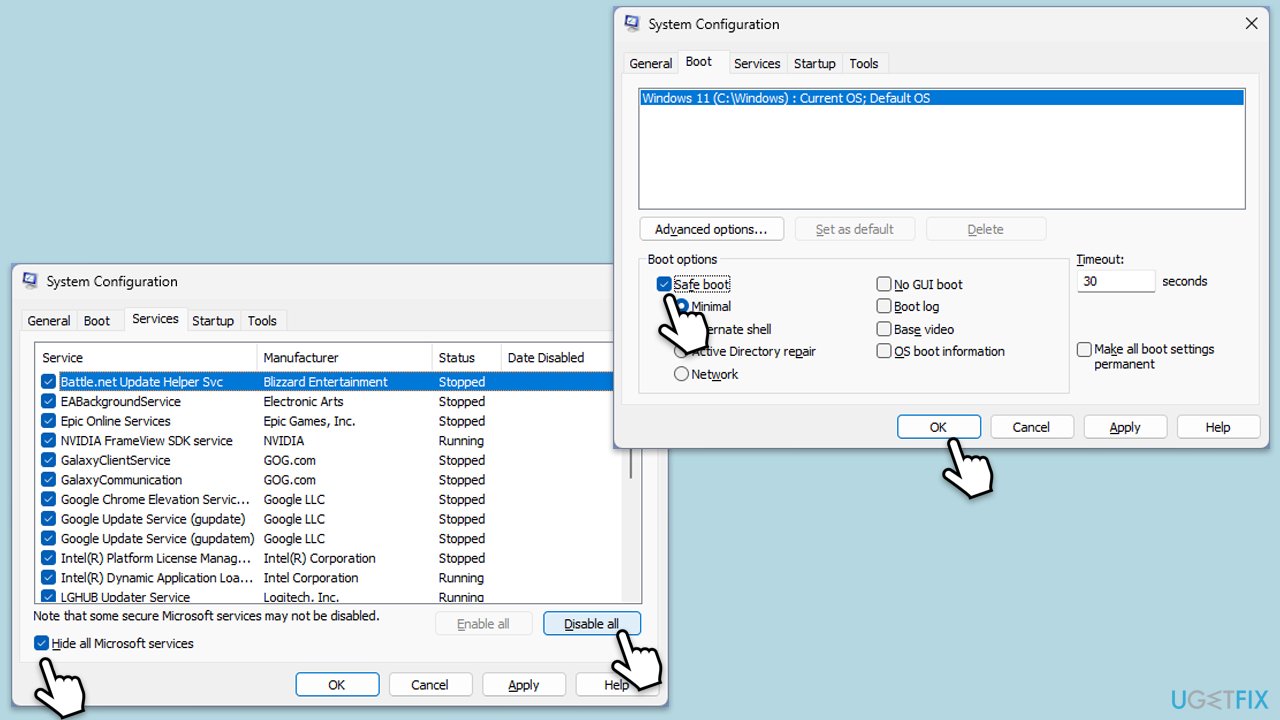
- Type msconfig in Windows search and press Enter.
- Click on the Services tab and check the Hide all Microsoft Services box.
- Click Disable all to disable non-Microsoft services, then click the Startup tab.
- Open the Task Manager, disable all startup items, and close the Task Manager.
- Go to the Boot tab and mark the Safe boot option.
- Click OK on the System Configuration window and reboot your computer.
Bottom line
To fix the Windows update error 0x800f0826, you can run the Windows Update Troubleshooter, clear the update cache, and scan for file corruption. Additionally, manually downloading updates from the Microsoft Update Catalog may help. If none of these solutions work, consider using a dedicated app for automatic system file repairs.
Frequently asked questions
The error 0x800f0826 typically occurs due to missing or corrupted system files or issues with the Windows Update service itself. It can also be triggered by problems with the installation of previous updates.
You can try running the Windows Update Troubleshooter and restarting your computer, or you may need to use the DISM and SFC commands to repair corrupted system files. Make sure to check for updates again after performing these steps.
To minimize the chances of encountering error 0x800f0826 on Windows 10 or Windows 11, ensure your system is regularly updated and perform routine maintenance, such as disk cleanup and checking for malware. Additionally, keeping drivers and software updated can also help.




Report an issue
What's wrong with this guide? We review every report and update or remove content.
Report received — thank you. We'll review and fix it.
You need a free account to submit a report.
Be the first to comment