
How to fix Windows update error 0x800f0838?

Prefer to fix it yourself? The manual steps follow.
- 6methods
- 5 minutes to 2 hours
- Intermediate
Applies to Windows 11 24H2, 25H2 and 26H2 and Windows Server 2025: cumulative updates installed from .msu files of the Microsoft Update Catalog
6 methods in this guide
Hi, I've been trying to install a Windows update for days and always receive error 0x800f0838. I have no clue what's preventing it. It just tells me something went wrong and rolls back. What is the cause of this Windows update error 0x800f0838, and how do I get my system updated?
Error 0x800f0838 means a Windows 11 cumulative update could not install because the earlier update it builds on, the checkpoint update, is missing. It shows up almost always when you install a downloaded .msu file by hand. Install the update through Settings > Windows Update instead, or install the checkpoint file first.
Open Settings > Windows Update and select Check for updates (Fix 1). Windows Update finds the missing checkpoint update by itself, so the error does not appear there. If you must use the downloaded file, get both files from the Microsoft Update Catalog: the checkpoint KB5043080 and the update you want. Install KB5043080 first, then the target (Fix 2), or put both in one folder and let DISM install them together (Fix 3).
| Error | Installer encountered an error: 0x800f0838 in the Windows Update Standalone Installer window, or a failed cumulative update with the code 0x800f0838. |
|---|---|
| Where it appears | Mostly after you double-click a .msu file downloaded from the Microsoft Update Catalog. Less often in Settings > Windows Update or in DISM output. |
| Main cause | The update needs an earlier checkpoint cumulative update that is not on the PC. On Windows 11 24H2 and later that checkpoint is KB5043080 (September 2024, build 26100.1742). |
| Fastest fix | Install through Settings > Windows Update (Fix 1), or install KB5043080 first and then the target file (Fix 2). |
| Also written as | 0x800F0838, 800f0838, error: 0x800f0838, -2146498504 (the same number as a signed decimal). |
| Affects | Windows 11 24H2 (build 26100), 25H2 (26200) and 26H2 (26300), and Windows Server 2025. Reported first with KB5050009 (January 2025) and KB5051987 (February 2025). |
| Microsoft's status | Not a bug. Microsoft documents that catalog users must install all prior checkpoint updates before the target. Every current update page lists the required checkpoint file. |
| Where the cause is written | The update's own Microsoft Support page, section Microsoft Update Catalog, lists the checkpoint file it needs. Failures are logged in C:\Windows\Logs\CBS\CBS.log. |
| Time to fix | 5 to 20 minutes for Fix 1 to Fix 3. About an hour or more for the repair reinstall in Fix 6. |
Facts checked on 15 October 2026. Steps written for Windows 11 (24H2, 25H2 and 26H2).
What Windows update error 0x800f0838 means
0x800f0838 is an error of the Windows servicing stack, the part of Windows that installs updates. It tells you that a dependency of the update package is not met: the package expects files on the PC that are not there. Born's Tech and Windows World, which tracked the first reports, describes it the same way.
In almost every report the reader did not use Windows Update. They downloaded the update from the Microsoft Update Catalog and double-clicked it. The Windows Update Standalone Installer then stops with one line of text: Installer encountered an error: 0x800f0838.
| What you see | Where | What it tells you |
|---|---|---|
| Installer encountered an error: 0x800f0838 | The Windows Update Standalone Installer window, after you open a .msu file | The file is fine, but the checkpoint update it builds on is missing. |
| A failed cumulative update with 0x800f0838 | Settings > Windows Update and Update history | The same dependency failed during a normal update. Less common. |
| Error: 0x800f0838 at the end of the command | Command Prompt or Terminal after DISM /Online /Add-Package | DISM did not find the checkpoint file in the folder you gave it. |
| -2146498504 | Scripts and management tools | The same code written as a signed decimal number. |
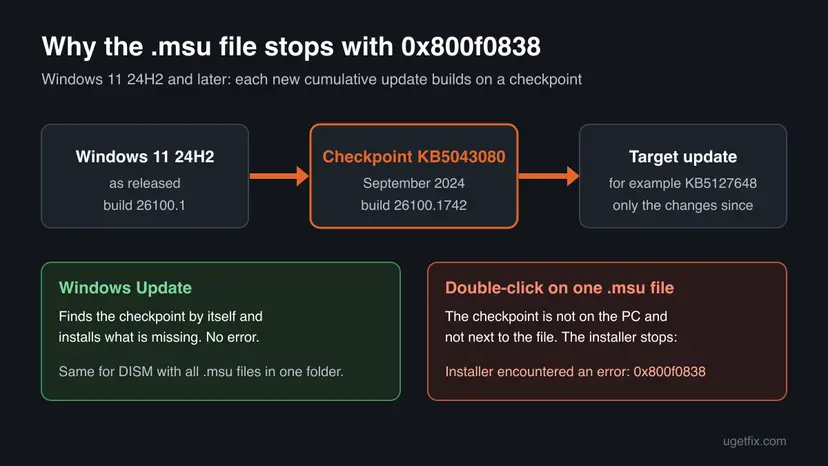
The picture shows why the code belongs to Windows 11 24H2 and later. Microsoft Learn explains that since 24H2, monthly updates can carry only the changes made since the last checkpoint cumulative update. A device has to take all prior checkpoints before it can take the target update.
Microsoft says devices updating from Windows Update and WSUS install the latest update regardless of checkpoints, because Windows Update fetches what is missing by itself. The error is a side effect of installing one file by hand.
Why error 0x800f0838 appears
The causes are ordered from the most likely to the least likely. The first one is documented by Microsoft. The others come from user reports and from what the error code means.
| Cause | How often | How to tell | Fix |
|---|---|---|---|
You opened only the target .msu file, and the checkpoint KB5043080 is not installed. | Most often | You downloaded the update yourself. winver shows a build below 26100.1742, or the PC was installed from older media. | Fix 1, Fix 2, Fix 3 |
| The PC has extra display languages or optional features, which need the full content of every checkpoint. | Sometimes | The checkpoint is installed and the double-click still fails. More than one language is listed in Settings. | Fix 3 |
| The image was slipstreamed or installed from media with updates added by hand, so the base files do not match. | Sometimes | Every new cumulative update fails with this code since the PC was set up. | Fix 3, then Fix 6 |
| The component store (the WinSxS folder) is damaged. | Less often | Windows Update itself fails too, or DISM reports damage. | Fix 4 |
| A broken download in the update cache. | Rarely | Only Windows Update fails, at the same point every time. | Fix 5 |
The first row is Microsoft's own rule. Each update page for Windows 11 24H2, 25H2 and 26H2 lists a Required checkpoint cumulative update next to the Target cumulative update. For the October 2026 update KB5127648, that checkpoint is still KB5043080.
The second row comes from the same Microsoft Learn article. It says that installing Features on Demand or language packs requires the full latest cumulative update payload, which is split across the checkpoint files. Users report the error on such PCs even when the checkpoint is already installed.
We found no Microsoft statement about 0x800f0838 on Windows 10. Windows 10 has no checkpoint updates, so the main cause above does not apply there. If you see the code on Windows 10, start with Fix 4.
How to fix Windows update error 0x800f0838
Fix 1 to Fix 3 are specific to this code and solve it for most readers in minutes. Fix 4 and Fix 5 are the general update repairs for the less common case where Windows Update fails too. Fix 6 reinstalls Windows over itself and keeps your apps and files.
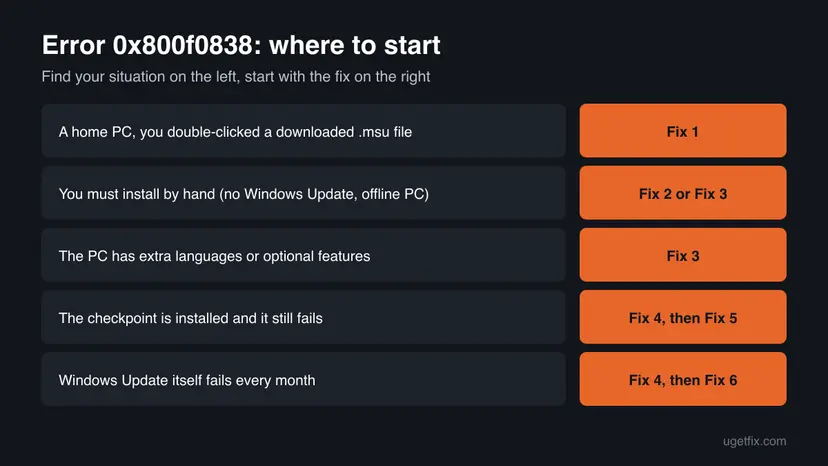
| What you see or have | Start with |
|---|---|
A home PC with internet, you double-clicked a downloaded .msu file | Fix 1 |
| You must install by hand: no Windows Update, a metered or offline PC, a test machine | Fix 2 or Fix 3 |
| More than one display language or optional features are installed | Fix 3 |
| winver shows a build of 26100.1742 or higher and the file still fails | Fix 3, then Fix 4 |
| Settings > Windows Update fails with 0x800f0838 every month | Fix 4, Fix 5, then Fix 6 |
| A work or school PC that gets updates from the organization | Ask the administrator, with the KB number and CBS.log |
Fix 1. Install the update through Windows Update instead of the .msu file
10 to 30 minutesNo riskA home or small office PC with an internet connection, and you only downloaded the file because Windows Update seemed slow or stuck.
Microsoft states that devices updating from Windows Update install the latest update regardless of preceding checkpoints. Windows Update downloads the checkpoint content the PC lacks, so the dependency behind 0x800f0838 is met automatically.
- Close the Windows Update Standalone Installer window if it is still open.
- Open Settings > Windows Update and select Check for updates.
- Install everything that is offered, including the cumulative update you wanted.
- Restart the PC when asked. Use Restart, not Shut down.
- Press Win + R, type
winverand press Enter. The OS build should now match the update you wanted.
Install the newest update Windows offers, not an older KB from the error. Cumulative updates contain everything before them. On 13 October 2026 Microsoft released KB5127648, with OS builds 26100.9711, 26200.9711 and 26300.9711.
It worked if: Update history lists the cumulative update as successfully installed, and winver shows the new build.
If not: If Windows Update itself fails with 0x800f0838, go to Fix 4. If you cannot use Windows Update on this PC, go to Fix 2.
Fix 2. Install the checkpoint update KB5043080 first, then the target update
20 to 40 minutesLow riskYou need to install by hand, and the build in winver is below 26100.1742 or you are not sure.
This is Microsoft's own Method 1 on every current update page: download each MSU file and install them individually, in order. The checkpoint brings the base files that the target update builds on.
- Check your Windows version. Press Windows key + R, type winver and press Enter. Note the version (for example 25H2) and the OS build.
- Find the KB number. Open Settings > Windows Update. A failed or pending update is listed with its KB number; earlier ones are under Update history.
- Check the processor type. Open Settings > System > About and look at System type: an x64-based PC needs the x64 file, an ARM-based PC (for example Snapdragon) needs the arm64 file.
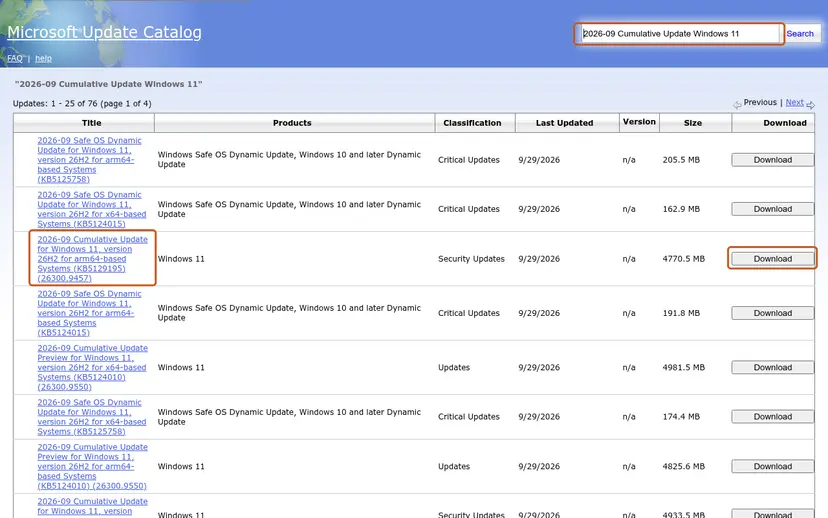
- Search the catalog. Open the Microsoft Update Catalog at catalog.update.microsoft.com in your browser, type the KB number (for example KB5124010) in the search box and press Enter.
- Pick the right row. Find the row whose title names your Windows version and your processor type (x64-based or arm64-based) and select Download on that row.
- Download every file listed. A window lists one or more .msu links. Download all of them into one empty folder, for example C:\packages. On Windows 11 24H2 and later the list can include earlier checkpoint updates that the new one needs.
These steps were written for Windows 11 24H2 and later; Windows 10 22H2. The full page with the other versions and what each result means: Install an update from the Microsoft Update Catalog
- Open the folder with the two files. Check that it holds only these
.msufiles. - Double-click the file whose name starts with
windows11.0-kb5043080first. On x64 PCs its name iswindows11.0-kb5043080-x64_953449672073f8fb99badb4cc6d5d7849b9c83e8.msu. - Select Yes when the installer asks whether to install the update, and wait until it finishes.
- Restart the PC if it asks.
- Double-click the target file, for example the file whose name starts with
windows11.0-kb5127648-x64, and install it the same way. - Restart the PC.
Microsoft says: "If a required checkpoint cumulative update is already present, a message will indicate that the update is already installed." In that case skip to the target file. If the target still fails with 0x800f0838 after that message, use Fix 3.
It worked if: Both installers finish without an error, and after the restart winver shows the build of the target update.
If not: Install both files in one go with DISM, Fix 3.
Fix 3. Install all update files together with DISM
15 to 30 minutesLow riskFix 2 failed, the checkpoint is already installed but the target still fails, or the PC has extra languages or optional features.
Microsoft's Method 2: DISM scans the folder of the target file and installs every required checkpoint before the target, in the right order. Microsoft Learn adds that PCs with language packs or Features on Demand need the content of all checkpoints, even ones already installed, and that DISM does this.
- Create the folder
C:\packagesand copy the checkpoint.msuand the target.msuinto it. Microsoft asks that no other files are in the folder. - Right-click Start and select Terminal (Admin). Select Yes when Windows asks for permission.
- Run DISM with the target file as the only package. Replace the file name with yours (this is the October 2026 x64 file):
DISM /Online /Add-Package /PackagePath:c:\packages\windows11.0-kb5127648-x64_2b88d2d308adc938fcd4d2876a68ee0b2a3c4c09.msu - Wait until DISM reports The operation completed successfully. This can take a long time with the progress bar standing still.
- Type Y when DISM asks to restart, or restart the PC yourself.
In PowerShell the same command is Add-WindowsPackage -Online -PackagePath "c:\packages\<target file>.msu". On an ARM PC, download the arm64 files instead. The checkpoint for ARM is windows11.0-kb5043080-arm64_df540a05f9b118e339c5520f4090bb5d450f090b.msu.
Point DISM at the target file only, never at the checkpoint. Microsoft Learn says DISM applies the remaining checkpoints in the right order and then the target, all in one go.
It worked if: DISM ends with The operation completed successfully., and after the restart winver shows the new build.
If not: If DISM also stops with 0x800f0838 while both files are in the folder, the component store is the problem: go to Fix 4.
Fix 4. Repair the component store with DISM and SFC
15 to 40 minutesNo riskThe checkpoint is installed and updates still fail, or Windows Update itself shows 0x800f0838.
0x800f0838 means the update could not find files it depends on. When the checkpoint is present, those files are missing or damaged in the component store. DISM with RestoreHealth downloads clean copies, and SFC then repairs the system files.
- Open an elevated command window. Right-click Start and select Terminal (Admin), or type cmd in the search box, right-click Command Prompt and select Run as administrator. Select Yes when Windows asks for permission.

Search for cmd and choose Run as administrator. Screenshot: Windows 11 26H2. - Run DISM first. Type the command below and press Enter. DISM downloads clean copies of damaged components from Windows Update, so it can take several minutes. Wait until it says The operation completed successfully.
DISM.exe /Online /Cleanup-Image /RestoreHealth
DISM /RestoreHealth running. Screenshot: Windows 11 26H2. - Run System File Checker. In the same window, type the command below and press Enter. Do not close the window until the verification reaches 100%.
sfc /scannow
sfc /scannow at 100%. Screenshot: Windows 11 26H2. - Read the result and restart. Compare the last message with the table below this guide, then restart the PC so that repaired files are loaded.

The result line tells you what SFC did. Screenshot: Windows 11 26H2.
These steps were written for Windows 11 24H2 and 25H2. The full page with the other versions and what each result means: Run DISM and SFC to repair Windows system files
It worked if: DISM reports The operation completed successfully., SFC finds no violations or repairs them, and the update installs after a restart.
If not: If Windows Update still fails at the same point, reset its cache with Fix 5. If DISM cannot repair the store, go to Fix 6.
Fix 5. Reset the Windows Update components
10 minutesLow riskOnly Windows Update fails, always at the same point, and Fix 4 found nothing.
A damaged download in the SoftwareDistribution folder is used again at every retry. Renaming the folder makes Windows download the update again. It does not install a missing checkpoint, so it does not help with a double-clicked .msu file.
- Open Command Prompt as administrator. Type cmd in the search box, right-click Command Prompt and select Run as administrator. Select Yes when Windows asks for permission.
- Stop the update services. Type the commands below and press Enter after each one. If Windows says that other services depend on Cryptographic Services, it stops them too. A message that a service is not started is fine.
net stop wuauserv net stop bits net stop cryptsvc - Delete the download queue files. This clears the list of downloads that the Background Intelligent Transfer Service keeps. If Windows says it cannot find the files, continue.
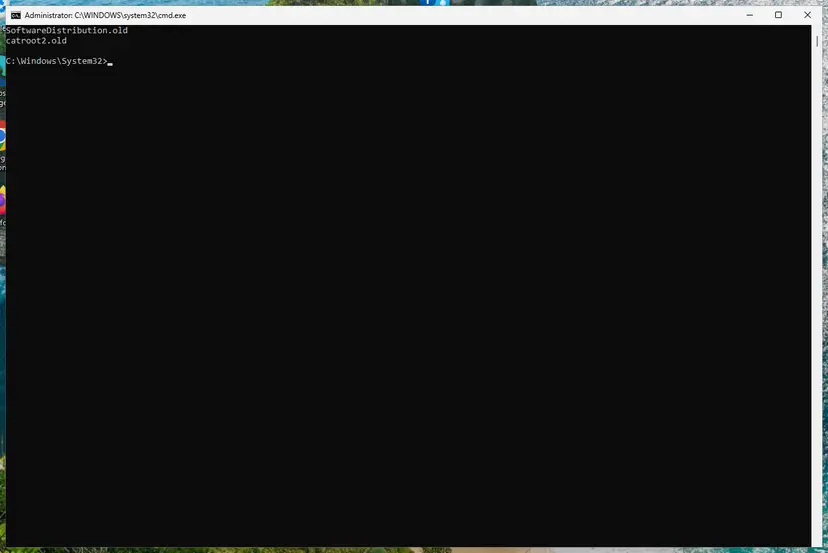
del "%ALLUSERSPROFILE%\Application Data\Microsoft\Network\Downloader\qmgr*.dat" - Rename the update cache folders. Renaming keeps a copy in case you need it; Windows creates new, empty folders when the services start again. If you get Access is denied, a service is still running: repeat the previous step.
ren %systemroot%\SoftwareDistribution SoftwareDistribution.old ren %systemroot%\System32\catroot2 catroot2.old - Start the services again. Type the commands below and press Enter after each one. The requested service has already been started is fine: Windows started it on its own.
net start cryptsvc net start bits net start wuauserv - Restart and check for updates. Restart the PC. Then select Start > Settings > Windows Update > Check for updates. The first check can take longer than usual because everything is downloaded again.
These steps were written for Windows 11 and Windows 10 (the steps are the same). The full page with the other versions and what each result means: Reset Windows Update components
It worked if: Windows Update downloads the update from zero and installs it.
If not: The cause is inside Windows itself. Use the repair reinstall in Fix 6.
Fix 6. Reinstall Windows over itself and keep your apps and files
1 to 2 hoursLow riskEvery cumulative update fails with 0x800f0838, often on a PC installed from slipstreamed media, and Fix 1 to Fix 5 did not help.
A repair reinstall replaces the system files and the component store with a clean copy of the current Windows version, including a correct checkpoint base. Apps, files and settings stay.
- Open Recovery in Settings. Open Settings > System > Recovery. Next to Fix problems using Windows Update, select Reinstall now. This keeps your apps, files and settings.

Fix problems using Windows Update reinstalls the current version and keeps apps, files and settings. Screenshot: Windows 11 26H2. - Start the reinstall. Choose whether the PC may restart on its own 15 minutes after the installation, then select OK.
- Wait and restart. Windows Update downloads and installs a repair copy of your current Windows version. Keep the PC plugged in and online, and restart it when asked.
These steps were written for Windows 11 22H2 and later. The full page with the other versions and what each result means: Reinstall Windows without losing files
If Fix problems using Windows Update is missing, do the same with the Windows 11 installation files. Download the Windows 11 ISO from Microsoft, open it, run setup.exe and keep the choice Keep personal files and apps.
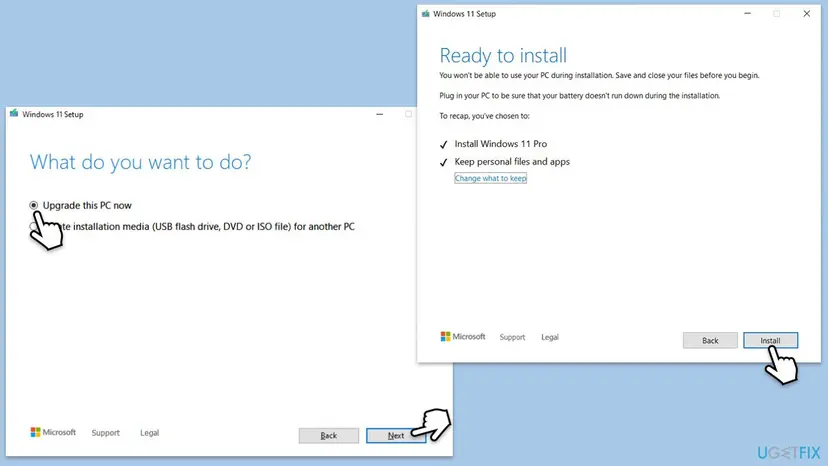
Your files are meant to stay, but a failed reinstall can leave Windows unable to start. Back up what you cannot lose first: Back up your files (Windows Backup, File History, Time Machine). Keep a laptop plugged in for the whole process.
It worked if: The PC starts into the same desktop with your apps and files, and the next cumulative update installs without the error.
If not: Read the next section: the last resort is Reset this PC with Keep my files.
If error 0x800f0838 is still there
When none of the fixes helped, read the servicing log before you try anything else. It names the package or file that was missing.
- Press Win + R, type
%windir%\Logs\CBSand press Enter. - Copy
CBS.logto the Desktop and open the copy in Notepad. - Press Ctrl + F and search for
0x800f0838. Note the time of the last hit. - Read the lines just above it. A KB number or a package name with
RollupFixtells you which update or checkpoint was missing.
| Situation | What to do |
|---|---|
| Work or school PC, updates from WSUS, Configuration Manager or Intune | Send the administrator the code, the KB number, the build from winver and a copy of CBS.log. Managed deployments of 24H2 updates need the checkpoint in the same way. |
| The repair reinstall is missing or fails | Use Reset this PC with Keep my files and Cloud download: Reinstall Windows without losing files. Apps are removed, your files stay. |
| The PC lost power or froze during an earlier update | Check the drive for errors first: Check a disk for errors (chkdsk) |
| A different code next to 0x800f0838, such as 0x800f0993 | Read our guide to error 0x800f0993, which covers a related checkpoint problem on upgraded PCs. |
Nothing about 0x800f0838 points to memory, the drive or the processor. The exception is a drive that reports errors in chkdsk, because a failing drive can damage the component store again after every repair.
How to keep error 0x800f0838 from coming back
- Let Windows Update install monthly updates. It handles checkpoints for you.
- When you install by hand, download every
.msufile the catalog's download window lists, not only the newest one. - Read the Microsoft Update Catalog section of the update's Support page. It names the required checkpoint and the order.
- Restart when Windows asks, so that a half-installed update does not block the next one.
- Do not download update files from sites other than catalog.update.microsoft.com.
- Do not delete files in
C:\Windows\WinSxSby hand to save space. Updates build on that folder. - Do not point DISM at a folder full of old
.msufiles. Keep only the checkpoint and the target. - Do not leave the PC without updates for months while you look for a fix. The security fixes are in that update.
Microsoft's page for KB5127648 states that Windows 11 24H2 Home and Pro have reached end of updates, and that the October 2026 security update is the last one for them. Move a 24H2 Home or Pro PC to 25H2 or later to keep getting security fixes.
Frequently asked questions
What does error 0x800f0838 mean?
It means a Windows update package could not install because something it depends on is missing. On Windows 11 24H2 and later the missing piece is almost always the checkpoint cumulative update KB5043080, which newer updates build on. The update file itself is not damaged and your internet connection is not the cause. Install the update through Settings > Windows Update, or install the checkpoint file before the target file.
What does Installer encountered an error: 0x800f0838 mean in the Windows Update Standalone Installer?
The Windows Update Standalone Installer opens when you double-click a .msu file. The message means it checked the package and found that a required earlier update is not on the PC, so it stopped before changing anything. Microsoft's update pages say that on Windows 11 24H2 and later the catalog may include one or more required checkpoint updates, and that they must be installed in order before the target. Install KB5043080 first, or use DISM with both files in one folder.
Why does Windows Update not show the error when the .msu file does?
Windows Update knows which checkpoint content your PC lacks and downloads it together with the new update. Microsoft writes that devices updating from Windows Update and WSUS can install the latest update regardless of preceding checkpoints. A single .msu file from the catalog holds only the changes since the last checkpoint. The standalone installer does not fetch the checkpoint, so it fails when the checkpoint is not already installed.
Does error 0x800f0838 appear on Windows 11 24H2 only?
It started with Windows 11 24H2, because checkpoint updates exist since that version. Windows 11 25H2 and 26H2 receive the same cumulative updates as 24H2 and list the same checkpoint KB5043080 on their update pages, so the error appears there too. Windows Server 2025 uses checkpoints as well. Note that Windows 11 24H2 Home and Pro got their last update in October 2026, so those PCs should move to 25H2 or later.
How do I know if KB5043080 is installed?
Press Win + R, type winver and press Enter. If the OS build is 26100.1742 or higher, or starts with 26200 or 26300, the checkpoint content is on the PC. A lower 26100 build means it is missing, which is common on PCs installed from early 24H2 media. If you are not sure, double-click the KB5043080 file anyway. Microsoft says the installer then tells you that the update is already installed.
Which KB updates fail with 0x800f0838?
Any Windows 11 24H2 or later cumulative update can, when it is installed from a .msu file without its checkpoint. The first reports in January and February 2025 named KB5050009 and KB5051987. Later reports name other monthly updates, because the cause is the missing checkpoint, not the update itself. The October 2026 update KB5127648 still lists KB5043080 as its required checkpoint cumulative update.
Can I fix 0x800f0838 by turning off my antivirus?
No. The error comes from a missing dependency in the update chain, and no source ties it to security software. Turning protection off would leave the PC exposed without fixing anything. Install the checkpoint and the target update in the right order instead, as in Fix 2 or Fix 3. If you suspect another program interferes with updates in general, test with a clean boot rather than removing protection.
Do I lose my files if I reinstall Windows to fix this?
Not with the repair reinstall in Fix 6. Fix problems using Windows Update, and Windows 11 Setup with Keep personal files and apps, reinstall the same Windows version and keep apps, files and settings. Reset this PC with Keep my files is different: it keeps your files but removes installed apps. Back up the files you cannot lose before any reinstall, and keep a laptop plugged in until it finishes.
Is 0x800f0838 the same as 0x800f0993?
No, but they are related. Both are servicing stack errors on Windows 11 24H2 and later, and both involve checkpoint updates. The code 0x800f0838 usually appears when you install a .msu file and its checkpoint is missing. The code 0x800f0993 appears in Windows Update when the base files for building the new update are missing, often on PCs upgraded from Windows 10. Readers sometimes see both codes for the same update.
Is this page also the answer for jak to vyřešit or no funcionó with 0x800f0838?
Yes. The code is the same in every language of Windows, and only the words around it are translated. The fixes on this page work on a Czech, Spanish or any other Windows. The menu names in the steps are the English ones: follow the position of the items in Settings. The DISM commands and the file names are typed the same way on every PC.
Sources
- Microsoft Learn: Checkpoint cumulative updates and Microsoft Update Catalog usage (learn.microsoft.com)
- Microsoft Support: October 13, 2026, KB5127648 (OS Builds 26300.9711, 26200.9711 and 26100.9711), Microsoft Update Catalog installation instructions (support.microsoft.com)
- Born's Tech and Windows World: Windows 11 24H2: Update KB5051987 fails with installation error 0x800F0838 (borncity.com)
Did this fix work?
One click, no account. It tells the next reader which guides are worth their time.
Questions and experiences: fix Windows update error 0x800f0838
Still broken, or found a fix we did not cover? Ask here: members and our editors answer. Reading is open; writing needs a free account.
…