How to fix
Windows update error 0x800f0845
on Windows
Fix Windows update error 0x800f0845 on Windows 10 quickly and easily with our expert-tested solutions. Get back to smooth updates today!


What causes How to fix Windows update error 0x800f0845 on Windows 10?
- Cannot be fixed by resetting Windows Update components
- Cannot be fixed by restarting Windows update service
- Occurs during installation of Windows 10 Cumulative Update KB4056892
- Can also appear during installation of other patches like KB4103721
- Causes endless boot loop on AMD systems
- Results in BSOD error indicating update installation failure
Repairs Windows system files, removes malware, and restores a clean OS state — without reinstalling.
Hi. How can I fix Windows Update error 0x800f0845 when installing KB4056892? Thanks!
Although the Error Code 0x800f0845 falls into the category of Windows 10 update errors, it’s not a regular one. It means that it cannot be fixed by resetting Windows Update components or restarting Windows update service.
The 0x800f0845 error mostly shows up when installing Windows 10 Cumulative Update KB4056892 (16299.192),[ref en-1] although it can also appear during the installation of other patches, such as KB4103721.[ref en-5] The former is an emergency update for AMD and Intel systems to immunize the Meltdown and Spectre vulnerabilities.[ref en-2]
Since the beginning of January, 2018 Microsoft, along with AMD, Intel, and ARM manufacturers, are working hard to fix the severe design flaw, which exposes a wide range of PCs, phones, tablets and servers to attack.
Actually, Windows 10 update KB4056892 is the one that should address the issue. The update has been released and pushed as one of the automatic Windows 10 updates.
Unfortunately, thousands of AMD systems encountered an endless boot loop once the system attempted to restart to finish up installing the KB4056892 update.[ref en-3] The others reported a BSOD error, which indicates the fact that the update failed to install with an error code 0x800f0845.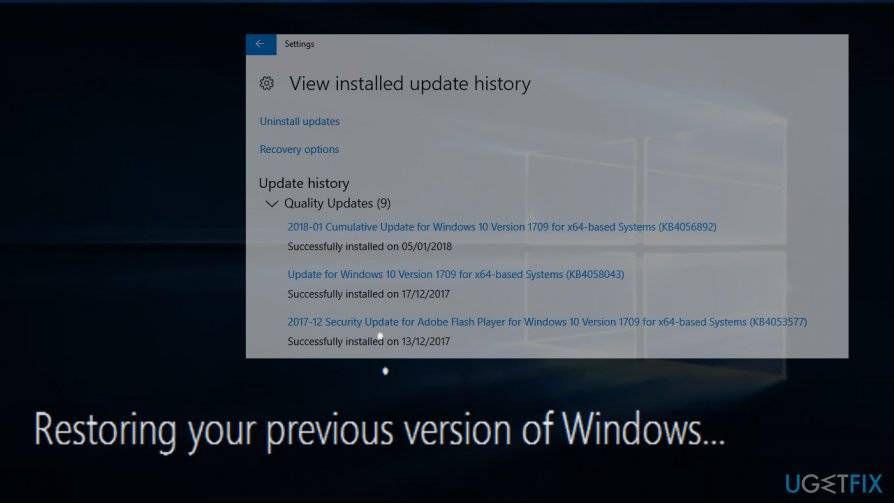
The KB4056892 update bugs were reported to Microsoft, which reacted immediately[ref en-4] by scaling back the rollout of the Windows patches both for Windows 7 and 10.
Enter Safe mode to uninstall Windows Updates
The company provided an official workaround to fix 0x800f0845 BSOD for those who have already installed the KB4056892 update and the system got stuck at boot. In this case you should try these steps:
- Try to reboot Windows for several times in a row. Failed reboots will start an Automatic Repair.
- In the Automatic Repair Window, select Troubleshoot -> Advanced Options (note: you might have to click See more recovery options to view this setting).
- Then open Startup Settings and click Restart.
- Now click F4 or 4 to access Safe Mode.
- When in Safe Mode, press Windows key + I to open Settings.
- Open Update & Security section and click Windows update.
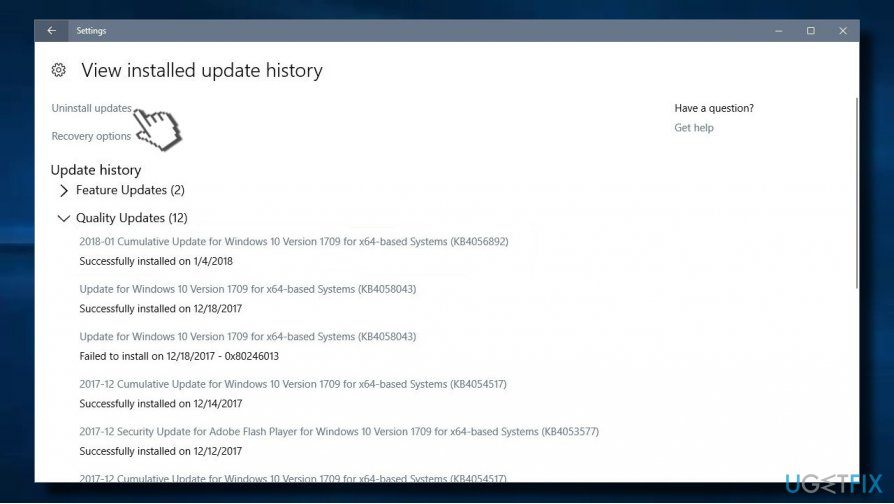
- Now select the KB4056892 update from the update history and click Uninstall the update.
Use Windows Update Troubleshooter
Troubleshooter is an excellent Windows built-in tool that is capable of finding issues with particular module. Make use of the feature by following these instructions:
- Right-click on Start button and pick Settings
- Go to Update & Security > Troubleshoot
- Click on Windows Update and select Run the troubleshooter
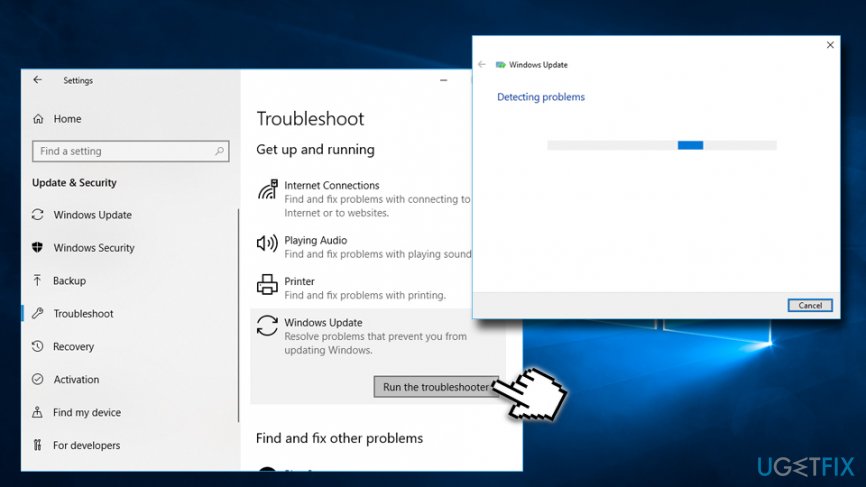
Fix 0x800f0845 update error run troubleshooter
Download Windows updates manually
In some cases, downloading the appropriate update manually can help users fix 0x800f0845 error. Please follow these steps:
- Go to the official Microsoft update catalog;
- Enter a specific update code, for example, KB4481031
- Select the correct version and click Download
- Click on the link and Windows will update your computer
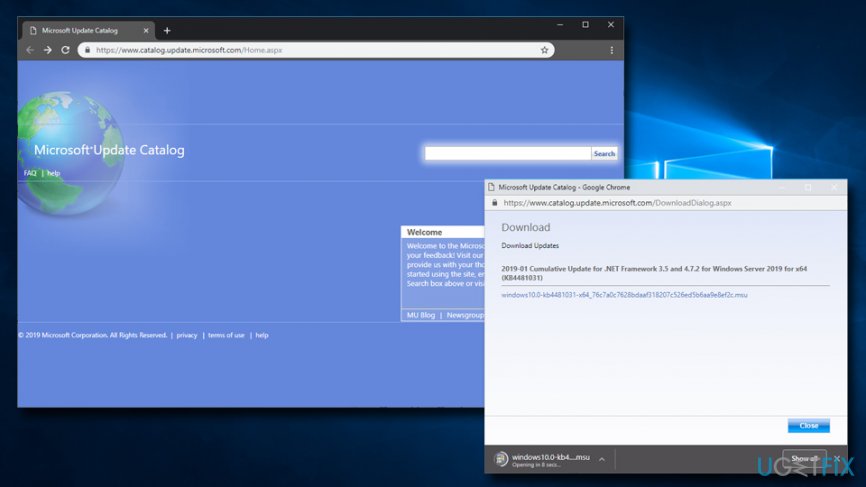
Fix 0x800f0845 update error download manually
Roll back the update on Repair Your Computer window
If you cannot access Safe Mode, you can fix 0x800f0845 error on Repair Your Computer screen. This method will work on Windows 10 and 7 PCs.
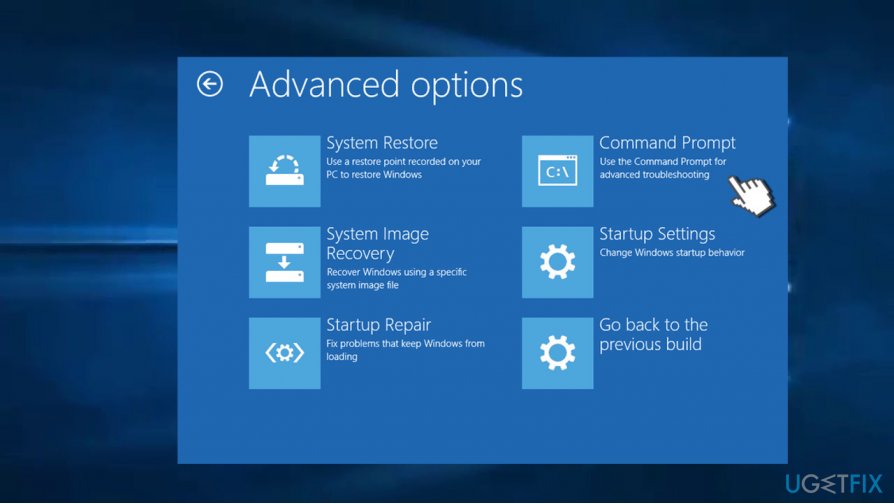
- Press F8 at Windows startup to open Repair Your Computer screen.
- Open Command Prompt and paste the following commands into it. NOTE: press Enter after each of them:
- dir d:
- dism /image:d:\\ /remove-package
- /packagename:Package_for_RollupFix~31bf3856ad364e35~amd64~~7601.24002.1.4 /norestart
By the way, Microsoft explained the reason why some of the AMD systems did not accept the KB4056892. Microsoft’s spokesman reported:
Some AMD chipsets do not conform to the documentation previously provided to Microsoft to develop the Windows operating system mitigations to protect against the chipset vulnerabilities known as Spectre and Meltdown.
Bottom line
To fix the Windows Update error 0x800f0845, you can enter Safe Mode and uninstall the problematic updates. If the issue persists after trying these steps, consider seeking further assistance or exploring additional troubleshooting methods.
Frequently asked questions
The error 0x800f0845 typically indicates that there is a problem with the update files or missing components needed for the update process on Windows 10.
To fix the error, you can run the Windows Update Troubleshooter and ensure that your system files are intact by using the System File Checker tool.
To prevent this error in the future, regularly check for updates and ensure that your Windows 10 installation is up-to-date with the latest patches and drivers.




Report an issue
What's wrong with this guide? We review every report and update or remove content.
Report received — thank you. We'll review and fix it.
You need a free account to submit a report.
Be the first to comment