How to fix
Windows update error 0x80240001
on Windows
Resolve the Windows update error 0x80240001 quickly and effortlessly. Get expert-tested solutions for Windows 10 and 11, fixed in minutes!

What causes How to fix Windows update error 0x80240001?
- Damaged system files
- Absent system files
- Problems with the Windows Update service
- Conflicts with installed programs
- Antivirus software disruption
Repairs Windows system files, removes malware, and restores a clean OS state — without reinstalling.
Hello. I've been experiencing 0x80240001 error whenever I tried to update Windows, so I wonder if you could help me with this? I never had problems with something like this before so I am not sure what to do.
The 0x80240001 Windows Update error is a common problem that stops the installation of critical updates on a computer. The error usually results from update service problems, damaged system files, or conflicts triggered by installed programs. Users often experience the problem when trying to update their systems, resulting in either a failure in the update process or total freezing.
Among the most frequent causes for this error is the existence of damaged or absent system files. These files are required for normal update operation, and if damaged, it is impossible to finalize the update. Another cause can be problems with the Windows Update service itself. If this service is not functioning properly, the update process cannot continue normally. Other applications operating on the computer, like antivirus software, may also disrupt update installation.
There are several users who have written about their experience with this issue, showing that even though they tried various solutions like scanning the system or resetting the update service, the issue never goes away. Many found it difficult and time-consuming to manually solve the problem.
To correct this error with ease, it is advisable to utilize an automatic repair tool. The [d1] repair tool can identify and correct issues with Windows updates. The software has been created to save you time and minimize the frustration of manually correcting issues. Utilizing the software is a fast method of ensuring your system receives the latest updates and remains secure.
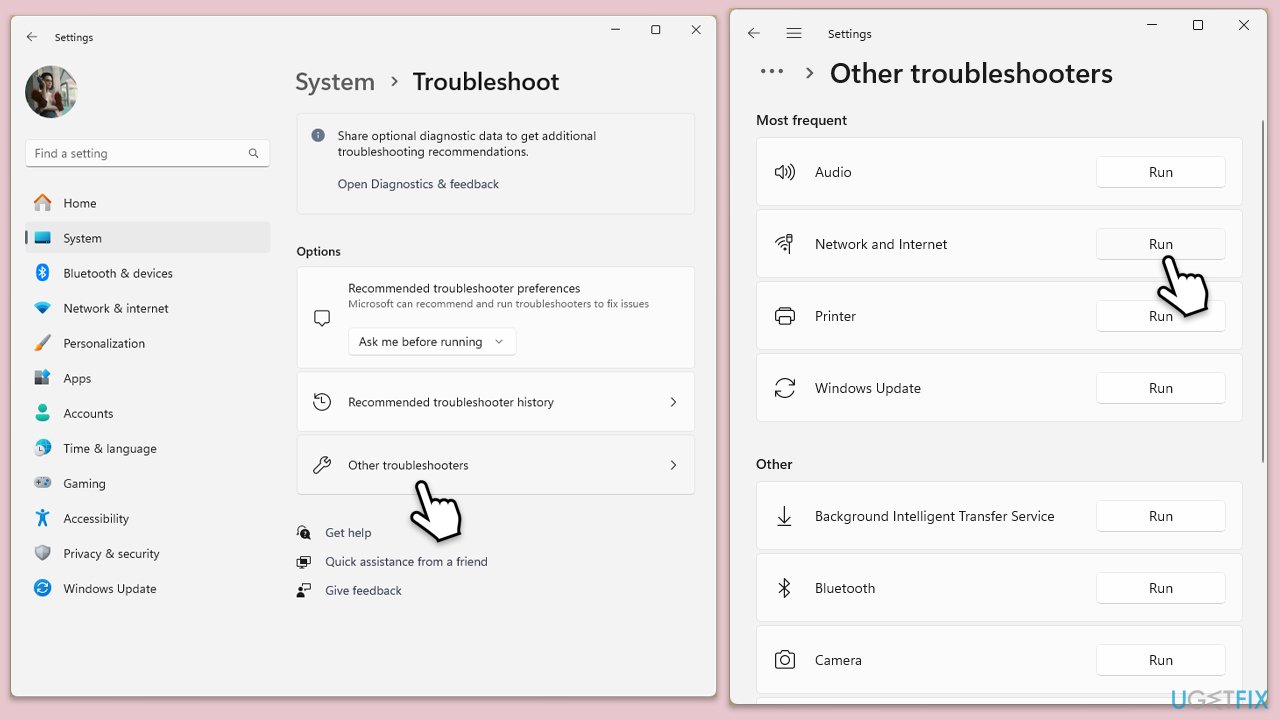
Fix 1. Run the troubleshooter
If you haven't tried this yet, give a Windows update troubleshooter a try:
- Type Troubleshoot in Windows search and press Enter.
- Select Additional troubleshooters/Other troubleshooters.
- Find Windows Update from the list.
- Click it and select Run the troubleshooter/Run.
- Restart your computer when the update process is finished.
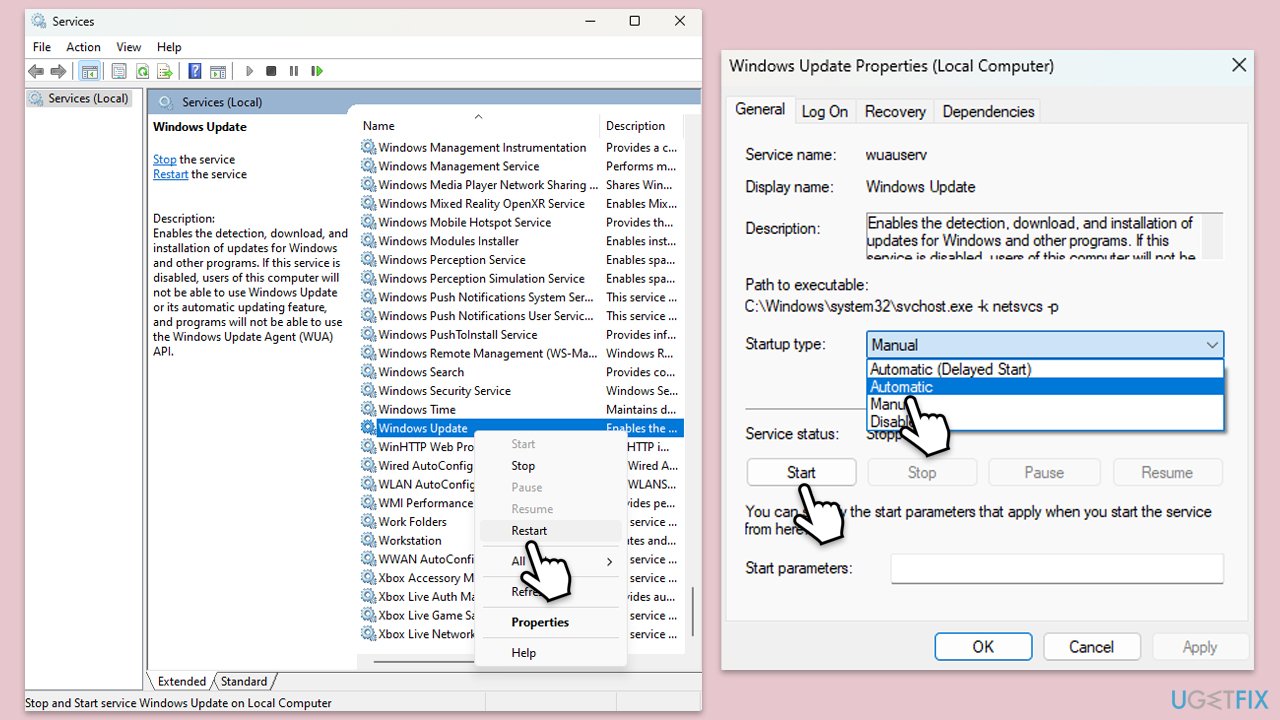
Fix 2. Check relevant services
- Type in Services in Windows search and hit Enter.
- Scroll down a bit to find Windows Update.
- If it is already running, right-click and select Restart.
- If the service is not running, double-click it, pick Automatic under the Startup type drop-down menu.
- Click Start, Apply, and OK.
- Repeat this process for Background Intelligent Transfer Service (BITS) and Cryptographic services.
Fix 3. Run the troubleshooter
- Type Troubleshoot in Windows search and press Enter.
- Select Additional troubleshooters/Other troubleshooters.
- Find Windows Update from the list.
- Click it and select Run the troubleshooter/Run.
- Restart your computer when the update process finishes.
Fix 4. Perform Check Disk
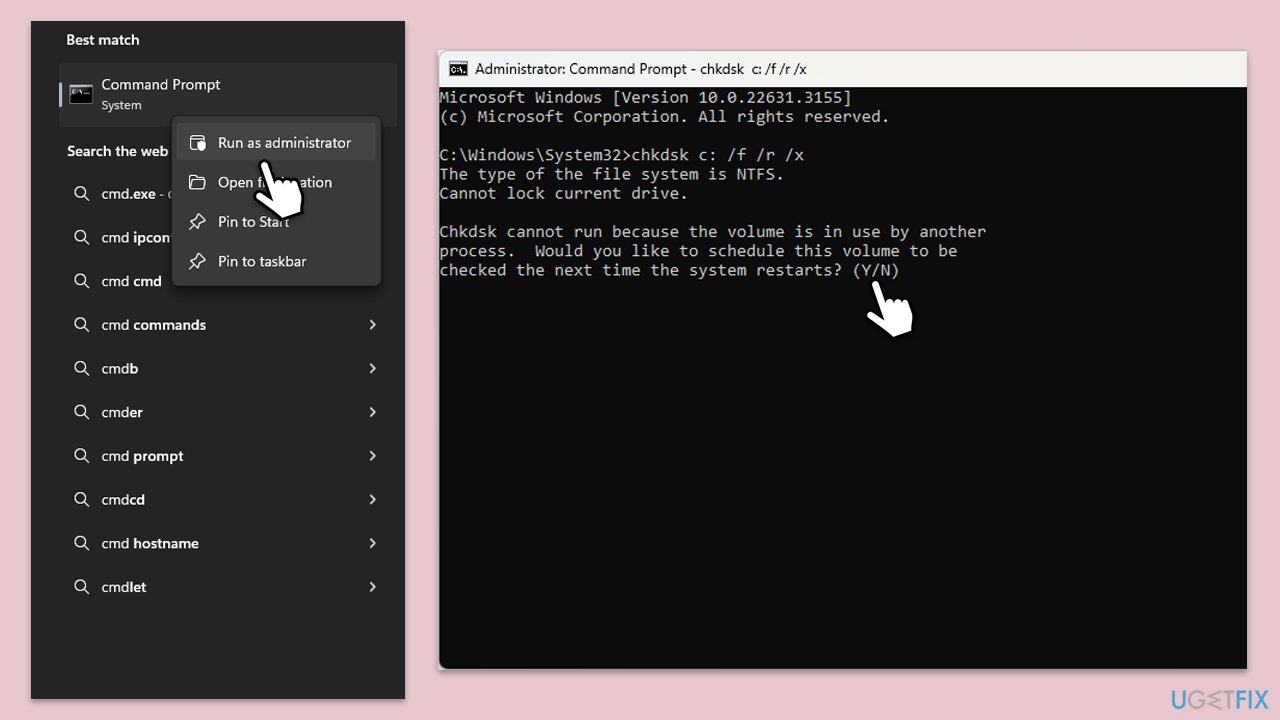
- Type cmd in Windows search.
- Right-click on Command Prompt and select Run as administrator.
- When User Account Control shows up, click Yes.
- In the new window, type in the following command and press Enter after:
chkdsk c: /f
(Note: use chkdsk c: /f /r /x command if you are using SSD as your primary partition) - If you receive an error, type in Y, close down Command Prompt and restart your device.
- Wait until the scan is finished - you can find the results in the Event Viewer.
Fix 5. Use Media Creation Tool
The Media Creation Tool can update your system to the latest version of Windows, resolving persistent update problems by refreshing the Windows installation.
- Visit the official Microsoft website and download Windows 10 installation media (Windows 11 version).
- Double-click the installer and select Yes when UAC shows up.
- Agree to terms.
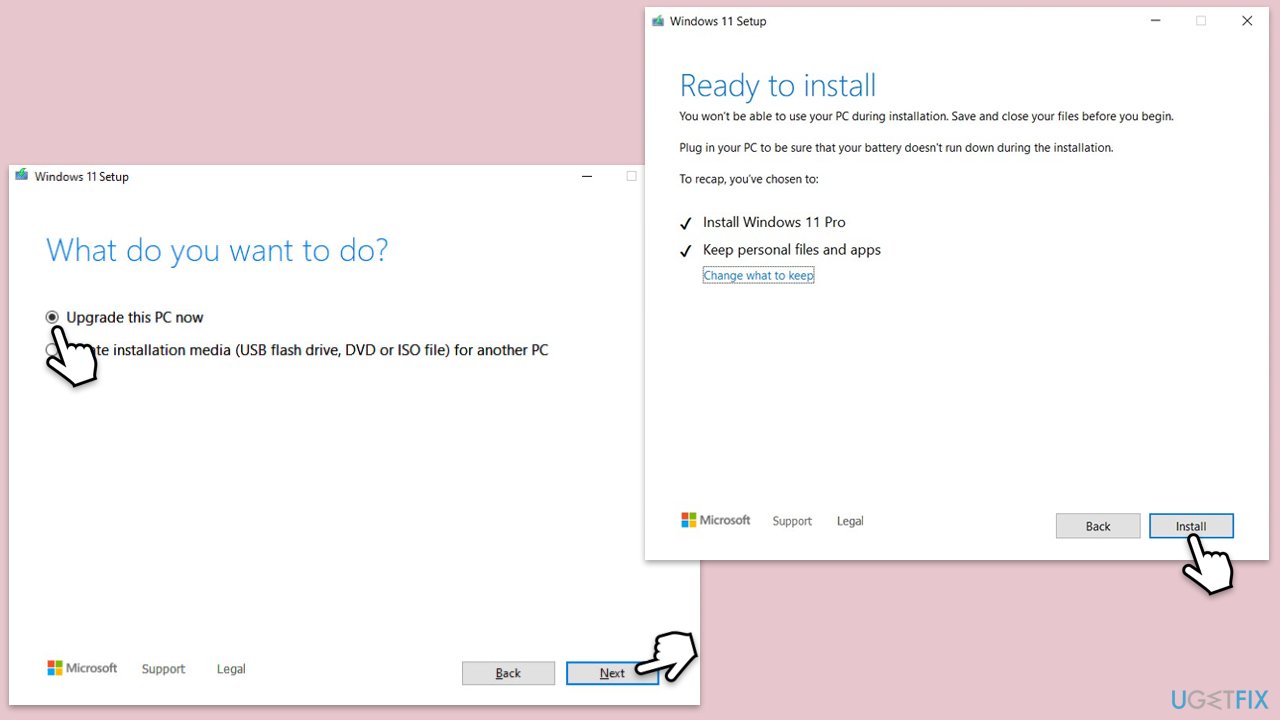
- Select Upgrade this PC now and click Next.
- Windows will start downloading the needed files.
- Agree to the terms once again and click Next.
- Before installing, make sure that you are happy with your choices (otherwise, you can click Change what to keep option).
- Finally, click Install to begin the upgrade process.
Fix 6. Repair corrupted files
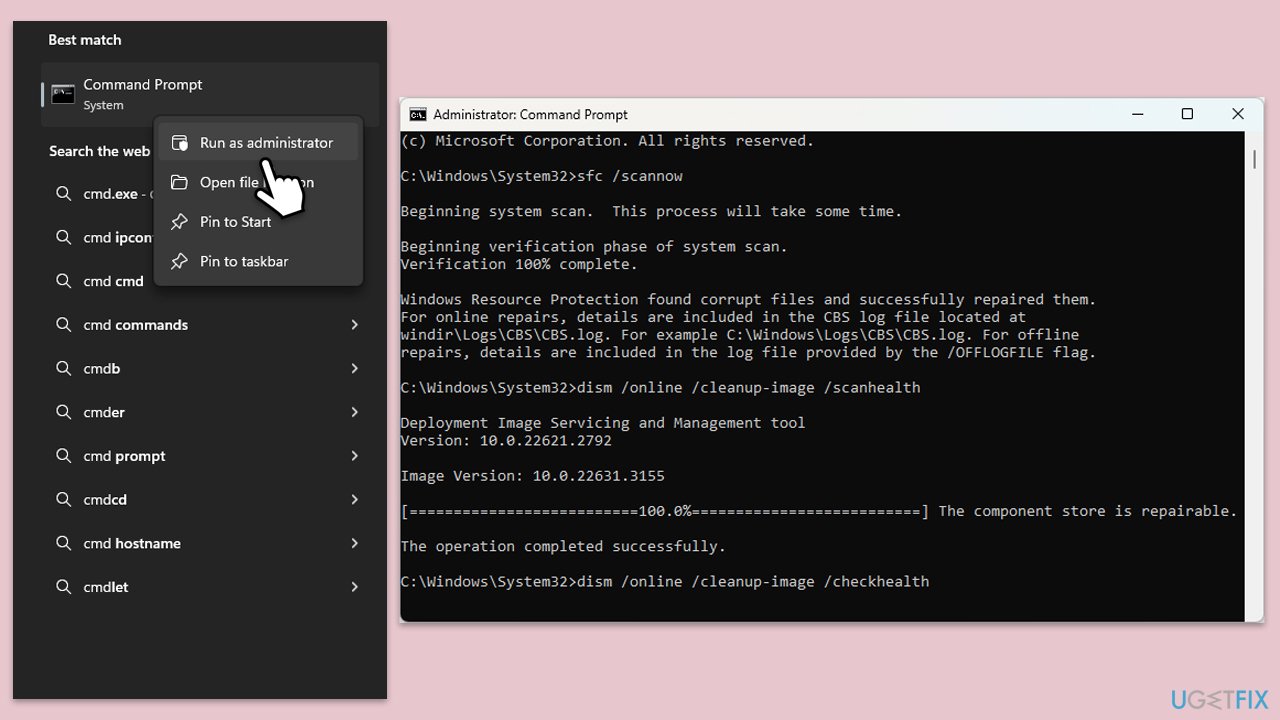
- Type cmd in Windows search.
- Right-click on Command Prompt and pick Run as administrator.
- User Account Control (UAC) will ask whether you want to allow changes - click Yes.
- Use the following command and press Enter:
sfc /scannow - Once the scan is complete, you should also run the following commands to repair Windows image files if needed:
DISM /Online /Cleanup-Image /CheckHealth
DISM /Online /Cleanup-Image /ScanHealth
DISM /Online /Cleanup-Image /RestoreHealth - Restart your computer.
Fix 7. Reset Windows update components
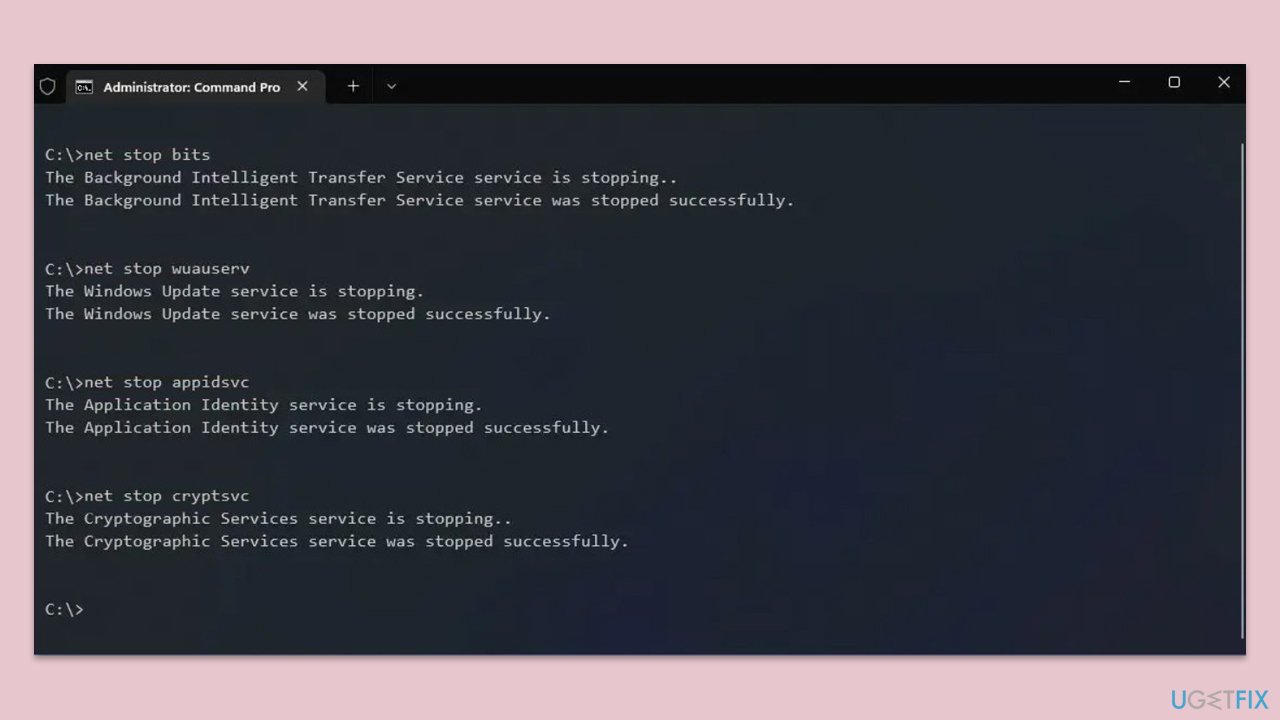
- Open Command Prompt as administrator.
- Type the following commands one by one in Command Prompt and press Enter after each:
net stop wuauserv
net stop cryptSvc
net stop bits
net stop msiserver
Ren C:\Windows\SoftwareDistribution SoftwareDistribution.old
Ren C:\Windows\System32\catroot2 Catroot2.old - When these commands are executed, the last thing to do is to re-enable relevant services:
net start wuauserv
net start cryptSvc
net start bits
net start msiserver - Reboot your computer.
Bottom line
To fix the Windows update error 0x80240001, you can try running the Windows update troubleshooter and checking relevant services. If these solutions do not resolve the issue, consider using an automatic repair tool to identify and correct problems with Windows updates.
Frequently asked questions
The error 0x80240001 typically indicates a problem with the Windows Update process on Windows 10 or Windows 11, often related to missing or corrupt update files.
To fix the error 0x80240001 on Windows 10, try running the Windows Update Troubleshooter and resetting the Windows Update components.
To prevent the error 0x80240001 in Windows 11, ensure your system is regularly updated and consider running system maintenance tools like DISM and SFC to keep files intact.




Report an issue
What's wrong with this guide? We review every report and update or remove content.
Report received — thank you. We'll review and fix it.
You need a free account to submit a report.
Be the first to comment