How to fix
Windows update error 0x80240020
on Windows
Resolve Windows update error 0x80240020 quickly and easily with our expert-tested solutions. Get your system running smoothly in minutes!

What causes How to fix Windows update error 0x80240020?
- Faulty components within Windows Update
- Interfering antivirus software
- Conflicting running applications
- Network instability
- Corrupted update files
Repairs Windows system files, removes malware, and restores a clean OS state — without reinstalling.
Windows fails to install the latest cumulative updates with an error code 0x80240020. It's the first time I'm dealing with this, so I don't know where to even start. Could you advise on how to resolve it?
Windows update error 0x80240020 is one of the most frequent issues when launching updates on a Windows device. The update cannot be installed, and hence the system can become open to certain impending functionality issues or security vulnerabilities because of missing patches.
Some customers confirm that this error, 0x80240020, has occurred while carrying out several updates on their systems, especially the infamous cumulative or feature update that has posed frustration when important enhancements in the system seem delayed.
The source of Error 0x80240020 is typically due to the faulty components that participate within Windows Update or may be due to several programs either interfering or conflicting, which would be running on your computer.
Antivirus software or running applications can be interfering with the update session; network instability can be another critical cause of an effective download and installation process failure. Sometimes, corrupted update files from any previously downloaded updates cause this particular update error.
While error 0x80240020 may seem challenging to resolve, several methods can help restore normal update functionality. Steps such as clearing the update cache, adjusting system settings, and ensuring all conflicting software is temporarily disabled are commonly effective.
For a more comprehensive fix, the [d1] repair tool can detect and address underlying Windows issues that may contribute to error 0x80240020 and other update-related problems.
Fix 1. Check related services
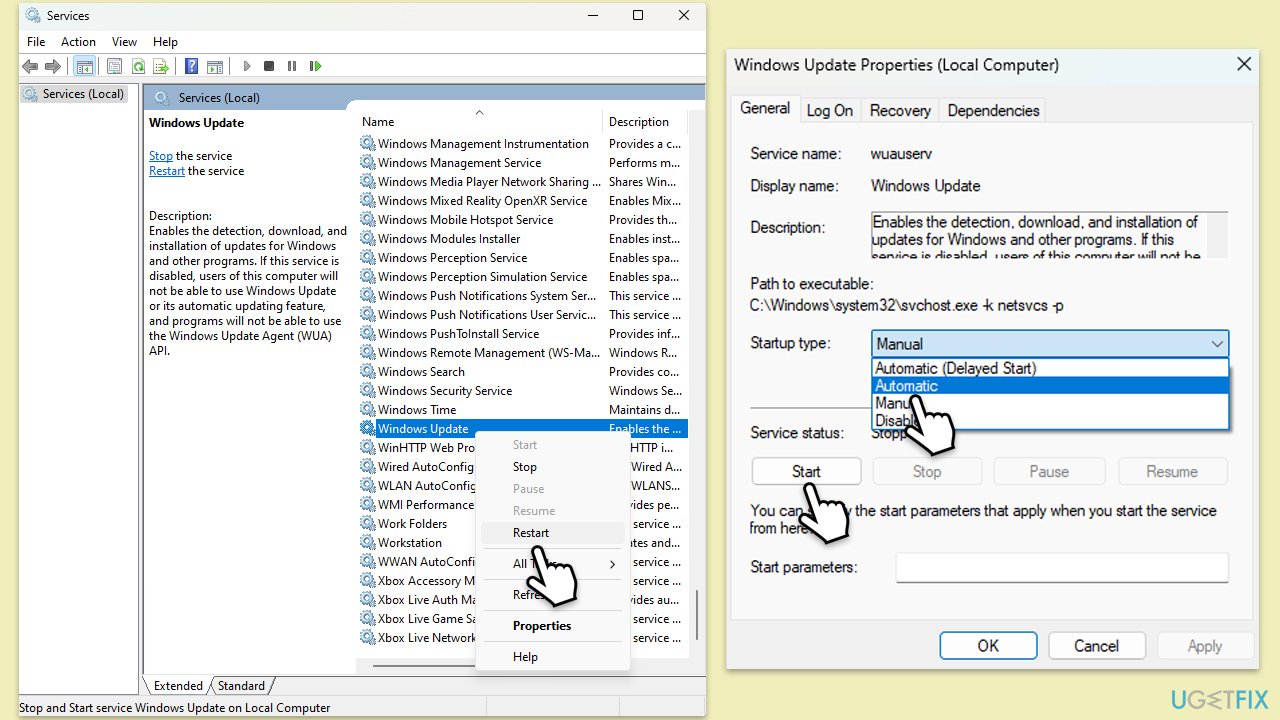
- Type in Services in Windows search and press Enter.
- Locate Windows Update Service.
- If it is already running, right-click and select Restart.
- if the service is not running, double-click it to open Properties.
- Under the Startup type, select Automatic from the drop-down menu.
- Click Start, Apply, and OK.
- Locate Background Intelligent Transfer Service (BITS), Cryptographic service, and Windows Installer service, and repeat the process.
Fix 2. Run the troubleshooter
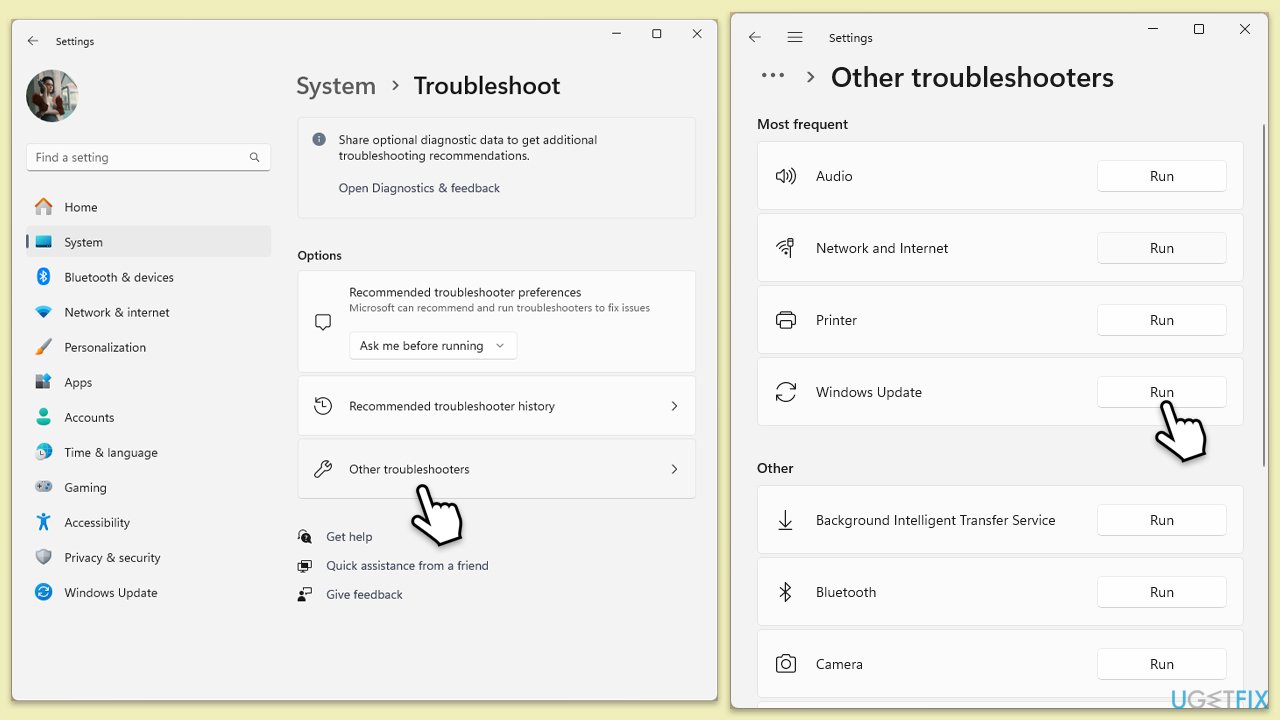
- Type Troubleshoot in Windows search and hit Enter.
- Select Additional troubleshooters/Other troubleshooters.
- Find Windows Update from the list and select Run the troubleshooter/Run.
- Wait till the scan is finished - you will be provided with potential causes so you can proceed with fixes.
- If no suggestions were provided, proceed with other solutions instead.
Fix 3. Disable third-party antivirus temporarily
Security software can interfere with Windows updates and cause error 0x80240020.
- Open your antivirus program.
- Locate the real-time protection settings.
- Disable it.
- Run the Windows update again.
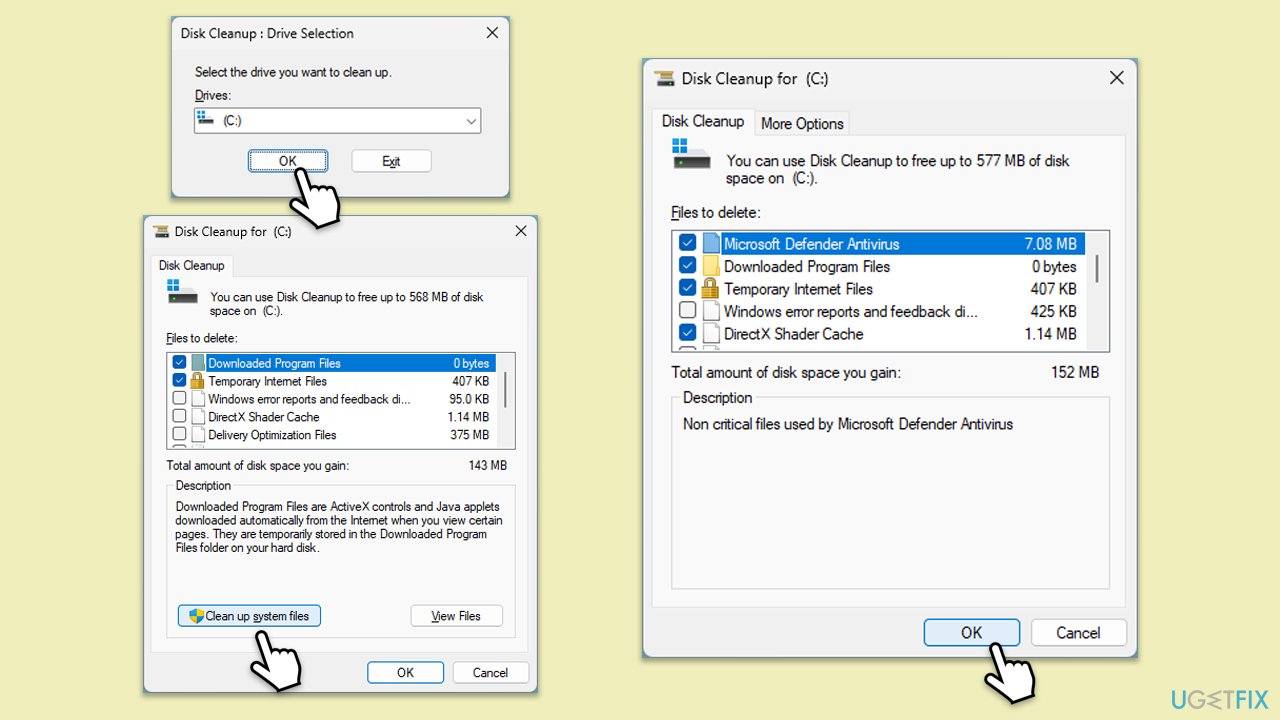
Fix 4. Try Disk Cleanup
- Type Disk Cleanup in Windows search and hit Enter.
- If your Windows is installed on drive C, pick it from the list (should be by default) and press OK.
- Click Clean up system files.
- Select your main drive again and click OK.
- Here, select the largest portions of the data used - these typically include Temporary Internet Files, Windows Update, Temporary Files, Recycle Bin, Delivery Optimization Files, and others. Marking Windows Update is vital here.
- Click OK - the process should be finished shortly.
Fix 5. Install the update manually
If automatic solutions do not work, you can always try installing the newest update manually.
- Type Updates in Windows search and hit Enter.
- Click View update history.
- Here, note down the KB number that failed to install with the error code 0x80240020.
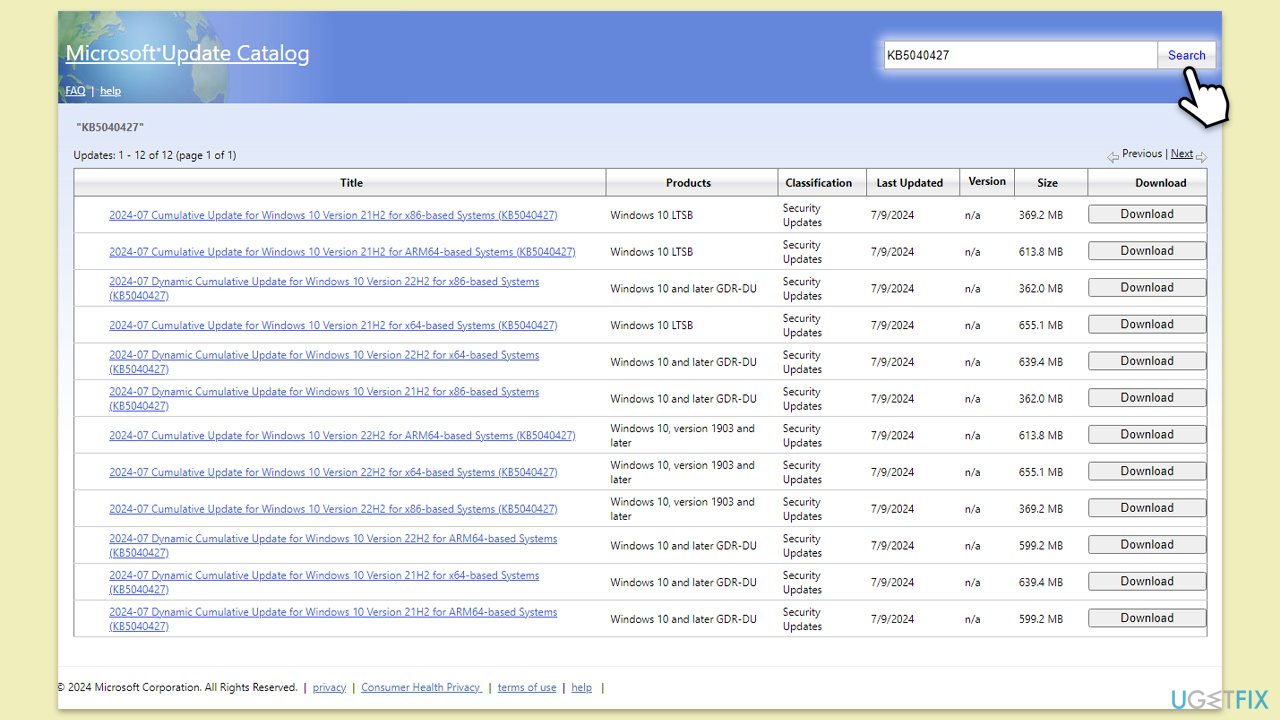
- Go to the official Microsoft Update Catalog website.
- Type the KB number into the search bar, and press Enter or click Search.
- You will find many different versions on the update – you need to find the one that matches your PC specs and Windows version (as a home user, ignore Windows server versions).
- Right-click on Start and pick System.
- Under Device specifications, check the System type section: it should either be 64-bit or 32-bit.
- Scroll down to Windows specifications and check the Version section.
- With all this information, pick the correct version for your device.
- Go back to the Microsoft Update catalog, download the appropriate version, and install it.
Fix 6. Reset Windows update components
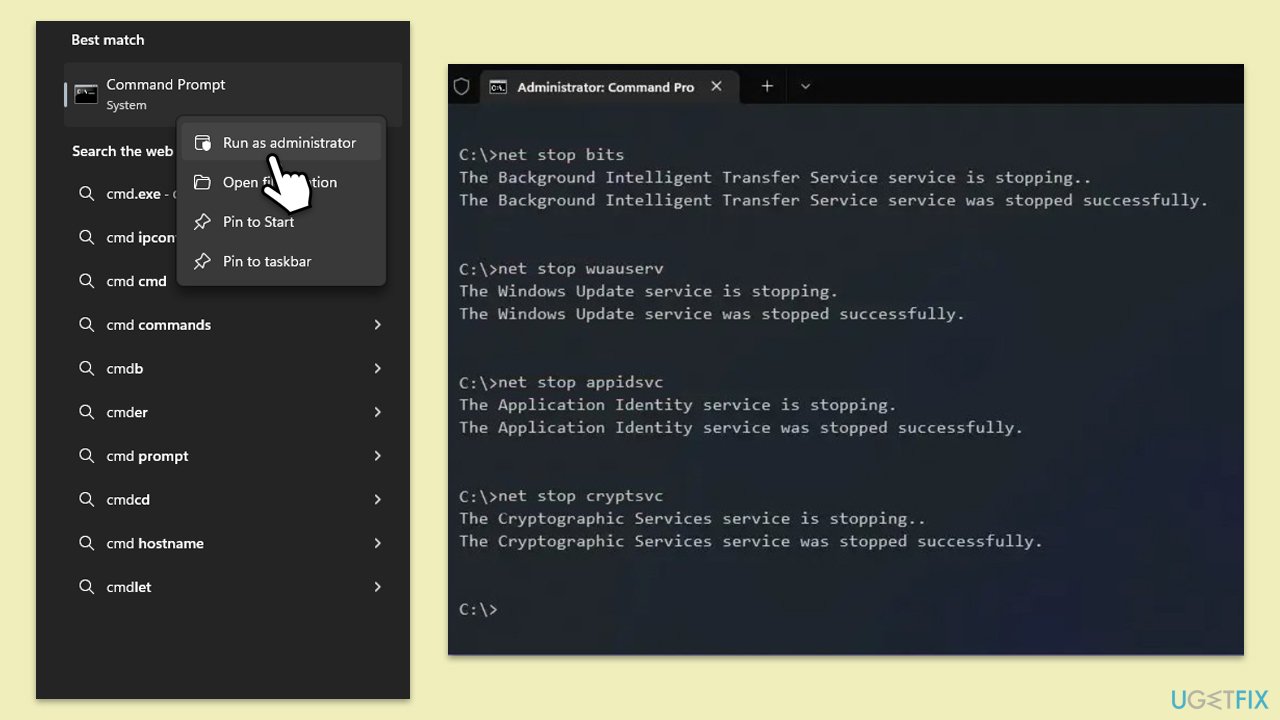
- Type cmd in Windows search.
- Right-click on Command Prompt and pick Run as administrator.
- User Account Control (UAC) will ask whether you want to allow changes - click Yes.
- Paste in each of these commands, pressing Enter every time:
net stop bits
net stop wuauserv
net stop appidsvc
net stop cryptsvc
Del “%ALLUSERSPROFILE%\Application Data\Microsoft\Network\Downloader\*.*”
rmdir %systemroot%\SoftwareDistribution /S /Q
rmdir %systemroot%\system32\catroot2 /S /Q
regsvr32.exe /s atl.dll
regsvr32.exe /s urlmon.dll
regsvr32.exe /s mshtml.dll
netsh winsock reset
netsh winsock reset proxy
net start bits
net start wuauserv
net start appidsvc
net start cryptsvc - Reboot your system.
Fix 7. Use Media Creation Tool
If none of the solutions above help, you can always rely on Media Creation Tool by Microsoft. It can repair any corrupted files and update the operating system to the latest version. Make sure you uninstall any third-party security software and disconnect all unnecessary devices.
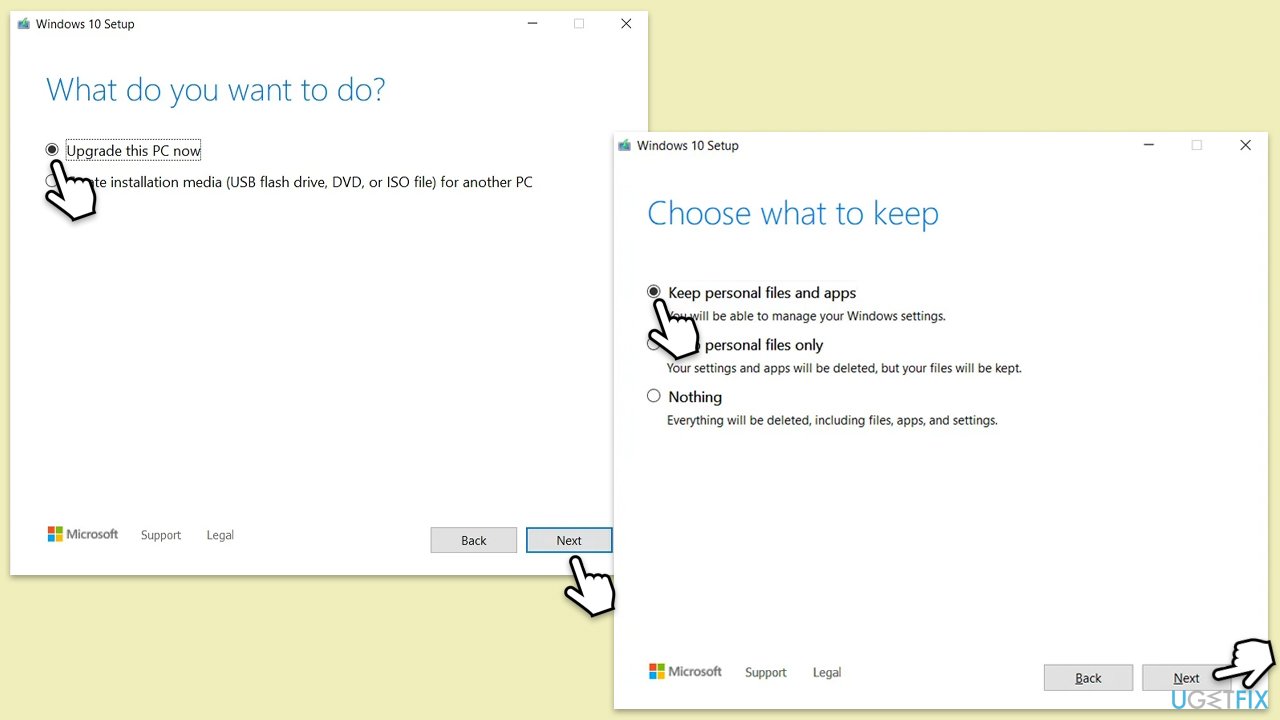
- Visit the official Microsoft website and download Windows 10 installation media (Windows 11 version).
- Double-click the installer and select Yes when UAC shows up.
- Agree to terms.
- Select Upgrade this PC now and select Next.
- Windows will now download all the necessary files – it might take a while.
- Agree to the terms once again and click Next.
- Before installing, ensure you are happy with your choices (otherwise, you can click the Change what to keep option).
- Click Install to begin the upgrade process.
Bottom line
To resolve Windows update error 0x80240020, you can check and restart related services, run the troubleshooter, and clear the update cache. If these methods do not work, consider using a repair tool to detect and fix underlying Windows issues.
Frequently asked questions
The error 0x80240020 typically indicates that there is a problem with the Windows Update service or that updates are being blocked by a specific setting in Windows 10 or Windows 11.
To fix the 0x80240020 error on Windows 11, you can try running the Windows Update Troubleshooter from the Settings app, which can automatically detect and fix common update issues.
Yes, you can manually reset the Windows Update components by stopping the Windows Update services, renaming the SoftwareDistribution and catroot2 folders, and then restarting the services.




Report an issue
What's wrong with this guide? We review every report and update or remove content.
Report received — thank you. We'll review and fix it.
You need a free account to submit a report.
Be the first to comment