How to fix
Windows update error 0x80240025
on Windows
Fix Windows update error 0x80240025 effortlessly with our expert-tested solutions, ensuring your Windows 10 or Windows 11 runs smoothly again. Fixed in …


What causes How to fix Windows update error 0x80240025?
- Limited access to updates
- Registry key 'DisableWindowsUpdateAccess' preventing updates
- Group Policy settings restricting updates
- Corrupt Windows system files
- Issues with the Windows Update service
- Interference from antivirus software
Repairs Windows system files, removes malware, and restores a clean OS state — without reinstalling.
Hey, I need some help, if possible. I was trying to install the latest update on my Windows machine, and I couldn't because of the error code 0x80240025. What is that and what can I do to fix it? Some tips would be appreciated.
Windows Update error code 0x80240025 explained
Windows Update error code 0x80240025 can take place when your system fails to install updates because of limited access. This isn't exclusive to Protection Definition updates - it can arise with any Windows update, feature updates, cumulative updates, or security patches. It normally appears alongside the message "WU_E_USER_ACCESS_DISABLED", indicating a permissions issue.
The error typically suggests that Windows Update has been turned off either through system configuration, the registry, or local group policies. This may be done intentionally in corporate setups where updates are centrally controlled. It could also be seen on personal computers due to wrongly configured settings or interference from third-party software.
Why does error 0x80240025 happen?
Error code 0x80240025 is usually caused by update access restrictions. A common cause is a registry key called "DisableWindowsUpdateAccess" set in a way that prevents Windows from updating. Group Policy settings can also prevent updates on certain versions of Windows, especially in work or school networks.
In certain cases, the issue might be due to corrupt Windows system files, issues with the Windows Update service itself, or by antivirus software. Inconsistent or weak internet connection at times could also interfere with the update and lead to this error.
How to fix Windows update error 0x80240025
To fix the 0x80240025 error, you will likely have to change permissions, examine registry or group policy settings, or restart Windows Update components. Employing native utilities like the Windows Update Troubleshooter or System File Checker will also work.
All of the manual steps are detailed in the section below.
If an automatic option is what you're looking for, the [d1] PC fixer software can potentially diagnose and fix 0x80240025 and other hidden Windows issues.

Fix 1. Check the Windows update access registry setting
This error often happens because Windows is blocked from accessing updates via a registry key. This setting is sometimes used in managed systems but may also appear on personal devices due to incorrect changes.
- Type regedit in Windows search and press Enter.
- When the UAC window shows up, click Yes.
- Navigate to the following location:
HKEY_USERS\S-1-5-18\Software\Microsoft\Windows\CurrentVersion\Policies\WindowsUpdate - Look for a value named DisableWindowsUpdateAccess.
- If it exists and is set to 1, double-click it and change the value to 0.
- Close the Registry Editor and restart your computer.

Fix 2. Use the Windows Update troubleshooter
Windows includes a built-in tool to automatically detect and fix update-related issues. It's a simple first step that resolves many common problems without manual changes.
- Type Troubleshoot into the Windows search bar and press Enter.
- Next, on the right side of the window, select Additional troubleshooters/Other troubleshooters.
- Scroll down to locate the Windows update option and click on it.
- Click on Run the troubleshooter/Run and allow the process to complete.
- Once it is finished, repeat this process with Network troubleshooter.
- Restart your system.

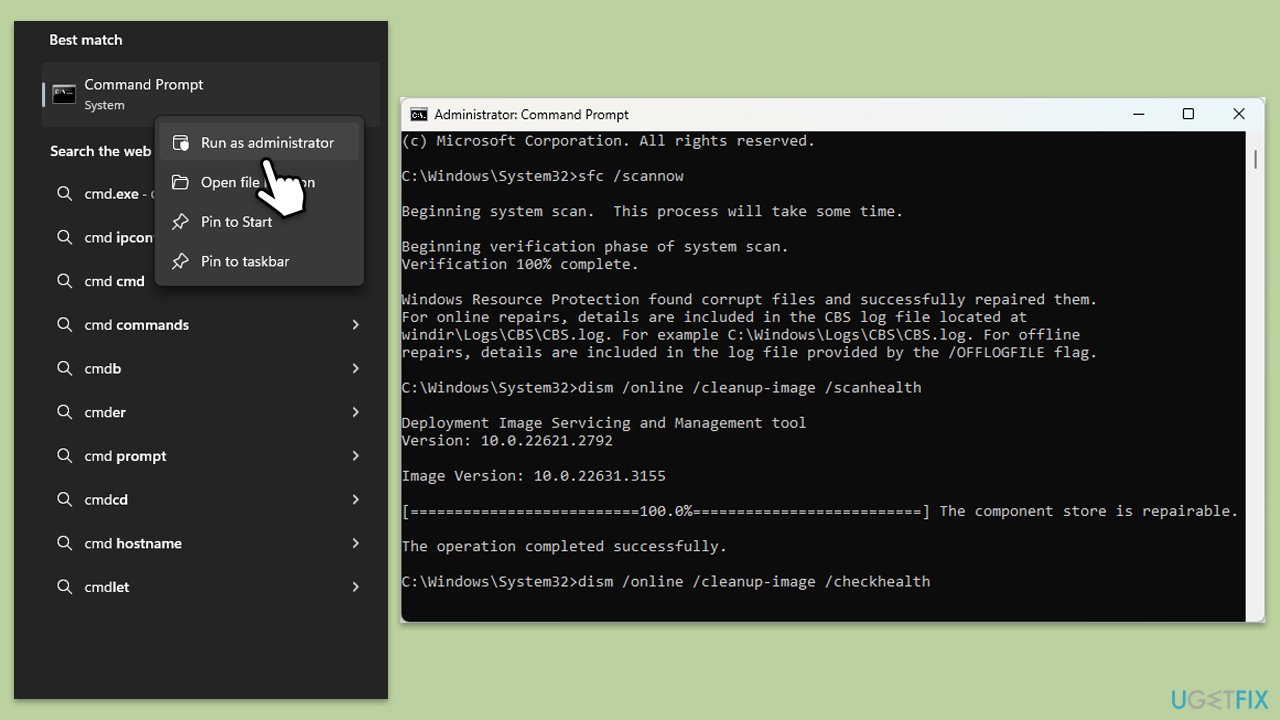
Fix 3. Run the System File Checker and DISM
Corrupted system files can interfere with update installation - using SFC and DISM could address this.
- Type cmd in Windows search.
- Right-click on Command Prompt and pick Run as administrator.
- User Account Control (UAC) will ask whether you want to allow changes - click Yes.
- Use the following command and press Enter:
sfc /scannow - Once the scan is complete, you should also run the following commands to repair Windows image files if needed:
DISM /Online /Cleanup-Image /CheckHealth
DISM /Online /Cleanup-Image /ScanHealth
DISM /Online /Cleanup-Image /RestoreHealth - Restart your system.
Fix 4. Reset Windows update components
Sometimes, the update system itself gets stuck. Resetting the core components of Windows Update often restores normal function.
- Open Command Prompt as administrator.
- Paste in each of these commands, pressing Enter every time:
net stop bits
net stop wuauserv
net stop appidsvc
net stop cryptsvc
Del “%ALLUSERSPROFILE%\Application Data\Microsoft\Network\Downloader\*.*”
rmdir %systemroot%\SoftwareDistribution /S /Q
rmdir %systemroot%\system32\catroot2 /S /Q
regsvr32.exe /s atl.dll
regsvr32.exe /s urlmon.dll
regsvr32.exe /s mshtml.dll
netsh winsock reset
netsh winsock reset proxy
net start bits
net start wuauserv
net start appidsvc
net start cryptsvc - Reboot your computer.

Fix 5. Disable third-party antivirus
Some antivirus software blocks Windows updates for security reasons or by mistake. Temporarily disabling it can help determine if it's causing the issue.
- Right-click the antivirus icon in the system tray.
- Choose the option to pause protection.
- Try running Windows Update again.
Fix 6. Check Group Policy settings (Windows Pro and Enterprise only)
If your device is part of a work or school network, or if you use Pro or Enterprise editions, group policies may be preventing updates.
- Type Group Policy in Windows search and press Enter.
- Navigate to:
Computer Configuration > Administrative Templates > Windows Components > Windows Update - Look for a setting called Remove access to use all Windows Update features.
- If it is enabled, double-click it and set it to Not Configured or Disabled.
- Click Apply and OK.
- Restart your computer.
Bottom line
To fix the 0x80240025 error, you may need to change permissions, examine registry or group policy settings, or restart Windows Update components. Utilizing tools like the Windows Update Troubleshooter or System File Checker can also help. If these solutions do not resolve the issue, consider using PC fixer software to diagnose and fix the problem.
Frequently asked questions
The error 0x80240025 typically indicates an issue with the Windows Update service, suggesting that the update process has been interrupted or corrupted.
To resolve the 0x80240025 error, try running the Windows Update Troubleshooter from the Settings menu under Update & Security.
Yes, you can manually reset the Windows Update components by stopping the Windows Update services, renaming the SoftwareDistribution and Catroot2 folders, and then restarting the services.




Report an issue
What's wrong with this guide? We review every report and update or remove content.
Report received — thank you. We'll review and fix it.
You need a free account to submit a report.
Be the first to comment