How to fix
Windows update error 0x8024002D
on Windows
Resolve Windows update error 0x8024002D quickly and effortlessly. Get expert-tested solutions for Windows 10 and 11, fixed in minutes.


What causes How to fix Windows update error 0x8024002D?
- Bugged installation of the MS Office suite
- Issues with Windows services
- Corrupted system files
- Bugged Windows update caches
Repairs Windows system files, removes malware, and restores a clean OS state — without reinstalling.
Hi, I tried to update Windows, and I can't because of the 0x8024002D error I receive every time. Could you please advise on what I can do to recover from this? I am using Windows 10 version 22H1 if that helps.
Windows updates are always essential, introducing fresh components such as user interface enhancements, features, bug fixes, and much-needed security patches. Even though some of these updates may not be necessary for everyone’s needs and preferences, the absence of crucial security improvements could open up your PC or laptop to a cyberattack or malware infection – an issue that can easily evolve into a major problem. Consequently, you should never neglect Windows update notifications
Unfortunately, some users are unable to install updates because they receive an error at that time. In most cases, these errors go away by themselves, be it due to internet connection issues or Microsoft servers being overloaded/down. However, some errors, such as Windows update error 0x8024002D, might be persistent.
People reported the error occurring on all versions of Windows, including the latest ones, 10 and 11. The problem has been around for at least a few years and always shows up whenever optional updates for Microsoft Office applications are being installed.
Most commonly, error 0x8024002D occurs due to bugged installation of the MS Office suite, so repairing or reinstalling it could help you fix the problem. Alternatively, there could be issues with Windows services, or corrupted system files might be causing the issue. Bugged Windows update caches might also cause the problem.
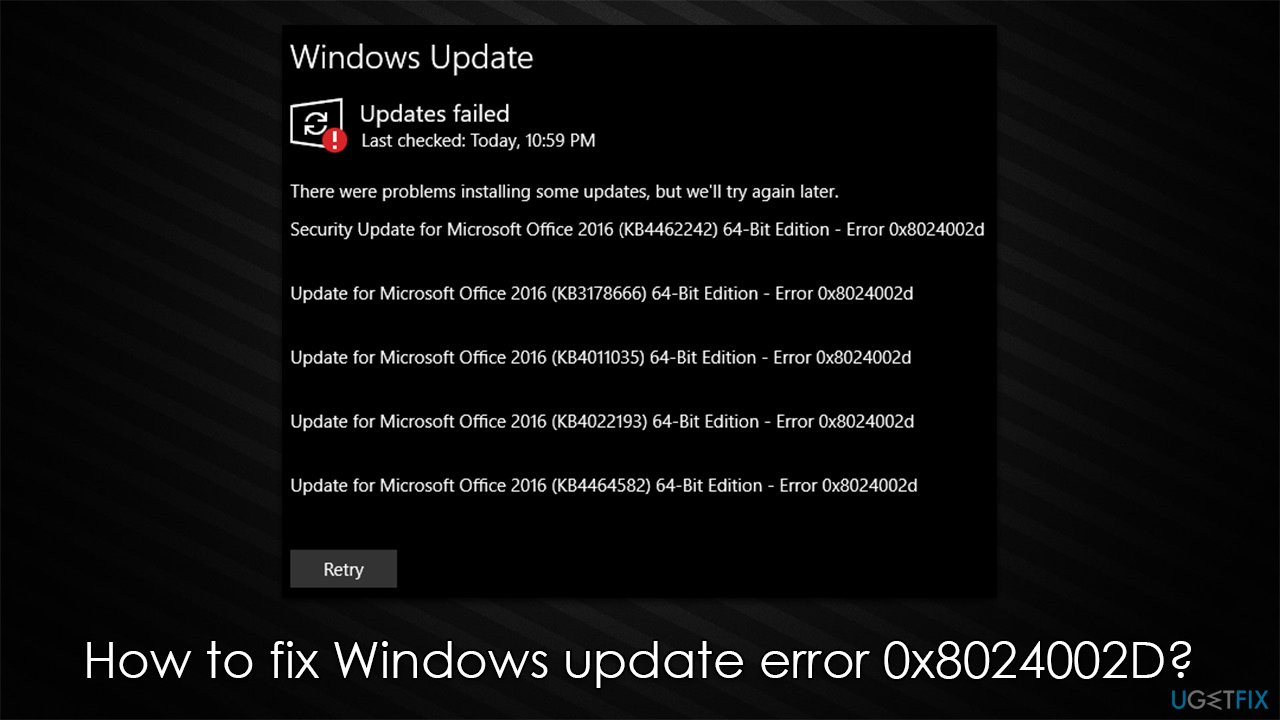
Below you will find all the mentioned methods that should help you fix the 0x8024002D error. Before proceeding, we recommend you scan your device with a powerful PC repair tool [d1], which can quickly and easily identify system file corruption and repair it automatically for you.
Fix 1. Repair MS Office suite
Your first step would be to attempt to repair the installation of the Office apps. Here's how:
- Right-click Start and pick Apps and Features
- Scroll down to find the Microsoft Office/Microsoft Office 365 entry
- Click Modify
- Select Quick Repair
- Click Repair at the bottom and proceed with on-screen instructions
- Try updating Windows again.
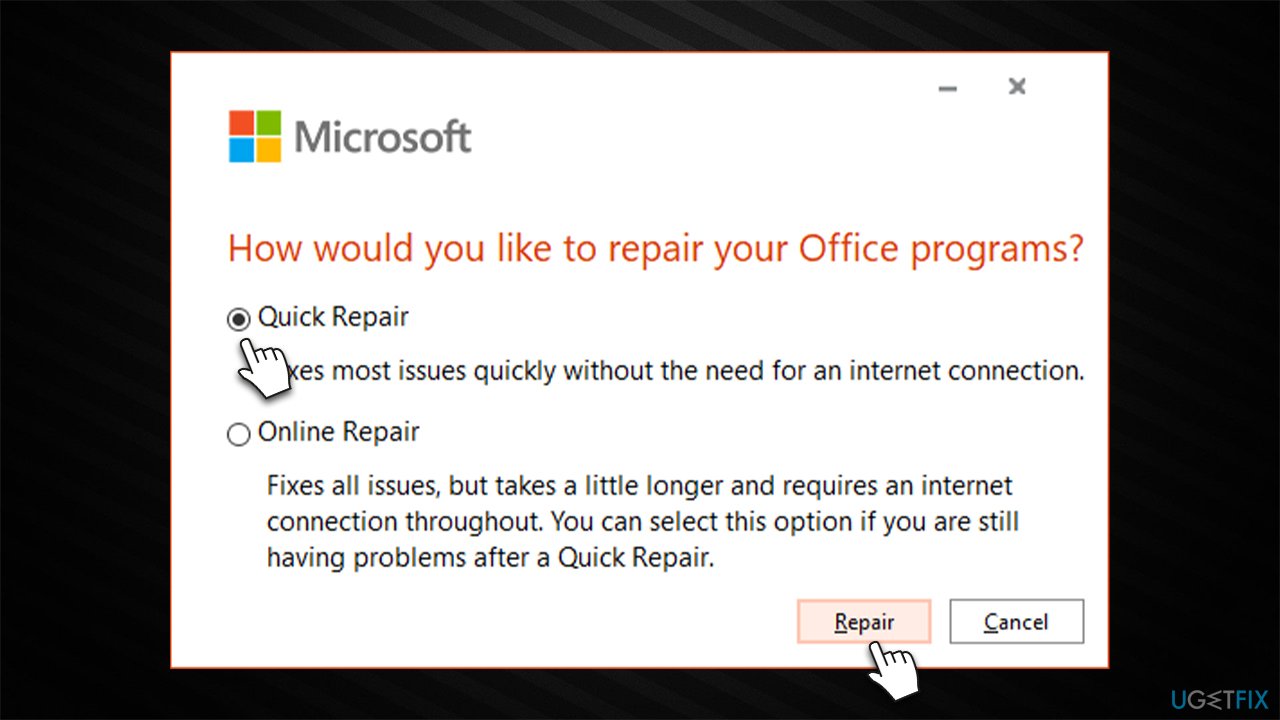
Note: you can try Online repair as well - it will take longer.
Fix 2. Reinstall Microsoft Office
If the previous method did not yield any results, you could reinstall the Office suite. First, you need to uninstall it:
- Open a new browser tab and download Microsoft's Office uninstall support tool [official download link]
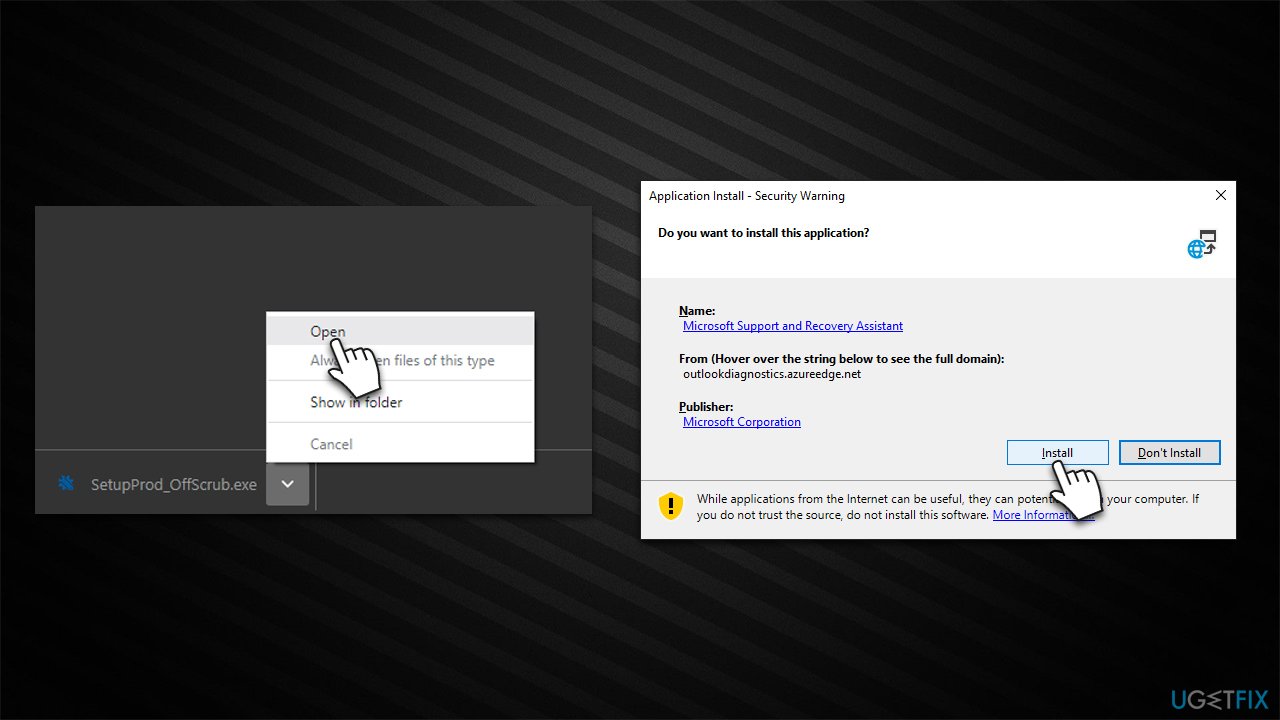
- When the SetupProd_OffScrub.exe file shows up at the bottom, click it to open it
- Select Install
- Select the version of Office you want to uninstall and click Next
- Follow the rest of the uninstallation instructions and restart your system
- After a restart, the uninstall tool window will show you - proceed to finish the uninstall process
- Finally, pick the version of Office you want to install and reinstall the app.
Fix 3. Run the troubleshooter
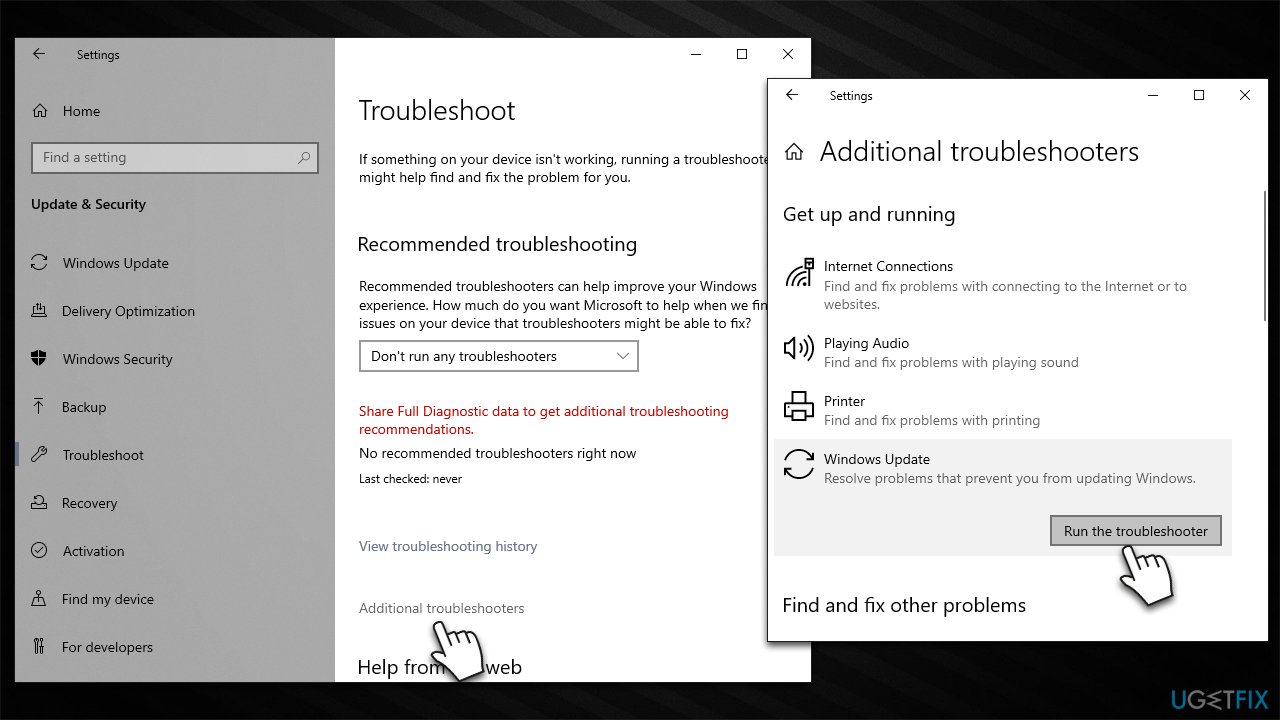
- Type Troubleshoot in Windows search and press Enter
- On the right side of the window, click Additional troubleshooters/Other troubleshooters
- Scroll down and select Windows update
- Click Run the troubleshooter/Run
- Wait for the troubleshooter to finish
- Restart your system once done.
Fix 4. Run SFC and DISM
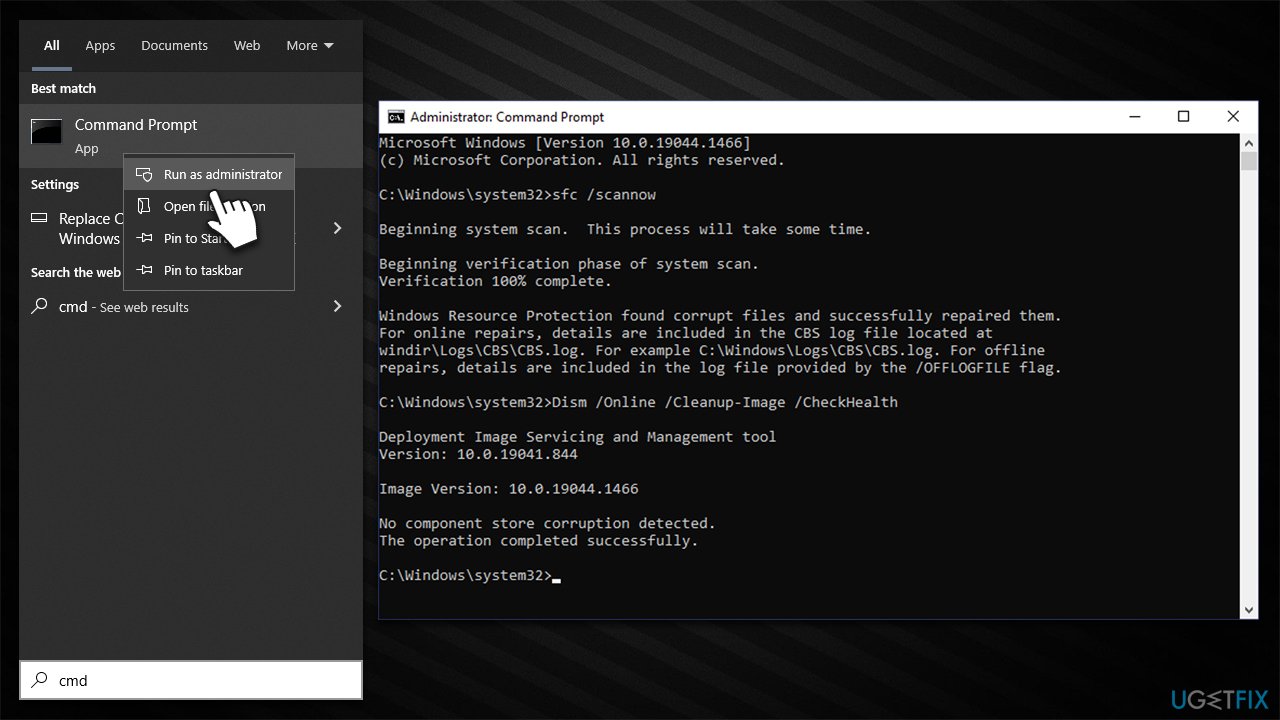
- Type in cmd in Windows search
- Right-click on Command Prompt and select Run as administrator
- User Account Control will ask you whether you allow making changes to the system - click Yes
- In the Command Prompt window, paste the following command and hit Enter:
sfc /scannow - Next, use the following commands, pressing Enter each time:
Dism /Online /Cleanup-Image /CheckHealth
Dism /Online /Cleanup-Image /ScanHealth
Dism /Online /Cleanup-Image /RestoreHealth - Restart your PC.
Fix 5. Delete the Software Distribution folder
Removing cached files from the Windows update installation folder can help you fix the 0x8024002D error:
- Open Command Prompt as administrator as explained above
- Copy and paste the following commands, pressing Enter after each:
net stop wuauserv
net stop cryptSvc
net stop bits
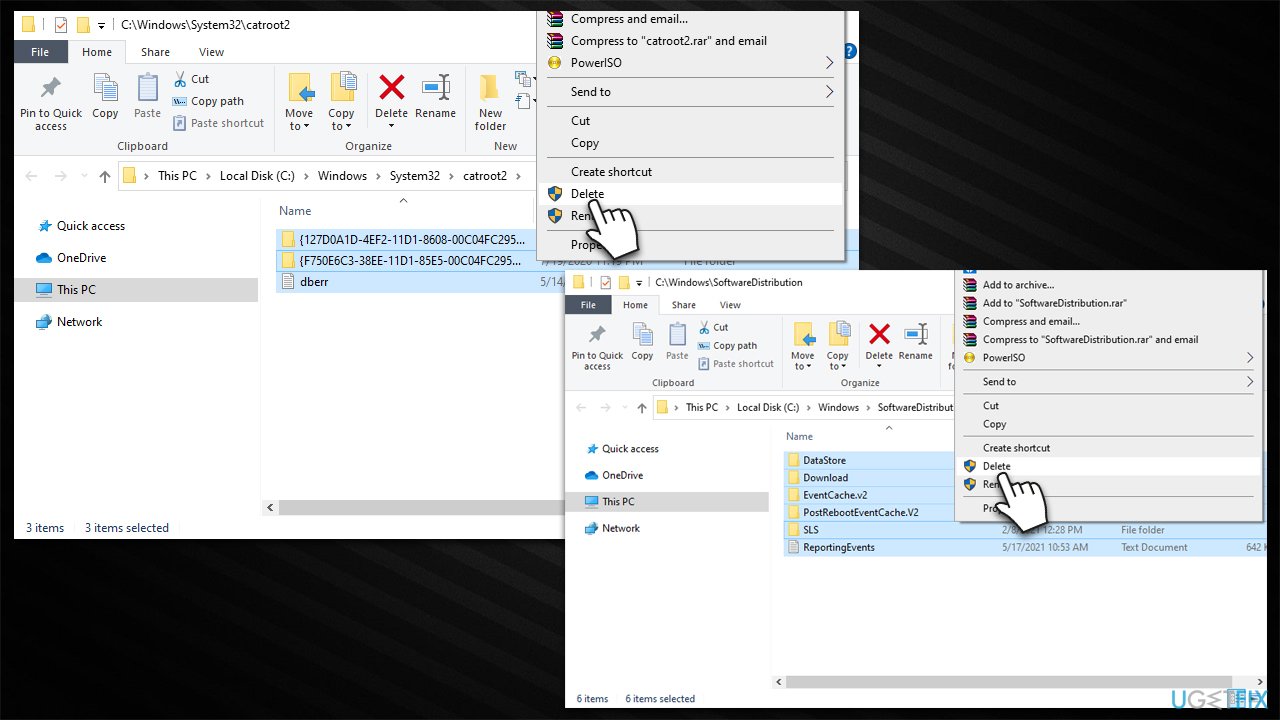
net stop msiserver - Now press Win + E to open File Explorer and navigate to the following locations:
C:\Windows\SoftwareDistribution\Download
C:\Windows\System32\catroot2 - Delete the contents of both of these folders by pressing Shift + Del
- Go back to the Command Prompt window and enter the following commands:
- net start wuauserv
net start cryptSvc
net start bits
net start msiserver - Restart your device.
Fix 6. Use Media Creation Tool
Make sure you disconnect printers, external HDDs, and other unnecessary devices before proceeding. Also, make copies of your personal files just as a precautionary measure. Remove third-party antivirus, if one is installed.
- Visit the official Microsoft website and download Windows 10 installation media (Windows 11 version)
- Double-click the installer and select Yes when UAC shows up
- Agree to terms
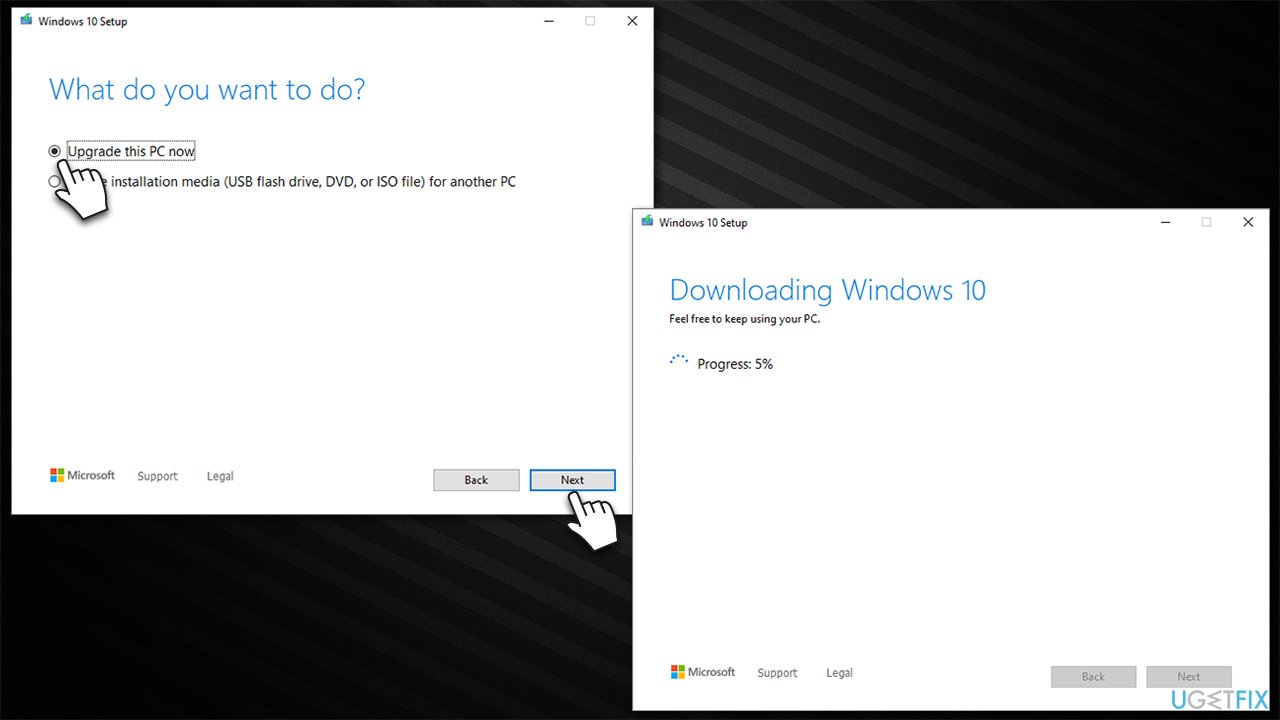
- Select Upgrade this PC now and click Next
- Windows will start downloading the needed files
- Agree to terms once again and click Next
- Before installing, make sure that you are happy with your choices (otherwise, you can click Change what to keep option)
- Finally, click Install to begin the upgrade process.
Bottom line
To fix the Windows update error 0x8024002D, you can repair the MS Office suite, check Windows services, or address corrupted system files. If these methods do not resolve the issue, consider using a powerful PC repair tool to identify and repair system file corruption.
Frequently asked questions
The error 0x8024002D typically indicates that there is a problem with the update process on Windows 10 or Windows 11, often related to missing or corrupted files.
To fix error 0x8024002D on Windows 10, try running the Windows Update Troubleshooter and check for updates again after restarting the system.
Yes, you can manually reset the Windows Update components by stopping the Windows Update service, deleting the SoftwareDistribution folder, and then restarting the service on both Windows 10 and Windows 11.




Report an issue
What's wrong with this guide? We review every report and update or remove content.
Report received — thank you. We'll review and fix it.
You need a free account to submit a report.
Be the first to comment