How to fix
Windows Update error 0x8024200D
on Windows
Resolve Windows Update error 0x8024200D effortlessly. Discover effective fixes for Windows 10 and Windows 11, with expert-tested solutions.

What causes How to fix Windows Update error 0x8024200D?
- Windows Update service problems
- Antivirus conflict
- Corrupted update components
- Insufficient data for installation
- Malware infections
Repairs Windows system files, removes malware, and restores a clean OS state — without reinstalling.
Hello. Windows 10 upgrade to v1709 constantly fails with an error code 0x8024200D. Is there anything I could do to work around this error?
“Installation Failure: Windows failed to install the following update with error 0x8024200D: Feature update to Windows 10, version 1709.” That’s yet another error that harasses Windows 10 users who are trying to install one of the forced Windows feature updates.
While it most commonly occurs during the installation of Fall Creators Update (V-1709),[ref en-1] Anniversary Update and Creators Update are not immune to the problem. Although all these three updates were released quite a while ago, they keep failing with various alphanumeric codes during the download or installation process.
0x8024200D error is one of them. The error code is also known as a WU_E_UH_NEEDANOTHERDOWNLOAD error, which means that the installer requires more data to be downloaded. This could be related to some Windows Update[ref en-2] service problems, antivirus conflict, corrupted update components, and similar problems.
Although the 0x8024200D error is not fatal, it prevents the system from being updated or upgraded, which means that the system’s protection may weaken[ref en-3] and the user doesn’t get the chance to try new Windows 10 features.
Luckily, there are few methods that can help to fix 0x8024200D error manually, but before that, you can give [d1] a try. This optimization utility will check the system for integrity violations, registry entries, file corruptions or malware infections, so a full system scan with it can end up with complete 0x8024200D error fix. If a scan did not help, try these methods:
Option 1. Disable antivirus and firewall
- Press Windows key and type Windows Defender Security Center.
- Select Firewall & Network Protection.
- Click Private (discoverable) network and slide a toggle to Off.
- Then do the same with Public (non-discoverable) network.
- After that, disable Windows Defender or any third-party antivirus program. However, don’t forget to enable the protection as soon as you install the update. Otherwise, the system will remain vulnerable to cyber infections.
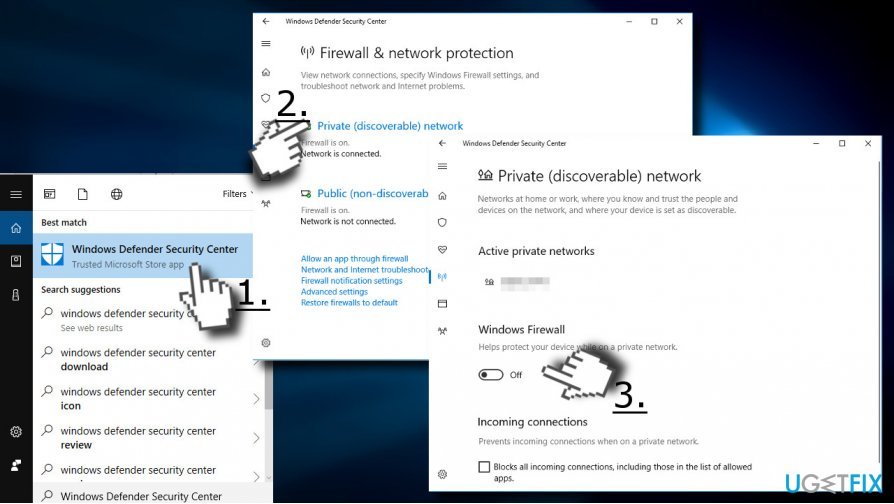
Disable antivirus and firewall
Option 2. Remove temporary installation files
- Press Windows key + R, type cleanmgr, and press Enter.
- When Disk Cleanup opens, select C: drive and click OK.
- Click on the Clean up system files button.
- Select the files you want to delete, including
- Recycle Bin
Temporary Internet Files
Temporary Files
System error memory dump files
Previous Windows Installation
Temporary Windows installation files
Windows Setup temporary files
- Recycle Bin
- Then click OK and Delete Files button.
- Finally, reboot the system and try to install he update one more time.
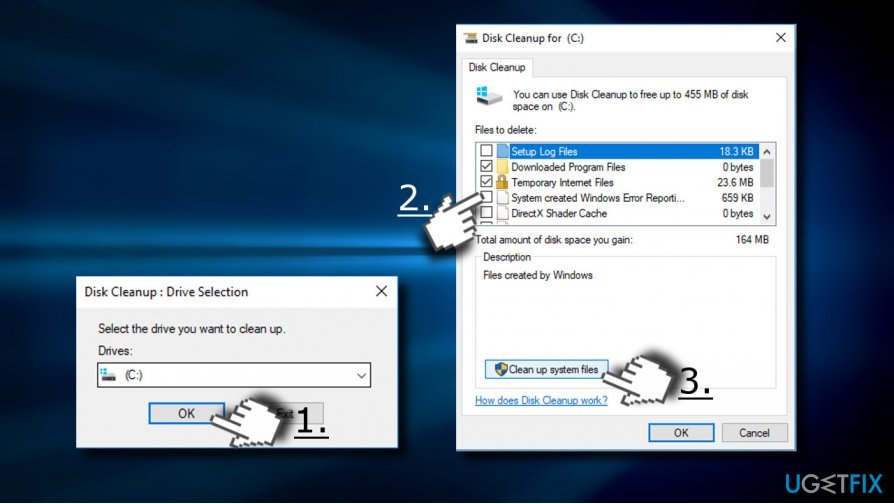
Use disk cleanup
Option 3. Restart Windows Update service
- Press Windows key + R, type services.msc, and hit Enter.
- Scroll down until you find Windows Update entry and click on it once.
- At the top left side of the window, click Restart.
- Once the service restarts, try to install the needed update or Windows 10 upgrade.
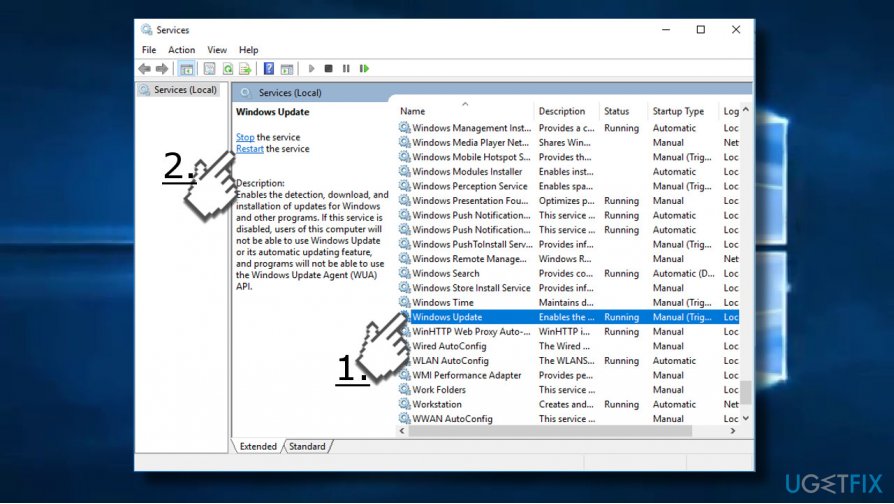
Restart windows update
Option 4. Restart Windows Update components
- Right-click on Windows key and select Command Prompt (Admin).
- Click Yes on the UAC and enter the following commands in the Command Prompt window (all at once).
- net stop wuauserv
net stop cryptSvc
net stop bits
net stop msiserver
ren C:\\Windows\\SoftwareDistribution SoftwareDistribution.old
ren C:\\Windows\\System32\\catroot2 catroot2.old
net start wuauserv
net start cryptSvc
net start bits
net start msiserver
pause
- net stop wuauserv
- Now close Command Prompt and reboot your PC.
- Check if the error has been fixed.
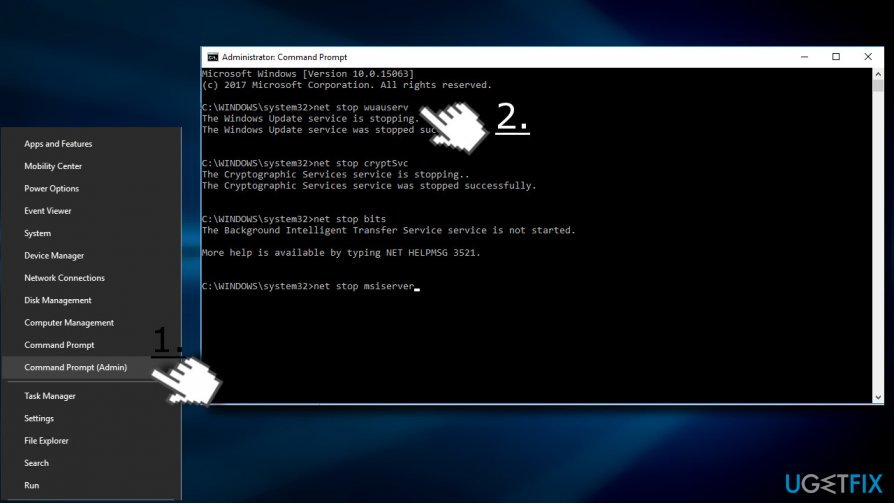
Reset windows update components
Use Windows Upgrade Assistant or download the update manually.
If you cannot install Windows 10 Cumulative Update due to the 0x8024200D error, then try to download the update manually from Windows Update Catalog.
In case you need to fix 0x8024200D error to upgrade Windows 10 to a newer version, then one of the solutions would be to use Windows Upgrade Assistant.
Bottom line
To fix the 0x8024200D error, you can disable your antivirus and firewall, or remove temporary installation files using Disk Cleanup. If these methods do not resolve the issue, consider using an optimization utility to check for system integrity violations.
Frequently asked questions
The error 0x8024200D typically occurs due to corrupted update files or issues with the Windows Update service. This can prevent your system from downloading and installing updates properly.
To fix this error on Windows 11, you can try running the Windows Update Troubleshooter, which can automatically detect and resolve common update issues.
Yes, you can manually reset the Windows Update components by stopping the Windows Update service, deleting the SoftwareDistribution folder, and then restarting the service.




Report an issue
What's wrong with this guide? We review every report and update or remove content.
Report received — thank you. We'll review and fix it.
You need a free account to submit a report.
Be the first to comment