How to fix
Windows update error 0x80243FFF
on Windows
Resolve Windows update error 0x80243FFF quickly and efficiently. Get expert-tested solutions that ensure smooth updates on Windows 10 and 11. Fixed in m…


What causes How to fix Windows update error 0x80243FFF?
- Corruption within the Windows Update files
- Unexpected system shutdowns
- Malware
- Faulty hardware
- Incorrect system configuration
- Conflicts with other software
Repairs Windows system files, removes malware, and restores a clean OS state — without reinstalling.
I can't update Windows to the latest version because I keep getting the 0x80243FFF error. I have never encountered update errors so I'm not sure how to deal with it.
Windows update error 0x80243FFF is a common issue that many users encounter while trying to install updates on their Windows operating system. This error code, like others of its kind, serves as an indicator that something has interrupted the smooth execution of the update process. Recognizing the importance of updates for overall system health, error 0x80243FFF can be a significant concern for users, as it prevents the installation of necessary patches that enhance security, improve performance, and fix bugs in the system.
The error code 0x80243FFF is usually accompanied by a message stating that the update failed to download or install. It's considered a system-level error, meaning that it's not associated with any specific application but rather with the Windows Update service itself. This type of error typically arises due to issues with the Windows Update components or the system's configuration settings.
One of the primary causes of this error is corruption within the Windows Update files. When these files, responsible for managing and implementing updates, become corrupt or damaged, the update process cannot proceed as expected. This corruption can be caused by various reasons, such as unexpected system shutdowns, malware, or even faulty hardware.
Another common cause of error 0x80243FFF is incorrect system configuration. If the Windows Update service is not correctly set up, it can lead to issues when downloading or installing updates. This could be due to incorrect settings, conflicts with other software, or even problems with network connectivity.
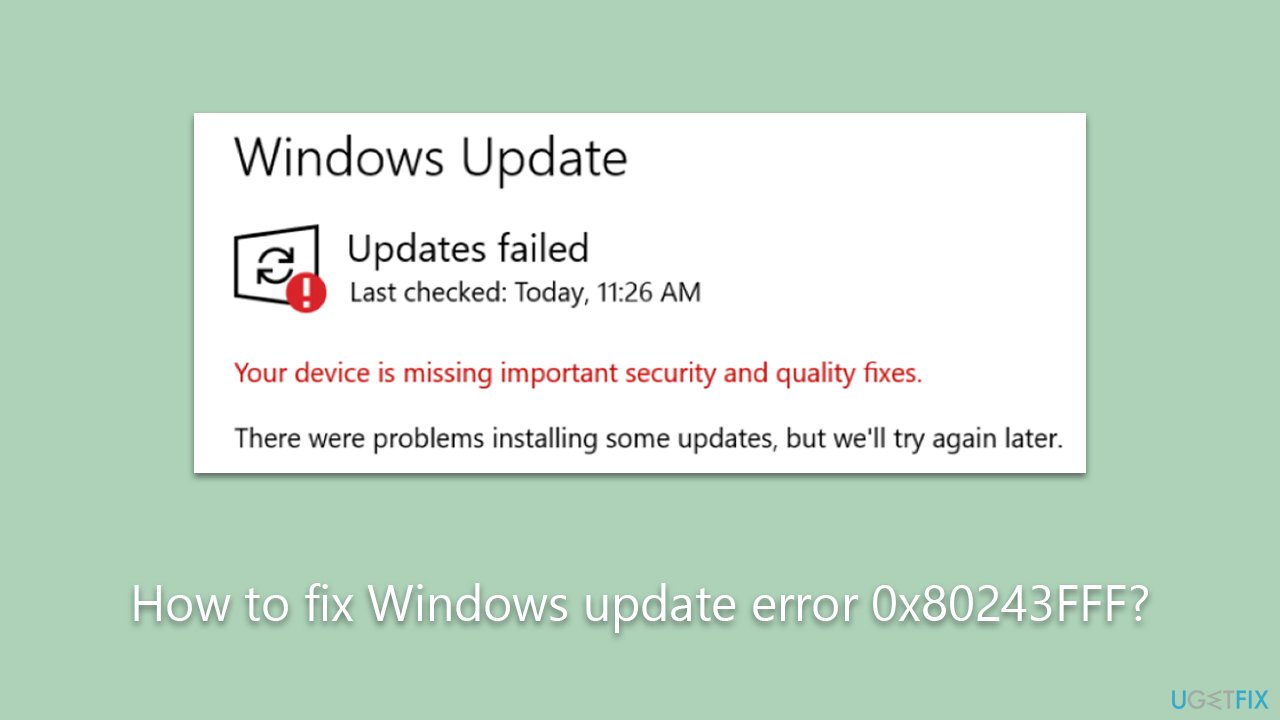
Although the error 0x80243FFF can be frustrating, it's important to remember that it's a common occurrence across various Windows operating systems. Identifying the causes of this error is the first step in the process of resolving it, and it provides valuable insight into maintaining a healthy and secure system.
If manual troubleshooting seems daunting or if the error persists despite your best efforts, consider using PC repair software. Applications like [d1] are designed to diagnose and rectify a wide array of system errors. They offer a more convenient and automated approach to system maintenance, and they can help ensure that your PC operates smoothly and securely, freeing you from the technical hurdles that come with managing a computer system.
Fix 1. Disable third-party security software
Third-party security software, such as antivirus programs and firewalls, can sometimes interfere with Windows updates due to their inherently protective nature. These applications are designed to monitor and control data transfer between your system and the internet as a way to prevent malicious activity.
However, during this process, they might mistakenly identify Windows updates as potential threats and block them, causing update errors. By temporarily disabling these security tools, you allow unrestricted communication between your computer and the Windows update servers, which can potentially resolve update errors.
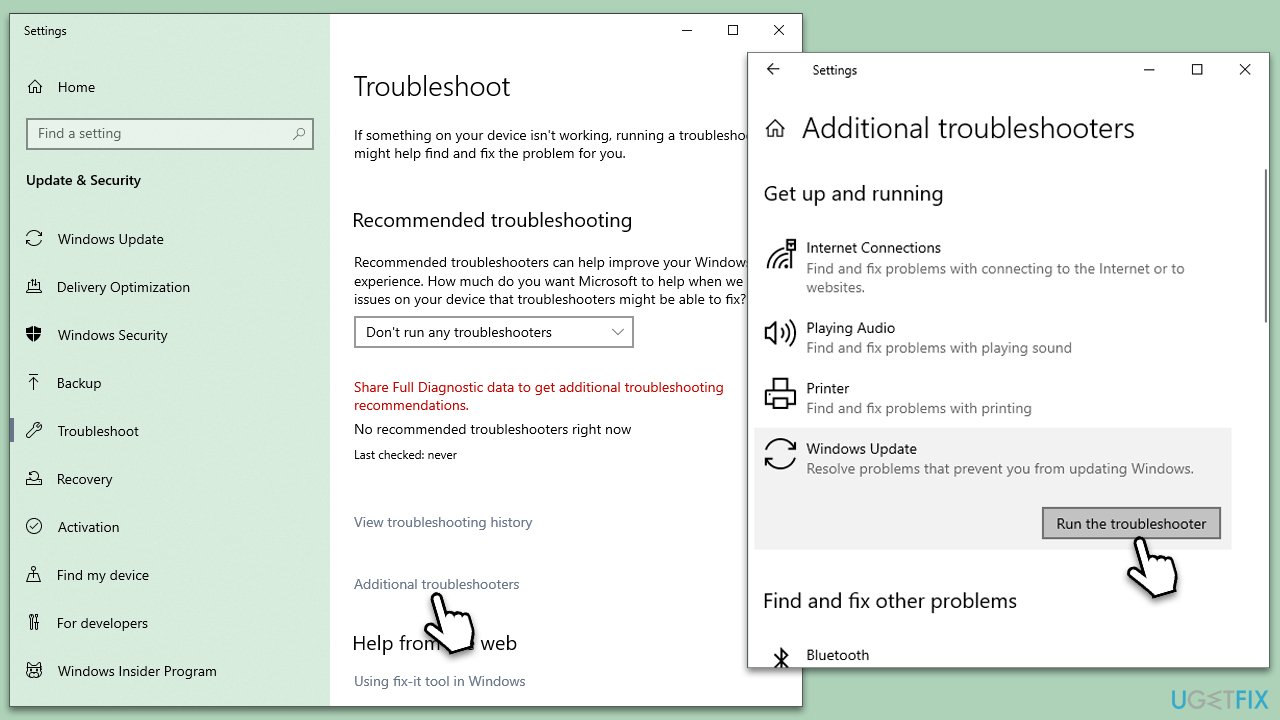
Fix 2. Run the troubleshooter
- Type Troubleshoot in Windows search and press Enter.
- Go to Additional troubleshooters/Other troubleshooters.
- Find Windows Update from the list and click Run the troubleshooter/Run.
- The troubleshooter will automatically scan your system for potential problems and display any issues it finds.
- If the troubleshooter finds any issues, it will provide recommended solutions.
- Follow the on-screen instructions to apply these recommended fixes.
Fix 3. Repair corrupted system files
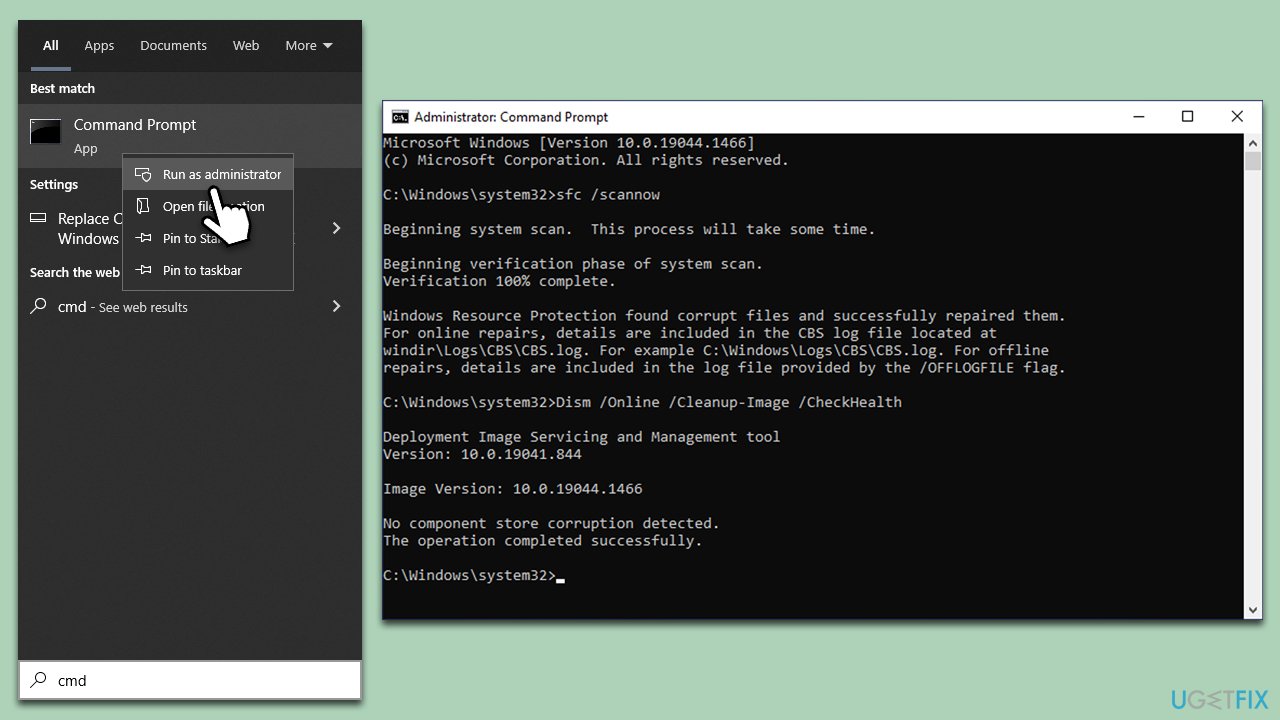
- Type cmd in the Windows search bar.
- Right-click on the Command Prompt and choose Run as administrator.
- When the User Account Control window appears, click Yes when prompted.
- Next, copy and paste the following command, pressing Enter afterward:
sfc /scannow - Wait for the scan to complete. If Windows detects any system file integrity violations, it will attempt to repair them.
- After this, input the following commands one by one, pressing Enter after each:
DISM /Online /Cleanup-Image /CheckHealth
DISM /Online /Cleanup-Image /ScanHealth
DISM /Online /Cleanup-Image /RestoreHealth - Finally, close the Command Prompt and restart your computer.
Fix 4. Check the responsible services
For Windows updates to be successful, you need certain services to be running. If they are running, restarting them might do the trick.
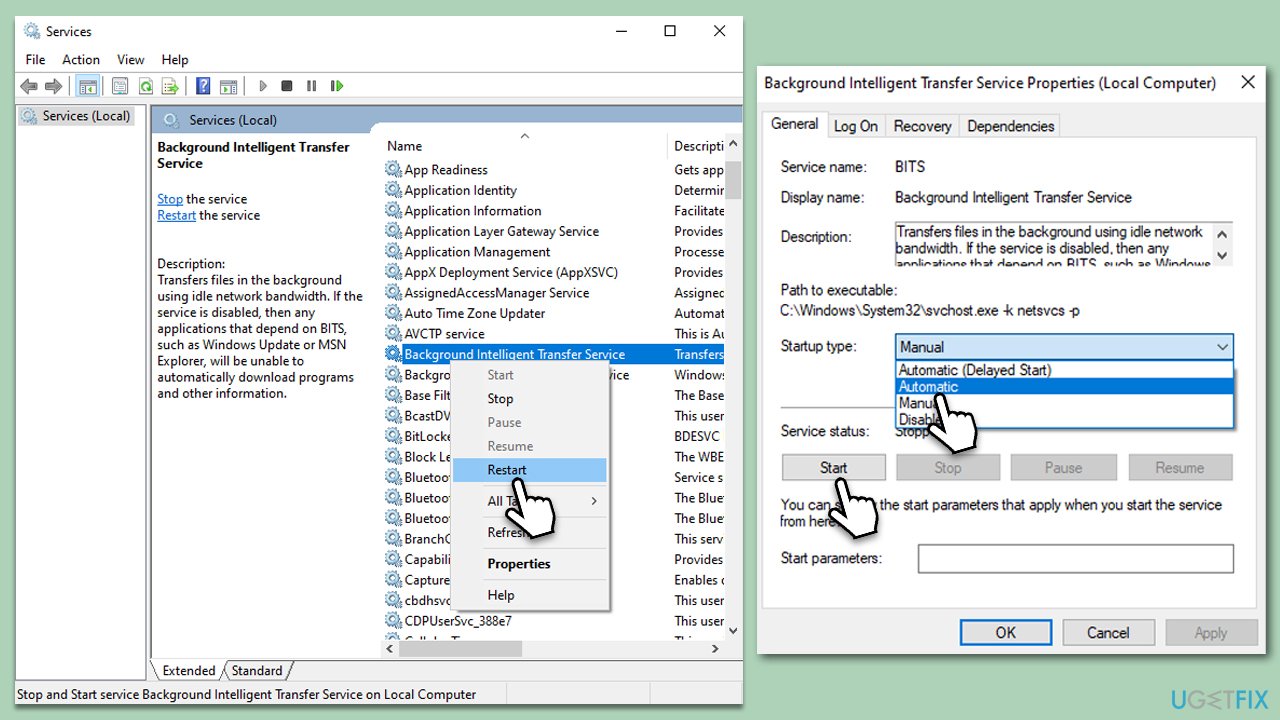
- Type in Services in Windows search and press Enter.
- Locate Background Intelligent Transfer Service (BITS).
- If it is already running, right-click and select Restart.
- if the service is not running, double-click it, select Automatic under the Startup type from the drop-down menu
- Click Start, Apply, and OK.
- Repeat the process with the Windows Update service, Cryptographic service, and Windows Installer service.
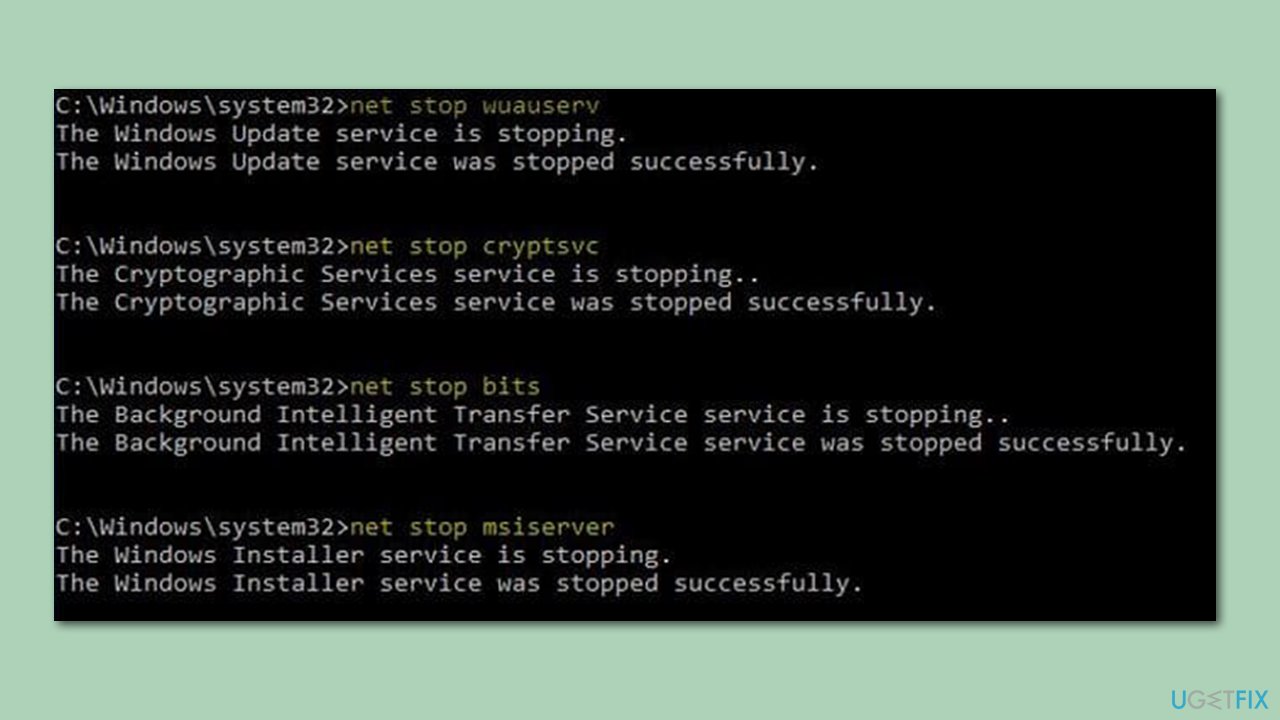
Fix 5. Reset Windows update components
- Open Command Prompt (Admin).
- Copy and paste the following commands, pressing Enter after each:
net stop bits
net stop wuauserv
net stop appidsvc
net stop cryptsvc
Del “%ALLUSERSPROFILE%\Application Data\Microsoft\Network\Downloader\*.*”
rmdir %systemroot%\SoftwareDistribution /S /Q
rmdir %systemroot%\system32\catroot2 /S /Q
regsvr32.exe /s atl.dll
regsvr32.exe /s urlmon.dll
regsvr32.exe /s mshtml.dll
netsh winsock reset
netsh winsock reset proxy
net start bits
net start wuauserv
net start appidsvc
net start cryptsvc - Restart your device.
Fix 6. Install the update manually
- Type in Updates in Windows search and press Enter.
- Select View update history.
- Find the update that failed with the 0x80243FFF error and copy its KB number.
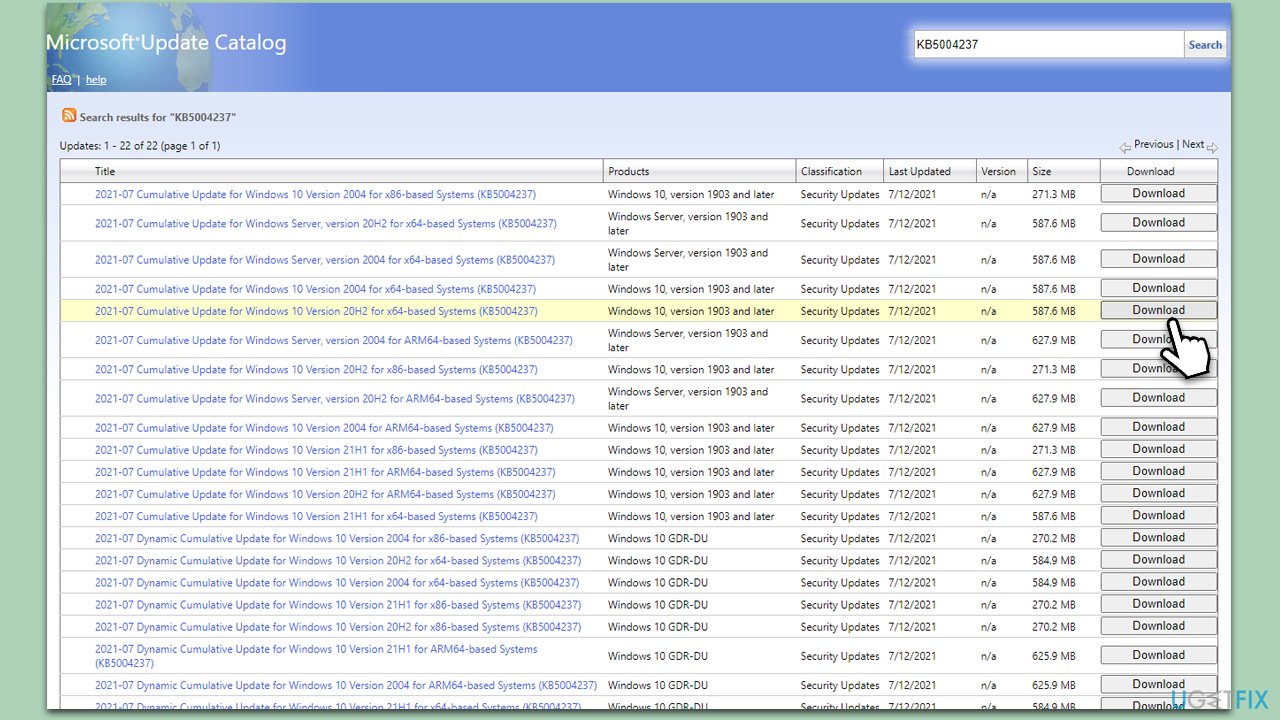
- Open your browser and go to Microsoft Update Catalog.
- Within the search bar, type in the KB number and clicks Search.
- Find the correct version of the update for your operating system (to check this, right-click on Start and pick System. Under Device specifications and check the System type) and click Download.
- Use on-screen guidelines to finish the installation process and restart your PC.
Bottom line
To fix the Windows update error 0x80243FFF, you can try repairing the Windows Update components, checking system configuration settings, and ensuring network connectivity. If these manual troubleshooting steps do not resolve the issue, consider using PC repair software for further assistance.
Frequently asked questions
The error 0x80243FFF typically occurs due to corrupted Windows Update components or issues with the Windows Update service itself in Windows 10.
To fix the 0x80243FFF error in Windows 11, you can run the Windows Update Troubleshooter and reset the Windows Update components manually.
Yes, you can use commands like 'DISM /Online /Cleanup-Image /RestoreHealth' and 'sfc /scannow' in the Command Prompt to repair system files that may be causing the error 0x80243FFF.




Report an issue
What's wrong with this guide? We review every report and update or remove content.
Report received — thank you. We'll review and fix it.
You need a free account to submit a report.
Be the first to comment