How to fix
Windows update error 0x80244002
on Windows
Resolve Windows update error 0x80244002 quickly with our expert-tested solutions. Get your Windows 10 or 11 updates running smoothly again! Fixed in min…

What causes How to fix Windows update error 0x80244002?
- Network connection issues
- Problems with the Windows Update components
- Outdated device drivers
- Corrupted system files
Repairs Windows system files, removes malware, and restores a clean OS state — without reinstalling.
I was trying to update Windows yesterday, and I was very surprised when it failed with an error 0x80244002. Any tips on how to resolve this?
The Windows operating system, developed by Microsoft, has been an integral part of computing worldwide. Over time, it has been refined, updated, and modified to meet the evolving demands of technology. One key element of this evolution is the implementation of Windows updates, designed to enhance functionality, fix bugs, and patch security vulnerabilities. Unfortunately, these updates, while critical, are not always implemented seamlessly. Occasionally, they may fail due to various technical issues.
One such problem that users frequently encounter is Windows Update error 0x80244002. This error code typically indicates a problem related to the Windows Server Update Services (WSUS), hindering the user's ability to successfully install updates. The error may occur due to several reasons, including network connection issues, problems with the Windows Update components, or outdated device drivers.
When the Windows Update process fails with 0x80244002 or another error, it can lead to the temporary interruption of crucial system operations, causing unnecessary stress and inconvenience. Understanding these issues and being able to rectify them swiftly is of paramount importance, particularly for those relying heavily on their PCs for work or personal tasks.
Troubleshooting these issues might sometimes be complex, as there is little to no indication of why the error occurred. Therefore, in this article, we have compiled a comprehensive set of detailed instructions to guide you through the process of resolving the error 0x80244002, which you can find below. These instructions will cover different approaches to troubleshoot the error, taking you step by step through each potential solution.
While manual troubleshooting is indeed useful, sometimes it's more efficient to use professional tools designed to handle such problems. PC repair software like [d1] is a prime example of this, offering an automated way to fix common Windows errors and other issues. Leveraging such tools can simplify the process, saving time and effort.
Fix 1. Check for corrupted files
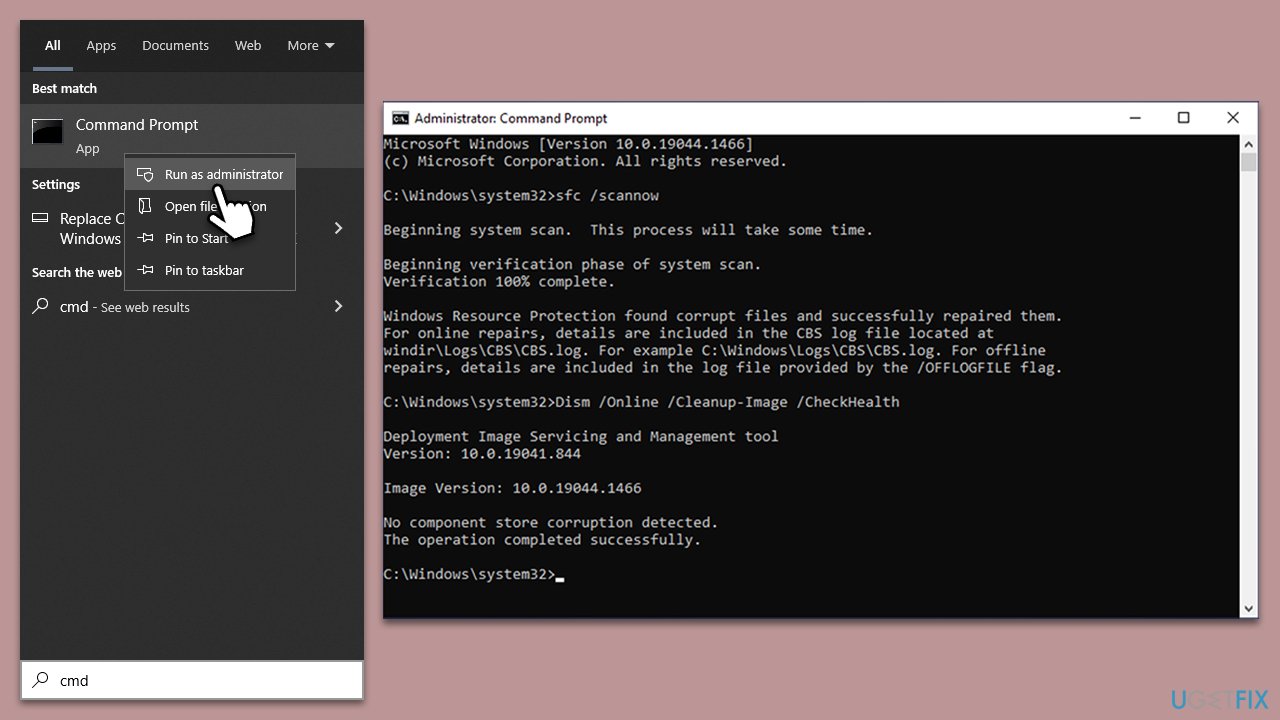
Windows system file corruption can cause update errors. To resolve this, run commands via the elevated Command Prompt:
- Type in cmd in Windows search
- Right-click on Command Prompt and select Run as administrator
- User Account Control will ask you whether you allow making changes to the system - click Yes
- In the Command Prompt window, paste the following command and hit Enter:
sfc /scannow - Next, use the following commands, pressing Enter each time:
Dism /Online /Cleanup-Image /CheckHealth
Dism /Online /Cleanup-Image /ScanHealth
Dism /Online /Cleanup-Image /RestoreHealth
(Note: if you get an error executing this last command, add /Source:C:\RepairSource\Windows /LimitAccess to it and try again). - Reboot your system.
Fix 2. (Re)start relevant services
For Windows updates to go through successfully, you need certain services to be running. In some cases, restarting them may also help. Follow these steps:
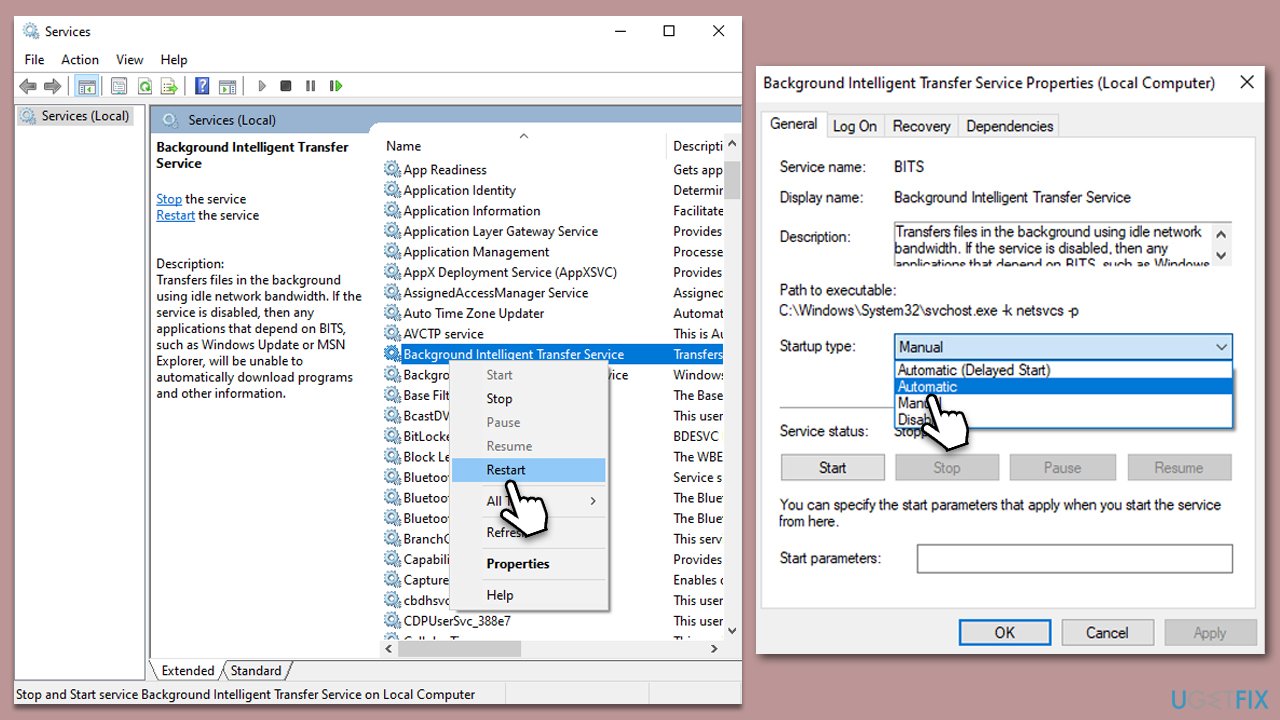
- Type Services in Windows search and press Enter.
- In the Services window, scroll down to locate Background Intelligent Transfer Service (BITS).
- If the service is already running, right-click and select Restart.
- If the service is not running, double-click it to open Properties.
- Under the Startup type, pick Automatic from the drop-down menu.
- Click Start, Apply, and OK.
- Repeat this process with Windows update service, Cryptographic service, and Windows Installer service.
Fix 3. Run the troubleshooter
Troubleshooters are built-in tools that can provide some information and attempt to fix errors and other Windows issues.
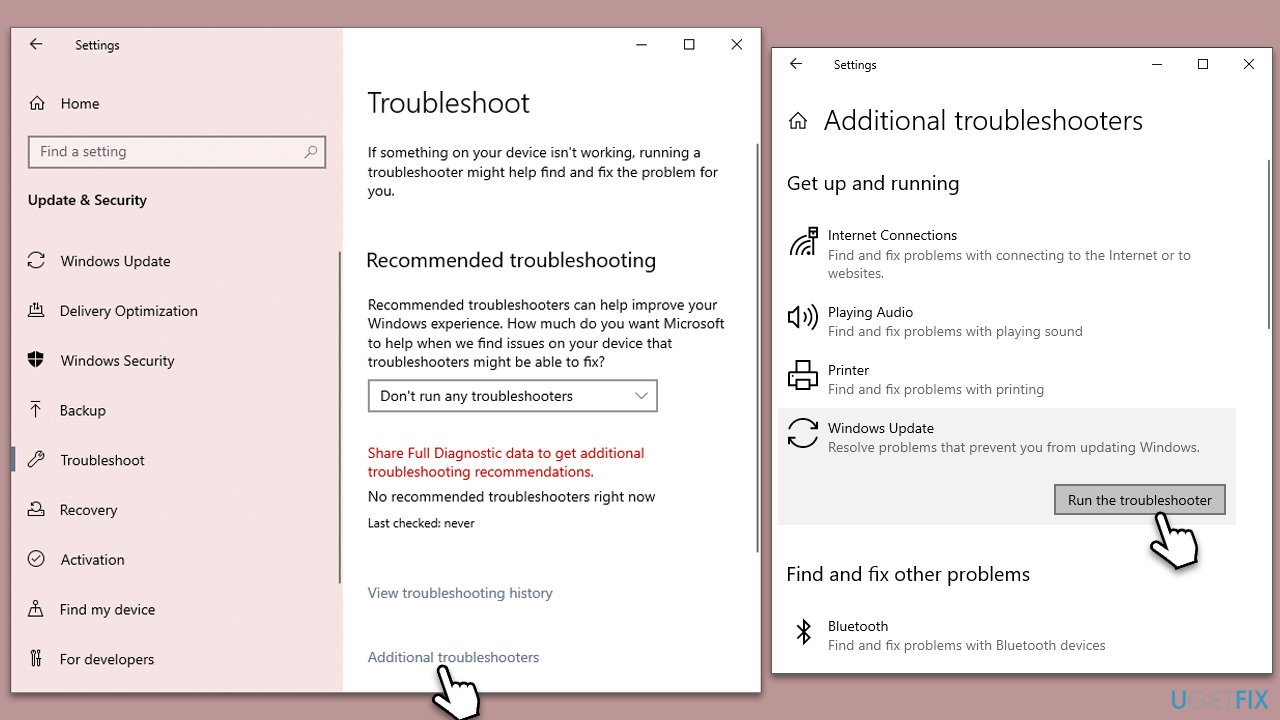
- Type Troubleshoot in Windows search and hit Enter.
- Select Additional troubleshooters/Other troubleshooters.
- Find Windows Update from the list and click Run the troubleshooter/Run.
- The troubleshooter will automatically scan your system for potential problems and display any issues it finds.
- If the troubleshooter finds any issues, it will provide recommended solutions.
- Follow the on-screen instructions to apply the recommended solution.
Fix 4. Disable third-party anti-malware
Occasionally, third-party anti-malware or antivirus software might interfere with the Windows Update process, resulting in various errors. This can happen because these security programs might perceive certain update actions as suspicious, blocking them in an attempt to protect your system. In such situations, disabling the third-party anti-malware software temporarily could potentially resolve the issue.
However, it's crucial to remember that this action should only be a temporary solution to allow Windows Updates to install successfully. As soon as updates are completed, your security software should be re-enabled immediately to maintain your system's protection against malicious software and cyber threats.
Fix 5. Install the update manually
- Type in Updates in Windows search and press Enter.
- Select View update history.
- Find the update that failed with the 0x80244002 error and copy its KB number.
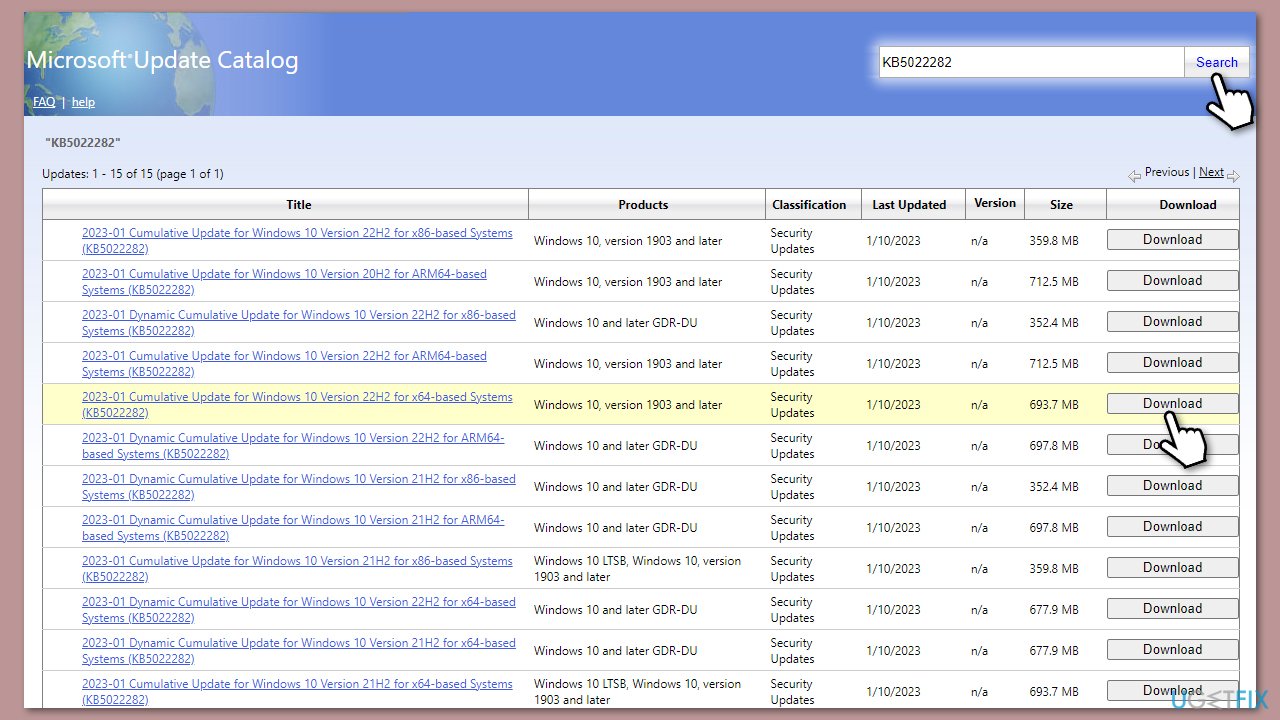
- Open your browser and go to Microsoft Update Catalog.
- Within the search bar, type in the KB number and clicks Search.
- Find the correct version of the update for your operating system (to check this, right-click on Start and pick System. Under Device specifications and check the System type) and click Download.
- Use on-screen guidelines to finish the installation process and restart your computer.
Fix 6. Reset Windows update components
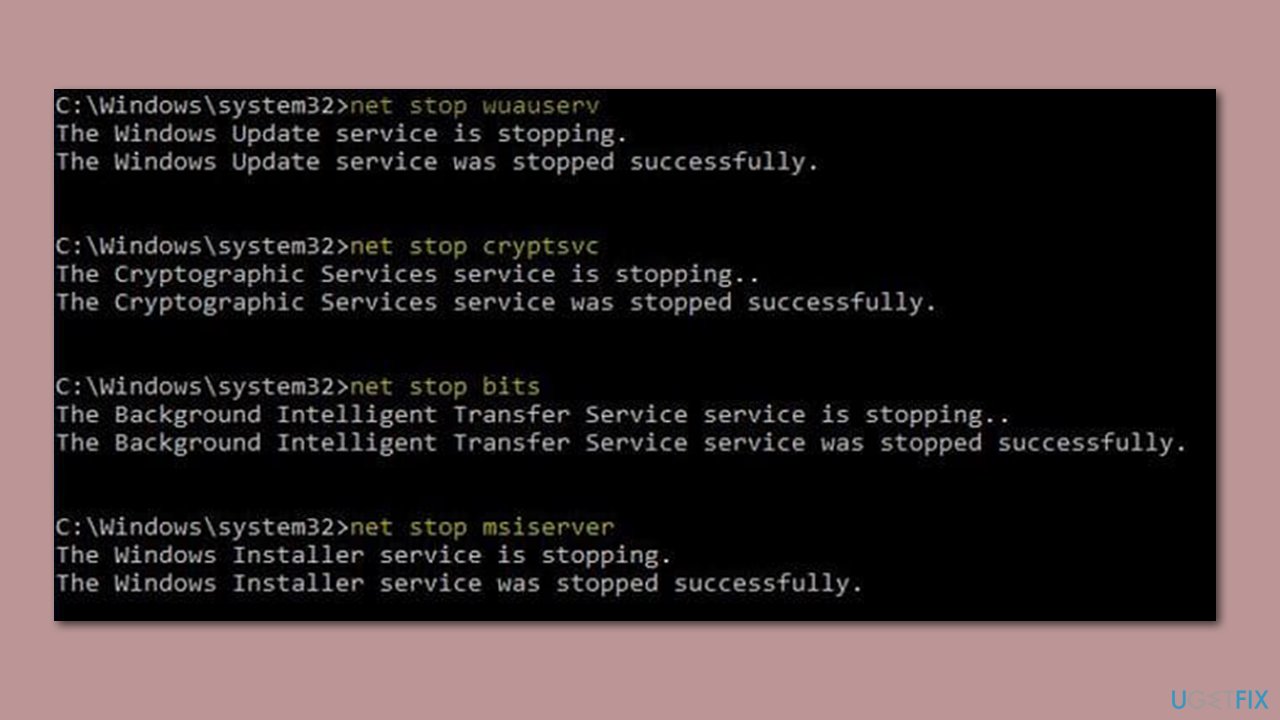
- Open Command Prompt as administrator, as previously explained.
- Use each of these commands, pressing Enter every time:
net stop bits
net stop wuauserv
net stop appidsvc
net stop cryptsvc
Del “%ALLUSERSPROFILE%\Application Data\Microsoft\Network\Downloader\*.*”
rmdir %systemroot%\SoftwareDistribution /S /Q
rmdir %systemroot%\system32\catroot2 /S /Q
regsvr32.exe /s atl.dll
regsvr32.exe /s urlmon.dll
regsvr32.exe /s mshtml.dll
netsh winsock reset
netsh winsock reset proxy
net start bits
net start wuauserv
net start appidsvc
net start cryptsvc - Restart your device.
Bottom line
To resolve the Windows update error 0x80244002, you can check for corrupted files, ensure your network connection is stable, and update your device drivers. If these steps do not resolve the issue, consider using professional PC repair software for automated solutions.
Frequently asked questions
The error 0x80244002 typically indicates that your Windows 10 or Windows 11 system is having trouble connecting to the update servers, often due to network issues or incorrect settings.
To fix the error, try running the Windows Update Troubleshooter, resetting your network settings, or checking your proxy settings to ensure they are correctly configured.
Yes, you can manually download updates by visiting the Microsoft Update Catalog website and searching for the specific updates needed for your Windows 10 or Windows 11 system.




Report an issue
What's wrong with this guide? We review every report and update or remove content.
Report received — thank you. We'll review and fix it.
You need a free account to submit a report.
Be the first to comment