
How to fix Windows update error 0x80244007?

Prefer to fix it yourself? The manual steps follow.
- 8methods
- 5 to 30 minutes
- Medium
Applies to Windows 11, Windows 10 and Windows Server, PCs managed through WSUS or Configuration Manager and home PCs with a leftover WSUS policy
8 methods in this guide
Hello. Each attempt to update Windows 10 ends up with an error 0x80244007. I haven't installed updates for quite a long time, so I'm a little bit worried about my PC's stability. Could you please help? I don't know what to do further.
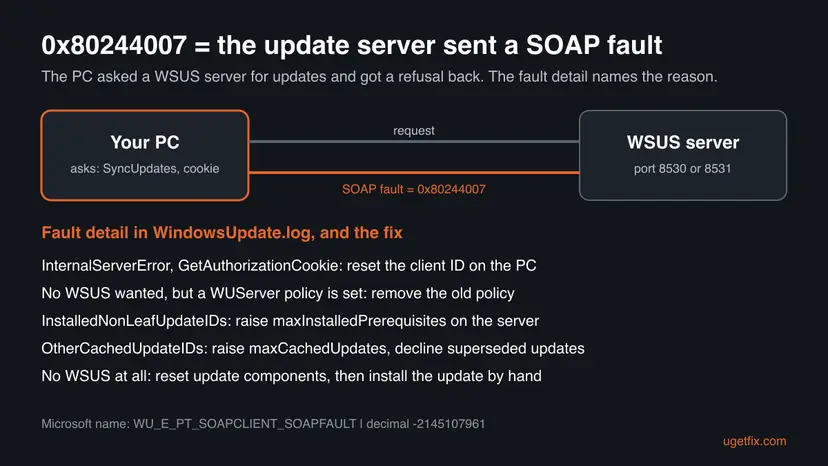
Error 0x80244007 means that Windows Update asked an update server for updates and the server sent back a SOAP fault, a formal refusal. Microsoft ties it almost always to PCs that get updates from a WSUS or Configuration Manager server. First check whether your PC uses such a server, then reset its client ID.
0x80244007 means the update server answered the scan with a SOAP fault. Run reg query "HKLM\SOFTWARE\Policies\Microsoft\Windows\WindowsUpdate" to see if the PC uses a WSUS server (Fix 1). If it does, reset the client ID with Microsoft's commands (Fix 2), or remove a leftover policy on your own PC (Fix 3). WSUS admins: raise maxInstalledPrerequisites and maxCachedUpdates in web.config (Fix 4).
| Error | 0x80244007, named WU_E_PT_SOAPCLIENT_SOAPFAULT by Microsoft: "SOAP client failed because there was a SOAP fault for reasons of WU_E_PT_SOAP_* error codes." |
|---|---|
| Where it appears | Settings > Windows Update after a failed check or download, and in WindowsUpdate.log, WUAHandler.log and ScanAgent.log on managed PCs. |
| Main cause | A WSUS server refuses the scan: the PC's client entry is missing on the server, or the PC sends more update IDs than the server's web.config allows. |
| Fastest fix | Check for a WSUS policy (Fix 1), then reset the WSUS client ID and scan again (Fix 2). |
| Error code 0x80244007, also written as | 80244007, (0x80244007), error 0x80244007, Download error - 0x80244007, Scan failed with error = 0x80244007, SyncUpdates_WithRecovery failed, OnSearchComplete - failed to end search job. error = 0x80244007. |
| Decimal form | -2145107961. Some scripts and log viewers print the code as 0x80244007(-2145107961). |
| Affects | Windows 11, Windows 10, Windows Server and Azure VMs that scan against WSUS or Configuration Manager. Rare on a home PC with no update policy. |
| Microsoft's status | Documented. Microsoft lists three causes and gives server and client fixes in its Windows Server troubleshooting article, last updated in February 2026. |
| Close relatives | 0x80244008 (the fault could not be parsed), 0x8024400E (server error, resend later), 0x8024401F (HTTP 500). |
| Time to fix | 5 minutes for the policy check, 10 minutes plus a 10 to 15 minute wait for the client reset, 15 minutes for the server change. |
Facts checked on 15 October 2026. Steps written for Windows 11 (25H2 and 26H2) and Windows 10 22H2.
What Windows update error 0x80244007 means
Windows Update talks to update servers with SOAP, a format for web service messages. 0x80244007 belongs to the Protocol Talker errors, the part of the update client that sends those messages. Microsoft names it WU_E_PT_SOAPCLIENT_SOAPFAULT: the server did answer, but its answer was a SOAP fault, a structured message that says "I refuse this request, and here is why".
Microsoft's troubleshooting article says the error "typically occurs when Windows clients or virtual machines (VMs) try to scan and download updates from Windows Server Update Services (WSUS) or Configuration Manager endpoints". So the question is not what is broken in Windows, but which server your PC asks and why that server refuses.
| What you see | Where | What it tells you |
|---|---|---|
| There were some problems installing updates, but we'll try again later. If you keep seeing this and want to search the web or contact support for information, this may help: (0x80244007) | Settings > Update & Security > Windows Update on Windows 10 | The scan or the download was refused by the update server. |
| Download error - 0x80244007 next to an update | Settings > Windows Update on Windows 11 | The same refusal, shown in the update list of Windows 11. |
| *FAILED* [80244007] SyncUpdates_WithRecovery failed | WindowsUpdate.log on the client | The WSUS server rejected the list of updates the client sent. |
| Scan failed with error = 0x80244007, OnSearchComplete - failed to end search job. error = 0x80244007 | ScanAgent.log and WUAHandler.log on a Configuration Manager client | The scan against the software update point ended with the same fault. |
| Add-WindowsCapability failed. Error code = 0x80244007 | PowerShell or DISM, when you add an optional feature | The feature request went to a WSUS server, which refused it. |
If you run WSUS or Configuration Manager and many PCs fail at once, the fix is on the server: go to Fix 4. If you have one PC at home or a used work laptop, the fix is on the PC: start with Fix 1.
Why Windows update error 0x80244007 appears
Microsoft names three causes, all of them SOAP faults sent by the WSUS server. A fourth one matters for home users: a PC that still has a WSUS policy from a former owner or employer. Ranked by how often they explain the error:
| Cause | How often | How to tell | Fix |
|---|---|---|---|
| The client entry that WSUS uses to authorize the PC is missing or no longer matches, so the server cannot issue an authorization cookie. | Often, on single PCs, cloned PCs and VMs | WindowsUpdate.log shows InternalServerError with GetAuthorizationCookie, often together with 0x803d0013. | Fix 2 |
| A former employer, school or tool left a WUServer policy, and the PC still asks a WSUS server that no longer serves it. | Sometimes, on used and former work PCs | The registry key HKLM\SOFTWARE\Policies\Microsoft\Windows\WindowsUpdate holds a WUServer address. | Fix 1, Fix 3 |
| The client sends more installed prerequisites than the server accepts. The default limit is 400. | Most often on managed networks | The fault detail says InvalidParameters and parameters.InstalledNonLeafUpdateIDs. | Fix 4 |
| The client sends more cached update IDs than the server accepts. The default limit is 22,000, and a WSUS catalog full of superseded updates reaches it. | Often on large WSUS servers | The fault detail says parameters.OtherCachedUpdateIDs. | Fix 4, Fix 5 |
| A stuck update session on a PC with no WSUS policy at all. | Rarely | No policy key, and the error comes and goes. | Fix 6, Fix 7, Fix 8 |
Drivers, temporary files and the antivirus, which many pages list for this code, do not make a WSUS server send a SOAP fault. They are not methods here.
How to fix Windows update error 0x80244007
Fix 1 tells you whether a WSUS server is involved. Fixes 2 and 3 repair the PC side. Fixes 4 and 5 are for admins who run the WSUS server. Fixes 6 to 8 are for a PC with no WSUS policy at all.
| What you see or have | Start with |
|---|---|
| You do not know whether the PC uses WSUS. | Fix 1 |
| A work PC, a VM or a cloned PC, and the log shows GetAuthorizationCookie. | Fix 2 |
| Your own PC, but a WUServer address is set in the registry. | Fix 3 |
| You run WSUS and the log shows InstalledNonLeafUpdateIDs or OtherCachedUpdateIDs. | Fix 4, then Fix 5 |
| No WSUS policy at all, and the error stays after a restart. | Fix 6, then Fix 7 |
| One update keeps failing and you need it today. | Fix 8 |
Fix 1. Check whether the PC gets its updates from a WSUS server
2 minutesNo riskEveryone, first. It changes nothing and takes a minute.
Microsoft ties 0x80244007 to PCs that scan against WSUS or Configuration Manager. This check shows whether your PC is one of them and which server it asks.
- Press Win + S, type
cmd, right-click Command Prompt and select Run as administrator. - Type
reg query "HKLM\SOFTWARE\Policies\Microsoft\Windows\WindowsUpdate" /sand press Enter. - If Windows says it cannot find the key, the PC has no WSUS policy and asks Microsoft directly. Go to Fix 6.
- If you see WUServer with an
http://orhttps://address, often with port 8530 or 8531, the PC uses WSUS. - If the PC belongs to a company or school that still manages it, send IT the address, the error code and the time. They can use Fix 2, 4 and 5.
- If it is your own PC and nobody manages it any more, the policy is a leftover. Go to Fix 3.
reg query "HKLM\SOFTWARE\Policies\Microsoft\Windows\WindowsUpdate" /sIt worked if: You know whether a WSUS server answers your PC, and its address if it does.
If not: If the command itself fails, check that Command Prompt runs as administrator, then try again.
Fix 2. Reset the WSUS client ID and scan again
10 minutes plus 15 minutes of waitingLow riskA PC that gets updates from WSUS, especially a cloned PC, a VM or one that was rebuilt, or a log that shows GetAuthorizationCookie.
Microsoft explains that one form of 0x80244007 comes from a missing WSUS client entry used to authorize the PC. Deleting the client ID values makes the PC register with the server again under a new identity, so the server can issue a fresh authorization cookie.
- Open Command Prompt as administrator, as in Fix 1.
- Type
net stop wuauservand press Enter. - Run the four
reg Deletecommands below, pressing Enter after each one. - Type
net start wuauservand press Enter. - Type
wuauclt.exe /resetauthorization /detectnowand press Enter. - Wait 10 to 15 minutes, then open Settings > Windows Update and select Check for updates.
net stop wuauserv
reg Delete HKLM\SOFTWARE\Microsoft\Windows\CurrentVersion\WindowsUpdate /v PingID /f
reg Delete HKLM\SOFTWARE\Microsoft\Windows\CurrentVersion\WindowsUpdate /v AccountDomainSid /f
reg Delete HKLM\SOFTWARE\Microsoft\Windows\CurrentVersion\WindowsUpdate /v SusClientId /f
reg Delete HKLM\SOFTWARE\Microsoft\Windows\CurrentVersion\WindowsUpdate /v SusClientIDValidation /f
net start wuauserv
wuauclt.exe /resetauthorization /detectnowA message that says ERROR: The system was unable to find the specified registry key or value is expected when a value does not exist. Microsoft says it needs no action. These values only identify the PC to WSUS; they hold no settings or files.
It worked if: The PC shows up again in the WSUS console, and the next check finds updates without 0x80244007.
If not: If the PC should not use WSUS at all, remove the old policy, Fix 3. If many PCs still fail, the limit is on the server, Fix 4.
Fix 3. Remove a leftover WSUS policy from your own PC
10 minutesRead the warningFix 1 found a WUServer address, and no company or school manages the PC any more.
With a WUServer policy, the PC asks that WSUS server instead of Microsoft. A server that no longer knows the PC refuses it with a SOAP fault on every scan. Without the policy, Windows Update goes to Microsoft directly.
Deleting the key removes every Windows Update policy on the PC, including pause and deferral rules someone set on purpose. Export the key first, so a double-click on the saved .reg file brings it back. Do not do this on a PC your employer or school still manages.
- Back up the key first: Back up the registry before editing it.
- Open Command Prompt as administrator, as in Fix 1.
- Type
reg delete "HKLM\SOFTWARE\Policies\Microsoft\Windows\WindowsUpdate" /fand press Enter. - Restart the PC.
- Run the
reg querycommand from Fix 1 again and make sure the key is gone. - Open Settings > Windows Update and select Check for updates.

It worked if: The reg query command no longer finds the key, and Windows Update gets its updates from Microsoft without the error.
If not: If the key comes back after a restart, a management agent or domain policy still sets it. Then the PC is still managed, and IT has to fix the server side.
Fix 4. Raise maxInstalledPrerequisites and maxCachedUpdates in the WSUS web.config
15 minutesRead the warningYou run the WSUS server, and client logs show InvalidParameters with InstalledNonLeafUpdateIDs or OtherCachedUpdateIDs.
Microsoft explains that the scan fails when a client passes more installed prerequisites to SyncUpdates than the server allows. The limits sit in the ClientWebService web.config. Doubling them lets the server accept the full list again.
Copy web.config to a safe folder first, so you can put the old file back. IISReset briefly stops every IIS site on the server, so pick a quiet time.
- On the WSUS server, open Command Prompt as administrator.
- Type
cd /d "%programfiles%\Update Services\WebServices\ClientWebService"and press Enter. - Take ownership and open the file with the three commands below.
- Find maxInstalledPrerequisites and change its value from
400to800. - Find maxCachedUpdates and change its value from
22000to44000. - Save web.config and close Notepad.
- Type
IISResetand press Enter. - On one failing client, start a new scan and watch WindowsUpdate.log or WUAHandler.log.
takeown /f web.config
icacls web.config /grant administrator:(F)
notepad.exe web.config
<add key="maxInstalledPrerequisites" value="800"/>
<add key="maxCachedUpdates" value="44000"/>| web.config key | Default | Microsoft's value | Fault detail it fixes |
|---|---|---|---|
| maxInstalledPrerequisites | 400 | 800 | parameters.InstalledNonLeafUpdateIDs |
| maxCachedUpdates | 22,000 | 44,000 | parameters.OtherCachedUpdateIDs |
It worked if: Clients finish their scan, and SoftwareDistribution.log on the server no longer logs ErrorCode=InvalidParameters for them.
If not: Shrink the catalog so clients send fewer IDs, Fix 5.
Fix 5. Decline superseded updates and clean up the WSUS catalog
30 minutes or more, depending on the catalogLow riskA WSUS server that has not been cleaned in a long time, or the error comes back after Fix 4.
Every update the server offers adds IDs that clients send back during a scan. Microsoft lists declining superseded updates as a resolution for 0x80244007, because a smaller catalog keeps clients under the web.config limits for good.
- On the WSUS server, open PowerShell as administrator.
- Get Microsoft's script that declines superseded updates: PowerShell script to decline superseded updates in WSUS.
- Read the script's notes on Microsoft's page, then run it and check which updates it declined.
- Follow the rest of Microsoft's WSUS and Configuration Manager SUP maintenance guide for the database and cleanup steps.
- Let clients scan on their next cycle, or start a scan on one client to test.
We read Microsoft's 0x80244007 article, which points to these two pages, but not the script page itself. Check the script's own parameters on Microsoft's page before you run it.
It worked if: The catalog holds fewer updates, scans finish faster and clients stop failing with 0x80244007.
If not: Read the fault detail in a client's WindowsUpdate.log again. A different detail means a different cause from the table above.
Fix 6. Run the Windows Update troubleshooter
5 minutesNo riskA home PC with no WSUS policy, and the error stays after a restart.
Without WSUS, 0x80244007 points to a stuck update session. The troubleshooter restarts the update services and clears that session, so the next scan starts fresh.
- Open Troubleshoot settings. Select Start > Settings > System > Troubleshoot.
- Open the list of troubleshooters. Select Other troubleshooters.
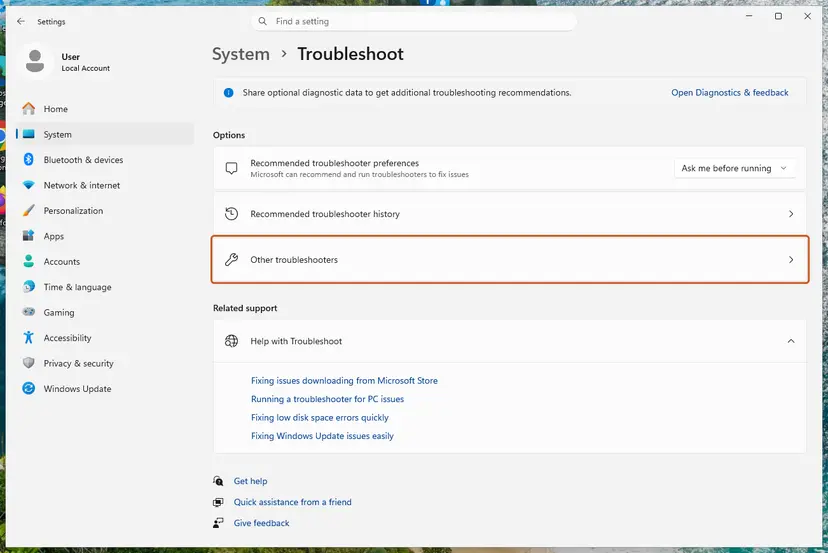
Settings, System, Troubleshoot: select Other troubleshooters. Screenshot: Windows 11 26H2. - Run the Windows Update troubleshooter. Under Most frequent, select Run next to Windows Update. The Get Help app opens and starts the checks.
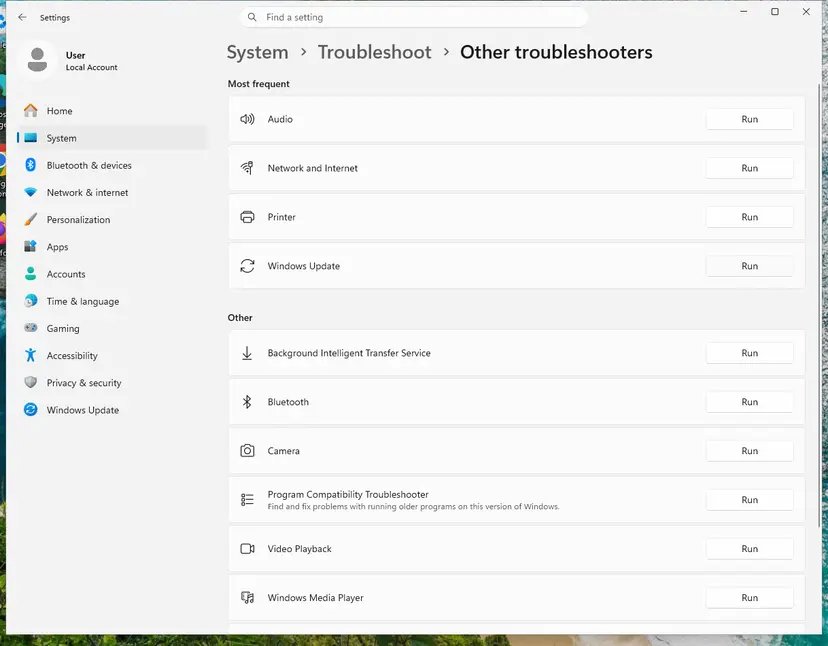
Windows Update is in the Most frequent group; select Run on its row. Screenshot: Windows 11 26H2. - Read the result. Wait until Get Help finishes. If it found and fixed a problem, it says so and asks whether this solved the problem. Answer the question so it can offer the next step.
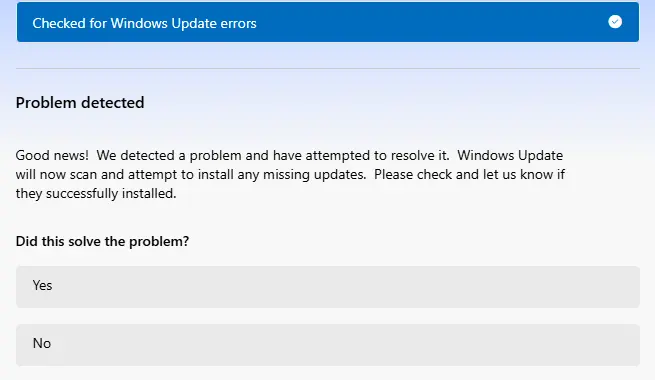
Get Help reports what it found and asks if the problem is solved. Screenshot: Windows 11 26H2. - Restart the PC. Restart when the troubleshooter finishes, even if it does not ask you to.
- Check for updates again. Select Start > Settings > Windows Update > Check for updates, and install the updates it finds.
These steps were written for Windows 11 (screenshots: 26H2). The full page with the other versions and what each result means: Run the Windows Update troubleshooter
It worked if: The troubleshooter reports a fixed problem, and the next check runs without 0x80244007.
If not: Reset the update components by hand, Fix 7.
Fix 7. Reset the Windows Update components
10 minutesLow riskThe troubleshooter found nothing, and the PC has no WSUS policy.
Renaming the SoftwareDistribution and catroot2 folders throws away the old update database and half finished downloads, so the client builds a new scan state with the server.
- Open Command Prompt as administrator. Type cmd in the search box, right-click Command Prompt and select Run as administrator. Select Yes when Windows asks for permission.
- Stop the update services. Type the commands below and press Enter after each one. If Windows says that other services depend on Cryptographic Services, it stops them too. A message that a service is not started is fine.
net stop wuauserv net stop bits net stop cryptsvc - Delete the download queue files. This clears the list of downloads that the Background Intelligent Transfer Service keeps. If Windows says it cannot find the files, continue.
del "%ALLUSERSPROFILE%\Application Data\Microsoft\Network\Downloader\qmgr*.dat" - Rename the update cache folders. Renaming keeps a copy in case you need it; Windows creates new, empty folders when the services start again. If you get Access is denied, a service is still running: repeat the previous step.
ren %systemroot%\SoftwareDistribution SoftwareDistribution.old ren %systemroot%\System32\catroot2 catroot2.old - Start the services again. Type the commands below and press Enter after each one. The requested service has already been started is fine: Windows started it on its own.
net start cryptsvc net start bits net start wuauserv - Restart and check for updates. Restart the PC. Then select Start > Settings > Windows Update > Check for updates. The first check can take longer than usual because everything is downloaded again.
These steps were written for Windows 11 and Windows 10 (the steps are the same). The full page with the other versions and what each result means: Reset Windows Update components

It worked if: Windows Update finds the updates again and downloads them from the start.
If not: Install the update you need by hand, Fix 8.
Fix 8. Install the update by hand from the Microsoft Update Catalog
10 minutesLow riskOne update keeps failing, or the PC is on a network you cannot change.
The catalog file comes through your browser, not through the update client and its server, so no SOAP fault can stop it. It installs the one update but leaves the cause in place.
- Check your Windows version. Press Windows key + R, type winver and press Enter. Note the version (for example 25H2) and the OS build.
- Find the KB number. Open Settings > Windows Update. A failed or pending update is listed with its KB number; earlier ones are under Update history.
- Check the processor type. Open Settings > System > About and look at System type: an x64-based PC needs the x64 file, an ARM-based PC (for example Snapdragon) needs the arm64 file.
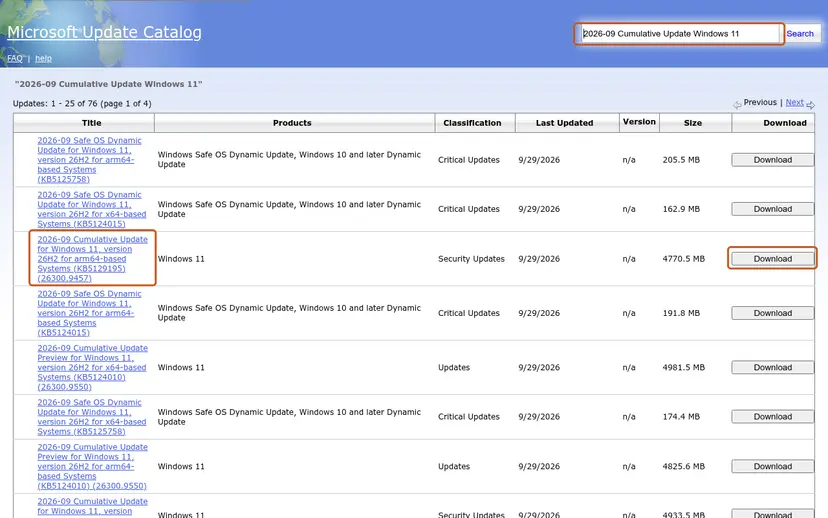
- Search the catalog. Open the Microsoft Update Catalog at catalog.update.microsoft.com in your browser, type the KB number (for example KB5124010) in the search box and press Enter.
- Pick the right row. Find the row whose title names your Windows version and your processor type (x64-based or arm64-based) and select Download on that row.
- Download every file listed. A window lists one or more .msu links. Download all of them into one empty folder, for example C:\packages. On Windows 11 24H2 and later the list can include earlier checkpoint updates that the new one needs.
- Install a single file. If there is only one file, double-click it and confirm the installation in the Windows Update Standalone Installer.
These steps were written for Windows 11 24H2 and later; Windows 10 22H2. The full page with the other versions and what each result means: Install an update from the Microsoft Update Catalog
It worked if: The installer finishes and the update appears under Settings > Windows Update > Update history.
If not: Windows Update itself still fails. Read "If the error is still there" below.
If the error 0x80244007 is still there
The update log holds the exact fault the server sent, and that fault decides the fix. Read it before you try anything else.
- Open PowerShell as administrator, type
Get-WindowsUpdateLogand press Enter. The command writes WindowsUpdate.log to your desktop. - Open the file and search for
80244007. - Read the lines just above it: Soap fault info, code and detail. The
<ErrorCode>and<Message>inside detail name the reason. - Note the Server URL in the same block. It shows which server refused the request.
| Fault detail in the log | What to do |
|---|---|
| InternalServerError, GetAuthorizationCookie | Reset the client ID, Fix 2. |
| InvalidParameters, InstalledNonLeafUpdateIDs or OtherCachedUpdateIDs | Server side: Fix 4 and Fix 5, done by whoever runs WSUS. |
| A WSUS address on a PC nobody manages | Remove the leftover policy, Fix 3. |
| A Microsoft address and no WSUS policy | Wait a few hours and try again. If it fails for days, repair Windows over itself and keep your files: Reinstall Windows without losing files |
Windows 10 left support on 14 October 2025. A Windows 10 PC without Extended Security Updates gets no new monthly updates, so a check on such a PC may find nothing to install even after the error is gone.
How to keep error 0x80244007 from coming back
- On a WSUS server, decline superseded updates on a schedule, as Microsoft's maintenance guide describes.
- Keep an eye on the catalog size against the maxCachedUpdates value in web.config.
- Before you clone a PC or a VM image, prepare it so the copies do not share one WSUS client ID.
- When you buy or keep a former work PC, check for a WUServer policy with the command from Fix 1.
- Do not delete update policies from a PC that your employer or school still manages.
- Do not turn off the antivirus or the firewall to fix this code. A SOAP fault is the server's answer, not local scanning.
- Do not run random registry or script packs from video tutorials. They often change more update settings than they say.
Frequently asked questions
What does error 0x80244007 mean?
It means the update server answered Windows Update with a SOAP fault, a formal refusal of the request. Microsoft names the code WU_E_PT_SOAPCLIENT_SOAPFAULT. In nearly every case the server is a WSUS or Configuration Manager server, and the refusal has one of three reasons: the PC's client entry is missing, or the PC sends more installed or cached update IDs than the server accepts. Your Windows files are not damaged. Fix 1 shows whether your PC uses WSUS.
What is "There were some problems installing updates" with (0x80244007)?
It is the general Windows 10 message for an update run that did not finish. The code in brackets gives the reason, and (0x80244007) means the update server refused the scan with a SOAP fault. Windows retries later by itself, but a refusal from a WSUS server usually repeats until the cause is fixed. Run the policy check in Fix 1 first, then reset the client ID in Fix 2.
Does 0x80244007 happen on Windows 11 too?
Yes. The code belongs to the Windows Update client, which works the same way on Windows 11 and Windows 10, and Microsoft's article covers Windows Server and Azure VMs as well. On Windows 11 the update list may show Download error - 0x80244007 next to an update. The fixes are the same on both: check for a WSUS policy, reset the client ID, and on the server raise the web.config limits.
What does Download error - 0x80244007 mean?
It is how the Windows 11 update list shows the same SOAP fault next to an update that could not be fetched. The update itself is not broken. The server the PC asked refused the request. On a work PC that server is WSUS, so the client reset in Fix 2 or the server change in Fix 4 applies. On a home PC with no WSUS policy, reset the update components (Fix 7) or install the update by hand (Fix 8).
Why does Add-WindowsCapability fail with error code 0x80244007?
Add-WindowsCapability asks Windows Update for the optional feature, and on a WSUS managed PC that request goes to the WSUS server, which refuses it with the same SOAP fault. We could not confirm on a Microsoft page which server setting causes it for features. Check the policy with Fix 1. On a managed PC, ask IT how optional features are delivered; on your own PC, a leftover WSUS policy is the likely cause, and Fix 3 removes it.
What does Scan failed with error = 0x80244007 mean in Configuration Manager?
It is a line from ScanAgent.log or WUAHandler.log on a Configuration Manager client. The client scanned against the software update point, which runs WSUS, and the scan ended with a SOAP fault. The OnSearchComplete - failed to end search job line is the same failure. Read the fault detail in WindowsUpdate.log: InstalledNonLeafUpdateIDs or OtherCachedUpdateIDs means the web.config limits in Fix 4, and a missing cookie means the client reset in Fix 2.
What does 0x80244007(-2145107961) mean?
It is the same error written twice: as the hex code 0x80244007 and as the signed decimal number -2145107961. Scripts, PowerShell output and some management tools print both. The meaning does not change: the update server sent a SOAP fault. Use the fixes on this page in the same order, starting with the policy check in Fix 1.
Does deleting DataStore.edb fix 0x80244007?
Sometimes, on a PC with no WSUS policy, because it clears the local update database and the next scan starts fresh. Our older advice was to stop the service, delete C:\Windows\SoftwareDistribution\DataStore\DataStore.edb and start it again. The full reset in Fix 7 does the same and more. On a WSUS client it rarely helps on its own, because the refusal comes from the server; reset the client ID in Fix 2 instead.
Is 0x80244007 the same as 0x8024401F?
No. 0x8024401F is HTTP 500: the server crashed while it handled the request. 0x80244007 is a SOAP fault: the server worked and answered with a structured refusal and a reason. Both often come from WSUS servers, so the checks overlap. For the HTTP 500 code, read our guide to Windows Update error 0x8024401F.
I did everything and the error came back. What now?
Then read the fault detail itself, as shown in "If the error is still there". The ErrorCode and Message lines in WindowsUpdate.log name the exact reason the server refused the scan, and the table there ties each one to a fix. If the Server URL is a company WSUS address, the server owner has to apply Fix 4 and Fix 5. A system restore or a Windows reset does not change a server's answer, so do not start with those.
Sources
- Microsoft Learn: Troubleshoot Windows Update error 0x80244007 (learn.microsoft.com)
- Microsoft Learn: Error 80244007 when a WSUS client scans for updates (learn.microsoft.com)
- Microsoft Learn: Windows Update error code list by component (learn.microsoft.com)
Did this fix work?
One click, no account. It tells the next reader which guides are worth their time.
Questions and experiences: fix Windows update error 0x80244007
Still broken, or found a fix we did not cover? Ask here: members and our editors answer. Reading is open; writing needs a free account.
…