How to fix
Windows update error 0x80244019
on Windows
Resolve Windows update error 0x80244019 effortlessly with our expert solutions. Enjoy smooth updates on Windows 10 and 11. Fixed in minutes!

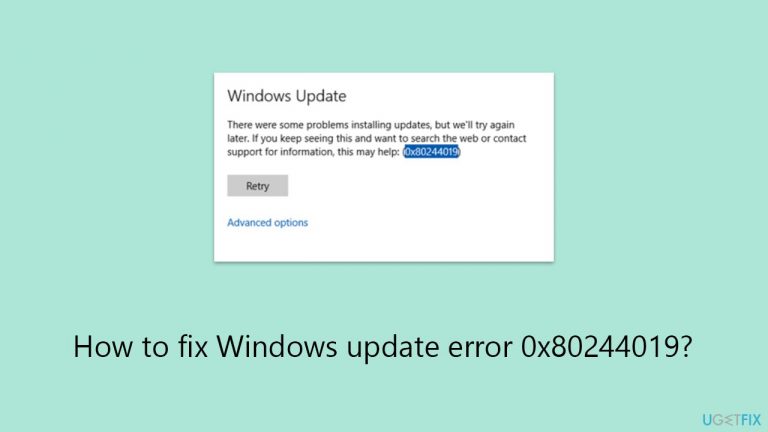
What causes How to fix Windows update error 0x80244019?
- Internet connection problems
- Windows Update service issues
- Misconfigured system settings
- Interference from firewall or antivirus software
Repairs Windows system files, removes malware, and restores a clean OS state — without reinstalling.
Hello, I can't install several updates for Windows because of the error 0x80244019. How do I fix this?
Windows Update error 0x80244019 is a notable issue for users trying to download and install updates, hindering the process of securing and enhancing system functionality. This error typically signals difficulties in connecting to the Windows Update servers, which can stem from a variety of sources such as system misconfigurations, internet connectivity problems, or issues inherent to the Windows Update service itself. Effectively addressing this error is essential for maintaining the security and efficiency of your system.
The root causes of Windows Update error 0x80244019 often involve internet connection problems, which can prevent your computer from accessing the Windows Update servers. Additionally, if the Windows Update service itself encounters problems, such as corruption or incorrect settings, it can lead to this error.
Misconfigured system settings, particularly those related to security and privacy, might also restrict access to the update servers. Furthermore, interference from firewall or antivirus software can mistakenly block connections to Windows Update, triggering this error.
To resolve Windows Update error 0x80244019, starting with a check of your internet connection is prudent, as a stable connection is paramount for accessing the update servers. Restarting your router or modem can help refresh your internet connectivity. It's also advisable to temporarily disable any VPN connections to eliminate potential interference with the update process. Ensuring that the Windows Update service is running correctly is another critical step; this involves checking the service's status and restarting it if necessary.
Adjusting your system's settings to prevent misconfigurations that could block access to Windows Update is also beneficial. This might include reviewing security settings and ensuring they don't overly restrict internet access.
Additionally, examining firewall and antivirus settings to make sure they're not interfering with Windows Update can mitigate the error. In cases where these measures don't fix the 0x80244019 error, we recommend scanning the device with [d1] PC repair tool that can diagnose and resolve underlying Windows issues.

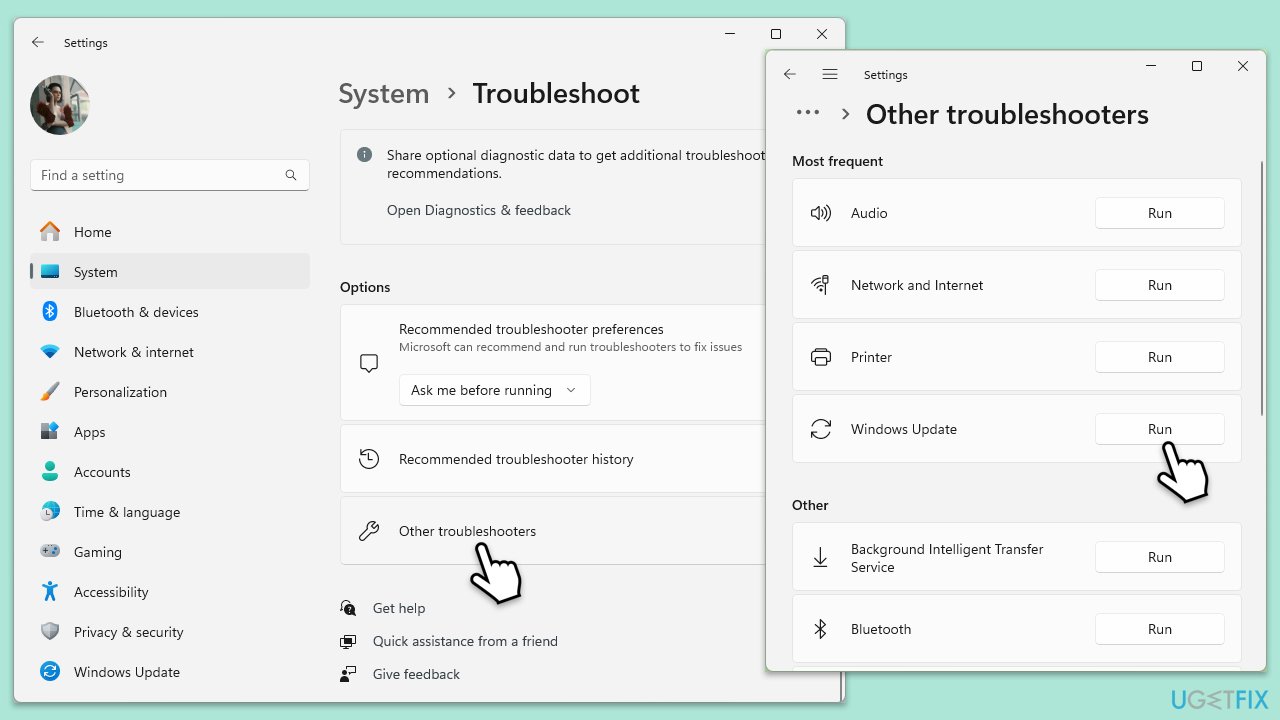
Fix 1. Run Windows Update Troubleshooter
Windows includes a built-in troubleshooter designed to automatically find and fix common issues with Windows Update. Running this troubleshooter can resolve error 0x80244019 by identifying and rectifying issues with the update process.
- Type Troubleshoot in Windows search and hit Enter.
- Select Additional troubleshooters/Other troubleshooters.
- Find Windows Update from the list and select Run the troubleshooter/Run.
- Wait till the scan is finished - you will be provided with potential causes so you can proceed with fixes.
- If no suggestions were given, proceed with the solutions below.
Fix 2. Check your internet connection
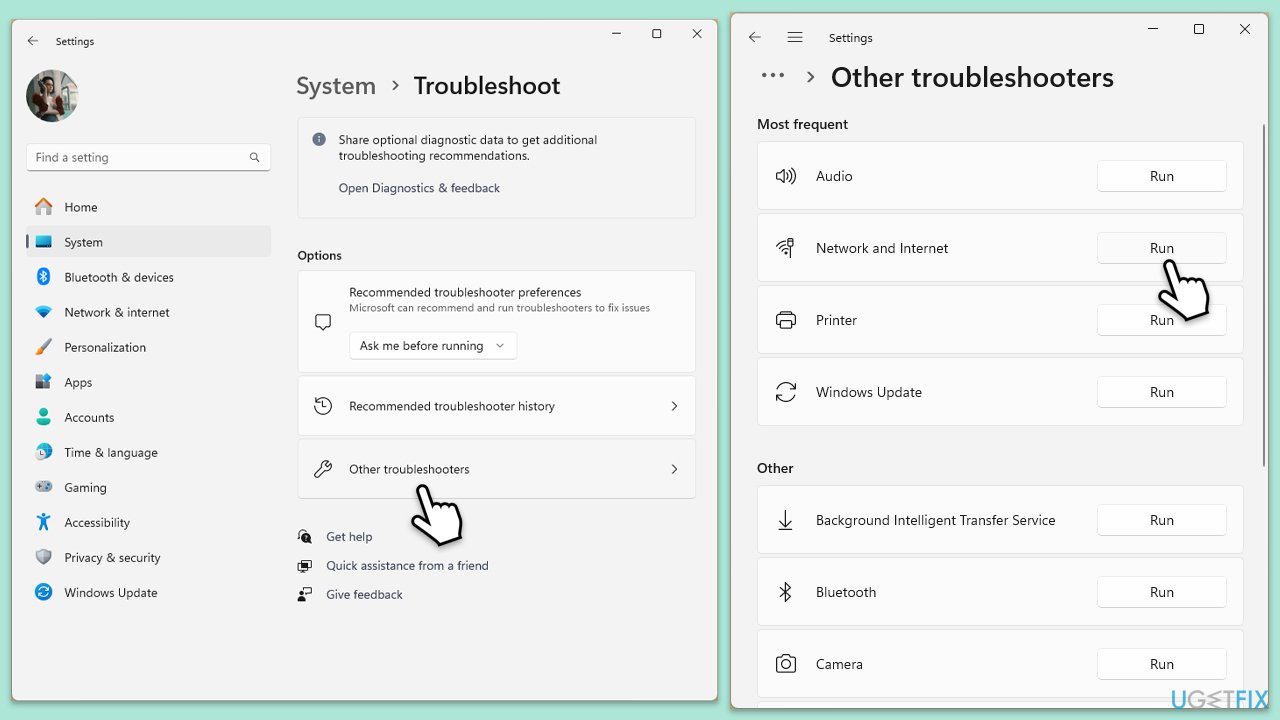
A stable internet connection is crucial for downloading updates. Ensuring your connection is stable can help resolve this error.
- Click on Start and pick Settings.
- Go to the System section and select Troubleshoot.
- Pick Other troubleshooters.
- Find Network & Internet and click Run.
- Apply all the recommended actions.
Fix 3. Reset Windows update components
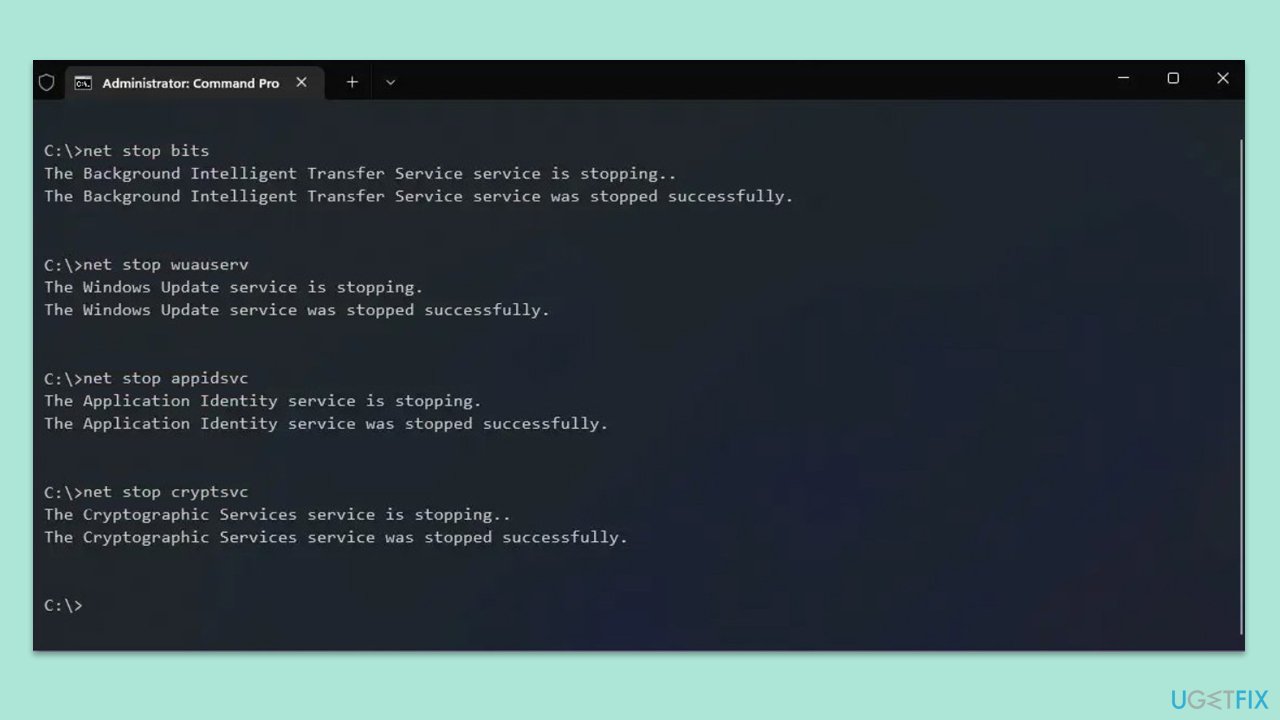
Sometimes, restarting the Windows Update services can resolve update issues by refreshing the service's state.
- Type cmd in Windows search.
- Right-click on the Command Prompt result and select Run as administrator.
- When the UAC window pops up, click Yes.
- Paste in each of these commands, pressing Enter every time:
net stop bits
net stop wuauserv
net stop appidsvc
net stop cryptsvc
Del “%ALLUSERSPROFILE%\Application Data\Microsoft\Network\Downloader\*.*”
rmdir %systemroot%\SoftwareDistribution /S /Q
rmdir %systemroot%\system32\catroot2 /S /Q
regsvr32.exe /s atl.dll
regsvr32.exe /s urlmon.dll
regsvr32.exe /s mshtml.dll
netsh winsock reset
netsh winsock reset proxy
net start bits
net start wuauserv
net start appidsvc
net start cryptsvc - Restart your system.
Fix 4. Temporarily disable firewall and antivirus
software Firewall and antivirus software can sometimes block the Windows Update service. Temporarily disabling them can help determine if they are the cause of the error.
- Disable your antivirus software from its application settings.
- Do the same with any third-party firewalls or VPNs, if applicable.
- After disabling, try running Windows Update again. Remember to enable your firewall and antivirus after testing.
Fix 5. Perform Disk Cleanup
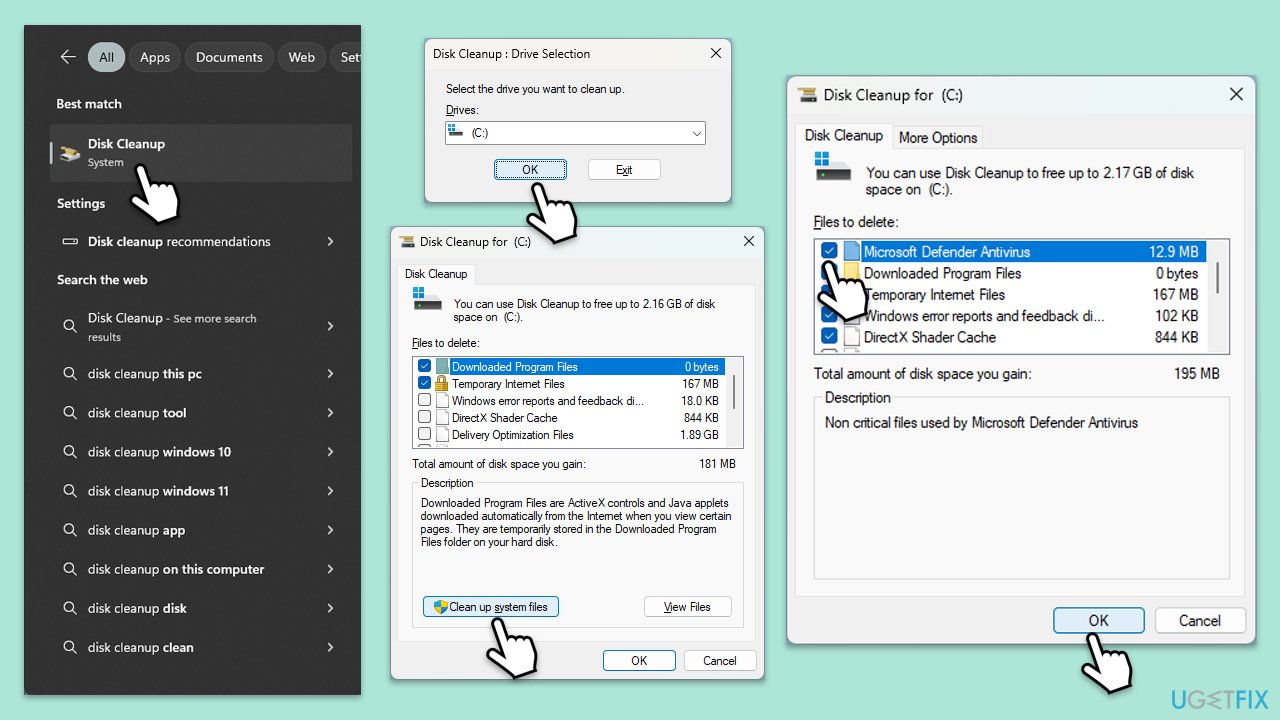
- Open the Windows search bar and type Disk Cleanup. Press Enter to open the Disk Cleanup utility.
- In the Disk Cleanup window, click Clean up system files.
- Select the drive again and click OK.
- In the list of files that can be cleaned up, select the largest portions of data, such as Temporary Internet Files, Windows Update, Temporary Files, and others.
- Click OK to begin the cleanup process.
Fix 6. Run SFC and DISM scans
Corrupted system files are among the most common reasons for Windows update errors.
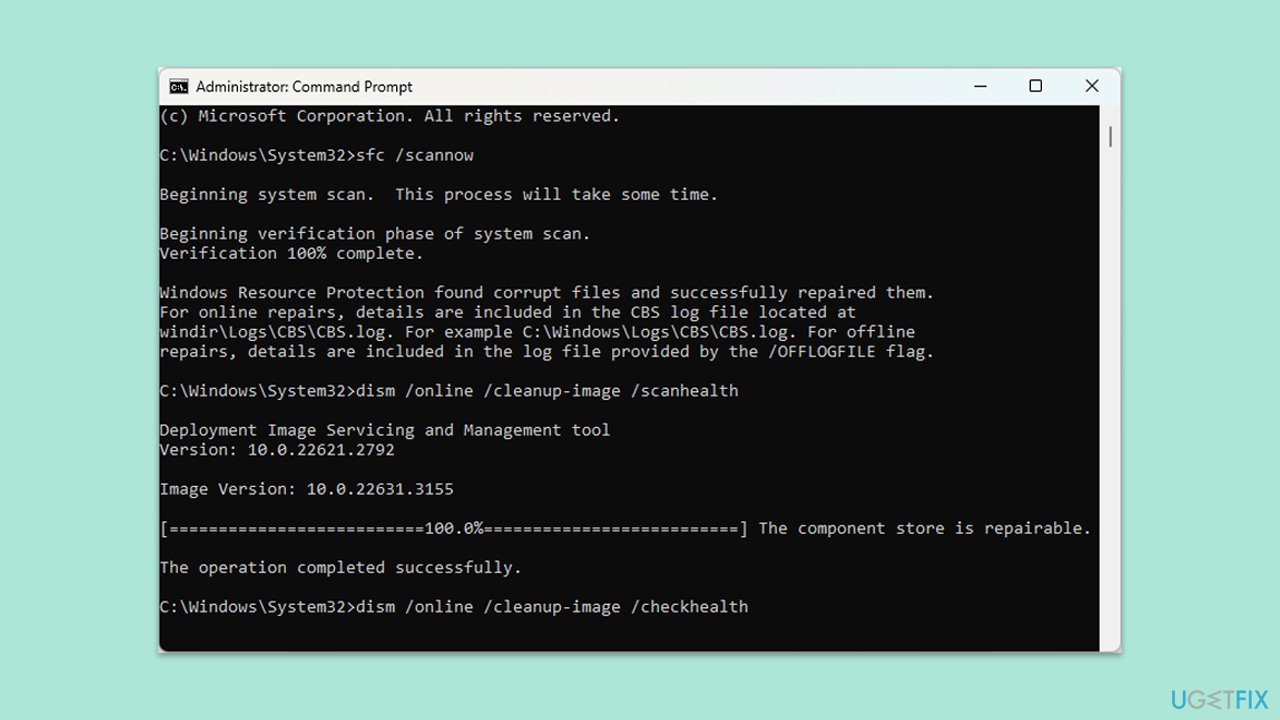
- Open Command Prompt as administrator.
- In the Command Prompt window, paste the following command and press Enter:
sfc /scannow - Wait for the scan to complete.
- Once the SFC scan is finished, run the following set of DISM commands, pressing Enter after each one:
DISM /Online /Cleanup-Image /CheckHealth
DISM /Online /Cleanup-Image /ScanHealth
DISM /Online /Cleanup-Image /RestoreHealth - After completing the DISM commands, restart your computer.
Fix 7. Use Media Creation Tool
If all else fails, using the Media Creation Tool to update Windows manually can bypass the error.
- Visit the official Microsoft website and download Windows 10 installation media (Windows 11 version).
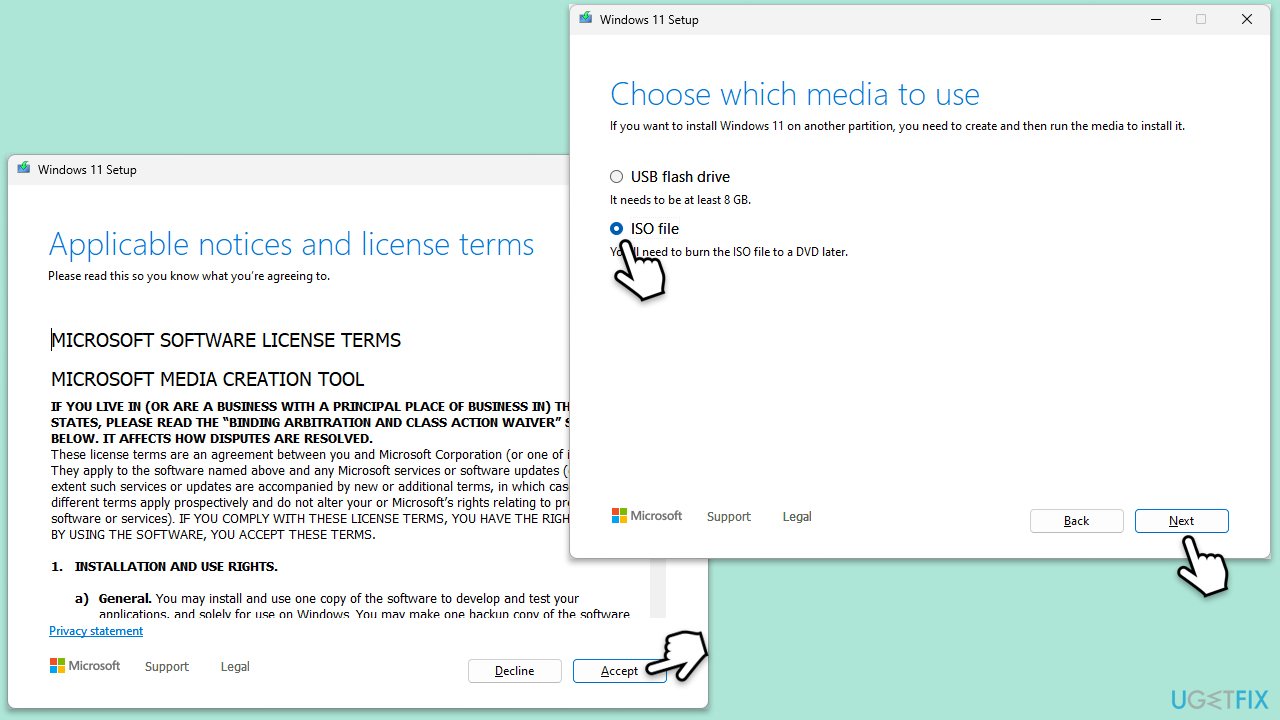
- Double-click the installer, select Yes when UAC shows up, and agree to the terms.
- Select the ISO file and click Next, then follow the instructions to finish the process.
- Right-click on ISO and click Mount.
- Open the location of the ISO, right-click on it, and select Mount.
- Launch the installer.
- Select Upgrade this PC now and click Next.
- Windows will start downloading the needed files.
- Agree to the terms once again and click Next.
- Before installing, ensure you are happy with your choices (otherwise, you can click the Change what to keep option).
- Finally, click Install to begin the upgrade process.
Bottom line
To resolve Windows Update error 0x80244019, check your internet connection and restart your router or modem. Ensure the Windows Update service is running and adjust your system's security settings. If these steps do not resolve the issue, consider using a PC repair tool to diagnose and fix underlying Windows problems.
Frequently asked questions
The error code 0x80244019 typically indicates a problem with the Windows Update service, often related to connectivity issues with Microsoft's update servers on Windows 10 or Windows 11.
To resolve the 0x80244019 error in Windows 10, try resetting the Windows Update components and ensure your network connection is stable.
Yes, you can use the Windows Update Troubleshooter available in the Settings app to automatically detect and fix issues related to error 0x80244019 on Windows 11.




Report an issue
What's wrong with this guide? We review every report and update or remove content.
Report received — thank you. We'll review and fix it.
You need a free account to submit a report.
Be the first to comment