How to fix
Windows update error 0x8024418
on Windows
Resolve the Windows update error 0x8024418 quickly and easily. Get expert-tested solutions for Windows 10 and Windows 11, fixed in minutes.

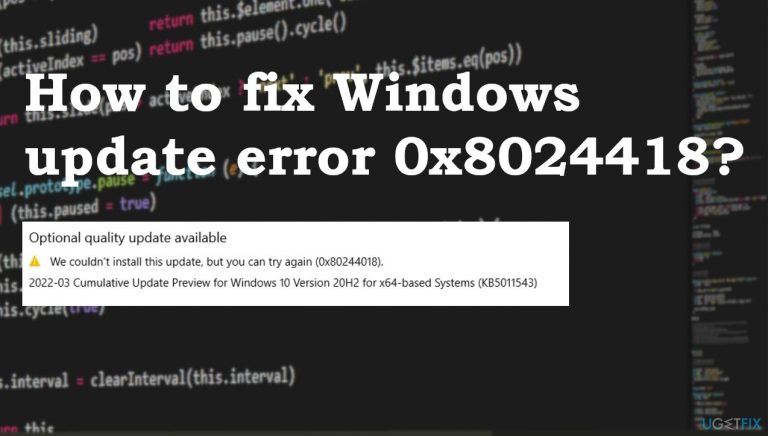
What causes How to fix Windows update error 0x8024418?
- Connection via a proxy server
- Windows Update service not running properly
- Insufficient space on the machine
- Corrupted or damaged files in system folders
- Malware infections
- Compatibility issues
Repairs Windows system files, removes malware, and restores a clean OS state — without reinstalling.
Hello. This Windows update error 0x8024418 bothers me. I can't properly install the upgrade on my machine. It failed for me a few times already. Can I do something about it myself?
The issue with a Feature Update installation on Windows is common for Windows 10 and Windows 11 users.[ref en-1] The issue for the particular Windows update error 0x8024418 report is the connection via a proxy server on the machine that is failing to install the upgrade. The stop indicates that servers receive the request, but the process cannot be completed.
The Windows Update service might not be running properly on the computer, so the issue occurs, and users cannot update their operating systems normally. There are various reports about this issue on user forums.[ref en-2] These reasons behind the error code can differ from incident to incident, so solutions are not universal, and we have gathered a few of them.
As for the common update errors, there are issues with space on the machine and even corrupted or damaged files in system folders. Malware[ref en-3] infections and compatibility issues often can cause Windows update error 0x8024418 or similar problems. It is because infiltrations and corruption of programs lead to altered or damaged files that later on interfere with update processes.
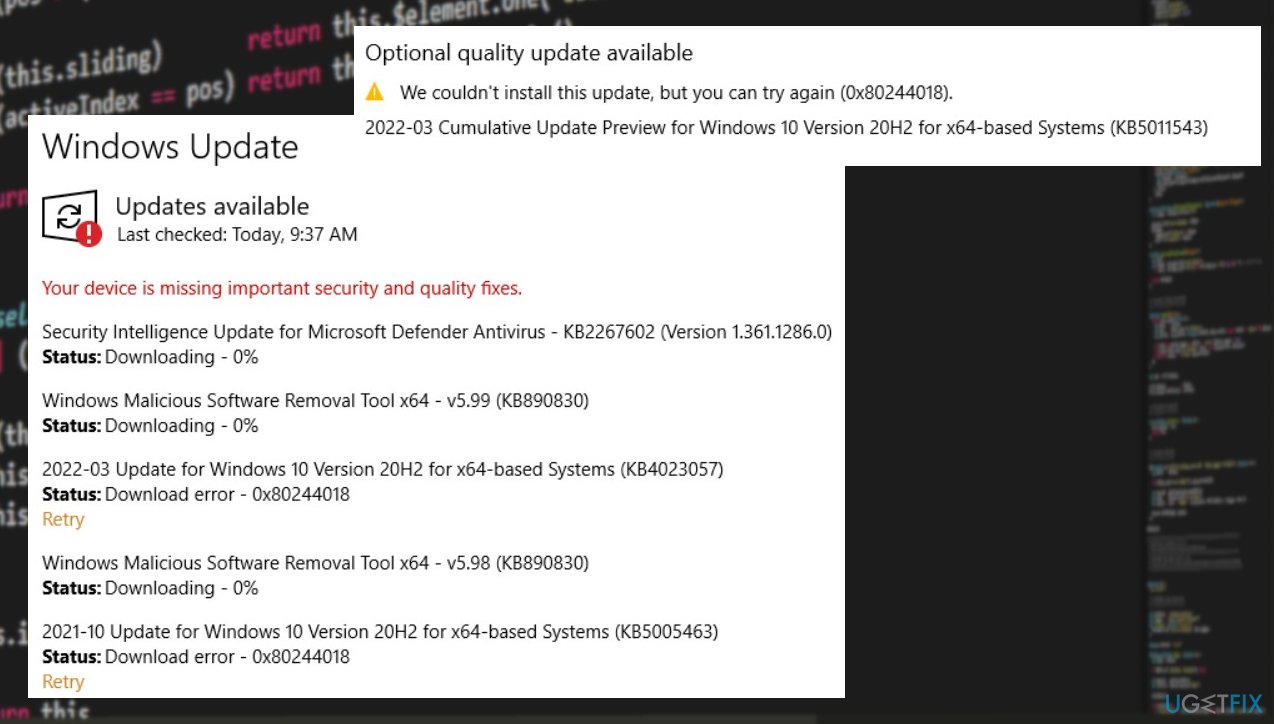
You can solve these issues using anti-malware tools and check for the leftover malware. However, tools like [d1] can be more useful here because this is the program that checks and solves issues with affected files and can repair performance issues right away.
This is one of the methods that help quickly and solves the issue or show if the problem with this Windows update error 0x8024418 is more serious or not. Other solutions include troubleshooting and resetting some of the services to see what has stopped the procedure.
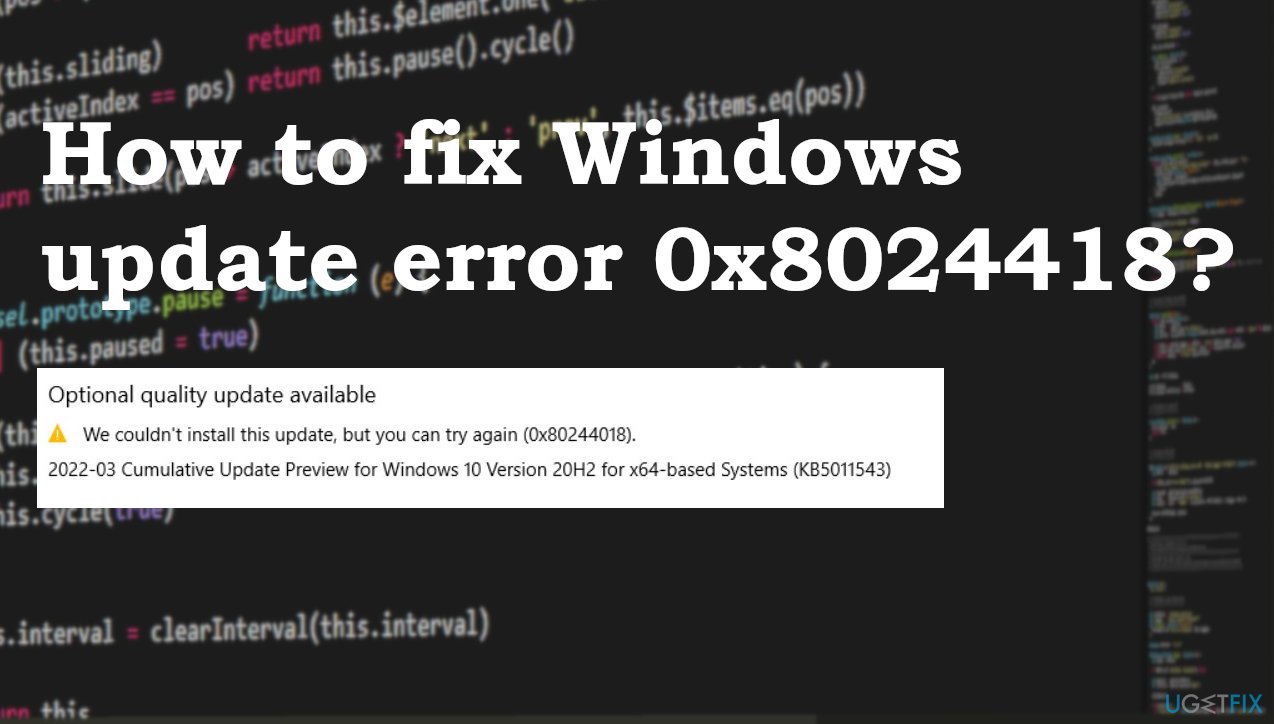
1. Troubleshoot
- Open settings by pressing Windows key + I.
- Select Update and security.
- On the left pane, select Troubleshoot.
- Under Additional Troubleshooter, select Windows Update.
- Click the Run the troubleshooter button.
2. Scan the machine for affected files
- Open command prompt (Run as administrator)
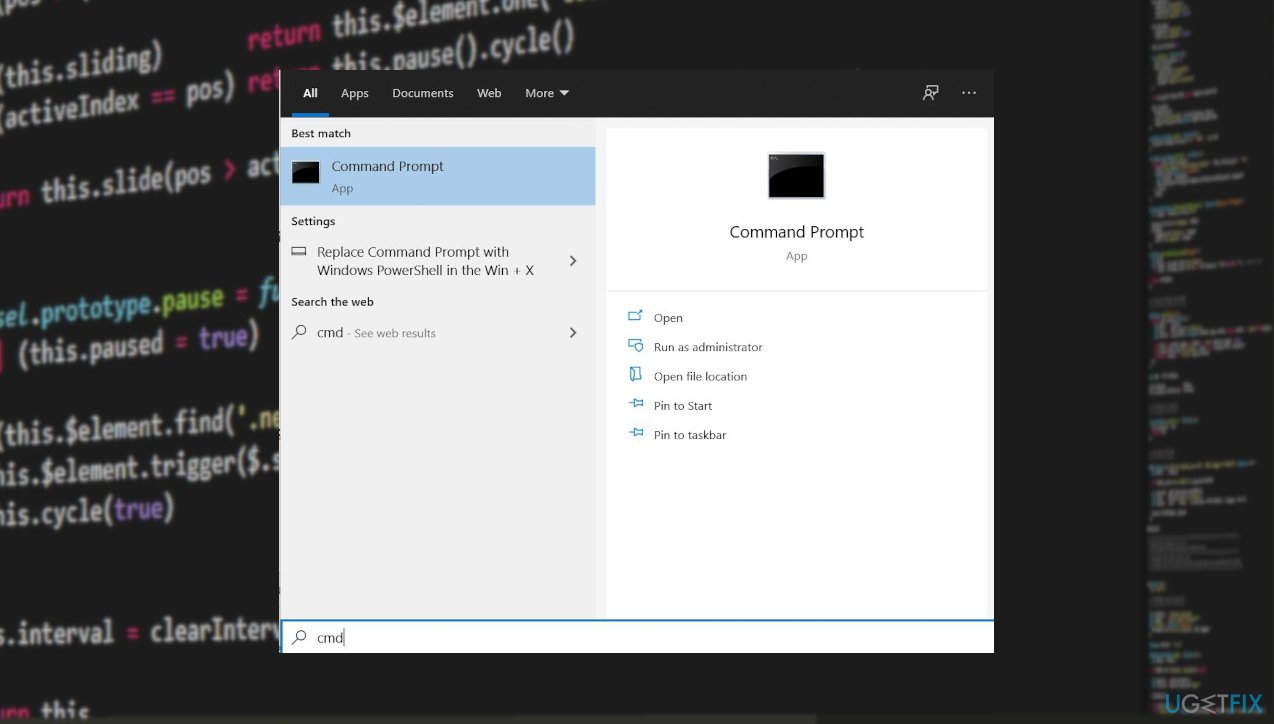
Fix windows update error 0x8024418 cmd - Type each command below and wait until the scan is completed:
sfc /scannow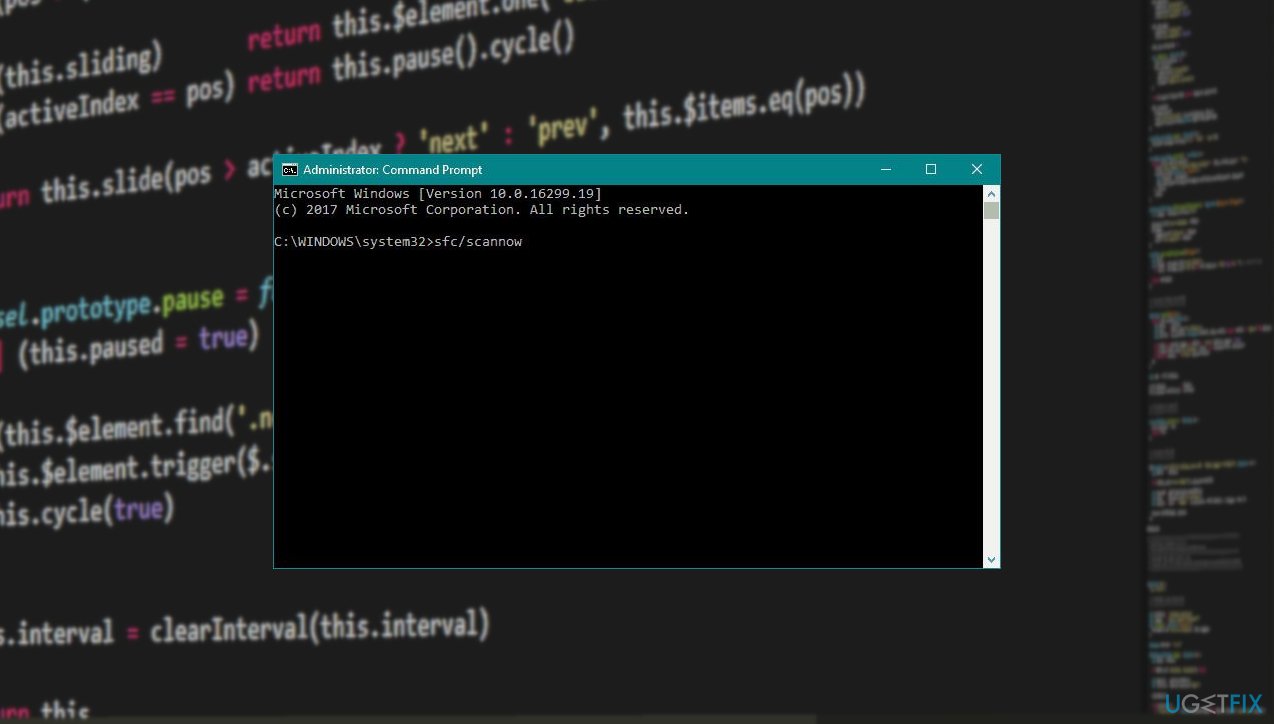
Fix windows update error 0x8024418 sfc
DISM /Online /Cleanup-Image /CheckHealth
DISM /Online /Cleanup-Image /ScanHealth
DISM /Online /Cleanup-Image /RestoreHealth
3. Restart Windows Update Service
- Type services in the Windows search bar and double-click on the Services app.
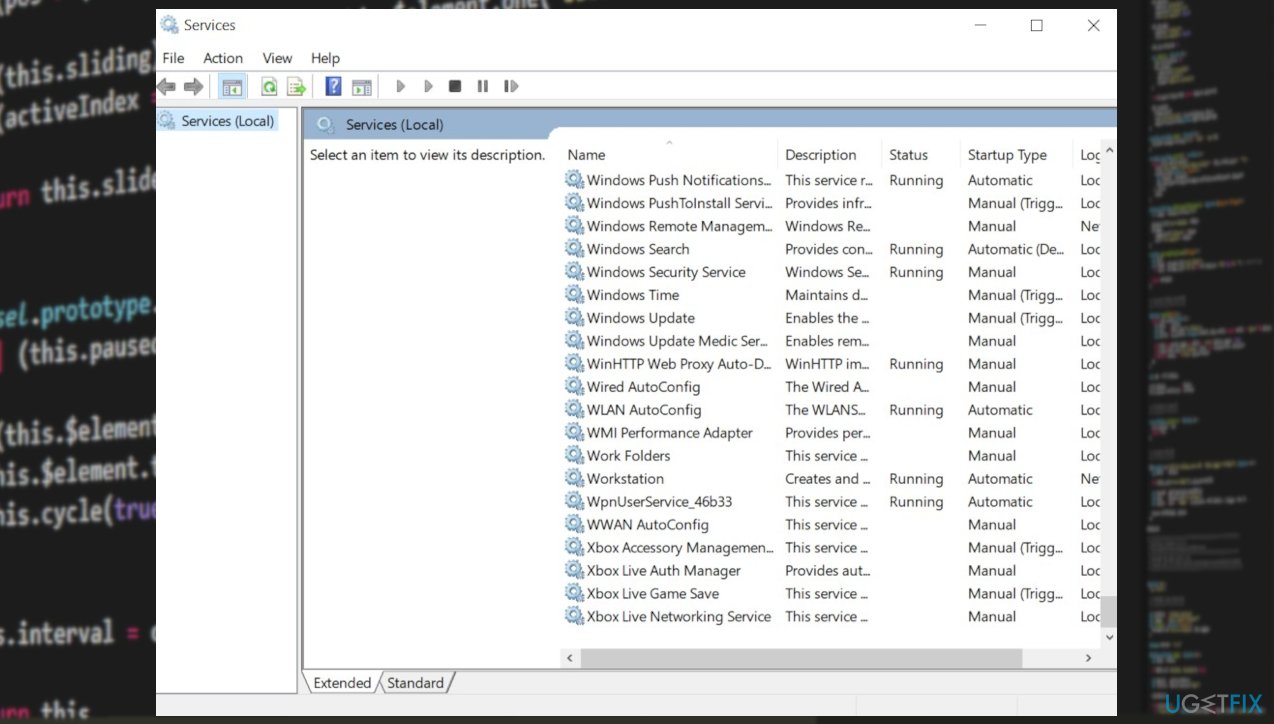
Fix windows update error 0x8024418 services - Scroll down to the Windows Update service.
- Right-click on it and restart it.
4. Check the Proxy server settings
- Type inetcpl.cpl in Cortana search and press Enter.
- Click on the Connections tab and move on to the Local Area Network (LAN) settings portion.
- Perform a click on LAN settings button to quickly open a pop-up.
- Uncheck the dialog box entitled with Use a proxy server for your LAN.
- Now clock on the Ok button from the bottom of this page before closing it.
5. Disable Proxy Servers
- Press the Windows key + I to open Windows Settings.
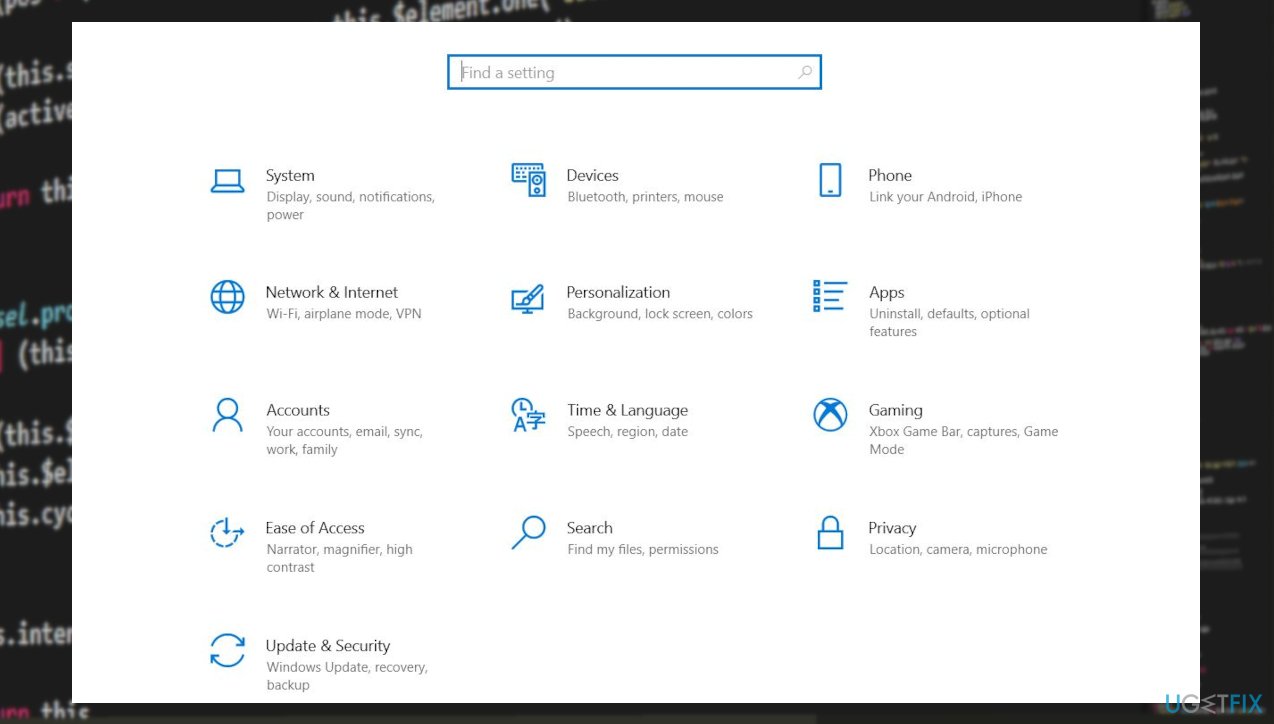
Fix windows update error 0x8024418 settings - After that, click on Network & Internet.
- Inside the Network Settings.
- Click on Proxy from the side menu.
- Make sure that Use a Proxy Server is turned off.
Bottom line
To fix the Windows update error 0x8024418, you can troubleshoot by accessing the Update and Security settings and running the Windows Update troubleshooter. Additionally, scanning the machine for affected files using command prompt can help identify and resolve issues. If these solutions do not work, consider using anti-malware tools or specialized programs to address file corruption.
Frequently asked questions
The error 0x8024418 typically occurs due to issues with the Windows Update service or corrupted system files that prevent updates from being downloaded or installed properly.
To fix the 0x8024418 error on Windows 11, you can try running the Windows Update Troubleshooter and resetting the Windows Update components using Command Prompt.
Yes, you can edit the registry to reset the Windows Update settings, but be sure to back up your registry before making any changes to avoid further issues.




Report an issue
What's wrong with this guide? We review every report and update or remove content.
Report received — thank you. We'll review and fix it.
You need a free account to submit a report.
Be the first to comment