How to fix
Windows update error 0x80245006
on Windows
Resolve Windows update error 0x80245006 quickly with our proven solutions. Get your PC back on track with expert-tested methods. Fixed in minutes!

What causes How to fix Windows update error 0x80245006?
- Problem with the Windows Update service
- Issues with software components that download and install updates
- Corrupted system files
- Insufficient disk space
- Connectivity issues
Repairs Windows system files, removes malware, and restores a clean OS state — without reinstalling.
Hello. I try to install Windows updates but I get the 0x80245006 error. Is there a way to fix this?
When users try to install or update Windows on their computers, they frequently encounter Windows Update Error 0x80245006. This error usually indicates a problem with the Windows Update service or the software components that download and install updates.
Updates are critical to the stability, security, and performance of your Windows operating system. Bug fixes, security patches, driver updates, and feature enhancements that address known issues and vulnerabilities are included. By keeping your system up to date, you ensure that it is protected against new threats, runs smoothly with improved compatibility, and takes advantage of the most recent features and optimizations.
When users encounter the 0x80245006 error, they may face a number of negative consequences. First and foremost, because critical patches and fixes are not being installed, their system may be left vulnerable to security risks. Furthermore, users may experience compatibility issues with specific software or hardware due to outdated drivers. The system's overall performance may suffer, resulting in slow response times, crashes, or other stability issues.
Troubleshooting the underlying cause is required to resolve the 0x80245006 error. Restarting the Windows Update service, resetting Windows Update components, checking for disk space availability, or resolving connectivity issues are some possible solutions.
In this guide, you will find 7 steps that should help you fix Windows update error 0x80245006. You may also use a maintenance tool like [d1] that can fix most system errors, BSODs,[ref en-1] corrupted files, registry[ref en-2] issues, or clear cookies and cache.[ref en-3] Otherwise, follow the step-by-step instructions below.
Method 1. Fix Corrupted System Files
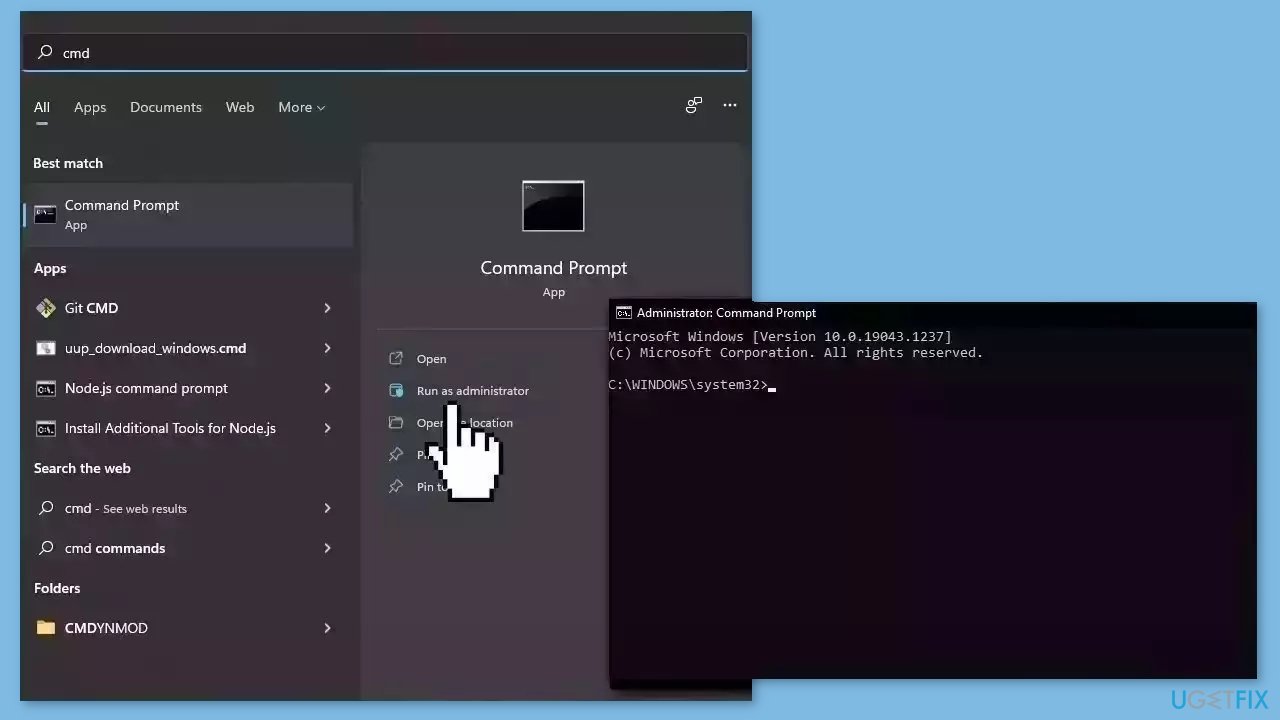
Use Command Prompt commands to repair system file corruption:
- Open Command Prompt as administrator
- Use the following command and press Enter:
sfc /scannow
- Reboot your system
- If SFC returned an error, then use the following command lines, pressing Enter after each:
DISM /Online /Cleanup-Image /CheckHealth
DISM /Online /Cleanup-Image /ScanHealth
DISM /Online /Cleanup-Image /RestoreHealth
Method 2. Check Disk
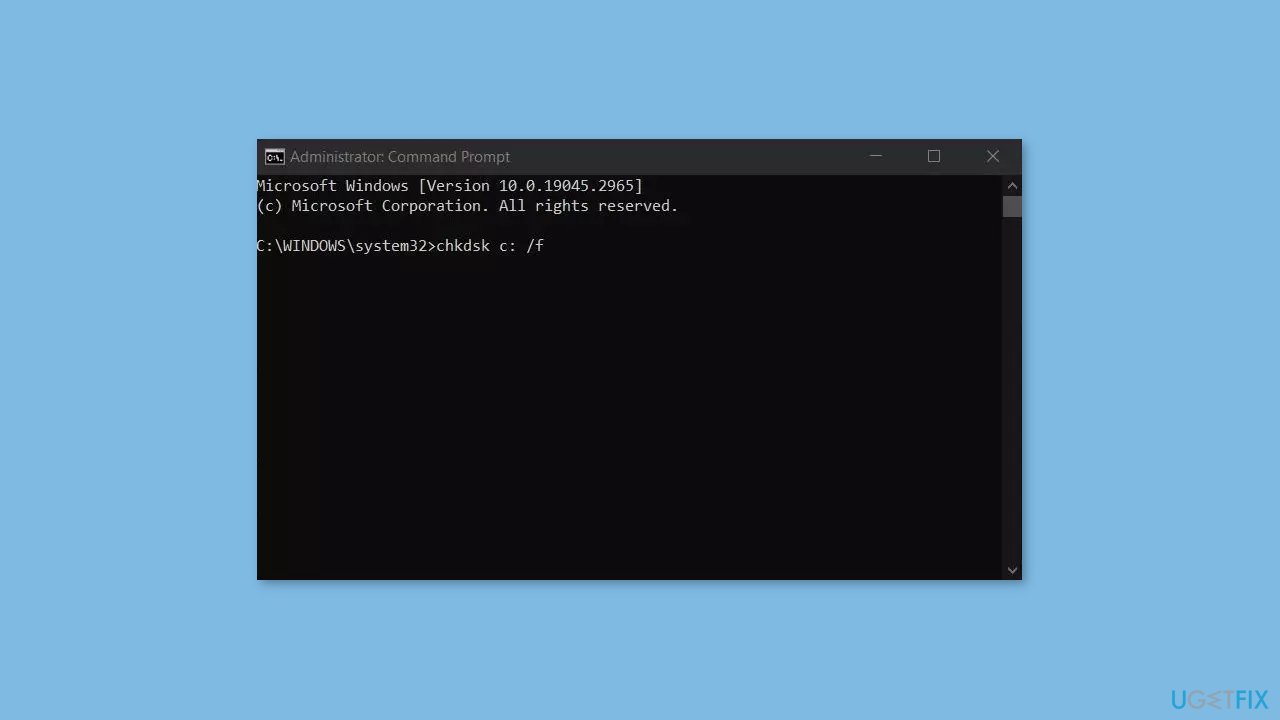
Ensure that your disk is not damaged. You can perform checks using Administrative Command Prompt:
- If you are using an HDD as your main driver (where your operating system is installed – C: by default), use the following command and press Enter:
chkdsk c: /f - If you are using SSD, use this command:
chkdsk c: /f /r /x
- If you receive an error, type in Y and hit Enter.
- Restart your device to perform the check.
Method 3. Run the Windows Update Troubleshooter
- Press the Windows + X keys and go to Settings.
- Go to Update and Security.
- Click Troubleshooter.
- Select Additional troubleshooters.
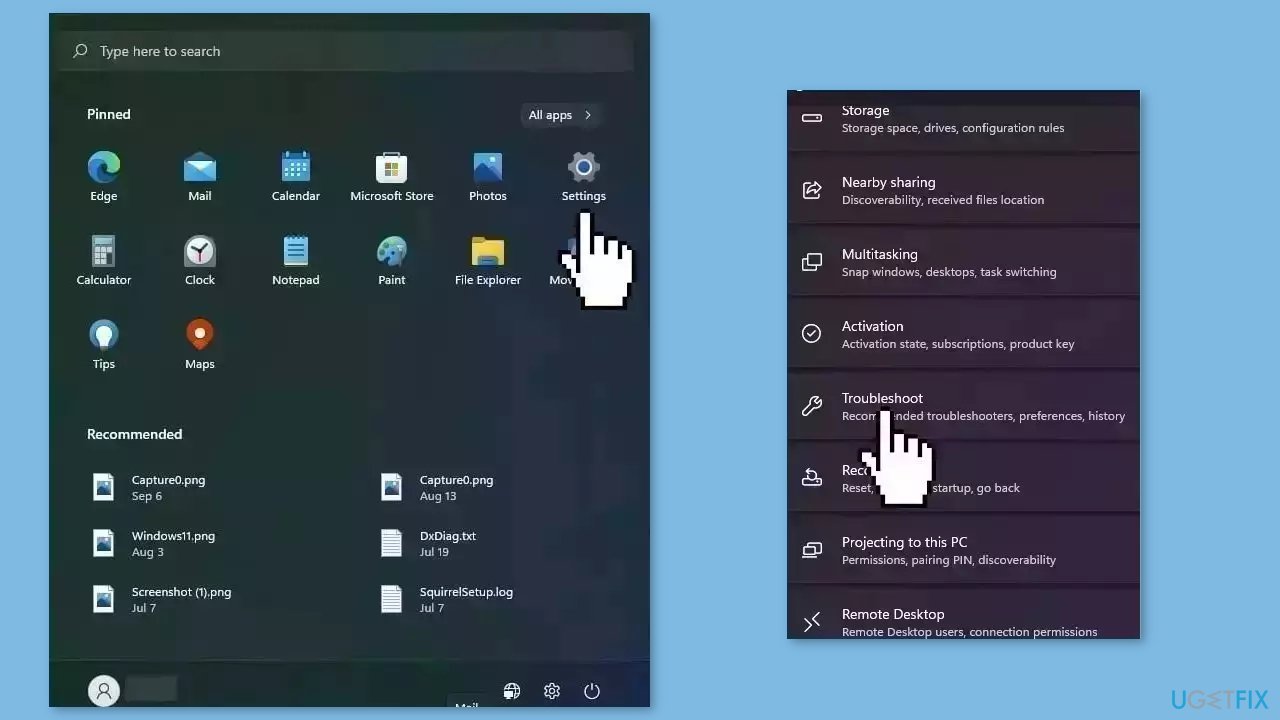
- Run the Update troubleshooter.
- Restart.
Method 4. Restart Windows Services
- Press Windows + R to open the Run box.
- Type in services.msc and press OK.
- Double-click Background Intelligent Transfer Service.

- If the Startup status lists Stopped, click Start and then click OK.
- If the status is Running, right-click then select Restart.
- Locate the Windows Update service and double-click it.
- If the Startup status lists Stopped, click Start and OK. If the status is Running, right-click, then select Restart.
Method 5. Update Drivers
Outdated drivers could be the cause of this issue. In this case, you can fix it automatically by using [rev id="DriverFix"], which will scan your PC for missing and out-of-date device drivers. Or you can update them manually:
- Open Settings.
- Click on Update & Security.
- Click on Windows Update.
- Click the Check for updates button.
- Click the View optional updates option.
- Click the Driver updates tab.
- Select the driver you want to update.
- Click the Download and install button.
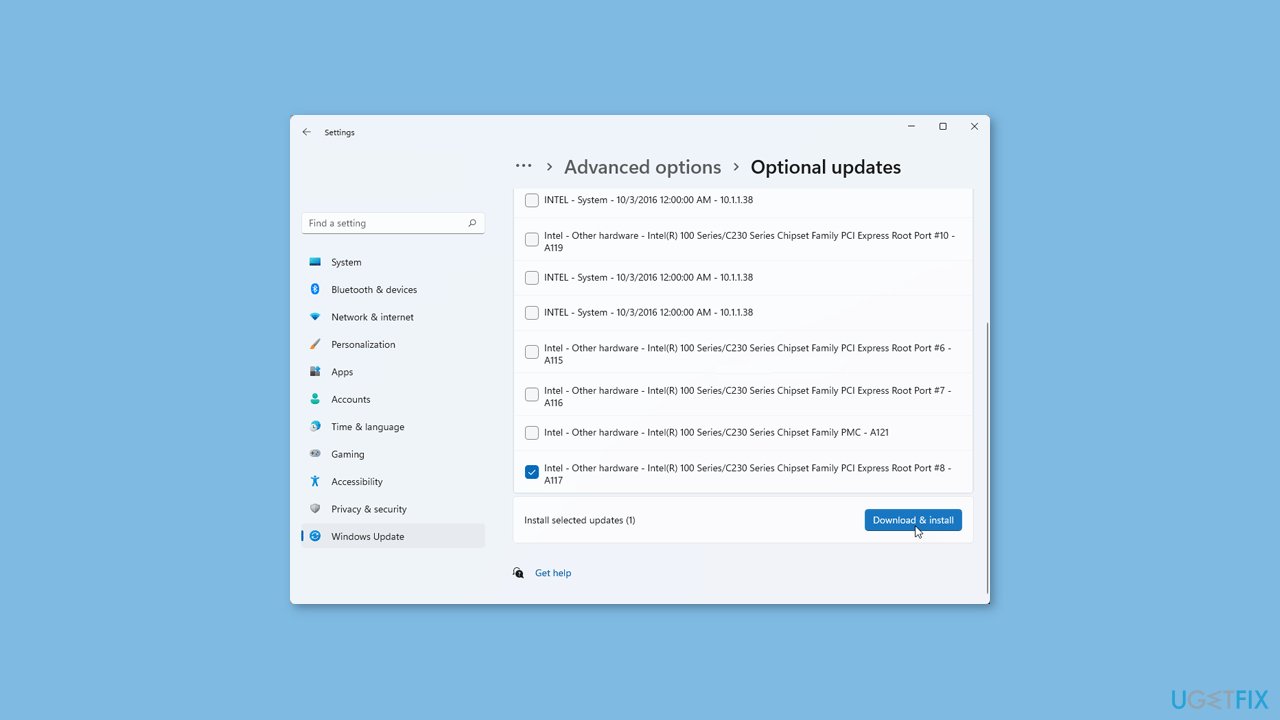
If the View optional updates link is not available after checking for updates, then Windows Update does not have any new drivers or any updates for other products at that particular time.
Method 6. Install the Update Manually
Whenever Windows updates fail to install automatically, you can always try doing it manually. First, you need to find out which KB number is relevant to you.
- Right-click Start button and pick Settings.
- Go to Update & Security.
- On the right, locate and click View update history.
- From the list, note the KB number that fails to install with the error code.
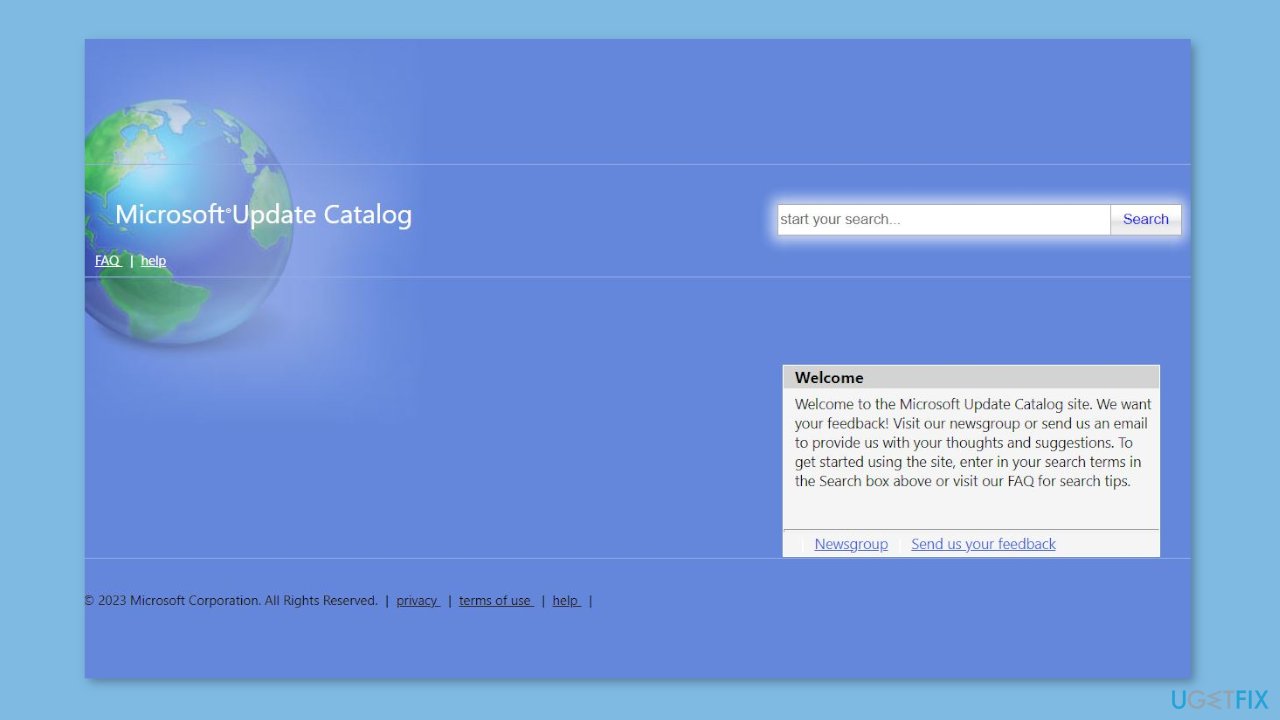
- Go to Microsoft Update Catalog page, type in the KB number, and press Search.
- Download the update and install it manually.
Method 7. Try Clean Boot
- Open the Search menu, type in system configuration, and press Enter.
- Under the Services tab, tick the Hide all Microsoft services box.
- Click on Disable all button.
- Head over to the Startup tab and click on Open Task Manager.
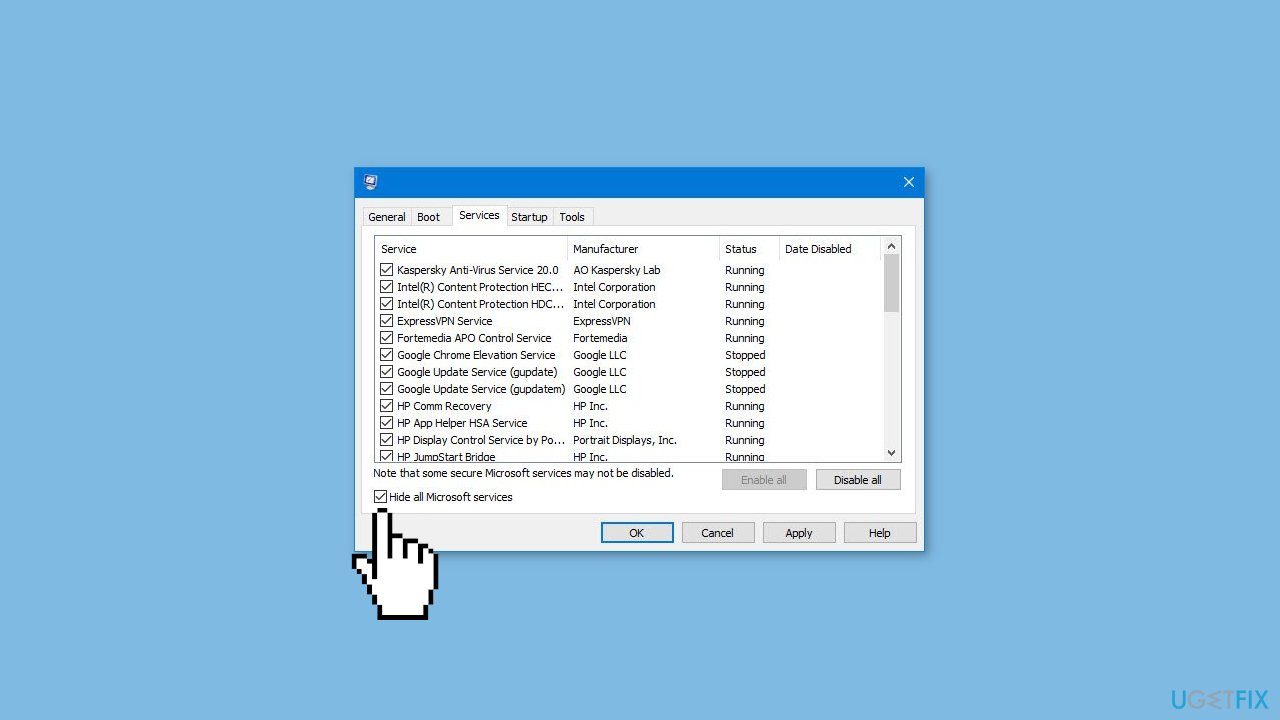
- Select a third-party program and click on Disable at the top.
- Repeat this step to disable all third-party apps and programs.
- Restart your PC to enter the clean boot state and see if the issue persists.
- If the issue disappeared in the clean boot state, then you can be certain that a third-party app is causing it.
- Go through all recently installed apps or programs and remove them one by one.
Bottom line
To resolve the 0x80245006 error, you can try restarting the Windows Update service, resetting Windows Update components, checking for disk space availability, or fixing corrupted system files using Command Prompt. If these methods do not work, consider using a maintenance tool to address system errors.
Frequently asked questions
The error 0x80245006 usually indicates a problem with the Windows Update service or its components on Windows 10 or Windows 11, preventing updates from being downloaded or installed.
To fix error 0x80245006 on Windows 10, try running the Windows Update Troubleshooter from the Settings app and then restart your computer.
Yes, you can manually reset the Windows Update components by stopping the Windows Update service, renaming the SoftwareDistribution and Catroot2 folders, and then restarting the service in Windows 11.




Report an issue
What's wrong with this guide? We review every report and update or remove content.
Report received — thank you. We'll review and fix it.
You need a free account to submit a report.
Be the first to comment