How to fix
Windows update error 0x80246001
on Windows
Resolve Windows update error 0x80246001 effortlessly with expert tips and proven solutions. Get back to smooth updates with zero traces left.

What causes How to fix Windows update error 0x80246001?
- Corrupted Update components
- Network connectivity problems
- Antivirus interference
- Insufficient disk space
- System file corruption
Repairs Windows system files, removes malware, and restores a clean OS state — without reinstalling.
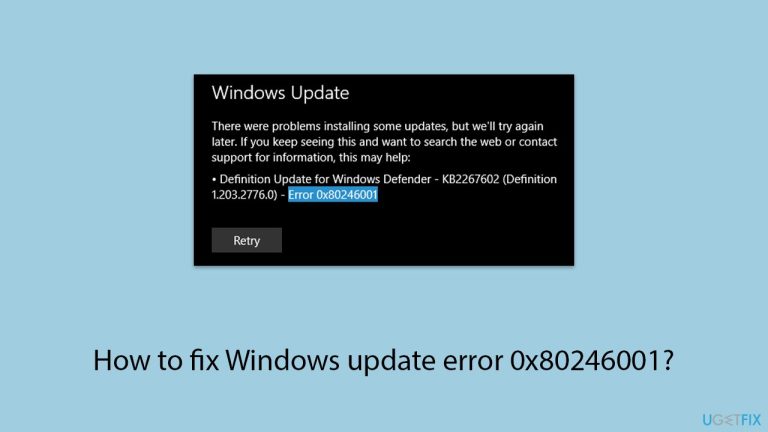
I was wondering if you could help me fix Windows update error 0x80246001. I encountered it this morning and it's not going away by itself.
Windows Update error 0x80246001 usually occurs while the user tries to install updates on his or her Windows device. This issue doesn't allow the system to download or install the updates, which leaves the user exposed to missed critical system improvements, security patches, and feature enhancements. While the nature of the error might look complex upon initial appearance, it often roots from inherent system or network-related issues.
Error 0x80246001 most often occurs when there is an issue with the Windows Update service, either at download or installation. This could be due to corrupted or incomplete update files, interruptions at the download phase, and even system services and drivers interfering with the process. Sometimes, third-party antivirus software may conflict and interfere with an update in installing properly and may lead to this error.
Common causes of this 0x80246001 error include:
- Corrupted Update components. Over time, some of the files or system components utilized by Windows Update become corrupted or damaged, preventing these updates from downloading or installing correctly.
- Network connectivity problems. Particularly the too slow or unstable connections result in incomplete downloads of updates; hence, their process fails.
- Antivirus interference. Some third-party antivirus applications block the update of the system, thinking it as a kind of potential threat. It might be included among the reasons for this error.
- Insufficient disk space. The inability of the system to download or install the respective update files is due to the lack of enough free storage.
- System file corruption. This may occur because of some error or incorrect format in some key system files.
Some troubleshooting measures that can be done for the 0x80246001 error include running the built-in Windows Update troubleshooter, checking for corrupted system files, and ensuring network connectivity is fine. Additionally, checking if enough disk space is available, and temporary disablement of interfering antivirus software may clear up the error.
You could also use more automatic solutions, like repairing [d1], if the preceding solutions using basic solutions do not solve the problem, to allow the resolution of deeper problems in the system and Windows update to work once again.
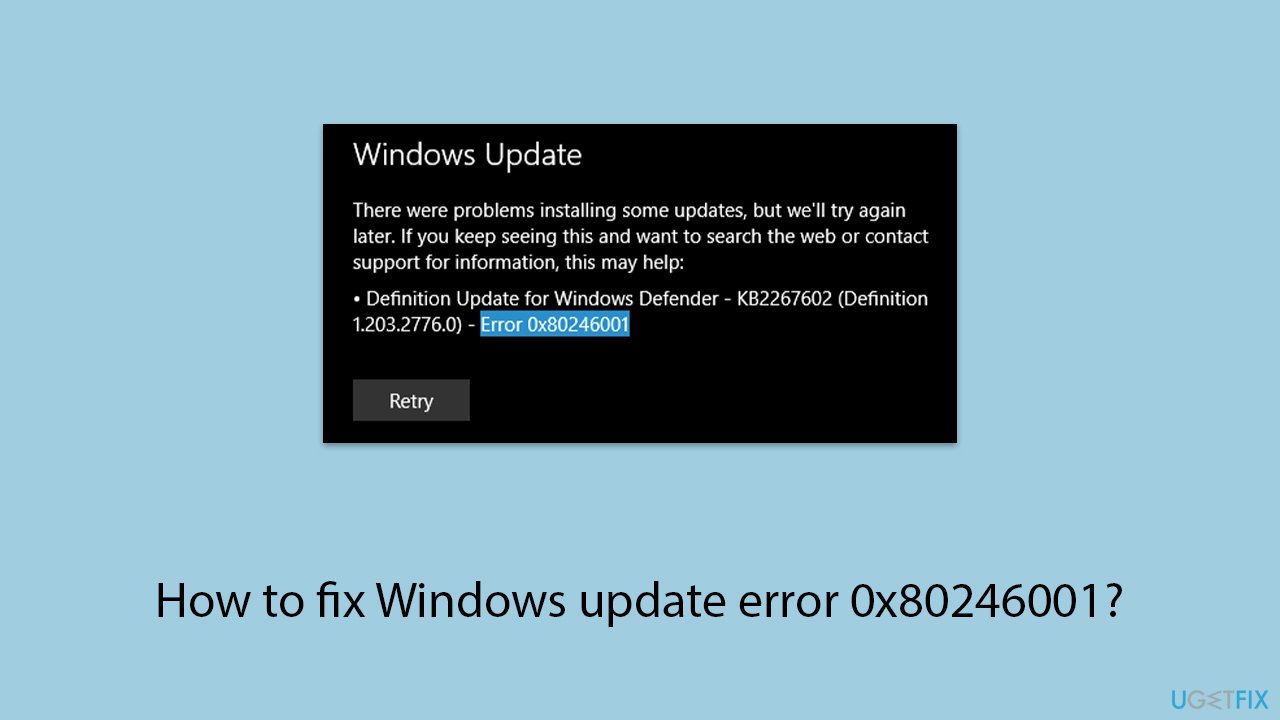
Fix 1. Perform Disk Cleanup
- Type Disk Cleanup in Windows search and hit Enter.
- If your Windows is installed on drive C, pick it from the list (it should be by default) and press OK.
- Click Clean up system files.
- Select your main disk again and click OK.
- Here, select the largest portions of the data used - these typically include Temporary Internet Files, Windows Update, Temporary Files, Recycle Bin, Delivery Optimization Files, and others.
- Click OK - the process should be finished shortly.
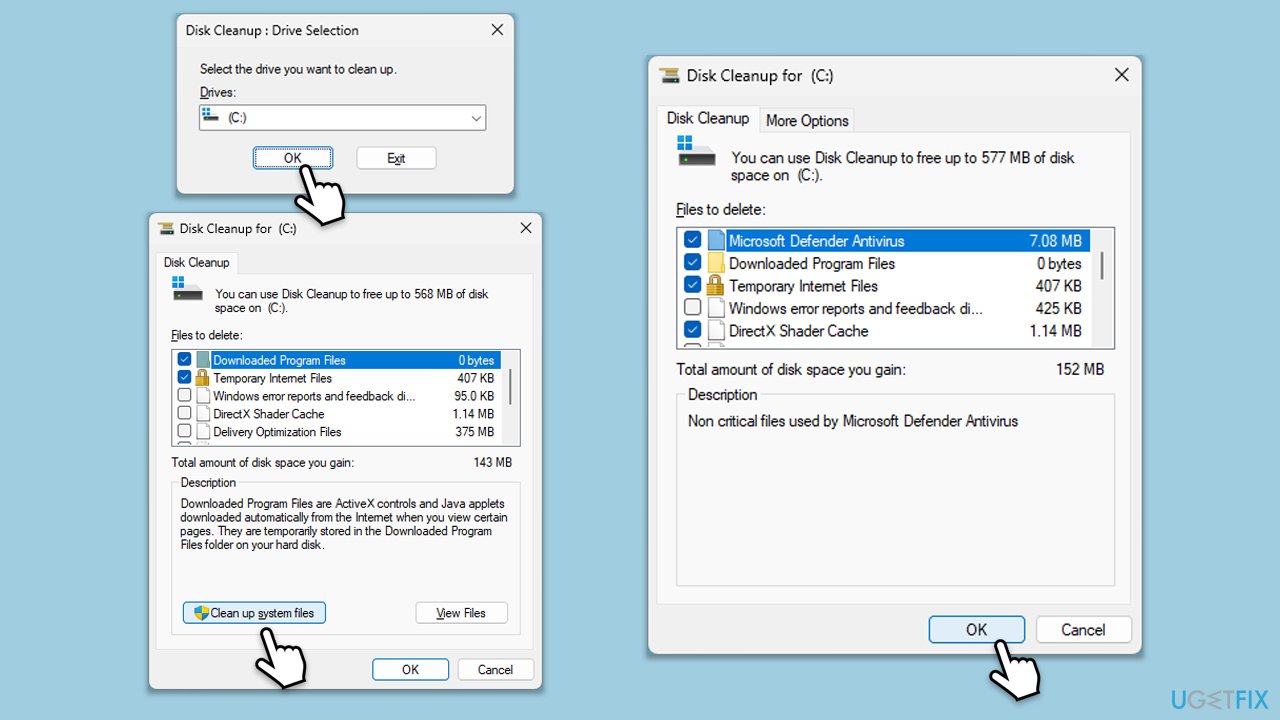
Fix 2. Run the troubleshooter
- Type in Troubleshoot in Windows search and hit Enter.
- Select Additional Troubleshooters/Other troubleshooters option.
- Locate Windows Update and click Run/Run the troubleshooter.
- As soon as the scan finishes, apply the recommended fixes.
Fix 3. Repair corrupted files
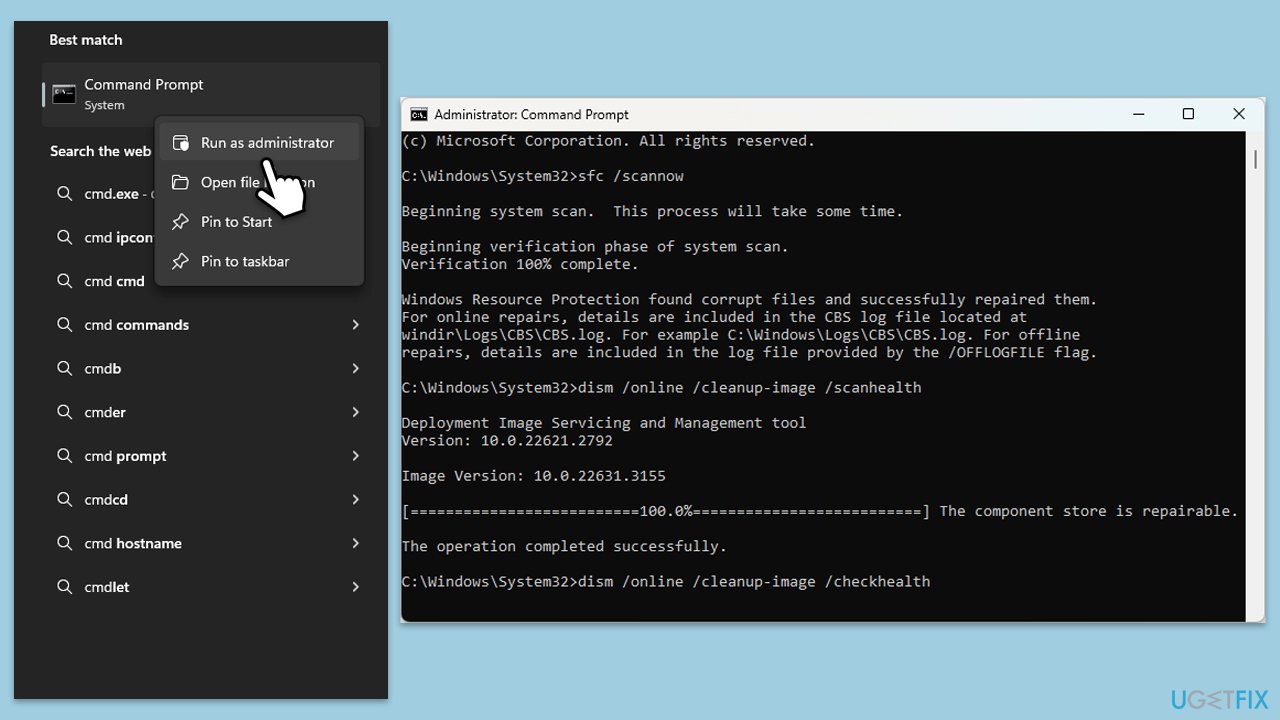
- Type cmd in Windows search.
- Right-click on Command Prompt and pick Run as administrator.
- User Account Control will ask you whether you want to allow changes – click Yes.
- Copy and paste this command and hit Enter:
sfc /scannow - Wait for the scan to finish.
- As soon as it finishes, Windows will report whether integrity violations were found and if they could be fixed. Regardless of the outcome, use these commands next, pressing Enter after each:
Dism /Online /Cleanup-Image /CheckHealth
Dism /Online /Cleanup-Image /ScanHealth
Dism /Online /Cleanup-Image /RestoreHealth - Close down the Command Prompt and restart your device.
Fix 4. Check services
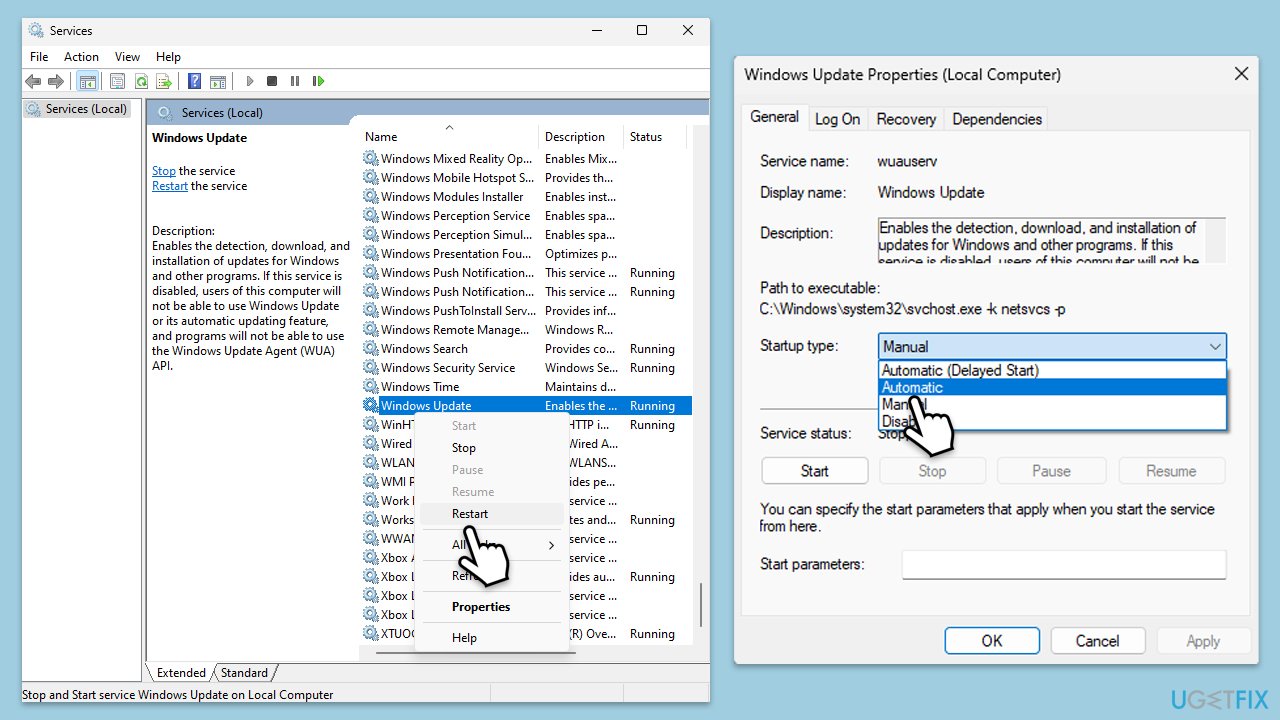
- Type in Services in Windows search and press Enter.
- Scroll down to locate Windows update.
- If it is already running, right-click and pick Restart.
- If the service is not running, double-click it, and select Automatic under the Startup type from the drop-down menu.
- Click Start, Apply, and OK.
- Repeat this process with the Background Intelligent Transfer Service (BITS), Cryptographic, and Windows Installer services.
Fix 5. Re-register Windows update DLL files
- Open Command Prompt as administrator.
- Type the following commands, pressing Enter after each:
regsvr32 wuapi.dll
regsvr32 wuaueng.dll
regsvr32 wups.dll
regsvr32 wups2.dll
regsvr32 wuwebv.dll
regsvr32 wucltux.dll - Once done, restart your system.
Fix 6. Use Media Creation Tool
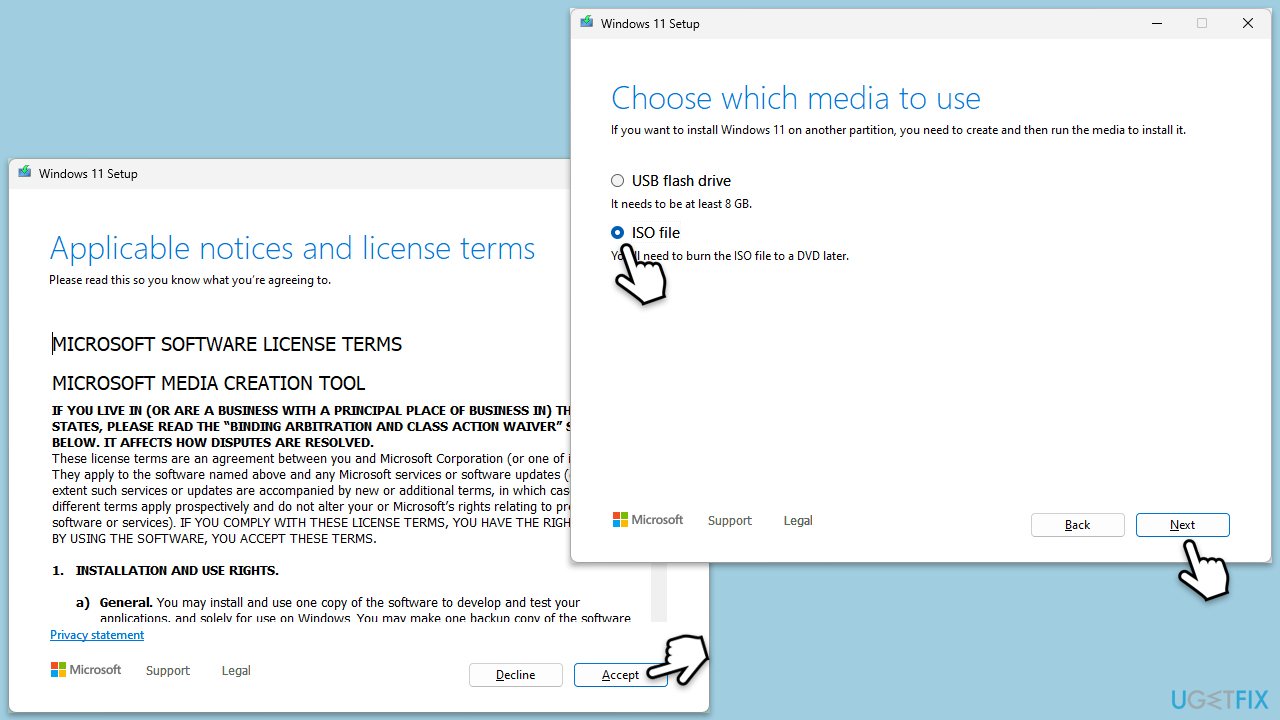
- Visit the official Microsoft website and download Windows 10 installation media (Windows 11 version).
- Double-click the installer, select Yes when UAC shows up, and agree to the terms.
- Select the ISO file and click Next, then follow the instructions to finish the process.
- Right-click on ISO and click Mount.
- Open the location of the ISO, right-click on it, and select Mount.
- Launch the installer.
- Select Upgrade this PC now and click Next.
- Windows will start downloading the needed files.
- Agree to the terms once again and click Next.
- Before installing, ensure you are happy with your choices (otherwise, you can click the Change what to keep option).
- Finally, click Install to begin the upgrade process.
Bottom line
To fix the Windows update error 0x80246001, you can run the built-in Windows Update troubleshooter, check for corrupted system files, and ensure your network connectivity is stable. Additionally, make sure there is enough disk space available and temporarily disable any interfering antivirus software. If these solutions do not resolve the issue, consider using more automatic solutions, such as repairing system files.
Frequently asked questions
The error 0x80246001 typically indicates a problem related to the Windows Update service, often due to issues with the Background Intelligent Transfer Service (BITS) on Windows 10 or Windows 11.
To resolve the error on Windows 11, try resetting the BITS service and clearing the Windows Update cache by running specific commands in the Command Prompt.
Windows 10 users should ensure that their system is fully updated, check for corrupted system files using the System File Checker, and restart the Windows Update services in the Services app.




Report an issue
What's wrong with this guide? We review every report and update or remove content.
Report received — thank you. We'll review and fix it.
You need a free account to submit a report.
Be the first to comment