How to fix
Windows update error 0x8024A005
on Windows
Resolve the Windows update error 0x8024A005 quickly and effectively. Follow our expert-tested guide for Windows 10 and 11, fixed in minutes.

What causes How to fix Windows update error 0x8024A005?
- System file corruption
- Data packet loss during transfer
- Buggy installation
- Unstable internet connection
- Server issues on Microsoft's side
Repairs Windows system files, removes malware, and restores a clean OS state — without reinstalling.
Hello, every I try to apply the newest updates on my Windows 10, I receive an error 0x8024A005. Please help me solve this - I tried restarting the system and waiting, and it did not help.
It's quite common to experience errors when updating Windows, and most users come across them at least once during years of PC usage. The majority of the time, such problems go away on their own as they're usually caused by unstable internet connections or servers on Microsoft's side. This is reflected in the error message, which commonly claims that the process will be repeated in the near future - which typically solves the problem.
In some scenarios, errors can be quite persistent, and users may not be able to update their Windows for a prolonged time period - 0x8024A005 is one of the reported errors to be a major problem among many. The issue usually arises when an automatic or manual process is initiated and affects various versions of Windows.
Though you may not think they are, Windows updates are actually quite important. They often help fix various bugs, improve user experience with additional features or a better UI, patch security vulnerabilities, and more. So, if you're getting the 0x8024A005 error, again and again, take some time to try and fix it.
Unfortunately, this error, like many Windows update errors, does not list any further details about the cause or possible solutions. While it would be helpful if a universal fix could apply to everyone's computer setup, that's often not the case since each machine is unique. Instead, several factors should be taken into account when troubleshooting.
The 0x8024A005 error is often caused by a system file corruption or data packet loss during transfer. Another potential cause of this error is a buggy installation, in which case you can try running a troubleshooter. Whatever the cause of your issue, we have provided solutions for all scenarios below, so make sure to check them all out until one works for you. Before proceeding, we recommend trying an automatic fix using [d1].
Solution 1. Check your system for corruption
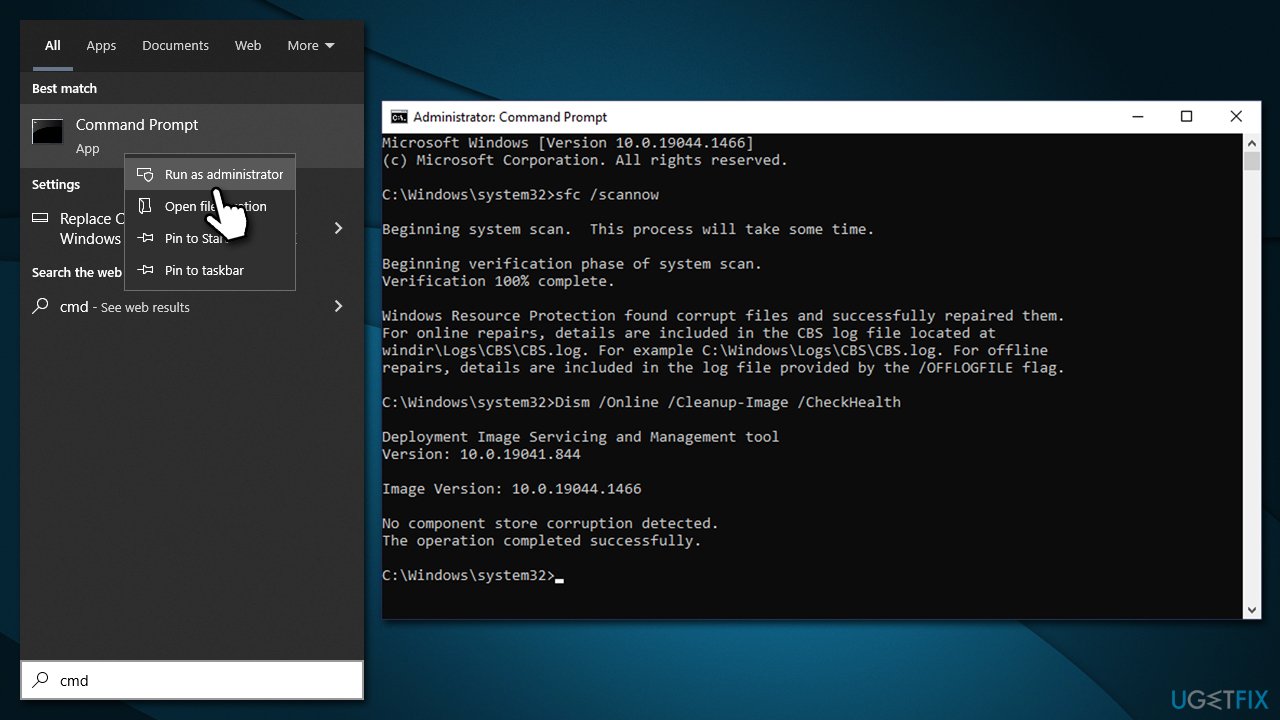
Corrupted system files are among the most common reasons for Windows update failures, so we recommend checking system file integrity with commands via an elevated Command Prompt.
- Type cmd in Windows search
- Right-click on Command Prompt result and select Run as administrator
- When User Account Control shows up, click Yes
- Paste the following command into the new window:
sfc /scannow - Press Enter and wait till the scan is finished
- Once done, run this set of commands, pressing Enter after each:
DISM /Online /Cleanup-Image /CheckHealth
DISM /Online /Cleanup-Image /ScanHealth
DISM /Online /Cleanup-Image /RestoreHealth - Restart your device.
Solution 2. Run the troubleshooter
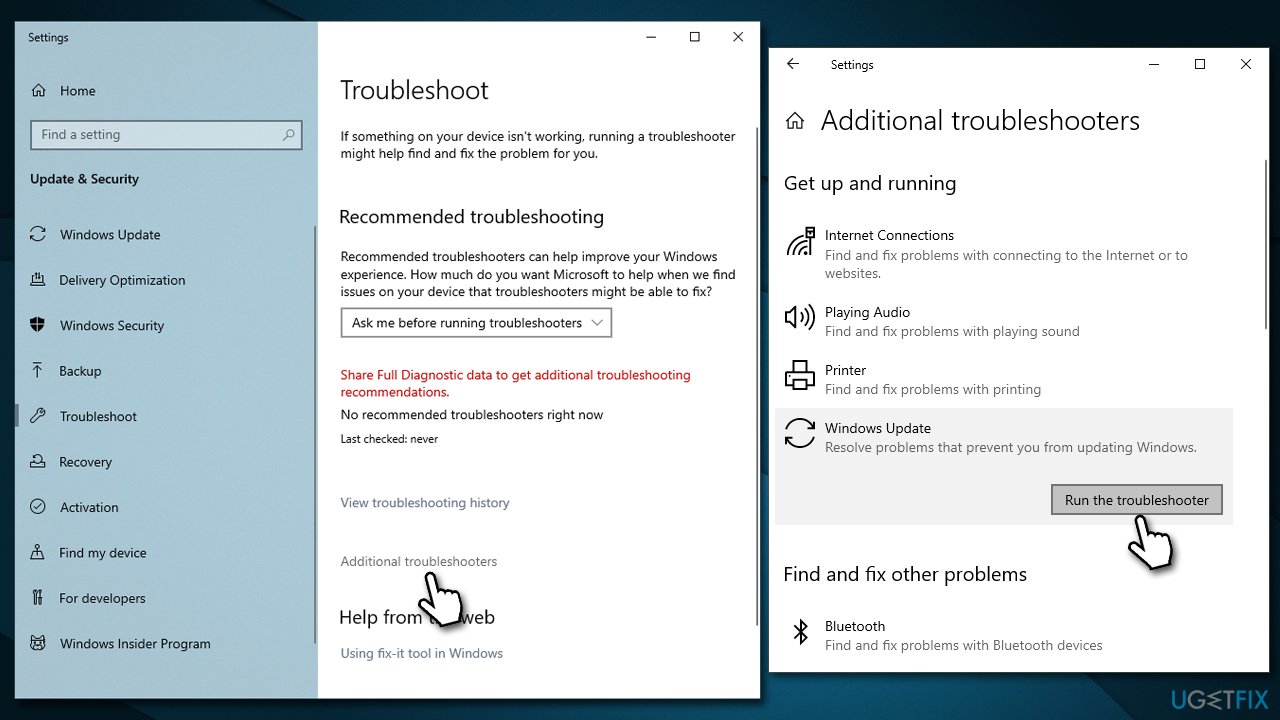
- Type Troubleshoot in Windows search and hit Enter
- Click Additional troubleshooters on the right
- Scroll down to find Windows update and click it
- Click Run the troubleshooter
- Apply the offered suggestions and restart your computer.
Solution 3. Reset Windows Update Components
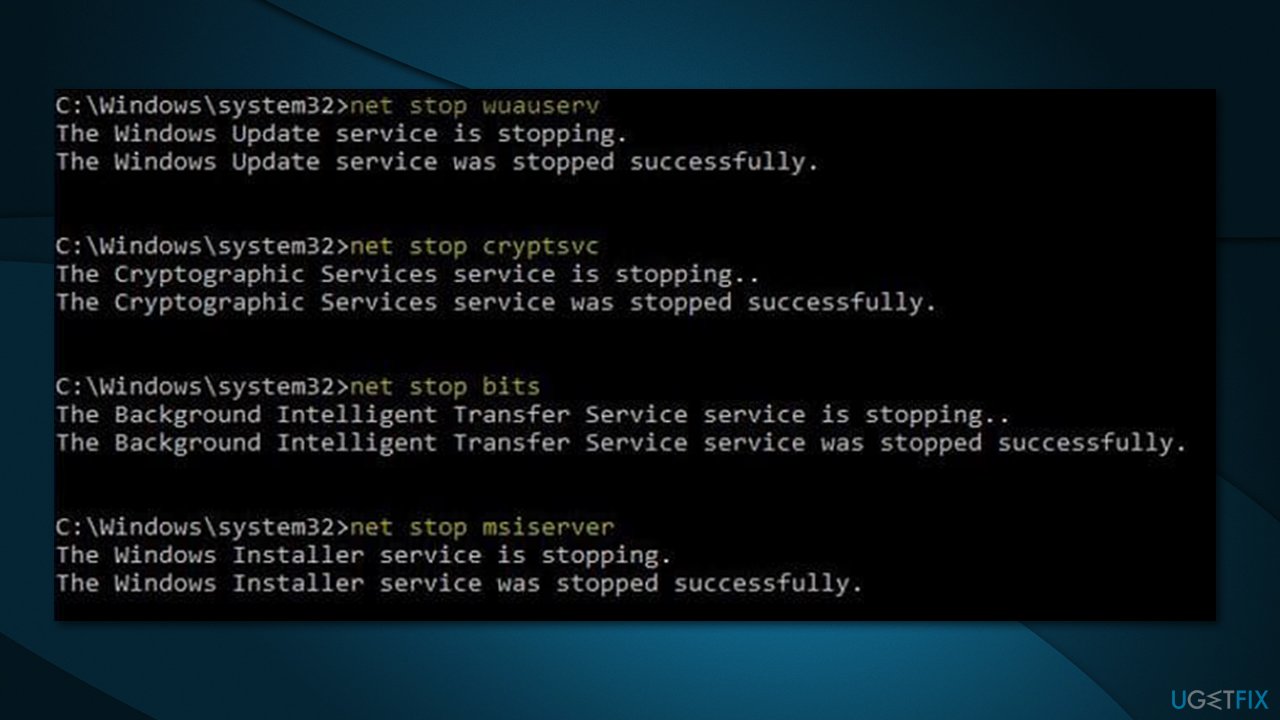
- Open Command Prompt as administrator, as explained previously
- Paste in each of these commands, pressing Enter every time:
net stop bits
net stop wuauserv
net stop appidsvc
net stop cryptsvc
Del “%ALLUSERSPROFILE%\Application Data\Microsoft\Network\Downloader\*.*”
rmdir %systemroot%\SoftwareDistribution /S /Q
rmdir %systemroot%\system32\catroot2 /S /Q
regsvr32.exe /s atl.dll
regsvr32.exe /s urlmon.dll
regsvr32.exe /s mshtml.dll
netsh winsock reset
netsh winsock reset proxy
net start bits
net start wuauserv
net start appidsvc
net start cryptsvc - Restart your machine.
Solution 4. Install the update manually
You can try installing the update manually if automatic process fails to start.
- Type in Updates in Windows search and press Enter
- Select View update history
- Find the update that failed with the 0x8024A005 error and copy its KB number
- Open your browser and go to Microsoft Update Catalog
- Within the search bar, type in the KB number and clicks Search
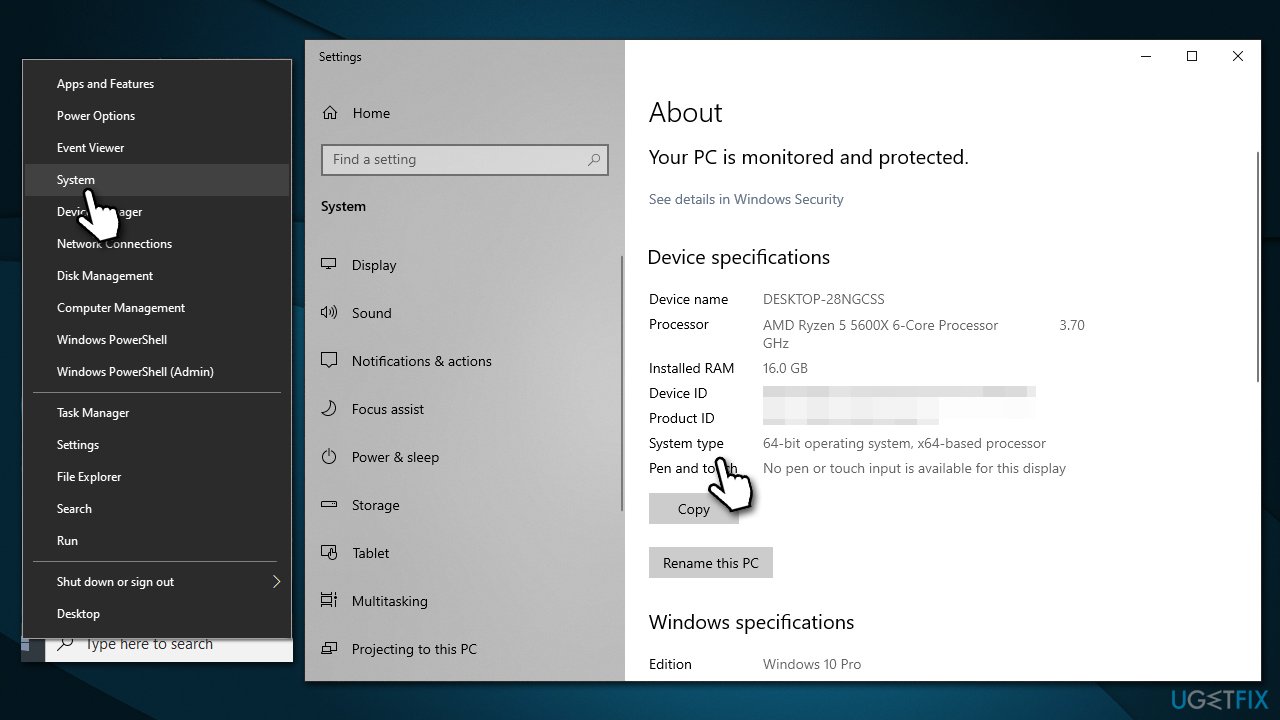
- Find the correct version of the update for your operating system (to check this, right-click on Start and pick System. Under Device specifications and check the System type) and click Download
- Use on-screen guidelines to finish the installation process and restart your device.
Solution 5. Turn off your antivirus software temporarily
Occasionally, security software may get in the way of Windows updates. For instance, it can blacklist one of the servers from which the updates are being obtained. As a result, you should disable or uninstall any third-party anti-malware software you may be using before attempting to perform the update.
Solution 6. Use Media Creation Tool
Remove any third-party antivirus software you may be running before continuing, and unplug any unnecessary devices such as scanners, cameras, printers, etc. Make a copy of your private files as well, just in case (you will get an option to keep them regardless).
- Visit the official Microsoft website and download Windows 10 installation media (Windows 11 version)
- Double-click the installer and select Yes when UAC shows up
- Agree to terms
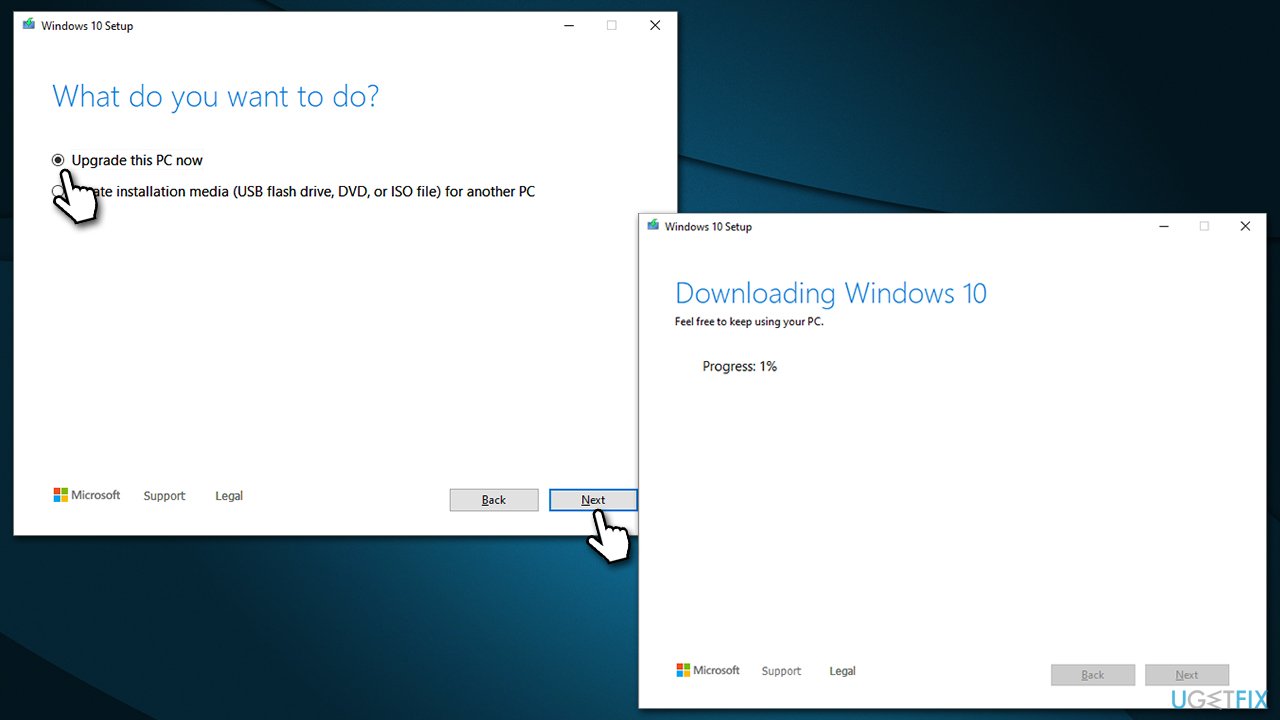
- Select Upgrade this PC now and select Next
- Windows will now download all the necessary files – it might take awhile
- Agree to terms once again and click Next
- Before installing, make sure that you are happy with your choices (otherwise, you can click Change what to keep option)
- Finally, click Install to begin the upgrade process.
Bottom line
To fix the 0x8024A005 error, you can try running a troubleshooter, checking your internet connection, or waiting for server issues to resolve. If these solutions do not work, consider exploring additional troubleshooting steps provided in the guide.
Frequently asked questions
The error 0x8024A005 typically occurs due to corrupted update files or issues with the Windows Update service settings in Windows 10 and Windows 11.
To fix the error, try running the Windows Update Troubleshooter, resetting Windows Update components, or performing a System File Check using the Command Prompt.
To minimize the chances of encountering the 0x8024A005 error, ensure your Windows 10 system is always updated and consider regular maintenance tasks like disk cleanup and checking for system file integrity.




Report an issue
What's wrong with this guide? We review every report and update or remove content.
Report received — thank you. We'll review and fix it.
You need a free account to submit a report.
Be the first to comment