How to fix
Windows update error 0x8024a204
on Windows
Fix Windows update error 0x8024a204 quickly with expert-tested solutions. Get your system updated seamlessly—zero traces left.

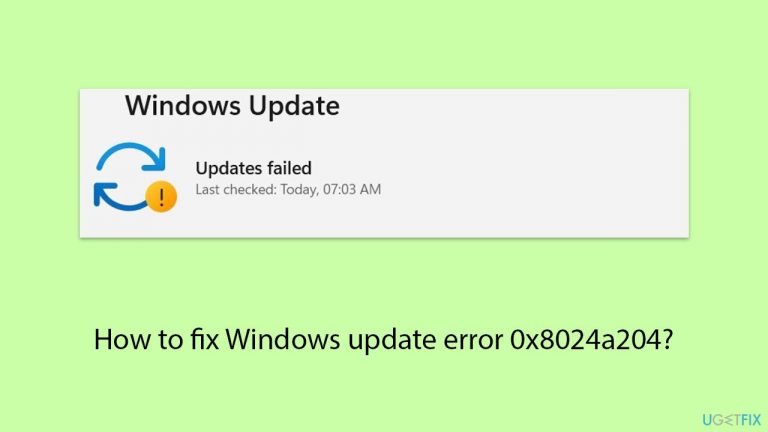
What causes How to fix Windows update error 0x8024a204?
- Conflicts with third-party security software
- Corrupted system files
- Corrupted Windows Update components
- Limited disk space
Repairs Windows system files, removes malware, and restores a clean OS state — without reinstalling.
Hey. I was wondering if you could help me deal with the Windows update error 0x8024a204 that I have been getting for a while now. It seems like the update process proceeds well up to around 70-80%, then hangs, and produces the error instead of finishing. Is there anything I can do to resolve this? Thanks.
Windows updates are essential because they guarantee that your system is efficient, safe, and equipped with the newest features. However, a number of errors could happen throughout the update process, interfering with this crucial maintenance.
These interruptions prevent updates related to security, features, and cumulative enhancements from being implemented, which can compromise system performance and security. One common error encountered is 0x8024a204.
Understanding error 0x8024a204
Error 0x8024a204 typically occurs during the Windows update process. This error indicates that there has been an issue with the update service, preventing the system from proceeding with the updates. It usually appears when Windows Update components are not responding or when there is a conflict within the system preventing the normal update process.
Reasons behind error 0x8024a204
The occurrence of the 0x8024a204 error could be due to several factors. It may arise from conflicts with third-party security software, which can interfere with the smooth operation of Windows updates.
Another possible cause is corrupted system files or Windows Update components that halt the update process. Limited disk space can also trigger this error, as sufficient space is necessary for downloading and applying new updates.
Resolving the error 0x8024a204
To address this issue, you can start by running the Windows Update troubleshooter, which can automatically find and fix problems with Windows Update. Resetting the Windows Update components manually might also help to clear any stuck files or configurations.
Additionally, repairing corrupted files using system tools and clearing obsolete files from the disk can also be beneficial. If you have third-party security software installed, temporarily disabling it might resolve the conflict with the Windows Update process. You will find the instructions on how to fix the 0x8024a204 error below.
As an alternative, think about employing a maintenance and repair tool [d1] for ongoing problems. This tool is especially helpful for fixing corrupted system files, broken DLLs or registries, and more severe problems like BSODs. This tool can be invaluable when it's challenging to pinpoint the exact cause of problems.

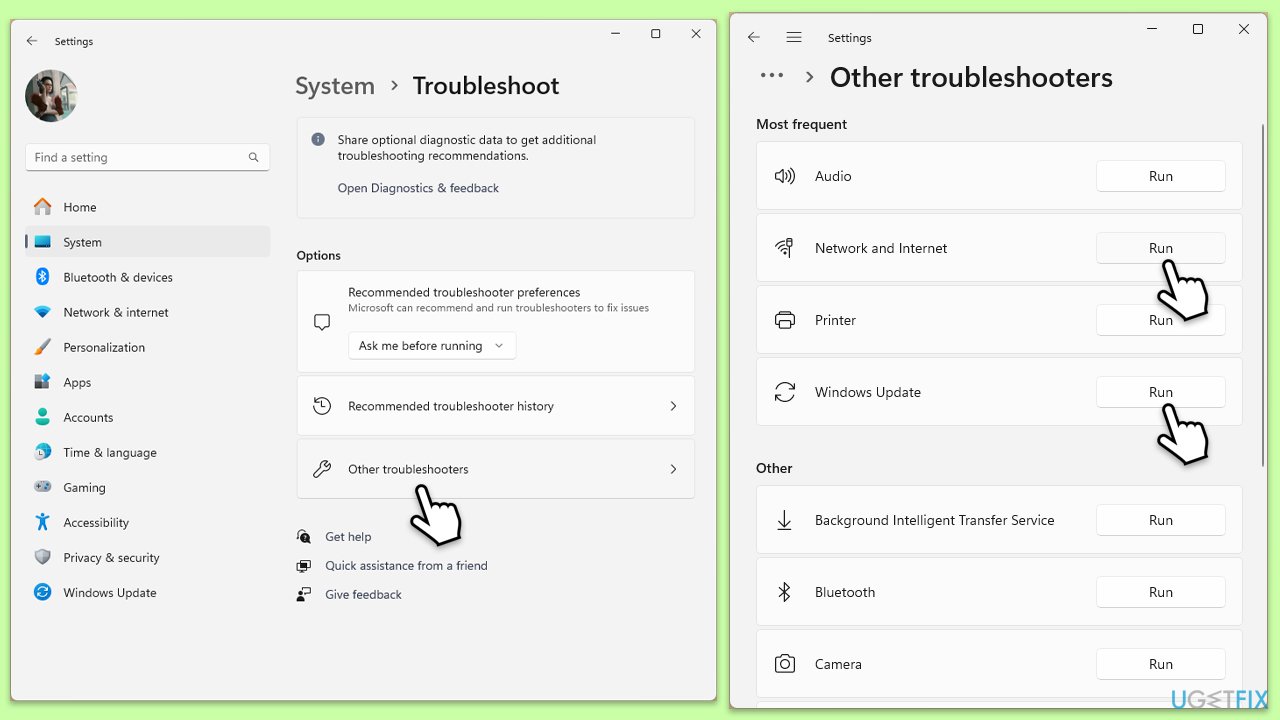
Fix 1. Run Windows Update troubleshooter
This tool automatically diagnoses and fixes problems with Windows Update, which can resolve issues preventing updates from being installed.
- Type in Troubleshoot in Windows search and hit Enter.
- Go to Additional Troubleshooters/Other troubleshooters.
- Find the Windows Update option and click Run the troubleshooter/Run.
- Wait till the scan is finished, and then apply the suggested fixes.
- Restart your device.
Fix 2. Check relevant services
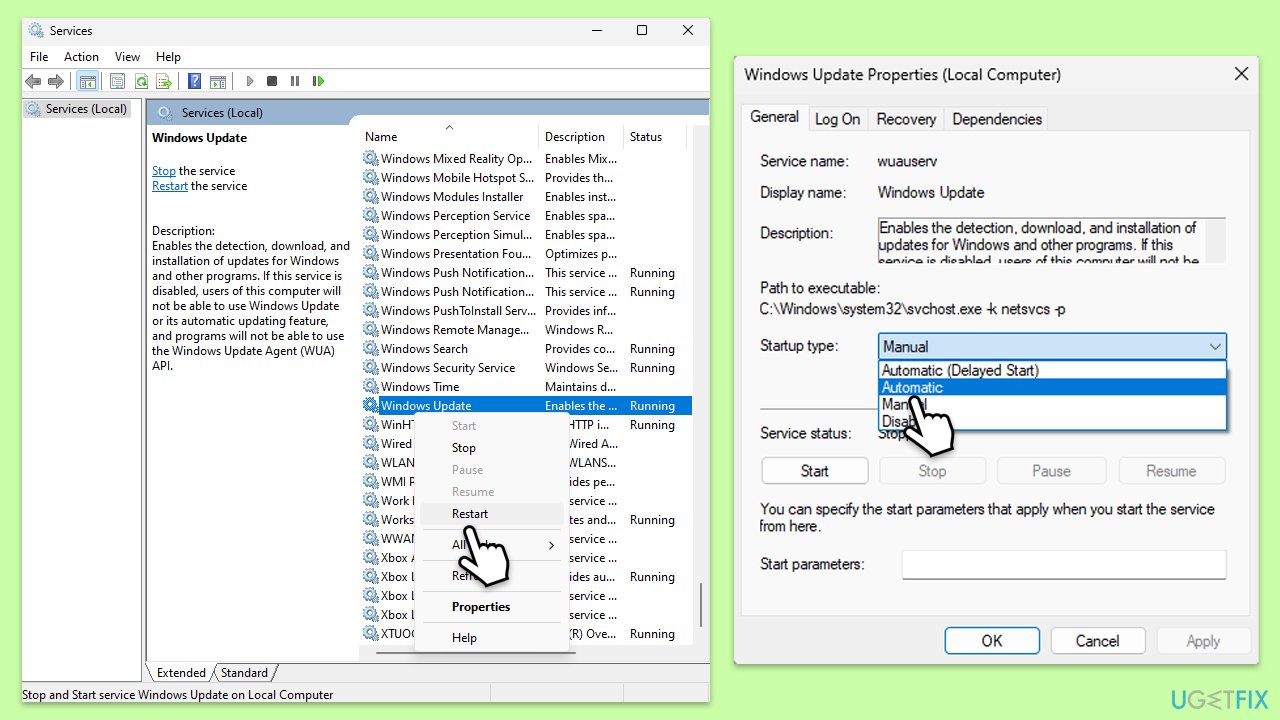
Ensures that essential services for Windows Update are running properly, as these services need to be active to download and install updates.
- Type in Services in Windows search and press Enter.
- Scroll down to locate Windows update.
- If it is already running, right-click and pick Restart.
- If the service is not running, double-click it, and select Automatic under the Startup type from the drop-down menu.
- Click Start, Apply, and OK.
- Perform the same steps with Background Intelligent Transfer Service (BITS) and Cryptographic services.
Fix 3. Fix corrupted files
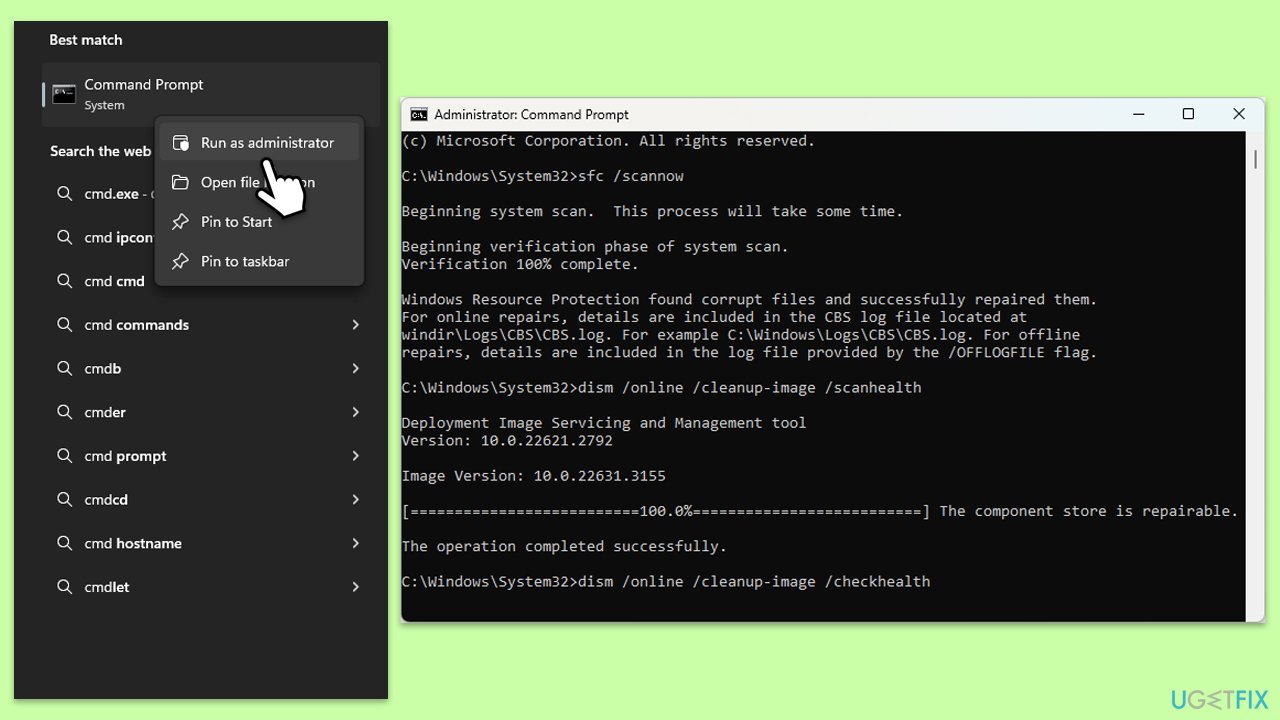
SFC and Deployment DISM can repair Windows system files and restore system health, potentially fixing update issues.
- Type cmd in Windows search.
- Right-click on Command Prompt and pick Run as administrator.
- User Account Control (UAC) will ask whether you want to allow changes - click Yes.
- Use the following command lines, pressing Enter after each:
sfc /scannow
DISM /Online /Cleanup-Image /CheckHealth
DISM /Online /Cleanup-Image /ScanHealth
DISM /Online /Cleanup-Image /RestoreHealth
(Note: if you get an error executing this last command, add /Source:C:\RepairSource\Windows /LimitAccess to it and try again). - Restart your computer.
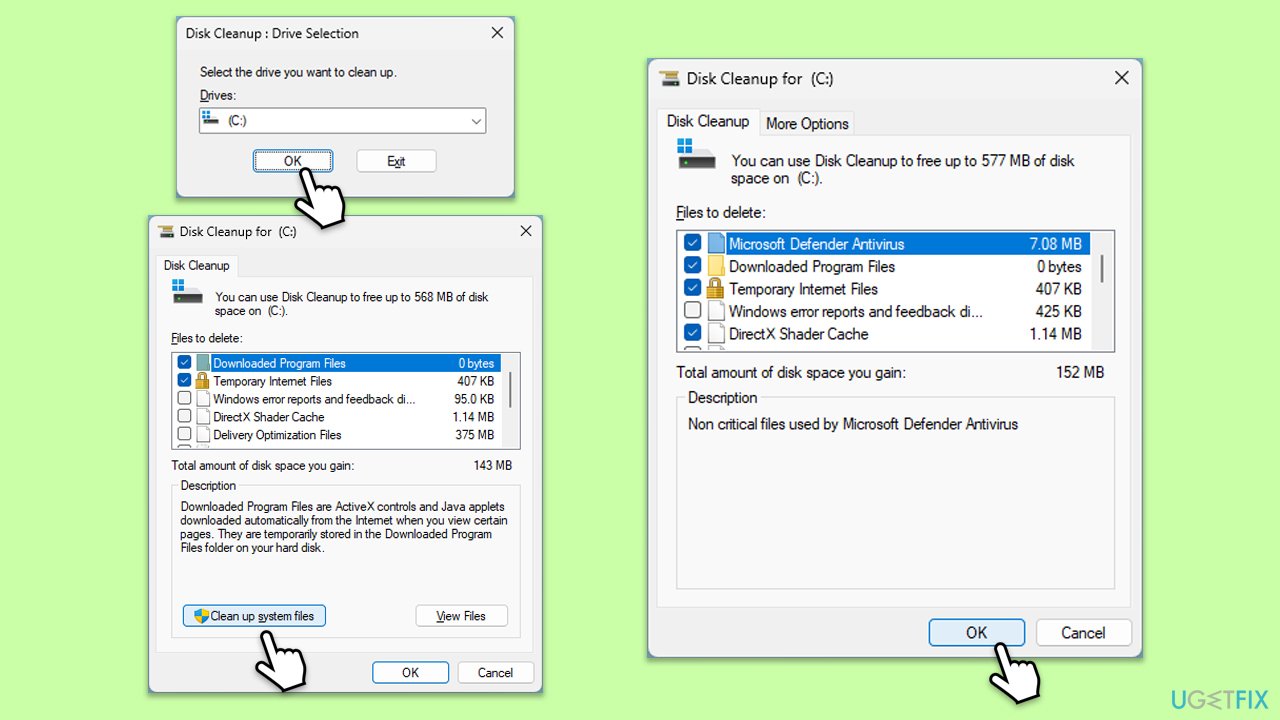
Fix 4. Perform Disk Cleanup
Clear space on your hard drive by removing old and unnecessary files, which can help ensure there is enough space for updates.
- Open the Windows search bar and type Disk Cleanup. Press Enter to open the Disk Cleanup utility.
- In the Disk Cleanup window, select the drive where your Windows operating system is installed (usually drive C:) and click OK.
- Click Clean up system files.
- Select the drive again and click OK.
- In the list of files that can be cleaned up, select the largest portions of data, such as Temporary Internet Files, Windows Update, Temporary Files, and others.
- Click OK to begin the cleanup process.
Fix 5. Install the update manually
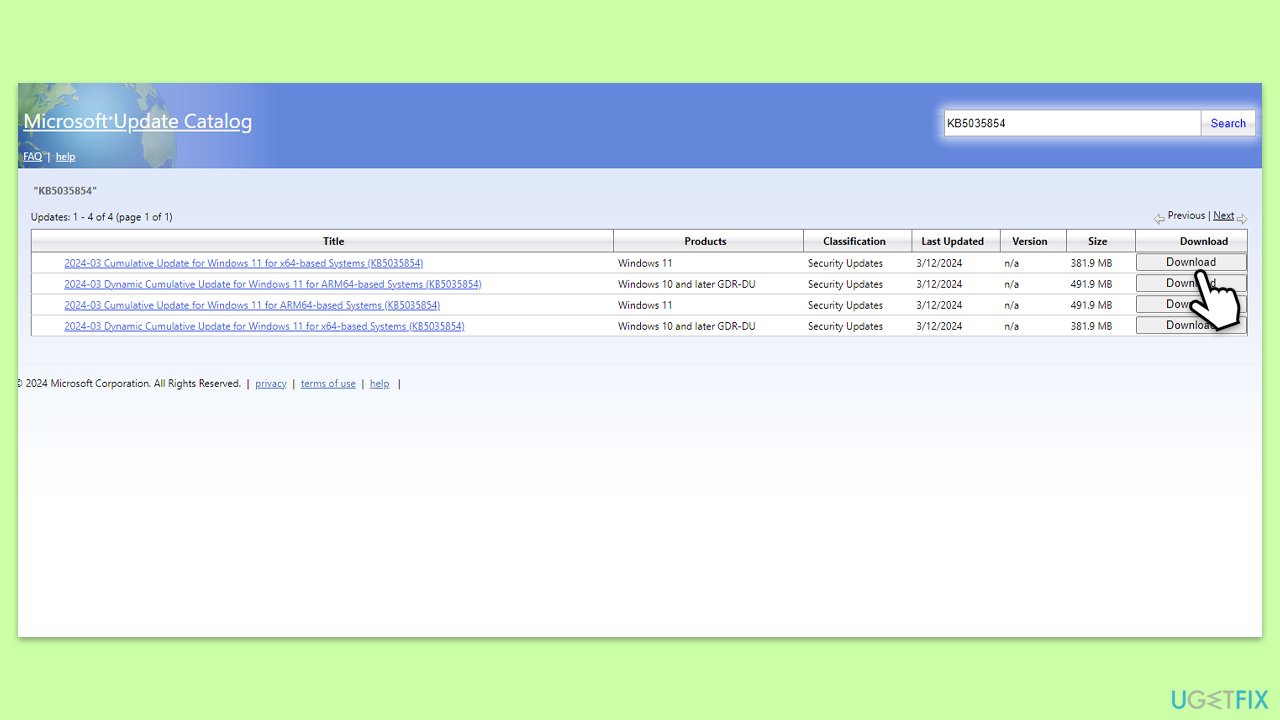
Downloading and installing the update manually can bypass issues that prevent automatic updates.
- Type in Updates in Windows search and press Enter.
- Select View update history.
- Find the update that failed with the 0x8024a204 error and copy its KB number.
- Open your browser and go to Microsoft Update Catalog.
- Within the search bar, type in the KB number and clicks Search.
- Find the correct version of the update for your operating system (to check this, right-click on Start and pick System. Under Device specifications and check the System type) and click Download.
- Use on-screen guidelines to finish the installation process and restart your system.
Fix 6. Reset Windows Update components
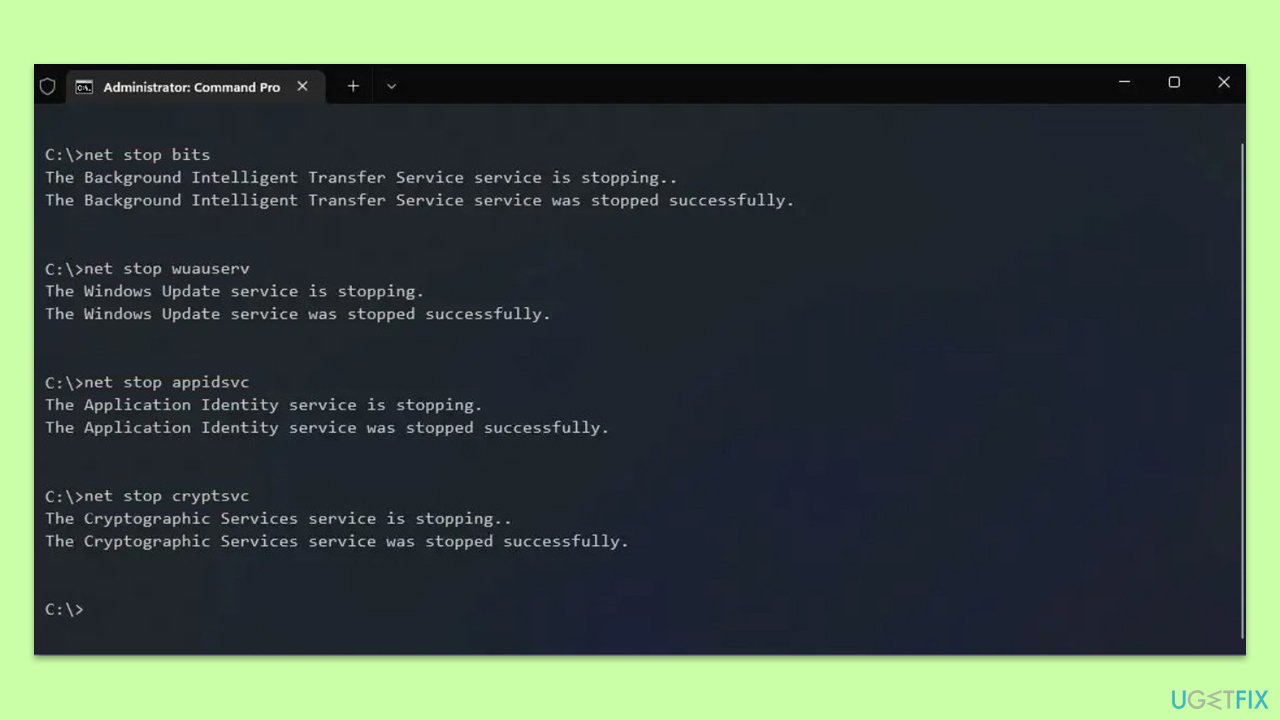
Resetting these components clears out any stuck files or settings, essentially refreshing the entire update mechanism.
- Open Command Prompt as administrator.
- Type the following commands, pressing Enter after each:
- net stop bits
- net stop wuauserv
- net stop appidsvc
- net stop cryptsvc
- Del “%ALLUSERSPROFILE%\Application Data\Microsoft\Network\Downloader\*.*”
- rmdir %systemroot%\SoftwareDistribution /S /Q
- rmdir %systemroot%\system32\catroot2 /S /Q
- regsvr32.exe /s atl.dll
- regsvr32.exe /s urlmon.dll
- regsvr32.exe /s mshtml.dll
- netsh winsock reset
- netsh winsock reset proxy
- net start bits
- net start wuauserv
- net start appidsvc
- net start cryptsvc
- Close the Command Prompt and restart your system.
Fix 7. Use Media Creation Tool
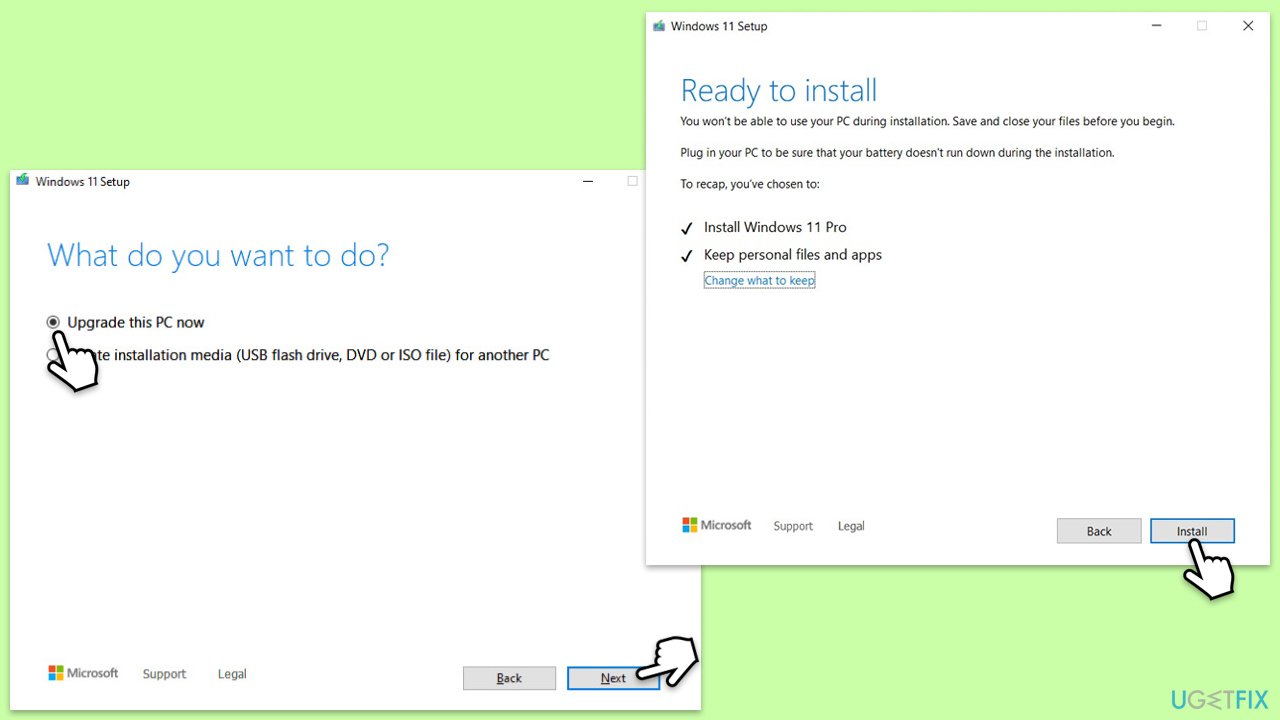
This tool can help you perform an upgrade or reinstallation of Windows, which can resolve deeper operating system issues affecting updates.
- Visit the official Microsoft website and download Windows 10 installation media (Windows 11 version).
- Double-click the installer, select Yes when UAC shows up, and agree to the terms.
- Select Upgrade this PC now and click Next.
- Windows will start downloading the needed files.
- Agree to the terms once again and click Next.
- Before installing, make sure that you are happy with your choices (otherwise, you can click Change what to keep option).
- Finally, click Install to begin the upgrade process.
Bottom line
To resolve the error 0x8024a204, you can run the Windows Update troubleshooter, reset the Windows Update components, and repair corrupted files. Additionally, consider temporarily disabling any third-party security software. If these solutions do not work, you may want to employ a maintenance and repair tool.
Frequently asked questions
The error 0x8024a204 typically occurs due to issues with the Windows Update service, corrupted system files, or conflicts with third-party software.
You can troubleshoot this error by running the Windows Update Troubleshooter, resetting the Windows Update components, or performing a System File Check (SFC) scan.
Yes, manually resetting the Windows Update components is a safe method to resolve the error on Windows 10 and Windows 11, but ensure to follow the correct steps carefully.




Report an issue
What's wrong with this guide? We review every report and update or remove content.
Report received — thank you. We'll review and fix it.
You need a free account to submit a report.
Be the first to comment