How to fix
Windows update error 0x8024A205
on Windows
Resolve Windows update error 0x8024A205 efficiently with proven solutions. Get your Windows 10 or 11 system up and running smoothly. Expert-tested.

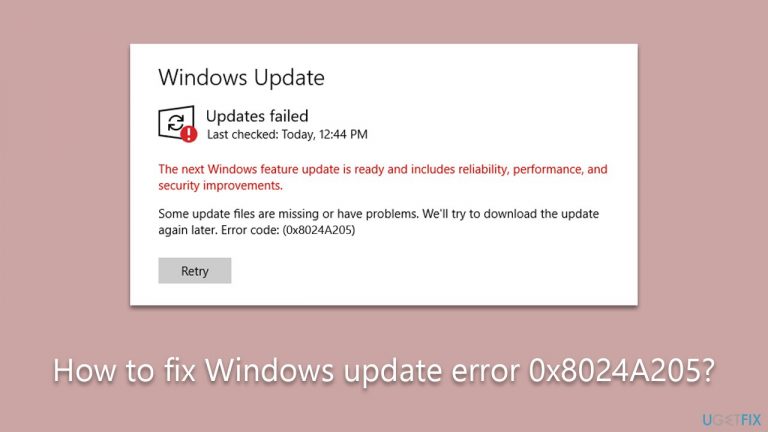
What causes How to fix Windows update error 0x8024A205?
- System file corruption
- Incomplete previous updates
- Network-related issues
- Unexpected conditions during update installation
Repairs Windows system files, removes malware, and restores a clean OS state — without reinstalling.
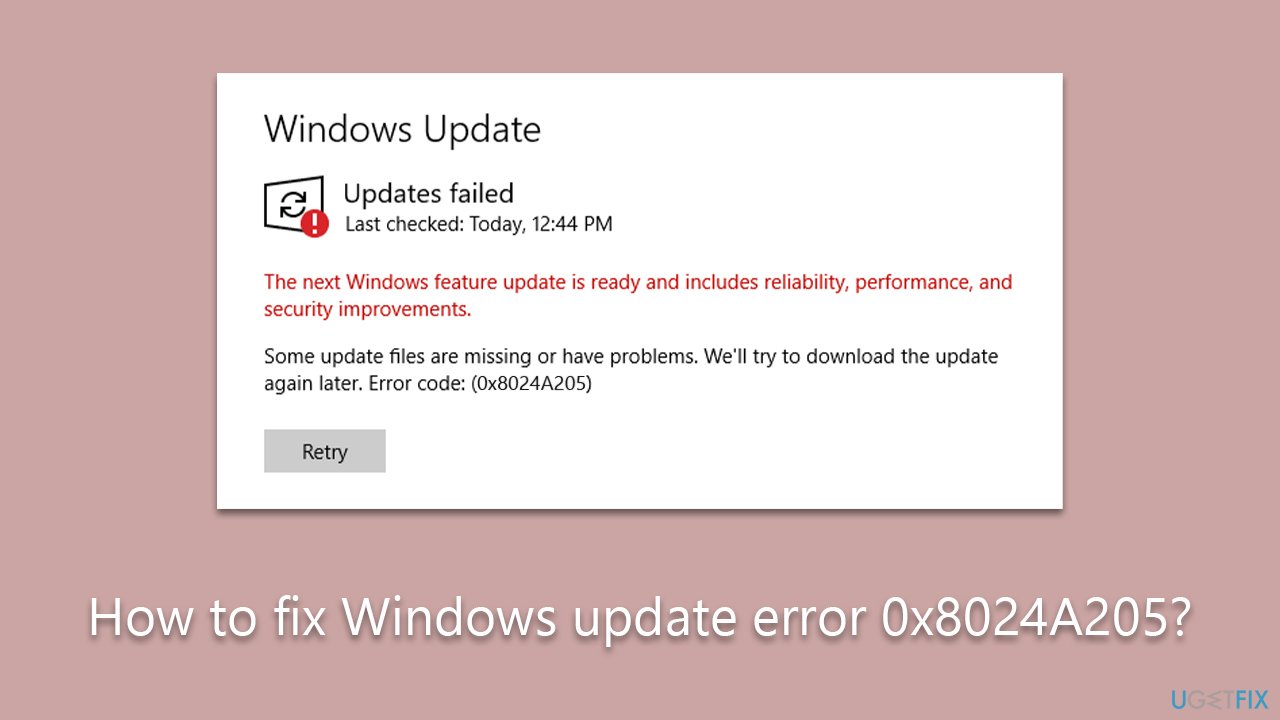
So I have used Windows 10 laptop for a few years now and never had nay problems. Yesterday, a Windows update started, which to my surprise, failed with error code 0x8024A205. Are there any ways to fix it because it doesn't seem like it's going away on its own?
Windows updates, an integral part of the Microsoft ecosystem, are released to improve the system’s security, performance, and functionality. Microsoft typically ships these updates on "Patch Tuesday," the second (and sometimes fourth) Tuesday of every month. These updates come in various forms, including security, critical, service packs, and feature updates, each designed to serve a specific purpose and enhance system operability.
Windows updates are invaluable in ensuring that your system runs smoothly while also preventing potential security vulnerabilities that could be exploited by cybercriminals. They ensure that the operating system stays current and compatible with new hardware and software applications. Moreover, they often include patches for software bugs and issues that users may encounter while using the system.
However, despite their usefulness, installing updates can sometimes trigger issues. One common problem encountered by users is the Windows Update error 0x8024A205. This error typically occurs when Windows attempts to install an update but encounters an unexpected condition. Possible causes range from system file corruption and incomplete previous updates to network-related issues. This error prevents the system from successfully installing the latest updates, potentially leaving the system vulnerable.
When faced with the Windows Update error 0x8024A205, it is essential to diagnose the root cause and address it promptly to ensure that the system remains updated and secure. Detailed troubleshooting steps will be provided further below to guide users through the process of fixing this error.
In conclusion, while Windows updates are vital to system security and performance, occasional errors such as 0x8024A205 can create hiccups. Utilizing PC repair software [d1] can often help diagnose and resolve these issues. Such software helps maintain the health and performance of your PC and also assists in mitigating potential issues that could interfere with Windows updates.
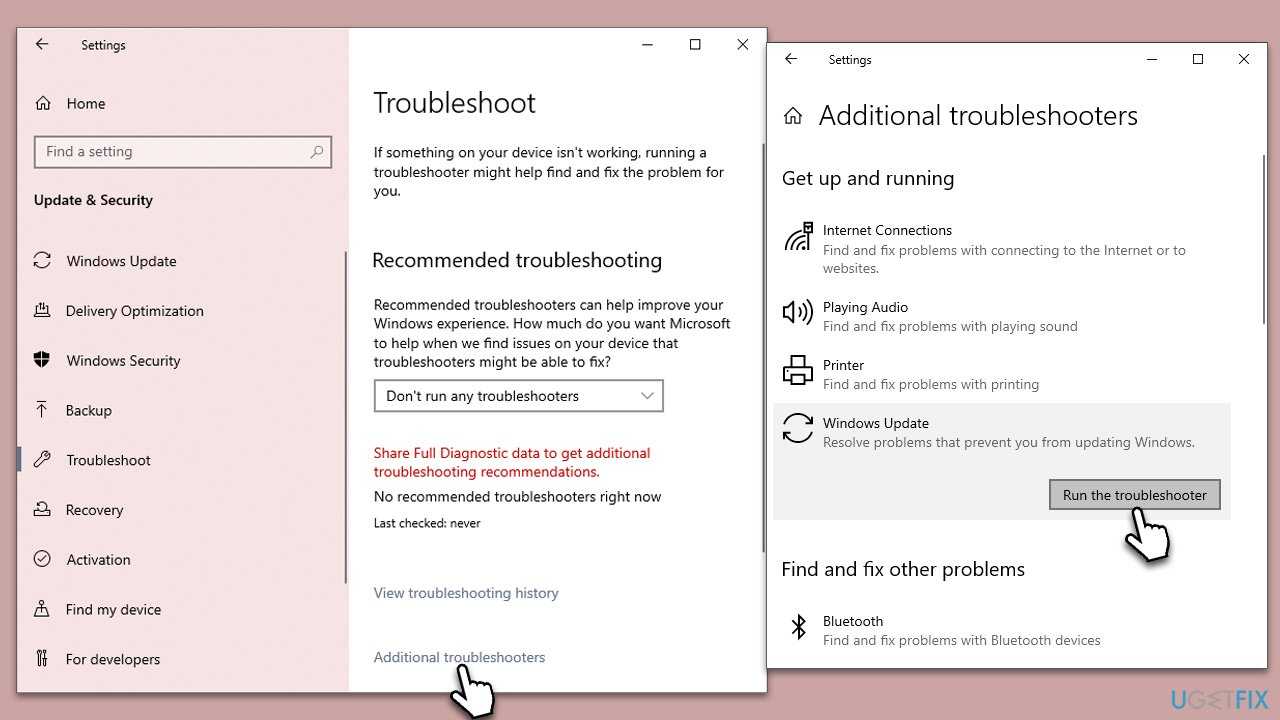
Method 1. Start with troubleshooter
Running the Windows Update Troubleshooter is a straightforward solution that can automatically diagnose and resolve common issues that may prevent successful updates, such as the error 0x8024A205.
- Type Troubleshoot in Windows search and press Enter.
- Select Additional troubleshooters/Other troubleshooters.
- Find Windows Update from the list and select Run the troubleshooter/Run.
- Wait till the process is finished and apply the offered fixes.
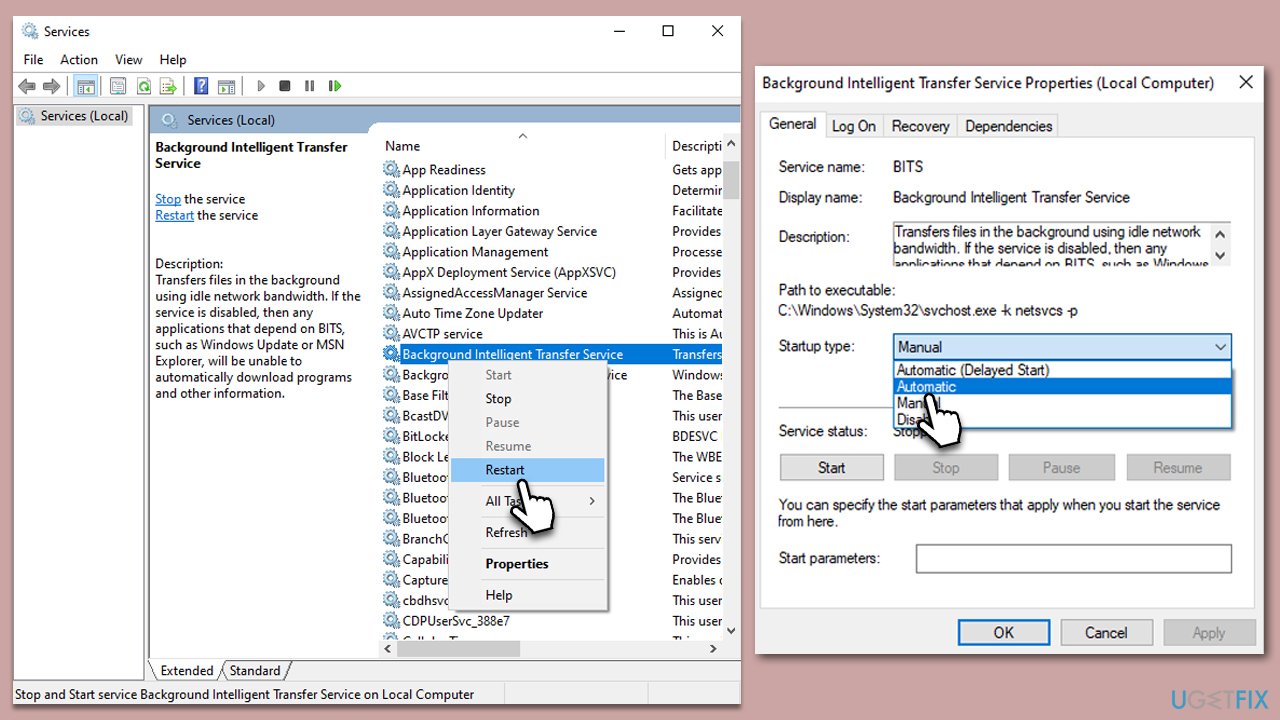
Method 2. (Re)start relevant services
Several critical services need to be active for successful Windows updates, and if they are functioning, occasionally restarting them can resolve potential issues.
- Type in Services in Windows search and press Enter.
- Locate Background Intelligent Transfer Service (BITS).
- If it is already running, right-click and select Restart.
- if the service is not running, double-click it, select Automatic under the Startup type from the drop-down menu
- Click Start, Apply, and OK.
- Repeat the process with the Windows Update service, Cryptographic service, Credential Manager service, and Windows Installer service.
Method 3. Run SFC and DISM
Check the system for corrupted files as follows:
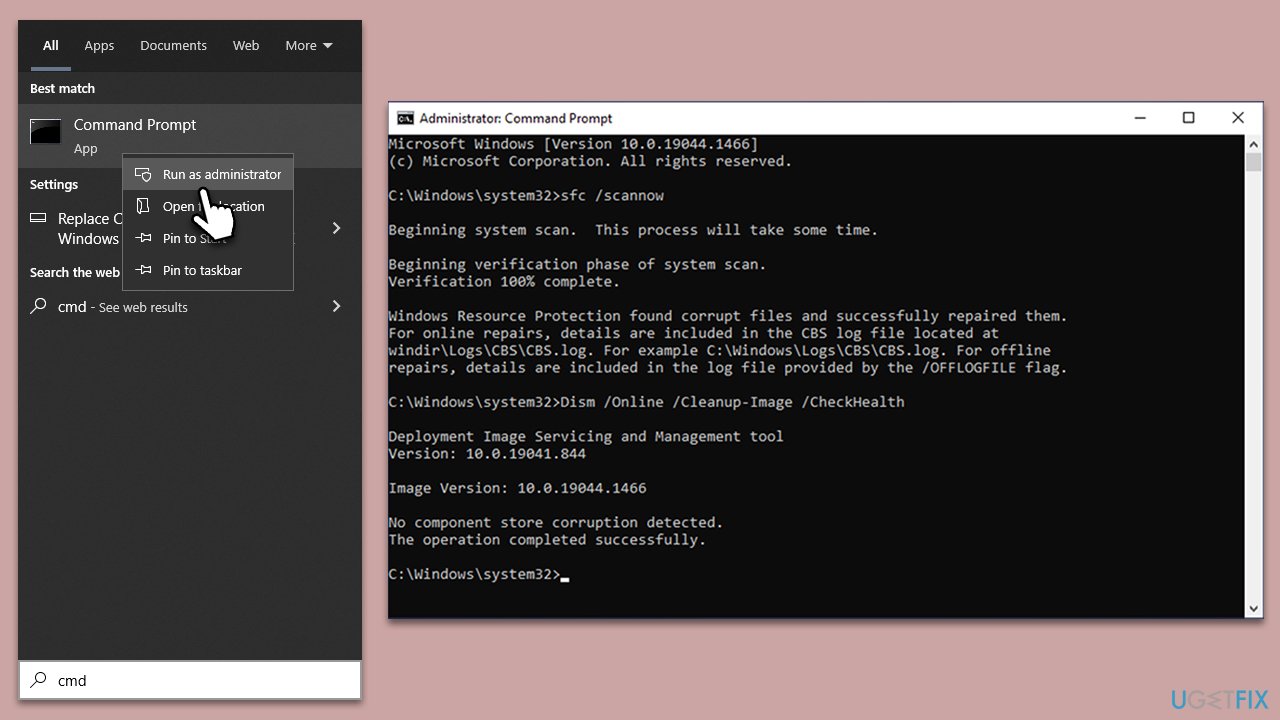
- Type cmd in Windows search.
- Right-click on Command Prompt and select Run as administrator.
- When the User Account Control window pops up, click Yes.
- Use the following command and press Enter:
sfc /scannow - After the SFC scan is complete, use the following commands, pressing Enter after each:
DISM /Online /Cleanup-Image /CheckHealth
DISM /Online /Cleanup-Image /ScanHealth
DISM /Online /Cleanup-Image /RestoreHealth - Restart your system.
Method 4. Install manually
Installing the failing update manually can be a way to bypass the error:
- Type in Updates in Windows search and press Enter.
- Select View update history.
- Find the update that failed with the 0x8024A205 error and copy its KB number.
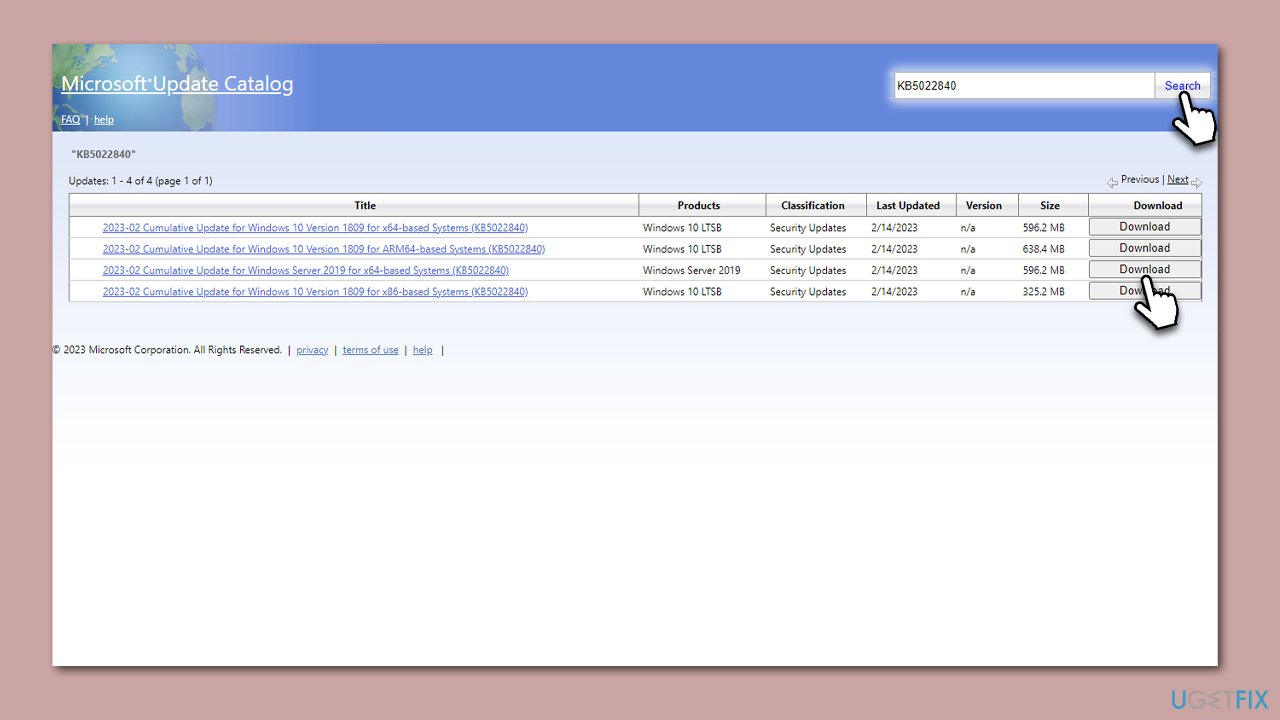
- Open your browser and go to Microsoft Update Catalog.
- Within the search bar, type in the KB number and clicks Search.
- Find the correct version of the update for your operating system (to check this, right-click on Start and pick System. Under Device specifications and check the System type) and click Download.
- Use on-screen guidelines to finish the installation process and restart your computer.
Method 5. Reset Windows update components
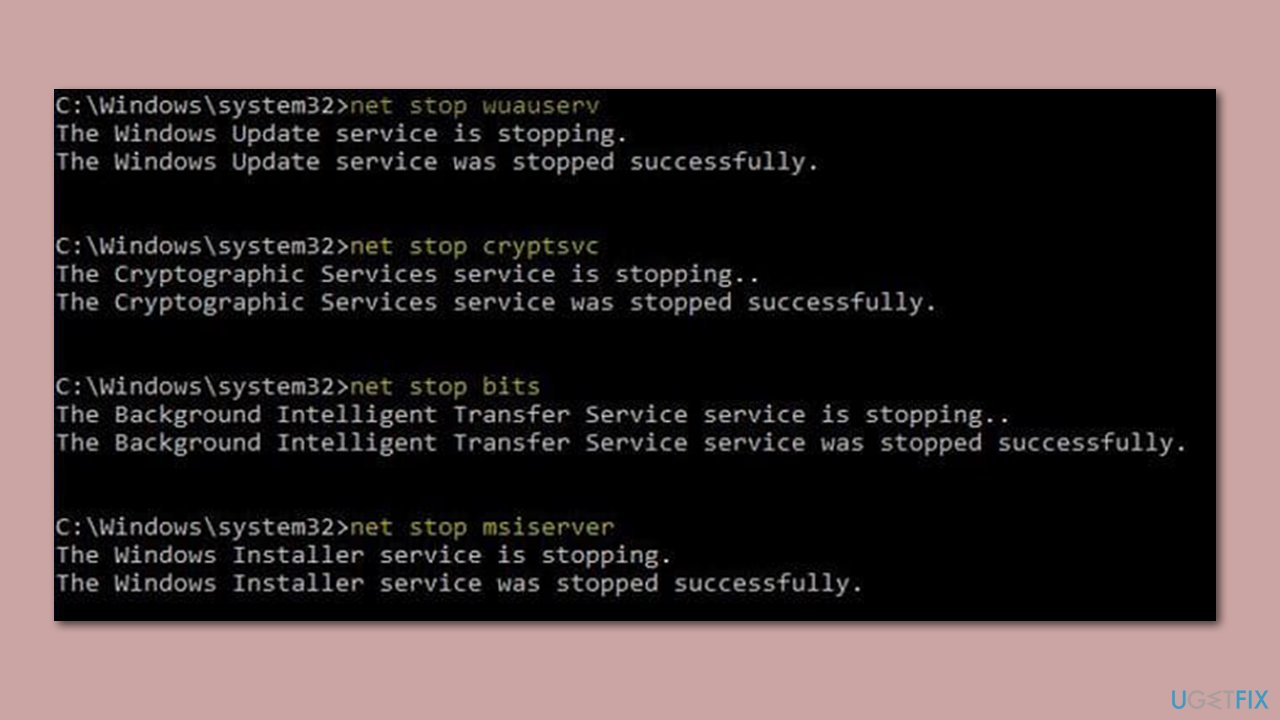
- Open Command Prompt as administrator.
- Type the following commands one by one in Command Prompt and press Enter after each:
net stop wuauserv
net stop cryptSvc
net stop bits
net stop msiserver
Ren C:\Windows\SoftwareDistribution SoftwareDistribution.old
Ren C:\Windows\System32\catroot2 Catroot2.old - When these commands are executed, the last thing to do is to re-enable relevant services:
net start wuauserv
net start cryptSvc
net start bits
net start msiserver - Reboot your device.
Method 6. Use Media Creation Tool
You can employ Media Creation Tool to help you update Windows to the latest version.
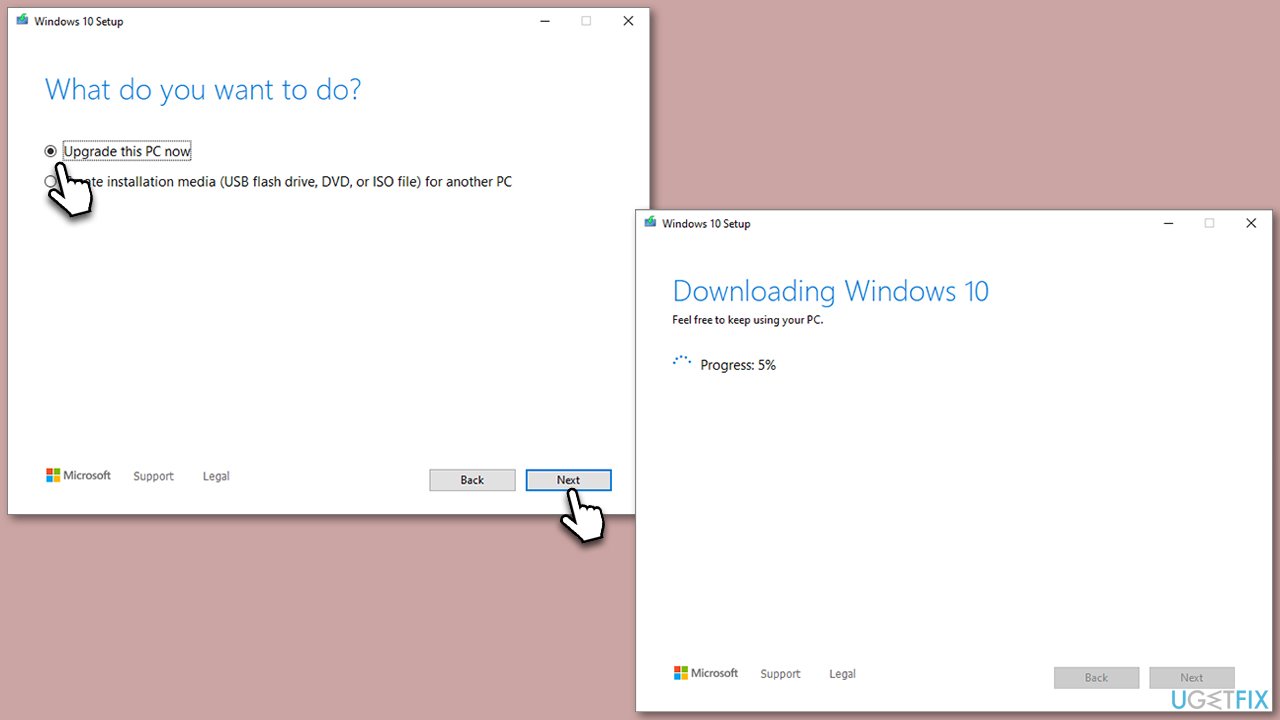
- Visit the official Microsoft website and download Windows 10 installation media (Windows 11 version).
- Double-click the installer, select Yes when UAC shows up, and agree to the terms.
- Select Upgrade this PC now and click Next.
- Windows will start downloading the needed files.
- Agree to the terms once again and click Next.
- Before installing, make sure that you are happy with your choices (otherwise, you can click Change what to keep option).
- Finally, click Install to begin the upgrade process.
Bottom line
Windows updates are essential for maintaining system security and performance, but errors like 0x8024A205 can occur. Troubleshooting steps may include using PC repair software to diagnose and resolve issues, as well as checking for system file integrity. If none of these solutions work, further investigation may be necessary.
Frequently asked questions
The error 0x8024A205 typically indicates a problem with the Windows Update service or a conflict with installed updates on Windows 10 or Windows 11.
To fix the error, try running the Windows Update Troubleshooter, which can help identify and resolve issues with the update process on Windows 11.
Yes, you can manually reset the Windows Update components by stopping the Windows Update service, deleting the SoftwareDistribution folder, and then restarting the service.




Report an issue
What's wrong with this guide? We review every report and update or remove content.
Report received — thank you. We'll review and fix it.
You need a free account to submit a report.
Be the first to comment