How to fix
Windows update error 0x8024B102
on Windows
Resolve Windows update error 0x8024B102 effortlessly with expert-tested solutions. Get your updates running smoothly again, fixed in minutes!

What causes How to fix Windows update error 0x8024B102?
- Corrupted system files
- Incomplete update components
- Misconfigured update settings
- Disabled background services
- Conflicts with antivirus programs
- Insufficient disk space
Repairs Windows system files, removes malware, and restores a clean OS state — without reinstalling.
I was unable to install the latest Windows updates so I was wondering if you could help me with that. The error code shown is 0x8024B102. Some tips on what to do would be nice, as I am not very sharp when it comes to PCs.
Windows update error 0x8024B102 is common at times of installation of updates and hinders your system from successfully updating. Users note that this error forces the system to revert back to the previous version when an update was not successful, frustrating one's trying to get Windows updated.
The 0x8024B102 error mostly occurs due to corrupted system files, incomplete update components, or misconfigured update settings. This error may also be caused by some disabled background services that are needed to perform the update, like the Windows Update services. Conflicts with antivirus programs can cause this issue, along with problems with the Windows Update cache or a lack of available disk space in which to install the update.
Solutions to the 0x8024B102 error include running the Windows Update Troubleshooter, repairing system files via SFC and DISM scans, and manually clearing the Windows Update cache and updating its components. Others have fixed it by disconnecting all the unnecessary external devices and ensuring that system drivers are updated. Should these steps fail, one may want to try the Microsoft Update Catalog update or use the offline update.
This will, in turn, help the error get fixed from the very root using a trusted [d1] repair tool, which can help speed up the update process much more efficiently.
Fix 1. Run the Windows Update troubleshooter
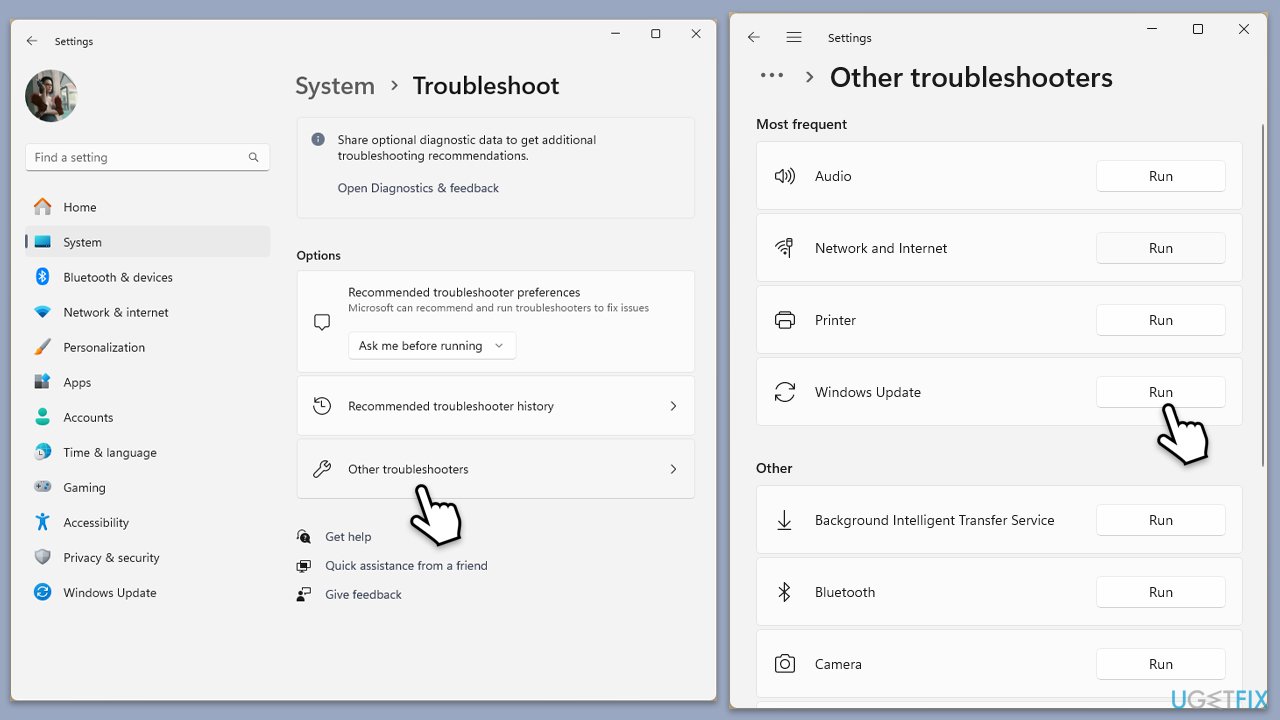
The built-in Windows Update Troubleshooter can detect and fix common issues that cause the 0x8024B102 error.
- Type Troubleshoot into the Windows search bar and press Enter.
- Next, on the right side of the window, select Additional troubleshooters/Other troubleshooters.
- Scroll down to locate the Windows update option and click on it.
- Click on Run the troubleshooter/Run and allow the process to complete.
- Once it is finished, implement any recommended fixes and restart your computer.
Fix 2. Run System File Checker (SFC) and DISM commands
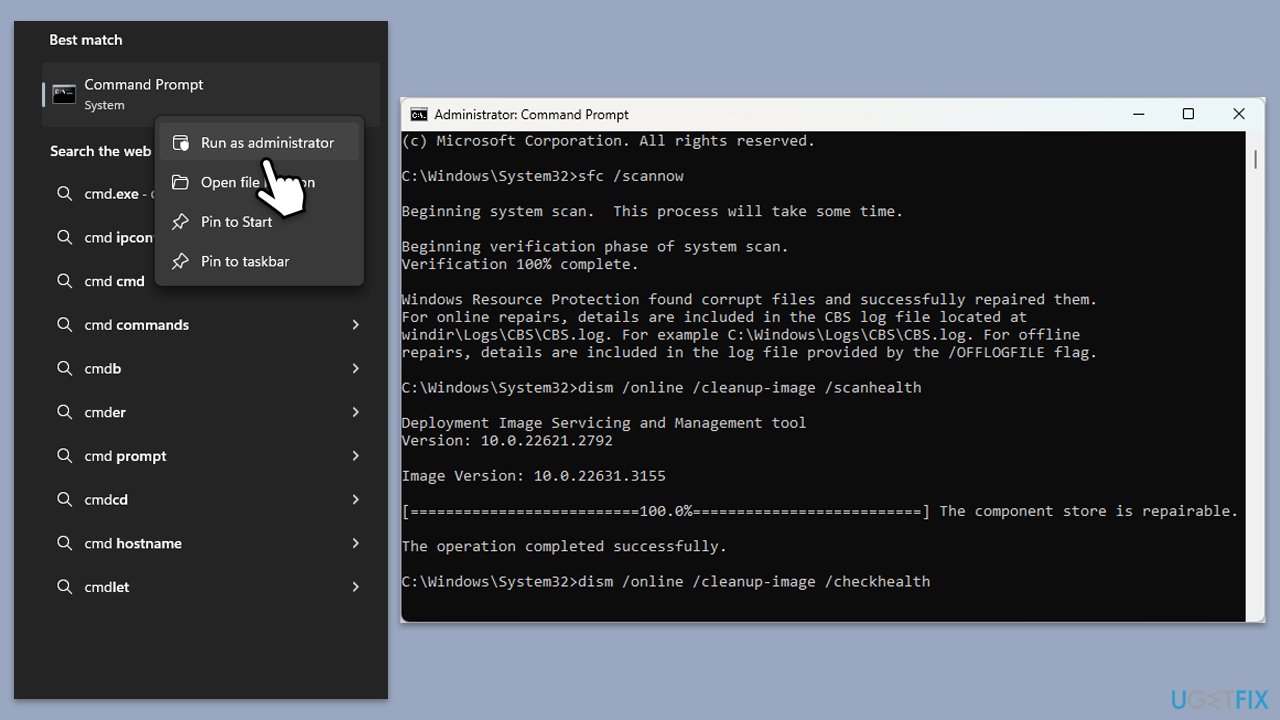
Corrupted system files can block updates. Running SFC and DISM scans helps repair any corrupted files that may be causing the 0x8024B102 error.
- Type cmd in Windows search.
- Right-click on Command Prompt and select Run as administrator.
- The User Account Control (UAC) window will ask whether you want to allow changes to your computer - click Yes.
- Copy and paste this command and hit Enter:
sfc /scannow - Wait for the scan to finish.
- As soon as it finishes, Windows will report whether integrity violations were found and if they could be fixed. Regardless of the outcome, use these commands next, pressing Enter after each:
Dism /Online /Cleanup-Image /CheckHealth
Dism /Online /Cleanup-Image /ScanHealth
Dism /Online /Cleanup-Image /RestoreHealth - Close down the Command Prompt and restart your device.
Fix 3. Free up disk space
A lack of disk space can prevent Windows from installing updates. Freeing up space ensures that there is enough room for the update files.
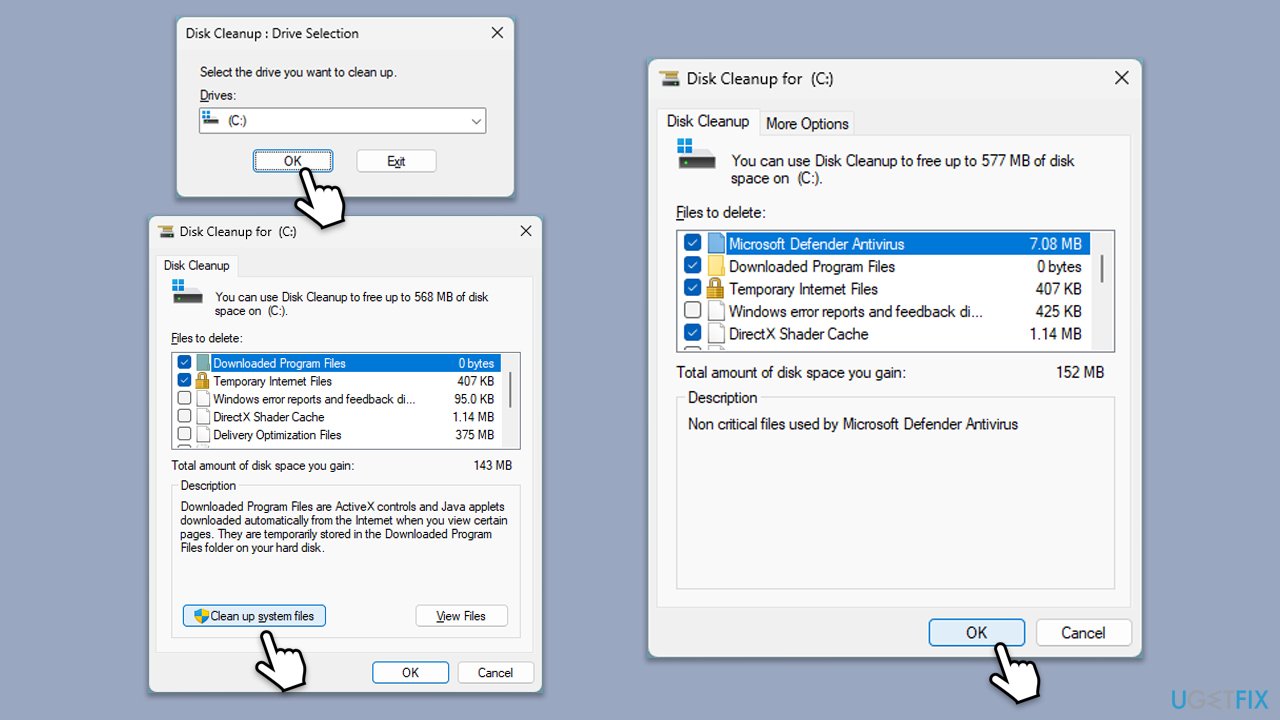
- Type Disk Cleanup in Windows search and hit Enter.
- If your Windows is installed on drive C, pick it from the list (it should be by default) and press OK.
- Click Clean up system files.
- Select your main disk again and click OK.
- Here, select the largest portions of the data used - these typically include Temporary Internet Files, Windows Update, Temporary Files, Recycle Bin, Delivery Optimization Files, and others.
- Click OK - the process should be finished shortly.
Fix 4. Disable antivirus software temporarily
Sometimes, overprotective antivirus software may block Windows updates, causing the 0x8024B102 error. Disabling your antivirus temporarily may allow the update to proceed.
- Open your antivirus software.
- Navigate to the settings and temporarily disable real-time protection or shields.
- Restart the update process and re-enable your antivirus afterward.
Fix 5. Check and restart Windows Update services
Sometimes, the services required for Windows Update may not be running. Restarting these services can help resolve the error.
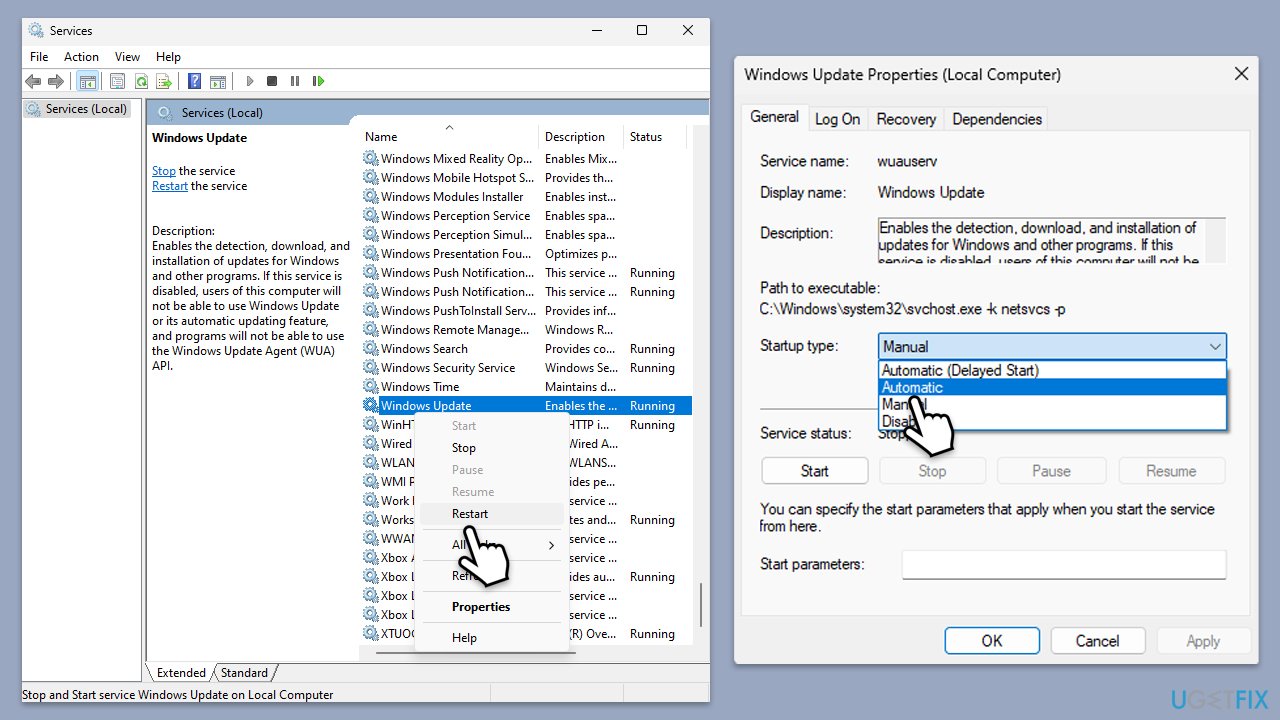
- Type in Services in Windows search and press Enter.
- Locate Windows Update service.
- If it is already running, right-click and select Restart.
- if the service is not running, double-click it, select Automatic under the Startup type from the drop-down menu
- Click Start, Apply, and OK.
- Repeat the process with the Background Intelligent Transfer Service (BITS), Cryptographic, and Windows Installer services.
Fix 6. Reset Windows update components
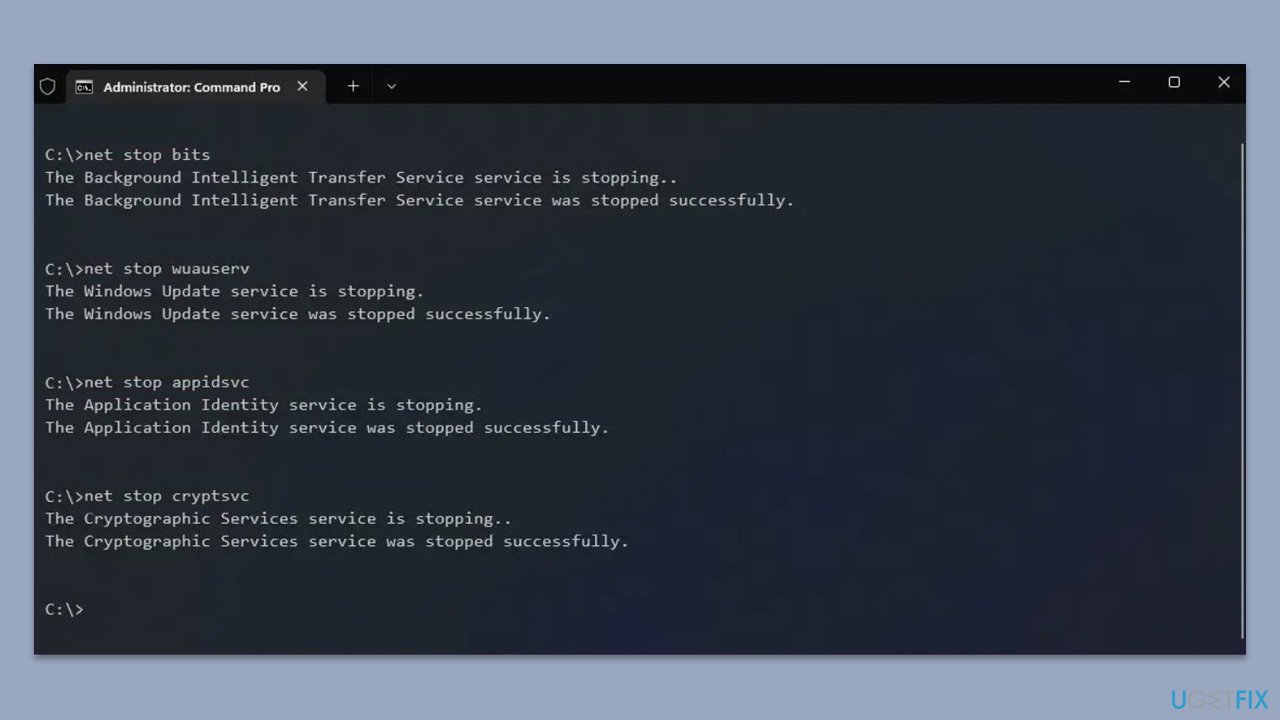
- Open Command Prompt as administrator.
- Type the following commands one by one in Command Prompt and press Enter after each:
net stop wuauserv
net stop cryptSvc
net stop bits
net stop msiserver
Ren C:\Windows\SoftwareDistribution SoftwareDistribution.old
Ren C:\Windows\System32\catroot2 Catroot2.old - When these commands are executed, the last thing to do is to re-enable relevant services:
net start wuauserv
net start cryptSvc
net start bits
net start msiserver - Reboot your computer.
Fix 7. Manually download and install the update
If the automatic update fails, manually downloading and installing the update from the Microsoft Update Catalog can bypass the error.
- Type in Updates in Windows search and press Enter.
- Select View update history.
- Find the update that failed with the 0x8024B102 error and copy its KB number.
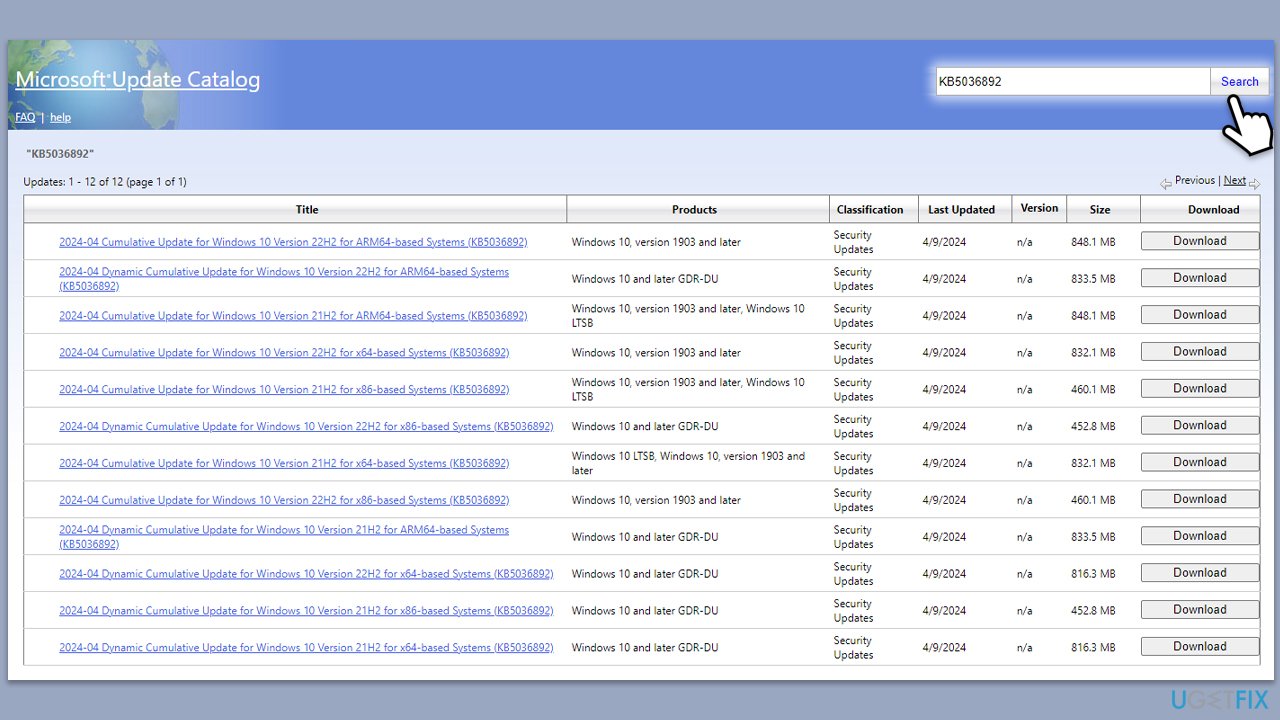
- Open your browser and go to Microsoft Update Catalog.
- Within the search bar, type in the KB number and clicks Search.
- Find the correct version of the update for your operating system (to check this, right-click on Start and pick System. Under Device specifications and check the System type) and click Download.
- Use on-screen guidelines to finish the installation process and restart your computer.
Bottom line
To fix the Windows update error 0x8024B102, you can run the Windows Update Troubleshooter, repair system files using SFC and DISM scans, and manually clear the Windows Update cache. If these solutions do not resolve the issue, consider trying the Microsoft Update Catalog update or using the offline update.
Frequently asked questions
The error 0x8024B102 typically indicates a problem with the Windows Update service or issues with the update components in Windows 10 or Windows 11.
To troubleshoot this error on Windows 10, try running the Windows Update Troubleshooter and resetting the Windows Update components manually.
Yes, you can resolve error 0x8024B102 on Windows 11 by using the Command Prompt to run specific commands that reset the update services and clear the cache.




Report an issue
What's wrong with this guide? We review every report and update or remove content.
Report received — thank you. We'll review and fix it.
You need a free account to submit a report.
Be the first to comment