How to fix
Windows update error 0x8024D00C
on Windows
Resolve Windows update error 0x8024D00C quickly and efficiently. Get expert-tested solutions that restore your system's functionality in minutes.


What causes How to fix Windows update error 0x8024D00C?
- Network issues
- Corrupted system files
- Outdated software components
- Firewall interference
- Antivirus software interference
Repairs Windows system files, removes malware, and restores a clean OS state — without reinstalling.
I need help with Windows update error 0x8024D00C. This started happening yesterday, and initially, I thought nothing of it, only to see the same error the next day, which makes me believe that there's a deeper problem there. How do I address it?
Windows Update is a Microsoft service for the Windows operating system, which automates downloading and installing software updates over the Internet. Microsoft releases these updates on the second Tuesday of each month, known as "Patch Tuesday," though critical updates can be released at any time.
Updates generally fall into three categories: security updates, which address vulnerabilities; quality updates, which resolve bugs and offer performance improvements; and feature updates, which add new functionalities to the operating system.
However, the update process is not always smooth. Some users encounter specific errors that disrupt this process, one of which is the 0x8024D00C error code. This error generally indicates that the Windows Update service is not correctly configured or that there are problems connecting to the update server.
The root causes can vary from network issues, corrupted system files, or outdated software components. In some cases, firewall or antivirus software may interfere with the Windows Update service, leading to the 0x8024D00C error.
If you encounter the 0x8024D00C error, you can try a series of troubleshooting methods to resolve the issue. One approach is to run the Windows Update Troubleshooter, a built-in tool designed to identify and automatically fix update problems. Additionally, you could clear the Windows Update cache, which stores temporary files that might become corrupted and disrupt the update process.
Network configurations are also a common culprit; checking and resetting these settings may eliminate the error. Sometimes, firewall or antivirus software can interfere with the Windows Update service, so temporarily disabling such software could resolve the issue. If all else fails, you may manually download and install the update directly from Microsoft's website.
For those who would prefer an automated solution for addressing Windows problems, [d1] PC repair software offers a convenient alternative. This tool scans for and automatically resolves various Windows issues, simplifying the troubleshooting process.
Fix 1. Run the troubleshooter
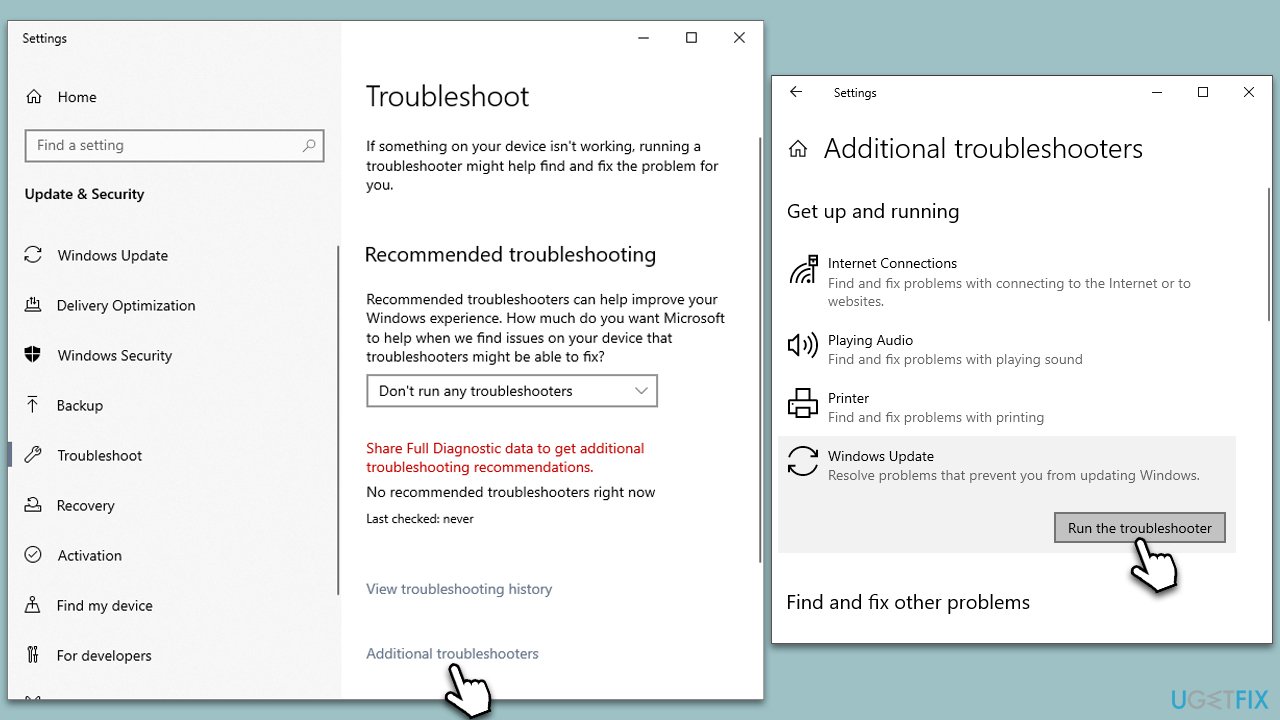
Windows has a built-in troubleshooting tool specifically designed for resolving update-related issues. This tool scans your computer to detect any problems that might prevent Windows from updating, and tries to automatically fix them.
- Type Troubleshoot into the Windows search bar and press Enter.
- Next, on the right side of the window, select Additional troubleshooters/Other troubleshooters.
- Scroll down to locate the Windows update option and click on it.
- Click on Run the troubleshooter/Run and allow the troubleshooter to finish.
- Restart your computer and try updating Windows again.
Fix 2. Perform SFC and DISM scans
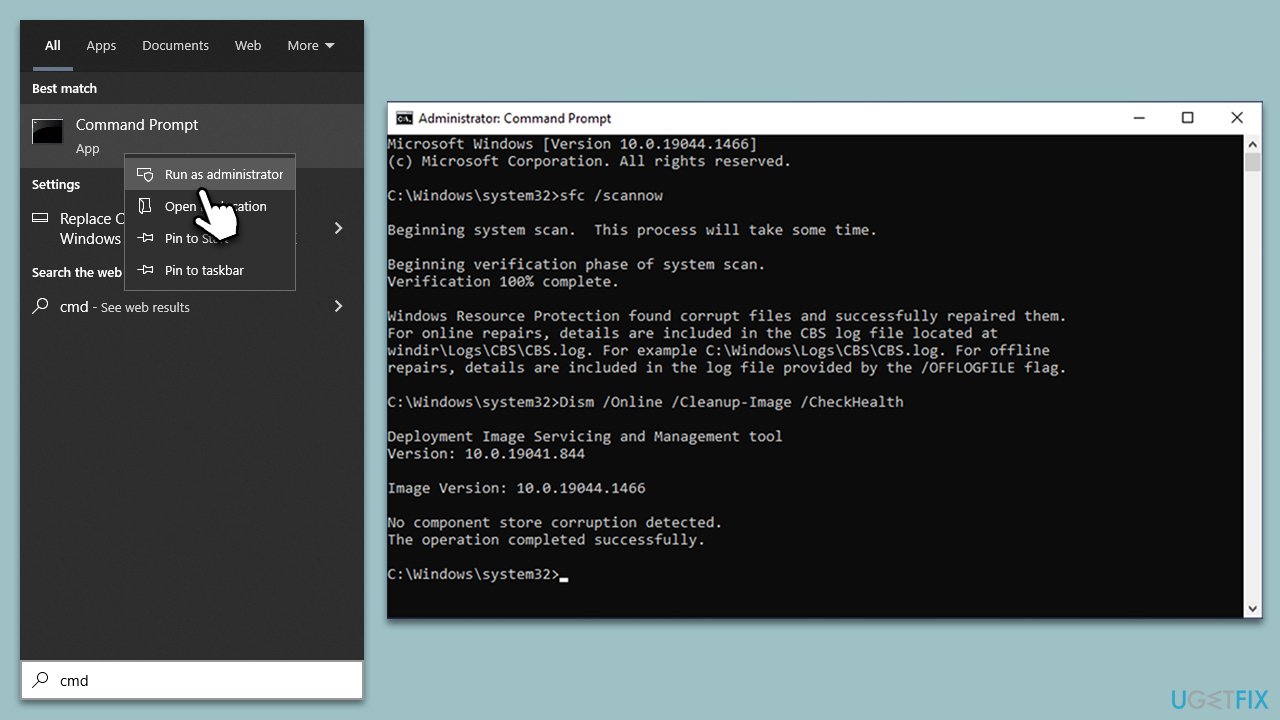
SFC and DISM are built-in utilities that can scan and repair corrupted system files that may be preventing updates.
- Type in cmd in Windows search.
- Right-click on Command Prompt and select Run as administrator.
- User Account Control will ask you whether you allow to make changes to the system - click Yes.
- In the Command Prompt window, paste the following command and hit Enter:
sfc /scannow - Once the scan is complete, use the following commands and press Enter after each:
Dism /Online /Cleanup-Image /CheckHealth
Dism /Online /Cleanup-Image /ScanHealth
Dism /Online /Cleanup-Image /RestoreHealth - Restart your system.
Fix 3. Disable third-party antivirus
Some antivirus software can conflict with Windows Update. Temporarily disabling your antivirus software may resolve the update issue.
- Open your antivirus software application.
- Navigate through the settings to find the option for temporarily disabling real-time scanning or protection.
- Disable the antivirus and try updating Windows.
- Remember to re-enable the antivirus software after the update.
Fix 4. Reset Windows update components
Corrupted or outdated update components can prevent successful updates. Manually resetting these components can resolve the issue.
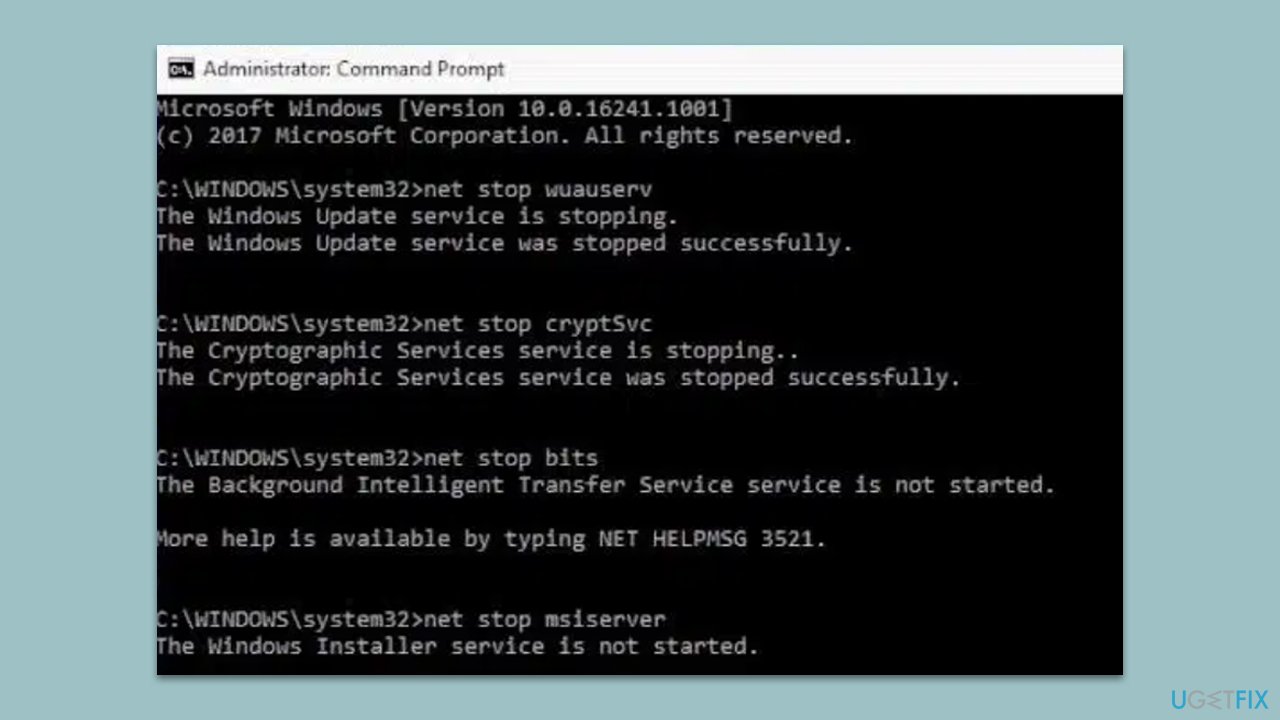
- Open Command Prompt as administrator.
- Stop the Windows Update-related services by running the following commands one at a time, pressing Enter after each one:
net stop wuauserv
net stop cryptSvc
net stop bits
net stop msiserver - Rename the SoftwareDistribution and Catroot2 folders by running the following commands:
ren C:\Windows\SoftwareDistribution SoftwareDistribution.old
ren C:\Windows\System32\catroot2 Catroot2.old
Note: If your Windows installation is not on the C drive, replace "C" with the appropriate drive letter. - Restart the Windows Update-related services by running the following commands:
net start wuauserv
net start cryptSvc
net start bits
net start msiserver - Reboot your system.
Fix 5. Manually update Windows
If the automatic update fails, manually downloading and installing the update can work.
- Type in Updates in Windows search and press Enter.
- Select View update history.
- Find the update that failed with the 0x8024D00C error and copy its KB number.
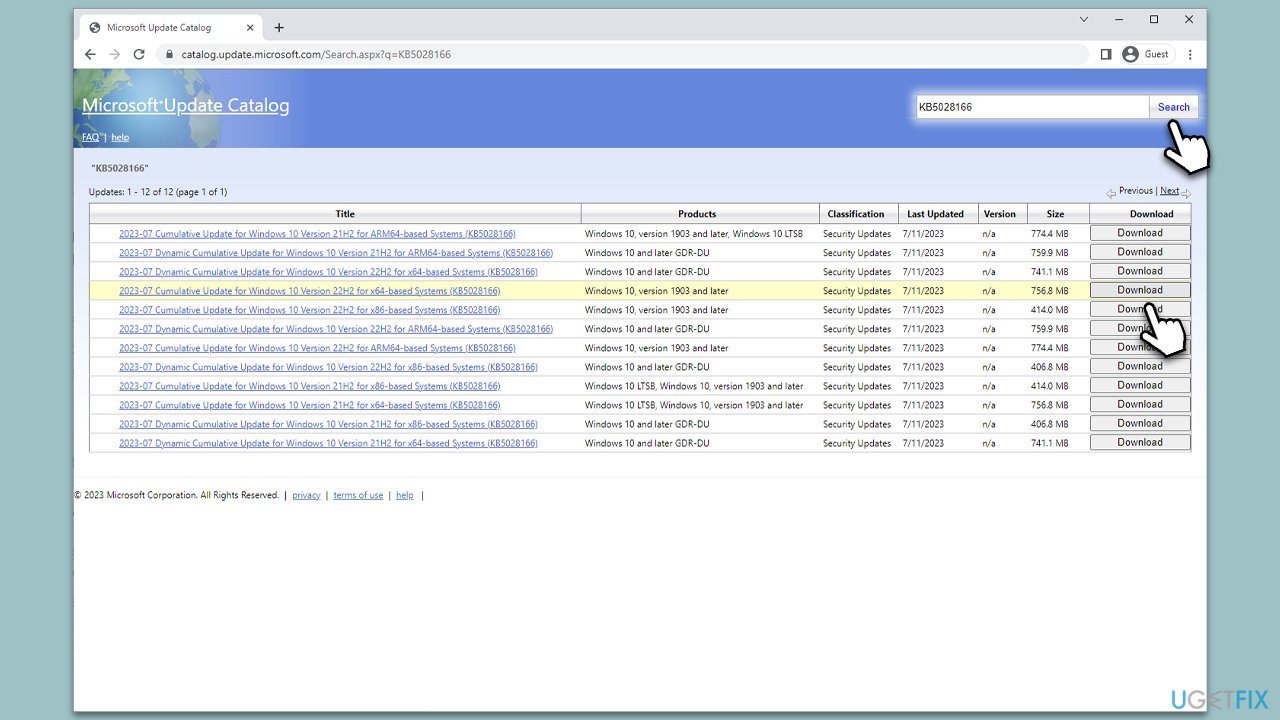
- Open your browser and go to Microsoft Update Catalog.
- Within the search bar, type in the KB number and clicks Search.
- Find the correct version of the update for your operating system (to check this, right-click on Start and pick System. Under Device specifications and check the System type) and click Download.
- Use on-screen guidelines to finish the installation process and restart your computer.
Fix 6. Check for disk space
Insufficient disk space can prevent updates from being installed. Ensuring you have enough free space is crucial.
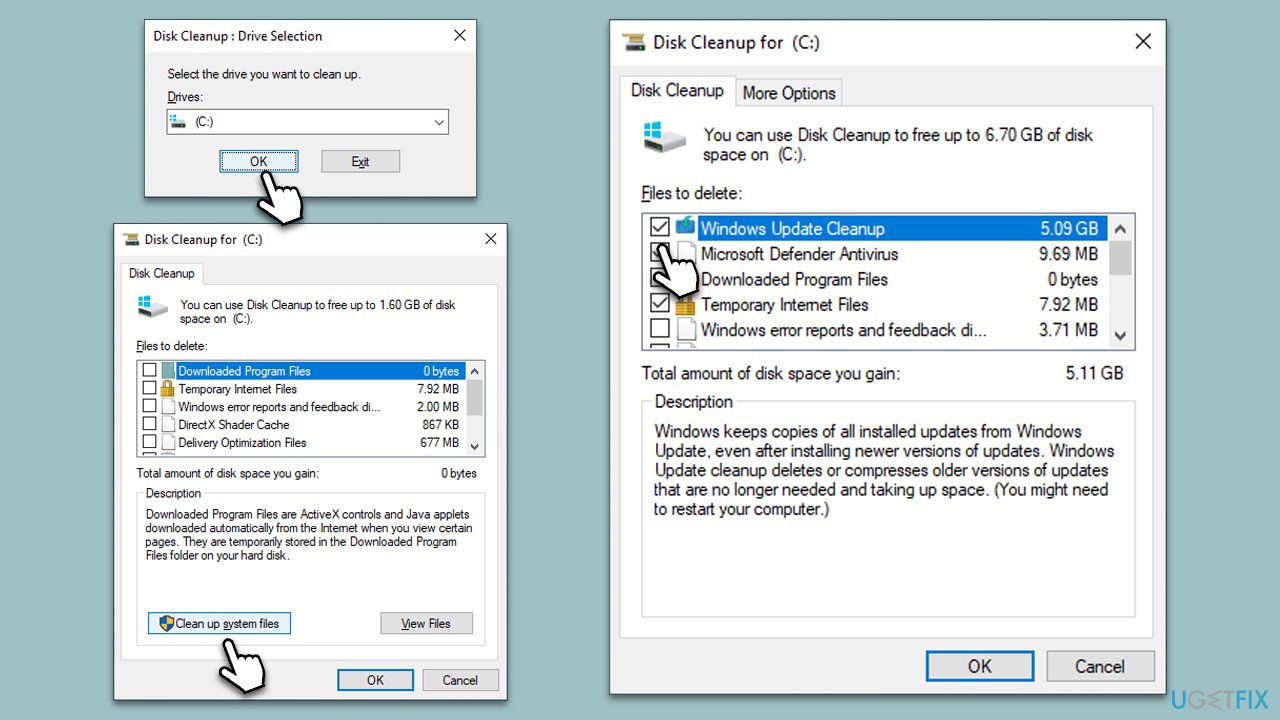
- Type Disk Cleanup in Windows search and hit Enter.
- If your Windows is installed on drive C, pick it from the list (it should be by default) and press OK.
- Click Clean up system files.
- Select your main disk again and click OK.
- Here, select the largest portions of the data used - these typically include Temporary Internet Files, Windows Update, Temporary Files, Recycle Bin, Delivery Optimization Files, and others.
- Click OK - the process should be finished shortly.
Fix 7. Reset network configurations
Sometimes, improper network settings can interfere with the update process. Resetting them can clear this hindrance.
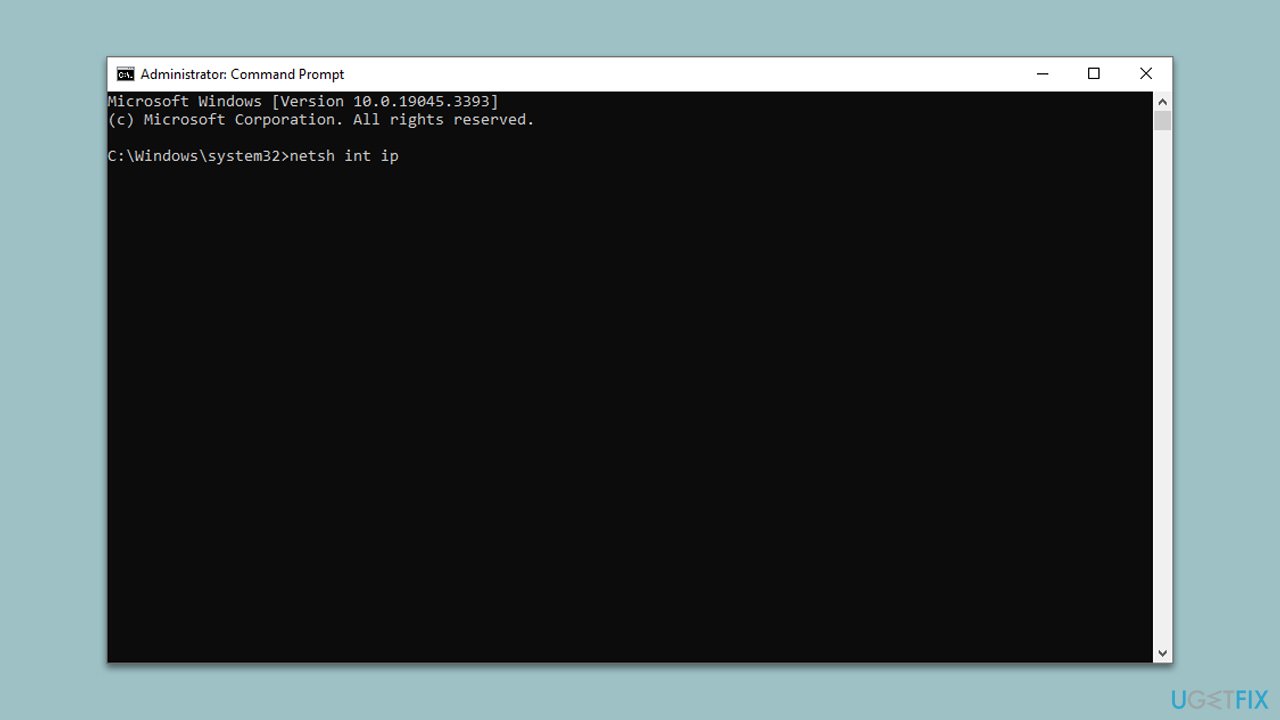
- Open Command Prompt as an administrator.
- Type netsh int ip reset and press Enter.
- Reboot your computer and try updating Windows again.
Fix 8. Use Media Creation Tool
If all else fails, the Media Creation Tool can reinstall Windows while keeping your files and settings intact, which often resolves update issues.
- Visit the official Microsoft website and download Windows 10 installation media (Windows 11 version).
- Double-click the installer and select Yes when UAC shows up.
- Agree to terms.
- Select Upgrade this PC now and click Next.
- Windows will start downloading the needed files.
- Agree to the terms once again and click Next.
- Before installing, make sure that you are happy with your choices (otherwise, you can click Change what to keep option).
- Finally, click Install to begin the upgrade process.

Bottom line
To fix the Windows update error 0x8024D00C, you can run the Windows Update Troubleshooter, clear the Windows Update cache, check and reset network configurations, or temporarily disable firewall and antivirus software. If these methods do not resolve the issue, consider manually downloading and installing the update from Microsoft's website.
Frequently asked questions
The error 0x8024D00C indicates that there is an issue with the Windows Update service that prevents your system from checking for or installing updates on Windows 10 or Windows 11.
To troubleshoot error 0x8024D00C on Windows 10, try running the Windows Update Troubleshooter from the Settings app, and ensure that your network connection is stable.
Yes, resetting the Windows Update components can help fix error 0x8024D00C; you can do this by running a series of commands in the Command Prompt with administrator privileges.




Report an issue
What's wrong with this guide? We review every report and update or remove content.
Report received — thank you. We'll review and fix it.
You need a free account to submit a report.
Be the first to comment