How to fix
Windows update error 0x8024F001
on Windows
Resolve Windows update error 0x8024F001 quickly and easily. Restore your system's update functionality with expert-tested solutions. Fixed in minutes!

What causes How to fix Windows update error 0x8024F001?
- Corrupted update files
- Windows Update service issues
- Interference from third-party software
- Missing system components
- Low disk space
Repairs Windows system files, removes malware, and restores a clean OS state — without reinstalling.
Hello, I've been trying to run Windows Update on my machine, but it keeps failing with error 0x8024F001. The download starts, then stops, and this code comes up every time. I've rebooted a few times, but nothing is helping. What's causing this error, and how do I get my updates installed?
Windows Update is your computer's method of keeping up to date - new features, security updates, and performance improvements roll out every so often from Microsoft. However, occasionally, things get held up, and for some users, that halt is error 0x8024F001. You may find it rear its head halfway through a download, halting the process and leaving your machine without those vital updates.
What’s tripping up your system with error 0x8024F001? It could be a few things. Maybe the update files got corrupted along the way, or the Windows Update service itself isn’t running smoothly. Third-party software - like an overzealous antivirus - might be meddling with the process, or there could be deeper system hiccups, like missing components or low disk space. Whatever’s behind error 0x8024F001, it’s a signal that something needs a nudge to get back on track.
Luckily, there are options to sort this out. Clearing the update cache might ditch any faulty files, while restarting key services could reset the flow. Manually grabbing the update from Microsoft’s catalog is another route to dodge the 0x8024F001 block. Checking your disk space or tweaking interfering software could also do the trick.
And if error 0x8024F001 lingers due to trickier Windows issues, a repair and maintenance app like [d1] might step in to fix underlying glitches, helping your updates roll through without a problem.
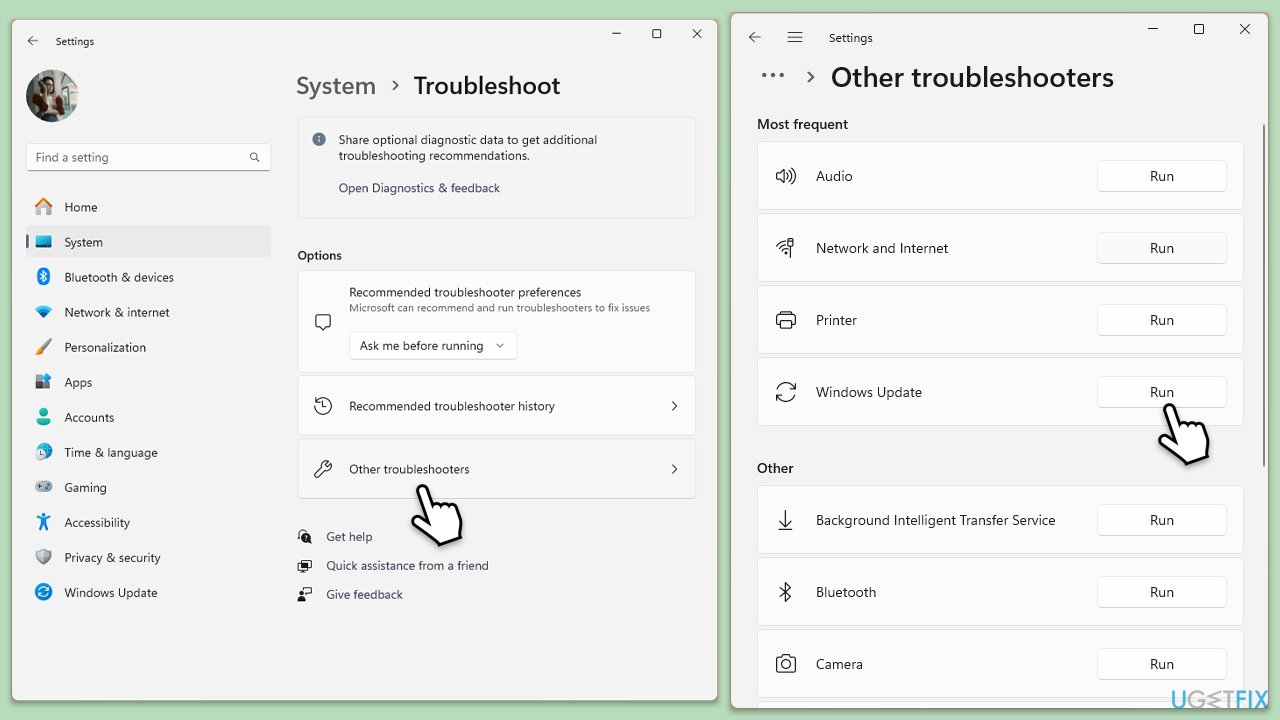
Fix 1. Run Windows update troubleshooter
- Type Troubleshoot in Windows search and hit Enter.
- Select Additional troubleshooters/Other troubleshooters.
- Find Windows Update from the list and click Run the troubleshooter/Run.
- The troubleshooter will automatically scan your system for potential problems and display any issues it finds.
- If the troubleshooter finds any issues, it will provide recommended solutions.
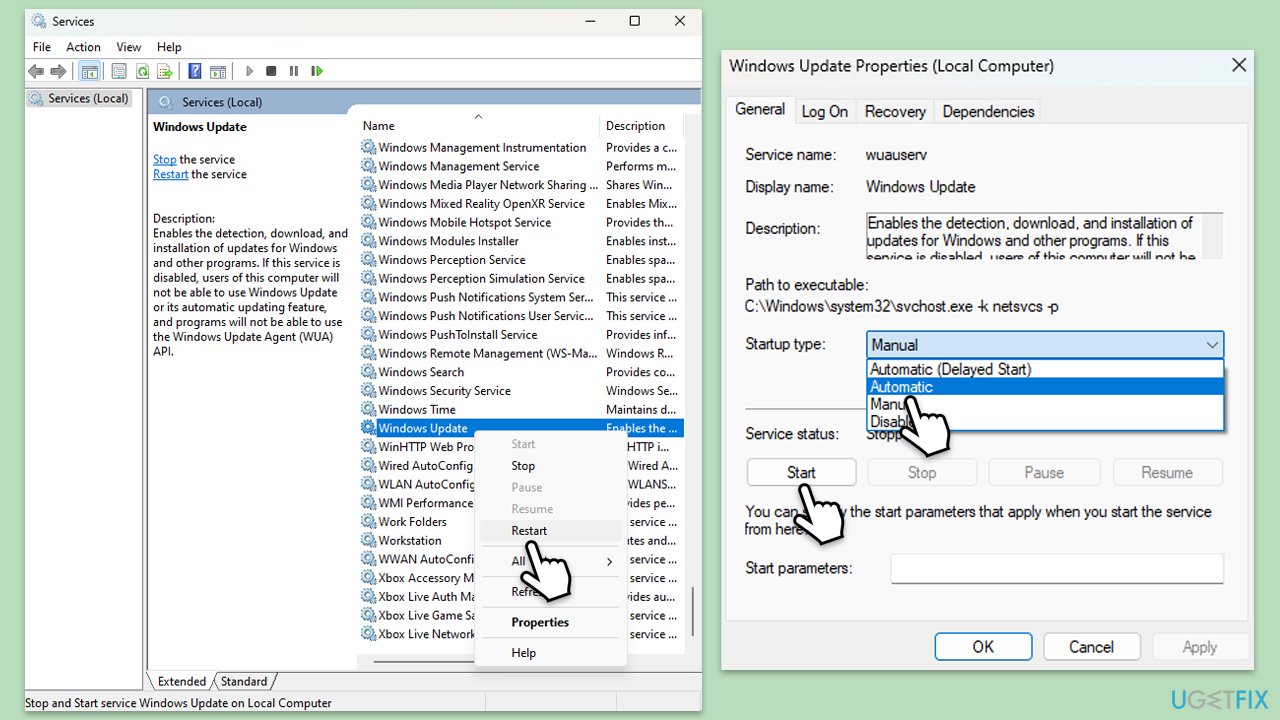
Fix 2. Check relevant services
- Type in Services in Windows search and press Enter.
- Locate Windows Update Service.
- If it is already running, right-click and select Restart.
- if the service is not running, double-click it to open Properties.
- Under the Startup type, select Automatic from the drop-down menu.
- Click Start, Apply, and OK.
- Locate Background Intelligent Transfer Service (BITS), Cryptographic service, and Windows Installer service, and repeat the process.
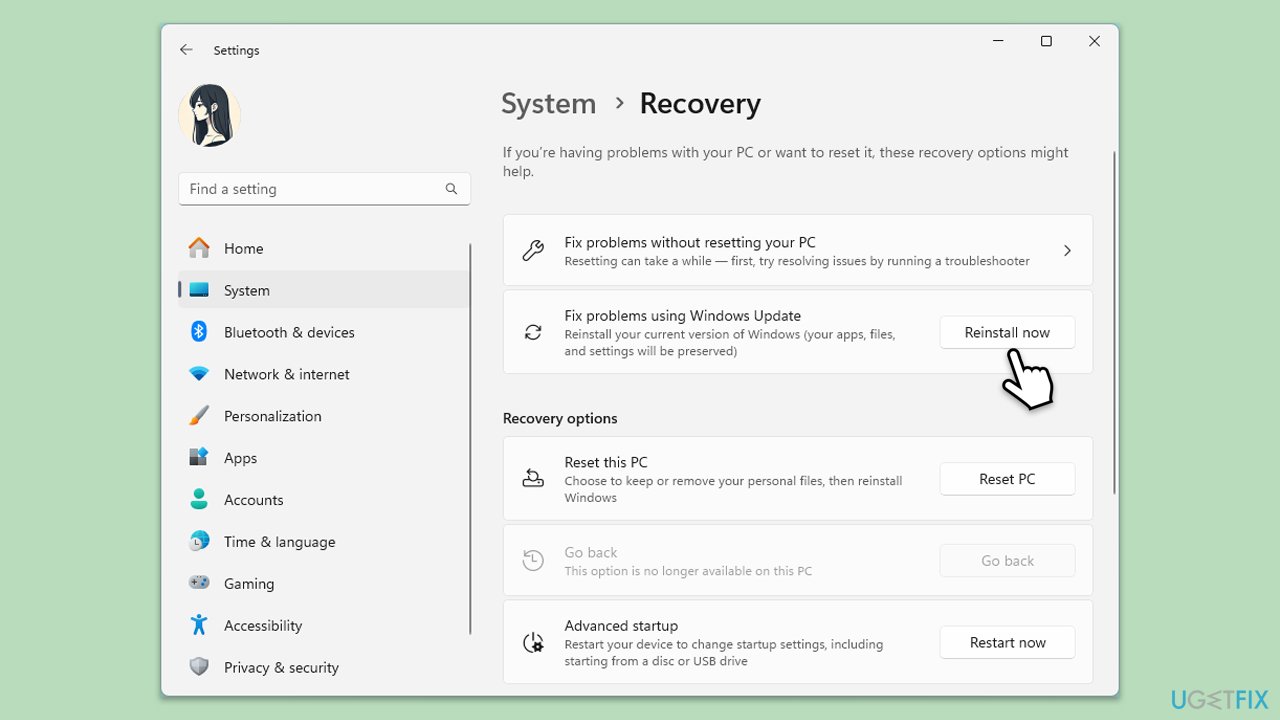
Fix 3. Use the "Fix problems using Windows Update" option (Windows 11)
- Right-click on Start and pick Settings.
- Go to the System section and select Recovery.
- There, you should see the Fix problems using Windows Update option.
- Click Reinstall now.
- Follow the on-screen instructions to finish the process.
- After your PC restarts and the fix process is complete, attempt to update Windows in a usual way.
Fix 4. Run Disk Cleanup
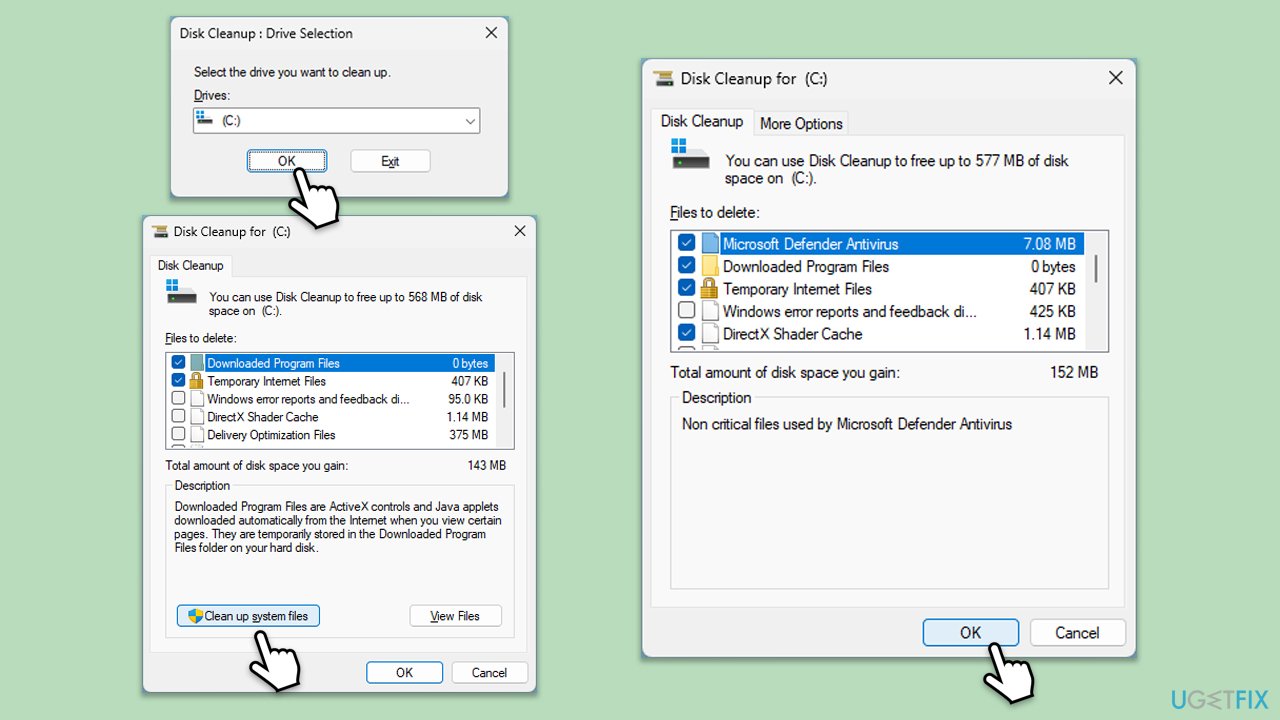
- Type Disk Cleanup in Windows search and hit Enter.
- If your Windows is installed on drive C, pick it from the list (should be by default) and press OK.
- Click Clean up system files.
- Select your main drive again and click OK.
- Here, select the largest portions of the data used - these typically include Temporary Internet Files, Windows Update, Temporary Files, Recycle Bin, Delivery Optimization Files, and others. Marking Windows Update is vital here.
- Click OK - the process should be finished shortly.
Fix 5. Reset Windows update components
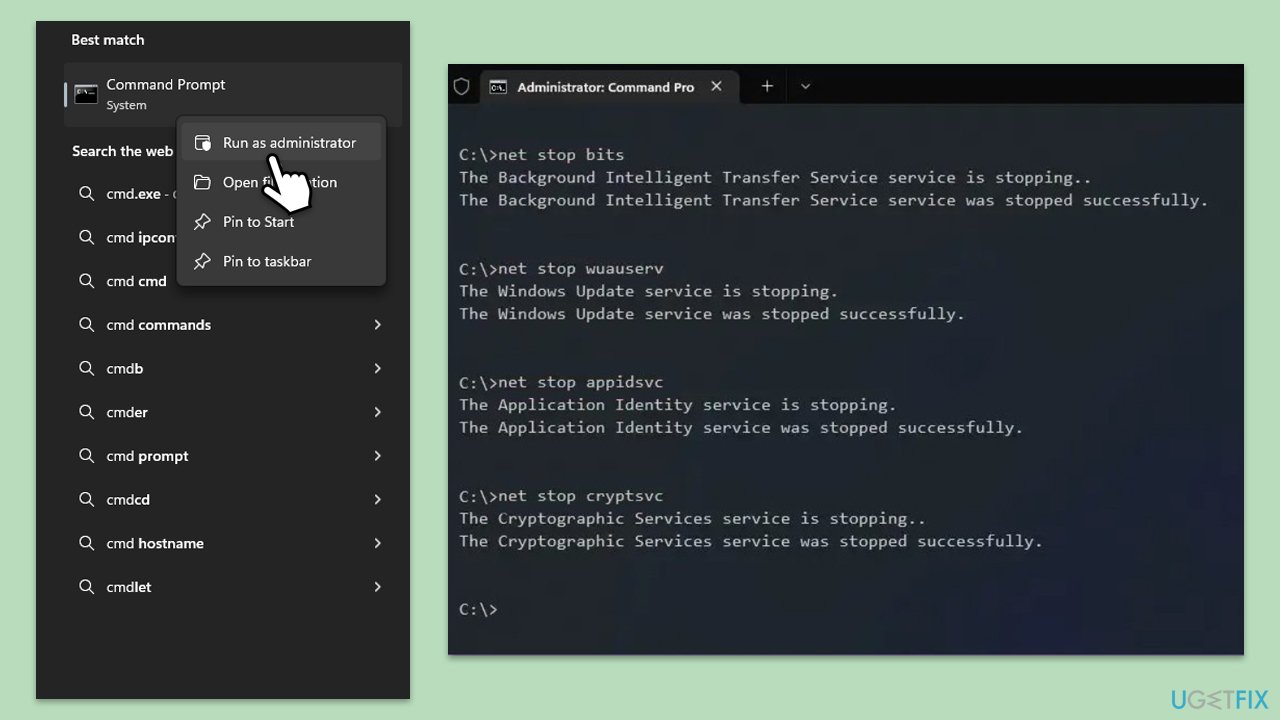
- Type cmd in Windows search.
- Right-click on Command Prompt and pick Run as administrator.
- User Account Control (UAC) will ask whether you want to allow changes - click Yes.
- Paste in each of these commands, pressing Enter every time:
net stop bits
net stop wuauserv
net stop appidsvc
net stop cryptsvc
Del “%ALLUSERSPROFILE%\Application Data\Microsoft\Network\Downloader\*.*”
rmdir %systemroot%\SoftwareDistribution /S /Q
rmdir %systemroot%\system32\catroot2 /S /Q
regsvr32.exe /s atl.dll
regsvr32.exe /s urlmon.dll
regsvr32.exe /s mshtml.dll
netsh winsock reset
netsh winsock reset proxy
net start bits
net start wuauserv
net start appidsvc
net start cryptsvc - Reboot your system.
Fix 6. Check time and date
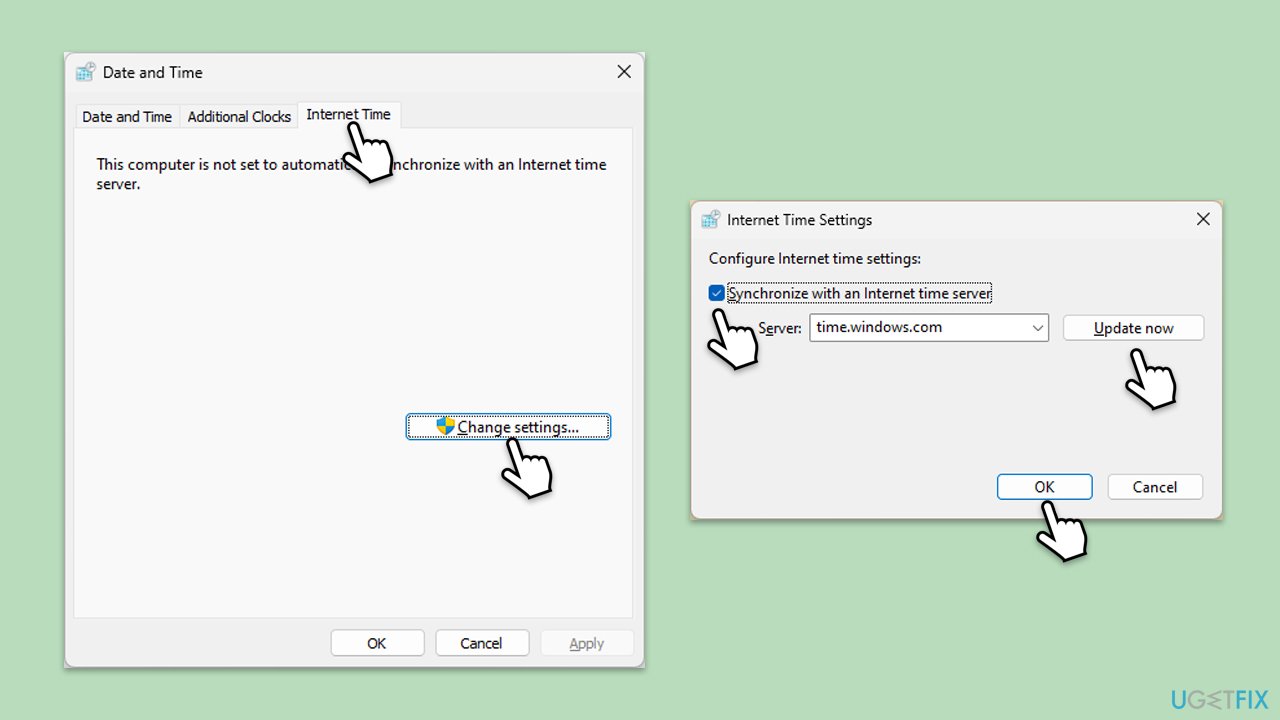
- Type in Control Panel in Windows search and press Enter.
- Go to Clock and Region and click on Date and Time.
- Pick the Internet Time tab and select Change Settings.
- Make sure that Synchronize with an Internet time server box is ticked.
- Click Update now and OK.
Fix 7. Install the update manually
- Type Updates in Windows search and hit Enter.
- Click View update history.
- Here, note down the KB number that failed to install with the error code 0x8024F001.
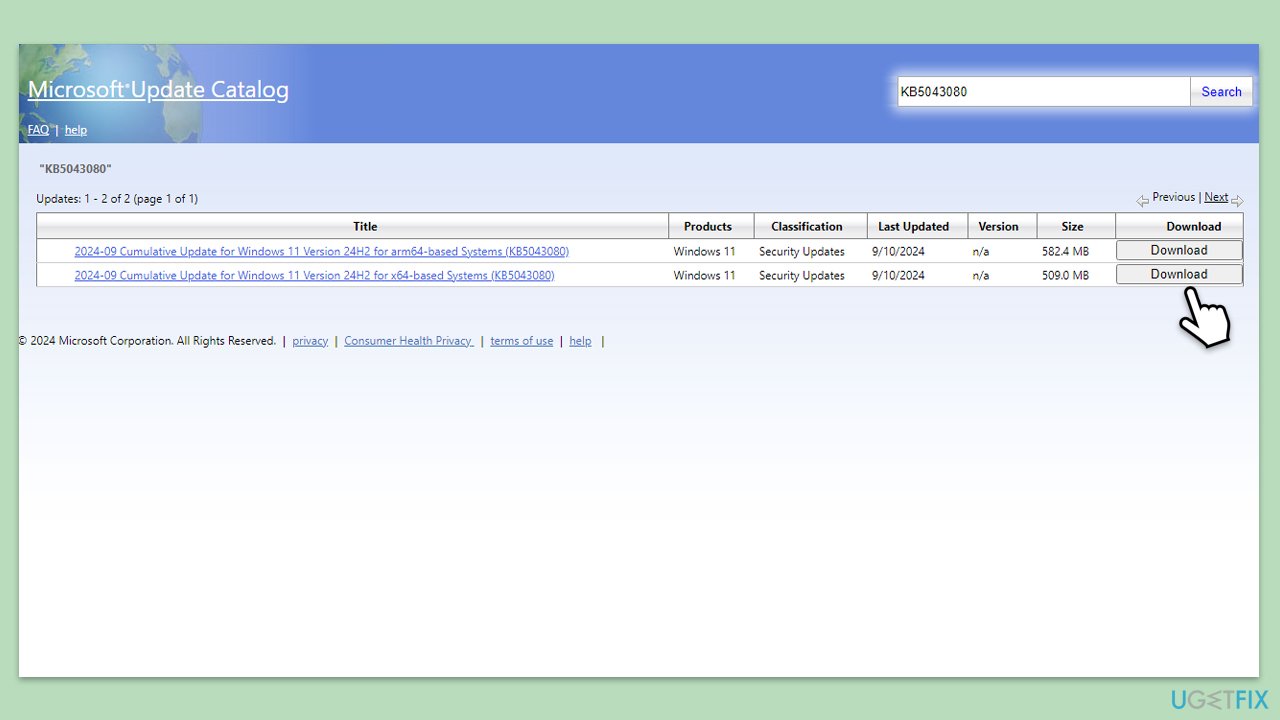
- Go to the official Microsoft Update Catalog website.
- Type the KB number into the search bar, and press Enter or click Search.
- You will find many different versions on the update – you need to find the one that matches your PC specs and Windows version (as a home user, ignore Windows server versions).
- Right-click on Start and pick System.
- Under Device specifications, check the System type section: it should either be 64-bit or 32-bit.
- Scroll down to Windows specifications and check the Version section.
- With all this information, pick the correct version for your device.
- Go back to the Microsoft Update catalog, download the appropriate version, and install it.
Bottom line
To resolve the Windows update error 0x8024F001, you can run the Windows Update troubleshooter, clear the update cache, restart key services, or manually download the update from Microsoft's catalog. If these solutions do not work, consider using a repair and maintenance app to address deeper system issues.
Frequently asked questions
The error 0x8024F001 typically arises due to issues with the Windows Update components or corrupted system files that prevent updates from being installed properly.
To reset Windows Update components, you can run the Command Prompt as an administrator and execute commands such as 'net stop wuauserv', 'net stop cryptSvc', and 'net stop bits', followed by 'net start' commands for each service.
Yes, you can use the built-in Windows Update Troubleshooter, found in Settings under Update & Security, which can automatically detect and fix common issues related to updates.




Report an issue
What's wrong with this guide? We review every report and update or remove content.
Report received — thank you. We'll review and fix it.
You need a free account to submit a report.
Be the first to comment