How to fix
Windows update error 0x80D02014
on Windows
Resolve Windows update error 0x80D02014 effortlessly with our expert-tested solutions. Get your system running smoothly again in minutes!


What causes How to fix Windows update error 0x80D02014?
- Faulty update components
- Lack of sufficient disk space
- Corrupted Windows Update cache files
- Conflicts with other devices
- Software conflicts with applications
Repairs Windows system files, removes malware, and restores a clean OS state — without reinstalling.
I'm trying to install the latest Windows update, but I keep getting error code 0x80D02014. The update process starts but then fails midway. I've checked my internet connection and restarted my PC, but the issue persists.
Coming across Windows Update error 0x80D02014 can be frustrating when all you are trying to do is make sure that your system has the most recent patches. The error typically points to something wrong with the update process that may be caused by many factors, such as faulty update components, a lack of sufficient disk space, or conflicts with other devices.
The reason for error 0x80D02014 to occur could be many, for example, corrupted Windows Update cache files. The cache files are refreshed with every new update, and over time, they can become old or corrupted, which can cause the update to fail. Clearing the cache will normally correct this.
The second reason may be insufficient disk space. Windows updates require sufficient free space to download and install properly. Sufficient free space on your system drive can prevent this error.
Also, conflicts with similar hardware devices may slow down the updating process. Unplugging unwanted external devices during updating may avoid such conflicts.
To repair Windows Update error 0x80D02014, you could try following steps:
- Run Windows Update Troubleshooter: This native tool can detect and repair frequent update problems.
- Empty the Windows Update cache: Removing corrupted cached files may rectify updating issues.
- Make sure of enough disk space: Clear your system drive of unnecessary space to hold the update.
- Check for software conflicts: Certain apps, such as anti-malware tools, can often prevent Windows updates from installing.
Below are manual instructions for these and a few other solutions. For persistent or difficult-to-isolate problems, the [d1] repair tool can also assist in identifying and resolving what is holding the update back from finishing successfully.

Fix 1. Run the troubleshooter
- Type Troubleshoot in Windows search and press Enter.
- Select Additional troubleshooters/Other troubleshooters.
- Find Windows Update from the list.
- Click it and select Run the troubleshooter/Run.
- The troubleshooter will automatically scan your system for potential problems and display any issues it finds.

Fix 2. Perform Disk Cleanup
- Type Disk Cleanup in Windows search and press Enter.
- Select your main drive (C: by default).
- Select appropriate fields (Temporary files, Recycle Bin, etc.) and click OK.
- If you want a more thorough cleanup and require even more space, select Clean system files in the Disk Cleanup window.
- Select your main drive again - Windows will compute how much space can be retrieved.
- The largest data dumps are usually accumulated in Windows Update and Delivery Optimization sections, although Temp files can also take a lot if it hasn't been cleaned.
- Select appropriate fields and click OK - Windows will remove all these files from your device and free up space.

Fix 3. Reset Windows update components
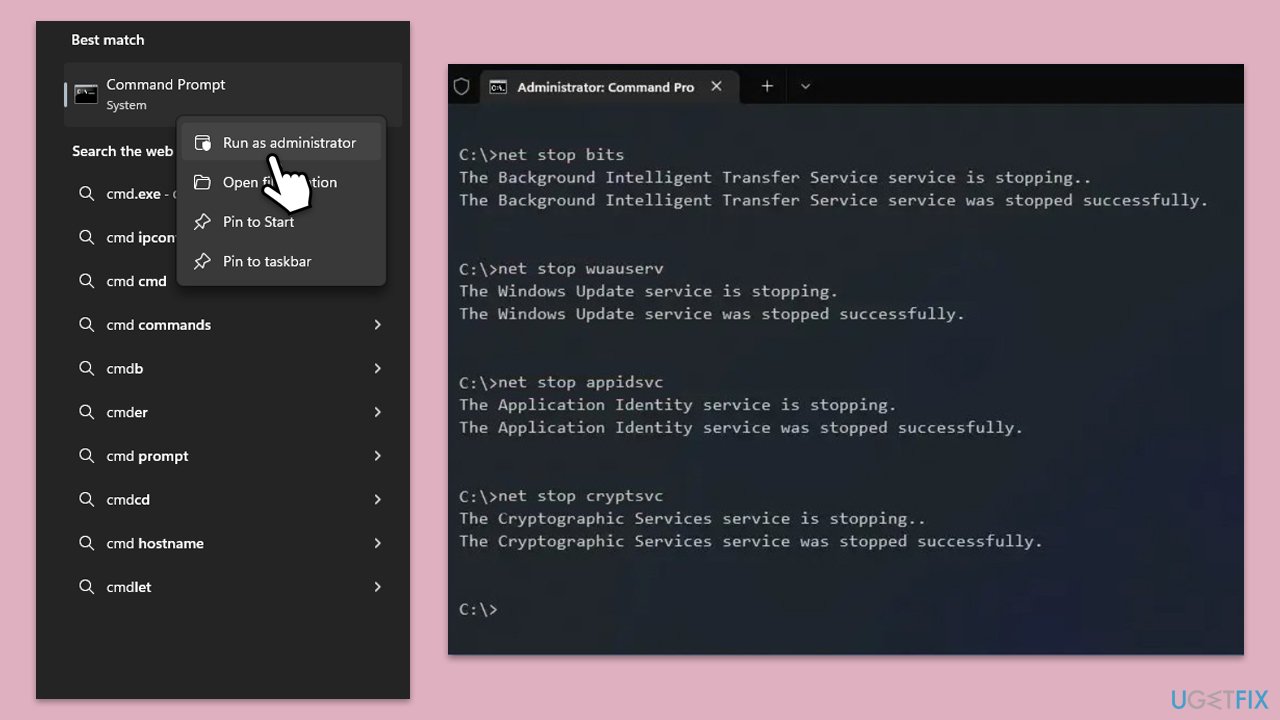
- Type cmd in Windows search.
- Right-click on the Command Prompt result and select Run as administrator.
- User Account Control will ask whether you want to allow changes - click Yes.
- Paste in each of these commands, pressing Enter every time:
net stop bits
net stop wuauserv
net stop appidsvc
net stop cryptsvc
Del “%ALLUSERSPROFILE%\Application Data\Microsoft\Network\Downloader\*.*”
rmdir %systemroot%\SoftwareDistribution /S /Q
rmdir %systemroot%\system32\catroot2 /S /Q
regsvr32.exe /s atl.dll
regsvr32.exe /s urlmon.dll
regsvr32.exe /s mshtml.dll
netsh winsock reset
netsh winsock reset proxy
net start bits
net start wuauserv
net start appidsvc
net start cryptsvc - Reboot your system.
Fix 4. Pause and unpause updates
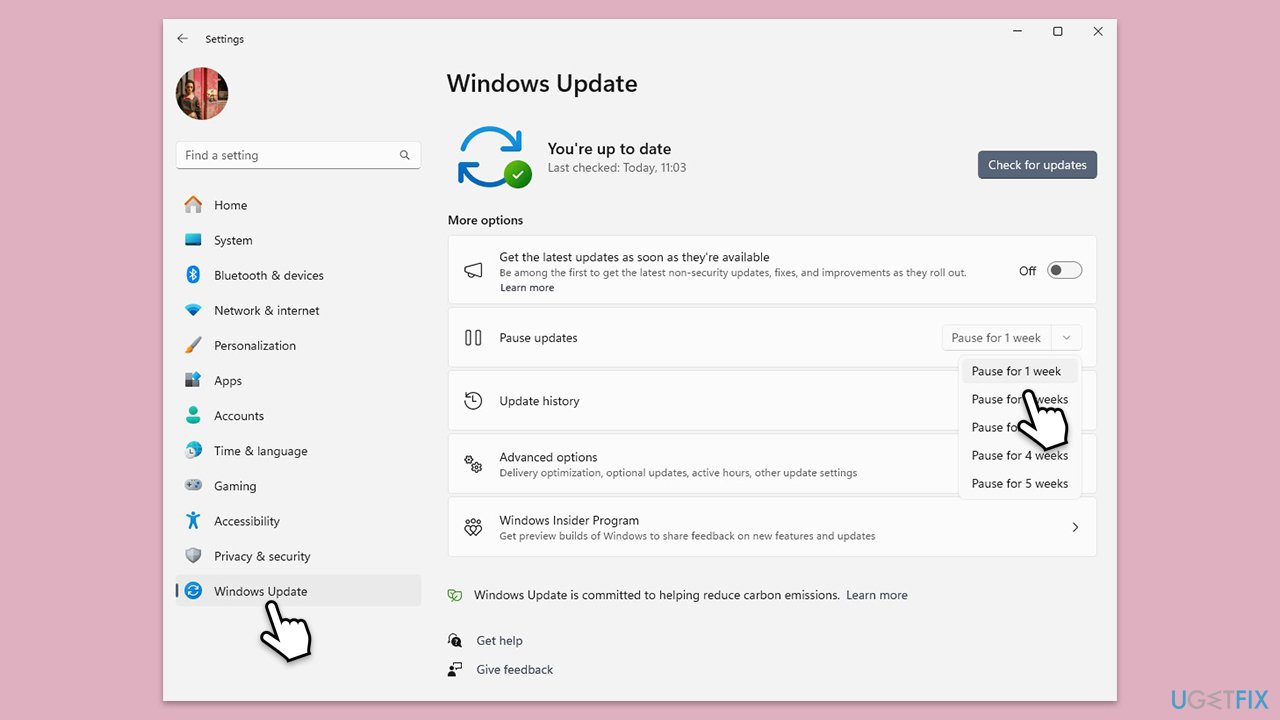
- Right-click on Start and pick Settings.
- Click on Windows Update.
- Click on the drop-down menu and select Pause updates for 1 week (or another time period).
- Restart your computer.
- Go back to Windows Update and click Resume updates.
Fix 5. Install manually
- Type Updates in Windows search and hit Enter.
- Click View update history.
- Here, note down the KB number that failed to be installed with the 0x80D02014 error.
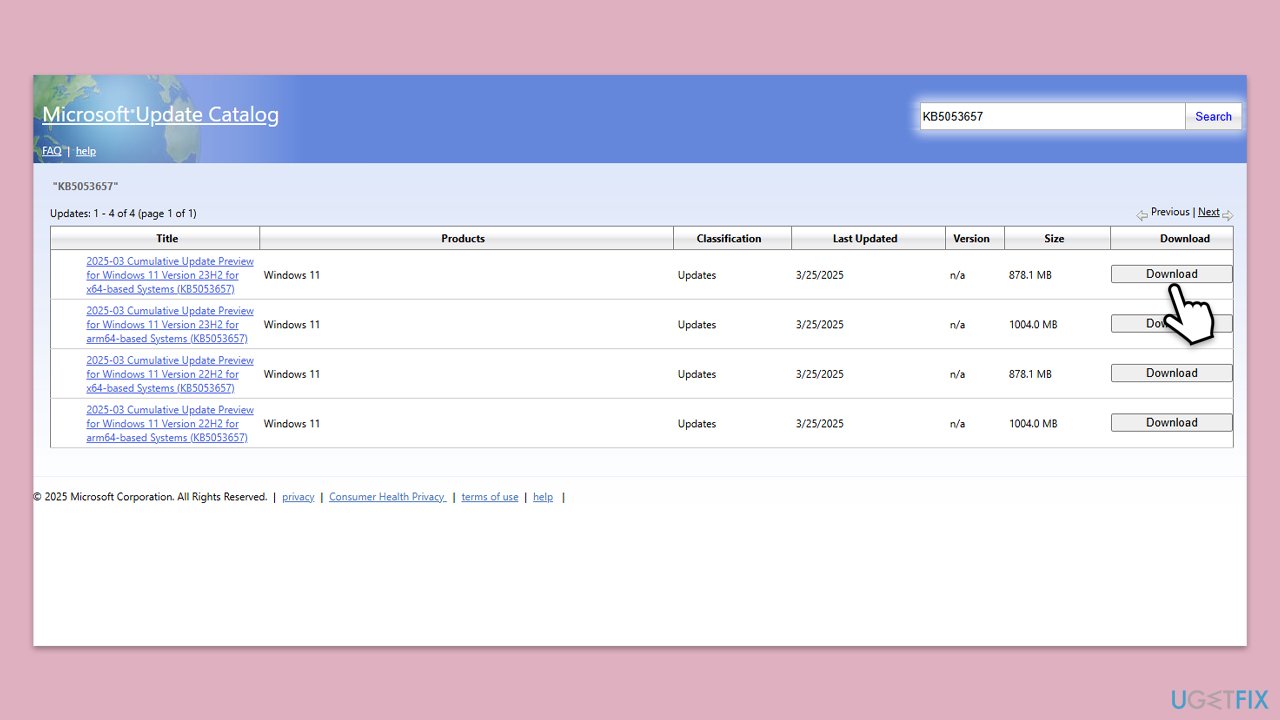
- Go to the official Microsoft Update Catalog website.
- Type the KB number into the search bar, and press Enter or click Search.
- You will find many different versions on the update – you need to find the one that matches your PC specs and Windows version (as a home user, ignore Windows server versions).
- Right-click on Start and pick System.
- Under Device specifications, check the System type section: it should either be 64-bit or 32-bit.
- Scroll down to Windows specifications and check the Version section.
- With all this information, pick the correct version for your device.
- Go back to the Microsoft Update catalog, download the appropriate version, and install it.
Fix 6. Run Clean Boot
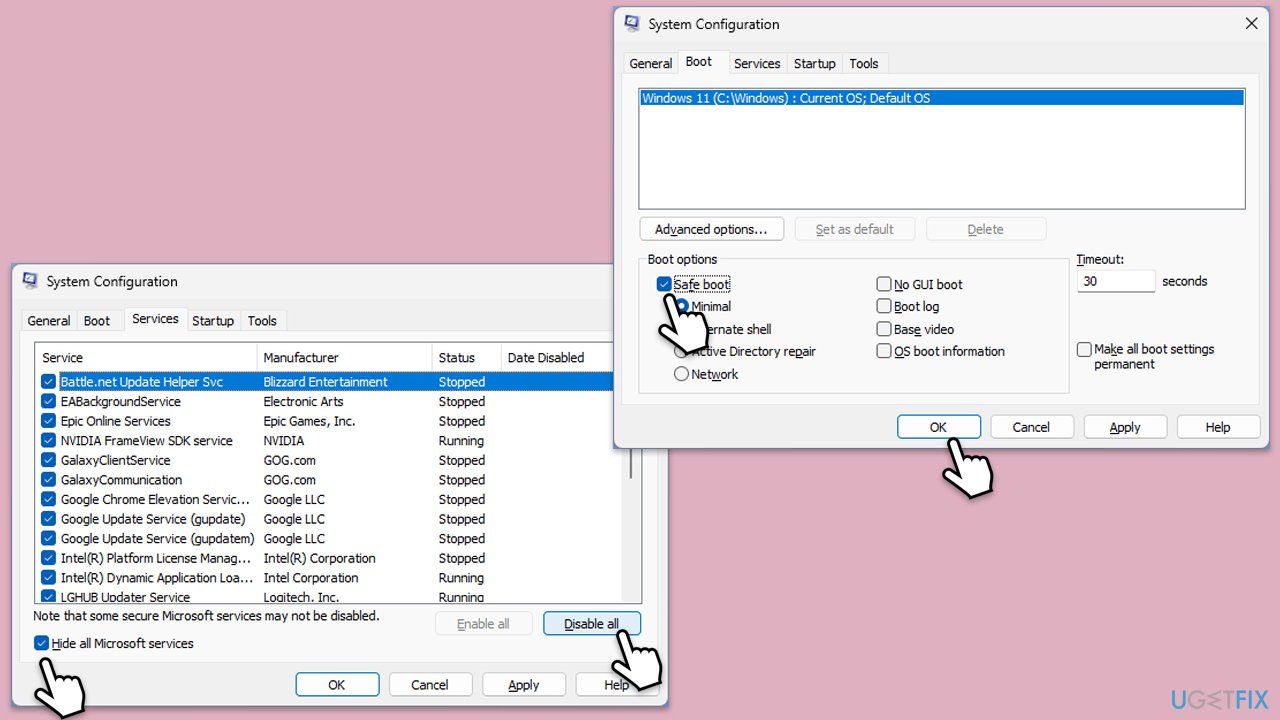
- Type Msconfig in Windows search and press Enter.
- At the top, pick Services tab.
- Mark the Hide all Microsoft services checkbox and click Disable all.
- Next, go to the Startup tab and click Open Task Manager.
- In the Task Manager, select each of the items and click Disable.
- Close Task Manager and go to the Boot tab in System configuration window.
- Here, mark Safe boot, click Apply and OK.
- Restart your computer and try updating again.
Fix 7. Use Media Creation tool
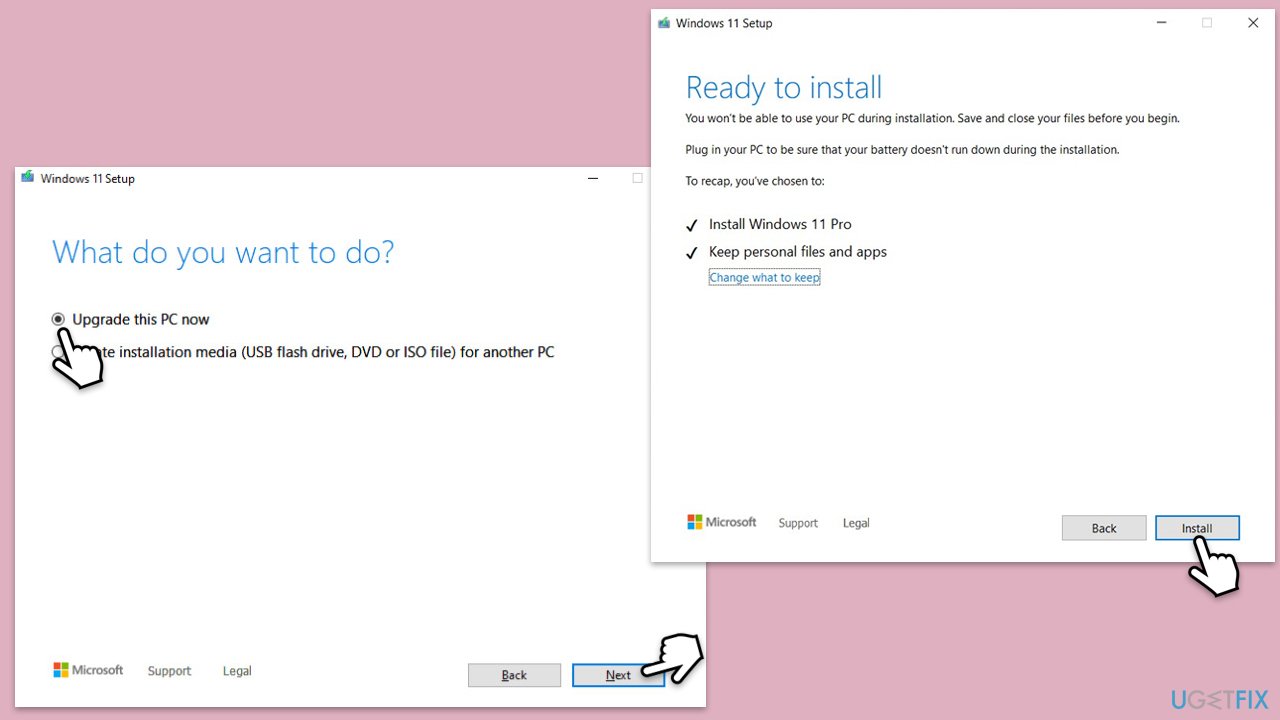
- Visit the official Microsoft website and download Windows 10 installation media. (Windows 11 version).
- Double-click the installer and select Yes when UAC shows up.
- Agree to terms.
- Select Upgrade this PC now and select Next.
- Windows will now download all the necessary files – it might take a while.
- Agree to the terms once again and click Next.
- Before installing, ensure you are happy with your choices (otherwise, you can click the Change what to keep option).
- Click Install to begin the upgrade process.
Bottom line
To fix Windows update error 0x80D02014, you can run the Windows Update Troubleshooter, empty the Windows Update cache, ensure there is enough disk space, and check for software conflicts. If these steps do not resolve the issue, consider using a repair tool for further assistance.
Frequently asked questions
The error 0x80D02014 typically occurs due to network connectivity issues, corrupted system files, or problems with the Windows Update service itself.
To fix the error on Windows 11, try running the Windows Update Troubleshooter and ensuring your network connection is stable.
Yes, resetting the Windows Update components can resolve the 0x80D02014 error by clearing any corrupted files or settings that may be causing the issue.




Before diving into all that software troubleshooting, I'd bet money that this is a hardware issue. Run CrystalDiskInfo first and check the health of your hard drive. If it's throwing errors, that could be why your updates are failing. Nine times out of ten, a dying drive is the real culprit behind these issues. Don't waste your time on cache cleaning yet; let's rule out the hardware first!
That's kind of an old-school approach, Mike. While I totally get where you're coming from, I think it's more likely a software issue in this case. Actually, what you want to do here is check for corrupt system files using the SFC command. I'd say the update error is usually related to Windows Update services being misconfigured or cached data causing conflicts. Hardware issues aren't as common these days unless you're using something super outdated. Just my two cents! Edit: to add more context—it's always good to check system health, but software tends to be the more frequent source of these update problems.
TL;DR: Hardware issues can cause update errors, but 0x80D02014 is often linked to software problems.
Bottom line: Check your drive health with CrystalDiskInfo for sure, but don't skip steps like clearing the Windows Update cache. It's a simple fix and worth trying early on.
Sure, Mike, I get where you’re coming from — a dying hard drive can definitely mess things up. But let’s not forget this is Windows we’re talking about. It could just as easily be another "security update" breaking something. Honestly, even if the drive checks out, I’d still be suspicious. Have you seen how often they roll out "fixes" that cause more problems than they solve? It's not a coincidence that errors like 0x80D02014 keep popping up with updates. Wake up — this is by design!