How to fix
Windows update error 0x8e5e0654
on Windows
Resolve Windows update error 0x8e5e0654 quickly and effectively. Get your system running smoothly with expert-tested solutions. Fixed in minutes!

What causes How to fix Windows update error 0x8e5e0654?
- System file corruption
- Windows Update service malfunctions
- Third-party software conflicts
- Unstable internet connections
- Overloaded Windows Update cache
Repairs Windows system files, removes malware, and restores a clean OS state — without reinstalling.
Hey there. I was trying to install the latest Windows update today, but I got the error code 0x8e5e0654. What can I do?
The fundamental role of Windows updates involves delivering vital security fixes alongside performance improvements and new features to ensure system security and functionality. Microsoft releases periodic updates to safeguard Windows devices while maintaining their operational efficiency. System updates sometimes fail to install because of errors that prevent essential improvements from being applied to the operating system. Users often face Windows update error 0x8e5e0654 as one of their primary system problems.
Users who try to install Windows updates or download applications from Microsoft Store commonly encounter Error 0x8e5e0654. Users have noted that their system starts to download updates until the installation fails and shows the error code. Users encounter the issue either during feature updates or cumulative updates. The error blocks the update process from finishing its execution resulting in frustration because essential security fixes and system stability updates require completion.
Multiple factors exist that trigger Windows update error 0x8e5e0654. System file corruption together with Windows Update service malfunctions and third-party software conflicts represent common factors that lead to this problem. Users have identified unstable internet connections as one potential cause of this error when performing updates. Users may need to clear their Windows Update cache to fix update failures that occur when the cache becomes overloaded.
Multiple methods exist to address error 0x8e5e0654. Two potential solutions for fixing this error involve resetting Windows Update components and running the built-in troubleshooting tools. System file verification and Windows Update service operational testing can help resolve technical issues. A clean boot or manual update installation procedure might solve the persistent error.
For those struggling to pinpoint the cause of error 0x8e5e0654, using [d1] repair can be particularly helpful. This tool specializes in fixing broken registries, corrupted system files, and various Windows errors, making it a useful option when dealing with complex update failures.
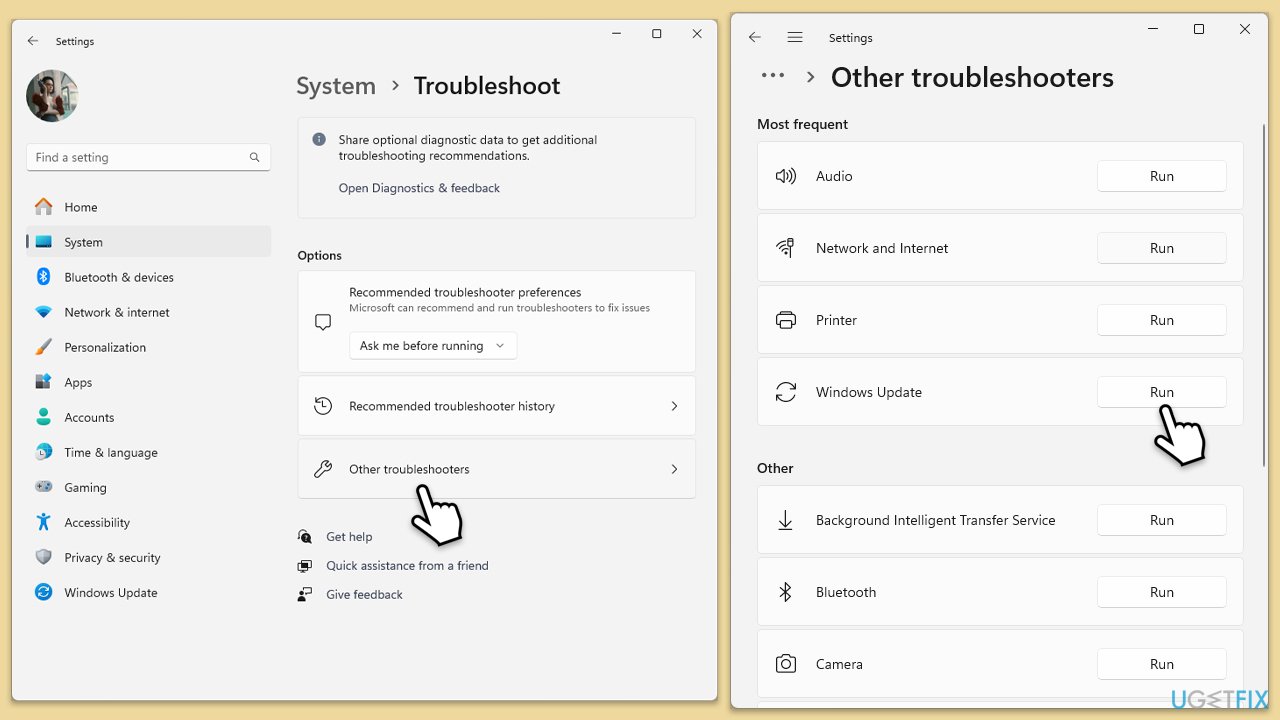
Fix 1. Run the troubleshooter
- Type Troubleshoot into the Windows search bar and press Enter.
- Next, on the right side of the window, select Additional troubleshooters/Other troubleshooters.
- Scroll down to locate the Windows update option and click on it.
- Click on Run the troubleshooter/Run and allow the process to complete.
- Once it is finished, implement any recommended fixes and restart your computer.
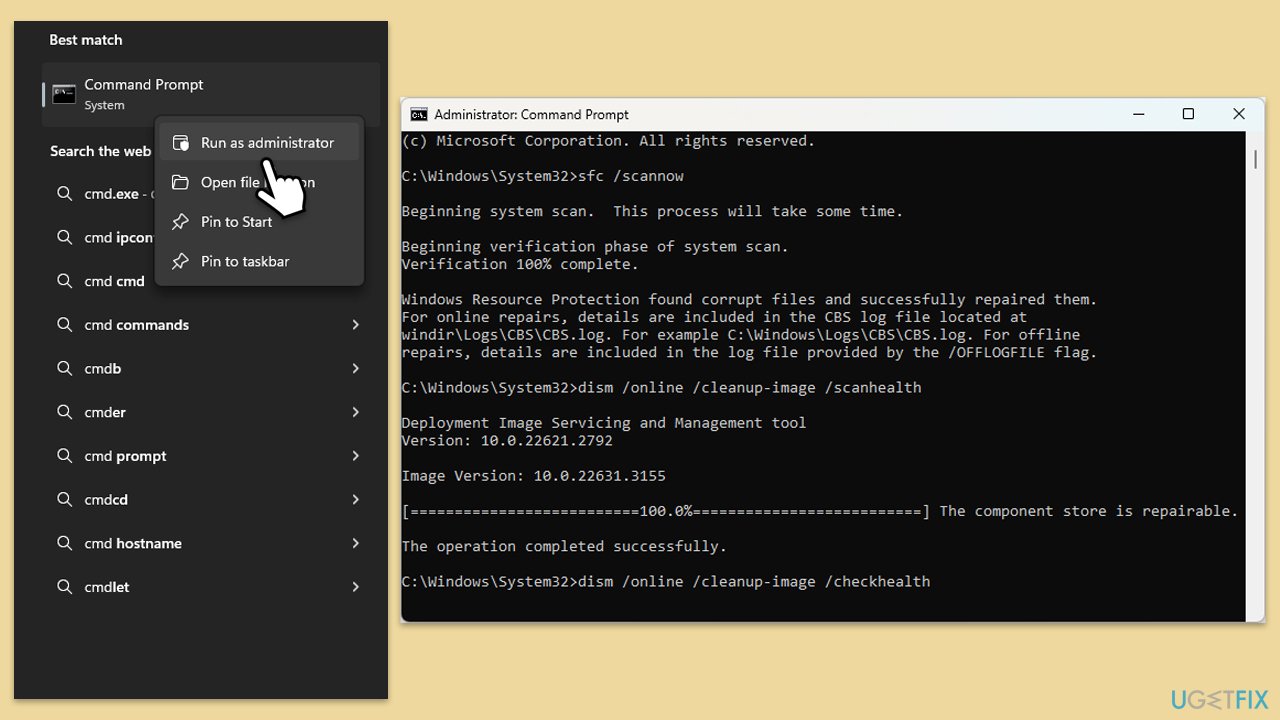
Fix 2. Repair corrupted files
- Type in cmd in Windows search.
- Right-click on Command Prompt and select Run as administrator.
- User Account Control will ask you whether you want to allow to make changes to the system - click Yes.
- In the Command Prompt window, paste the following command and press Enter:
sfc /scannow - Wait for the scan to complete.
- Once the SFC scan is finished, run the following set of DISM commands, pressing Enter after each one:
DISM /Online /Cleanup-Image /CheckHealth
DISM /Online /Cleanup-Image /ScanHealth
DISM /Online /Cleanup-Image /RestoreHealth
(Note: if you get an error executing this last command, add /Source:C:\RepairSource\Windows /LimitAccess to it and try again). - After completing the DISM commands, restart your system.
Fix 3. Check services
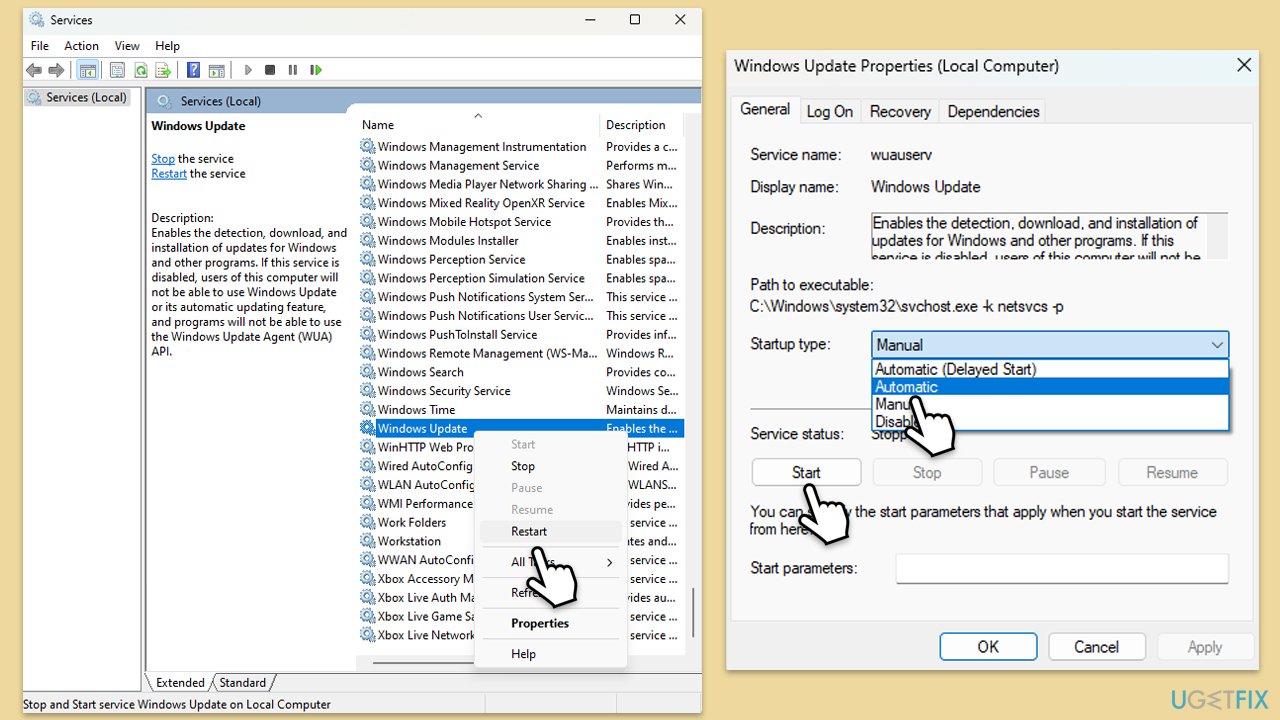
- Type in Services in Windows search and hit Enter.
- Locate Windows Update.
- If this service is already running, right-click and select Restart.
- If it is not running, double-click it, select Automatic under the Startup type from the drop-down menu.
- Click Start, Apply, and OK.
- Repeat the process with the Background Intelligent Transfer Service (BITS), Cryptographic, and Windows Installer services.
Fix 4. Perform Disk Cleanup
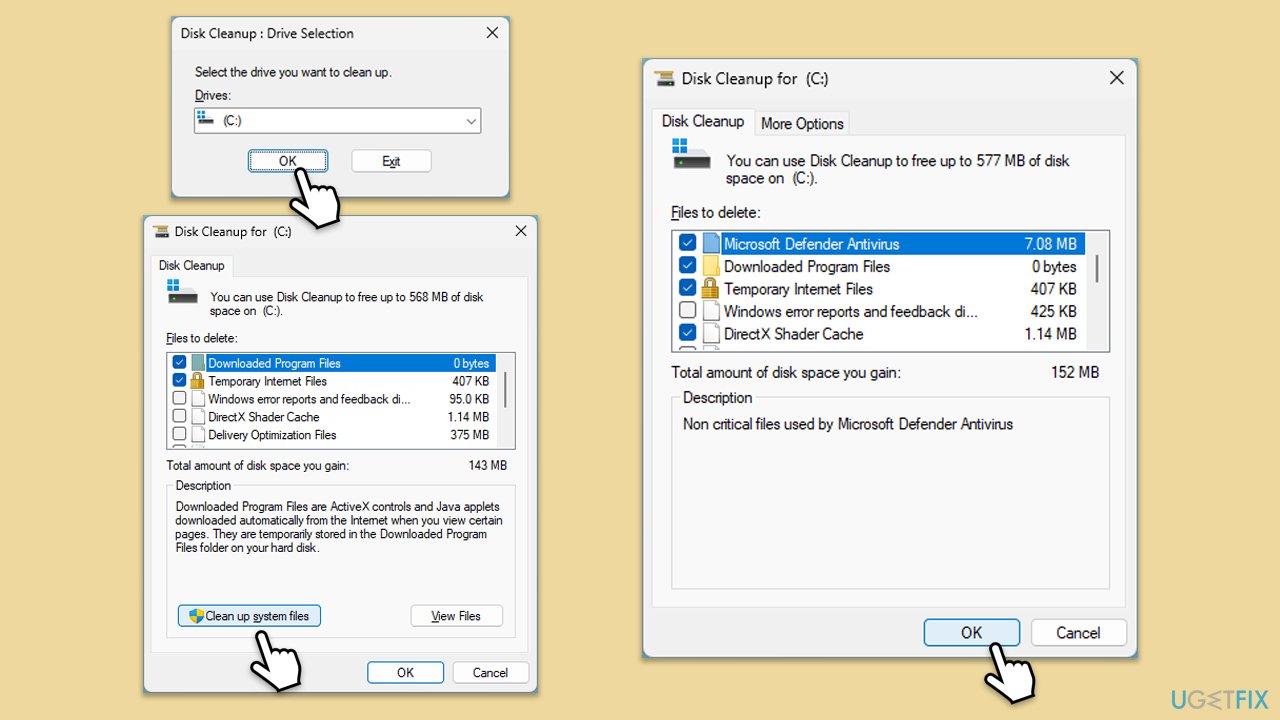
- Type Disk Cleanup in Windows search and press Enter.
- In the Disk Cleanup window, select the drive where your Windows operating system is installed (usually drive C:) and click OK.
- Click Clean up system files.
- Select the drive again and click OK.
- In the list of files that can be cleaned up, select the largest portions of data, such as Temporary Internet Files, Windows Update, Temporary Files, and others.
- Click OK to begin the cleanup process.
Fix 5. Reset Windows update components
- Open Command Prompt as administrator.
- When User Account Control (UAC) window shows up, click Yes.
- Paste in each of these commands, pressing Enter every time:
net stop bits
net stop wuauserv
net stop appidsvc
net stop cryptsvc
Del “%ALLUSERSPROFILE%\Application Data\Microsoft\Network\Downloader\*.*”
rmdir %systemroot%\SoftwareDistribution /S /Q
rmdir %systemroot%\system32\catroot2 /S /Q
regsvr32.exe /s atl.dll
regsvr32.exe /s urlmon.dll
regsvr32.exe /s mshtml.dll
netsh winsock reset
netsh winsock reset proxy
net start bits
net start wuauserv
net start appidsvc
net start cryptsvc - Restart your computer.

Fix 6. Use Media Creation Tool
- Visit the official Microsoft website and download Windows 10 installation media (Windows 11 version).
- Double-click the installer and select Yes when UAC shows up.
- Agree to terms.
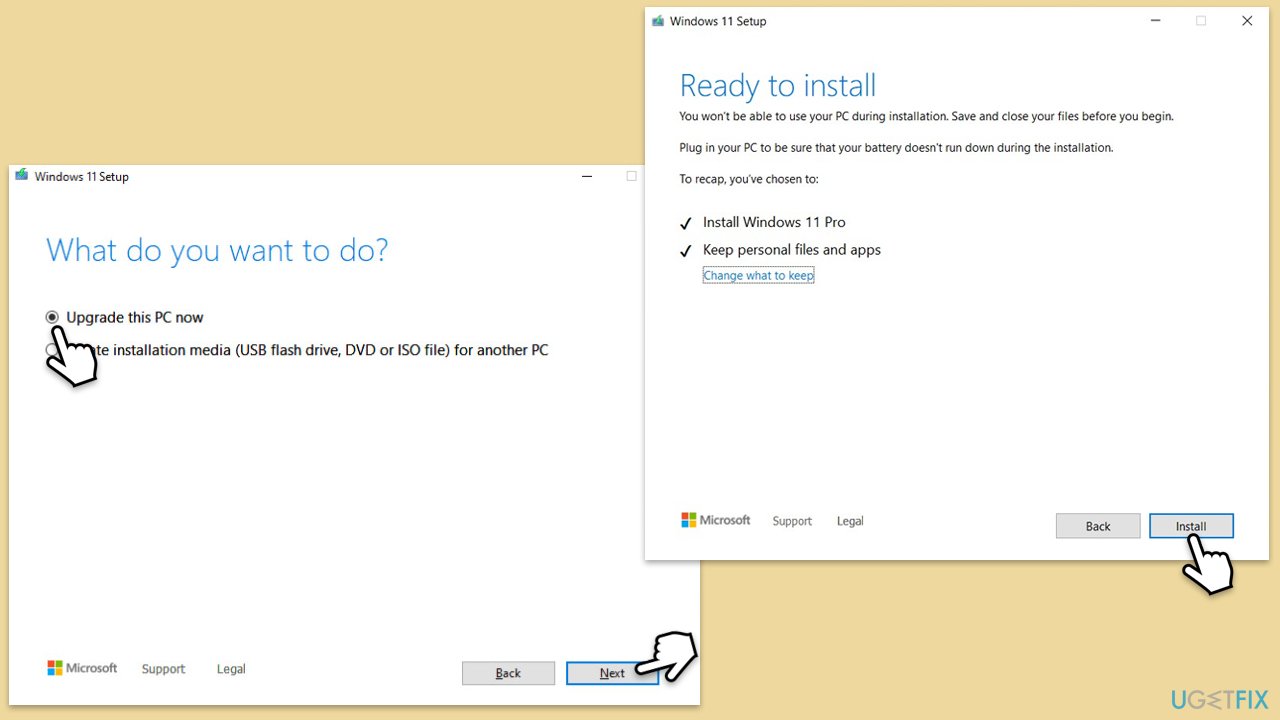
- Select Upgrade this PC now and select Next.
- Windows will now download all the necessary files – it might take a while.
- Agree to terms once again and click Next.
- Before installing, make sure that you are happy with your choices (otherwise, you can click Change what to keep option).
- Click Install to begin the upgrade process.
Fix 7. Try Clean Boot
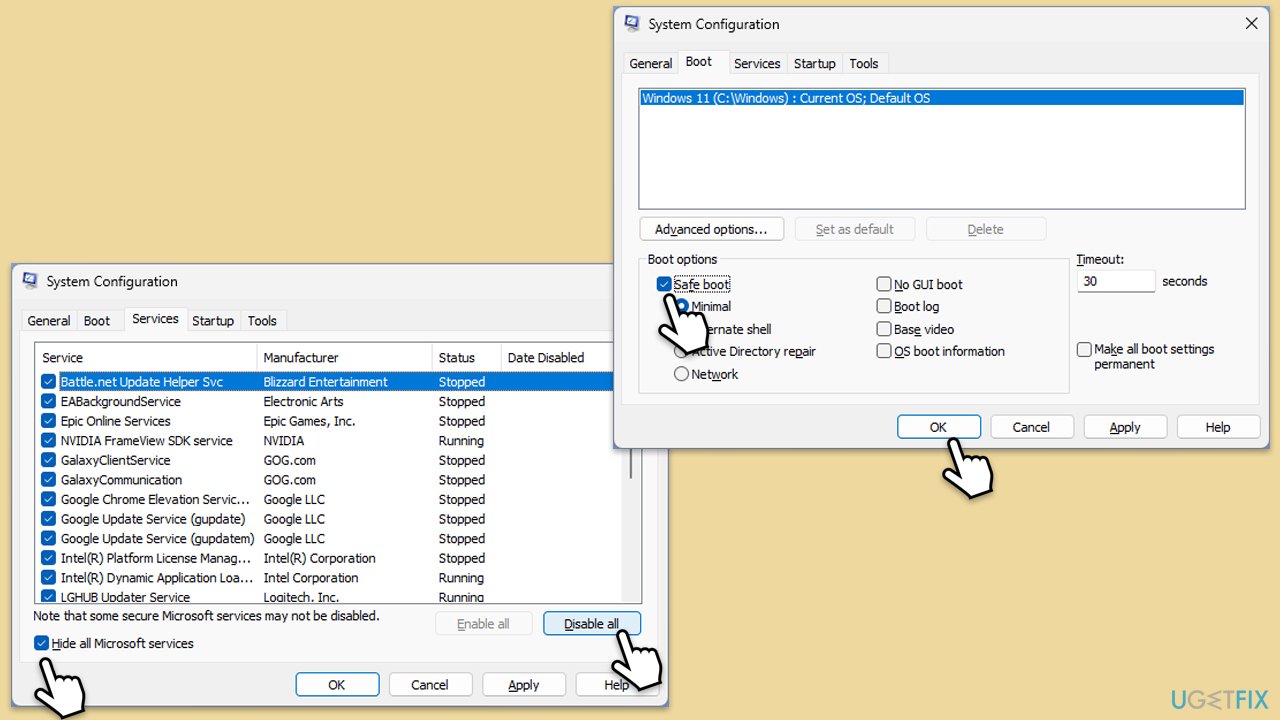
- Type msconfig in the Windows search box and press Enter.
- Select the Services tab and tick the Hide all Microsoft services checkbox at the bottom.
- Pick Disable all.
- Go to the Startup tab and click Open Task Manager.
- Here, right-click on each of the non-Windows entries and select Disable.
- Close down the Task Manager.
- Go to the Boot tab and tick the Safe boot option
- Reboot your computer and try updating it again.
Bottom line
To fix Windows update error 0x8e5e0654, you can reset Windows Update components, run the built-in troubleshooting tools, verify system files, or perform a clean boot. If these methods do not resolve the issue, consider using a repair tool to address broken registries and corrupted system files.
Frequently asked questions
The error 0x8e5e0654 typically indicates issues with the Windows Update service, which may be caused by corrupted system files or conflicts with installed software on Windows 10 or Windows 11.
To fix the error, try running the Windows Update Troubleshooter, which can automatically detect and resolve common update problems in Windows 10.
Yes, you can manually reset Windows Update components by stopping the Windows Update services, deleting temporary update files, and then restarting the services on both Windows 10 and Windows 11.




Report an issue
What's wrong with this guide? We review every report and update or remove content.
Report received — thank you. We'll review and fix it.
You need a free account to submit a report.
Be the first to comment