How to fix
Windows update error 0xC007000D
on Windows
Fix Windows update error 0xC007000D easily with our expert-tested solutions. Get your system running smoothly in minutes! Updated 2025.

What causes How to fix Windows update error 0xC007000D?
- Problem with the update procedure
- Incompatible software or services
- Lack of internet access
- Issues with Windows Update components
- Unpatched vulnerabilities
Repairs Windows system files, removes malware, and restores a clean OS state — without reinstalling.
Hello. When I try to install Windows updates I get the 0xC007000D error code. Is there a way to fix this issue?
When trying to install updates on their PCs, people frequently run into the Windows update error 0xC007000D. This problem can cause updates to install more slowly than they should, which can frustrate users and raise questions about the security and stability of their systems. This error code frequently indicates that there is a problem with the update procedure that is impeding the installation of security updates, bug fixes, or new features.
Error 0xC007000D affects users in ways other than just the annoyance of a failed update. Update failures could lead to the build-up of unpatched vulnerabilities, which could put the system at risk for security breaches. Furthermore, the lack of essential updates might impair the operating system's overall operation and performance, resulting in problems like lower system responsiveness, application faults, or compatibility issues with updated software.
Users must address the underlying causes that impede the updating process to resolve error 0xC007000D. Typical fixes entail troubleshooting procedures that could require confirming internet access, resetting Windows Update components, looking for incompatible software or services, or using specific tools that Microsoft offers to identify and fix update-related problems.
Apart from technical fixes, users can also find it helpful to keep up with Microsoft's most recent upgrades and release notes. Users may find solutions to fix the error or decide to wait for a more stable version of the update if they are aware of the particular update that is causing it and any known problems related to it.
In this guide, you will find 8 steps that should help you fix Windows update error 0xC007000D. You can also run a maintenance tool like [d1] that can fix most system errors, BSODs, corrupted files, registry issues, or clear cookies and cache automatically.
Method 1. Run the Windows Update Troubleshooter
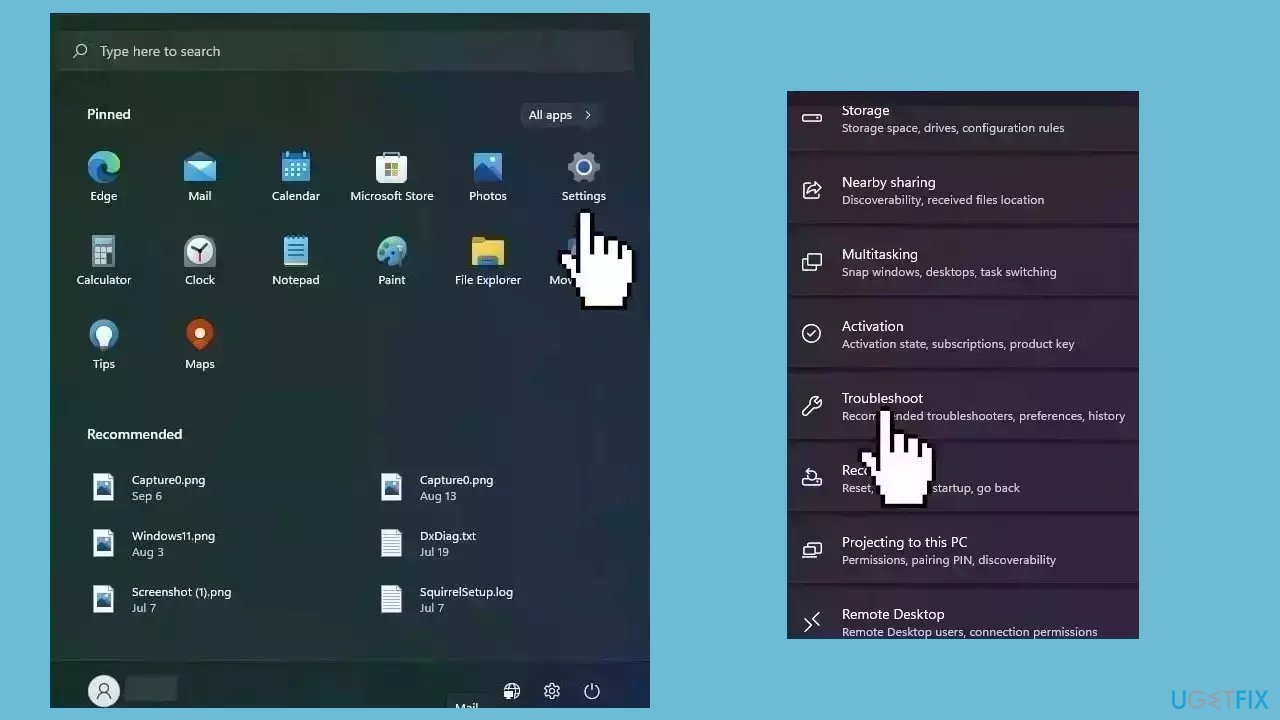
- Press the Windows key + I to open Windows Settings.
- Within the Windows Settings, navigate to the System tab.
- Scroll down the options in the System tab and locate Troubleshoot; click on it.
- Inside the Troubleshoot screen, find and select the Other troubleshooters option.
- A list of various troubleshooters will be displayed.
- Look for the Windows Update troubleshooter in the list.
- Click on the Run button associated with the Windows Update troubleshooter.
- Allow the troubleshooter to complete its process.
- Once the troubleshooter finishes, check your computer to determine if the issue has been resolved.
Method 2. Fix Corrupted System Files
Use Command Prompt commands to repair system file corruption:
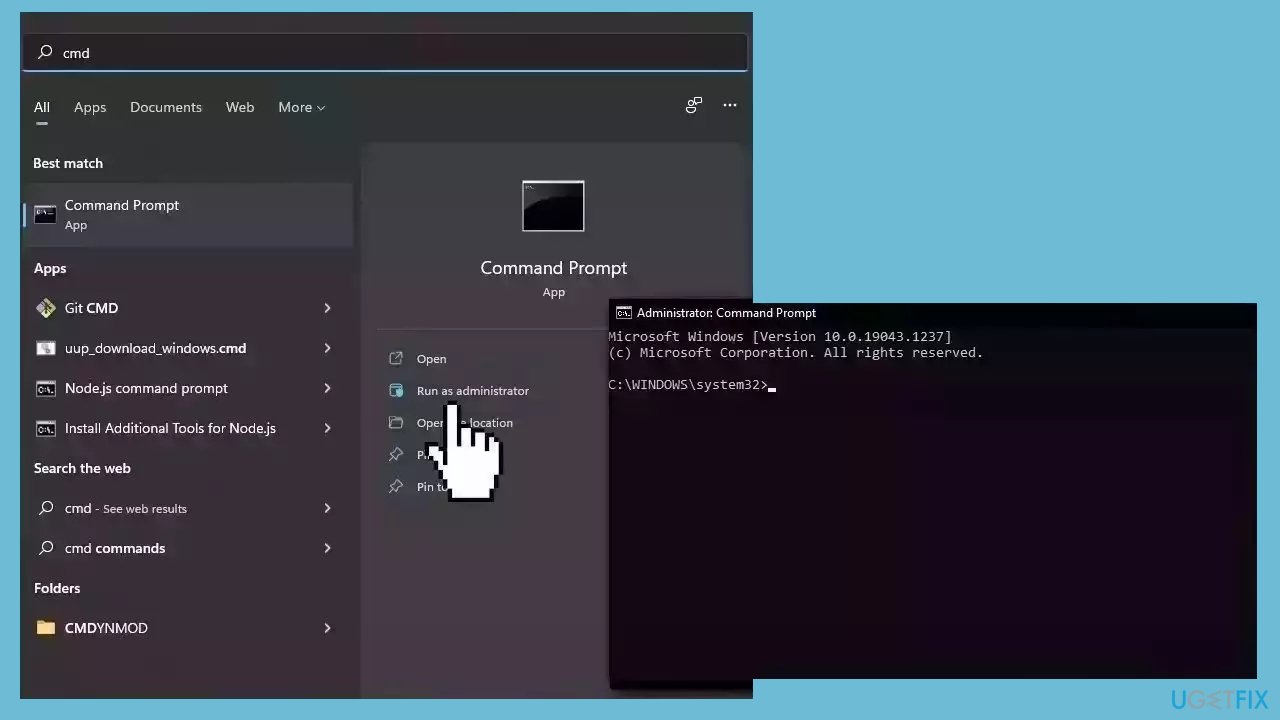
- Open Command Prompt as administrator
- Use the following command and press Enter:
sfc /scannow
- Reboot your system
- If SFC returned an error, then use the following command lines, pressing Enter after each:
DISM /Online /Cleanup-Image /CheckHealth
DISM /Online /Cleanup-Image /ScanHealth
DISM /Online /Cleanup-Image /RestoreHealth
Method 3. Restart the Windows Update Service
- Press the Windows key + R to open the Run dialog.
- Type services.msc into the Run dialog's input box.
- Click OK or press Enter.
- The Services window will appear.
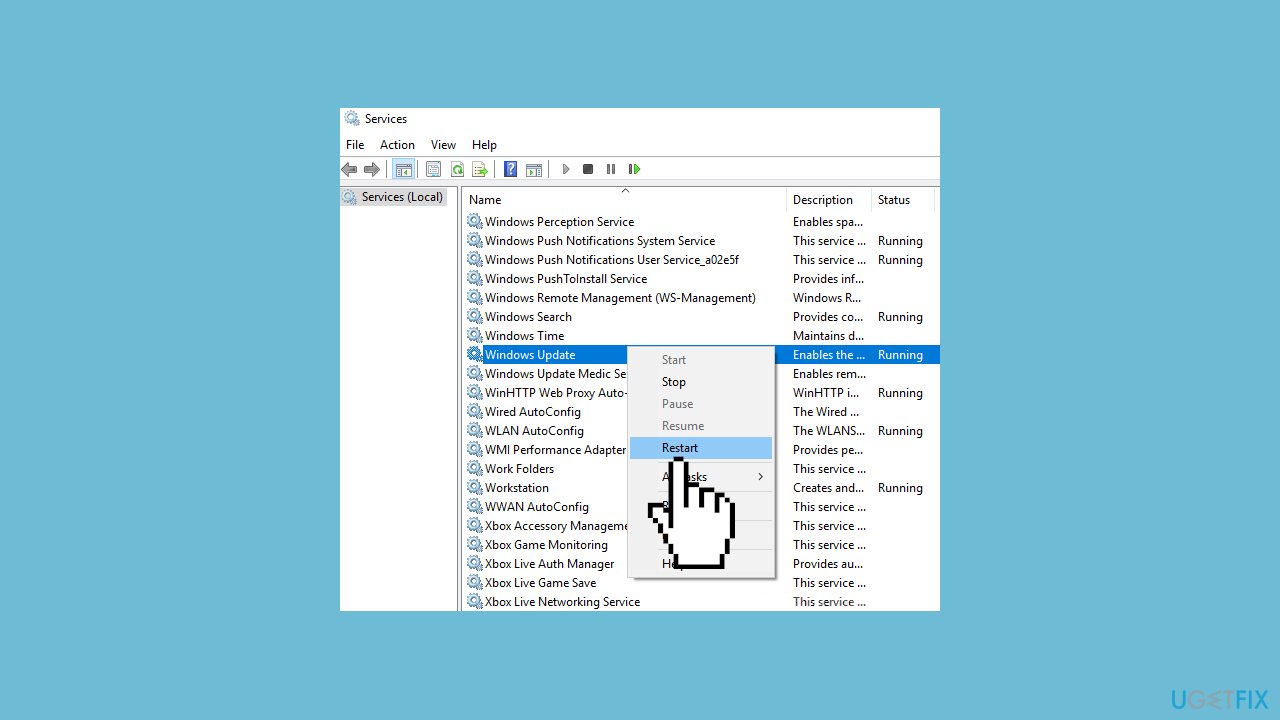
- Scroll through the list of services to locate the Windows Update Service.
- Right-click on the Windows Update Service from the list.
- Choose Restart from the context menu.
Method 4. Delete the Software Distribution Folder
- Open File Explorer and navigate to the C: drive.
- Open the Windows folder.
- Find the folder named Software Distribution and open it.
- Inside the Software Distribution folder, locate the Data Store and Download folders.
- Access the Data Store folder and the Download folder.
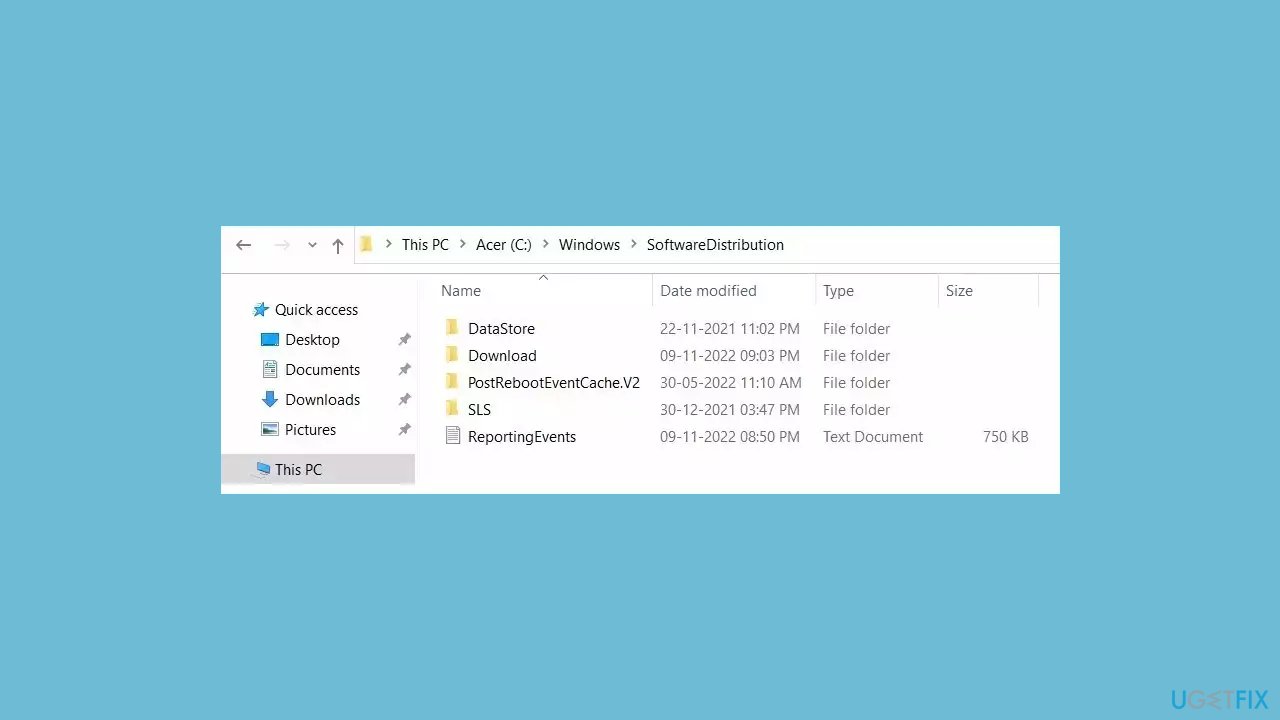
- Delete all the files and folders contained within the Data Store and Download folders.
- Restart your computer to apply the changes.
- After restarting, run Windows Update again to check for updates.
Method 5. Reset Windows Update Components
- Click on Search and type cmd.
- Select Run as administrator.
- When User account control appears, click on Yes.
- Copy and paste the following commands, one at a time, then press Enter after each:
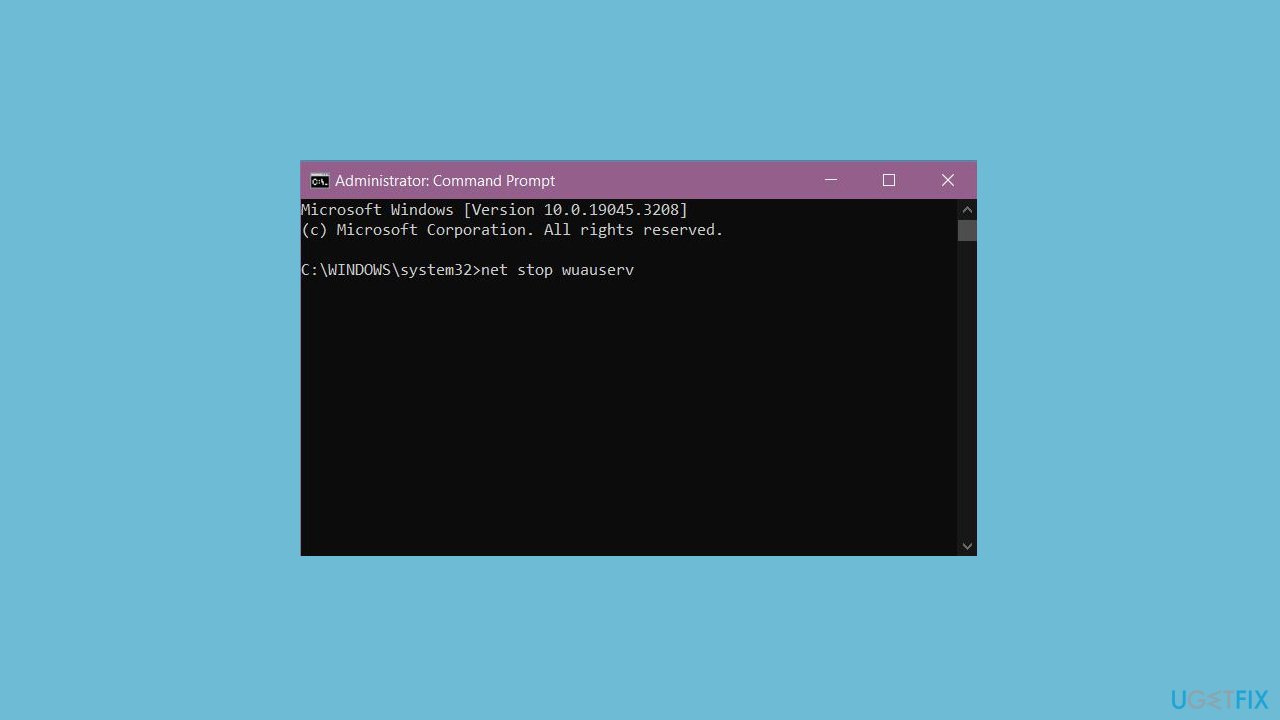
net stop bits
net stop wuauserv
net stop appidsvc
net stop cryptsvc
Del “%ALLUSERSPROFILE%\Application Data\Microsoft\Network\Downloader\*.*”
rmdir %systemroot%\SoftwareDistribution /S /Q
rmdir %systemroot%\system32\catroot2 /S /Q
regsvr32.exe /s atl.dll
regsvr32.exe /s urlmon.dll
regsvr32.exe /s mshtml.dll
netsh winsock reset
netsh winsock reset proxy
net start bits
net start wuauserv
net start appidsvc
net start cryptsvc
-
Restart your PC.
Method 6. Try Clean Boot
- Open the Search menu, type in system configuration, and press Enter.
- Under the Services tab, tick the Hide all Microsoft services box.
- Click on Disable all button.
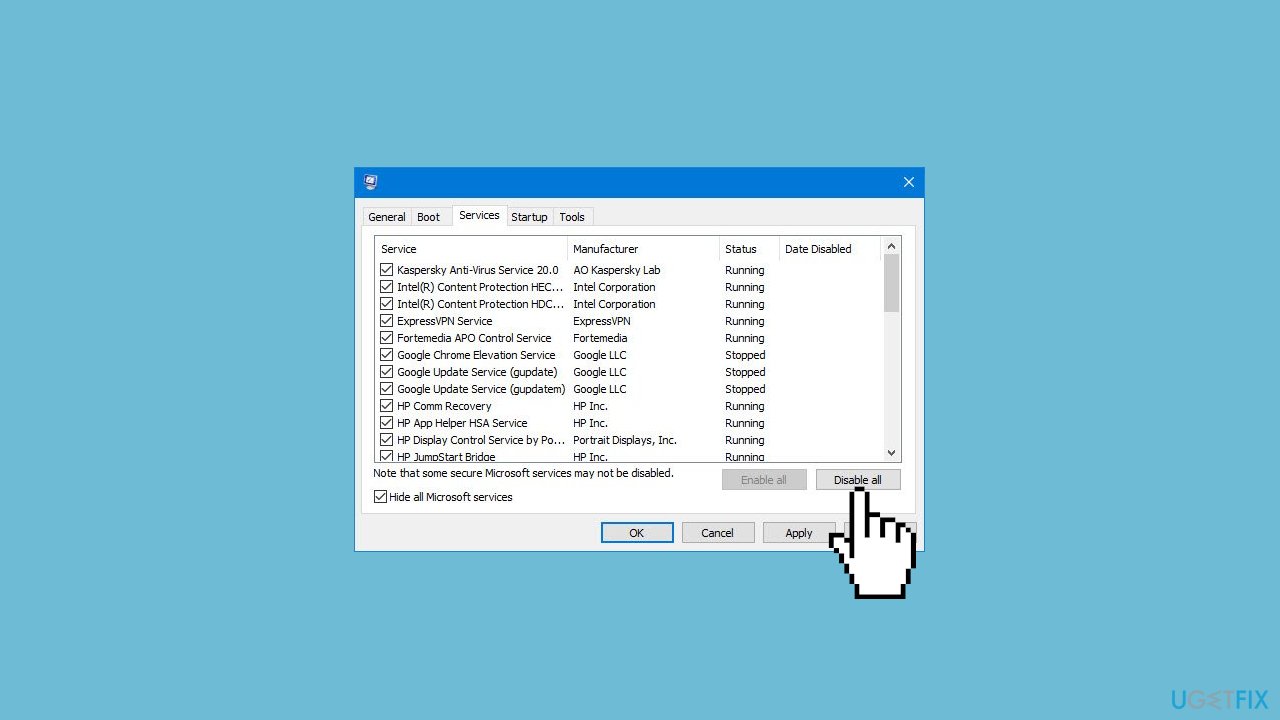
- Head over to the Startup tab and click on Open Task Manager.
- Select a third-party program and click on Disable at the top.
- Repeat this step to disable all third-party apps and programs.
- Restart your PC to enter the clean boot state and see if the issue persists.
- If the issue disappeared in the clean boot state, then you can be certain that a third-party app is causing it.
- Go through all recently installed apps or programs and remove them one by one.
Method 7. Use Microsoft Update Catalog
Whenever Windows updates fail to install automatically, you can always try doing it manually. First, you need to find out which KB number is relevant to you.
- Right-click Start button and pick Settings.
- Go to Update & Security.
- On the right, locate and click View update history.
- From the list, note the KB number that fails to install with the error code.
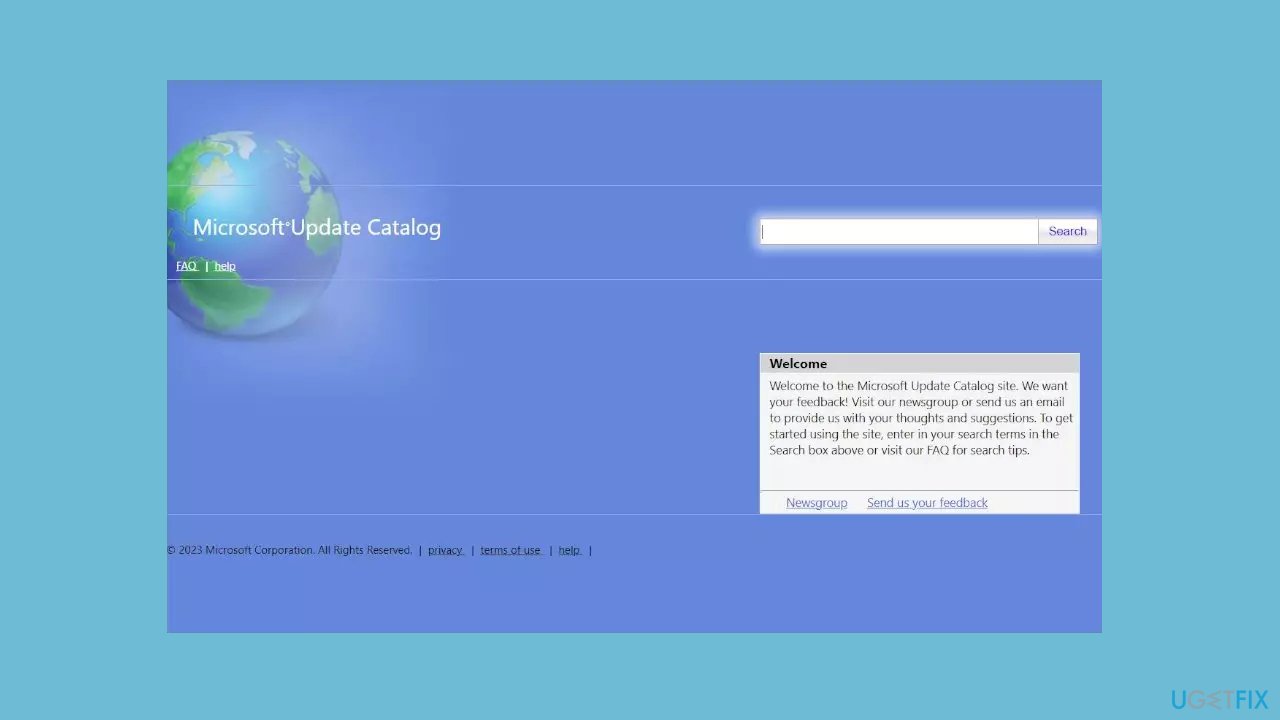
- Go to Microsoft Update Catalog page, type in the KB number, and press Search.
- Download the update and install it manually.
Method 8. Perform an In-place Upgrade
- Visit the official Windows 11 website.
- Navigate to the Download Windows 11 Disk Image (ISO) for x64 devices section.
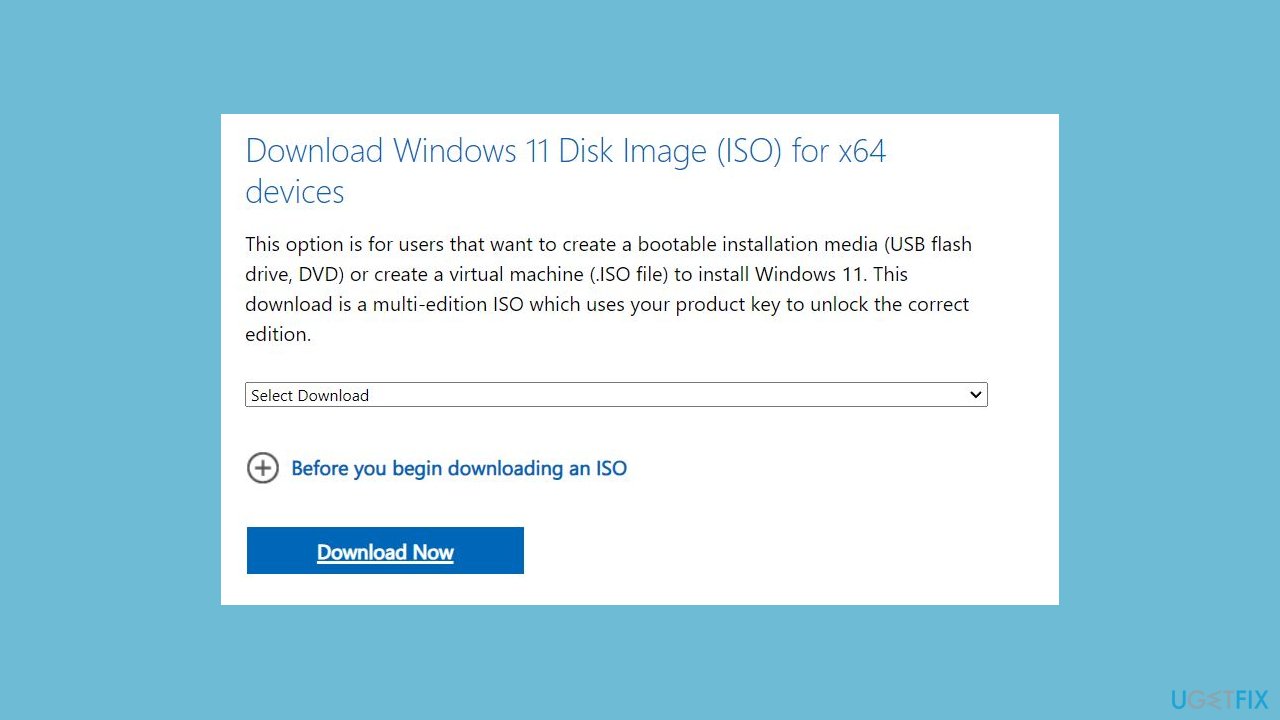
- Select Windows 11 (multi-edition ISO) and click the Download Now button.
- After the ISO file is downloaded, right-click on it and choose Mount from the context menu.
- In the newly opened window, double-click on the Setup.exe file to launch the Windows 11 Setup wizard.
- Confirm the User Account Control (UAC) prompt by clicking Yes.
- In the Install Windows 11 dialog box, click Next.
- Accept the license terms by clicking Accept in the corresponding window.
- On the Ready to install page, ensure that the Keep personal files and apps option is selected. If not, click Change what to keep, make your selection, and click Install.
- Windows will restart your computer multiple times during the upgrade process.
- Once the upgrade is complete, you will be greeted with a lock screen.
Bottom line
To resolve error 0xC007000D, users can troubleshoot by confirming internet access, resetting Windows Update components, and checking for incompatible software. Additionally, running the Windows Update Troubleshooter may help identify and fix issues. If these steps do not work, consider using specific Microsoft tools or waiting for a more stable version of the update.
Frequently asked questions
The error 0xC007000D typically occurs due to corrupted system files, issues with the Windows Update service, or conflicts with third-party software. Ensuring your system files are intact and updating the service can help resolve this issue.
You can use the System File Checker tool by running 'sfc /scannow' in the Command Prompt as an administrator to repair corrupted files in Windows 10 or Windows 11.
In Windows 11, you can try resetting the Windows Update components by stopping the Windows Update service, deleting the SoftwareDistribution folder, and then restarting the service to fix the error.




Report an issue
What's wrong with this guide? We review every report and update or remove content.
Report received — thank you. We'll review and fix it.
You need a free account to submit a report.
Be the first to comment