How to fix
Windows update error 0xC190010A
on Windows
Resolve Windows update error 0xC190010A swiftly with expert tips and solutions. Get your system running smoothly again—fixed in minutes!

What causes How to fix Windows update error 0xC190010A?
- System configuration incompatibilities
- Lack of storage space
- Corrupted system files
- Third-party security apps obstructing the update process
Repairs Windows system files, removes malware, and restores a clean OS state — without reinstalling.
Hi, I was unable to install the latest Windows update. I keep getting the error 0xC190010A every time I try. As far as I know, it is some major Windows update, so I don't know if that's related to it.
Regular updates are required to ensure that your Windows operating system remains safe and reliable. These upgrades not only improve system efficiency but also provide new functionality and fix existing errors or bugs. However, throughout the upgrade process, you may encounter certain troubles, including the error code 0xC190010A. This error occurs while attempting to install a Windows update and can indicate underlying issues that prevent the update from completing effectively.
Error 0xC190010A is generally caused by system configuration incompatibilities, a lack of storage space, or corrupted system files. These circumstances can impede the updating process, resulting in the aforementioned error code. Unlike ordinary update errors caused by internet connectivity issues or server-side problems, error 0xC190010A is frequently associated with the state of the local system environment.
Several preparatory actions can be performed in order to address an issue that error 0xC190010A presents. Important first actions include making sure there is enough storage space for the upgrade and initiating a thorough system scan for corrupted data. In addition, verifying the accuracy of system files and configurations may help locate and fix the root cause of the error. Also, since third-party security apps may obstruct the update process, it's a good idea to temporarily disable them.
In the search for a more simplified approach, using a specialized PC repair tool [d1] is a potential choice. Such programs are intended to automatically identify and repair a wide range of Windows system issues, including those that cause error 0xC190010A, allowing for a swifter update process without requiring substantial manual effort.
Fix 1. Ensure adequate disk space
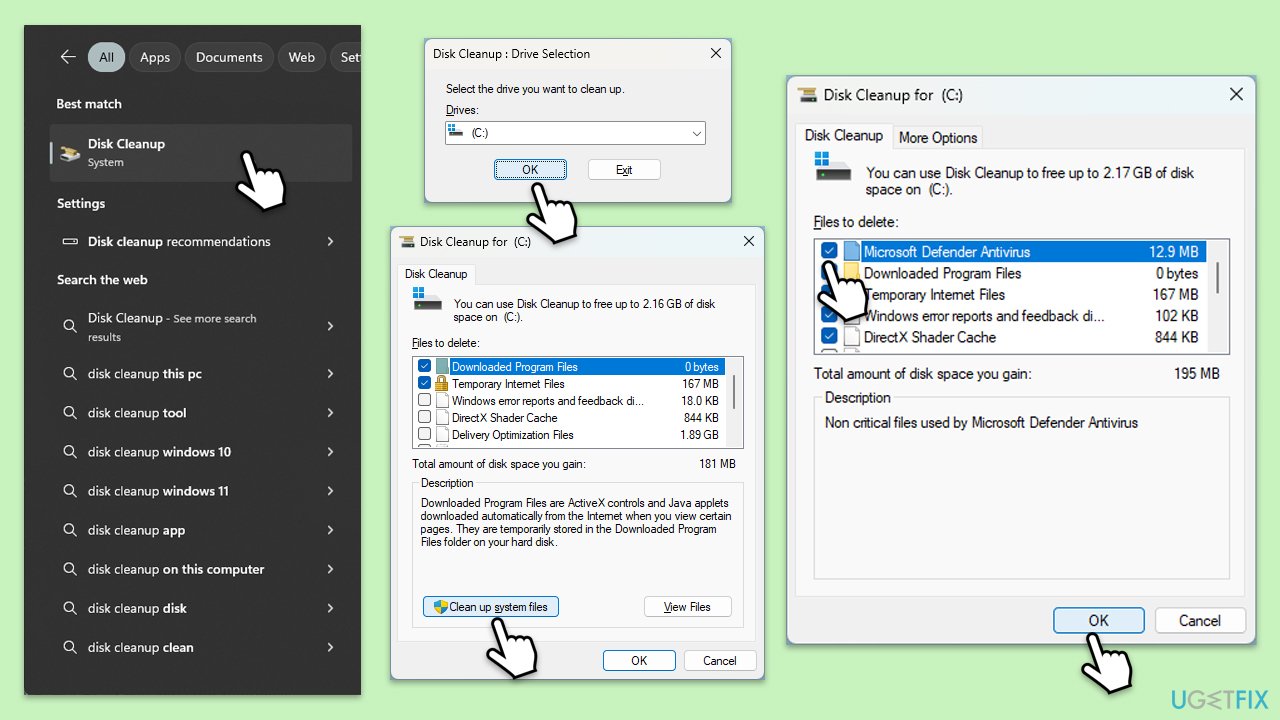
As mentioned previously, insufficient space can be the reason why the updates fail to install. Follow these steps to perform Disk Cleanup to acquire more space:
- Type Disk Cleanup in Windows search and hit Enter.
- If your Windows is installed on drive C, pick it from the list (it should be by default) and press OK.
- Click Clean up system files.
- Select your main disk again and click OK.
- Here, select the largest portions of the data used - these typically include Temporary Internet Files, Windows Update, Temporary Files, Recycle Bin, Delivery Optimization Files, and others.
- Click OK - the process should be finished shortly.
Fix 2. Utilize Windows Update troubleshooter
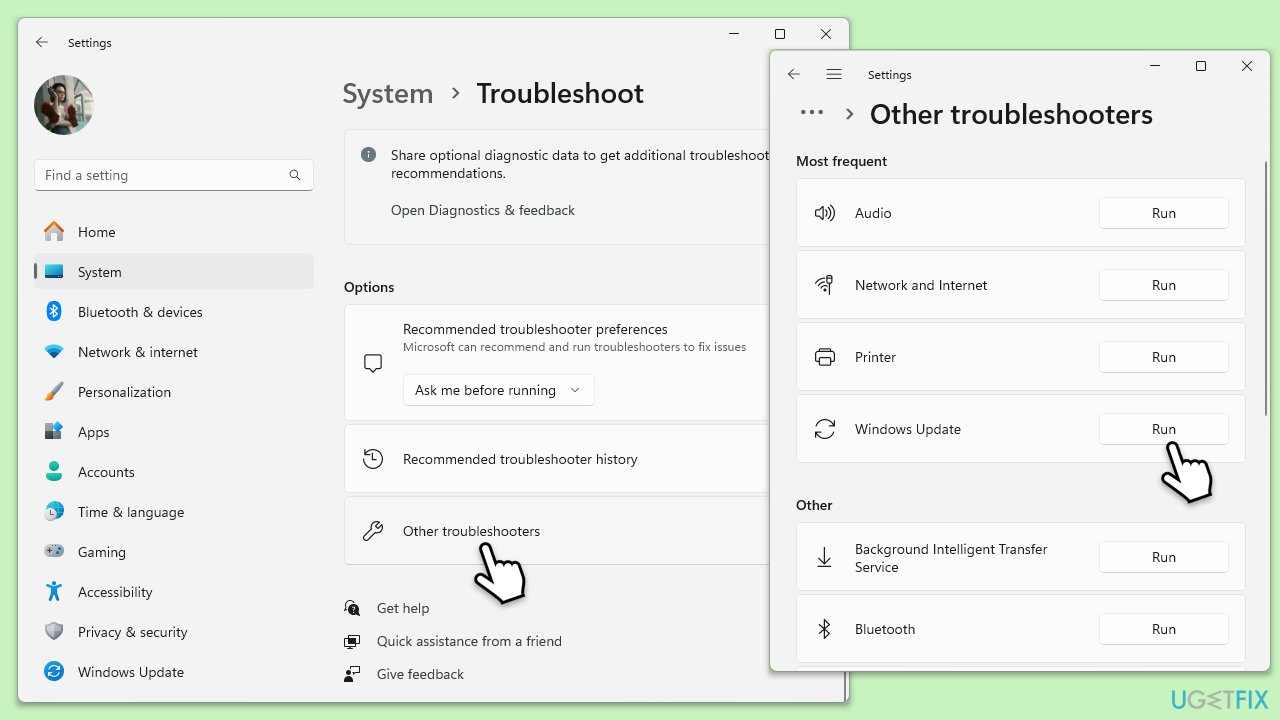
Troubleshooters are built-in tools that can often help to resolve issues automatically.
- Type Troubleshoot in Windows search and hit Enter.
- Select Additional troubleshooters/Other troubleshooters.
- Find Windows Update from the list and select Run the troubleshooter/Run.
- Wait till the scan is finished - you will be provided with potential causes so you can proceed with fixes.
- If no suggestions were given, proceed with the solutions below.
Fix 3. Initiate a Clean Boot
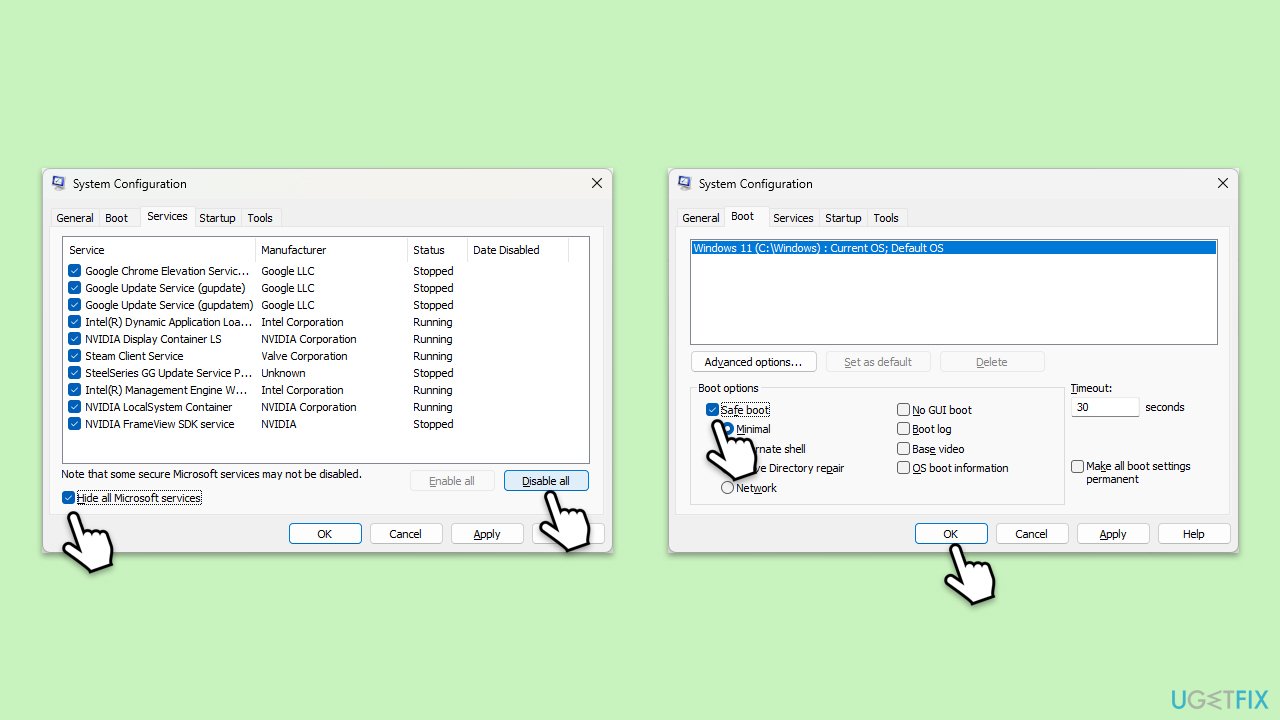
- Type msconfig inWindows Search and press Enter to open the System Configuration window.
- Click on the Services tab and check the Hide all Microsoft Services box.
- Click Disable all to disable non-Microsoft services, then click the Startup tab.
- Open the Task Manager, disable all startup items, and close the Task Manager.
- Go to the Boot tab and mark the Safe boot option.
- Click OK on the System Configuration window and restart your computer.
- Try installing the update again.
Fix 4. Reset Windows Update components manually
- Type cmd in Windows search.
- Right-click on Command Prompt and pick Run as administrator.
- When User Account Control requests permission for changes, click Yes.
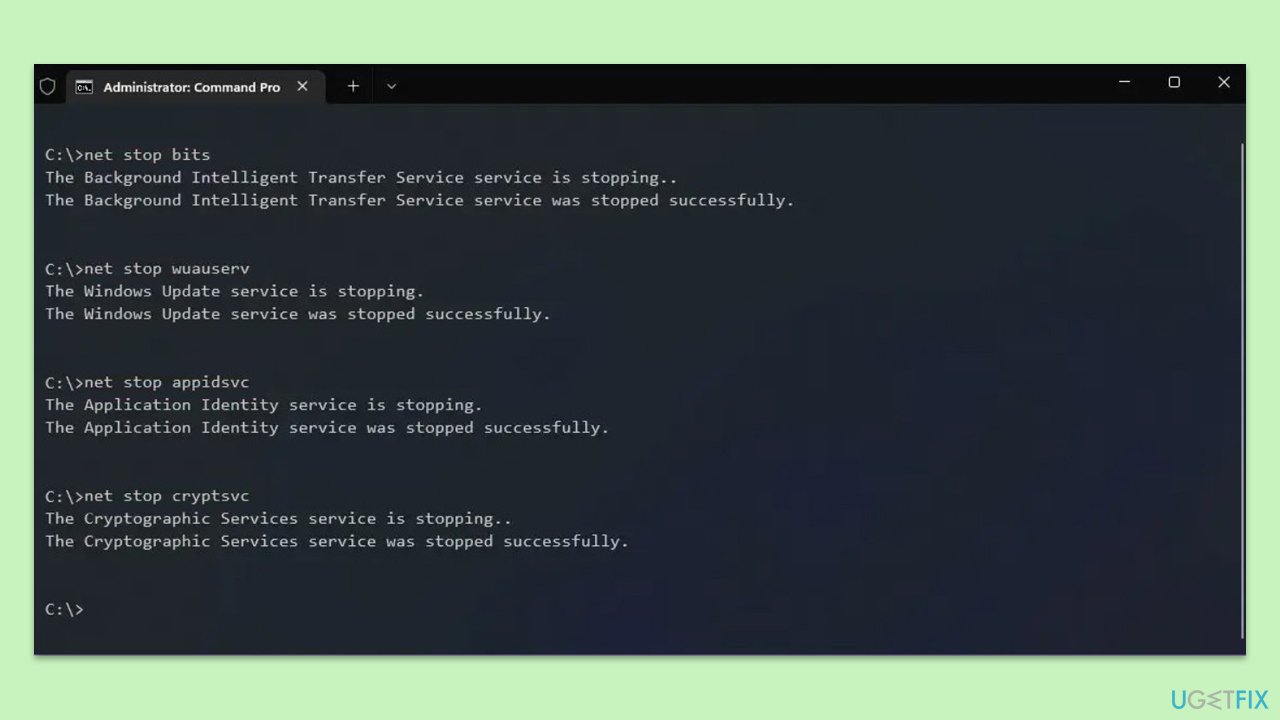
- Copy and paste the following commands one by one in Command Prompt and press Enter after each:
net stop wuauserv
net stop cryptSvc
net stop bits
net stop msiserver
Ren C:\Windows\SoftwareDistribution SoftwareDistribution.old
Ren C:\Windows\System32\catroot2 Catroot2.old - When these commands are executed, the last thing to do is to re-enable relevant services:
net start wuauserv
net start cryptSvc
net start bits
net start msiserver - Reboot your device.
Fix 5. Update Device drivers
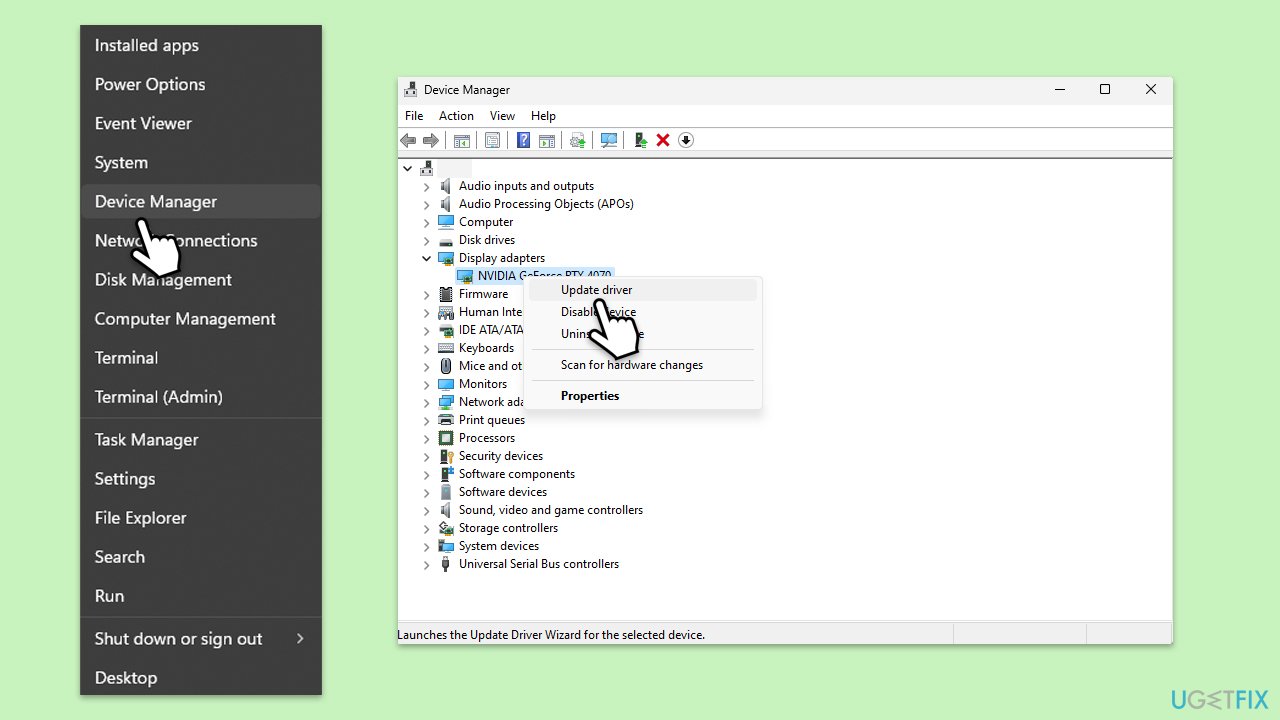
- Open Device Manager by right-clicking the Start button and selecting Device Manager.
- Expand each section to look for any devices with a yellow exclamation mark, indicating a problem.
- Right-click the problematic device and select Update driver.
- Choose Search automatically for drivers and follow the instructions. If Windows doesn't find a new driver, visit the device manufacturer's website to download and install the latest driver manually. Alternatively, you can always rely on automatic tools such as [rev id="DriverFix"].
Fx 6. Check for file corruption with SFC and DISM
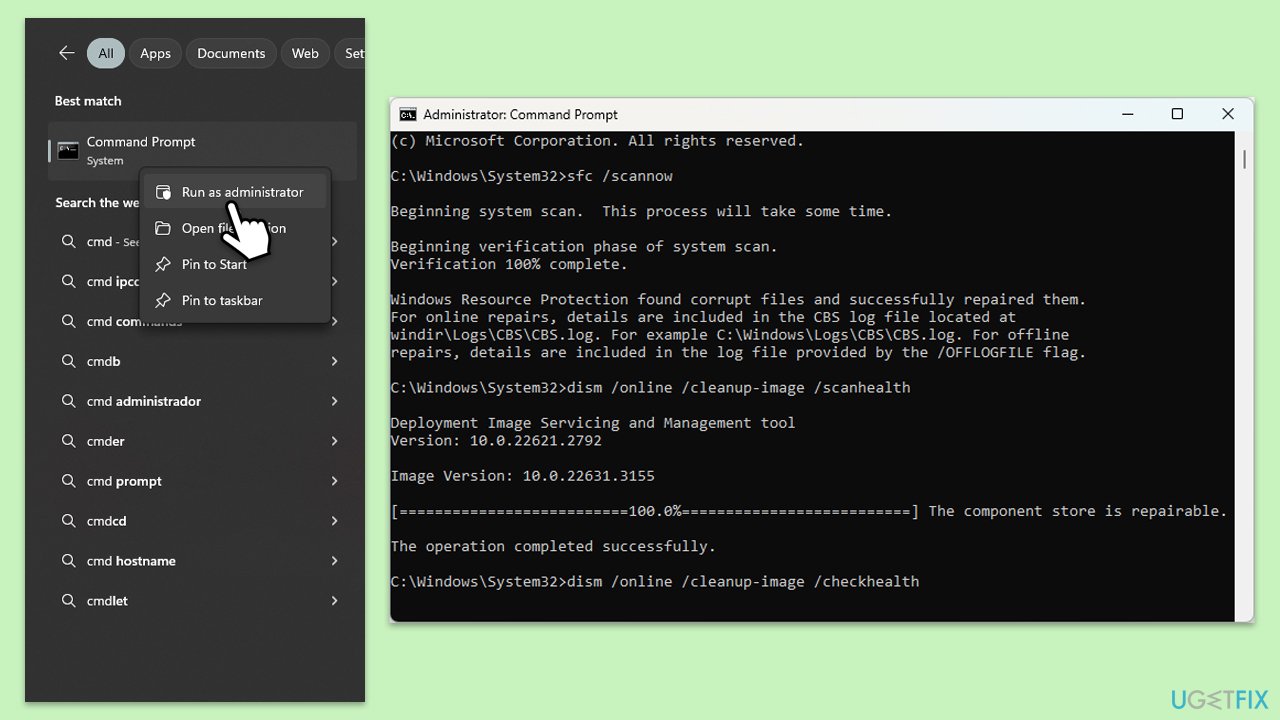
- Open Command Prompt as administrator.
- Copy and paste the following command, pressing Enter after:
sfc /scannow - Wait till the scan is finished. If Windows finds system file integrity violations, it will attempt to fix them. After this, use the set of the following commands, pressing Enter each time:
DISM /Online /Cleanup-Image /CheckHealth
DISM /Online /Cleanup-Image /ScanHealth
DISM /Online /Cleanup-Image /RestoreHealth - Close down the Command Prompt and restart your system.
Fix 7. Temporarily disable third-party antivirus software
Navigate to your antivirus application and look for an option to disable it temporarily. This varies by software, so consult your antivirus help guide if necessary. Don't forget that other software, such as VPN or Firewall, can also interfere with your connections to Microsoft servers, so disable them as well, then try updating.
Fix 8. Perform a repair upgrade
If nothing else works, you can use a special tool by Microsoft to repair your Windows installation and update it to the latest version. Don't worry, your personal files will remain intact.
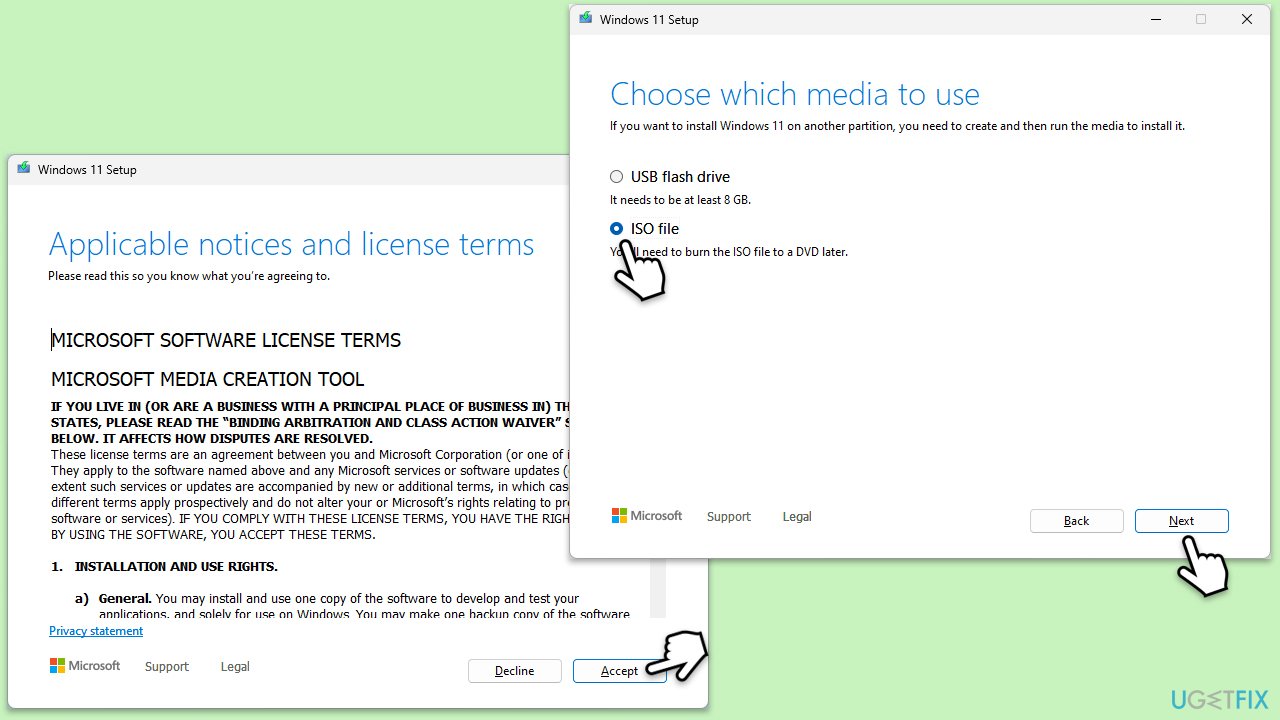
- Visit the official Microsoft website and download Windows 10 installation media (Windows 11 version).
- Double-click the installer, select Yes when UAC shows up, and agree to the terms.
- Select the ISO file and click Next, then follow the instructions to finish the process.
- Right-click on ISO and click Mount.
- Open the location of the ISO, right-click on it, and select Mount.
- Launch the installer.
- Select Upgrade this PC now and click Next.
- Windows will start downloading the needed files.
- Agree to the terms once again and click Next.
- Before installing, ensure you are happy with your choices (otherwise, you can click the Change what to keep option).
- Finally, click Install to begin the upgrade process.
Bottom line
To resolve the Windows update error 0xC190010A, ensure there is adequate disk space, perform a thorough system scan for corrupted data, verify system files and configurations, and consider temporarily disabling third-party security applications. If these steps do not resolve the issue, using a specialized PC repair tool may help identify and repair underlying problems.
Frequently asked questions
The error 0xC190010A indicates that there is not enough space on your Windows 10 or Windows 11 device to complete the update. It typically occurs when the required temporary files cannot be created due to insufficient disk space.
To resolve error 0xC190010A, you can use the Disk Cleanup tool in Windows 10 or Windows 11 to remove unnecessary files or uninstall applications you no longer need. Additionally, consider transferring large files to an external drive or cloud storage.
If you continue to encounter error 0xC190010A despite having enough space, try running the Windows Update Troubleshooter, or resetting the Windows Update components manually to ensure everything is functioning properly.




Report an issue
What's wrong with this guide? We review every report and update or remove content.
Report received — thank you. We'll review and fix it.
You need a free account to submit a report.
Be the first to comment