How to fix
Windows update error 0xC80003F9
on Windows
Resolve Windows 10 or 11 update error 0xC80003F9 quickly and easily with expert-tested solutions and tips, fixed in minutes for hassle-free updates!

What causes How to fix Windows update error 0xC80003F9?
- Corrupted update components
- Unstable network connection
- Interference from third-party applications
- Corruption or absence of essential system files
- Disk-related problems like low available space
Repairs Windows system files, removes malware, and restores a clean OS state — without reinstalling.
Please, could you help me with an error I'm getting when trying to install Windows updates? The error is 0xC80003F9 and it has been happening for well over a week now, so it does not seem like it's fixing itself.
Windows update error 0xC80003F9 is a problem that can prevent downloading or even installing updates, thus disturbing the process of updating and keeping the system safe. This usually happens when users try to check for updates, and it may also display a message that the process for installing updates couldn't be completed. Although this isn't an uncommon error, it can surely be frustrating to deal with, especially if the updates are of a critical nature.
This error can significantly impact system stability, as updates often include critical security patches and performance enhancements. If you don't update the system, it will gradually expose you to more risks or reduce its functionality. Identifying the cause of a problem is the first step in solving it thoroughly.
One of the notoriety characteristics of error 0xC80003F9 is that it tends to occur when the Windows Update service cannot communicate with Microsoft's update servers. Of course, this problem may arise for plenty of other reasons, but pinpointing the correct one requires detailed analysis.
Most commonly, such problems stem from corrupted update components or a network connection unstable at least at this moment, or due to interference from third-party applications, including antispyware or antivirus software, and firewalls.
It may also be because of the corruption or absence of an essential system file that plays a critical role in the smooth functioning of the Windows Update service. Therefore, if these files get corrupted or damaged, then it gives rise to issues such as error 0xC80003F9. Disk-related problems like low available space or corrupted files might also cause the error to emerge.
These are varied in nature; however, it typically includes a mix of software conflicts, damaged components, or network disruptions. Finding these underlying causes can fix the issue and ensure that your system remains updated.
The solution to error 0xC80003F9 might require troubleshooting the network connections, repairing the system files, or resetting the Windows Update components. Users who have trouble with these steps can resort to [d1] repair, which provides an automated way to effectively bring back the update.
Fix 1. Check relevant services
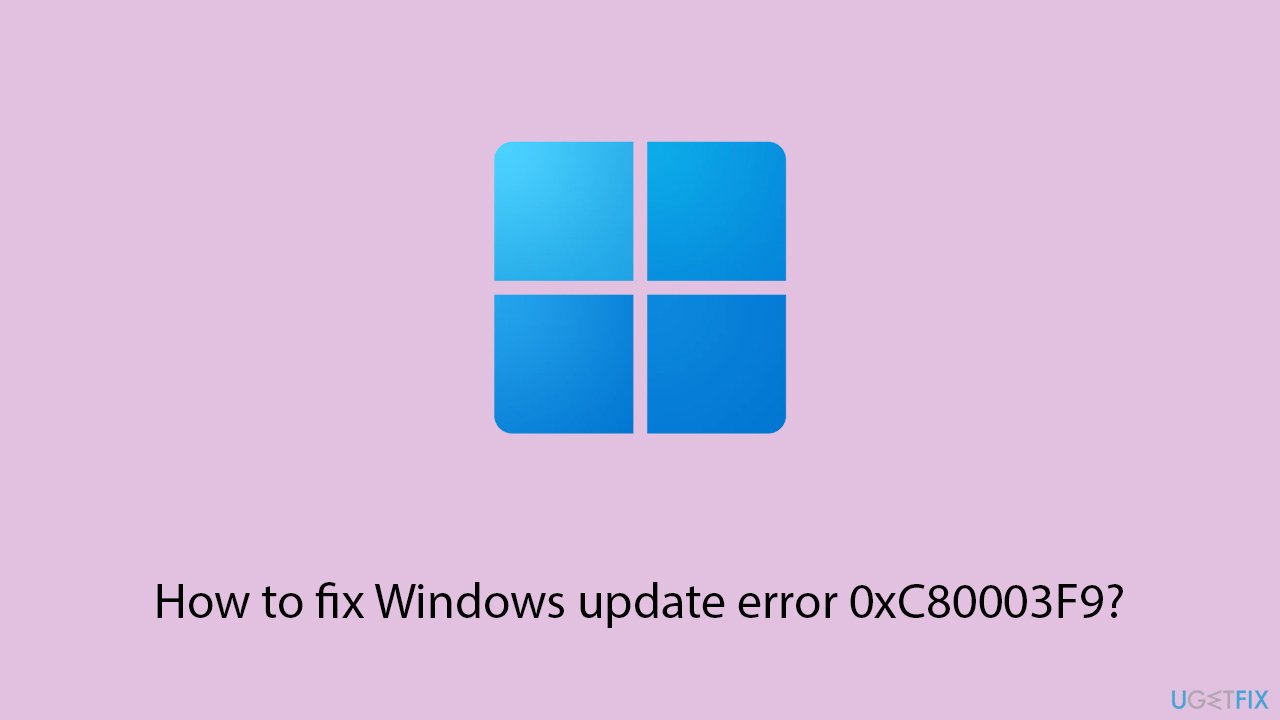
Sometimes, the Windows Update service (and other relevant services) itself can encounter issues that prevent updates from completing. Restarting the service can help refresh its functionality.
- Type in Services in Windows search and press Enter.
- Scroll down to locate Windows update.
- If it is already running, right-click and pick Restart.
- If the service is not running, double-click it, and select Automatic under the Startup type from the drop-down menu.
- Click Start, Apply, and OK.
- Repeat this process with the Background Intelligent Transfer Service (BITS), Cryptographic, and Windows Installer services.
Fix 2. Run the troubleshooters
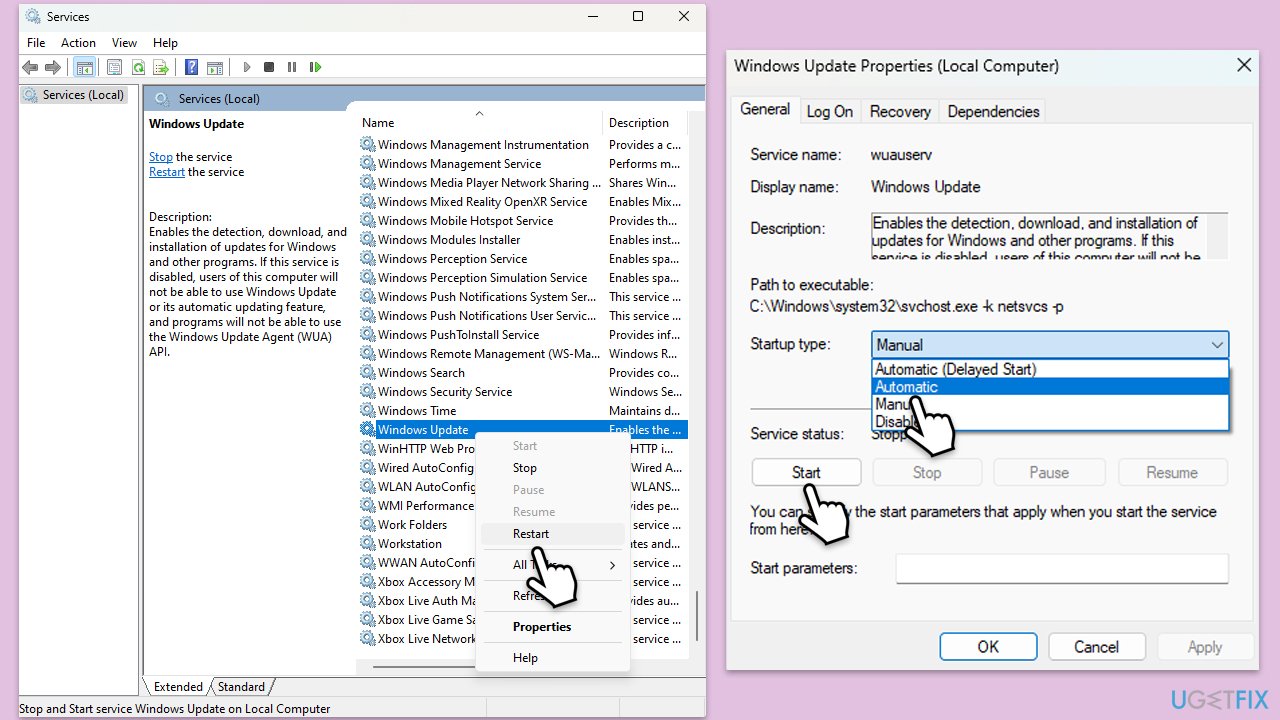
Windows comes with a built-in troubleshooter that can automatically detect and resolve issues related to updates.
- Type Troubleshoot into the Windows search bar and press Enter.
- Next, on the right side of the window, select Additional troubleshooters/Other troubleshooters.
- Scroll down to locate the Windows update option and click on it.
- Click on Run the troubleshooter/Run and allow the process to complete.
- Once it is finished, implement any recommended fixes and restart Windows.
Fix 4. Perform Disk Cleanup
Sometimes, a lack of disk space can prevent updates from being downloaded or installed. Ensure you have enough free space on your system drive (usually C:).
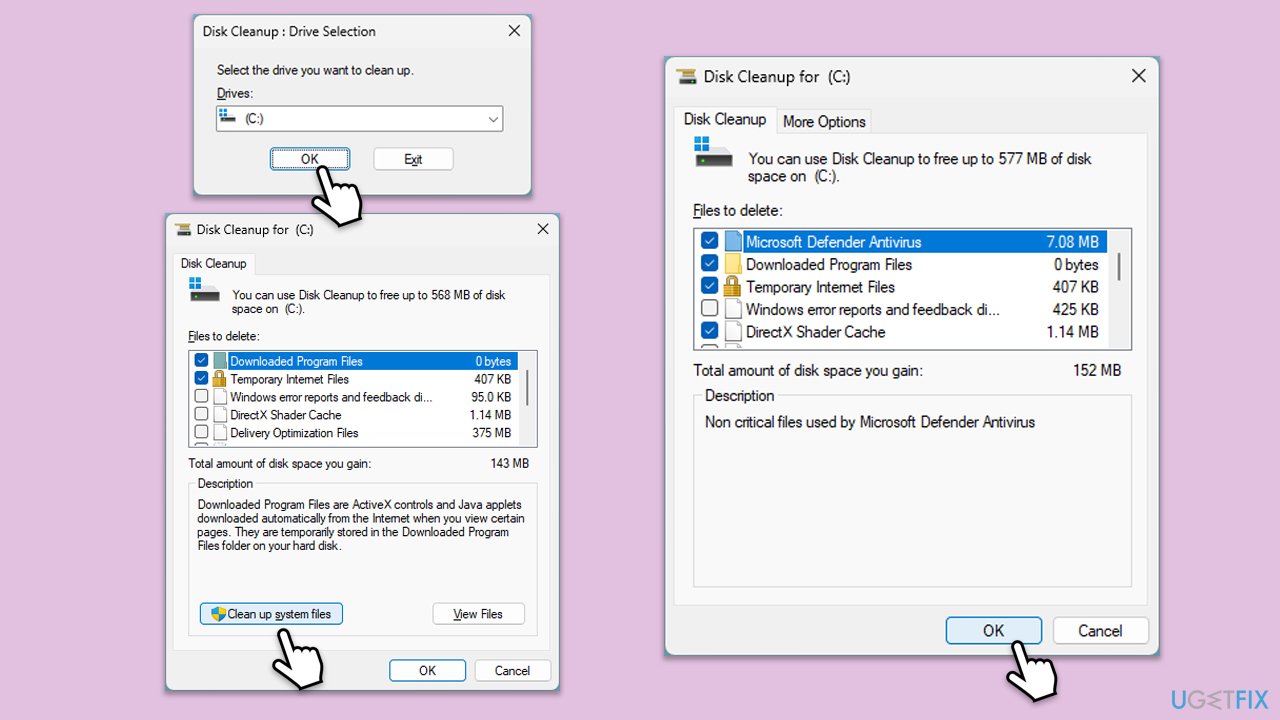
- Type Disk Cleanup in Windows search and hit Enter.
- If your Windows is installed on drive C, pick it from the list (it should be by default) and press OK.
- Click Clean up system files.
- Select your main disk again and click OK.
- Here, select the largest portions of the data used - these typically include Temporary Internet Files, Windows Update, Temporary Files, Recycle Bin, Delivery Optimization Files, and others.
- Click OK - the process should be finished shortly.
Fix 5. Run SFC and DISM scans
Corrupted system files can interfere with the update process. Running SFC and DISM scans can repair these files.
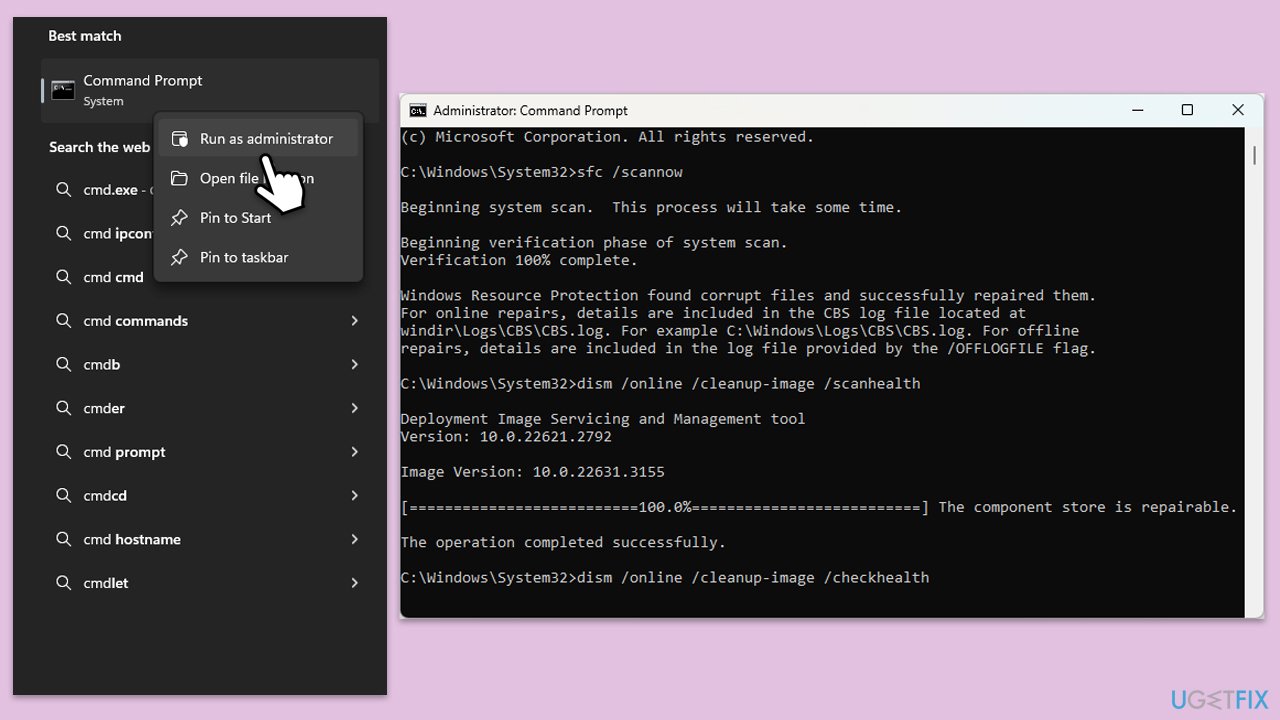
- Type cmd in Windows search.
- Right-click on Command Prompt and select Run as administrator.
- When User Account Control window shows up, click Yes.
- Paste the following command into the new window:
sfc /scannow - Press Enter and wait till the scan is executed.
- Once done, run this set of commands, pressing Enter after each:
DISM /Online /Cleanup-Image /CheckHealth
DISM /Online /Cleanup-Image /ScanHealth
DISM /Online /Cleanup-Image /RestoreHealth
(Note: if you get an error executing this last command, add /Source:C:\RepairSource\Windows /LimitAccess to it and try again). - Restart your computer.
Fix 6. Reset Windows Update Components
Resetting the Windows Update components can fix issues with corrupted update services. This can be done manually or through an automated tool.
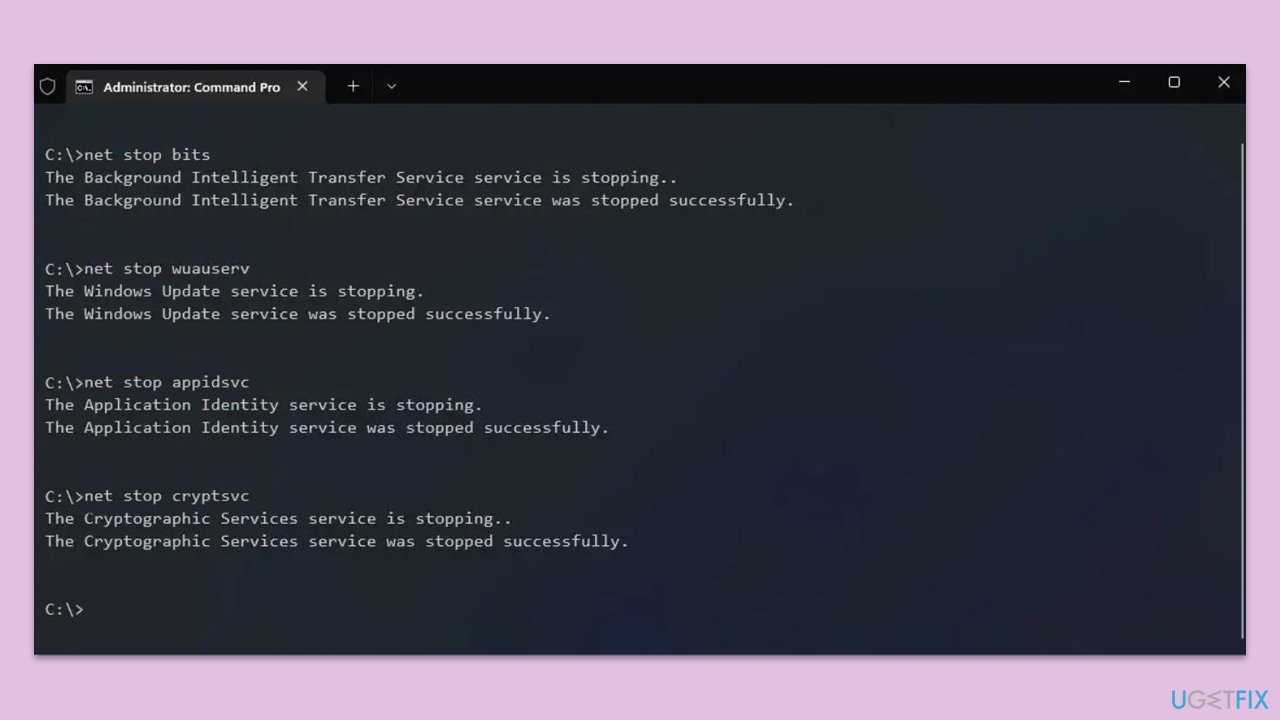
- Open Command Prompt as administrator.
- Stop the Windows Update-related services by running the following commands one at a time, pressing Enter after each one:
net stop wuauserv
net stop cryptSvc
net stop bits
net stop msiserver - Rename the SoftwareDistribution and Catroot2 folders by running the following commands:
ren C:\Windows\SoftwareDistribution SoftwareDistribution.old
ren C:\Windows\System32\catroot2 Catroot2.old
Note: If your Windows installation is not on the C drive, replace "C" with the appropriate drive letter. - Restart the Windows Update-related services by running the following commands:
net start wuauserv
net start cryptSvc
net start bits
net start msiserver - Restart your computer.
Fix 7. Use Media Creation Tool
This utility may help you replace Windows files with new ones, repair the installation, besides update Windows to the latest version. Please, back up your files, uninstall security software, and disconnect all unnecessary peripherals.
- Visit the official Microsoft website and download Windows 11 installation media.
- Double-click the installer and select Yes when UAC shows up.
- Agree to terms.
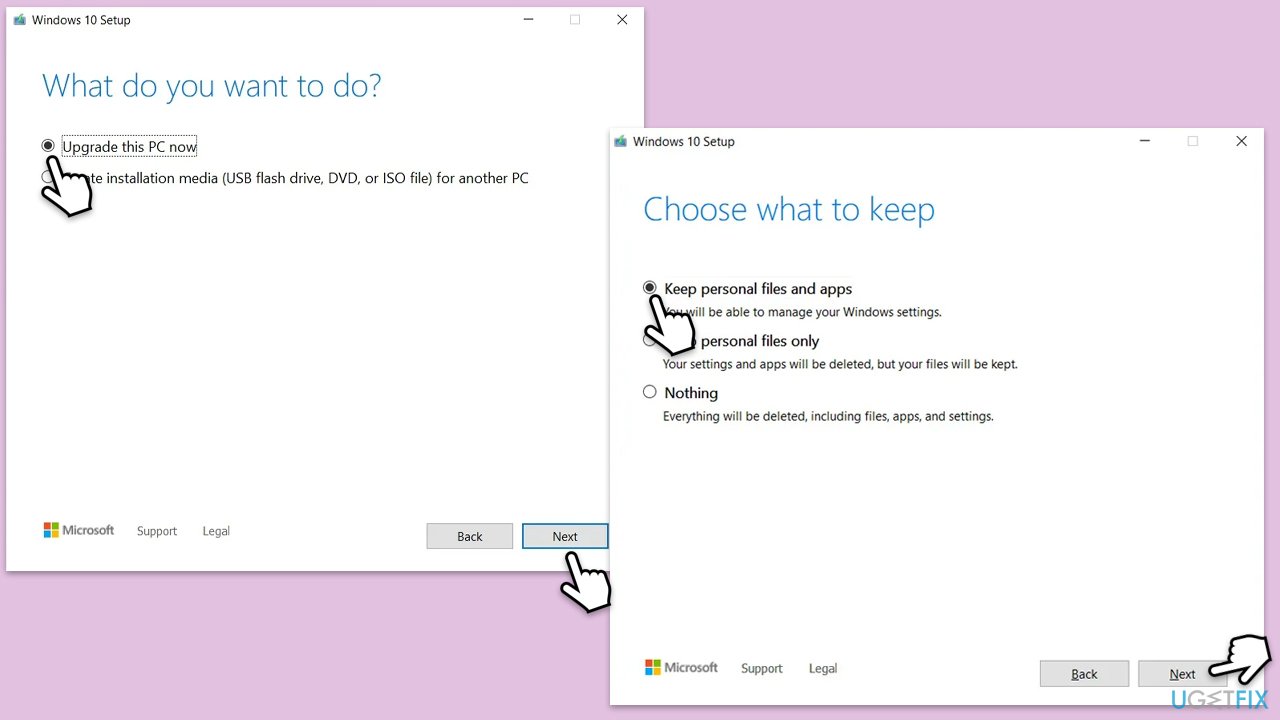
- Select Upgrade this PC now and click Next.
- Windows will start downloading the needed files.
- Agree to the terms once again and click Next.
- Before installing, make sure that you are happy with your choices (otherwise, you can click Change what to keep option).
- Finally, click Install to begin the upgrade process.
Bottom line
To fix error 0xC80003F9, you may need to troubleshoot network connections, repair corrupted update components, and check for interference from antivirus software. If these solutions do not resolve the issue, further analysis may be required to identify the underlying cause.
Frequently asked questions
Error 0xC80003F9 typically indicates a problem with the Windows Update service or a corrupted system file that prevents updates from being installed properly.
You can try running the Windows Update Troubleshooter, resetting the Windows Update components, or performing a system file check using the 'sfc /scannow' command in the Command Prompt.
To minimize the chances of encountering error 0xC80003F9, ensure that your system is regularly updated, maintain adequate disk space, and periodically run system maintenance tasks.




Report an issue
What's wrong with this guide? We review every report and update or remove content.
Report received — thank you. We'll review and fix it.
You need a free account to submit a report.
Be the first to comment