How to fix
Windows update error 0xc8000442
on Windows
Resolve Windows update error 0xc8000442 quickly and easily with expert-tested solutions. Get your system back on track in minutes!

What causes How to fix Windows update error 0xc8000442?
- Windows Update services are not running
- Corrupted system files
- Malware infection
- Incompatible software
- Registry problems
Repairs Windows system files, removes malware, and restores a clean OS state — without reinstalling.
Could you help me resolve an issue I'm having with installing Windows updates? The error code I'm always getting is 0xc8000442, no matter how many times I try to install them.
Users may find Windows update error 0xc8000442 to be a source of frustration when attempting to maintain their system's current status. This error hinders the download and installation of crucial updates, potentially impacting system performance and security. These updates typically introduce new features, address bugs, and enhance security measures.
Windows update services are one of the causes for your Windows updates to fail, so if you want to fix the 0xc8000442 error, you should ensure that related services are running and set to automatic startup. Alternatively, you should restart these services and see if that helps.
Another reason for the 0xc8000442 error could be corrupted system files, which interfere with the update process. The corruption can occur due to malware infection, incompatible software, registry problems, and numerous other reasons. Repairing them is relatively easy with [d1] PC utility, which can quickly find and fix the underlying issues on Windows.
When it comes to Windows update errors, users also found that performing simple steps such as running a Windows update troubleshooter or removing unnecessary files helped them resolve the issue.
If none of these methods help, there are more complex solutions, such as resetting Windows update components, installing updates manually, or employing Media Creation Tool to update Windows to the latest version. You can always rely on the manual steps provided below - for these and other methods to fix the 0xc8000442 error for good.
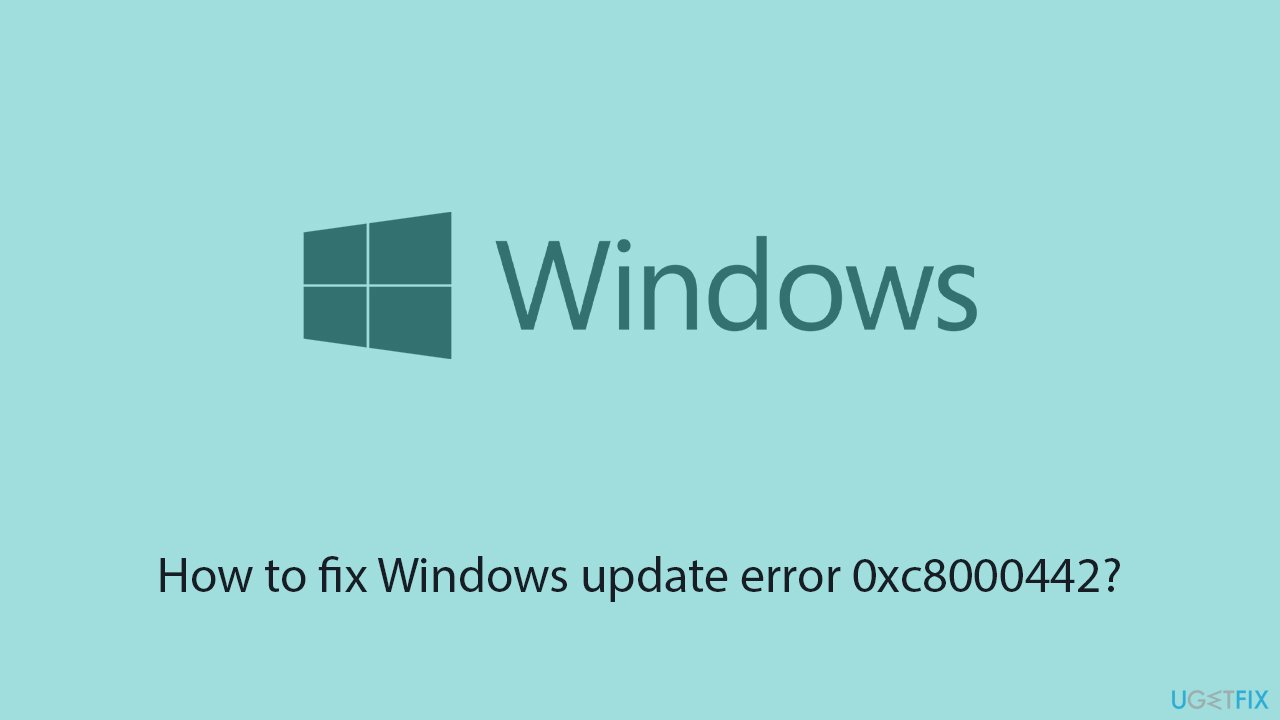
Fix 1. Check Update-related services
Ensuring that the Windows Update service and related services are running correctly can resolve issues preventing updates.
- Type in Services in Windows search and hit Enter.
- Scroll down a bit to find Background Intelligent Transfer Service (BITS).
- If it is already running, right-click and select Restart.
- If the service is not running, double-click it, and pick Automatic under the Startup type drop-down menu.
- Click Start, Apply, and OK.
- Repeat this process for Windows Update and Cryptographic services.
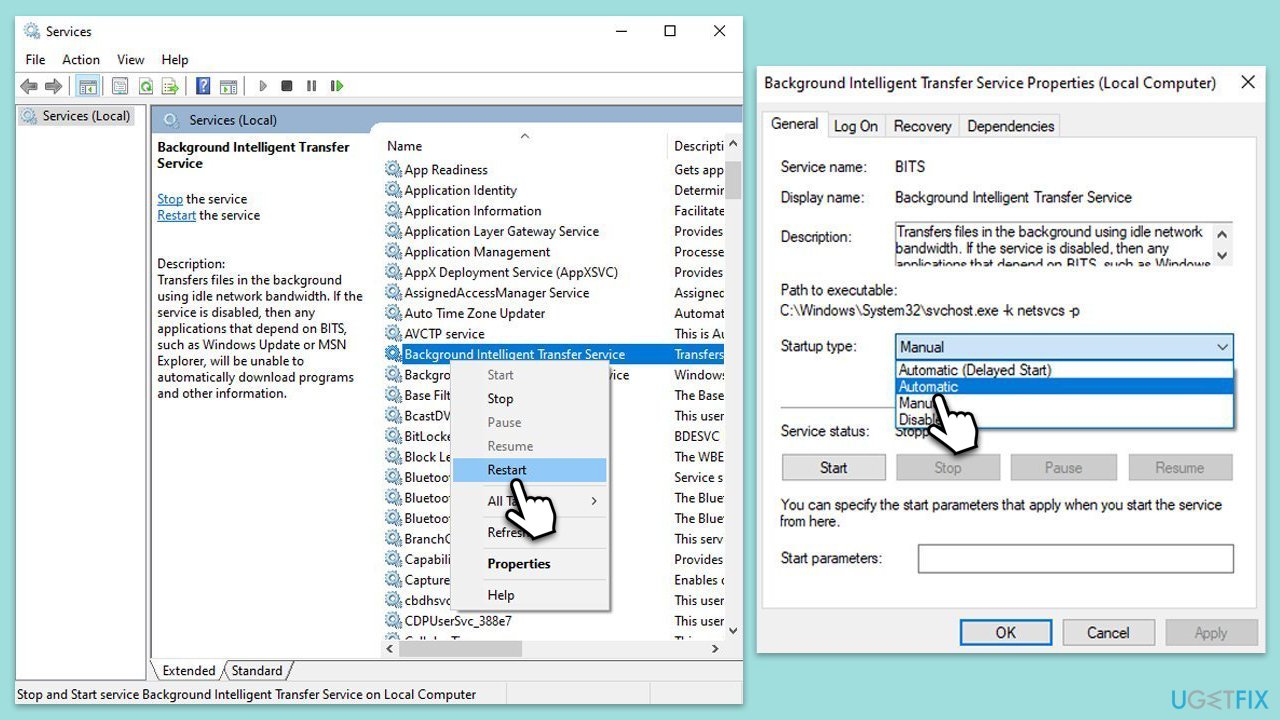
Fix 2. Run SFC and DISM
To fix corrupted system files, you should run the commands using elevated Command Prompt.
- Type cmd in Windows search.
- Right-click on Command Prompt and pick Run as administrator.
- The User Account Control window will ask whether you want to allow changes - click Yes.
- In the Command Prompt window, paste the following command and hit Enter:
sfc /scannow - Once the scan is complete, use the following commands and press Enter after each:
Dism /Online /Cleanup-Image /CheckHealth
Dism /Online /Cleanup-Image /ScanHealth
Dism /Online /Cleanup-Image /RestoreHealth - (Note: if you get an error executing this last command, add /Source:C:\RepairSource\Windows /LimitAccess to it and try again).
- Restart your computer.
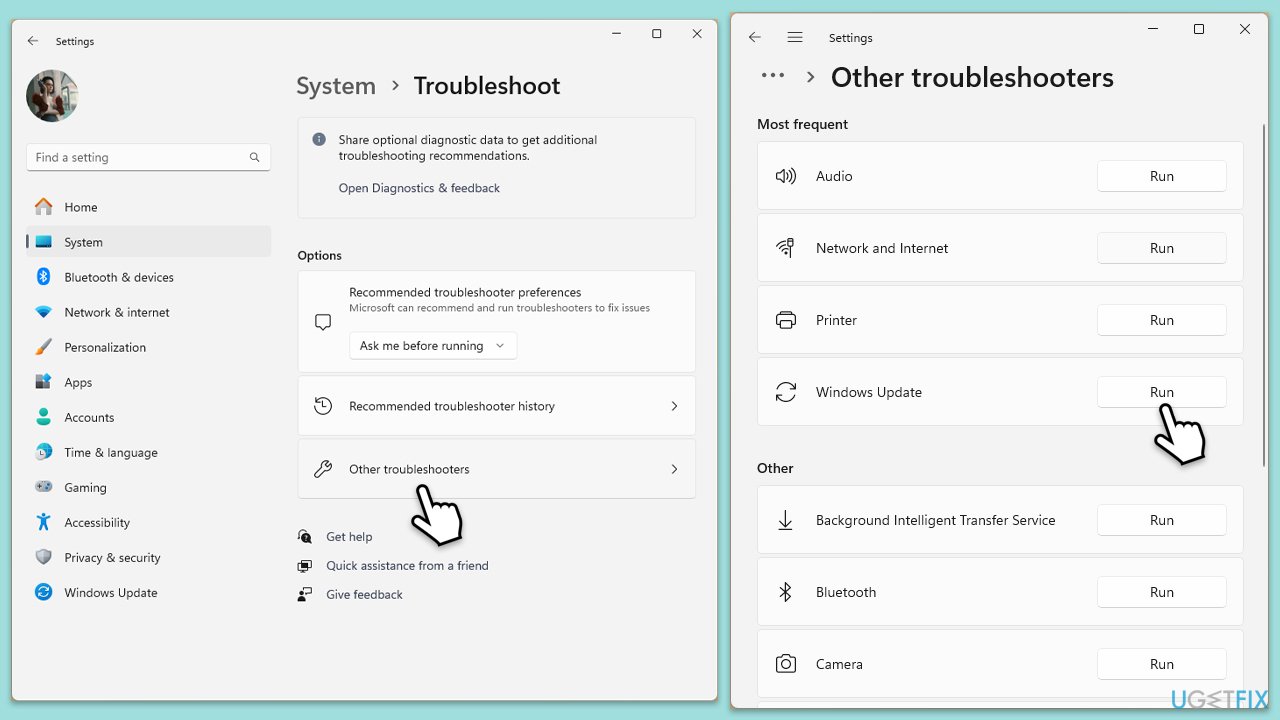
Fix 3. Run Windows update troubleshooter
- Type Troubleshoot in Windows search and press Enter.
- Select Additional troubleshooters/Other troubleshooters.
- Find Windows Update from the list.
- Click it and select Run the troubleshooter/Run.
- Restart your PC when the process is finished.
Fix 4. Temporarily disable security software
- Open your antivirus or firewall software.
- Go to the options or settings menu and disable the protection.
- Try rerunning Windows Update.
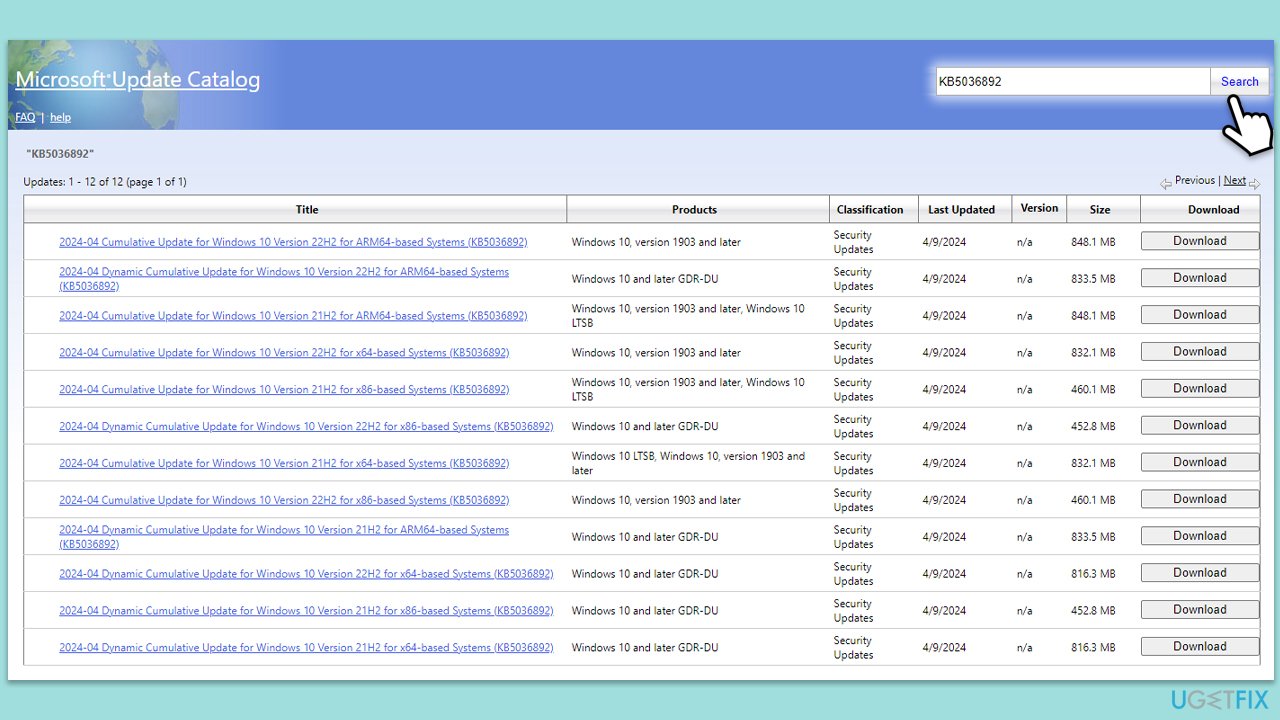
Fix 5. Install the update manually
Manually downloading and installing the update can bypass issues with the automatic update process.
- Type Updates in Windows search and hit Enter.
- Click View update history.
- Here, note down the KB number that failed to be installed.
- Go to the official Microsoft Update Catalog website.
- Type the KB number into the search bar, and press Enter or click Search.
- You will find many different versions on the update – you need to find the one that matches your PC specs and Windows version (as a home user, ignore Windows server versions).
- Right-click on Start and pick System.
- Under Device specifications, check the System type section: it should either be 64-bit or 32-bit.
- Scroll down to Windows specifications and check the Version section.
- With all this information, pick the correct version for your device.
- Go back to the Microsoft Update catalog, download the appropriate version, and install it.
Fix 6. Reset Windows update components
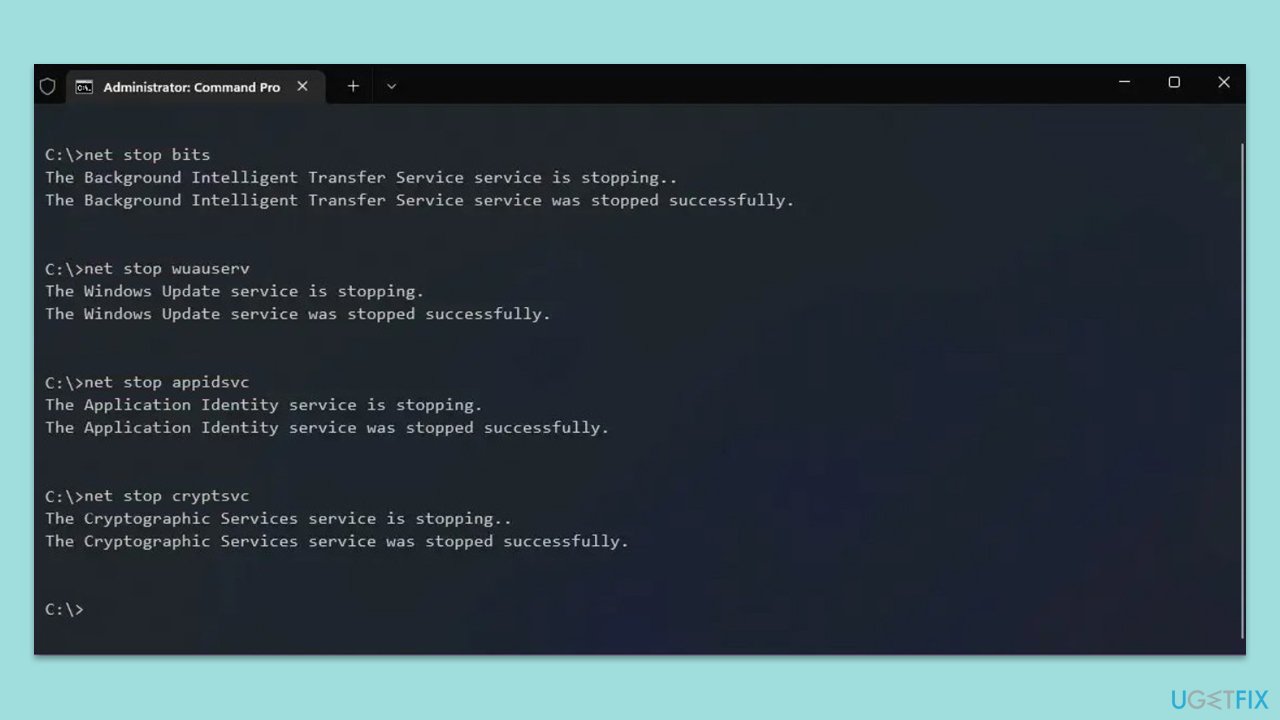
Resetting Windows update components can resolve issues related to corrupted or stuck components.
- Open Command Prompt as administrator.
- Stop the Windows Update and related services by running these commands one by one:
- net stop wuauserv
- net stop cryptSvc
- net stop bits
- net stop msiserver
- Rename the SoftwareDistribution and Catroot2 folders with these commands:
- ren C:\Windows\SoftwareDistribution SoftwareDistribution.old
- ren C:\Windows\System32\catroot2 Catroot2.old
- Restart the stopped services:
- net start wuauserv
- net start cryptSvc
- net start bits
- net start msiserver
- Try running Windows Update again.
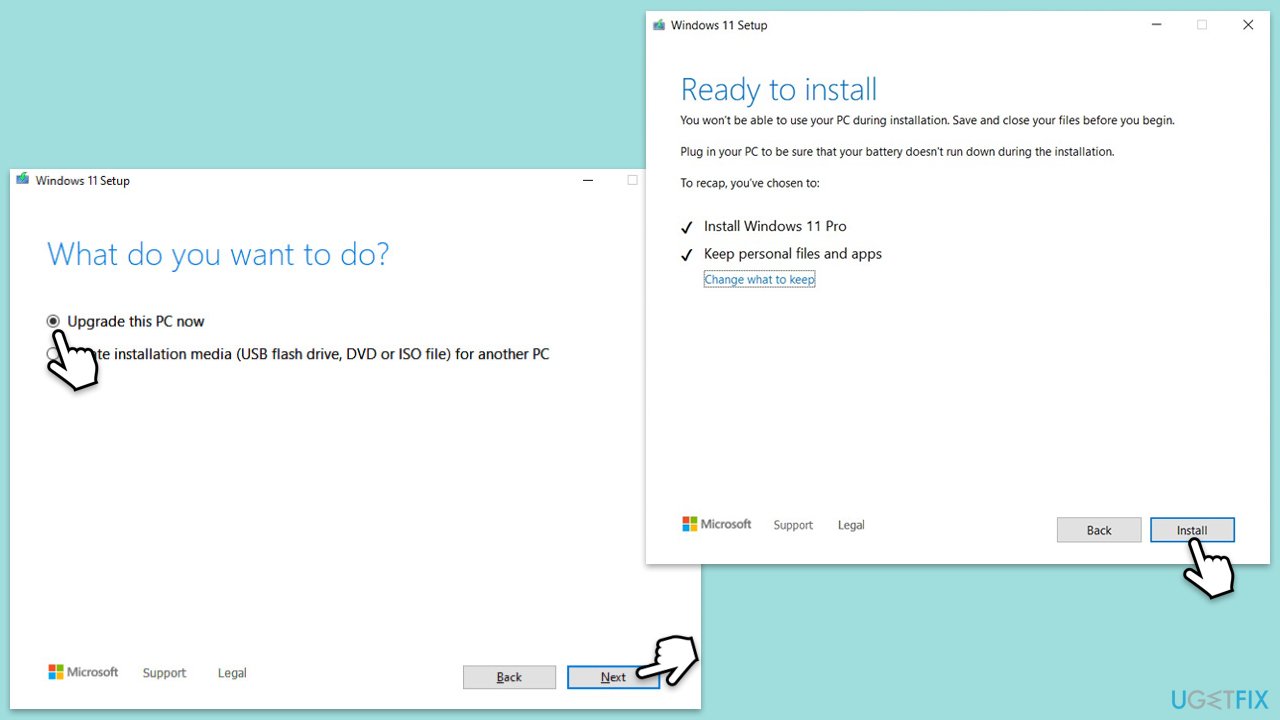
Fix 7. Use Media Creation Tool
- Visit the official Microsoft website and download Windows 10 installation media (Windows 11 version).
- Double-click the installer and select Yes when UAC shows up.
- Agree to terms.
- Select Upgrade this PC now and select Next.
- Windows will now download all the necessary files – it might take a while.
- Agree to the terms once again and click Next.
- Before installing, ensure you are happy with your choices (otherwise, you can click the Change what to keep option).
- Click Install to begin the upgrade process.
Bottom line
To fix the Windows update error 0xc8000442, ensure that the Windows Update service and related services are running and set to automatic startup. Additionally, you can repair corrupted system files using a PC utility, run the Windows update troubleshooter, or remove unnecessary files. If these methods do not resolve the issue, consider resetting Windows update components, installing updates manually, or using the Media Creation Tool.
Frequently asked questions
Error 0xc8000442 typically indicates a problem with the Windows Update service or system files on Windows 10 or Windows 11 that prevents updates from being installed properly.
You can fix this error by running the Windows Update Troubleshooter and checking for corrupted system files using the SFC scan in Windows 10.
Yes, you can open Command Prompt as an administrator and execute commands like 'DISM /Online /Cleanup-Image /RestoreHealth' followed by 'sfc /scannow' to repair system files in Windows 11.




Report an issue
What's wrong with this guide? We review every report and update or remove content.
Report received — thank you. We'll review and fix it.
You need a free account to submit a report.
Be the first to comment