How to fix
Windows update error 0xc8000641
on Windows
Resolve Windows update error 0xc8000641 quickly with our expert-tested solutions for Windows 10 and 11. Fixed in minutes!

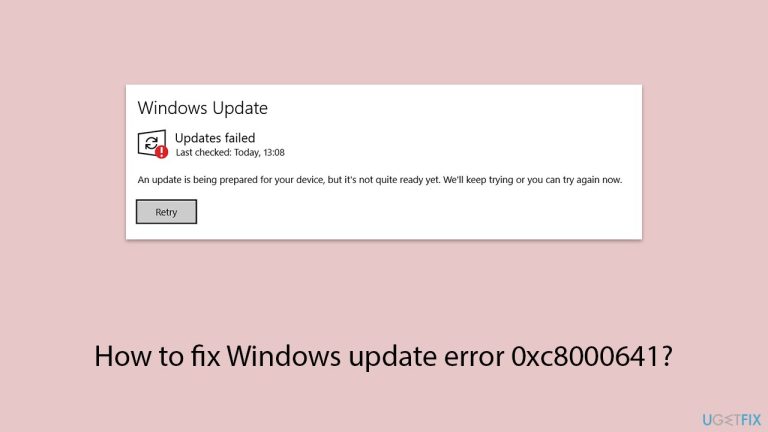
What causes How to fix Windows update error 0xc8000641?
- Corrupted update components
- System file corruption
- Misconfigured services
- Network issues
- Third-party antivirus interference
Repairs Windows system files, removes malware, and restores a clean OS state — without reinstalling.
I was wondering if there is a way to solve error code 0xc8000641? I have been getting this for around a week now, and it is not going away on its own. The problem started when I tried to update Windows 11 (version 23H2).
Error 0xc8000641 is a recurring problem with many users trying to install updates on their Windows devices. The error, showing in the Windows Update settings, reflects the occurrence of an issue within the system when attempting to download or install updates. It can cause incomplete updating, system instability, or even security issues due to unpatched critical components.
This error often stems from several causes. Corrupted update components within the system are a common factor, often the result of interruptions during previous updates. Similarly, system file corruption, where critical files are damaged or missing, can disrupt the update process.
Misconfigured services, especially the Windows Update service and Background Intelligent Transfer Service (BITS), are also frequently linked to error 0xc8000641. Network issues, such as unstable connections or improper DNS configurations, may further complicate the update process. Additionally, third-party antivirus software or other conflicting applications can block updates or interfere with their execution.
Users experiencing error 0xc8000641 often report persistent failure messages even after repeated attempts to install updates. Discussions on technical forums suggest that the issue frequently arises in systems where essential services have been inadvertently disabled or misconfigured. Others point to network disruptions or lingering effects from previously failed updates.
Resolving Windows Update error 0xc8000641 often involves identifying the root cause and addressing the specific issue. Repairing system files, resetting the Windows Update components, or ensuring that required services are correctly configured are among the common approaches. Advanced users may also examine network configurations or temporarily disable third-party antivirus software to allow updates to proceed.
When manual methods fail, using automated tools like [d1] repair software can simplify the process and ensure that all underlying issues are thoroughly addressed. This software is particularly helpful for those who prefer an efficient and less technical solution to system-related errors like 0xc8000641.
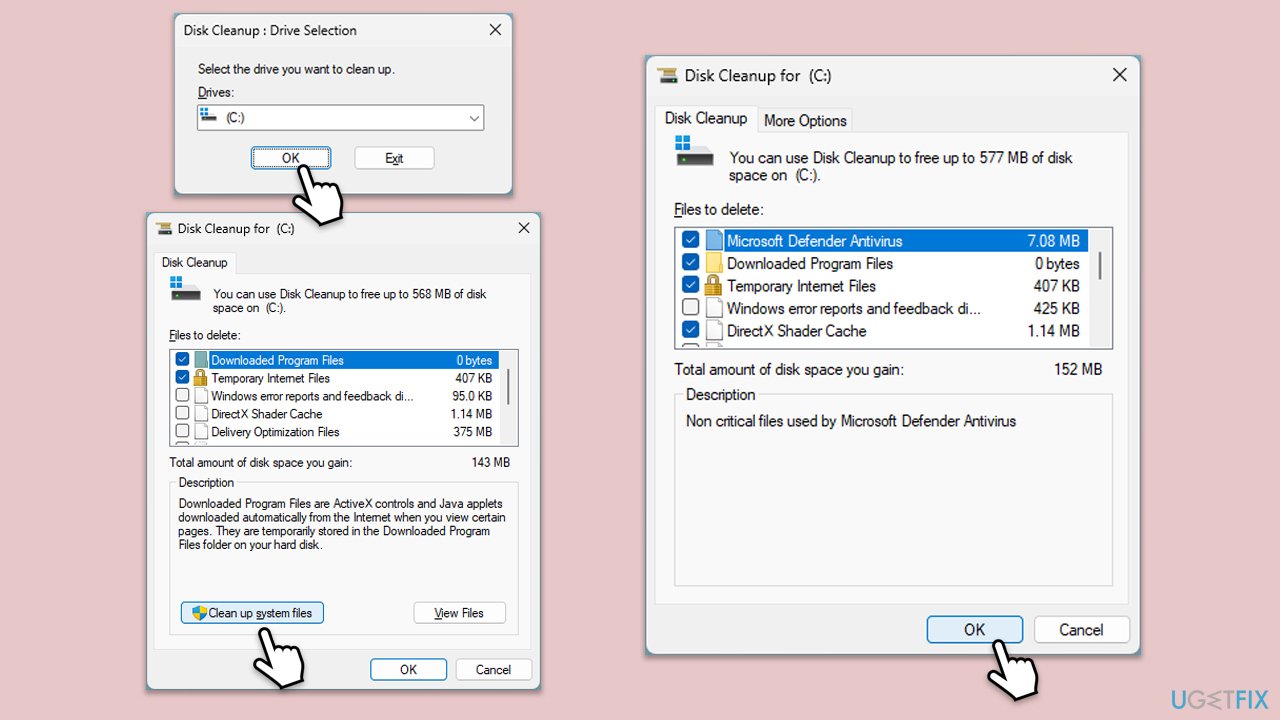
Fix 1. Perform Disk Cleanup
- Type Disk Cleanup in Windows search and hit Enter.
- If your Windows is installed on drive C, pick it from the list (should be by default) and press OK.
- Click Clean up system files.
- Select your main drive again and click OK.
- Here, select the largest portions of the data used - these typically include Temporary Internet Files, Windows Update, Temporary Files, Recycle Bin, Delivery Optimization Files, and others. Marking Windows Update is vital here.
- Click OK - the process should be finished shortly.
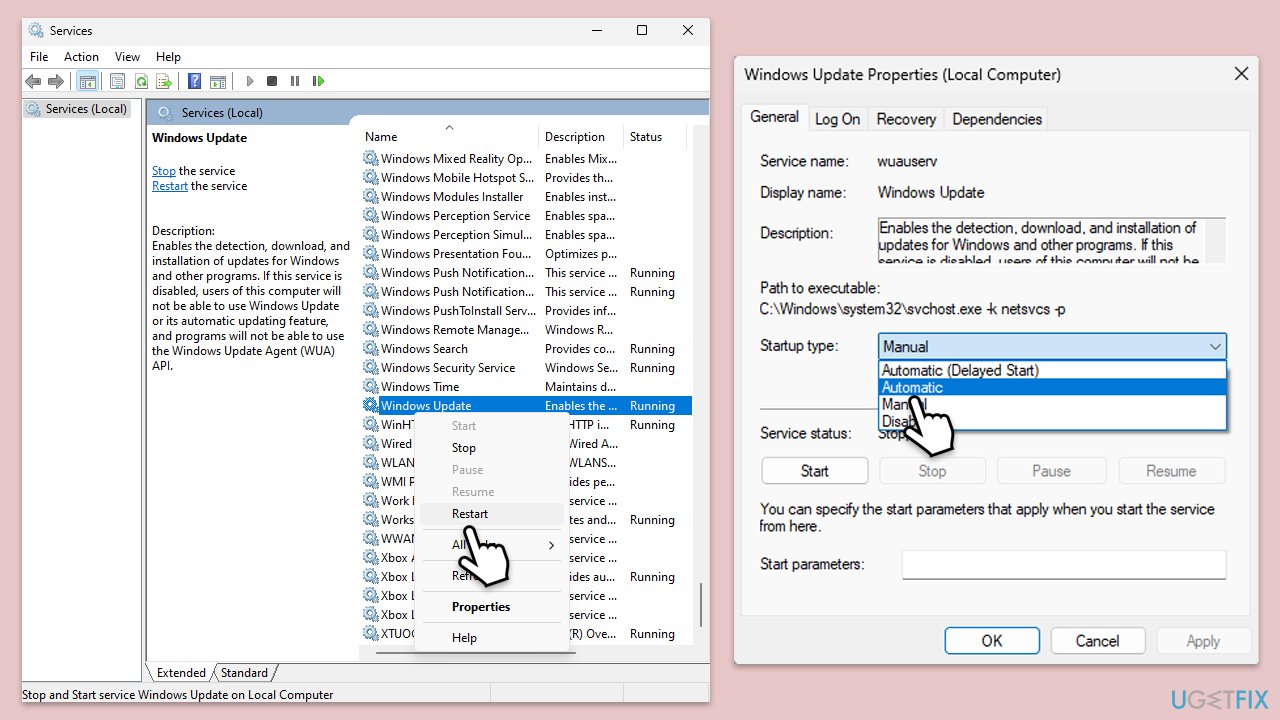
Fix 2. Check relevant services
- Type in Services in Windows search and hit Enter.
- Find Windows Update Service.
- If it is already running, right-click and pick Restart.
- If the service is not running, double-click it, and select Automatic under the Startup type from the drop-down menu.
- Click Start, Apply, and OK.
- Repeat this process for Background Intelligent Transfer Service (BITS) and Cryptographic services.
Fix 3. Run the troubleshooter
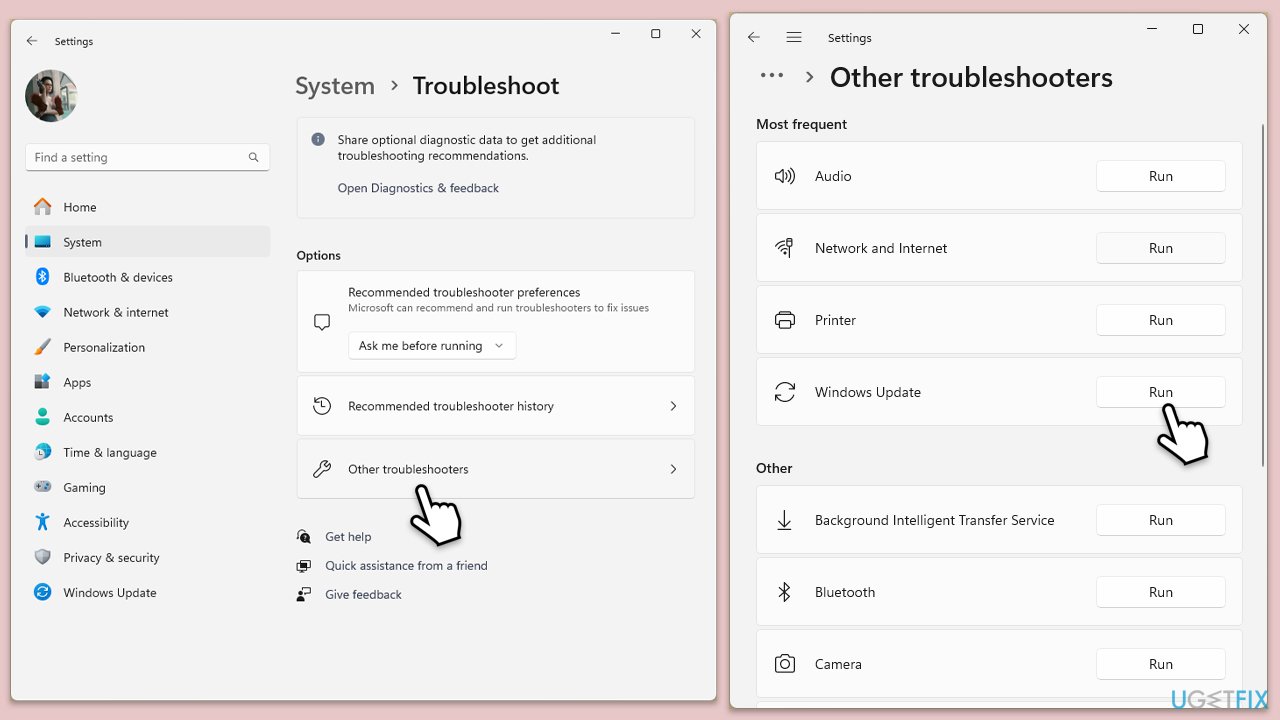
- Type Troubleshoot into the Windows search bar and press Enter.
- Next, on the right side of the window, select Additional troubleshooters/Other troubleshooters.
- Scroll down to locate the Windows update option and click on it.
- Click on Run the troubleshooter/Run and allow the process to complete.
- Once it is finished, implement any recommended fixes and restart your computer.
Fix 4. Manually install the update
- Type Updates in Windows search and hit Enter.
- Click View update history.
- Here, note down the KB number that failed to install with the error code 0xc8000641.
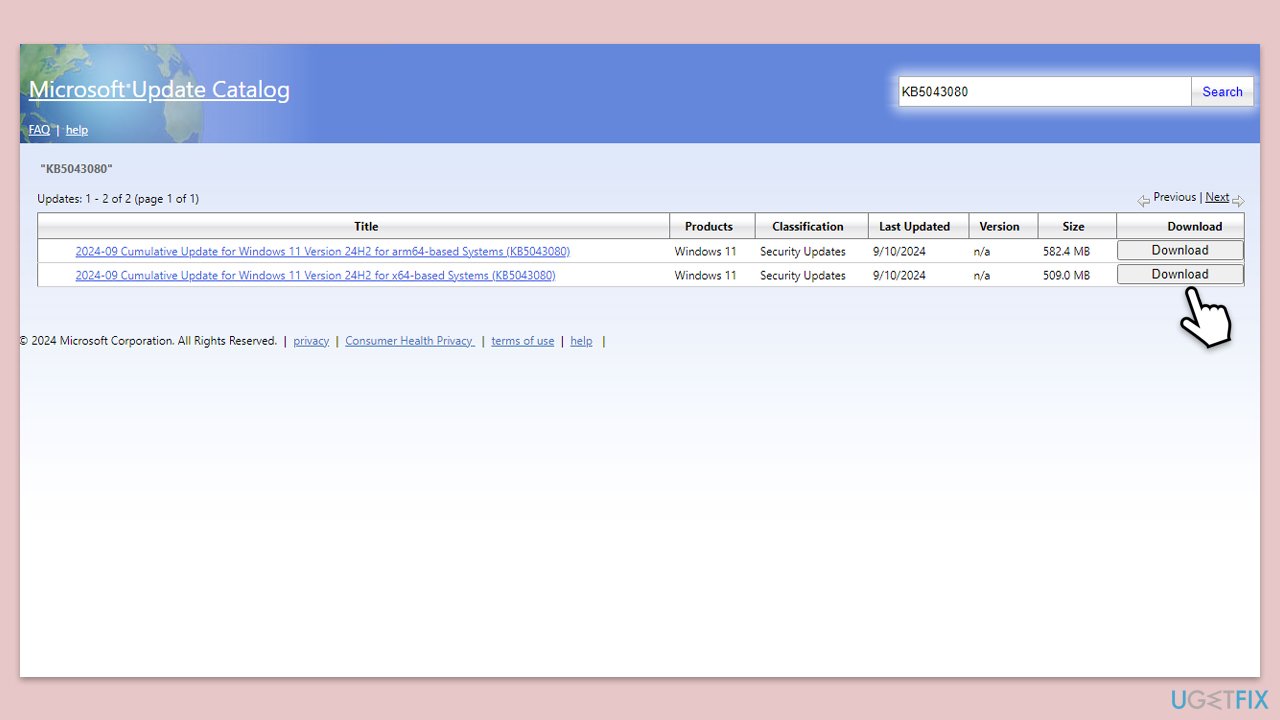
- Go to the official Microsoft Update Catalog website.
- Type the KB number into the search bar, and press Enter or click Search.
- You will find many different versions on the update – you need to find the one that matches your PC specs and Windows version (as a home user, ignore Windows server versions).
- Right-click on Start and pick System.
- Under Device specifications, check the System type section: it should either be 64-bit or 32-bit.
- Scroll down to Windows specifications and check the Version section.
- With all this information, pick the correct version for your device.
- Go back to the Microsoft Update catalog, download the appropriate version, and install it.
Fix 5. Reset Windows update components
- Type cmd in Windows search.
- Right-click on Command Prompt and select Run as administrator.
- The User Account Control (UAC) window will ask whether you want to allow changes to your computer - click Yes.
- Stop the Windows Update-related services by running the following commands one at a time, pressing Enter after each one:
net stop wuauserv
net stop cryptSvc
net stop bits
net stop msiserver - Rename the SoftwareDistribution and Catroot2 folders by running the following commands:
ren C:\Windows\SoftwareDistribution SoftwareDistribution.old
ren C:\Windows\System32\catroot2 Catroot2.old
Note: If your Windows installation is not on the C drive, replace "C" with the appropriate drive letter. - Restart the Windows Update-related services by running the following commands:
net start wuauserv
net start cryptSvc
net start bits
net start msiserver - Restart your computer.
Fix 6. Repair corrupted files
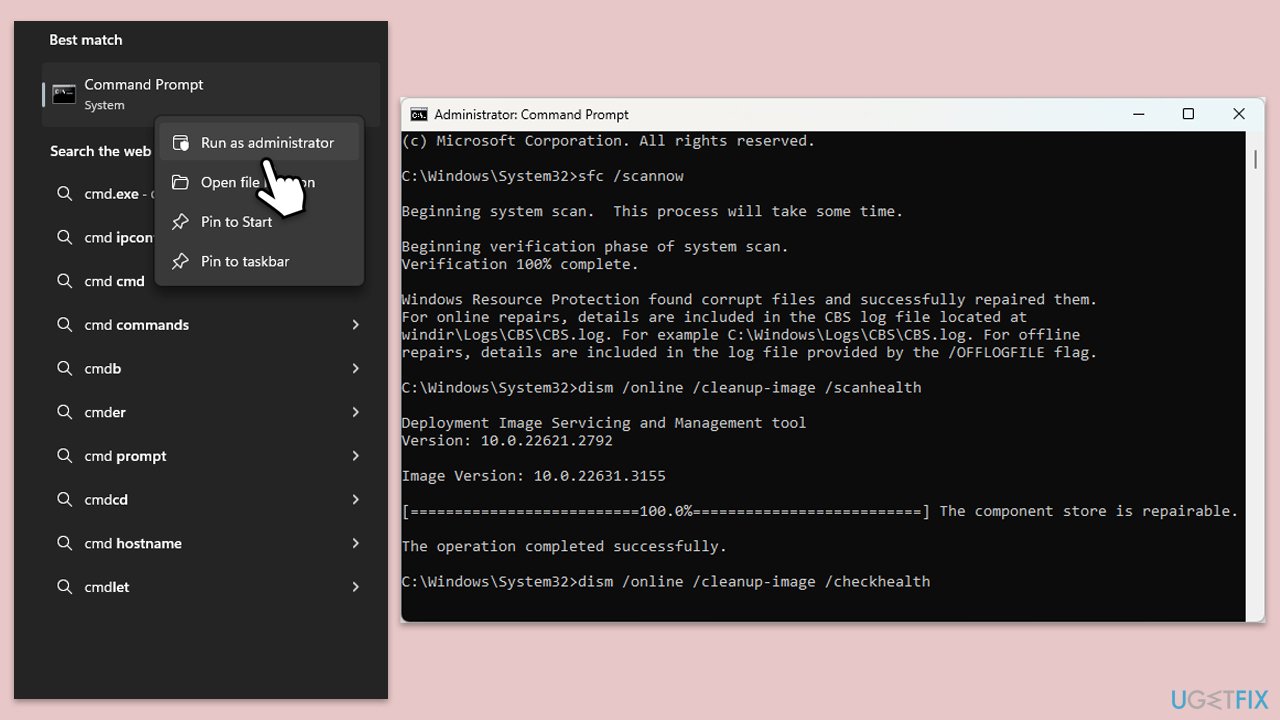
- Open Command Prompt as administrator.
- In the Command Prompt window, paste the following command and hit Enter:
sfc /scannow - Next, use the following commands, pressing Enter each time:
Dism /Online /Cleanup-Image /CheckHealth
Dism /Online /Cleanup-Image /ScanHealth
Dism /Online /Cleanup-Image /RestoreHealth
(Note: if you get an error executing this last command, add /Source:C:\RepairSource\Windows /LimitAccess to it and try again). - Reboot your computer.
Fix 7. Use Media Creation Tool
- Visit the official Microsoft website and download Windows 10 installation media. (Windows 11 version).
- Double-click the installer and select Yes when UAC shows up.
- Agree to terms.
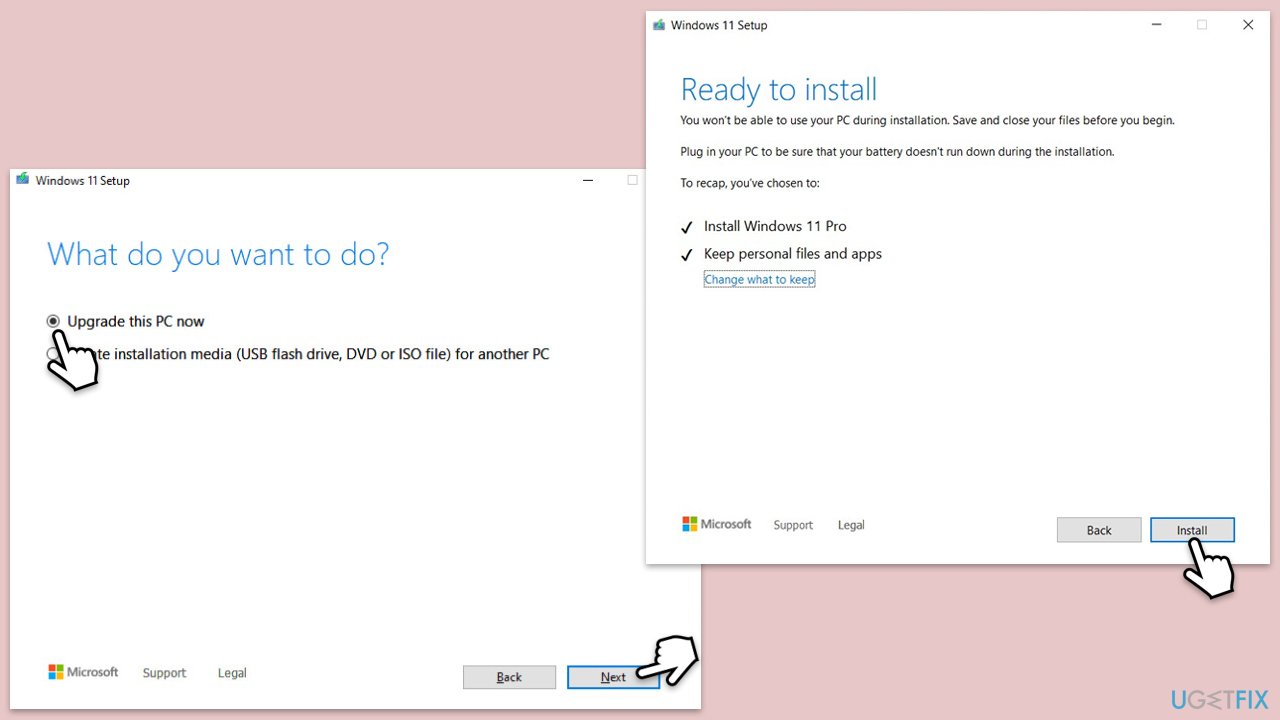
- Select Upgrade this PC now and select Next.
- Windows will now download all the necessary files – it might take a while.
- Agree to the terms once again and click Next.
- Before installing, ensure you are happy with your choices (otherwise, you can click the Change what to keep option).
- Click Install to begin the upgrade process.
Bottom line
To fix Windows Update error 0xc8000641, users can repair system files, reset the Windows Update components, and ensure required services are correctly configured. Advanced users may also check network configurations or disable third-party antivirus software temporarily. If these methods do not resolve the issue, using automated repair software can help address underlying problems.
Frequently asked questions
The error 0xc8000641 typically indicates a problem with the Windows Update components or a corrupted update file. It can prevent your system from downloading or installing updates properly.
To resolve this error, you can try running the Windows Update Troubleshooter or resetting the Windows Update components using Command Prompt. Additionally, ensure that your system has enough disk space available for updates.
Yes, you can manually fix error 0xc8000641 by stopping the Windows Update service, deleting the SoftwareDistribution folder, and then restarting the service to allow fresh updates to be downloaded.




Report an issue
What's wrong with this guide? We review every report and update or remove content.
Report received — thank you. We'll review and fix it.
You need a free account to submit a report.
Be the first to comment