How to fix
Windows update error 0xca00a000
on Windows
Resolve Windows update error 0xca00a000 quickly and easily with expert-tested solutions. Get your system back on track in minutes!

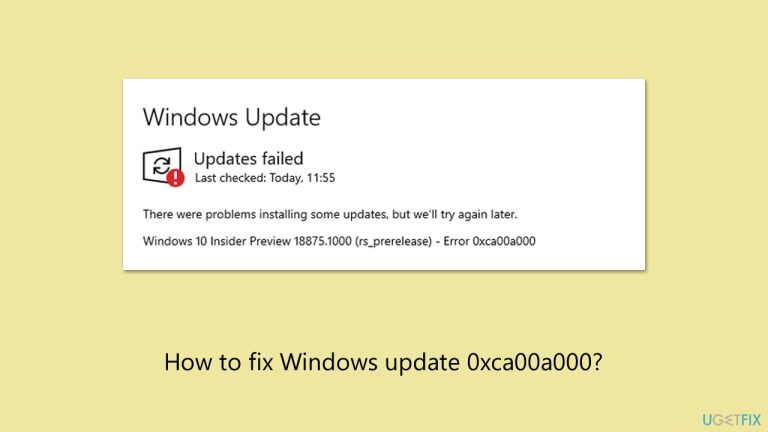
What causes How to fix Windows update error 0xca00a000?
- Disabled Windows Modules Installer service
- Corrupted update files in the SoftwareDistribution folder
- Contaminated system files
- Issues with the update process
- Repeated actions failing to resolve the error
Repairs Windows system files, removes malware, and restores a clean OS state — without reinstalling.
Hello, I was wondering if you could help me with an error I'm getting when installing the March cumulative update. The error I'm getting is 0xca00a000, and following this, I get the message "There were problems installing some updates, but we'll try again later." What can I do?
Updates are vital to ensure that a Windows system runs well and is protected from potential outside threats, such as software vulnerabilities. Unfortunately, Windows update errors, such as 0xca00a000, can get in the way. This error usually comes with a message "There were problems installing updates," and repeated actions do not bring any positive results.
While most of the updates released by Microsoft are not critical and might "wait", security updates are the ones that are extremely important. So, if those are missing from your system due to the 0xca00a000 error, it is vital to fix it as soon as possible, and we are here to help you with that.
The 0xca00a000 error will most often be caused by issues with the update process itself. A disabled Windows Modules Installer service, which deals with update installation, can halt the process - enabling it and setting it to automatic can correct this.
Corrupted update files in the SoftwareDistribution folder, where updates are stored temporarily, can also result in the Windows update error 0xca00a000, and cleaning out this folder will prompt a new download. Apart from this, system files contaminated with corruption might interfere with updates, but through a scan via SFC and DISM, they can be restored.
The solutions listed below provide numerous fixes, starting from the simple, like running the troubleshooter, and going to the advanced, like manual update, to fix the Windows update error 0xca00a000. In order to fix it quickly, employ [d1], a PC repair software that can automatically fix system issues likely responsible for this problem.

Fix 1. Run the troubleshooters
The built-in troubleshooters can detect and resolve issues that prevent updates from installing correctly.
- Type Troubleshoot into the Windows search bar and press Enter.
- Next, on the right side of the window, select Additional troubleshooters/Other troubleshooters.
- Scroll down to locate the Windows update option and click on it.
- Click on Run the troubleshooter/Run, and allow the process to complete.
- Once it is finished, repeat this process with Network troubleshooter.
- Restart your computer.

To run the Network troubleshooter in Windows 10, follow these steps:
- Right-click on Start and select Settings.
- Go to the Network & Internet section.
- On the right side, locate the Advanced network settings section.
- Click Network troubleshooter.
- Wait till the troubleshooter finishes the scan.
- The fixes should be applied automatically.
Fix 2. Perform Disk Cleanup
Disk cleanup can not only free up some space in your drive but also remove any potential buggy caches.
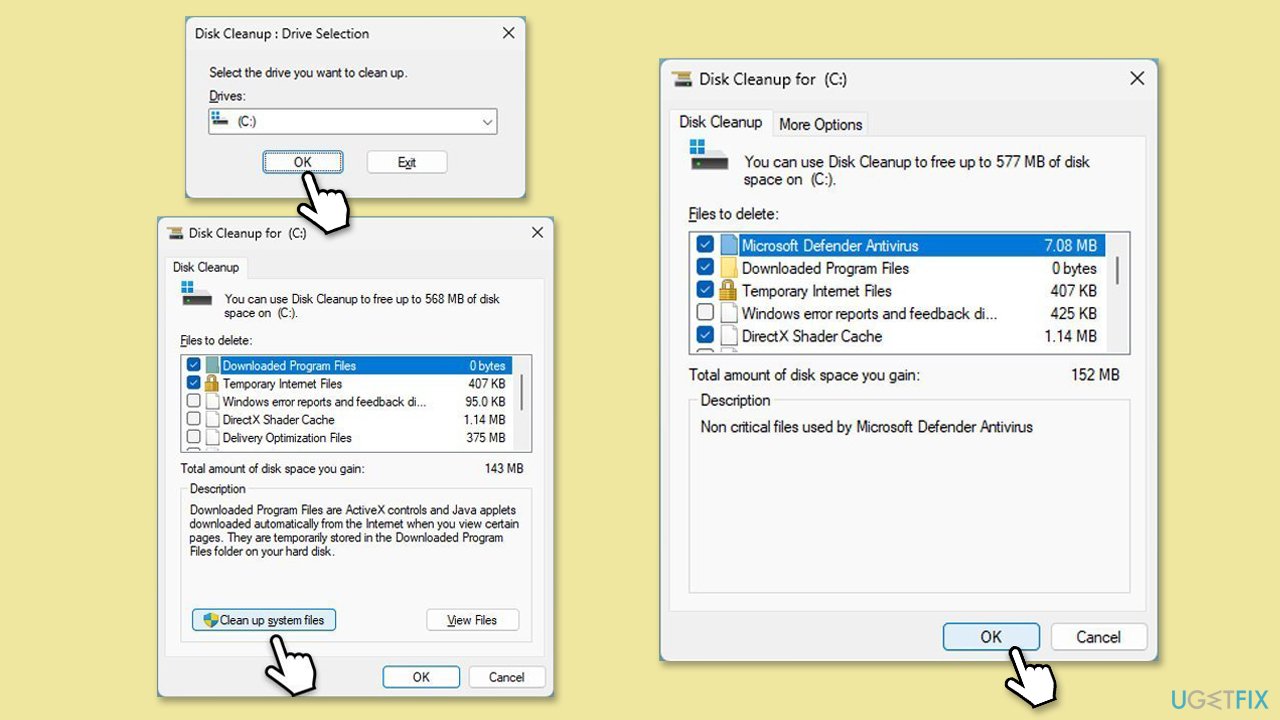
- Type Disk Cleanup in Windows search and press Enter.
- If your Windows is installed on drive C, pick it from the list (it should be by default) and press OK. If you only have one drive, you won't be asked to choose.
- Click Clean up system files.
- Select your main disk again and click OK.
- Here, select the largest portions of the data used - these typically include Temporary Internet Files, Windows Update, Temporary Files, Recycle Bin, Delivery Optimization Files, and others.
- Click OK - the process should be finished shortly.
Fix 3. Enable the Windows Update and other services
A disabled Windows Update (and other relevant services) can prevent updates from installing properly.
- Type in Services in Windows search and press Enter.
- Locate Windows Update Service.
- If it is already running, right-click and select Restart.
- If the service is not running, double-click it to open Properties.
- Under the Startup type, select Automatic from the drop-down menu.
- Click Start, Apply, and OK.
- Locate Background Intelligent Transfer Service (BITS), Cryptographic Service, and Windows Installer Service, and repeat the process.

Fix 4. Run SFC and DISM scans
Corrupted system files can block updates, and repairing them can restore functionality.
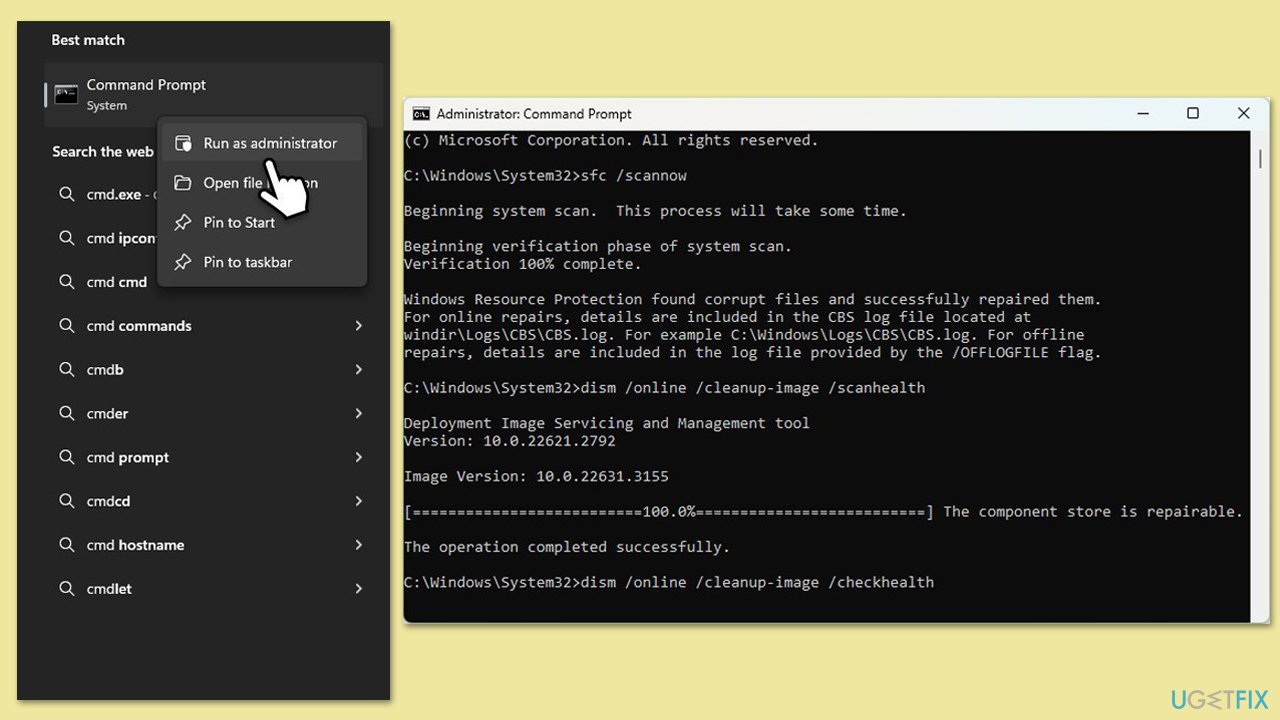
- Type in cmd in Windows search.
- Right-click on Command Prompt and select Run as administrator.
- In the User Account Control window, click Yes.
- Copy and paste this command and hit Enter:
sfc /scannow - Wait for the scan to finish.
- As soon as it finishes, Windows will report whether integrity violations were found and if they could be fixed. Regardless of the outcome, use these commands next, pressing Enter after each:
Dism /Online /Cleanup-Image /CheckHealth
Dism /Online /Cleanup-Image /ScanHealth
Dism /Online /Cleanup-Image /RestoreHealth - Close down the Command Prompt and restart your computer.
Fix 5. Reset Windows Update components
A corrupted update cache in the SoftwareDistribution folder can halt the update process.
- Open Command Prompt as administrator.
- Stop the Windows Update-related services by running the following commands one at a time, pressing Enter after each one:
net stop wuauserv
net stop cryptSvc
net stop bits
net stop msiserver - Rename the SoftwareDistribution and Catroot2 folders by running the following commands:
ren C:\Windows\SoftwareDistribution SoftwareDistribution.old
ren C:\Windows\System32\catroot2 Catroot2.old
Note: If your Windows installation is not on the C drive, replace "C" with the appropriate drive letter.
regsvr32.exe /s atl.dll
regsvr32.exe /s urlmon.dll
regsvr32.exe /s mshtml.dll
netsh winsock reset
netsh winsock reset proxy - Restart the Windows Update-related services by running the following commands:
net start wuauserv
net start cryptSvc
net start bits
net start msiserver - Restart the computer.

Fix 6. Manually install the update
If the automatic update fails, downloading and installing it manually can bypass the issue.
- Type in Updates in Windows search and press Enter.
- Select View update history.
- Find the update that failed with the 0xca00a000 error and copy its KB number.
- Open your browser and go to Microsoft Update Catalog.
- Within the search bar, type in the KB number and click Search.
- Find the correct version of the update for your operating system (to check this, right-click on Start and pick System. Under Device specifications and check the System type) and click Download.
- Use on-screen guidelines to finish the installation process and restart your computer.

Fix 7. Use the Media Creation Tool for a clean update
If the issue persists, an in-place upgrade with the Media Creation Tool can resolve deeper system problems.
- Visit the official Microsoft website and download Windows 10 installation media (Windows 11 version).
- Double-click the installer and select Yes when UAC shows up.
- Agree to terms.
- Select Upgrade this PC now and click Next.
- Windows will start downloading the needed files.
- Agree to the terms once again and click Next.
- Before installing, make sure that you are happy with your choices (otherwise, you can click the Change what to keep option).
- Finally, click Install to begin the upgrade process.

Bottom line
To fix the Windows update error 0xca00a000, you can run the built-in troubleshooters, enable the Windows Modules Installer service, clean the SoftwareDistribution folder, and perform scans using SFC and DISM. If these solutions do not work, consider using PC repair software to automatically fix system issues.
Frequently asked questions
Start by running the Windows Update Troubleshooter, which can automatically detect and fix common issues related to updates. You can access this tool through Settings > Update & Security > Troubleshoot.
To clear the cache, stop the Windows Update service, delete the contents of the SoftwareDistribution folder, and then restart the service. This can often resolve persistent update errors.
If basic troubleshooting fails, consider running the DISM and SFC tools via Command Prompt to repair system files. Use the commands 'DISM /Online /Cleanup-Image /RestoreHealth' followed by 'sfc /scannow'.




Report an issue
What's wrong with this guide? We review every report and update or remove content.
Report received — thank you. We'll review and fix it.
You need a free account to submit a report.
Be the first to comment