How to fix
Windows update error 0xe0000003
on Windows
Resolve the Windows update error 0xe0000003 quickly and effectively. Get your system running smoothly again with expert-tested solutions. Zero traces left!

What causes How to fix Windows update error 0xe0000003?
- Corrupted system files
- Insufficient disk space
- Problematic Windows Update service
- Incompatible software
- Incompatible hardware
Repairs Windows system files, removes malware, and restores a clean OS state — without reinstalling.
I can't seem to install the latest Windows update, despite my trying for several days now. I keep getting the 0xe0000003 error every time. Is there anything I can do to resolve this?
Microsoft Windows is an operating system renowned for its robust features and user-friendly interface. A critical aspect of maintaining the smooth operation of this system is the regular dispatch of Windows updates. These updates are typically rolled out on a monthly basis, with the second Tuesday of every month colloquially known as "Patch Tuesday". These updates include various types such as security updates, critical updates, service packs, and driver updates, all aimed at enhancing the functionality, security, and performance of the system.
Ensuring your system stays updated is crucial as it protects your computer from potential threats, fixes bugs, and enhances overall system performance. However, at times, users may encounter certain challenges when trying to install these updates. A Windows update error, such as 0xe0000003, is one such common obstacle that users may face.
The 0xe0000003 error typically occurs during the process of downloading or installing updates. This can happen due to a variety of reasons including, but not limited to, corrupted system files, insufficient disk space, or a problematic Windows Update service. In some cases, it could even be due to incompatible software or hardware.
Understanding the source of these errors is key to resolving them. However, it is equally essential to approach these errors with patience, as their resolution may require multiple steps. Whether the issue is due to corrupted system files that need repairing, or a need to restart the Windows Update service, the solutions vary based on the root cause of the issue.
For detailed instructions on how to rectify these errors, refer to the troubleshooting guide provided below this article. By following the steps listed, users should be able to resolve the 0xe0000003 error and continue with their Windows update process seamlessly.
To further assist with resolving such issues, consider utilizing tools such as the [d1] PC repair tool. This tool can aid in diagnosing and repairing common PC issues, thereby ensuring your system stays updated and runs smoothly. It is a useful resource for addressing the multifaceted challenges that can arise during the process of maintaining and updating a Windows operating system.
Fix 1. Use Network troubleshooter
Network issues can prevent your computer from communicating with the update servers, causing errors like 0xe0000003. The Network troubleshooter can identify and fix these issues.
- Right-click on Start and pick Settings.
- Go to Network & Internet section.
- On the right side, find the Advanced network settings section.
- Click Network troubleshooter and wait.
- The fixes will be automatically applied.

Fix 2. Use Windows update troubleshooter
Windows update troubleshooter is a tool designed to identify and resolve issues that may be preventing your system from updating. This automated tool can often solve the problem with minimal user intervention.
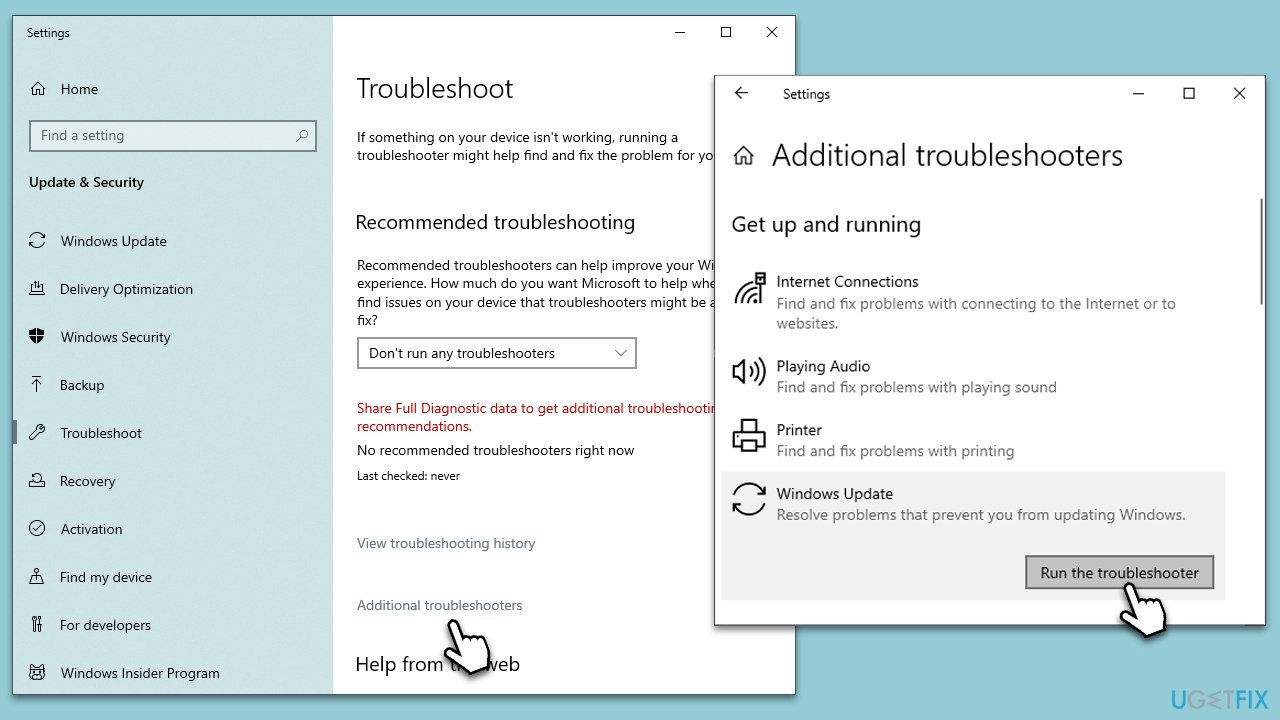
- Type Troubleshoot in Windows search and hit Enter.
- Select Additional troubleshooters/Other troubleshooters.
- Find Windows Update from the list and select Run the troubleshooter/Run.
- Wait till the scan is finished - you will be provided with potential causes so you can proceed with fixes.
- If no suggestions were provided, proceed with the solutions below.
Fix 3. Run SFC and DISM
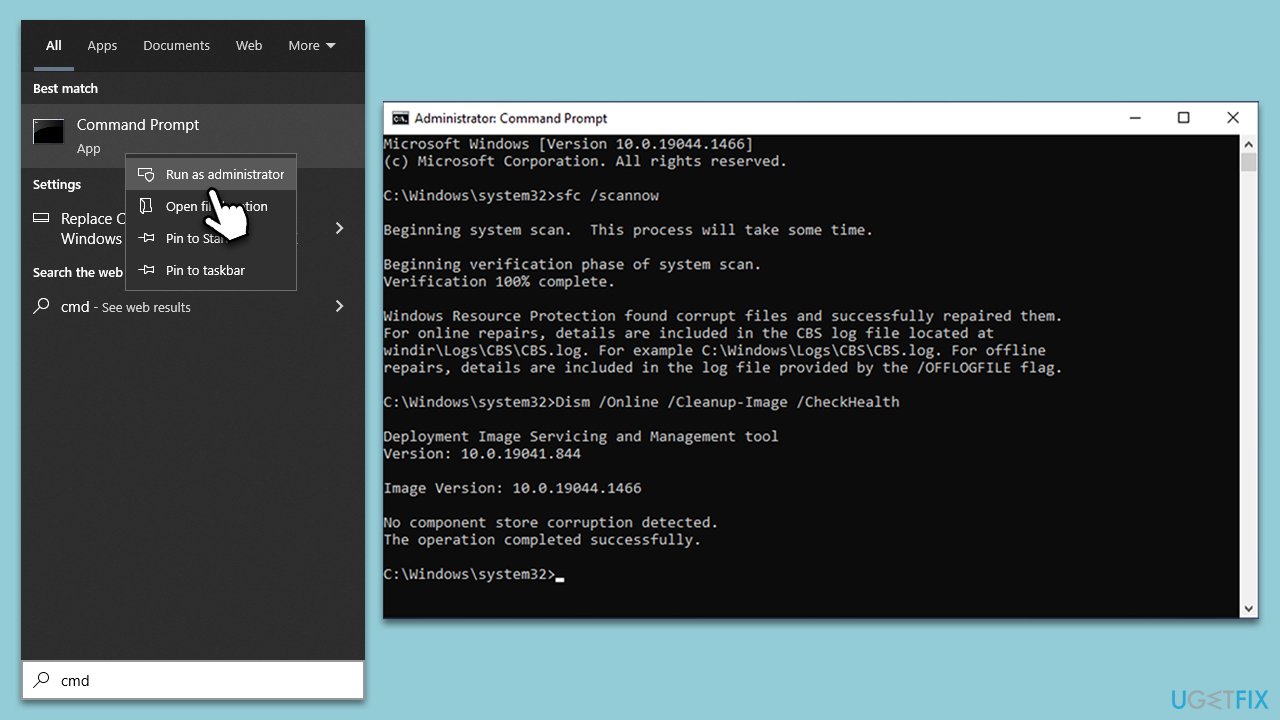
System File Checker (SFC) and Deployment Image Servicing and Management (DISM) are two powerful tools that can repair corrupted system files that might be causing the update error.
- Type cmd in Windows search.
- Right-click on Command Prompt and select Run as administrator.
- Type in the following command and press Enter:
sfc /scannow - When done, run the following commands as well:
dism /online /cleanup-image /scanhealth
dism /online /cleanup-image /checkhealth
dism /online /cleanup-image /restorehealth
(Note: if you get an error executing this last command, add /Source:C:\RepairSource\Windows /LimitAccess to it and try again). - Restart your system.
Fix 4. Enable services related to Windows update process
Certain Windows services must be running for updates to install properly. If these services are disabled, you might encounter errors.
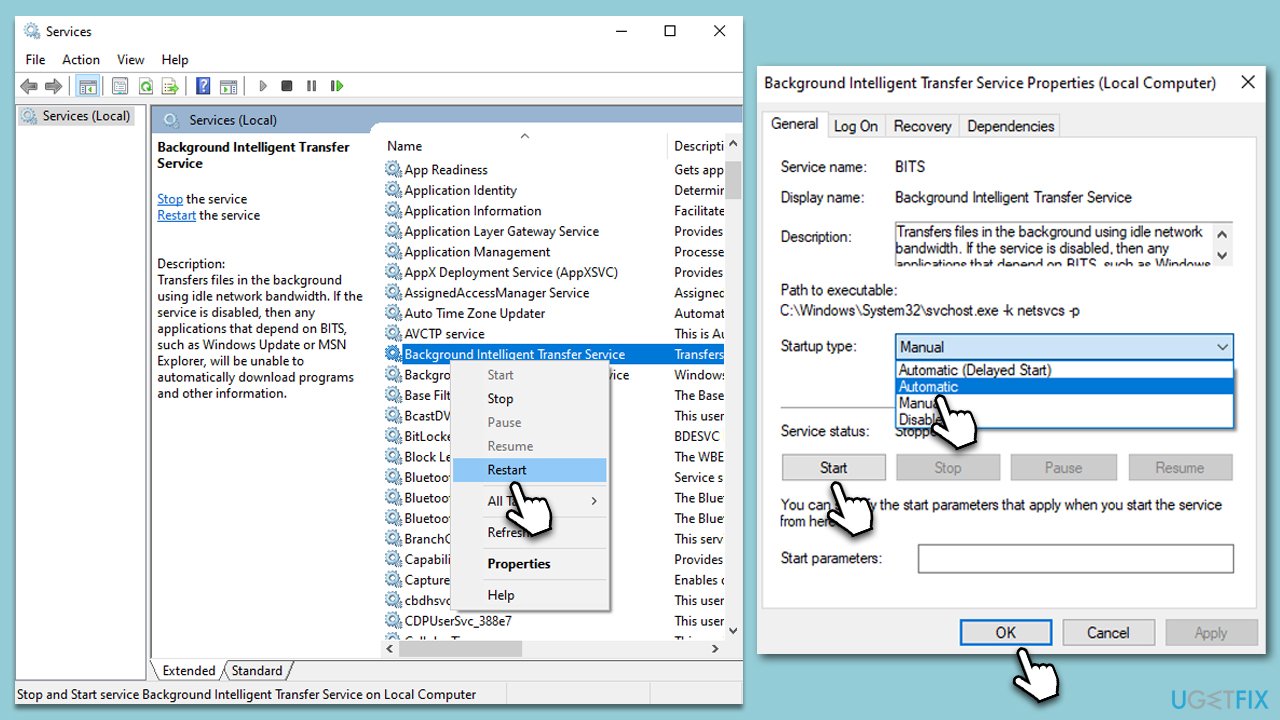
- Type in Services in Windows search and press Enter.
- Find Background Intelligent Transfer Service (BITS).
- If it is already running, right-click and pick Restart.
- If the service is not running, double-click it, and select Automatic under the Startup type from the drop-down menu.
- Click Start, Apply, and OK.
- Repeat this process for Windows Update and Cryptographic services.
Fix 5. Reset Windows update components
Resetting Windows update components manually can resolve issues caused by a disruption or corruption during the update process.
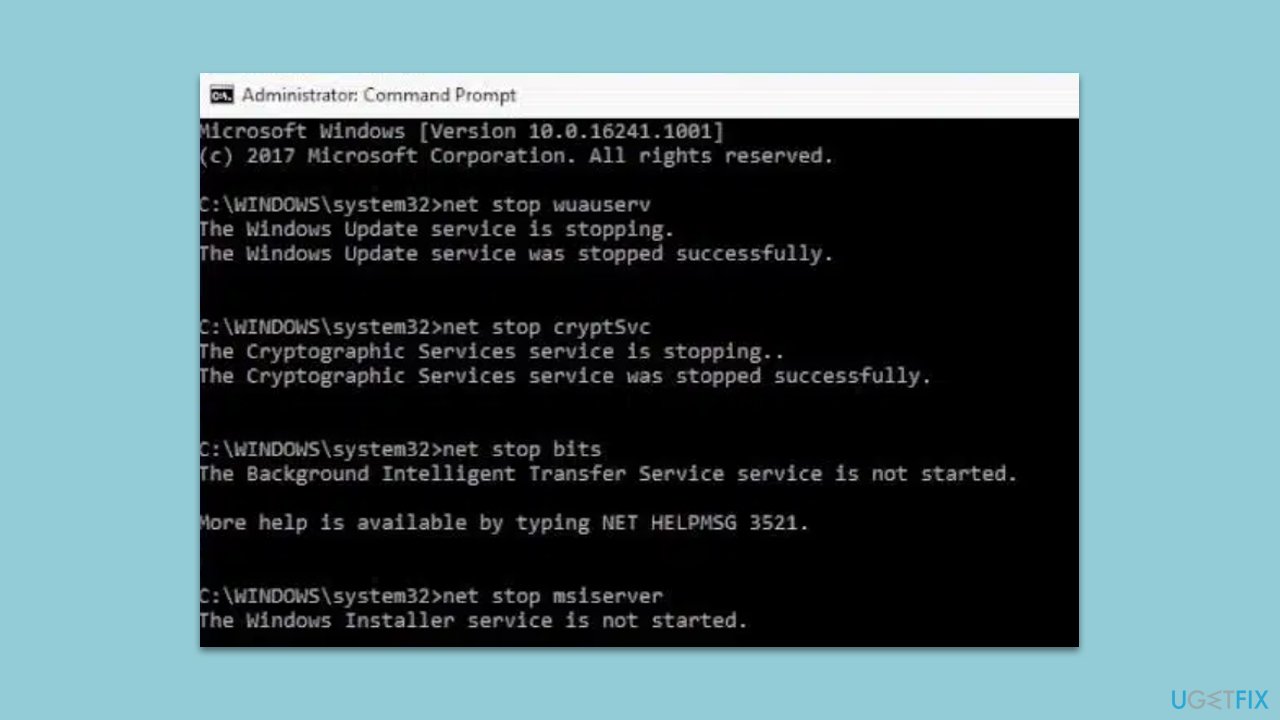
- Open Command Prompt as administrator.
- Copy and paste the following commands, pressing Enter each time:
net stop bits
net stop wuauserv
net stop appidsvc
net stop cryptsvc
Del “%ALLUSERSPROFILE%\Application Data\Microsoft\Network\Downloader\*.*”
rmdir %systemroot%\SoftwareDistribution /S /Q
rmdir %systemroot%\system32\catroot2 /S /Q
regsvr32.exe /s atl.dll
regsvr32.exe /s urlmon.dll
regsvr32.exe /s mshtml.dll
netsh winsock reset
netsh winsock reset proxy
net start bits
net start wuauserv
net start appidsvc
net start cryptsvc - Restart your device.
Fix 6. Run Clean Boot
Running a clean boot starts Windows with a minimal set of drivers and startup programs. This can help identify if third-party software is causing the update error.
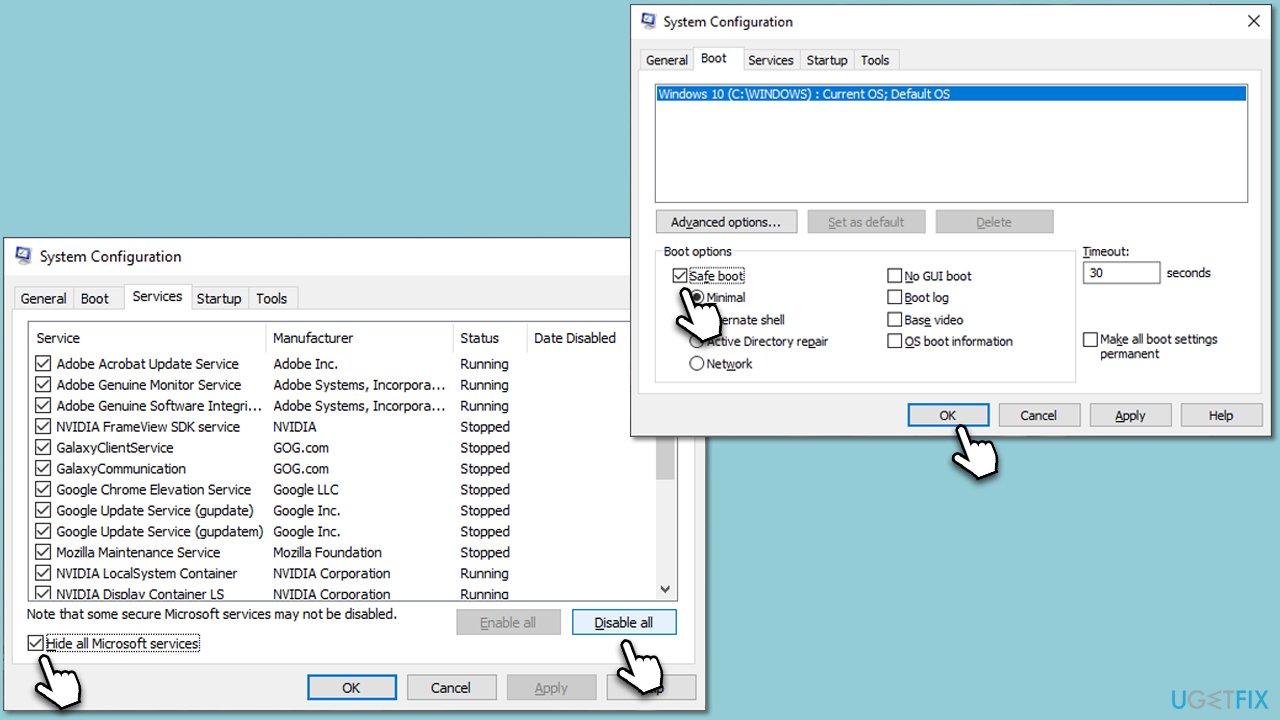
- Press the Windows key + R to open the Run dialog.
- Type msconfig and press Enter to open the System Configuration window.
- Click on the Services tab and check the Hide all Microsoft Services box.
- Click Disable all to disable non-Microsoft services, then click the Startup tab.
- Open the Task Manager, disable all startup items, and close the Task Manager.
- Go to the Boot tab and mark the Safe boot option.
- Click OK on the System Configuration window and restart your computer.
- Attempt to update Windows again.
Fix 7. Use Media Creation Tool
If all else fails, the Media Creation Tool can be used to manually upgrade your system. It downloads the latest Windows version and upgrades your system without deleting your files.
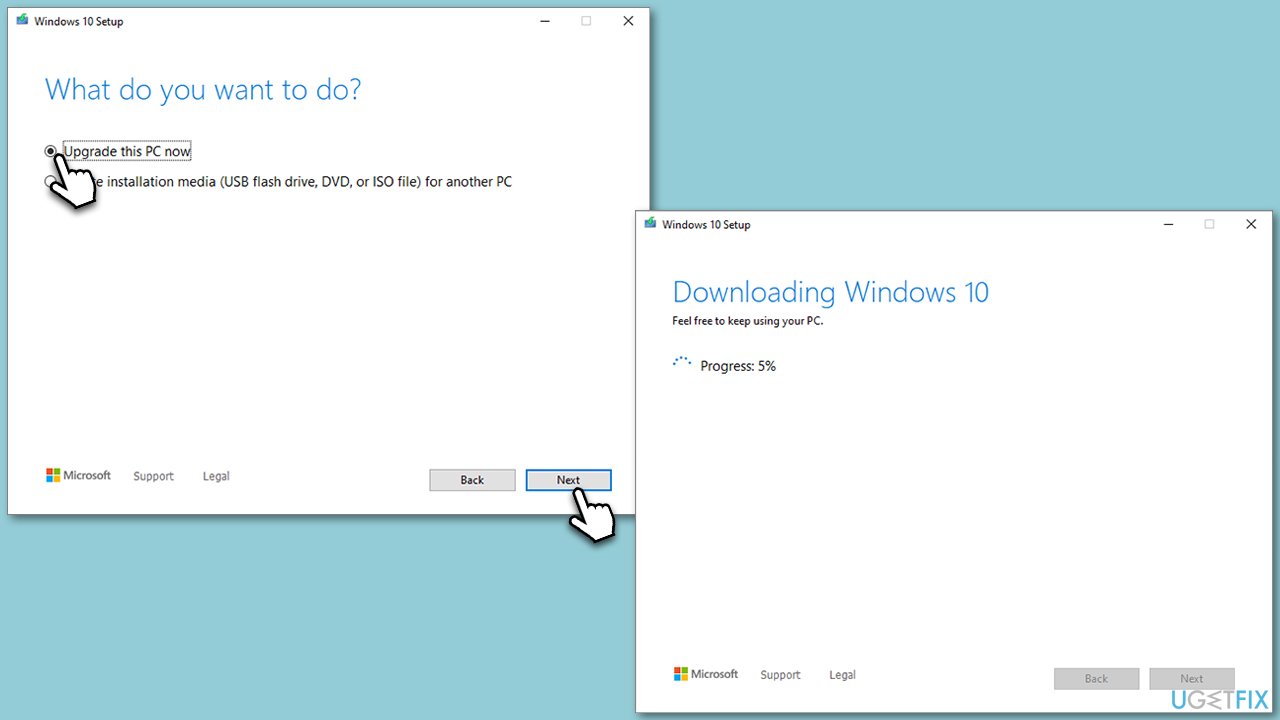
- Visit the official Microsoft website and download Windows 10 installation media (Windows 11 version).
- Double-click the installer and select Yes when UAC shows up.
- Agree to terms.
- Select Upgrade this PC now and select Next.
- Windows will now download all the necessary files – it might take a while.
- Agree to the terms once again and click Next.
- Before installing, ensure you are happy with your choices (otherwise, you can click the Change what to keep option).
- Click Install to begin the upgrade process.
Bottom line
To fix the Windows update error 0xe0000003, users can repair corrupted system files, restart the Windows Update service, or ensure there is enough disk space. If these solutions do not resolve the issue, consider utilizing a PC repair tool for further assistance.
Frequently asked questions
To fix the error, try running the Windows Update Troubleshooter and then restart your PC. If that doesn't work, consider resetting the Windows Update components using Command Prompt.
Yes, you can use the built-in Windows Update Troubleshooter or perform a system restore to a point before the error occurred, which won't affect your personal files.
This error can be caused by corrupted system files, issues with the Windows Update service, or conflicts with third-party software on Windows 10 or Windows 11.




Report an issue
What's wrong with this guide? We review every report and update or remove content.
Report received — thank you. We'll review and fix it.
You need a free account to submit a report.
Be the first to comment