How to fix
Windows Update Error 80070490
on Windows
Resolve Windows Update Error 80070490 quickly and easily with expert-tested solutions. Get your Windows 10 or 11 running smoothly in no time!

What causes How to Fix Windows Update Error 80070490?
- Damaged or corrupted CBS files
- Software or file damage
- Missing updates
- Incorrectly installed updates
- Malware-induced damage
Repairs Windows system files, removes malware, and restores a clean OS state — without reinstalling.
Hello! Today I was trying to upgrade my laptop and ran into some type of a problem. The Windows Update process is stopped by an error code 80070490. Could someone help? I am using Windows 10.
You must have noticed that IT forums are full of questions related to Windows Update errors, in particular, Windows 10 errors. While Windows 10 is a great OS, on the whole, there are lots of things to be worked on, isn't there? Recently we’ve noticed that one of the errors that have been bothering people from the beginning of Windows 10 release hasn’t been resolved yet and keeps showing up for people who attempt to run Windows 10 Updates.
That’s the error code 80070490, which occurs when people are trying to run Windows updates and freezes the things up.[ref en-1] According to Microsoft, this bug is related to CBS (Component Based Servicing) files. CBS is responsible for running the updates, so if its files are damaged or corrupted in some way, Windows updates cannot run accordingly. Even though this problem appears on Windows 10 mostly, some users have reported dealing with the same error on Windows 7.[ref en-2]
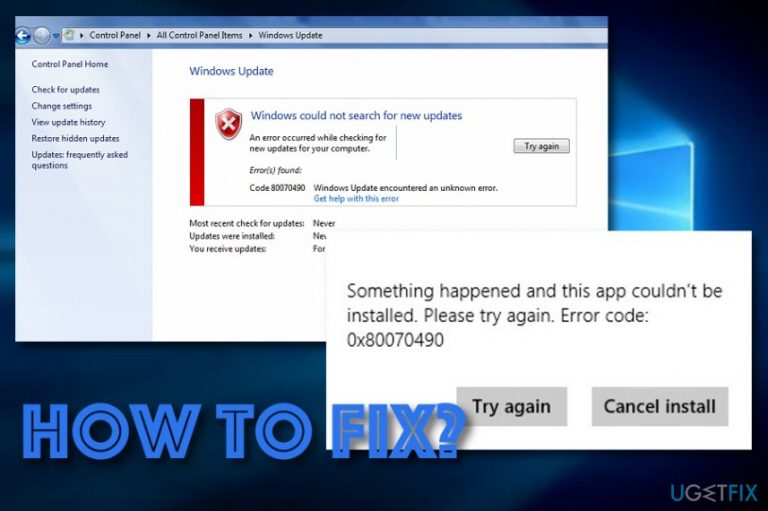
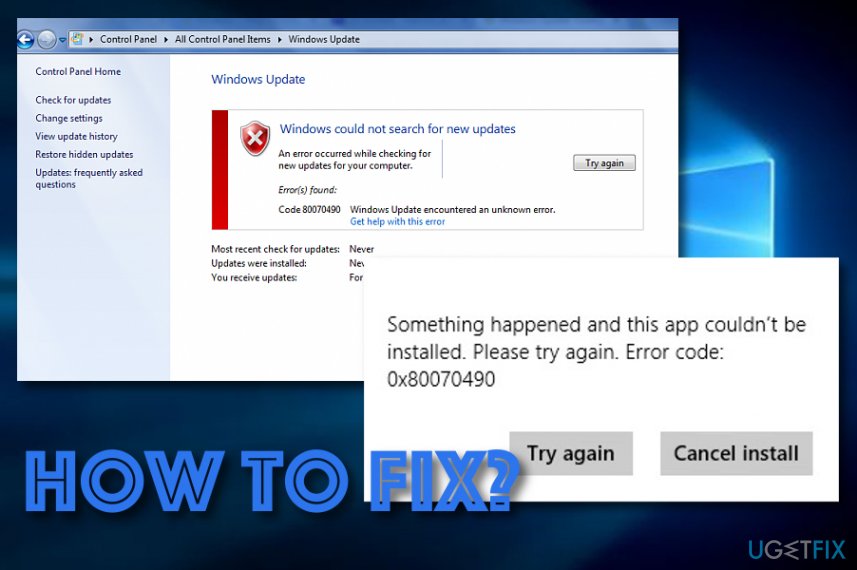
However, there might be various conditions and reasons why you are seeing 80070490 error code on your Windows computer. Besides the mentioned CBS files, there can be a lot of other things that are making an influence on the error's appearance. For example, there might be some software or other file damage that has been causing the problem. Also, some missing or incorrectly installed updates can also be triggering the error code. Once you are affected by 80070490 error, you will receive the following or a similar message:
Something happened and this app couldn't be installed. Please try again. Error code: 0x80070490
Some good news is that you can fix 80070490 error by yourself, you just need to complete some steps that our experts have provided below. There you will find multiple fixes some of which should appear helpful to you. However, if you think that there might be a more serious problem such as malware-induced[ref en-3] damage that might be forcing the error code to appear, you can try fixing the corrupted areas with a tool such as [d1].
How to Fix Windows Update Error 80070490?
To start fixing 80070490 error, we would recommend you to restore the system to the previous build since the changes that you have recently initiated might have influenced the performance of Windows and may have added some points to the 80070490 error code emergence. Thus, to get started, perform the following steps:
- Right-click on My Computer (This PC on Windows 10) and select Properties.
- After that, opt for System Protection.
- Navigate to System Properties (System Restore on Windows 10) and click Create.
- Enter the name for the restore point and click Create.
This will help you in case you perform some steps in the wrong way and want to go back to the starting point. Now you can start performing 80070490 error code fixes.
Solution 1. Perform an SFC scan
As we have noted, 80070490 bug is usually triggered by corrupt CBS files. Therefore, the most comprehensive way to fix these files would be to run an SFC scan. Thus, do the following:
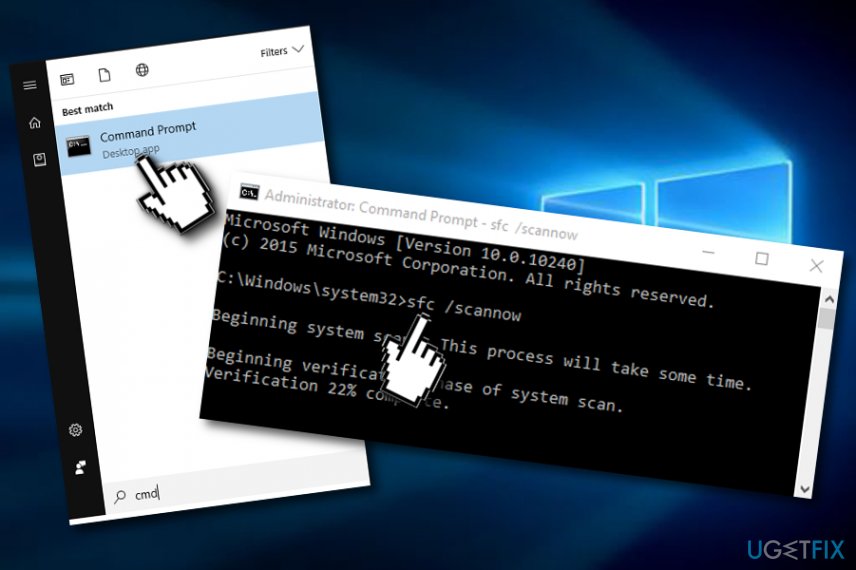
- Go to the Start menu and type cmd.
- Right-click on the first option from the search menu and select Run as Administrator.
- In the run dialogue box, type SFC/scannow command and press Enter.
Run an sfc scan - Once the system finishes the scan, you should receive a notification. There are three possible conclusions that Windows may come up with. If any system violations are found, the only thing you have to do is to close the Command Prompt window.
- If you have received a notification saying "Windows Resource Protection found corrupt files and successfully repaired them", it means that you have nothing else to do. The things have been fixed and you should try running the updates one more time.
- Lastly, if you have been informed that "Windows Resource Protection found corrupt files, but could not repair them", you should perform Solution 3.
Solution 2. Install Media Creation Tool
- Go to Microsoft's website and find Media Creation Tool Download.
- Click the Download Tool option and then perform the following steps.
- When the ISO file is downloaded, right-click on it, and select Run as Administrator.
- On the first window opened, click Accept.
- After that, click Upgrade this PC now and Next.
- If you are upgrading for the first time, you will have to enter the Product License Key.
- Click on Change option and select what data you want to keep on your machine (Keep personal files and apps, Keep personal files only, or Nothing).
- Finally, select Install.
Solution 3. Activate the Deployment Image Servicing and Management (DISM) tool
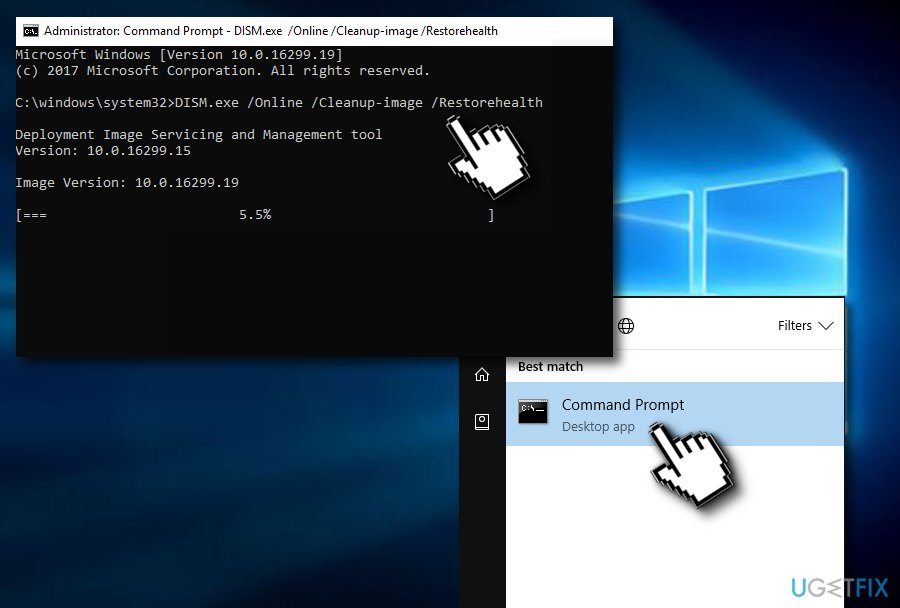
- Go to Windows search and type "cmd".
- Choose the Command Prompt option and make sure to run it as admin.
- Afterward, type the DISM.exe /Online /Cleanup-image /Restorehealth command after the blinking cursor.
Run a dism checkup - Hit the Enter key.
Solution 4. Restore Windows Update components
If the previous methods did not help you to fix 80070490 error code on your Windows computer, you could give the following steps a try and see if they work for you.
- Go to Window search again an type "cmd".
- Find Command Prompt and choose to run as an administrator.
- Type in these four commands after the blinking cursor by pressing the Enter key after each one: net stop msiserver, net stop wuauserv, net stop bits, net stop cryptSvc.
- Continuously, type the following commands into the black Command Prompt window by hitting the Enter key after each of them: ren C:\\\\Windows\\\\SoftwareDistribution SoftwareDistribution.old, ren C:\\\\Windows\\\\System32\\\\catroot2 Catroot2.old.
- Wait for the commands to run and then continue with the following ones (also press Enter after each one): net start wuauserv, net start cryptSvc, net start bits, net start msiserver.
- Afterward, wait for the process to finish and close the Command Prompt window.
- Restart your computer.
Solution 5. Try using System Update Readiness software
- Download the tool from this web page regarding the version of Windows your computer is running (also make sure to match the tool to your 32 or 64-bit system).
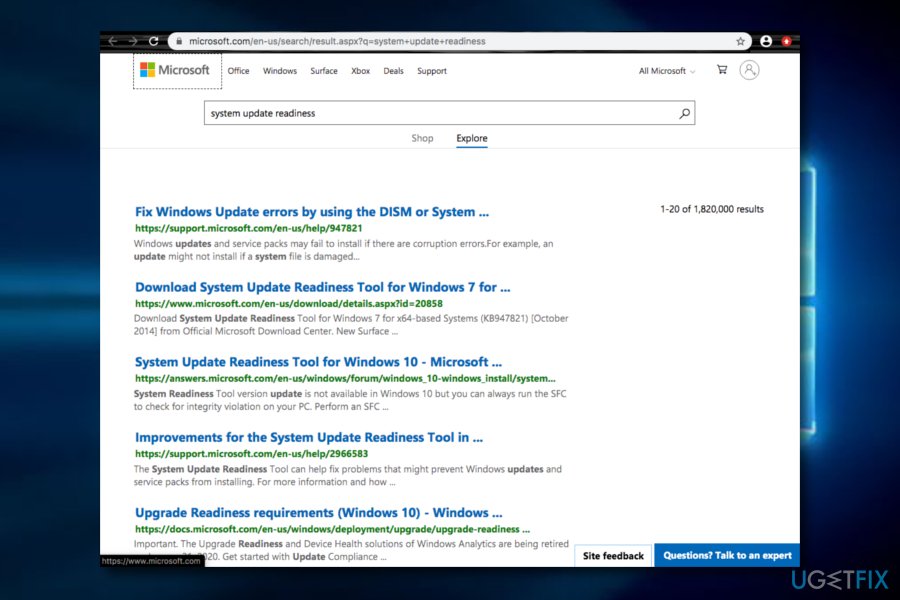
Download system readiness tool - Furthermore, click the Download option on the Download Center section.
- Install the tool by opting for Open/Run and then follow the instructing steps that will be provided to you.
- When the Windows Update Standalone Installer dialogue window appears, select Yes. Then the tool will run automatically.
- When the installation is finished, press on the Close button.
Bottom line
You can fix the 80070490 error by following several steps provided by experts, which may include repairing CBS files or reinstalling updates. If these solutions do not resolve the issue, consider seeking professional help to diagnose any underlying problems.
Frequently asked questions
Windows Update Error 80070490 typically indicates that there is corruption in the Windows Update components or the system files, preventing updates from being installed properly.
To run the Windows Update Troubleshooter on Windows 10 or Windows 11, go to Settings > Update & Security > Troubleshoot > Additional troubleshooters, then select 'Windows Update' and click 'Run the troubleshooter'.
Yes, you can manually reset the Windows Update components by stopping the Windows Update service, renaming the SoftwareDistribution and Catroot2 folders, and then restarting the service to potentially fix Error 80070490.




Report an issue
What's wrong with this guide? We review every report and update or remove content.
Report received — thank you. We'll review and fix it.
You need a free account to submit a report.
Be the first to comment