How to fix
Windows Update Error Code 0x80070663
on Windows
Resolve Windows Update error code 0x80070663 effortlessly. Follow expert-tested solutions to get your Windows 10 or 11 system running smoothly again.


What causes How to Fix Windows Update Error Code 0x80070663?
- Corrupted update package during installation
- Windows Update service is down
- Corrupted Windows update components
- Issues specific to MS Office updates
- Using an outdated version of Windows
Repairs Windows system files, removes malware, and restores a clean OS state — without reinstalling.
When I try to install updates for Excel 2016 from Windows Store, I get the error 0x80070663. Could you please tell me what should I do to install the update successfully?
Feature,[ref en-1] security, and stability updates for Windows OS are equally important. Therefore, any obstacles during the installation of Windows updates have to be addressed immediately. One of the common Windows 10 update errors is marked with a numerical code 0x80070663.
The 0x80070663 error is related to Windows Update Installer. The error indicates the fact that the update package that the user opts for installing got corrupted during the installation process. In most of the cases, this problem occurs when installing updates for Ms Office[ref en-2] 365, 2013, and 2016. Those who use Windows 7, XP, Vista and other older Windows versions can fix the 0x80070663 error by upgrading to the newest Windows version.[ref en-3]
However, this error may also mean that the Windows Update service is currently down. This may happen due to corrupted Windows update components, so one of the possible fixes would be to restart them. If the 0x80070663 error shows up when installing MS Excel updates only, then you may try to uninstall the Office pack and reinstall it. To help you sort this problem out, we’ll provide all applicable 0x80070663 error fixes.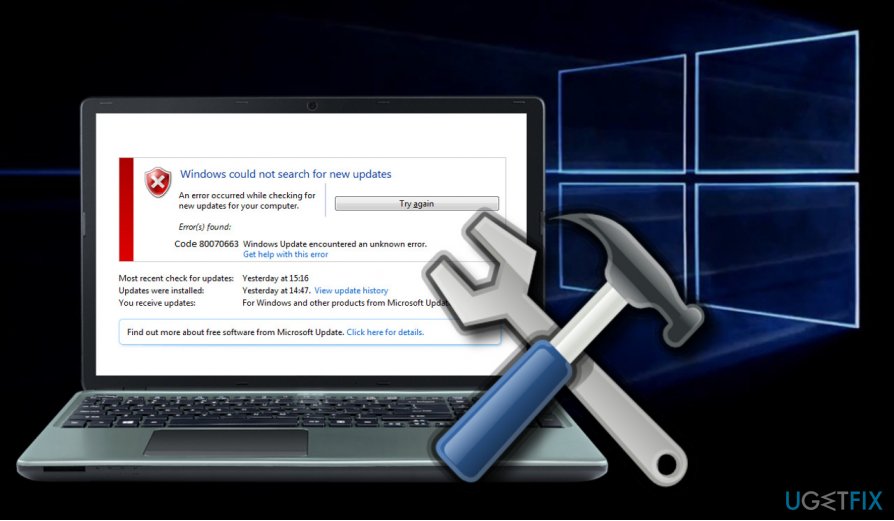
Run Windows Update Troubleshooter
First of all, check if Windows Update service is working properly. For this purpose, you can use an in-built tool.
- Press Windows key + I and open Update & Security section.
- Select Troubleshoot and find Windows Update.
- Click Windows Update and select Run troubleshooter.
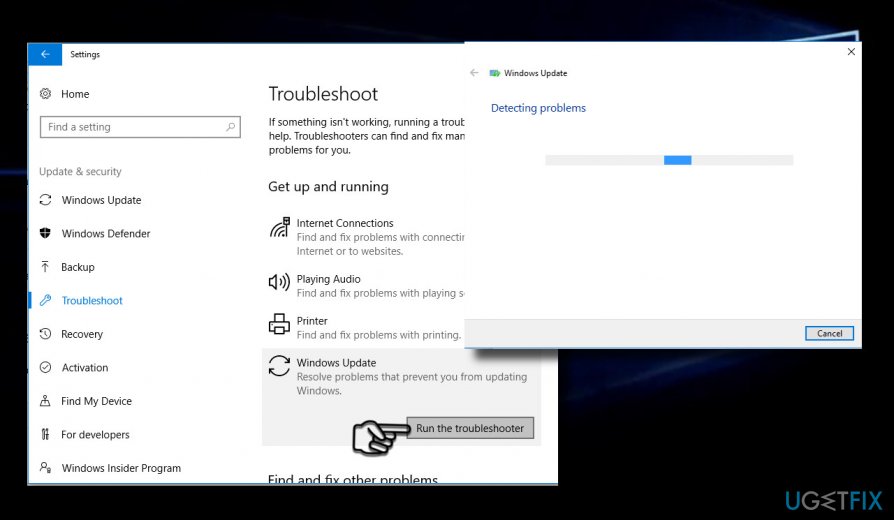
Run windows update troubleshooter
The scan may take up to 10 minutes. You should get a window with scan results and notification if Windows managed to fix the problems automatically.
Restart Windows Update components
- Right-click Windows key and select Command Prompt (Admin).
- If a UAC shows up, click OK to proceed.
- By typing the following commands you will stop BITS, Windows Update, Cryptographic, MSI Installer services. Don't forget to press Enter after each of them:
net stop bits
net stop wuauserv
net stop appidsvc
net stop cryptsvc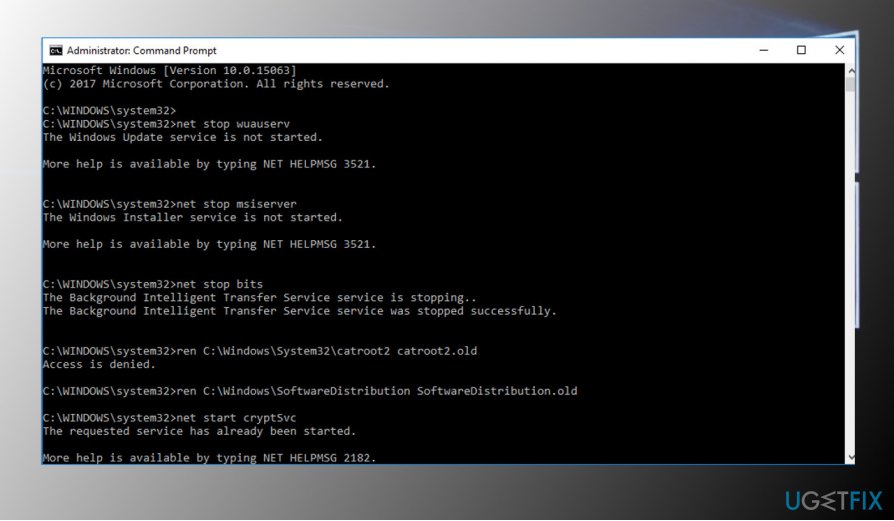
Restart windows update components - Then type Del "%ALLUSERSPROFILE%\\Application Data\\Microsoft\\Network\\Downloader\\qmgr*.dat” command to delete qmgr*.dat files.
- Once done, copy and paste cd /d %windir%\\system32 command and press Enter to execute the command.
- To re-register BITS and Windows Update files, you will have to type all the commands (followed by Enter) provided below:
regsvr32.exe atl.dll
regsvr32.exe urlmon.dll
regsvr32.exe mshtml.dll
regsvr32.exe shdocvw.dll
regsvr32.exe browseui.dll
regsvr32.exe jscript.dll
regsvr32.exe vbscript.dll
regsvr32.exe scrrun.dll
regsvr32.exe msxml.dll
regsvr32.exe msxml3.dll
regsvr32.exe msxml6.dll
regsvr32.exe actxprxy.dll
regsvr32.exe softpub.dll
regsvr32.exe wintrust.dll
regsvr32.exe dssenh.dll
regsvr32.exe rsaenh.dll
regsvr32.exe gpkcsp.dll
regsvr32.exe sccbase.dll
regsvr32.exe slbcsp.dll
regsvr32.exe cryptdlg.dll
regsvr32.exe oleaut32.dll
regsvr32.exe ole32.dll
regsvr32.exe shell32.dll
regsvr32.exe initpki.dll
regsvr32.exe wuapi.dll
regsvr32.exe wuaueng.dll
regsvr32.exe wuaueng1.dll
regsvr32.exe wucltui.dll
regsvr32.exe wups.dll
regsvr32.exe wups2.dll
regsvr32.exe wuweb.dll
regsvr32.exe qmgr.dll
regsvr32.exe qmgrprxy.dll
regsvr32.exe wucltux.dll
regsvr32.exe muweb.dll
regsvr32.exe wuwebv.dll - To reset Winsock, type netsh winsock reset and netsh winhttp reset proxy commands. Press Enter after each of them as usually.
- Finally, restart BITS, Windows Update, Cryptographic, MSI Installer services by entering the following commands each followed by Enter:
net start bits
net start wuauserv
net start appidsvc
net start cryptsvc
Install all Windows Cumulative Updates
If these methods did not help, we would recommend installing all missing Windows 10 Cumulative Updates. If you cannot do that using automatic Windows Update feature (Windows + I -> Update & Security -> Check for Updates), navigate to the official Microsoft’s update catalog and install the latest cumulative update manually.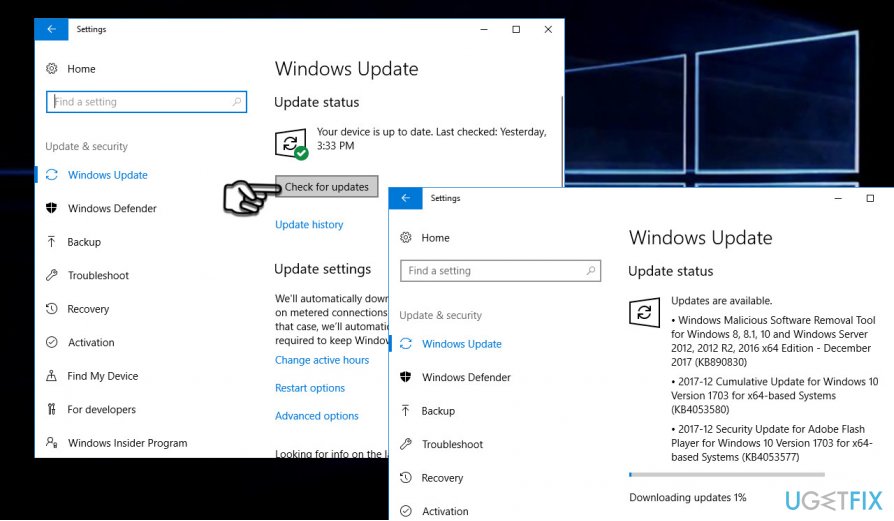
Reinstall Microsoft Office
If all other updates, except Office, can be installed successfully, the culprit of the 0x80070663 error is most probably the Office update file corruption. Microsoft Office is updated are installed via automated Windows Update service once released.
If the system keeps failing to update Ms Office due to 0x80070663, we would strongly recommend you to reinstall the pack and then install it anew.
- If you are using Windows 10, press Windows key + I to open Settings.
- Open Apps -> Programs & Features tab.
- Find Microsoft Office entry, click it, and select Uninstall.
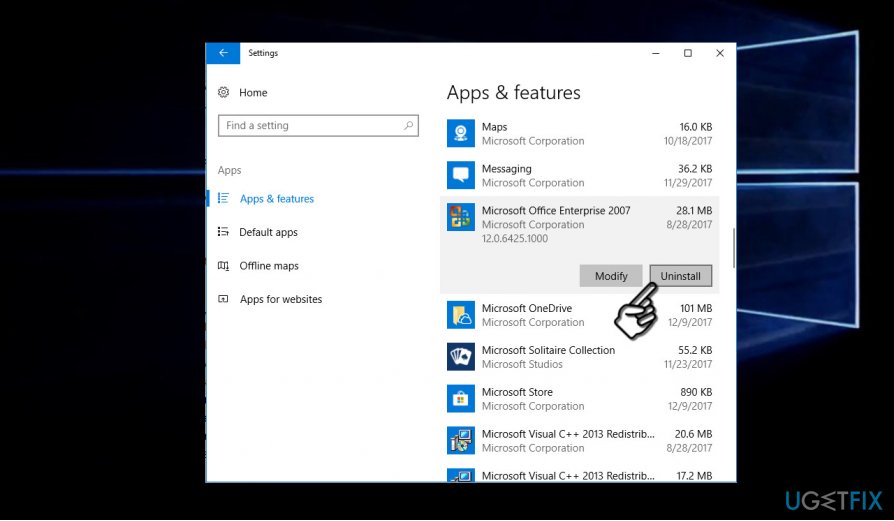
Uninstall ms office - If you are using older Windows version, go to Control Panel -> Add or Remove Programs.
- Select Microsoft Office pack and click Uninstall.
- After that, it’s advisable to run a scan with an optimization tool to eliminate all file leftovers. We recommend using [d1]. Any remaining files may trigger the installation of new Ms Office version or some of its update files may get corrupted again.
- Once done, reboot your PC and download the full Microsoft Office package from the official Microsoft’s website or another reliable source.
Bottom line
To fix the 0x80070663 error, you can run the Windows Update Troubleshooter, restart Windows Update components, or uninstall and reinstall the Office pack. If none of these solutions work, consider upgrading to the latest version of Windows.
Frequently asked questions
This error typically occurs due to corrupted system files, issues with Windows Update components, or conflicts with third-party software. Running the Windows Update Troubleshooter can help identify and resolve these issues.
To fix this error on Windows 11, try resetting the Windows Update components by running commands in Command Prompt, such as 'net stop wuauserv' and 'net start wuauserv'. Additionally, consider performing a System File Check using 'sfc /scannow'.
While some third-party tools can help resolve Windows Update errors, it's best to use built-in Windows tools first to ensure system integrity on Windows 10 or Windows 11. If you choose to use third-party software, ensure it's from a reputable source.




Report an issue
What's wrong with this guide? We review every report and update or remove content.
Report received — thank you. We'll review and fix it.
You need a free account to submit a report.
Be the first to comment