How to fix
Windows Update Error Code 0x8024a105
on Windows
Resolve Windows Update Error Code 0x8024a105 quickly and get your system running smoothly. Expert-tested solutions ensure zero traces left.

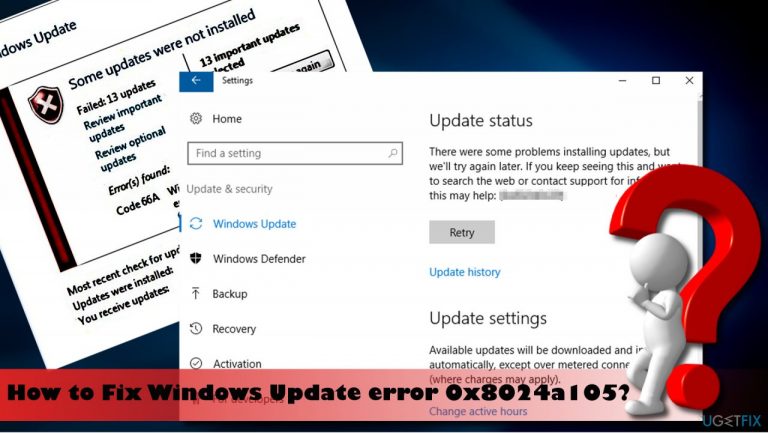
What causes How to fix Windows Update Error Code 0x8024a105?
- Problem with the Background Intelligence transfer service
- Issues with Windows Update components
- Bugs in new Windows updates
- System malfunctions due to outdated software
- Corruption in system files
Repairs Windows system files, removes malware, and restores a clean OS state — without reinstalling.
My HP laptop hasn’t been updated for several months. Update installation fails with an error code 0x8024a105. Does anyone know what it means or how to fix this issue? Thanks in advance.
The advantages of the automatic Windows Update service represented in Windows 10 OS have been discussed widely, and people already evidenced the clear difference between updated and outdated operating systems.
Sometimes new Windows updates indeed contain bugs and trigger system malfunctions, the biggest part of the updates accelerate the system’s performance, consolidate its security, fix errors, and deliver new features. Unfortunately, the Windows Update service is not perfect.
There are many aspects that may negatively influence the performance of this service, which is why the system may not get updates for a long time. One of the current Windows Update errors is 0x8024a105. It may show up during the Windows update search procedure or when checking the Update History and analyzing the updates that failed to install.
According to experts, the 0x8024a105 error indicates a problem with the Background Intelligence transfer service. Therefore, it’s advisable to stop this service temporarily and check if that helps. However, this service is not the only trigger of the update error, so you should also try to reset all Windows Update components.
If you want to fix 0x8024a105 error manually, you should perform each of the methods below. As evident, each of the computer configurations is different, hence now all the solutions can apply to everybody. Therefore, one of the easiest ways to resolve this issue is by employing automatic repair software [d1].
The app can help you with Windows maintenance (cleaning junk and temp files), resolving serious system corruption issues (those that cause BSOD and other errors), caring for your privacy (cleaning your web browser cookies and cache), and removing malware/fixing its damage caused automatically.
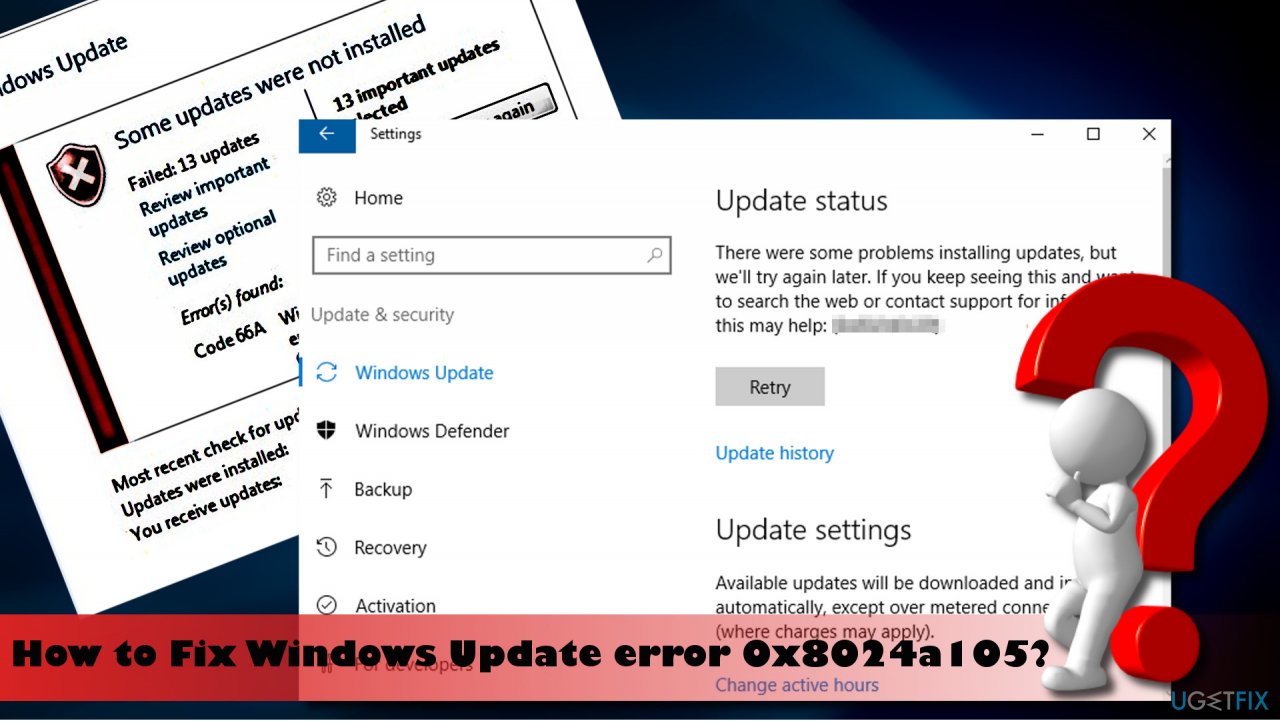
Option 1. Run Windows Update Troubleshooter
- Right-click on Start and pick Settings
- On the left, pick Troubleshoot
- Now you should be able to see all troubleshooters on the left. If you don't, click Additional troubleshooters
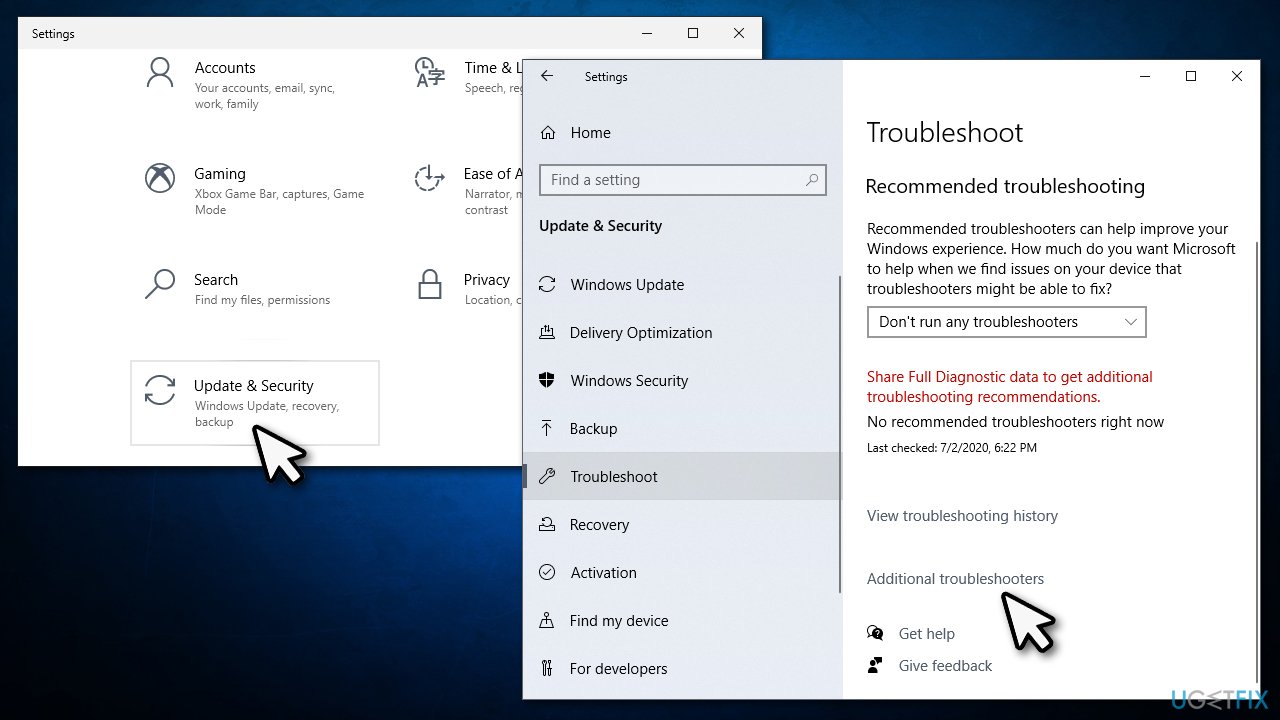
How to fix windows update error code 0x8024a105 run troubleshooter - Find Windows Update and click Run the troubleshooter.
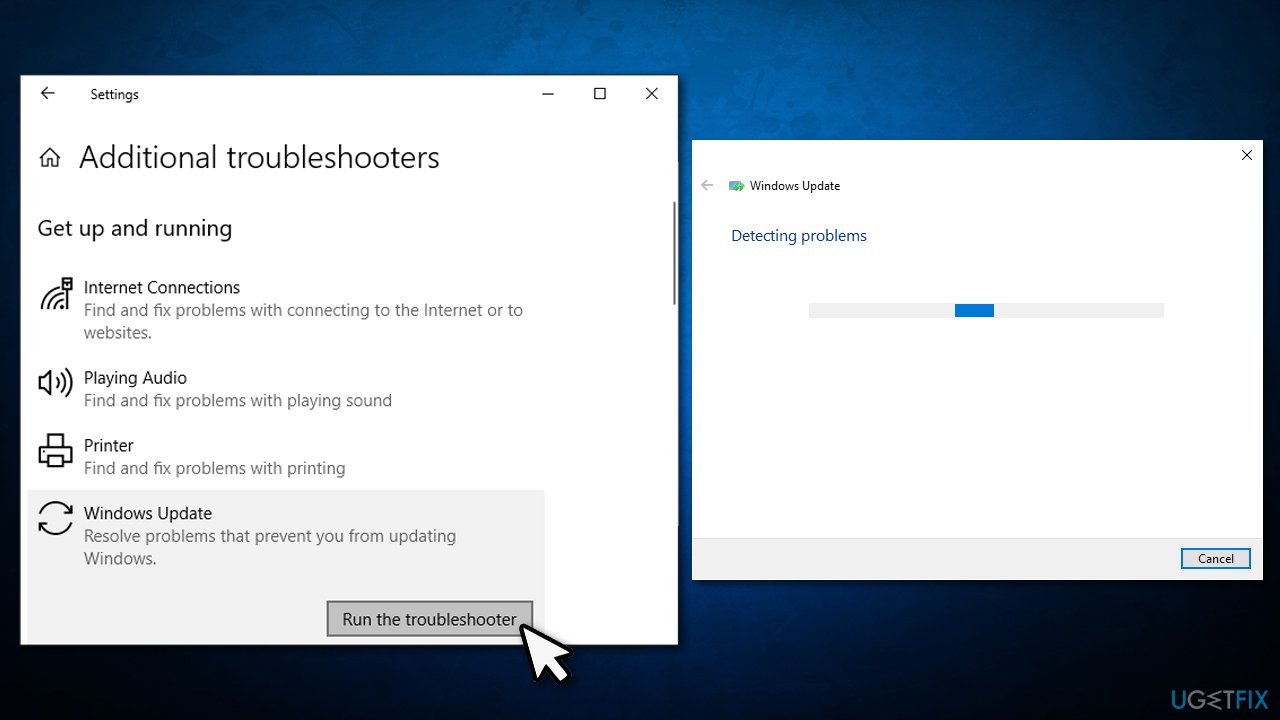
How to fix windows update error code 0x8024a105 run troubleshooter2
Option 2. Delete contents of Software Distribution folder
- Press Windows key + R, type services.msc, and press Enter.
- Locate the Background Intelligent Transfer Service on the list and right-click it.
- Select Stop from the context menu.
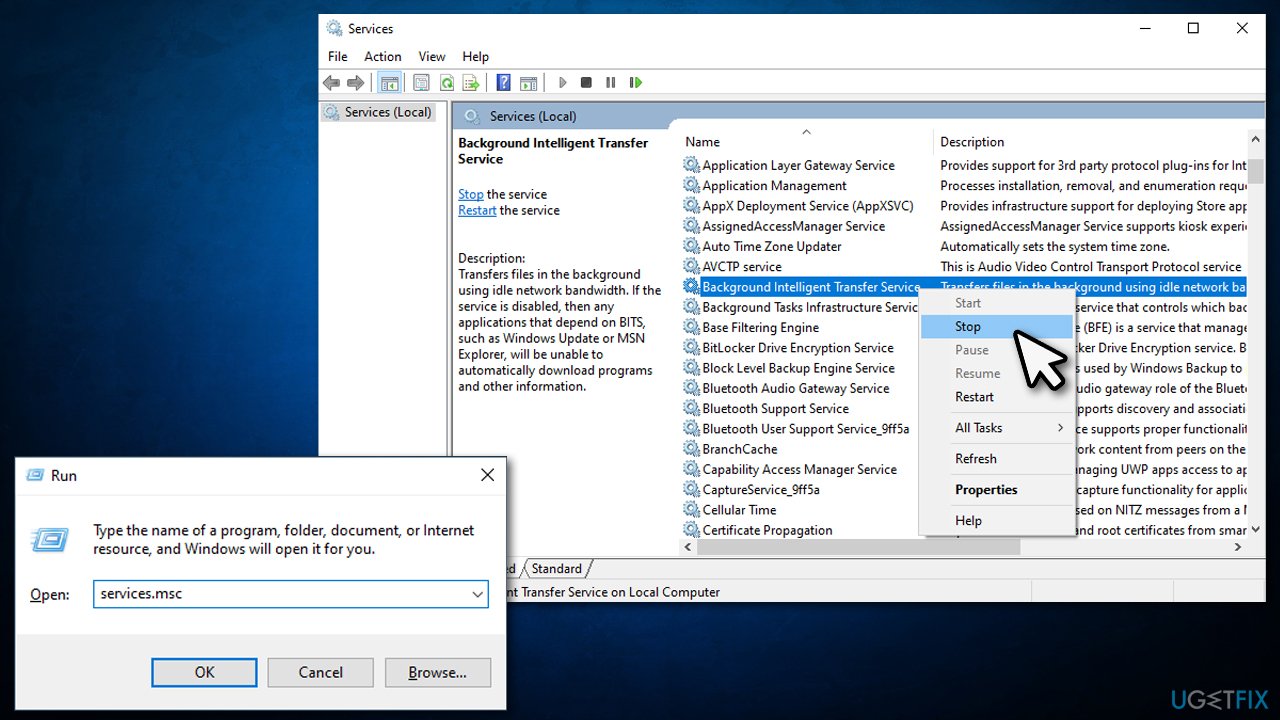
How to fix windows update error code 0x8024a105 stop bits service - Now locate the Windows Update service, right-click it, and select Stop.
- Now open Windows Explorer and navigate to the C:\\Windows\\SoftwareDistribution.
- Remove all the content on this folder. If some of the contents, for example, “Download” and “DeliveryOptimation” are not removed, repeat the removal process.
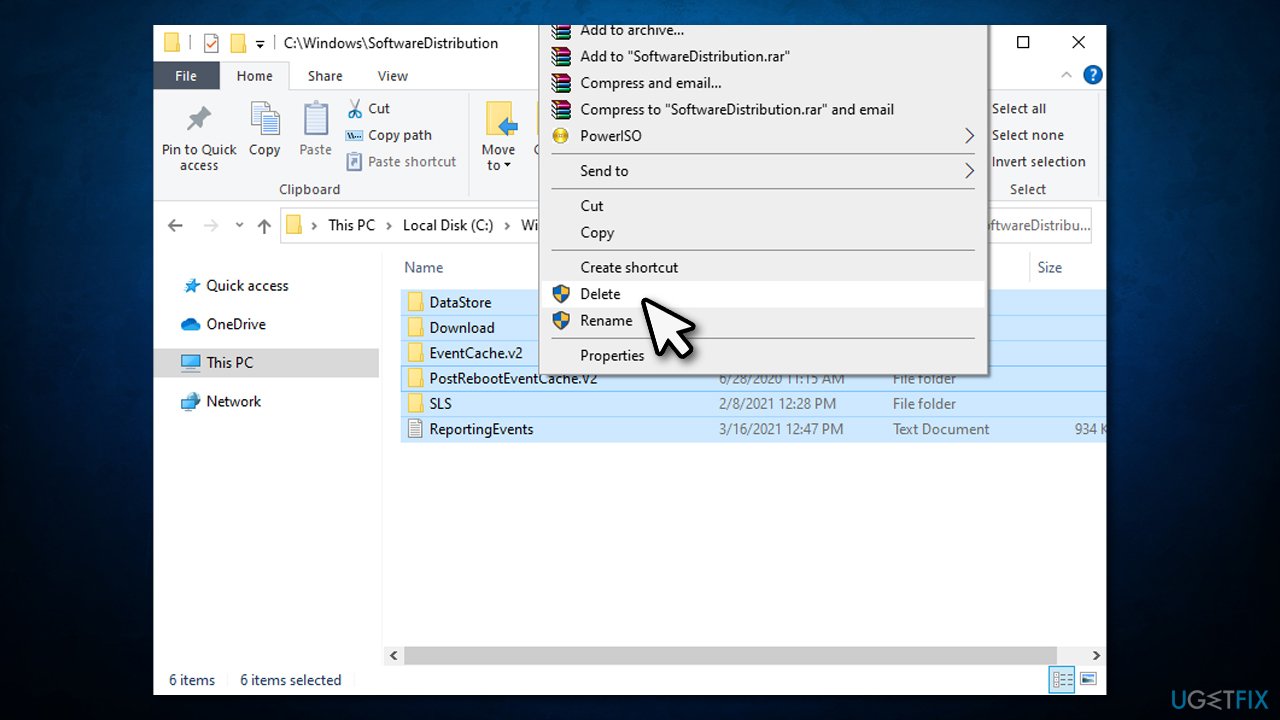
How to fix windows update error code 0x8024a105 delete software distribution folder - Finally, reboot the system and check if the 0x8024a105 error has been fixed.
Option 3. Change Windows Update Settings
- Right-click on Start and pick Settings.
- Go to update and security section.
- On the right, select Advanced Options.
- Unmark the “Give me updates for other Microsoft products when I update Windows” box.
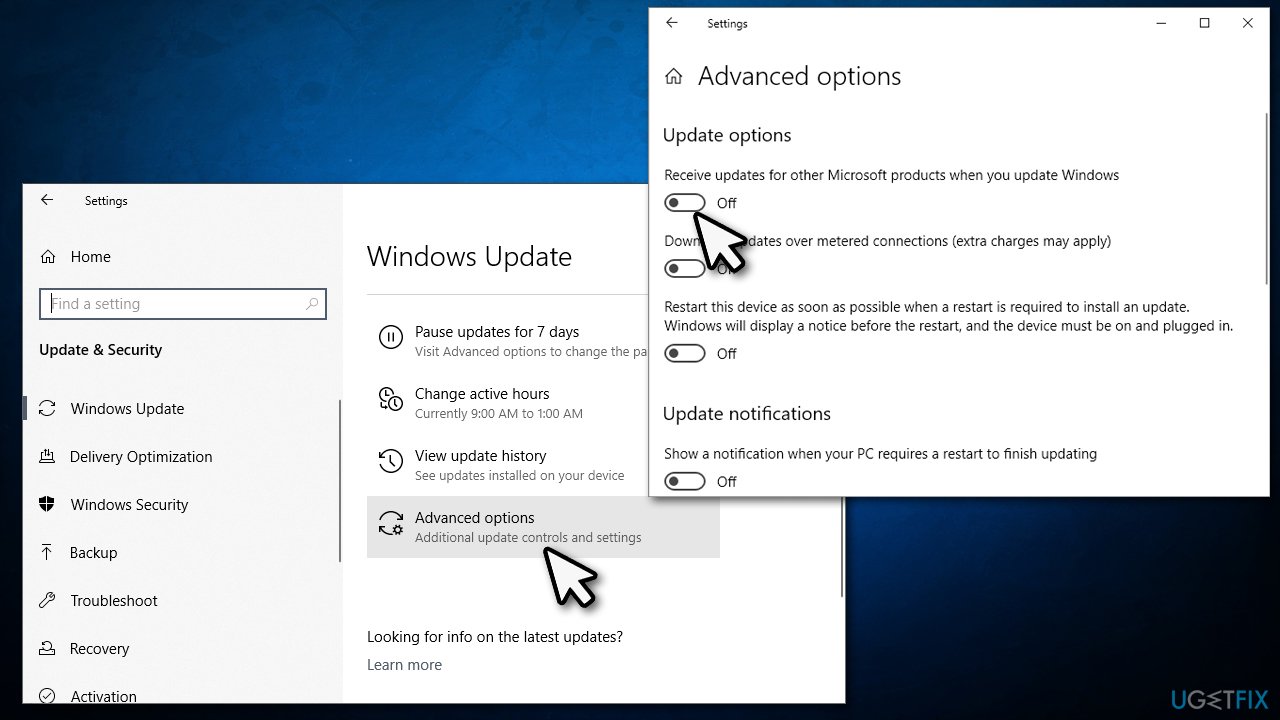
How to fix windows update error code 0x8024a105 go to advanced options - Reboot the system to save the changes.
- Then open Windows Update Settings as explained above and click Check for Updates.
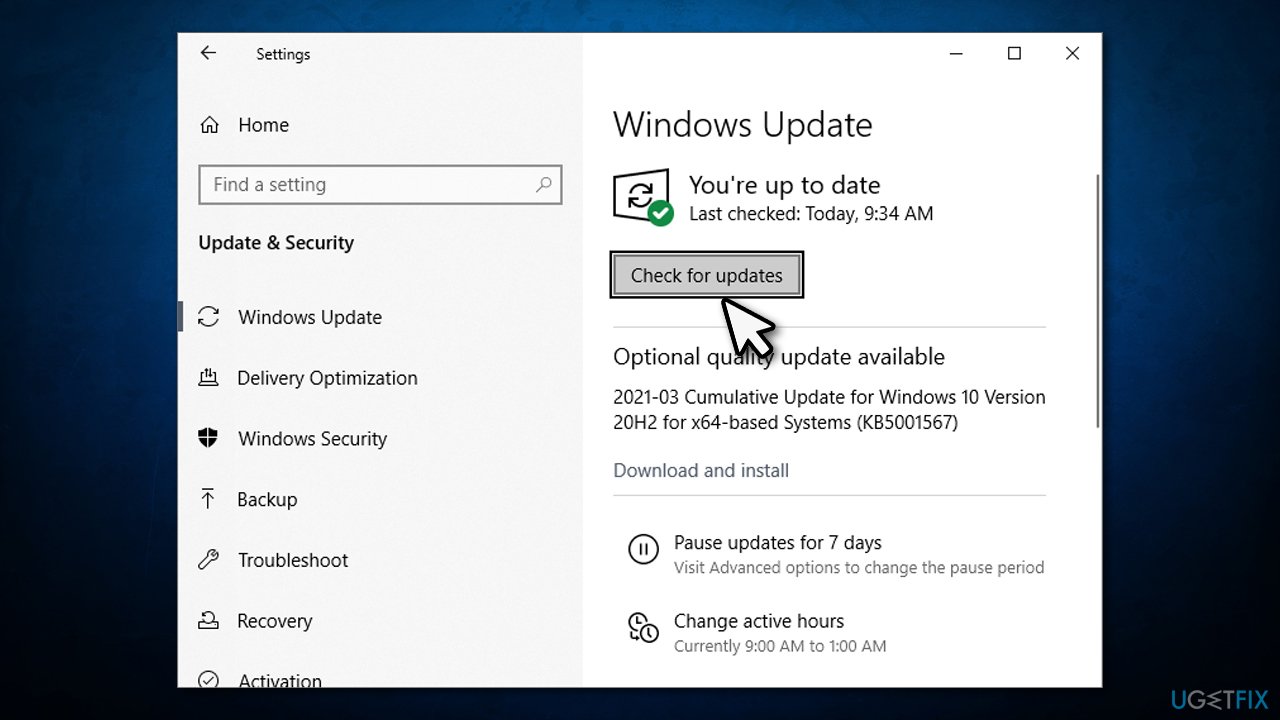
How to fix windows update error code 0x8024a105 check for updates - Click Check for Updates button several times in order to install all available Windows Updates. Once the system will be fully updated, you will receive a notification “Your device is up to date.”
- After that, open Update settings again and select Advanced Options.
Option 4. Reset Windows Update components
- Type in cmd in Windows search.
- Right-click on Command Prompt result and pick Run as administrator.
- If a UAC shows up, click OK to proceed.
- By typing the following commands you will stop BITS, Windows Update, Cryptographic, MSI Installer services. Don't forget to press Enter after each of them:
net stop bits
net stop wuauserv
net stop appidsvc
net stop cryptsvc - Then type Del "%ALLUSERSPROFILE%\\Application Data\\Microsoft\\Network\\Downloader\\qmgr*.dat” command to delete qmgr*.dat files.
- Once done, copy and paste cd /d %windir%\\system32 command and press Enter to execute the command.
- To re-register BITS and Windows Update files, you will have to type all the commands (followed by Enter) provided below:
regsvr32.exe atl.dll
regsvr32.exe urlmon.dll
regsvr32.exe mshtml.dll
regsvr32.exe shdocvw.dll
regsvr32.exe browseui.dll
regsvr32.exe jscript.dll
regsvr32.exe vbscript.dll
regsvr32.exe scrrun.dll
regsvr32.exe msxml.dll
regsvr32.exe msxml3.dll
regsvr32.exe msxml6.dll
regsvr32.exe actxprxy.dll
regsvr32.exe softpub.dll
regsvr32.exe wintrust.dll
regsvr32.exe dssenh.dll
regsvr32.exe rsaenh.dll
regsvr32.exe gpkcsp.dll
regsvr32.exe sccbase.dll
regsvr32.exe slbcsp.dll
regsvr32.exe cryptdlg.dll
regsvr32.exe oleaut32.dll
regsvr32.exe ole32.dll
regsvr32.exe shell32.dll
regsvr32.exe initpki.dll
regsvr32.exe wuapi.dll
regsvr32.exe wuaueng.dll
regsvr32.exe wuaueng1.dll
regsvr32.exe wucltui.dll
regsvr32.exe wups.dll
regsvr32.exe wups2.dll
regsvr32.exe wuweb.dll
regsvr32.exe qmgr.dll
regsvr32.exe qmgrprxy.dll
regsvr32.exe wucltux.dll
regsvr32.exe muweb.dll
regsvr32.exe wuwebv.dll - To reset Winsock, type netsh winsock reset and netsh winhttp reset proxy commands. Press Enter after each of them as usually.
- Finally, restart BITS, Windows Update, Cryptographic, MSI Installer services by entering the following commands each followed by Eter:
net start bits
net start wuauserv
net start appidsvc
net start cryptsvc
Option 5. Use Media Creation Tool to update Windows
You can try using Windows Media Creation Tool if regular process fails. Here's how:
- Visit the official Microsoft website to download Windows 10 installation media.
- Double-click the installer and agree to Terms.
- Click Next.
- Pick Upgrade this PC now and select Next.
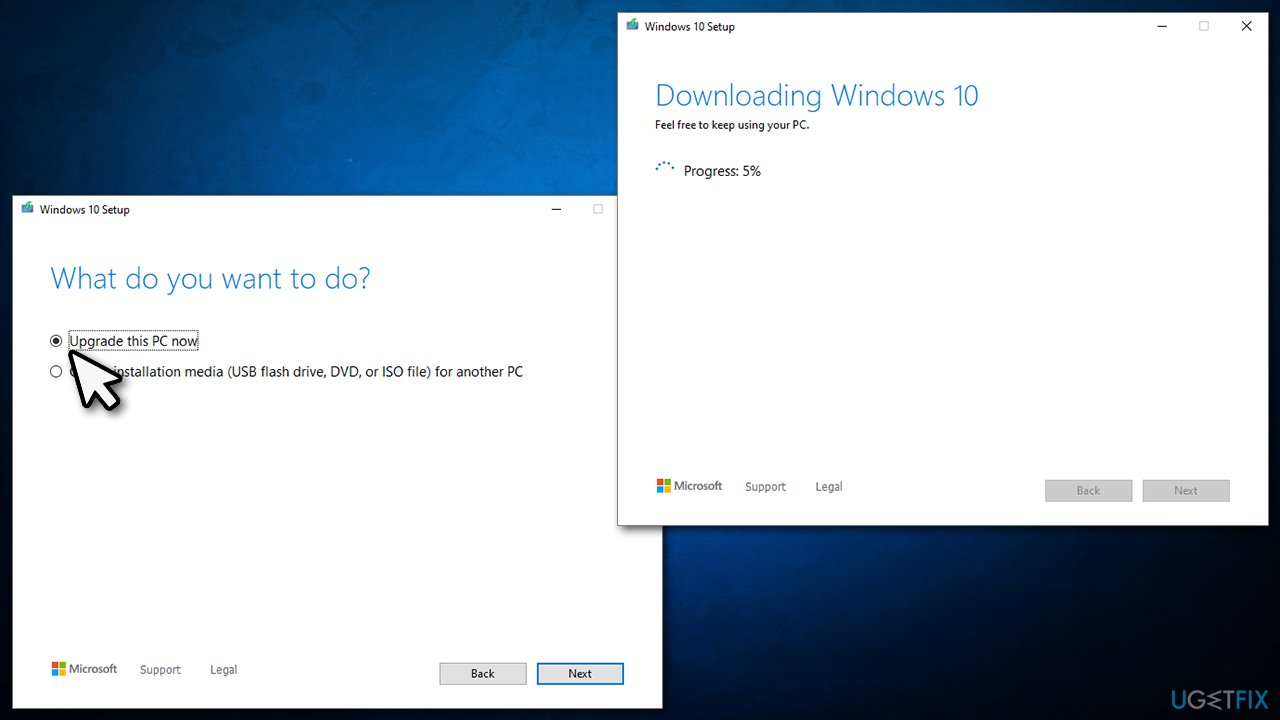
How to fix windows update error code 0x8024a105 use media creation tool - At this point, Windows will download relevant files.
- Finalize the installation and reboot your computer.
Bottom line
To fix the 0x8024a105 error, you can run the Windows Update Troubleshooter, stop the Background Intelligence transfer service, or reset all Windows Update components. If these methods do not resolve the issue, consider using automatic repair software for further assistance.
Frequently asked questions
Error Code 0x8024a105 typically indicates a problem with the Windows Update service or its components on Windows 10 or Windows 11.
You can reset the Windows Update components by running a series of commands in Command Prompt as an administrator, including stopping the Windows Update service and renaming the SoftwareDistribution folder.
Yes, you can use the Windows Update Troubleshooter available in Windows 10 and Windows 11, which can automatically detect and resolve common issues with the update process.




Report an issue
What's wrong with this guide? We review every report and update or remove content.
Report received — thank you. We'll review and fix it.
You need a free account to submit a report.
Be the first to comment