How to fix
Windows Update Error Code 0x8024a10a
on Windows
Resolve Windows Update error code 0x8024a10a quickly and easily with our expert-tested solutions. Fix your Windows 10 or 11 issues in minutes!

What causes How to Fix Windows Update Error Code 0x8024a10a?
- Anti-virus incompatibility
- Corrupted update files
- Malfunctioning Windows Update components
- Issues with BITS service
- Installation process crashes
Repairs Windows system files, removes malware, and restores a clean OS state — without reinstalling.
Error Code 0x8024a10a during the installation of Windows Updates. Running Windows 10 with the Creators Update. Any suggestions?
Microsoft rolls out Windows 10 updates regularly and urges people not to delay their installation. We would recommend doing so as well because only the fully updated system is stable, fast, and secured. However, Windows Update service often fails to download/install updates and displays errors, such as 0x8024a10a.
0x8024a10a Error Code
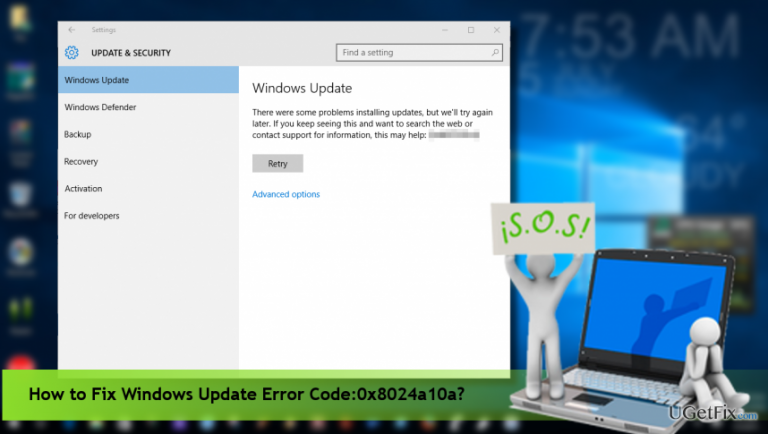
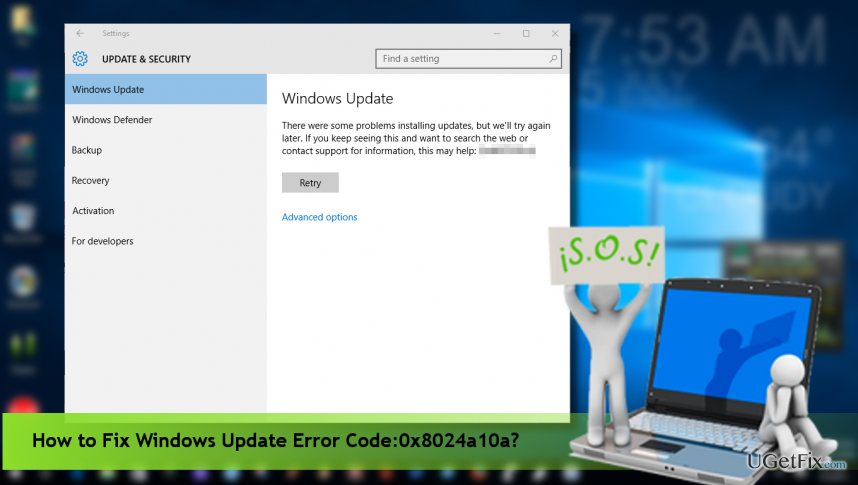
The Error Code 0x8024a10a does not differ from other Windows Update errors. When the user opens Windows Update and clicks Check for Updates, the system starts scanning and delivers the list of updates. However, none of the updates are installed because the installation process crashed with an error 0x8024a10a, which says:
There were some problems installing updates, but we’ll try again later. If you keep seeing this and want to search the web or contact for support for more information, this may help – (0x8024a10a).
This bug check shows up on PCs, desktops, and smartphones running Windows 10. Unfortunately, Microsoft hasn’t yet acknowledged the bug, which means that there are no fixes available. Nevertheless, the bulk of Windows Update errors are typically triggered by anti-virus incompatibility, corrupted update files or malfunctioning Windows Update components. Thus, you may try generic Windows Update error fixes.
Fixing Windows Update Error Code 0x8024a10a
Temporarily disable your anti-virus
Although keeping the system unprotected is not advisable, the first thing you should try to fix 0x8024a10a error is to disable your anti-virus tool for a short time. When the security tool is disabled, try to check if Windows Updates can be installed. If yes, install them and then enable the anti-virus. If the problem occurs anyway, enable anti-virus immediately.
Reset Windows Update components
For most of Windows 10 users, restarting BITS service helped to fix 0x80070020 error. If, however, that did not help, we would recommend resetting all Windows Update components. That’s a quite complicated task, but the instructions provided in this post carefully will guide you to the right direction.
Run Windows Update Troubleshooter
Navigate to the official Microsoft website and find Windows Update Troubleshooter.
1. Click Download Now button.
2. When the tool is downloaded, launch it.
3. Follow the on-screen instructions and see what it reports.
4. If any issues are found, they will be fixed automatically.
Scan the system for malware
If none of the fixes helped, the last thing you should try is to check the system for malware. It might be that a malicious program is hiding in the depth of the operating system and causing its malfunctions. To verify system’s condition, we would highly recommend using [d1].
Bottom line
To fix the Windows Update Error Code 0x8024a10a, you can temporarily disable your anti-virus, reset Windows Update components, or run the Windows Update Troubleshooter. If these solutions do not resolve the issue, consider seeking further assistance or checking for updates from Microsoft.
Frequently asked questions
Error Code 0x8024a10a typically indicates that there is an issue with the Windows Update service or a problem with the update files on Windows 10 or Windows 11.
To resolve the 0x8024a10a error on Windows 10, try running the Windows Update Troubleshooter and ensuring that your device is connected to the internet.
Yes, you can fix the 0x8024a10a error by manually resetting the Windows Update components through Command Prompt in Windows 10 or Windows 11.




Report an issue
What's wrong with this guide? We review every report and update or remove content.
Report received — thank you. We'll review and fix it.
You need a free account to submit a report.
Be the first to comment