How to fix
Windows Update Error Code 80244019
on Windows
Resolve Windows Update Error Code 80244019 on Windows 10 and 11 quickly with proven solutions. Get expert-tested methods for hassle-free updates!

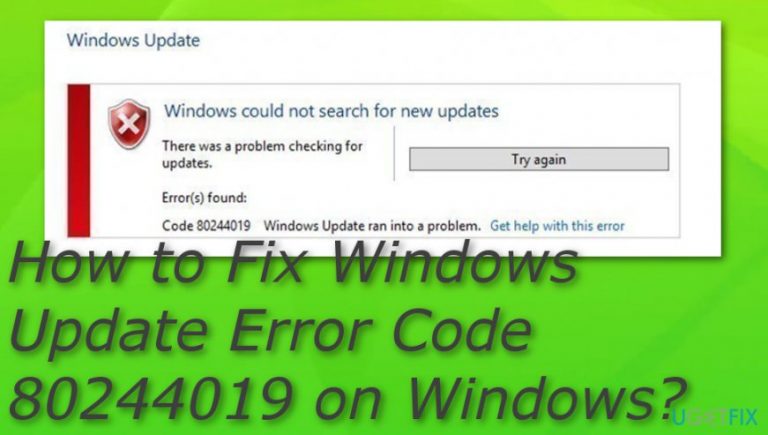
What causes How to Fix Windows Update Error Code 80244019 on Windows?
- Microsoft server issues
- Computer system problems
- Configuration issues
- File corruption
- Disk corruption
Repairs Windows system files, removes malware, and restores a clean OS state — without reinstalling.
Hello, I have a problem with my computer. I am using Windows 8.1 OS, and I always get Error Code 80244019 when trying to update Windows. I’ve tried everything, but nothing helps me to bypass this error. Can you help me to fix Error Code 80244019?
There are various reasons why you might have to face Windows Update Error Code 80244019 notification. It mostly annoys users of Windows 10/8.1/8 OS.[ref en-2] The problem can be associated with the Microsoft server, but it can also occur due to problems with your computer system and the configuration of it.
We have made a little bit of investigation on Windows Update Error Code 80244019 and found some forum discussions. A user has reported that he is using Windows 8 on an Acer laptop and the error code still persists after repeatedly updating the Windows machine.[ref en-1]
However, this time it seems that the error arises from problems with your computer because if the issue is related to Microsoft server, the Windows Update Error Code 80244019 fixes automatically within a couple of hours. There are many similar errors that occur on Windows computers if they have not been properly updated. For this purpose, just go to the Windows Updates section and check if there are any pending upgraded.
Continuously, this might not be the only reason why you are dealing with Error Code 80244019. Other causes might be some type of file or disk corruption that has been unspotted lately. Some good news is that these problems can be fixed too. Below, we will provide a couple of methods that usually help users solve the Error 80244019 issue. Let’s not waste any more time and solve this problem.
How to Fix Windows Update Error Code 80244019 on Windows?
Below you will find several different methods that display how to fix Windows Update Error Code 80244019 on Windows. Go through all of these techniques and pick the most suitable ones or just try all of them until you succeed in the process. If none of these methods help (which is very rare), you can always try the automatical fixing task that has been described at the end of this article.
Method 1. The easiest way to solve Error Code 80244019 issue
It doesn’t matter what kind of issue with Windows Updates you encounter, you have to check one thing first. Background Intelligent Transfer Service (BITS), also Windows Update service, must be running. To run them, do the following:
- Press Windows Key on your keyboard as well as the X key at the same time.
- Click on Command Prompt (Admin) - this way, you will open Command Prompt with administrator rights.
- In the Command Prompt, type in “net start BITS” and push Enter.
- After completing Step 3, type another line in CMD: “net start wuauserv” and push Enter again.
After completing these steps, try to check for a Windows Update again. In case the problem persists, proceed to the next method.
Method 2. Use Windows Update Troubleshooter
If you have completed the steps described in Method 1, and the problem persists, we suggest trying this method first. Windows OS offers various Troubleshooters that can help you to fix problems in a certain OS field. For the problem with Error Code 80244019, you can use Windows Update Troubleshooter.
- Get Windows Update Troubleshooter from official Microsoft’s website.
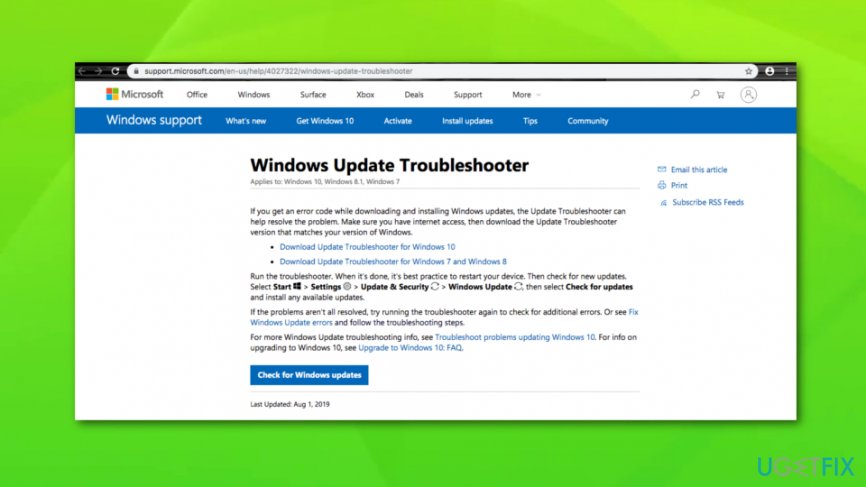
Run windows update troubleshooter - Open WindowsUpdateDiagnostic file that you have just downloaded.
- Just click the Next button and wait until the software diagnoses the problem. It will show you the problem and will tell you whether it was solved or not.
If the troubleshooter fails to fix the problem and you still get the Error Code 80244019 alert when trying to update Windows, try the next method.
Method 3. Turn on Data Execution Prevention
This method helps to solve the issue for the majority of users who encounter Error Code 80244019 problem. If Data Execution Prevention (DEP)[ref en-3] is not turned on, you will need to turn it on. This is how you can do it:
- Right-click on This PC and then select Properties. An alternative method to access this panel is to follow this route: Start Menu > Control Panel > System and Security > System.
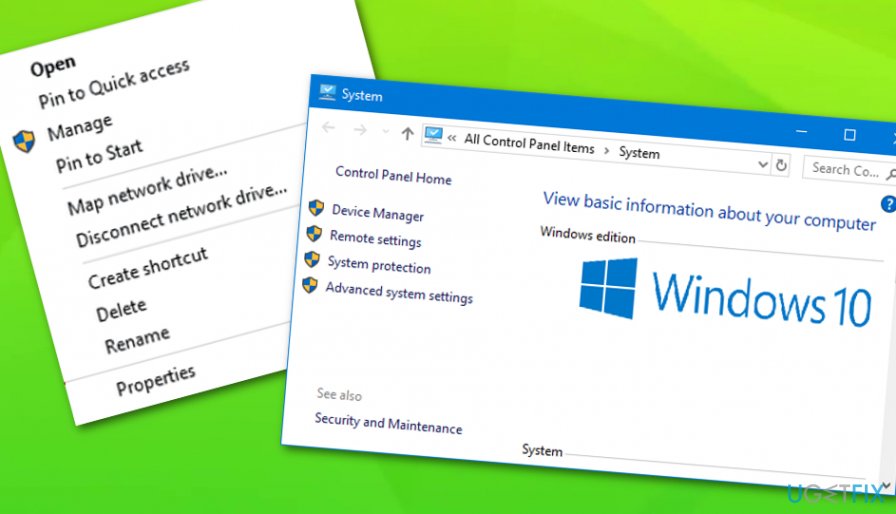
My pc properties section - Click on Advanced System Settings. This will open the System Properties Dialog.
- Select Settings from the Performance Section. Next, open the Data Execution Prevention Tab.
- Here, put a checkmark on “Turn on DEP for essential Windows programs and services only” option.
- Select Apply, then OK. Reboot your PC.
After restarting your PC, try to update Windows. The issue should be solved.
Method 4. Reject Update other Microsoft products preference
Here is yet another option that can help you go past Error Code 80244019.
- Hover your mouse to the right side of your screen to open the Charms bar. Open Settings.
- Select Change PC Settings.
- Select Update and Recovery.
- Click on Choose how updates get installed. Here, uncheck "Give me updates for other Microsoft products when I update Windows" option.
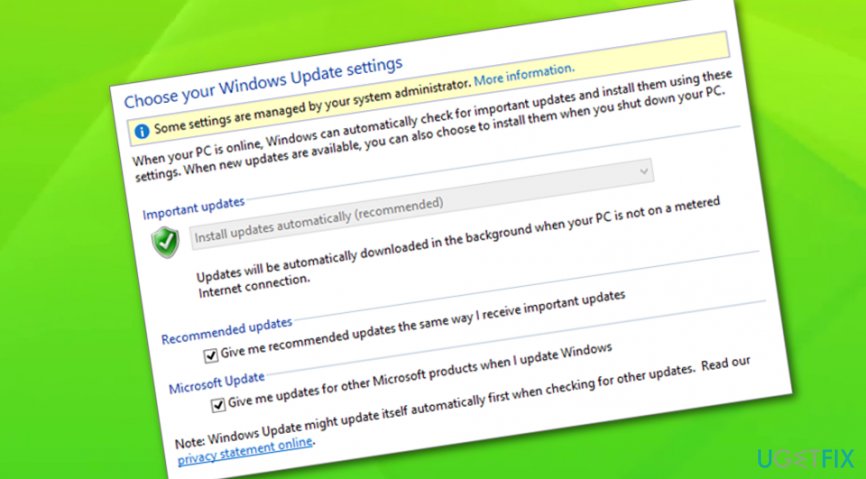
Choose your windows update settings - Click Apply and, ideally, restart your PC. After restarting the PC, try to install Windows Update again.
Method 5. Perform a thorough disk checkup
There might be some type of disk corruption that has been provoking Error Code 80244019 appear on your Windows computer. To find out if a disk fix will let you get rid of the problem, apply the following instructing steps:
- Go to Windows search and type "cmd".
- Click on the Command Prompt option and choose to Run as an administrator.
- Afterward, type chkdsk /f after the blinking cursor.
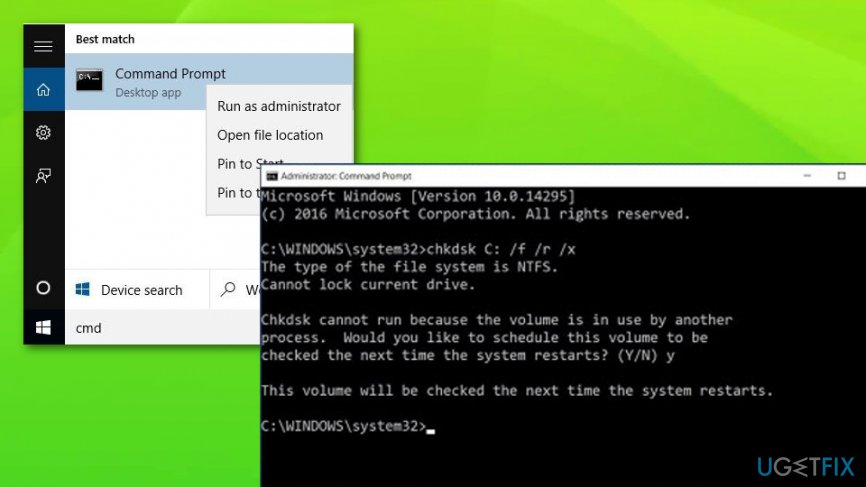
Run a disk checkup - Hit the Enter key.
- Wait for the command to finish and reboot your system afterward.
Method 6. Run an SFC scan
Checking your system files for possible compromisation is also a good variant. To look if some type of file corruption has been provoking Windows Update Error Code 80244019 to appear on your machine, complete the following tasks:
- Go to Windows search once again.
- Launch Command Prompt and make sure that it has administrative privileges included.
- Then, type sfc /scannow and hit the Enter button.
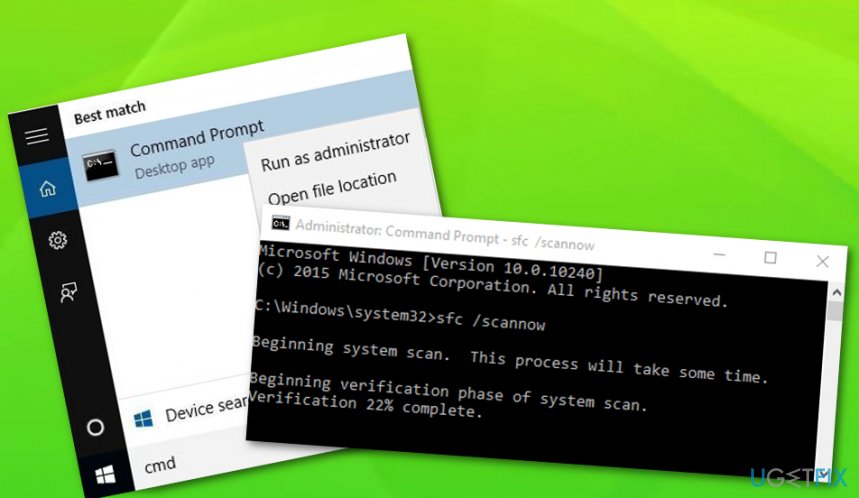
Run an sfc scan - Wait for the process to end and restart your machine to see if the error code still persists.
Method 7. Use automatical software and try fixing the error
If you still encounter issues, we suggest trying [d1] as it might help you to solve unknown problems that are making the barrier for the Windows Update to be installed, for example, repairing some compromised components. Sometimes, only a few tweaks in the computer system can help to get rid of much bigger problems, so we definitely recommend trying one of these programs to resolve the Error Code 80244019 issue automatically.
Bottom line
To fix Windows Update Error Code 80244019, you can check for pending updates, investigate potential file or disk corruption, and try various troubleshooting methods. If none of these methods help, which is very rare, consider seeking additional support.
Frequently asked questions
This error typically occurs due to network connectivity issues or misconfigured Windows Update settings on Windows 10.
To fix this error on Windows 11, try resetting the Windows Update components or changing your DNS settings to a public DNS like Google.
Yes, you can run the 'net stop wuauserv', 'net stop cryptSvc', 'net stop bits', and 'net stop msiserver' commands in Command Prompt to help troubleshoot this error.




Report an issue
What's wrong with this guide? We review every report and update or remove content.
Report received — thank you. We'll review and fix it.
You need a free account to submit a report.
Be the first to comment