
How to fix Windows update KB5066835 not installing on Windows?

Prefer to fix it yourself? The manual steps follow.
- 6methods
- 5 minutes to 2 hours
- Intermediate
Applies to Windows 11 24H2 and 25H2: KB5066835 (OS builds 26100.6899 and 26200.6899) and the cumulative updates that replaced it
6 methods in this guide
Hello. I am frustrated once again with my Windows 11. This time the problem is the October 14, 2025 KB5066835 Windows update. I was not planning to install it yet, but I accidentally did and there are some issues. It fails to properly install, to begin with, and causes performance problems right now. Can I go back or install it normally to get back to my studies? And how?
KB5066835 is the security update of 14 October 2025 for Windows 11 24H2 and 25H2, and many PCs failed to install it. A year later you do not need it by name: every newer cumulative update contains it. Restart the PC and install the newest update Windows offers first.
Stop trying to install KB5066835 itself. Restart the PC, open Settings > Windows Update and select Check for updates (Fix 1): the newest cumulative update, KB5127648 of 13 October 2026, contains everything KB5066835 had. If that one fails too, read CBS.log and use the fix it points to. An installed update that causes problems is removed in Settings > Windows Update > Update history > Uninstall updates.
| Error | 2025-10 Cumulative Update for Windows 11, version 25H2 for x64-based Systems (KB5066835) (26200.6899) with Install error and a code, most often 0x800f0991, 0x800f0983 or 0x800f0922. |
|---|---|
| Where it appears | Settings > Windows Update, next to the update, and in Update history. The update downloads, installs to some percentage, restarts and rolls back. |
| Main cause | One installer step inside the update fails and Windows rolls the whole update back. Users found the step in CBS.log: an old Windows Store event key on long upgraded PCs, or a full EFI system partition. |
| Fastest fix | Restart and install the newest cumulative update instead of KB5066835 (Fix 1). |
| Also written as | KB 5066835, 2025-10 Cumulative Update, the October 2025 Patch Tuesday update, OS build 26100.6899 (24H2) or 26200.6899 (25H2). Its servicing stack part is KB5067360 (version 26100.6893). |
| Affects | Windows 11 24H2 and 25H2, all editions. Not Windows 10 and not Windows 11 23H2, which got their own October 2025 updates. |
| Microsoft's status | Microsoft lists four known issues after installation on its KB5066835 page, all fixed by later updates. An install failure is not listed. The update is now replaced by KB5127648 (13 October 2026). |
| Where the cause is written | C:\Windows\Logs\CBS\CBS.log. Search for A rollback will be initiated and read the lines above it. |
| Time to fix | 10 to 30 minutes for Fix 1 to Fix 5. One to two hours for the repair reinstall in Fix 6. |
Facts checked on 15 October 2026. Steps written for Windows 11 (24H2, 25H2 and 26H2).
What Windows update KB5066835 is and what it is not
KB5066835 is the monthly security update that Microsoft released on 14 October 2025 for Windows 11 version 24H2 (OS build 26100.6899) and version 25H2 (OS build 26200.6899). It is a cumulative update combined with a servicing stack update, KB5067360. It is not a feature update and it does not move a PC to a new Windows version.
| What you see | Where | What it tells you |
|---|---|---|
| 2025-10 Cumulative Update for Windows 11, version 25H2 for x64-based Systems (KB5066835) (26200.6899) | Settings > Windows Update | The update for 25H2. On 24H2 the line says version 24H2 and build 26100.6899. |
| Install error - 0x800f0991, 0x800f0983, 0x800f0922 or 0x80070306 | Next to the update, with a Retry button | The update downloaded and the installation failed. The code differs from PC to PC. |
| Download error - 0x80240069 | Next to the update | The download itself failed. Fix 3 and Fix 4 are for this case. |
| A failed entry with the date and code | Settings > Windows Update > Update history | The same failure, kept in the history. The time tells you where to look in CBS.log. |
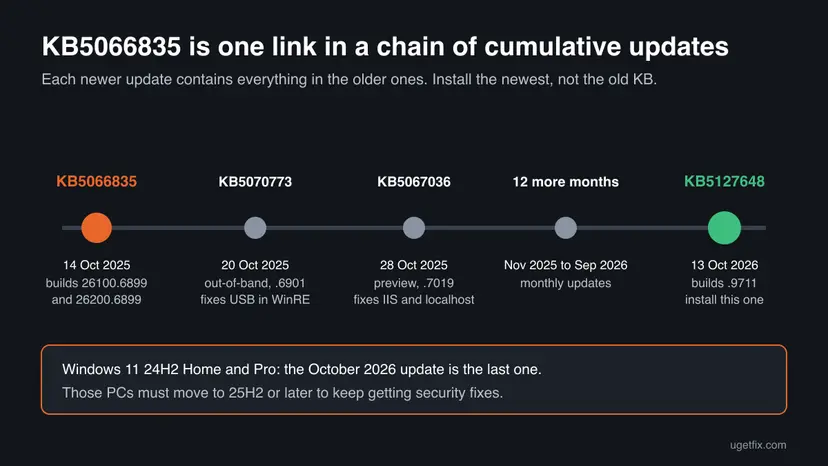
Microsoft's page says that if you already installed earlier updates, the PC downloads only what is new. Every later cumulative update for 24H2 and 25H2 includes the content of KB5066835. If Update history still shows it as failed, a newer update that installs well closes the gap.
Why KB5066835 fails to install
Microsoft did not publish an install failure for KB5066835. The causes below come from CBS.log lines that users posted in a Microsoft Q&A thread about this update, which had more than 50 replies. Treat them as user reports, ordered by how often the fix was confirmed there.
| Cause | How often | How to tell | Fix |
|---|---|---|---|
| A one-off failure during the first days after release, or an update that waits for a restart | Often | No clear error in the log. The PC has not been restarted for days. | Fix 1 |
| An old Windows Store event registry key on a PC upgraded over the years from Windows 8 or older | Often on long upgraded PCs | CBS.log shows HRESULT_FROM_WIN32(15010) next to Microsoft-Windows-Store. | Fix 2 |
| A damaged download in the update cache | Sometimes | A download error such as 0x80240069, or the install fails at once at the same point. | Fix 3, Fix 4 |
| Damaged system files or component store | Sometimes | DISM reports damage, or CBS.log names missing files. | Fix 5, Fix 6 |
| A full EFI system partition, the small hidden partition the PC starts from | Rarely | CBS.log shows the Boot File Servicing (BFSVC) installer with ERROR_DISK_FULL. | If it still fails |
Some articles about KB5066835 blame it for blue screens, lost USB or Bluetooth audio and a slow Start menu. Microsoft's page for the update does not list any of these. We could not confirm them, so this guide does not build fixes on them.
Windows 11 KB5066835 issues that Microsoft confirmed
These are the problems Microsoft lists for PCs where KB5066835 did install. All four are fixed in later updates, which is one more reason to install the newest one. The update also made two deliberate changes that look like problems.
| What you notice | Who | Microsoft's fix |
|---|---|---|
| USB keyboard and mouse do not work in the Windows Recovery Environment (they work in Windows) | Any PC with KB5066835 | KB5070773, out-of-band update of 20 October 2025 |
IIS websites and http://localhost/ fail with ERR_CONNECTION_RESET | Developers and servers that use HTTP.sys | KB5067036, preview update of 28 October 2025 |
| Blu-ray, DVD or Digital TV apps show copy protection errors or black screens | Apps that use Enhanced Video Renderer with HDCP or DRM. Streaming services are not affected. | KB5065789 and KB5067036 |
| The password icon is missing on the lock screen (the button is still there) | Mostly managed company PCs | KB5074105, January 2026 |
- File Explorer preview is off for downloaded files. A security change, added to the page on 22 October 2025. Microsoft links steps to unblock a file you trust.
- Smart card sign-in can fail. The update requires the Key Storage Provider instead of the older Cryptographic Service Provider for RSA smart card certificates.
- Fax modems stop working. The update removes the driver
ltmdm64.sys.
How to find the failing step in CBS.log
You do not need the log for Fix 1. Read it when Fix 1 failed, because the line before the rollback tells you whether Fix 2 applies to your PC or whether you can skip it.
- Press Win + R, type
%windir%\Logs\CBSand press Enter. - Copy
CBS.logto the Desktop and open the copy in Notepad. The original stays untouched. - Press Ctrl + F and search for
A rollback will be initiated. - Read the lines just above the hit. The line with
(F)andFailed execution of queue itemnames the installer that failed. - Compare it with the picture below and go to the fix it points to.
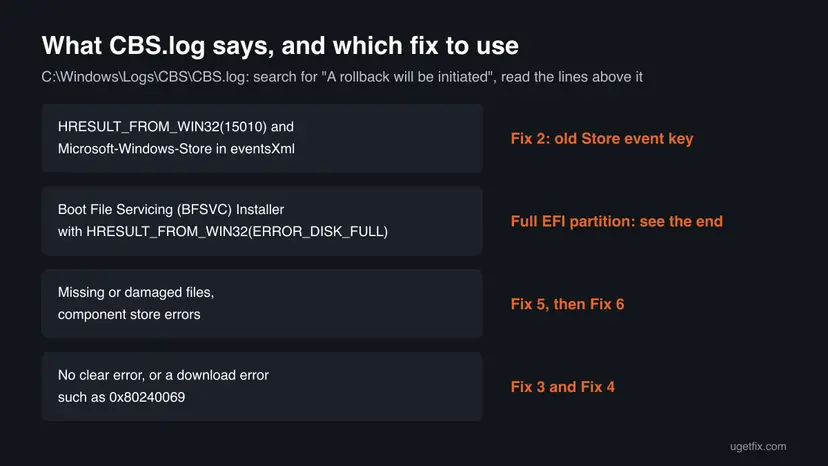
How to fix KB5066835 not installing on Windows
Fix 1 solves most cases, because the update you need today is not KB5066835 any more. Fix 2 is the specific repair users found for long upgraded PCs. Fix 3 to Fix 5 are the general update repairs. Fix 6 reinstalls Windows over itself and keeps your files.
| What you see or have | Start with |
|---|---|
| KB5066835 failed, and you have not checked for updates since | Fix 1 |
CBS.log shows error 15010 and Microsoft-Windows-Store, or the PC was upgraded from Windows 8 or older | Fix 2 |
| A download error such as 0x80240069, or Windows Update keeps failing at the same point | Fix 3, then Fix 4 |
| DISM or SFC reports damaged files | Fix 5, then Fix 6 |
| The update installed and the PC now misbehaves | Roll it back (after the fixes) |
CBS.log shows BFSVC with ERROR_DISK_FULL | If it still fails (below) |
Fix 1. Restart and install the newest cumulative update instead
10 to 30 minutesNo riskEveryone, first. Above all if KB5066835 still shows as failed in Update history.
Windows Update no longer needs KB5066835 by name. The current cumulative update for 24H2 and 25H2 includes its fixes and the fixes for its known issues, and it is built from a newer servicing stack.
- Save your work and select Start > Power > Restart. Use Restart, not Shut down.
- Open Settings > Windows Update and select Check for updates.
- Install everything offered. If KB5066835 is still listed with Retry, check for updates once more: the newer update usually replaces it.
- Restart when Windows asks.
- Press Win + R, type
winverand press Enter. Read the OS build.
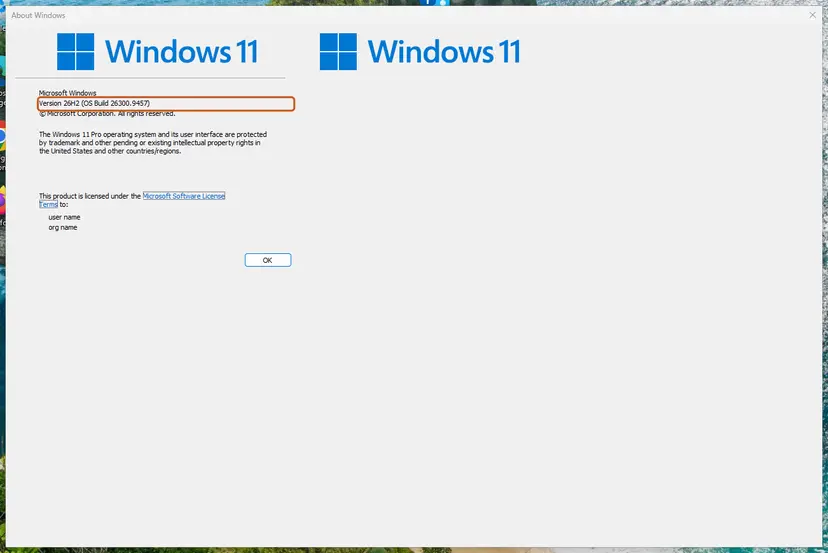
Microsoft's page for KB5127648 says Windows 11 24H2 Home and Pro reached end of updates, and the October 2026 security update is the last one for them. A 24H2 Home or Pro PC must move to 25H2 or later to keep getting security fixes.
It worked if: The newest update installs, Update history lists it as successfully installed, and winver shows a build of 26100.9711, 26200.9711 or later.
If not: Read CBS.log as shown above. Error 15010 points to Fix 2. Anything else, go to Fix 3.
Fix 2. Delete the old Windows Store event key that blocks the update
10 minutesRead the warningCBS.log shows HRESULT_FROM_WIN32(15010) together with Microsoft-Windows-Store, usually on a PC upgraded from Windows 8 or older.
Users report that a registry key left by the old Windows Store clashes with the event channel of the new Microsoft Store. The update's Events installer fails on it and Windows rolls everything back. In the Q&A thread more than 40 people marked this answer as helpful.
A wrong deletion in the registry can break Windows features. Back up the registry first: Back up the registry before editing it. Delete only the one key below, and only when your CBS.log shows the 15010 error. This is a user fix, not a Microsoft instruction.
Users report two log lines. The failing one reads Failed execution of queue item Installer: Events with HRESULT_FROM_WIN32(15010). Above it a warning says that the channel Microsoft-Windows-Store/Operational is declared by an existing provider Microsoft-Windows-Store-Client-UI with the ID {53e3d721-2aa0-4743-b2db-299d872b8e3d}.
- Press Win + R, type
regeditand press Enter. Select Yes. - Paste this path into the address bar at the top and press Enter:
HKEY_LOCAL_MACHINE\SOFTWARE\Microsoft\Windows\CurrentVersion\WINEVT\Publishers\{53e3d721-2aa0-4743-b2db-299d872b8e3d} - Right-click the key
{53e3d721-2aa0-4743-b2db-299d872b8e3d}in the left pane and select Export. Save the .reg file on the Desktop. - Right-click the same key again, select Delete and confirm with Yes.
- Restart the PC.
- Open Settings > Windows Update and select Check for updates.
If the key does not exist, your PC has a different cause: do not delete anything else. To undo the change, double-click the exported .reg file.
It worked if: The update installs past the point where it rolled back before, and Update history lists it as installed.
If not: Go to Fix 3 to download the update again.
Fix 3. Install the newest update by hand from the Microsoft Update Catalog
20 to 40 minutesLow riskWindows Update shows a download error, or keeps failing at the same point.
The catalog gives the full package and installs it outside the Windows Update client. Microsoft's KB5066835 page says the update has one or more MSU files that must be installed in order, and DISM finds them when all are in one folder.
- Find the KB number. Open Settings > Windows Update. A failed or pending update is listed with its KB number; earlier ones are under Update history.
- Check the processor type. Open Settings > System > About and look at System type: an x64-based PC needs the x64 file, an ARM-based PC (for example Snapdragon) needs the arm64 file.
- Search the catalog. Open the Microsoft Update Catalog at catalog.update.microsoft.com in your browser, type the KB number (for example KB5124010) in the search box and press Enter.
- Pick the right row. Find the row whose title names your Windows version and your processor type (x64-based or arm64-based) and select Download on that row.
- Download every file listed. A window lists one or more .msu links. Download all of them into one empty folder, for example C:\packages. On Windows 11 24H2 and later the list can include earlier checkpoint updates that the new one needs.
- Install a single file. If there is only one file, double-click it and confirm the installation in the Windows Update Standalone Installer.
- Install several files with DISM. If there are several files, open an elevated Terminal or Command Prompt and run DISM with the newest file. DISM finds the other files in the same folder and installs them in the right order.
DISM /Online /Add-Package /PackagePath:C:\packages\<newest-file>.msu - Restart. Restart the PC when the installation finishes, then run winver again: the OS build should have changed.
These steps were written for Windows 11 24H2 and later; Windows 10 22H2. The full page with the other versions and what each result means: Install an update from the Microsoft Update Catalog
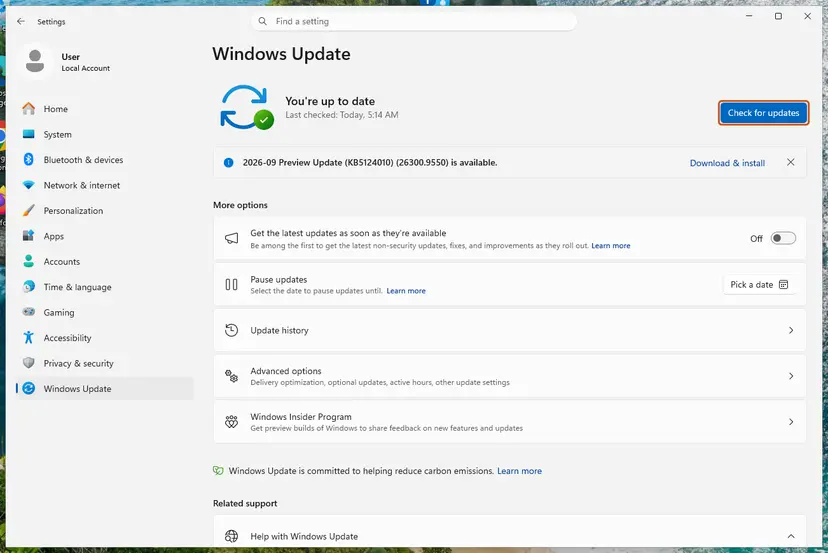
Search the catalog for the newest KB, not for KB5066835. Microsoft still keeps the KB5066835 files in the catalog and updated its second MSU file on 26 May 2026, but installing an update from October 2025 now only adds a step.
It worked if: DISM reports The operation completed successfully. and after a restart winver shows the new build.
If not: If DISM stops with an error, the problem is inside Windows: go to Fix 5.
Fix 4. Reset the Windows Update components
10 minutesLow riskThe update fails at once at the same percentage, or the download error repeats.
A damaged download in the SoftwareDistribution folder is used again at every retry. Renaming the folder makes Windows download the update from scratch. It does not repair the system itself.
- Open Command Prompt as administrator. Type cmd in the search box, right-click Command Prompt and select Run as administrator. Select Yes when Windows asks for permission.
- Stop the update services. Type the commands below and press Enter after each one. If Windows says that other services depend on Cryptographic Services, it stops them too. A message that a service is not started is fine.
net stop wuauserv net stop bits net stop cryptsvc - Delete the download queue files. This clears the list of downloads that the Background Intelligent Transfer Service keeps. If Windows says it cannot find the files, continue.
del "%ALLUSERSPROFILE%\Application Data\Microsoft\Network\Downloader\qmgr*.dat" - Rename the update cache folders. Renaming keeps a copy in case you need it; Windows creates new, empty folders when the services start again. If you get Access is denied, a service is still running: repeat the previous step.
ren %systemroot%\SoftwareDistribution SoftwareDistribution.old ren %systemroot%\System32\catroot2 catroot2.old - Start the services again. Type the commands below and press Enter after each one. The requested service has already been started is fine: Windows started it on its own.
net start cryptsvc net start bits net start wuauserv - Restart and check for updates. Restart the PC. Then select Start > Settings > Windows Update > Check for updates. The first check can take longer than usual because everything is downloaded again.
These steps were written for Windows 11 and Windows 10 (the steps are the same). The full page with the other versions and what each result means: Reset Windows Update components

It worked if: Windows Update downloads the update again from zero and installs it.
If not: Repair the system files with Fix 5.
Fix 5. Repair the system files with DISM and SFC
15 to 40 minutesNo riskCBS.log names missing or damaged files, or the earlier fixes did not help.
A cumulative update replaces thousands of system files and fails when the component store it builds on is damaged. DISM downloads clean copies of damaged components, and SFC then repairs the files in use.
- Open an elevated command window. Right-click Start and select Terminal (Admin), or type cmd in the search box, right-click Command Prompt and select Run as administrator. Select Yes when Windows asks for permission.

Search for cmd and choose Run as administrator. Screenshot: Windows 11 26H2. - Run DISM first. Type the command below and press Enter. DISM downloads clean copies of damaged components from Windows Update, so it can take several minutes. Wait until it says The operation completed successfully.
DISM.exe /Online /Cleanup-Image /RestoreHealth
DISM /RestoreHealth running. Screenshot: Windows 11 26H2. - Run System File Checker. In the same window, type the command below and press Enter. Do not close the window until the verification reaches 100%.
sfc /scannow
sfc /scannow at 100%. Screenshot: Windows 11 26H2. - Read the result and restart. Compare the last message with the table below this guide, then restart the PC so that repaired files are loaded.

The result line tells you what SFC did. Screenshot: Windows 11 26H2.
These steps were written for Windows 11 24H2 and 25H2. The full page with the other versions and what each result means: Run DISM and SFC to repair Windows system files
One user in the Q&A thread reported that the update installed after deleting the registry key from Fix 2 and then running DISM /Online /Cleanup-Image /StartComponentCleanup. That command removes old versions of components. Run it only after the two repairs above have finished.
It worked if: DISM ends with The operation completed successfully., SFC reports that it repaired files or found no integrity violations, and the update installs after a restart.
If not: Use the repair reinstall in Fix 6.
Fix 6. Reinstall Windows over itself with Fix problems using Windows Update
1 to 2 hoursLow riskNothing above worked, or DISM could not repair the damage.
The reinstall puts a clean copy of your current Windows version over the old one, with the newest update included, and keeps apps, files and settings. Several users in the Q&A thread report that this ended the KB5066835 failures.
- Open Recovery in Settings. Open Settings > System > Recovery. Next to Fix problems using Windows Update, select Reinstall now. This keeps your apps, files and settings.

Fix problems using Windows Update reinstalls the current version and keeps apps, files and settings. Screenshot: Windows 11 26H2. - Start the reinstall. Choose whether the PC may restart on its own 15 minutes after the installation, then select OK.
- Wait and restart. Windows Update downloads and installs a repair copy of your current Windows version. Keep the PC plugged in and online, and restart it when asked.
These steps were written for Windows 11 22H2 and later. The full page with the other versions and what each result means: Reinstall Windows without losing files
- Keep the PC plugged in and online for the whole reinstall.
- Back up the files you cannot lose first: Back up your files (Windows Backup, File History, Time Machine).
- One user reported that this reinstall also failed, with 0xc1900101. That code points to a driver or a disk problem, so read the last section.
It worked if: The PC restarts into the same desktop with your apps and files, and Windows Update shows no pending failed update.
If not: Read the section "If KB5066835 still fails" below.
How to uninstall KB5066835 or roll it back
If the update did install and something broke, first check the known issues table above. Most of those problems are fixed by the next update, which is better than removing a security update. If you still want it gone, these are your options.
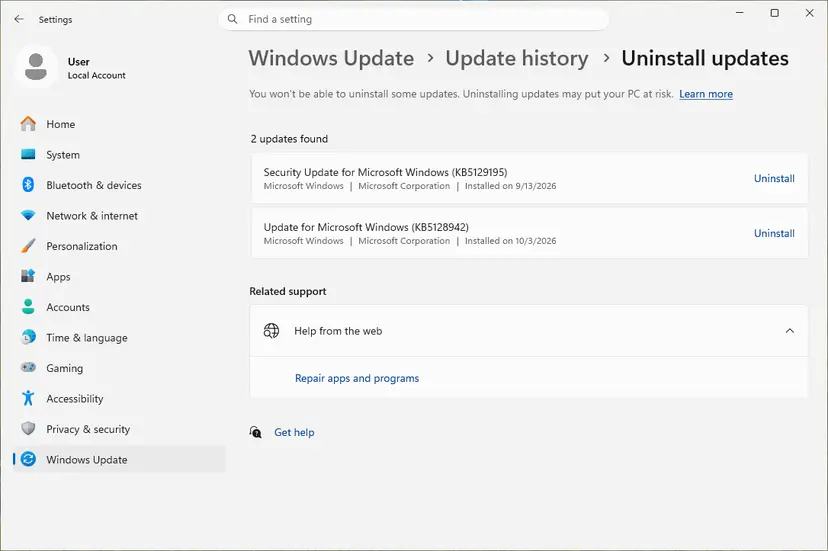
- Open Windows Update. Select Start > Settings > Windows Update.
- Open the update history. Under More options, select Update history. Note the KB number and the date of the update you suspect.
- Open the list of removable updates. Scroll down to Related settings and select Uninstall updates.
- Uninstall the update. Find the update in the list and select Uninstall next to it. If the update is not in the list, Windows does not allow it to be removed this way.
These steps were written for Windows 11 25H2 and 26H2. The full page with the other versions and what each result means: How to uninstall a Windows update
| Way to remove it | Works? | What Microsoft says |
|---|---|---|
| Settings > Windows Update > Update history > Uninstall updates | Yes, while KB5066835 is the newest update installed | The normal way for home users. |
wusa.exe /uninstall /kb:5066835 | No | The combined package contains the servicing stack, so wusa cannot remove it. |
DISM /Online /Remove-Package with the package name | Yes | Find the name with DISM /online /get-packages. The servicing stack KB5067360 stays and cannot be removed. |
| System Restore to a point before the update | Yes, if a restore point exists | See Undo recent changes with System Restore. |
If newer updates are installed on top, KB5066835 is no longer a separate item to remove: its content lives in the newest update. Removing the newest update takes you back one step, not to the state before October 2025.
If KB5066835 still fails
When the repair reinstall did not help, the cause is usually outside the normal update files. Pick your case.
| Situation | What to do |
|---|---|
CBS.log shows the BFSVC installer with ERROR_DISK_FULL | The EFI system partition is full. One user reported 100 MB with 2 MB free, and the update installed after clearing the fonts folder there. Microsoft has no published steps for this update, so we do not give commands. Ask a technician or Microsoft Support. |
| The repair reinstall fails with 0xc1900101 | Update the storage and chipset drivers, check the drive: Check a disk for errors (chkdsk), then try again. |
| Free space on drive C: is low | Free at least several gigabytes and retry: Free up disk space and delete temporary files |
| Work or school PC with updates from the organization | Send the administrator the code, the KB number and CBS.log. |
| Nothing else works | Reset this PC with Keep my files: Reinstall Windows without losing files. Apps are removed, files stay. |
- What to send to support: the exact code, the KB number, the OS build from winver, the date of the failed attempt and
CBS.log. - Whether the PC was upgraded from Windows 10 or older, and which fixes you already ran.
How to keep Windows updates from failing again
- Restart when Windows Update asks. Microsoft's own steps for the IIS issue end with a restart even when no update was installed.
- Install the monthly update in the month it arrives.
- Keep several gigabytes free on drive C: before Patch Tuesday, the second Tuesday of the month.
- Move a Windows 11 24H2 Home or Pro PC to 25H2 or later, because 24H2 gets no more updates.
- Do not switch the PC off while it shows that updates are being installed.
- Do not delete files in
C:\Windows\WinSxSby hand. - Do not keep updates paused for months to avoid one bad update.
- Do not run registry cleanup scripts from forums that you cannot read and understand.
Windows 10 left support on 14 October 2025, the same day KB5066835 was released. A PC that cannot run Windows 11 no longer gets monthly fixes unless it is enrolled in Extended Security Updates.
Frequently asked questions
Can I still download KB5066835?
Yes. Microsoft keeps the files in the Microsoft Update Catalog, and its KB5066835 page still describes how to install them with DISM. The page notes that the update has more than one MSU file and that the second file was updated on 26 May 2026. But there is no reason to install it in October 2026. Every newer cumulative update for Windows 11 24H2 and 25H2 includes its content. Download the newest update the catalog or Windows Update offers instead, as in Fix 3.
Do I need KB5066835 if a newer update installed?
No. Cumulative updates contain all earlier fixes. If winver shows a build above 26100.6899 on 24H2 or 26200.6899 on 25H2, everything in KB5066835 is already on your PC. A failed KB5066835 entry in Update history is only a record of the attempt. It does not mean anything is missing, and you can ignore it once a newer update shows as successfully installed.
What are the Windows 11 update KB5066835 problems (Probleme)?
Microsoft lists four known issues. USB keyboard and mouse do not work in the recovery environment, and IIS and localhost websites fail to load. Some Blu-ray, DVD and TV apps cannot play protected content, and the password icon can be missing on the lock screen. All are fixed in later updates. The update also turned off File Explorer preview for downloaded files, changed smart card certificates to the Key Storage Provider and removed a fax modem driver. Probleme is the German word, and the answer is the same in every language.
Why does KB5066835 fail with 0x800f0991, 0x800f0983 or 0x800f0922?
These codes say that the installation failed and was rolled back, not why. Users in Microsoft's Q&A thread reported all three for this update. The real reason is in CBS.log, in the lines just above A rollback will be initiated. For several users it was an old Windows Store registry key, fixed by Fix 2. For others it was a full EFI system partition. When the log shows nothing clear, install the newest update by hand with Fix 3 and repair the system with Fix 5.
Did KB5066835 cause blue screens or a slow PC?
Microsoft does not list blue screens, lost audio or slowdowns as known issues of KB5066835. Some articles claimed them, and we could not confirm them from Microsoft. If your PC became slow or unstable after the update, first install the newest update, which carries a year of fixes. If the problem stays, remove the newest update as shown in the rollback section and see whether it goes away. That tells you whether the update or something else is to blame.
My USB keyboard and mouse do not work in recovery after KB5066835. What do I do?
This is a confirmed known issue. After KB5066835, USB keyboards and mice did not work in the Windows Recovery Environment, while they kept working in Windows itself. Microsoft fixed it with the out-of-band update KB5070773 of 20 October 2025, and every later update includes the fix. Install the newest update from Settings > Windows Update while Windows still starts. If you are stuck in recovery right now, a PS/2 keyboard or a touch screen can work, but we could not confirm this for every PC.
Is KB5066835 for Windows 10?
No. KB5066835 applies only to Windows 11 version 24H2 and version 25H2, all editions. Windows 10 and Windows 11 23H2 received their own security updates on the same day, with other KB numbers. If Windows Update on a Windows 10 PC lists something else, follow that KB number. Windows 10 left support on 14 October 2025, so after that date it gets monthly fixes only through Extended Security Updates.
How do I uninstall KB5066835?
Open Settings > Windows Update > Update history, scroll to Uninstall updates and select Uninstall next to KB5066835. This works while it is the newest cumulative update on the PC. The command wusa /uninstall does not work for this update, because the package contains a servicing stack update. Administrators can remove it with DISM /Online /Remove-Package and the package name from DISM /online /get-packages. If newer updates are installed, remove the newest one instead, as the rollback section explains.
What is KB5099535?
This page is about KB5066835, and we did not read Microsoft's page for KB5099535, so we cannot say what it contains or which Windows version it is for. Look it up by its number at support.microsoft.com or in the Microsoft Update Catalog. If it is a cumulative update that fails to install, the method on this page applies to it too: restart, install the newest update, read CBS.log for the line above the rollback, then reset the update components and repair the system files.
What is KB5067360 and why is it in the same package?
KB5067360 is the servicing stack update that came with KB5066835, version 26100.6893. The servicing stack is the part of Windows that installs updates, and Microsoft ships it together with the cumulative update in one package. It installs first and improves how the rest installs. Microsoft says the servicing stack cannot be removed after installation. That is why wusa /uninstall fails for the combined package, and why removing KB5066835 with DISM leaves KB5067360 in place.
Sources
- Microsoft Support: October 14, 2025, KB5066835 (OS Builds 26200.6899 and 26100.6899) (support.microsoft.com)
- Microsoft Support: October 13, 2026, KB5127648 (OS Builds 26300.9711, 26200.9711 and 26100.9711), end of updates for 24H2 Home and Pro (support.microsoft.com)
- Microsoft Q&A: 2025-10 Cumulative Update for Windows 11, version 25H2 (KB5066835) keeps on failing (user reports and CBS.log lines) (learn.microsoft.com)
Did this fix work?
One click, no account. It tells the next reader which guides are worth their time.
Questions and experiences: fix Windows update KB5066835 not installing on Windows
Still broken, or found a fix we did not cover? Ask here: members and our editors answer. Reading is open; writing needs a free account.
…