How to fix
Windows Update Service not running
on Windows
Resolve the Windows Update Service not running error quickly with expert-tested solutions. Enjoy smooth updates on Windows 10 or Windows 11, fixed in mi…

What causes How to fix Windows Update Service not running?
- Service is not running
- Issues with update services
- Windows bugs
- Security vulnerabilities
- Malicious actors exploiting errors
Repairs Windows system files, removes malware, and restores a clean OS state — without reinstalling.
Hello. I tried to update my Windows OS, but I run into the error pop-up and the message in settings that the service is not running. It says that I need to restart, so I did so, but nothing changed. Can you tell me what to do?
Windows Update Service not running is the error message that appears on various screens when users try to update the operating system. It just occurs when people check for available updates via Control Panel or Update Settings.[ref en-1] The issue is not particularly determined on the error pop-up, but, surely, the user cannot see the update status since the service cannot run.
Many Windows users can encounter the issue of Windows Update Service not running because it is a pretty common problem. Such problems not crucial like any other critical Windows error.[ref en-2] However, users might get frustrated when the fix is not clear for the problem of getting updates. You might solve the problem by troubleshooting or resetting some settings on the computer.
Windows system often has issues with update services, especially Windows 10 updates.[ref en-3]. There are various security issues because malicious actors can exploit these errors. Don't panic. This is not an issue with malware or hackers. You should try to fix Windows Update Service not running as soon as possible and make sure that the machine is properly running from there.
These update issues might be related to other Windows bugs and issues with the OS, so security vulnerabilities need to get patched, so the OS is running smoothly, and the machine is stable. It seems that restarting the device is not fixing the error, so rely on the guide and methods below to solve the Windows Update Service not running error that delivers the following pop-up:
Windows Update cannot currently check for updates, because the service is not running. You may need to restart your computer
One of the quick methods that should help you to fix Windows Update Service not running - troubleshooting windows update service. If the error occurs again and again, the machine runs into other issues - rely on the guide and methods listed to repair the machine fully.
How to fix Windows Update Service not running
Windows Update Service not running is a common problem that users can find annoying and frustrating due to the lack of explanation or solution. But the problem is not critical for the machine, and you should calm down. It is solvable, and that is not difficult at all. Of course, there are some steps needed, but the error is not going to damage any functions of the OS.
As for the system damage, the error might occur due to some altered or damaged files on the machine, so running a tool like [d1] might help with the quick fixing of the altered data. Then you can go through the methods listed below and fix Windows Update Service not running by altering some settings, resetting services. Do not skip through steps and try a few methods to be sure once and for all.
The issue with Windows Update Service not running error can be related to RST - Intel Rapid Storage Technology driver that is outdated or corrupted, missing. You might need to update the driver manually via the official Intel website or search for needed driver updates with a tool like [rev id="DriverFix"].
Troubleshoot Windows Update Service
- Type troubleshoot in the search bar and choose the Troubleshooting option.
- Click Windows Update and follow with Next and click Fix problems with Windows Update.
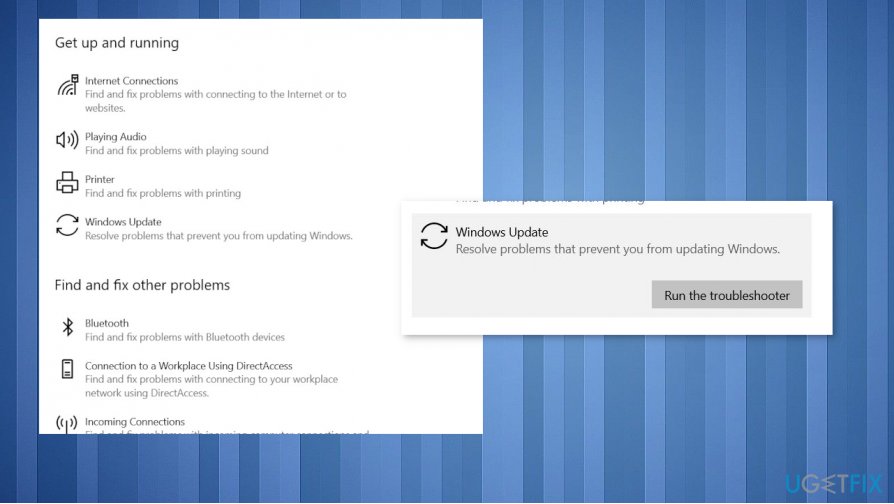
Windows update service not running services windows update - Run the troubleshooter.
- Restart the computer to install updates after that.
Turn off Windows Update to fix Windows Update Service not running error
- Go to Windows Update via search and click on Change Settings.
- Find Important updates and then choose Never check for updates.
- Confirm with OK.
- Then go to Windows update settings again and select Install updates automatically. Confirm with OK.
Clear Windows Update history
- Open Run box by pressing Windows and R keys together.
- Type services.msc and click OK.
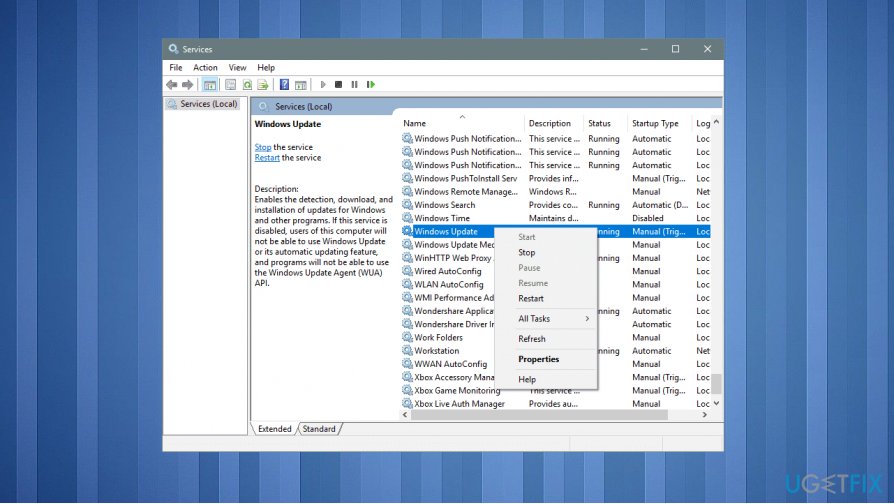
Windows update service not running services - Right-click on Windows Update and choose Stop.
- Open Windows Explorer and locate C:Windows folder.
- Find Software Distribution folder there.
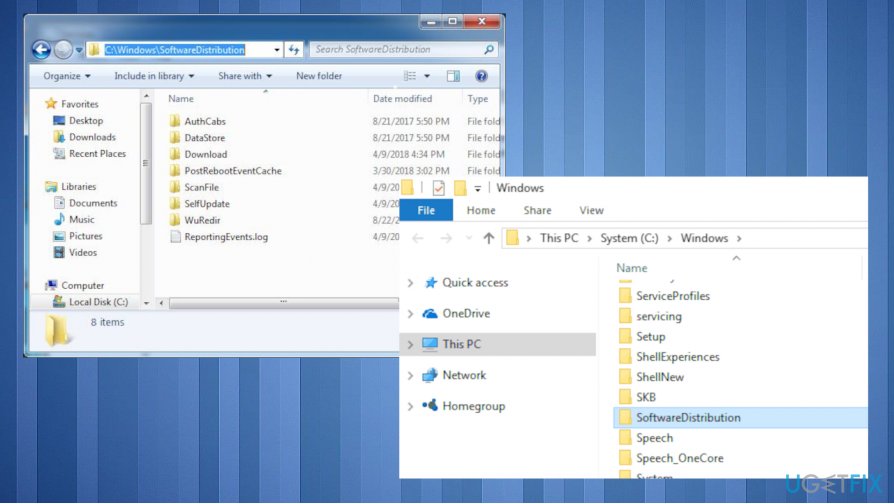
Windows update service not running softwware distribution folder - Go back to Control Panel and right-click Windows Update service.
- Choose Start.
- Restart the PC.
Reset Windows Update services to fix Windows Update Service not running
- Open the Command line by searching for cmd.
- Run as administrator.
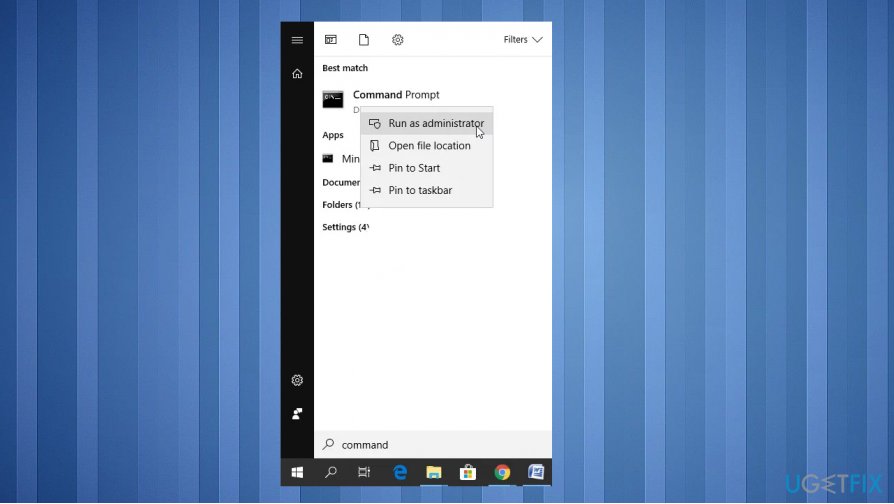
Windows update service not running command prompt - Type these commands and hit Enter after each one:
regsvr32 wuaueng.dll
regsvr32 wups2.dll
regsvr32 wucltux.dll
regsvr32 wuwebv.dll
regsvr32 wups.dll
regsvr32 wuapi.dll - Click Ok when the window opens.
- Restart the service.
- Press Windows and R keys. Type services.msc.
- Find Windows Updates and choose Start.
- Restart.
Reset Windows Update repository
- Click Start and type cmd.
- Make sure to run it as administrator.
- Type commands and hit Enter after each one:
net stop bits
net stop wuauserv - Restart the PC.
Bottom line
To fix the Windows Update Service not running error, you can troubleshoot the Windows Update service or reset some settings on your computer. If these methods do not resolve the issue, consider seeking further assistance or exploring additional troubleshooting steps.
Frequently asked questions
You can try restarting the Windows Update service by opening the Services app, finding 'Windows Update', right-clicking it, and selecting 'Start'. If it fails to start, running the Windows Update Troubleshooter may help resolve the issue.
In Windows 11, you can fix this by accessing the Settings app, navigating to 'Update & Security', and using the 'Troubleshoot' option to run the Windows Update Troubleshooter.
Common reasons include corrupted system files, issues with the Windows Update components, or conflicts with third-party software that may interfere with the update process.




Report an issue
What's wrong with this guide? We review every report and update or remove content.
Report received — thank you. We'll review and fix it.
You need a free account to submit a report.
Be the first to comment