How to fix
Windows update settings not loading
on Windows
Resolve Windows 10 or 11 update settings issues quickly with our expert-tested solutions. Get your system running smoothly again, fixed in minutes!


What causes How to fix Windows update settings not loading?
- Corrupted system files
- Misconfigured Windows Update service
- Disabled Windows Update service
- Network-related issues
- Conflicts with other software
Repairs Windows system files, removes malware, and restores a clean OS state — without reinstalling.
What can I do to make Windows update settings to load? Whenever I try to open them, all I see is a blank window with nothing in it. Any advice?
While Windows updates may seem not important for a regular computer user, they are actually crucial to Windows for various reasons - they improve system stability, implement new features, fix various bugs, and, most importantly, patch numerous software vulnerabilities that otherwise could result in a cyber attack.
The Windows Update settings allow you to manage how and when these updates are installed, giving you control over the update process, scheduling, and the types of updates your system receives.
However, some users encounter a problem that prevents them from configuring or installing new updates because the Windows Update settings do not load. This issue can be especially annoying because it exposes your system to possible security risks and interferes with your computer's operation.
When the Windows Update settings fail to load, you won't be able to access the necessary options to manage and initiate updates, resulting in missed critical updates and reduced system performance.
When issues like that arise, it is often difficult to know where they are stemming from, as there is no error message or a log of a crash. In most cases, these inconsistencies are caused by corrupted system files, misconfigured or disabled Windows Update service, network-related issues or conflicts with other software, and more.
To fix the Windows Update settings not loading issue, you can try several methods, which include checking and repairing corrupted system files, ensuring the Windows Update service is running correctly, and resolving any network or software conflicts that might be interfering with the update process.
While detailed instructions for these solutions will be provided below, it is also recommended to consider using the [d1] PC repair tool, which can automatically fix underlying Windows issues and help restore your system to optimal functioning.

Fix 1. Check Windows update and other services
- Type in Services in Windows search and hit Enter.
- Scroll down a bit to find Background Intelligent Transfer Service (BITS).
- If it is already running, right-click and select Restart.
- If the service is not running, double-click it, and pick Automatic under the Startup type drop-down menu.
- Click Start, Apply, and OK.
- Repeat this process for Windows Update and Cryptographic services.

Fix 2. Run the Windows Update troubleshooter
The Windows Update troubleshooter is a built-in tool designed to detect and fix common problems with the update process.
- Type in Troubleshoot in Windows search and hit Enter.
- Go to Additional Troubleshooters/Other troubleshooters.
- Find the Windows Update option and click Run the troubleshooter/Run.
- Wait till the scan is finished, and then apply the suggested fixes.
- Restart your system.

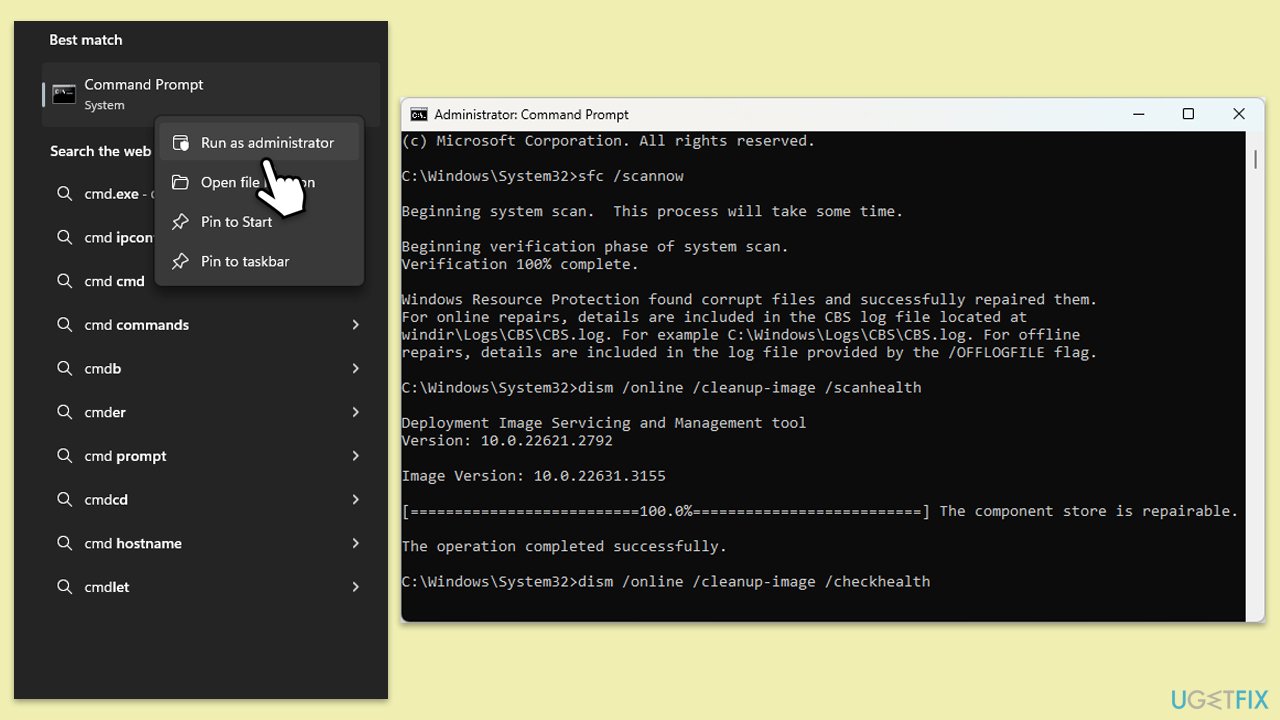
Fix 3. Check and repair system files
Corrupted system files can interfere with Windows Update. Using the System File Checker (SFC) can repair these files.
- Type cmd in Windows search.
- Right-click on Command Prompt and select Run as administrator.
- The User Account Control window will ask whether you want to allow changes - click Yes.
- In the Command Prompt window, paste the following command and press Enter:
sfc /scannow - Once the scan is complete, use the following commands and press Enter each time:
Dism /Online /Cleanup-Image /CheckHealth
Dism /Online /Cleanup-Image /ScanHealth
Dism /Online /Cleanup-Image /RestoreHealth - (Note: if you get an error executing this last command, add /Source:C:\RepairSource\Windows /LimitAccess to it and try again).
- Restart your device.
Fix 4. Reset Windows Update components
- Open Command Prompt as administrator.
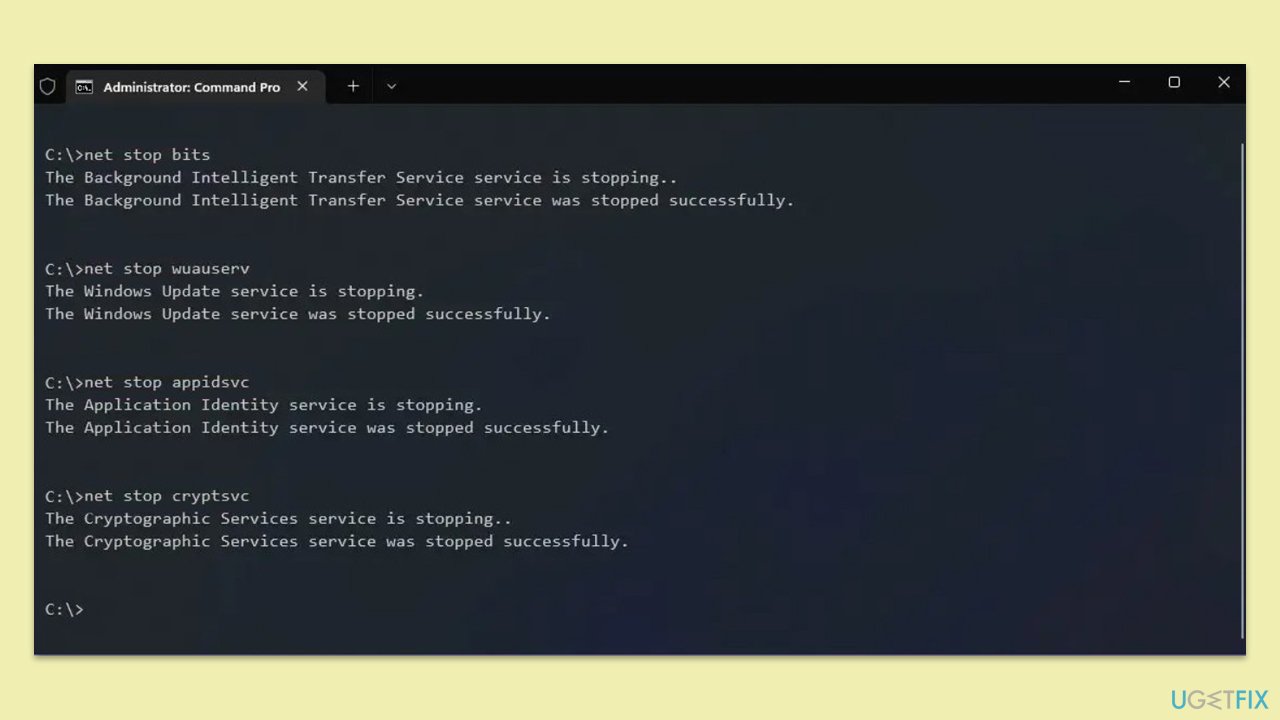
- Copy and paste the following commands one by one in Command Prompt and press Enter after each:
net stop wuauserv
net stop cryptSvc
net stop bits
net stop msiserver
Del “%ALLUSERSPROFILE%\Application Data\Microsoft\Network\Downloader\*.*”
rmdir %systemroot%\SoftwareDistribution /S /Q
rmdir %systemroot%\system32\catroot2 /S /Q
regsvr32.exe /s atl.dll
regsvr32.exe /s urlmon.dll
regsvr32.exe /s mshtml.dll
netsh winsock reset - When these commands are executed, the last thing to do is to re-enable relevant services:
net start wuauserv
net start cryptSvc
net start bits
net start msiserver - Reboot your device.
Fix 5. Run network troubleshooter
Windows 11
- Type Troubleshoot in Windows search and hit Enter.
- Select Other troubleshooters.
- Locate Network & Internet troubleshooter from the list and click Run.
- Wait till the process is finished and apply the recommended fixes.
- Restart your computer.
Windows 10
- Right-click on Start and pick Settings.
- Go to the Network & Internet section.
- On the right side, find the Advanced network settings section.
- Click Network troubleshooter and wait.
- The fixes will be automatically applied.

Fix 6. Perform a clean boot
A clean boot can help identify if background programs are causing issues with Windows Update.
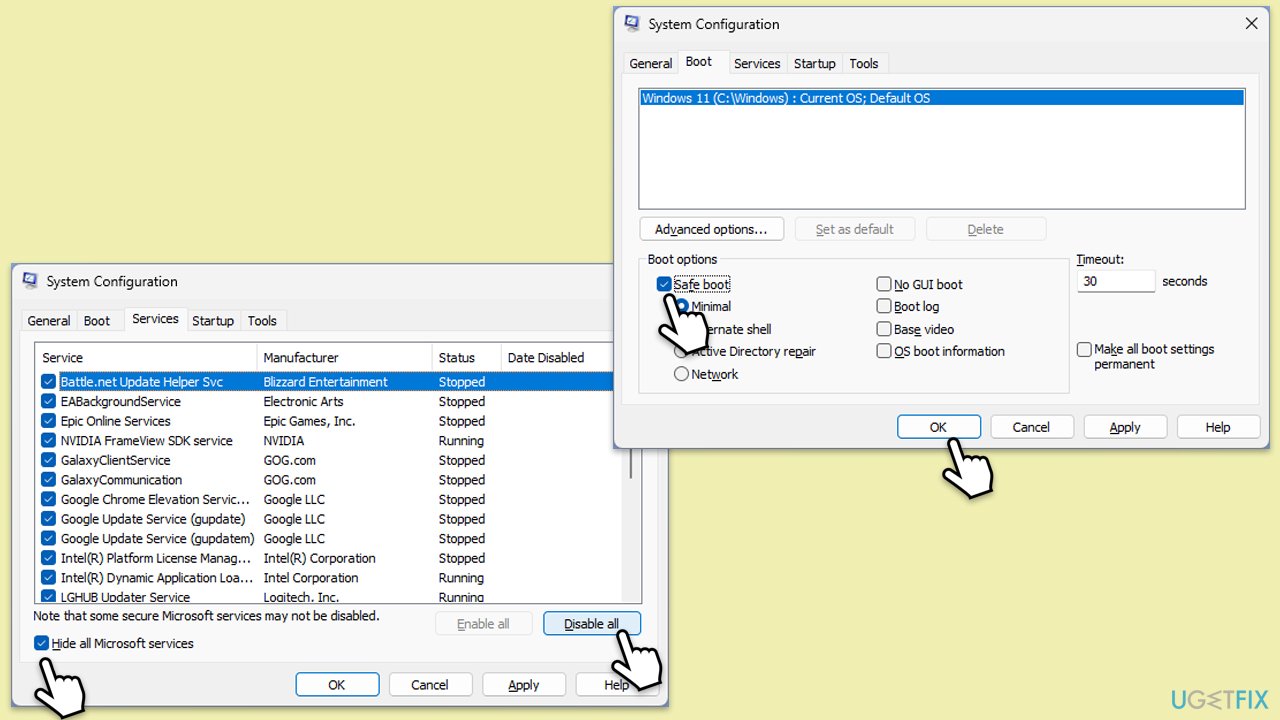
- Press Win + R, type msconfig, then press Enter.
- Select the Services tab and tick the Hide all Microsoft services checkbox.
- Pick Disable all.
- Go to the Startup tab and click Open Task Manager.
- Here, right-click on each of the non-Windows entries and select Disable.
- Close down the Task Manager.
- Go to the Boot tab and tick the Safe boot option
- Reboot your system.
- If the issue is not occurring in this mode, it means that conflicting software is causing it. To find which one, disable each of the services one by one or in groups and reboot your device. After that, update, pause, or uninstall the problematic app or/and service.
Fix 7. Use Media Creation Tool
- Visit the official Microsoft website and download Windows 10 installation media (Windows 11 version).
- Double-click the installer, select Yes when UAC shows up, and agree to the terms.
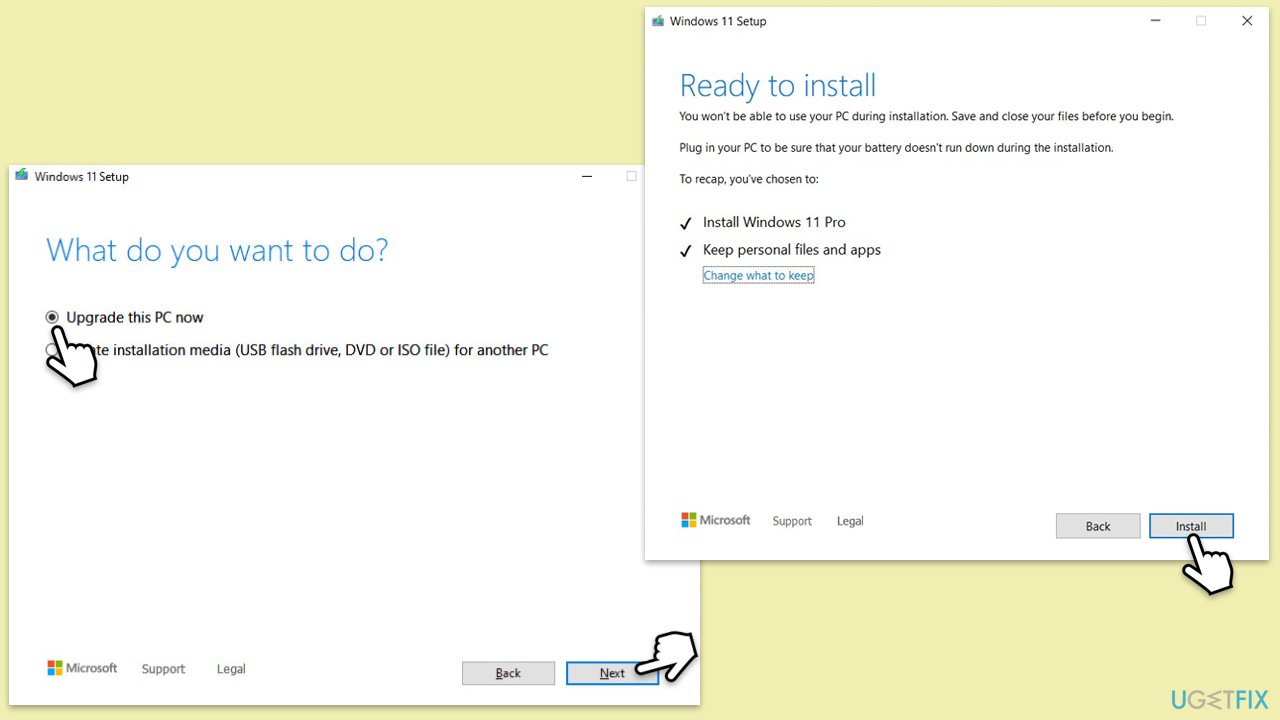
- Select Upgrade this PC now and click Next.
- Windows will start downloading the needed files.
- Agree to the terms once again and click Next.
- Before installing, make sure that you are happy with your choices (otherwise, you can click Change what to keep option).
- Finally, click Install to begin the upgrade process.
Bottom line
To fix the Windows Update settings not loading issue, you can check and repair corrupted system files, ensure the Windows Update service is running correctly, and resolve any network or software conflicts. If these methods do not resolve the issue, consider using a PC repair tool to automatically fix underlying Windows problems.
Frequently asked questions
Try restarting your computer and then check the update settings again. If the issue persists, run the Windows Update Troubleshooter from the Settings menu.
Yes, you can attempt to reset the Windows Update components using Command Prompt, which often resolves loading issues without needing a complete reinstall.
Common reasons include corrupted system files, issues with the Windows Update service, or conflicts with third-party software.




Report an issue
What's wrong with this guide? We review every report and update or remove content.
Report received — thank you. We'll review and fix it.
You need a free account to submit a report.
Be the first to comment