How to fix
Windows upgrade error 0x80070428 – 0x3001A
on Windows
Resolve Windows upgrade error 0x80070428 - 0x3001A effortlessly with our expert-tested solutions. Get back to smooth updates today!


What causes How to fix Windows upgrade error 0x80070428 – 0x3001A?
- System files or registry entries conflict with the boot process
- Corrupt system component
- Outdated drivers of third-party applications
- Low available free space on the disk
- Compromised system integrity
Repairs Windows system files, removes malware, and restores a clean OS state — without reinstalling.
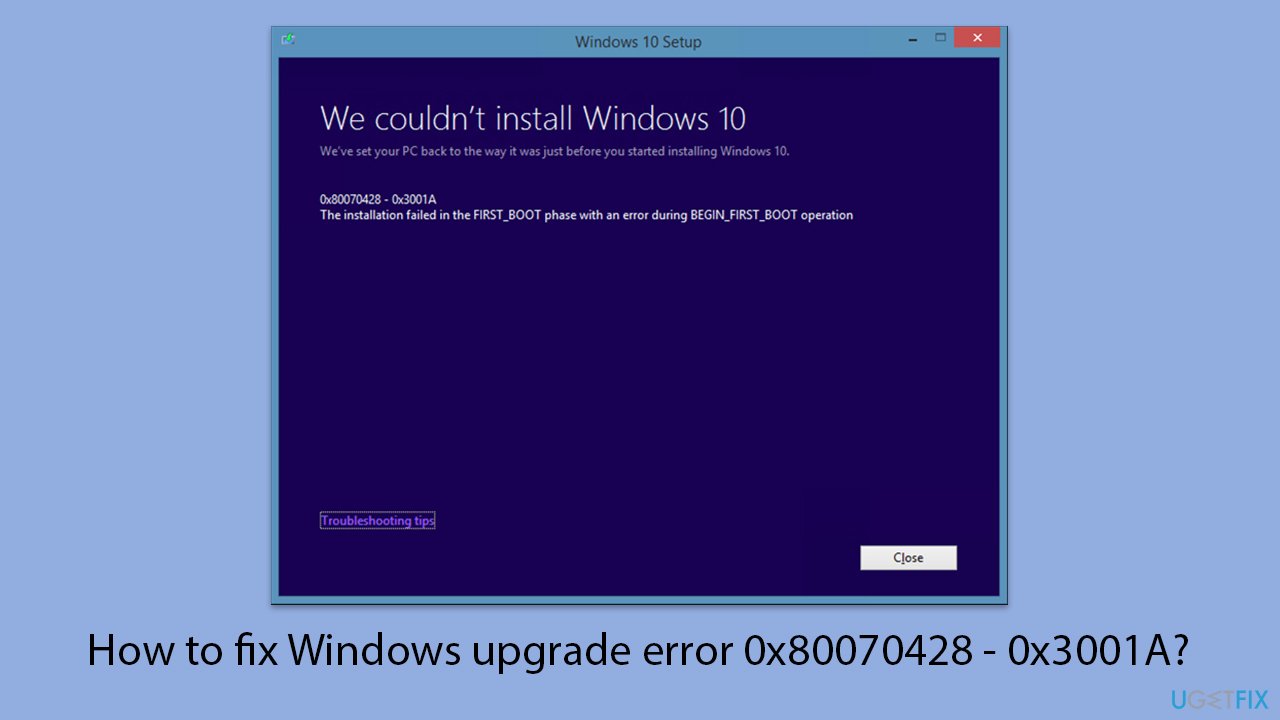
Hello, I was wondering if maybe you could help me out. I tried to upgrade to Windows 11 but I got a message that Windows couldn't be installed - "The installation failed in the FIRST_BOOT phase with an error during BEGIN_FIRST_BOOT operation" - and the error code given is 0x80070428 - 0x3001A.
Upgrading to newer versions of Windows usually means a big step forward in terms of improving performance, security, and overall functionality. Many users would upgrade, say, an operating system like Windows 10 to Windows 11, so they may also get new features, user interfaces, and greatly improved measures on security.
These not only help in keeping your system updated with the newest technologies but are also helpful in maintaining compatibility with most of the modern software and hardware. However, along with the benefits, the upgrade process isn't always seamless; it can develop any kind of error during its installation process.
One of these errors you can face is the Upgrade error 0x80070428 - 0x3001A of the Windows upgrade during its installation process. It would generally read, "The installation failed in the FIRST_BOOT phase with an error during the BEGIN_FIRST_BOOT operation."
This error indicates the failure of the booting process of the system while trying to start itself for the first time after the installation of the newer version of Windows. This is exasperating for most users, but again, understanding the causes provides the gateway toward a solution.
The causes of Error 0x80070428 - 0x3001A are numerous. Most often, it will appear because the system files or registry entries conflict with the boot process of the system. Moreover, this error could be due to some corrupt system component, or outdated drivers of those third-party applications that interfere with the installation process. Sometimes the problem can occur if low available free space on the disk and compromised system integrity forestall the upgrade process.
Checking for software conflicts, ensuring enough disk space, and scanning system files to check for corruption and repairing them are some steps that can be taken. It will be further explained below in detailed steps exactly how it could be fixed. To sort out your operating system automatically, consider trying a PC repair app [d1].
Fix 1. Uninstall antivirus
Sometimes antivirus software can significantly interfere with the upgrade process, blocking necessary files or causing conflicts during installation. Completely uninstalling the antivirus software can resolve this issue.
- Press Win + I to open Settings.
- Navigate to Apps, then select Apps & Features/Install apps.
- Scroll down to find your antivirus program and select it.
- Click Uninstall and follow the prompts.
- Restart your computer and try the Windows upgrade again.
Fix 2. Free up disk space
A lack of sufficient disk space can prevent the upgrade from completing. Ensuring you have enough space on your system drive helps avoid errors.
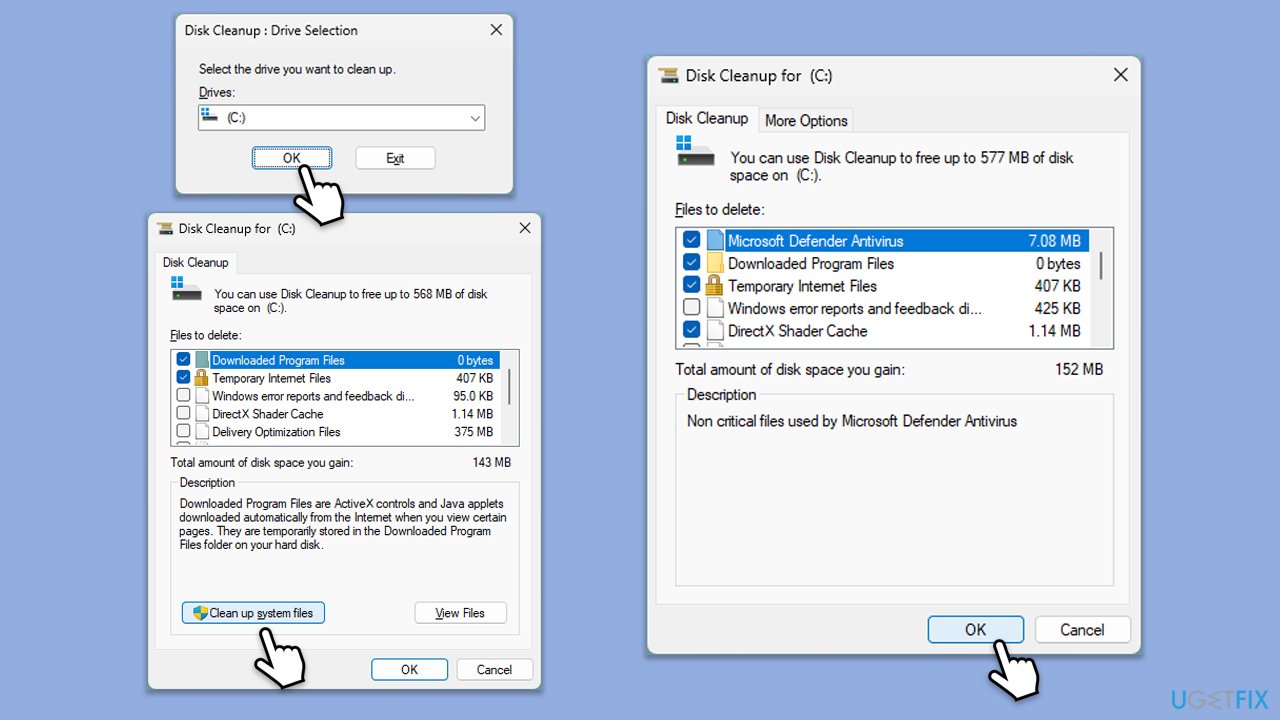
- Type Disk Cleanup in Windows search and hit Enter.
- If your Windows is installed on drive C, pick it from the list (it should be by default) and press OK.
- Click Clean up system files.
- Select your main disk again and click OK.
- Here, select the largest portions of the data used - these typically include Temporary Internet Files, Windows Update, Temporary Files, Recycle Bin, Delivery Optimization Files, and others.
- Click OK - the process should be finished shortly.
- Ensure you have at least 20GB of free space before attempting the upgrade.
Fix 3. Run the Troubleshooter
The built-in troubleshooter can help identify and resolve issues related to Windows updates and upgrades.
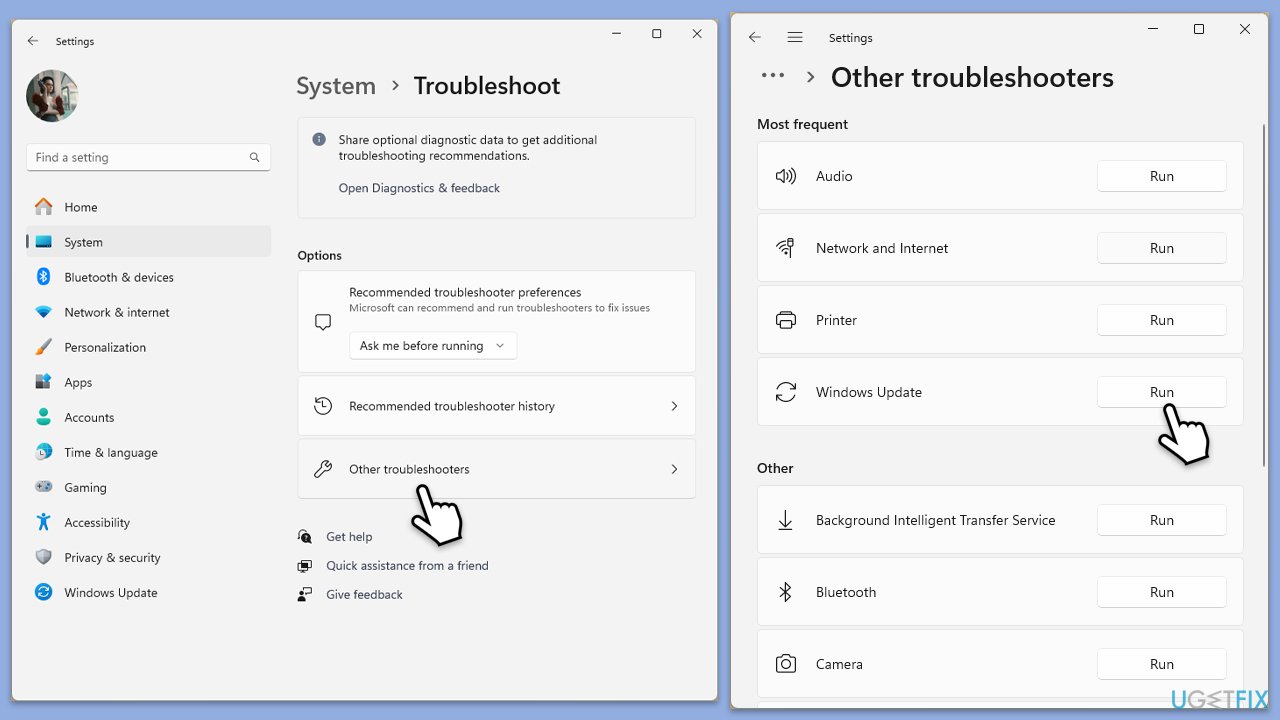
- Type Troubleshoot in Windows search and press Enter.
- Here, click the Additional Troubleshooters/Other troubleshooters option.
- Locate Windows Update and click Run/Run the troubleshooter.
- As soon as the scan finishes, apply the recommended fixes.
Fix 4. Perform a clean boot
A clean boot allows Windows to start with minimal programs and drivers, reducing potential software conflicts during the upgrade.
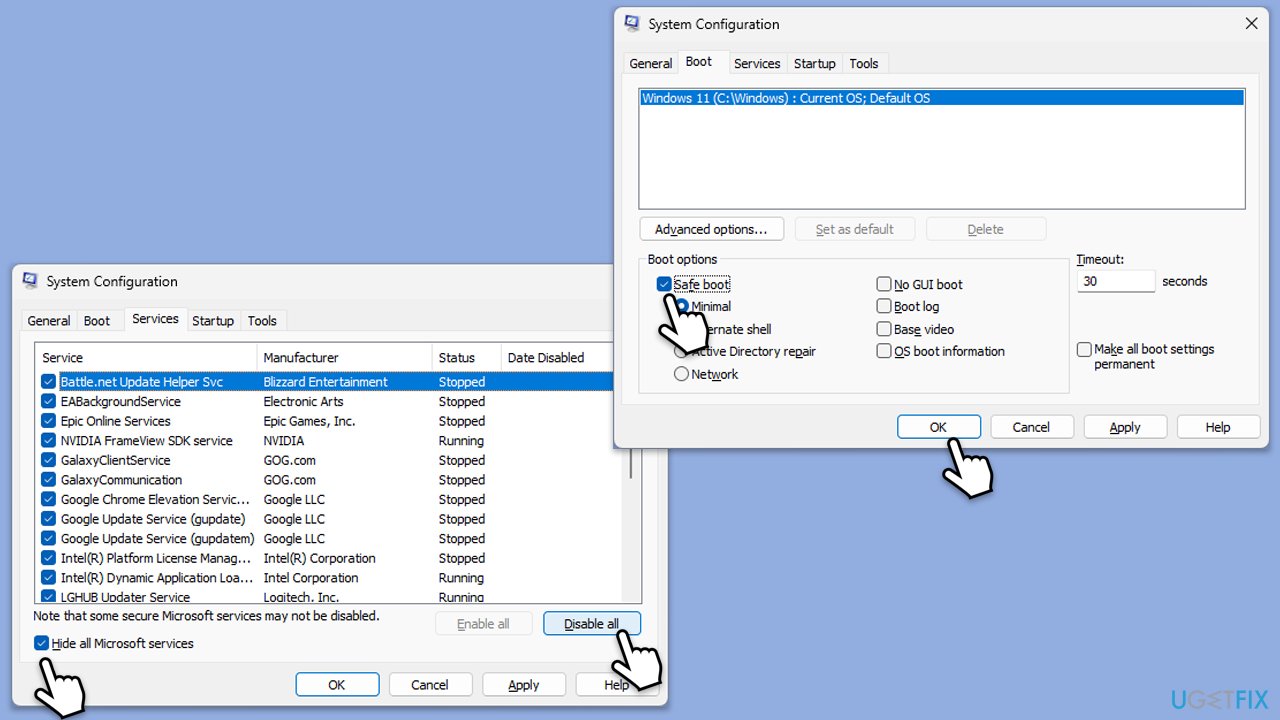
- Type msconfig in Windows search and press Enter.
- Pick the Services tab.
- Mark Hide all Microsoft services and select Disable all.
- Select the Startup tab and click Open Task Manager.
- In the Task Manager, right-click on each of the items and select Disable, then close the Task Manager.
- Go to the Boot tab, mark the Safe Boot option, then click Apply and OK.
- Restart your computer and attempt the upgrade.
Fix 5. Check and repair system files
Corrupted system files can interfere with the upgrade process. Running system file repair scans can detect and fix these issues.
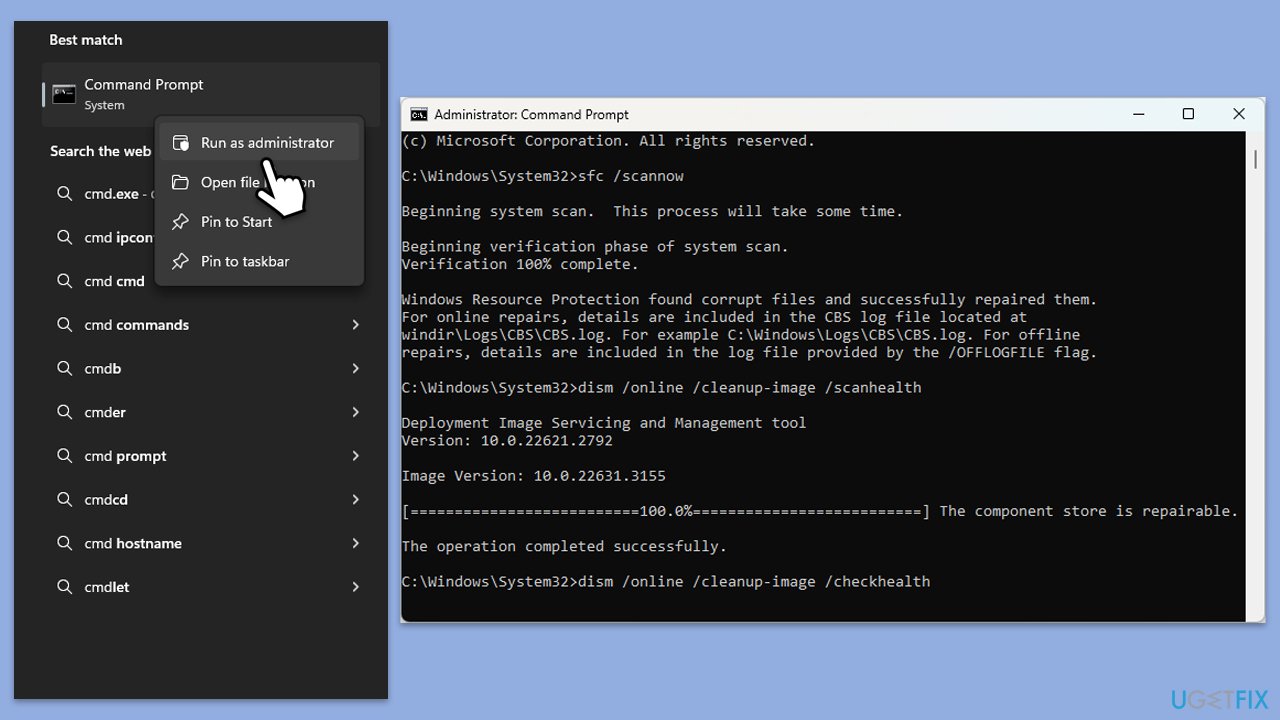
- Type cmd in Windows search.
- Right-click on Command Prompt and pick Run as administrator.
- User Account Control will ask whether you want to make changes - click Yes.
- Use the following command lines, pressing Enter after each:
sfc /scannow - The System File Checker will now scan your system for any corrupted or missing files and try to repair them.
- After the scan is done, copy the following commands and press Enter:
DISM /Online /Cleanup-Image /CheckHealth
DISM /Online /Cleanup-Image /ScanHealth
DISM /Online /Cleanup-Image /RestoreHealth - When completed, restart your device.
Fix 6. Disconnect external devices
External devices like USB drives, printers or extra screens sometimes trigger problems during upgrades. Removing them might fix the problem.
- Unplug all non-essential external devices (USB drives, printers, external hard drives, etc.).
- Restart your computer.
- Attempt the upgrade again without any external devices connected.
Fix 7. Reset Windows Update components
Issues with Windows Update components can prevent successful upgrades. Resetting them helps restore functionality.
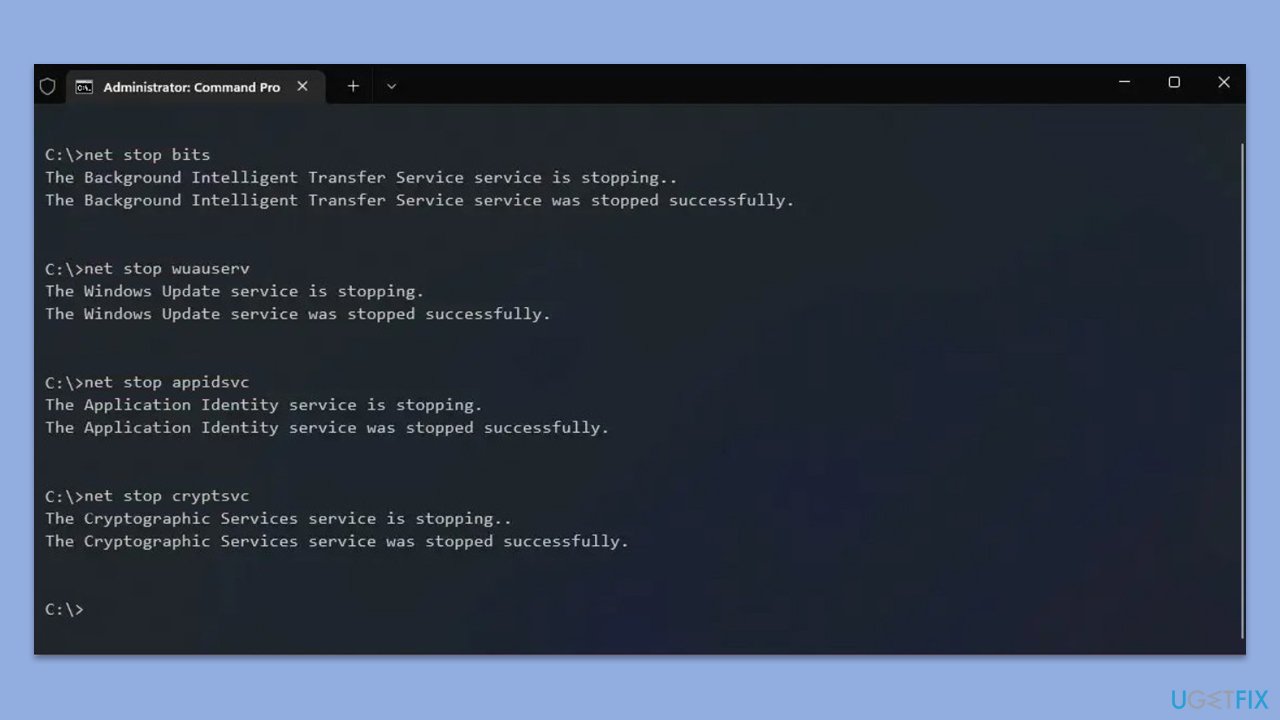
- Right-click on Command Prompt as administrator.
- Stop the BITS, Windows Update, and Cryptographic services by typing the following commands, and pressing Enter after each:
- net stop bits
- net stop wuauserv
- net stop appidsvc
- net stop cryptsvc
- To rename the SoftwareDistribution and Catroot2 folders (where Windows stores update files), type the following commands:
- ren %systemroot%\SoftwareDistribution SoftwareDistribution.old
- ren %systemroot%\system32\catroot2 catroot2.old
- Restart the services stopped earlier by typing the following commands:
- net start bits
- net start wuauserv
- net start appidsvc
- net start cryptsvc
- Close the Command Prompt and restart your computer, then try updating Windows again.
Fix 8. Use the Windows installation ISO file
If the standard upgrade method continues to fail, using a Windows installation ISO file allows you to bypass some of the issues caused by the regular update process. This method can help resolve problems related to Windows Update or system file corruption.
- Visit the official Microsoft website and download Windows 10 installation media (Windows 11 version).
- Double-click the installer (MediaCreationTool_WinXX_XX.exe), select Yes when UAC shows up, and agree to the terms.
- Launch the installer.
- Click Yes when UAC shows up.
- Agree to the terms and click Next.
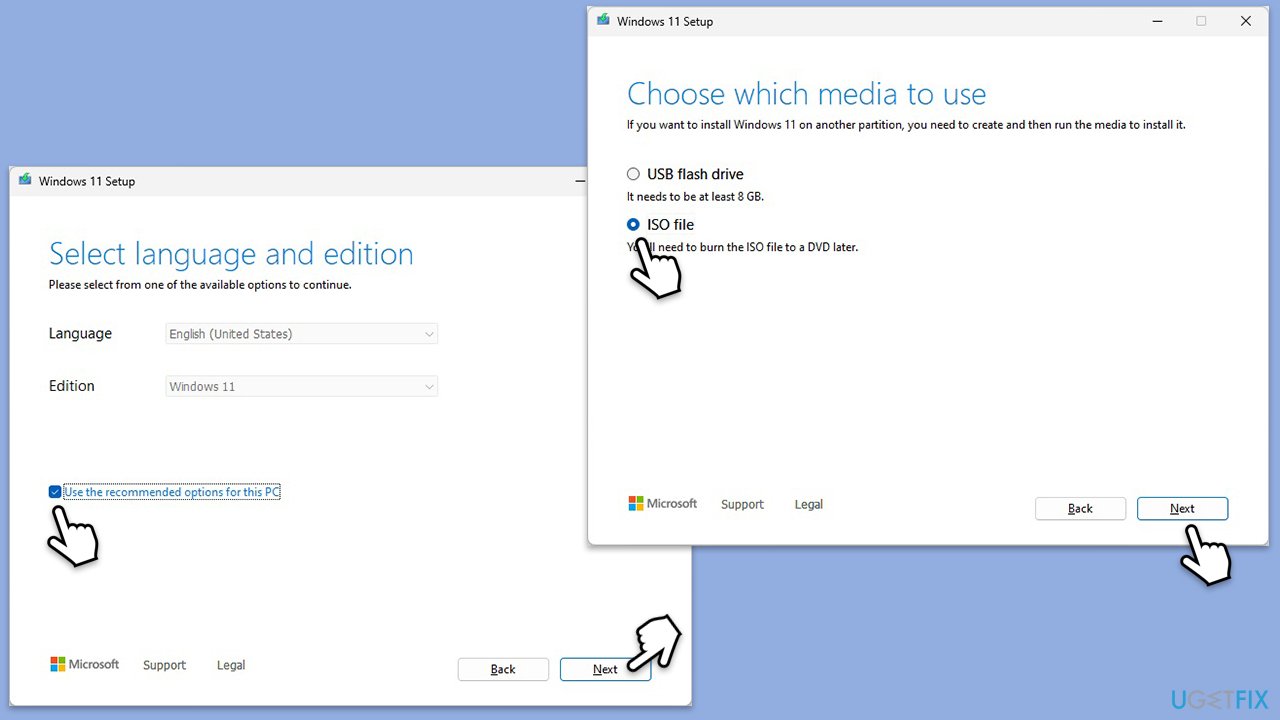
- Select the correct Language and Edition of Windows, or you can simply press Use the recommended options for this PC and press Next.
- Choose the ISO file and click Next.
- Select the location - choose one easy to find, for example, the Downloads folder.
- Wait till all the necessary files are downloaded and Windows Installation Media is created.
- When done, click Finish.
Next, you need to mount the ISO and proceed with the following instructions:
- Go to the location where you previously saved the ISO.
- Right-click on Windows.ISO and select Mount.
- Run the setup.exe file.
- Select Change how setup downloads updates.
- Pick Not right now and click Next.
- Accept License terms again.
- Click Change what to keep.
- Here, you have several options: Keep your files and apps, Keep files only, or Keep nothing - choose what suits you the best. Click Next.
- Finally, click Install to begin the installation process.
Bottom line
To fix the error 0x80070428 - 0x3001A, check for software conflicts, ensure there is enough disk space, and scan system files for corruption. If these steps do not resolve the issue, further troubleshooting may be necessary.
Frequently asked questions
This error typically indicates that there are issues with your system's activation settings or permissions in Windows 10 or Windows 11.
To fix this error, try running the Windows Activation Troubleshooter, and ensure your Windows is properly activated.
Make sure your system meets all the requirements for Windows 11 and that you have a stable internet connection during the upgrade process.




Report an issue
What's wrong with this guide? We review every report and update or remove content.
Report received — thank you. We'll review and fix it.
You need a free account to submit a report.
Be the first to comment